
ActivePresenter 10 makes it simple to add, create, and alter mathematical equations. It offers a collection of in-built equations, and the ability to edit or create new ones or even import themfrom Microsoft Office.
When teaching mathematical concepts, many instructors use tools like ActivePresenter to create interactive eLearning courses that include equations, formulas, and interactive learning materials. Now, let’s take a closer look at how to add equations in ActivePresenter 10.
The article covers:
Before diving deeper, download the latest version of ActivePresenter here:

Add Built-in Equations
It’s simple to add a built-in equation to the ActivePresenter 10 Canvas. Now, perform either of the following:
- Access the Home tab > Click the drop-down arrow on the Equation button.
- Access the Insert tab > Click the drop-down arrow on the Equation button.
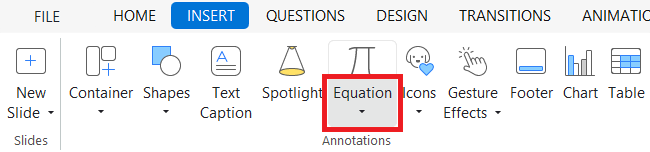
Then, select one built-in equation from the gallery.
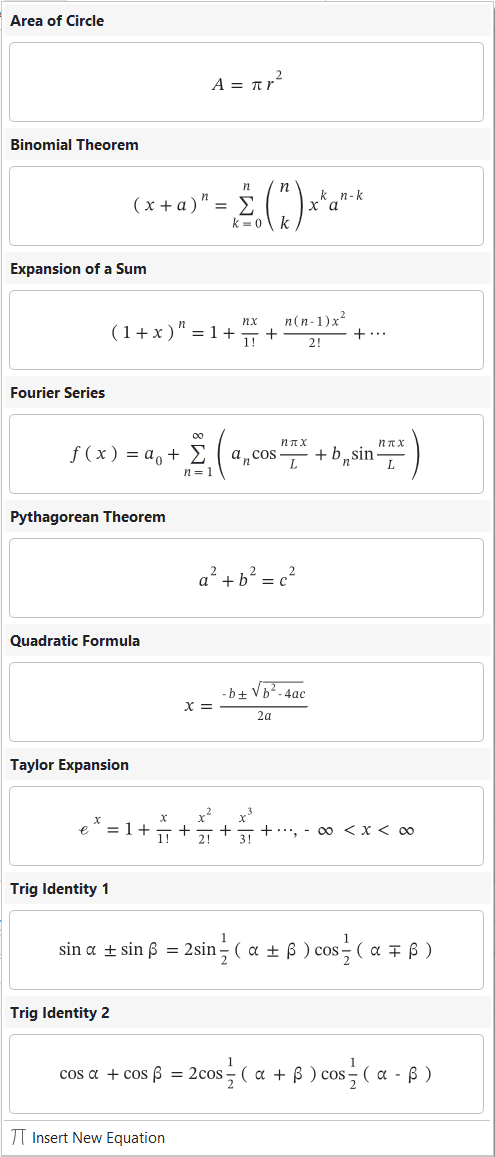
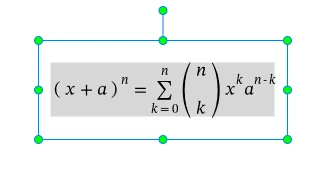
At the same time, a chosen formala is displayed on the Canvas. For example, if you select Binomial Theorem, it will appear on the Canvas like this:
Also, the Equation tab appears in the Toolbar. It contains symbols and structures that you can add to your equation if needed. You will see more details of this tab in the subsequent section.
Write and Edit Custom Equations
Besides pre-existing equations in ActivePresenter 10, you can create unique ones using symbols and structures from the Equation tab previously mentioned. Take the following steps:
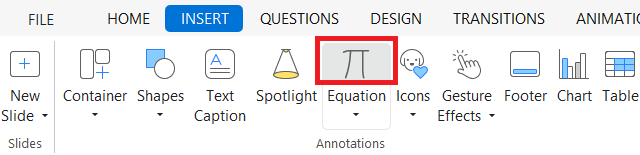
Step 1: Click the Equation icon in the Home tab or the Insert tab. Alternatively, click the Insert New Equation option at the bottom of the Equation gallery.
After that, a rectangle with green dots appears on the Canvas like this:
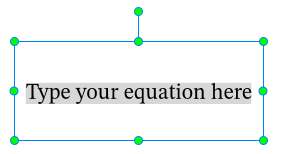
Step 2: Add a mathematical structure you want to use in the Structures group of the Equation tab that appears.
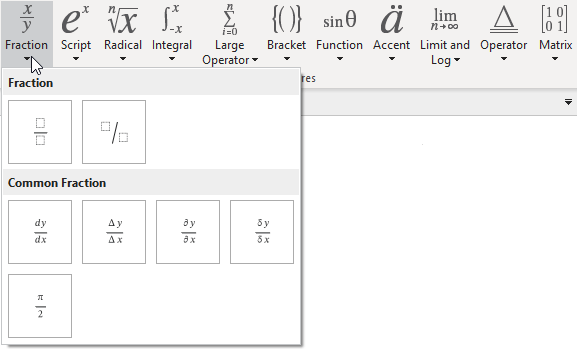
It contains commonly used mathematical structures such as Fraction, Script, Radical, Integral, Large Operator, Bracket, Function, and more. Then, just select a structure to add and replace the dotted-line boxes with your own values.
Step 3: Add values to selected structures with symbols in the Symbols group is also possible.
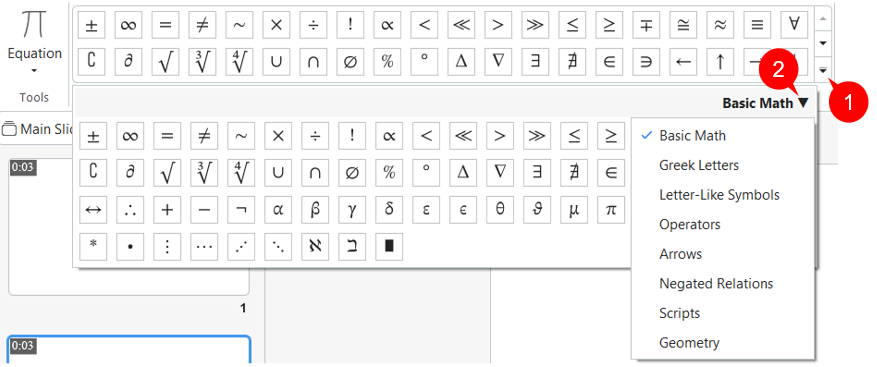
Click the arrow at the bottom right corner of the gallery (1) to see more math-related symbols. In addition, click the arrow at the top right corner of the gallery (2) to see more sets of symbols. Then, hover the mouse over a symbol to see its name.
Note: Apart from adding, writing, and editing equations, you can copy equations from Microsoft Office and paste them into ActivePresenter 10.
That’s it! Thanks to ActivePresenter 10, creating math, physics, chemistry, etc., courses is just a breeze since the app helps you create even the hardest formulas. For more information, kindly refer to the article How to Write Equations Effectively in an eLearning Course. And feel free to contact us if you need any assistance.
See also: