
You’ve probably seen CapCut everywhere — powering TikTok edits, Instagram Reels, and YouTube Shorts across millions of creator accounts. But here’s the question nobody seems to answer honestly: Is the desktop version of CapCut actually good enough for serious work, or is it just a glorified mobile app on a bigger screen?
After spending 10 years reviewing video editing and screen recording software — from enterprise eLearning authoring tools like ActivePresenter to Hollywood-grade editors — I decided to put CapCut PC through a rigorous, real-world evaluation. I tested it across seven key categories, used it for actual client projects, and compared it against both free and paid competitors.
Here’s my honest, no-fluff verdict.
Table of contents
- What Is CapCut PC? A Quick Overview
- Evaluation Criteria: How I Tested CapCut PC
- 7 Key Features of CapCut PC — Tested and Rated
- 3 Real-World Use Cases: Where CapCut PC Delivers
- Pros & Cons: The Honest Breakdown
- Where CapCut PC Falls Short: The Professional Gap
- CapCut PC vs. Alternatives: Quick Comparison
- Final Verdict: Who Should (and Shouldn’t) Use CapCut PC in 2026?
- Ready to Go Beyond Social Clips?
What Is CapCut PC? A Quick Overview
CapCut is a free video editing application developed by ByteDance (the parent company of TikTok). Originally launched as a mobile-first editor, it has expanded into a cross-platform ecosystem spanning Windows, macOS, iOS, Android, and web.
| Detail | Info |
| Developer | ByteDance |
| Price | Free (Pro plan available) |
| Platforms | Windows, macOS, iOS, Android, Web |
| Watermark | ❌ No watermark on desktop exports (free tier) |
| Best For | Social media creators, marketers, beginners, short-form content |
| Learning Curve | Very Easy |
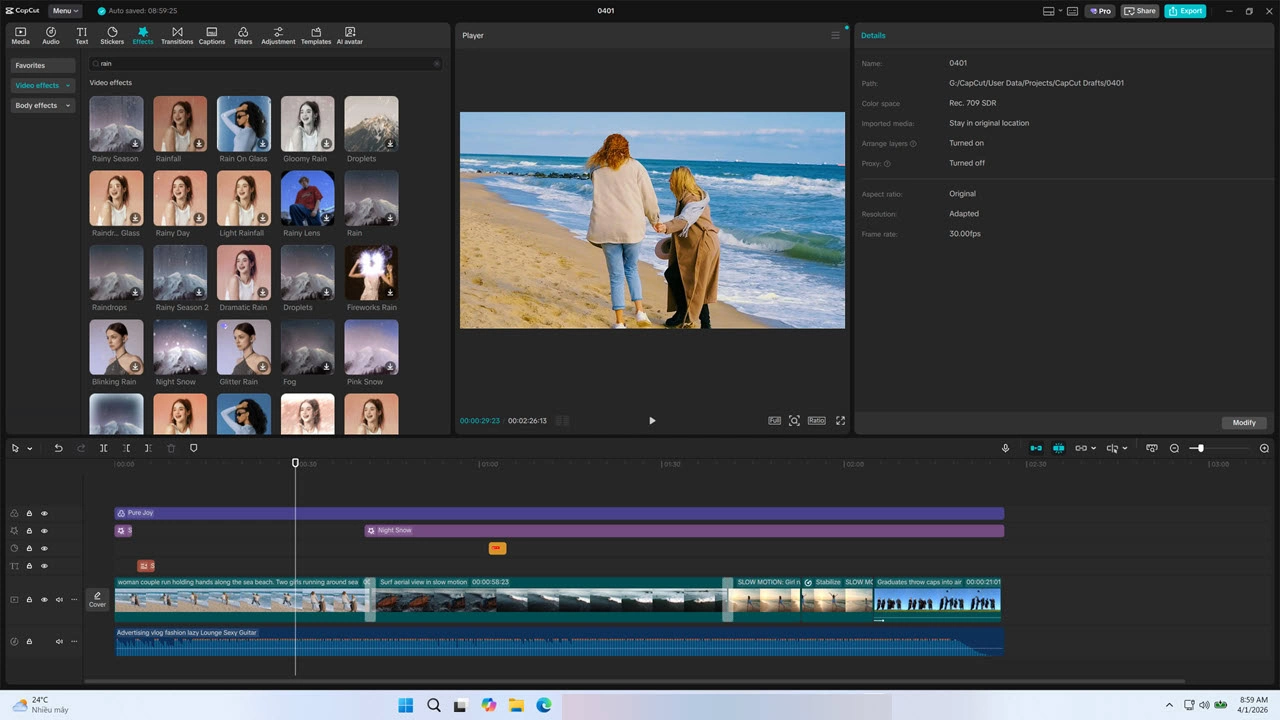
The desktop version — which is the focus of this review — is where CapCut gets genuinely interesting. It offers a more complete editing timeline, higher export resolutions, and critically, no watermark on exports even on the free plan.
Evaluation Criteria: How I Tested CapCut PC
Before diving into features, let me be transparent about how I evaluated this tool. Over the years, I’ve developed a consistent framework for reviewing video editing software, based on what actually matters to creators and professionals:
| Criteria | Weight | What I Looked For |
| Ease of Use | 20% | Onboarding time, UI intuitiveness, documentation quality |
| Core Editing Features | 20% | Timeline editing, trimming, transitions, audio sync |
| AI & Automation | 15% | Auto-captions, background removal, smart tools |
| Export Quality & Options | 15% | Resolution, codec support, watermark policy, batch export |
| Performance & Stability | 10% | RAM usage, crash frequency, render speed |
| Template & Asset Library | 10% | Quality, variety, and licensing of included assets |
| Advanced/Professional Use | 10% | Color grading, multi-track complexity, plugin support, eLearning output |
I used this same framework when reviewing tools like ActivePresenter, DaVinci Resolve, and Kdenlive — so the comparison is apples-to-apples.
7 Key Features of CapCut PC — Tested and Rated
1. AI Auto-Captions: The Killer Feature
If there’s one reason CapCut has dominated the creator space, it’s this. The AI Auto-Caption tool transcribes your video audio and generates styled, animated captions in seconds.
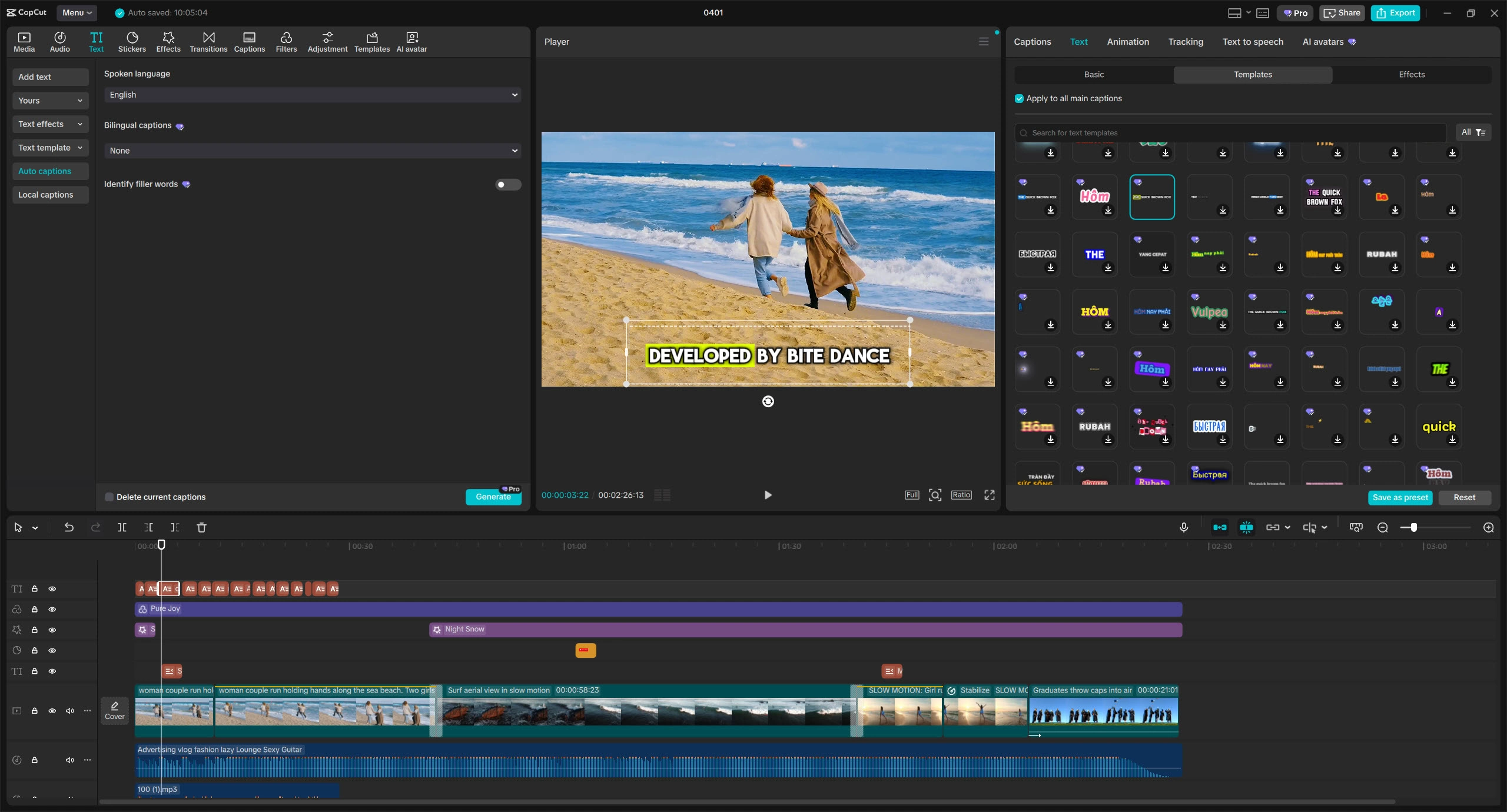
In my testing, accuracy was impressive — hovering around 92-95% for clear English audio. It struggled slightly with heavy accents and technical jargon, but for the vast majority of content, it’s a massive time-saver.
Why it matters: Manual captioning a 10-minute video can take 45-60 minutes. CapCut does it in under 30 seconds. For accessibility compliance and social media engagement (where 85% of videos are watched on mute), this feature alone justifies installing the software.
💡 Pro Tip: After auto-generating captions, use CapCut’s batch-edit mode to fix any transcription errors across all caption blocks simultaneously — instead of clicking through one by one. Most beginners miss this and waste time on individual edits.
Rating: 9/10
2. AI Background Removal
CapCut’s AI background removal works surprisingly well for a free tool. It handles solid-color backgrounds almost perfectly and does a decent job with complex, real-world environments — though hair edges and semi-transparent objects (like glasses) still cause occasional artifacts.
For creators who don’t have access to a green screen, this is a practical, usable alternative. It’s not quite at the level of dedicated tools like Runway ML, but for social media content, it’s more than adequate.
Rating: 7.5/10
3. Template & Effects Library
CapCut’s library is constantly updated to reflect trending formats on TikTok, Instagram, and YouTube Shorts. This is a genuine competitive advantage — the templates aren’t generic; they’re synchronized with what’s actually performing on social platforms right now.
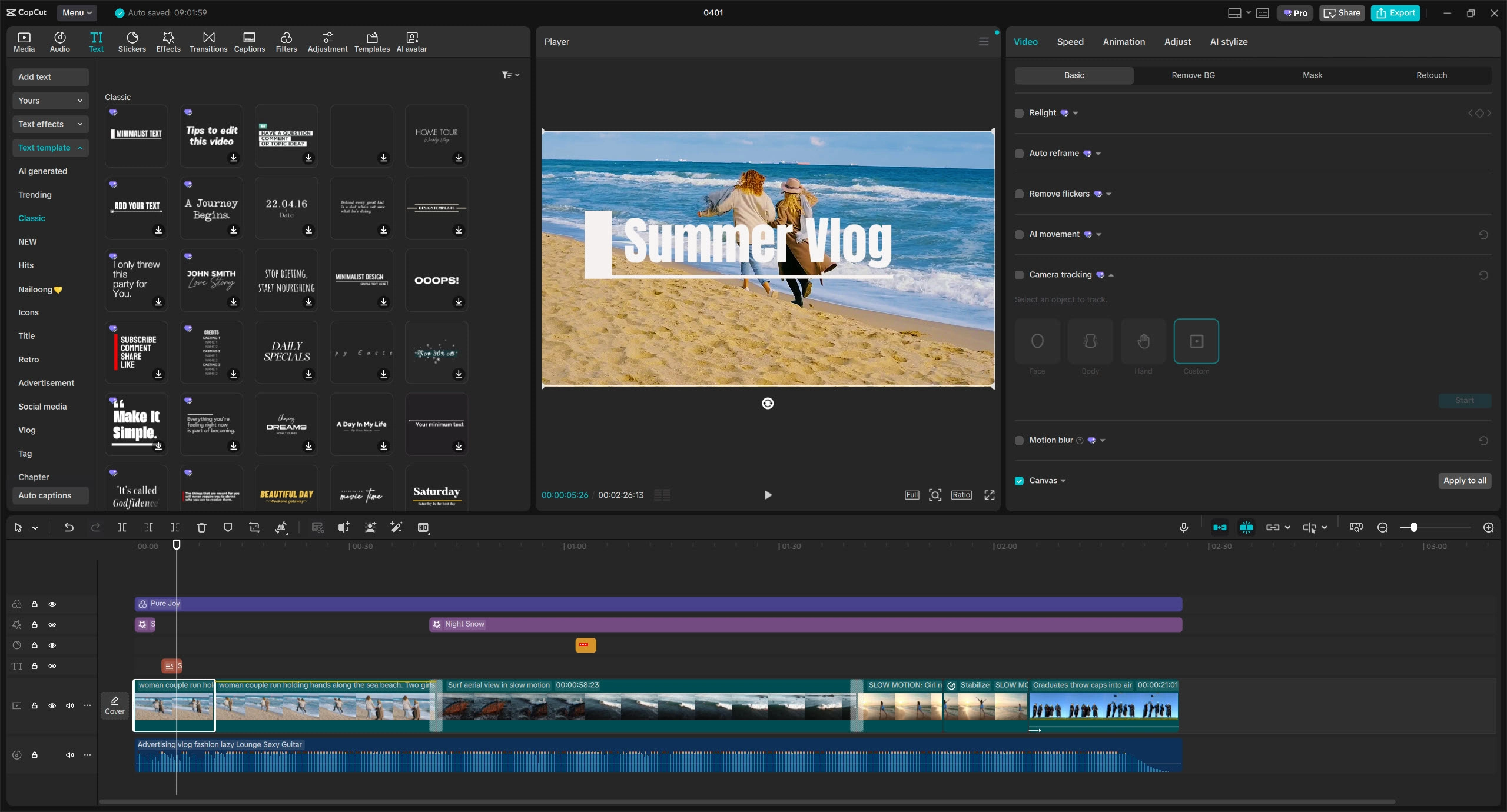
The library includes:
- Trending transitions and text animations
- Royalty-free background music and sound effects
- Pre-built video templates for common formats (product showcases, talking heads, before/after reveals)
Rating: 8.5/10
4. Timeline Editing & Core Tools
The desktop timeline is a significant step up from the mobile version. You get multi-track video and audio editing, keyframe animation for basic motion graphics, speed ramping, and a reasonable set of color adjustment tools.
That said, if you’re coming from a professional NLE (Non-Linear Editor) like DaVinci Resolve or even ActivePresenter’s advanced timeline, you’ll notice limitations quickly. Complex multi-track projects with dozens of layers can feel cramped, and there’s no equivalent to ActivePresenter’s non-destructive editing philosophy, where you can modify any element at any point without flattening your project.
Rating: 7/10
5. Export Quality & Watermark Policy
This is where CapCut PC genuinely shines in the free video editor category. The desktop version exports without a watermark on the free tier — a rarity among free tools that often gate this behind a paywall or slap a logo on your output.
Export options include up to 4K resolution, and the output quality is clean with minimal compression artifacts at higher bitrate settings.
Rating: 9/10
6. Performance & Stability
On a mid-range Windows laptop (Intel i7 12th gen, 16GB RAM, integrated graphics), CapCut PC ran smoothly for projects under 15 minutes. Longer projects with multiple AI effects applied simultaneously did cause occasional lag during preview playback — though final exports rendered without issues.
One note: several AI features require an active internet connection, as processing happens in the cloud. If you’re working offline or have privacy concerns about cloud-based AI processing, this is worth considering.
Rating: 7/10
7. Direct Social Media Export & Auto Reframe
CapCut offers one-click export presets optimized for specific platforms — TikTok, Instagram Reels, YouTube Shorts — with correct aspect ratios and recommended settings pre-configured.
The Auto Reframe feature is particularly clever: it intelligently crops landscape (16:9) video for vertical (9:16) formats, tracking the main subject so you don’t have to manually re-edit content for different platforms.
💡 Pro Tip: Use Auto Reframe’s batch processing to convert an entire library of landscape videos to vertical format in one session. I processed 23 clips in under 10 minutes — a task that would have taken hours manually.
Rating: 8.5/10
3 Real-World Use Cases: Where CapCut PC Delivers
Scenario 1: Small Business Social Media Marketing
The situation: A boutique skincare brand needs weekly Instagram Reels showcasing new products. The marketing manager has zero video editing experience and no budget for professional software.
How CapCut solves it: Using CapCut’s pre-built product showcase templates, the manager drags in product footage, applies auto-captions for accessibility, selects a trending audio track from the built-in library, and exports in Instagram-optimized format. Total time: approximately 20 minutes per Reel.
Verdict: This is CapCut’s sweet spot. For this use case, it’s genuinely hard to beat.
Scenario 2: Online Course Promotion Clips
The situation: An e-learning instructor has 45-minute tutorial videos created in ActivePresenter and needs to repurpose them into 60-second promotional clips for social media to drive course enrollment.
How CapCut solves it: The instructor exports key segments from ActivePresenter, imports them into CapCut, uses AI trimming to identify the most engaging moments, adds trending captions and a call-to-action overlay, then exports for multiple platforms using Auto Reframe.
Verdict: CapCut works well as a companion tool for repurposing content originally created in more powerful authoring software. It’s excellent for the “last mile” of social distribution.
Scenario 3: Corporate Event Recap Videos
The situation: A corporate events team needs to deliver same-day social media highlight reels from conference footage — multiple camera angles, speaker clips, and audience reactions.
How CapCut solves it: Using the auto-edit feature, the team imports raw footage, lets CapCut’s AI identify key moments, then manually fine-tunes the sequence. Auto-captions are added for speaker quotes, and the final video is exported directly in platform-specific formats.
Verdict: For quick turnaround social content, CapCut delivers. However, if the team needed to produce a polished 30-minute conference recap with complex transitions, branded lower thirds, and multi-language subtitles, they’d need a more robust tool.
Pros & Cons: The Honest Breakdown
✅ Pros
| Advantage | Details |
| Extremely easy to learn | A complete beginner can produce a polished short-form video within 30 minutes of first opening the app. The learning curve is nearly flat. |
| No watermark on desktop exports | This is rare for free video editors and removes a major frustration for creators on a budget. |
| Powerful AI automation | Auto-captions, background removal, auto reframe, and AI trimming are genuinely useful — not gimmicks. |
| Cross-platform ecosystem | Start editing on your phone, finish on desktop, or use the web version. Projects sync across devices. |
| Trend-aligned updates | The template and effects library stays current with social media trends, giving creators a real competitive edge. |
| Royalty-free asset library | Built-in music, sound effects, and templates eliminate the need for third-party asset subscriptions. |
❌ Cons
| Limitation | Details |
| Limited for long-form or complex projects | Projects beyond 15-20 minutes with multiple tracks start to feel constrained. |
| No professional color grading | Basic color adjustments are available, but there’s no equivalent to DaVinci Resolve’s color wheels or scopes. |
| AI features require internet | Cloud-based processing means no offline access for key features — and raises data privacy questions. |
| Privacy considerations | As a ByteDance product, your footage is processed through cloud servers. For corporate or sensitive content, this may be a dealbreaker. |
| No eLearning output | There’s no support for SCORM, xAPI, or interactive eLearning formats. If you need to create training content with quizzes, branching scenarios, or software simulations, you’ll need a dedicated authoring tool like ActivePresenter. |
| Not suitable for screen recording workflows | CapCut is purely a post-production editor — it can’t capture your screen, record webcam with annotations, or create interactive software demonstrations. |
Where CapCut PC Falls Short: The Professional Gap
Here’s where my 10 years of experience in the eLearning and screen recording space compels me to be direct.
CapCut is excellent at what it’s designed for: fast, polished, social-media-optimized short-form content. But it’s important to understand what it’s not designed for — because choosing the wrong tool for the job costs you more time than choosing no tool at all.
If your workflow requires any of the following, CapCut is not the right tool:
- Screen recording with annotations and zoom-n-pan effects — You need a dedicated tool like ActivePresenter, which captures your screen in full quality and lets you add callouts, spotlights, and cursor effects in post-production.
- Interactive eLearning content — CapCut produces flat video files. It cannot create quizzes, branching scenarios, drag-and-drop interactions, or export to SCORM/xAPI for LMS deployment.
- Non-destructive editing workflows — CapCut’s editing is largely destructive. ActivePresenter’s approach preserves every element as an editable object throughout the entire production process, so you can modify any annotation, transition, or effect at any point without re-doing your work.
- Software simulation training — Creating interactive “click-through” software demos for employee training requires specialized capture and interaction tools that CapCut simply doesn’t offer.
In my experience creating content for enterprise training programs, the most efficient workflow is often a combination: Use ActivePresenter for the heavy lifting — screen recording, interactive course authoring, SCORM publishing — and then use a tool like CapCut to repurpose key segments into promotional social clips. Each tool excels in its lane.
CapCut PC vs. Alternatives: Quick Comparison
| Feature | CapCut PC | ActivePresenter | DaVinci Resolve | Kdenlive |
| Price | Free | Free / Pro | Free / Studio | Free |
| Watermark (Free) | ❌ None | ❌ None | ❌ None | ❌ None |
| Best For | Social media content | eLearning & screen recording | Professional video/film | Open-source power users |
| AI Auto-Captions | ✅ | ❌ | ❌ | ❌ |
| Screen Recording | ❌ | ✅ Full-featured | ❌ | ❌ |
| SCORM/xAPI Export | ❌ | ✅ | ❌ | ❌ |
| Color Grading | Basic | Basic | ✅ Professional | Moderate |
| Learning Curve | Very Easy | Easy-Moderate | Steep | Moderate |
| Interactive Quizzes | ❌ | ✅ | ❌ | ❌ |
| Platform | Win, Mac, iOS, Android, Web | Win, Mac | Win, Mac, Linux | Win, Mac, Linux |
Final Verdict: Who Should (and Shouldn’t) Use CapCut PC in 2026?
✅ Use CapCut PC if you are:
- A social media creator who needs fast, professional-looking short-form content
- A small business owner creating marketing videos without a dedicated video team
- A beginner who wants to start editing immediately without a learning curve
- A content marketer repurposing existing video content for social platforms
❌ Look elsewhere if you need:
- Screen recording and software tutorials → ActivePresenter
- Interactive eLearning courses with SCORM/xAPI → ActivePresenter
- Professional color grading and film editing → DaVinci Resolve
- Full open-source control on Linux → Kdenlive
My Rating
| Category | Score |
| Ease of Use | 9.5/10 |
| Core Editing Features | 7/10 |
| AI & Automation | 9/10 |
| Export Quality | 9/10 |
| Performance | 7/10 |
| Template Library | 8.5/10 |
| Professional/Advanced Use | 5/10 |
| Overall | 7.9/10 |
Bottom line: CapCut PC is the best free video editor for social media content creation in 2026 — period. Its AI features are genuinely useful, the no-watermark export policy is generous, and the learning curve is practically nonexistent. But it’s a specialized tool, not a universal one. For screen recording, eLearning authoring, or complex professional workflows, pair it with purpose-built software like ActivePresenter to cover the full spectrum of content creation needs.
Ready to Go Beyond Social Clips?
If your content goals extend beyond short-form social media — into screen recording tutorials, interactive eLearning courses, or professional training simulations — give ActivePresenter a try. It’s free to download, exports without watermarks, and gives you the depth that tools like CapCut simply can’t match.
👉 Download ActivePresenter Free and see the difference a professional authoring tool makes.
This review reflects hands-on testing conducted in March 2026. Features and pricing may change — always verify current details on the official CapCut website.