
Update: ActivePresenter 10.6 (September 2026)
ActivePresenter 10.6 is now available, bringing major advances to video creation, interactive eLearning, and everyday authoring. Smart Studio helps turn screen recordings into polished videos, while Scenario Editor provides a visual way to design and manage branching scenarios and learning paths. The release also expands question and conditional-action capabilities, introduces new speech and media tools, and delivers numerous workflow, performance, accessibility, and usability improvements.
👉Jump to details of version 10.6
👉Jump to details of version 10.5
Since the very first version of our ActivePresenter eLearning authoring software, we’ve always asked ourselves one key question: How can we bring the eLearning design process closer to teachers and trainers in their everyday work – through simple, practical, and effective authoring tools?
Over time, we’ve streamlined the process so you can record, build tutorials, add interactivity, and publish courses all in one place without juggling multiple apps.
Now with ActivePresenter 10, we’re taking a big step forward to become a complete eLearning solution, including:
- New Interface & Templates: A modern, redesigned interface with ready-made themes and templates, so you can get started right away.
- AI-Powered eLearning Toolkit: Generate images, text, speech, captions, and translations faster, with improved quizzes and media tools for seamless creation.
- Export to lightweight LMS: Publish courses directly to uPresenter, a lean LMS solution with easy sharing and learner tracking, no complex LMS setup required.
ActivePresenter 10 is built to give you a smoother design experience from start to finish so you spend less time on setup and more time delivering impactful lessons.
Let’s see what we bring to the table in ActivePresenter 10 in practice.
Intuitive Modern Interface with Ready-made Templates
We’ve completely rebranded ActivePresenter with a fresh new look, giving the entire interface a modern and cohesive design.
The updated working interface is built to minimize distractions and help you focus on creating content seamlessly, whether you’re building eLearning courses, tutorials, or business presentations.

Another highlight is the expanded collection of ready-made themes and templates. Instead of starting from a blank canvas, you now have access to dozens of professionally designed options covering a wide variety of subjects from education to business training.
With just a few clicks, you can pick a template that matches your purpose, customize it to your brand, and save hours of manual design work.
eLearning Features Spotlight with AI Support ✨
AI is transforming the way we work – and we’re not missing a beat.
In ActivePresenter 10, we don’t just introduce a single AI feature, we bring you a full suite of AI tools designed for multiple purposes, from generating text and images to text-to-speech and automatic captions.
AI Image Generator
You can now create images directly within ActivePresenter using a variety of modern AI models. Choose from different styles, aspect ratios, and customize your prompts to get the exact visuals you need.
A helpful addition: you can Save as New Prompt to reuse your favorite settings anytime, streamlining your creative process even further.

Text to Speech
You can generate text-to-speech using over 100 natural-sounding voices in more than 20 languages, with full control over speed and volume settings. This gives you the flexibility to match different teaching styles or learner preferences.
Plus, you can instantly localize your eLearning content for global audiences without the need for professional voice-over recording.

Auto Captions (Speech to Text)
Auto Captions to help you save time and effort when working with narration or voice-over. Instead of manually typing what you say, the software can now automatically transcribe your speech into captions within seconds.
You can adjust how long each caption appears, and once you set your preferred caption style – like font, size, and color – it will be applied consistently throughout your project.
AI Writing (fix grammar, change voice tone, improve writing)
The AI Writing feature in ActivePresenter 10 is designed to support you in creating clearer and more polished text. Whether you’re writing slides, learning content, or quizzes, AI helps fix grammar, improve structure, and adjust writing tone for learners
You don’t need to be a professional writer to produce professional-looking results. With just a few clicks, your draft can be transformed into a more natural, engaging version. This would save you time while improving overall quality.
Multi-Language Project Translation
If you’re creating courses for learners in different languages, the Project Auto Translation feature can save you tons of time.
Instead of translating each text element manually, you can now convert all text from your project into different languages with one-click only.
Translation covers every available text on your projects including object texts, closed captions, text to speech texts, etc.
ActivePresenter 10 streamlines the entire process of creating multi-language courses and helps ensure consistency across all versions. It’s a practical solution for teams working on large-scale or international training content.

Interactive Questions
We couldn’t skip a major update for Questions in ActivePresenter 10!
Since our users often need to switch back and forth to review questions among other slides in large projects, the new Question Navigation is here to make it easier to jump directly to any question without scrolling endlessly.
You can now apply your current question settings once and instantly update every (or selected) question slide, saving time and effort from manual formatting.
A notable highlight here, you can now insert a question at a specific point within a slide, such as during a video, without having to create a separate slide for it. In other words, you arrange question(s) into a running video, making the experience seamless and more engaging.
On top of that, besides shuffling questions with slide pools, ActivePresenter lets you shuffle answers in one click to prevent answer positions from becoming predictable.
Timeline Marker
What if you want to mark specific time in your slide for easier navigation? No worry, in this version, we introduce Timeline Marker to help you mark your content in the timeline so as to revisit later for editing.
Better yet, markers are also milestones to divide content into smaller chapters in the table of contents when you preview or play in HTML5.

Audio Ducking
ActivePresenter 10 introduces Audio Ducking to help your voice stand out clearly in any recording. When this feature is enabled, ActivePresenter automatically lowers the volume of background music or other audio whenever the narrator is speaking.
This ensures that your narration, or any spoken content is always easy to hear, without being overpowered by background sounds.
It’s a simple yet effective way to improve the clarity and professionalism of your videos, especially in tutorials, training, or voice-over projects.
Media Tools for Image & Video
ActivePresenter 10 brings a richer set of tools to help you create visually polished and professional courses without switching to external design software.
From editing images and videos to fine-tuning transitions, you now have more control and flexibility right inside the editor.
- Media Tools: Work with images and videos more creatively using features like crop to shape, media fit, blur effects, background removal, and even text extraction. These options make it easier to adapt media to your content style and keep everything consistent across slides.
- Filter Effects: Adjust brightness, contrast, saturation, and color balance, or apply artistic filters to give your visuals a distinctive look. Whether you need subtle enhancements for clarity or bold styles for impact, pre-made presets are available to elevate the overall design.
- Preview Animations: No more guesswork with transitions. You can now instantly preview slide and object animations before applying them, ensuring smoother pacing, better visual flow, and a more engaging learner experience.

Smoother Preview & Export to uPresenter
Another upgrade that makes the eLearning design smoother is the faster HTML5 Preview & export with no encode option. Instead of waiting for a long encoding time, you can instantly preview your projects in HTML5 with all interactions intact. This speeds up the review cycle, helps you spot issues earlier, and ensures your content is ready for learners faster than ever.
With ActivePresenter 10, you can now export your projects directly to uPresenter, an AI-powered platform for creating and delivering interactive eLearning content.
uPresenter acts like a lightweight LMS, allowing you to host your eLearning materials while preserving all the interactivity you’ve built in ActivePresenter eLearning authoring software.
Once uploaded, you can easily share your content with students, teams, or your organization. Even better, uPresenter provides real-time tracking of learner engagement and quiz results, making it easier to monitor progress and improve learning outcomes, all without needing a full LMS setup.

Other enhancements you may want to have a look:
- Support group style designing: rounded corner, fill, line… for object group
- Edit slide background image as image object
- Add more types of shapes
- Improve Variables editor (Combining Variables & References)
And the journey doesn’t stop here.
We’re excited to announce the release of ActivePresenter 10.1, bringing several powerful new features and enhancements to help you create content faster, smarter, and more intuitively than ever. This update introduces AI Image Editing, Variable Formatting, and other improvements that make your authoring experience even more seamless.
ActivePresenter 10.1 Update (October 2025)
AI Image Editing
Version 10.1 unlocks a powerful new capability for AI-powered image editing, taking what you could do with AI-generated images in version 10.0 to the next level.
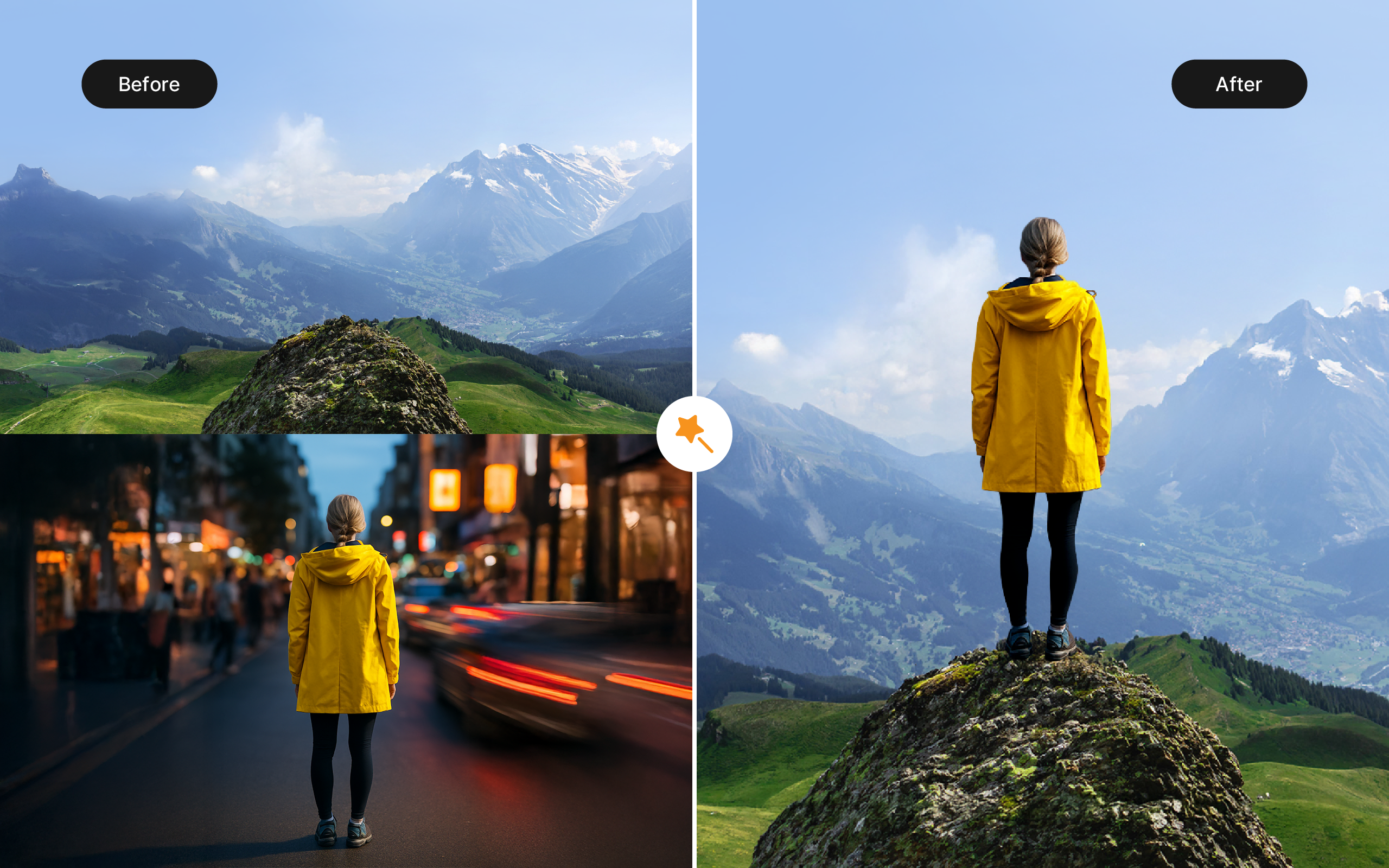
Now, you can not only create images from prompts but also edit, refine, and enhance them directly within ActivePresenter. Merge two or three images into one, or generate a more detailed and precise version of an existing image, all in just a few seconds with the help of a well-crafted prompt.
This feature brings more creative freedom, helping you quickly achieve professional-quality visuals without leaving the app.
Variable Formatting
Building on the three variable types introduced in earlier versions, ActivePresenter 10.1 introduces a more polished and practical formatting system for number variables.
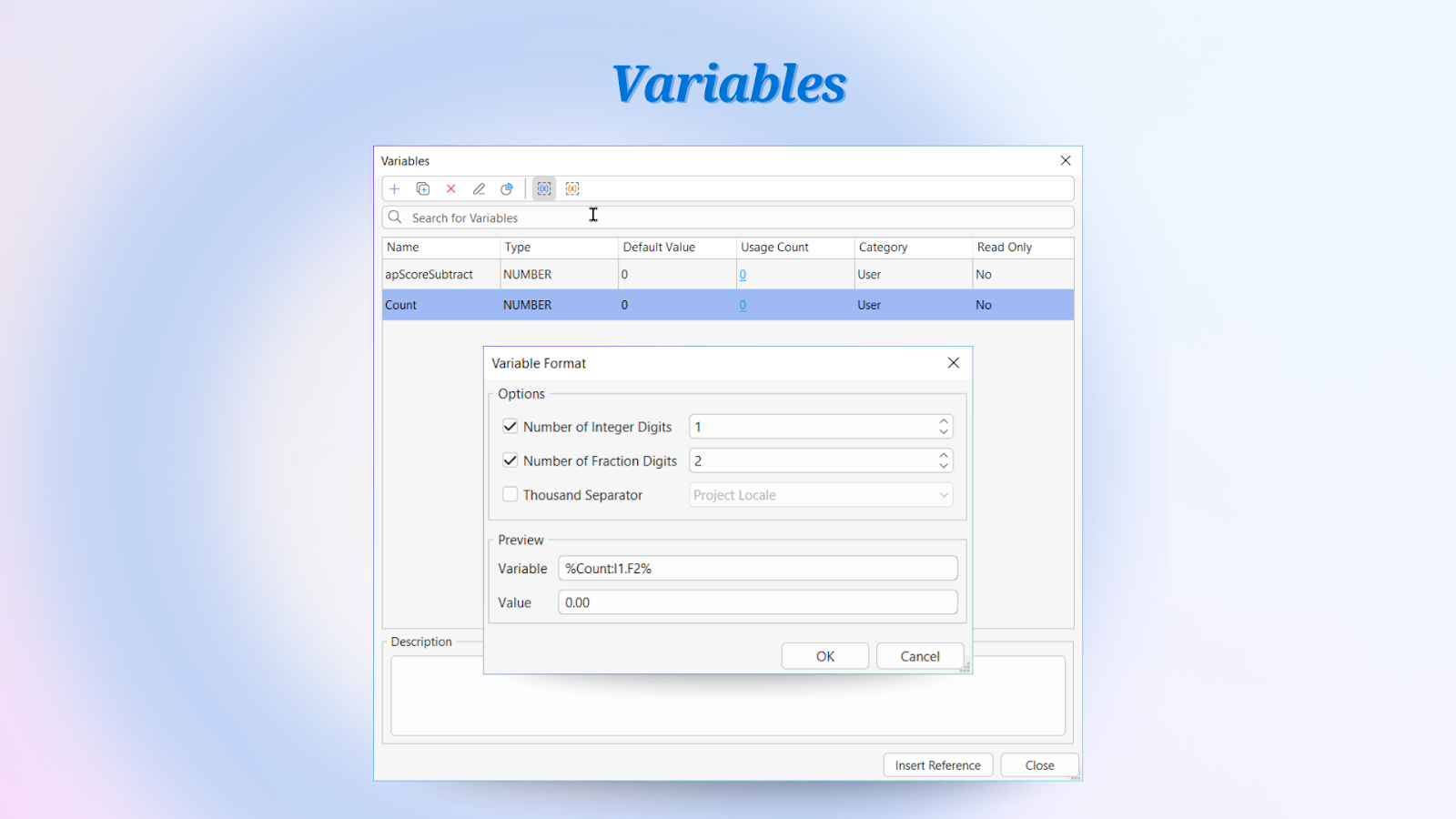
You can now define:
- How many digits appear before and after the decimal point.
- The type of thousand separator to use: dot, comma, or project locale.
A real-time preview is available to help you instantly see how your variable will appear both in the editor and in the published output. These enhancements make variable presentation clearer, more flexible, and visually consistent across your projects.
Additionally, you can now show or hide user/system variables based on your needs to keep your workspace tidy and make it easier to focus on the variables that are most relevant to your project.
Other Enhancements
ActivePresenter 10.1 also includes several improvements designed to make your workflow smoother and more efficient:
- Enhanced Find and Replace in Resources: You can now replace resources in specific locations for better control.
- Improved Closed Caption Import: Choose the language when importing caption files to create new caption languages with ease.
- Cloud Voices Preview: Preview pre-generated audio samples without consuming credits for cloud voices.
- AI Feature Video Preview (Free Edition): Watch AI feature demos directly in the Free edition before upgrading.
ActivePresenter 10.1.1 Update (January 2026)
We have just updated the new minor version with more convenience in managing licenses & AI:
- Disable AI feature
- Official support for macOS 26
- Updated license policy for individual users
Check out the full updated news here and update this minor version now!
ActivePresenter 10.5 Update (May 2026)
This version introduces a more capable AI Assistant, the highly requested Tracing Interaction, and the game-changing features of Closed Caption. Whether you are building complex compliance training or simple educational tutorials, ActivePresenter 10.5 is built to help you achieve more with less effort.
1. The All-New AI Assistant: Experience Natural Language Authoring
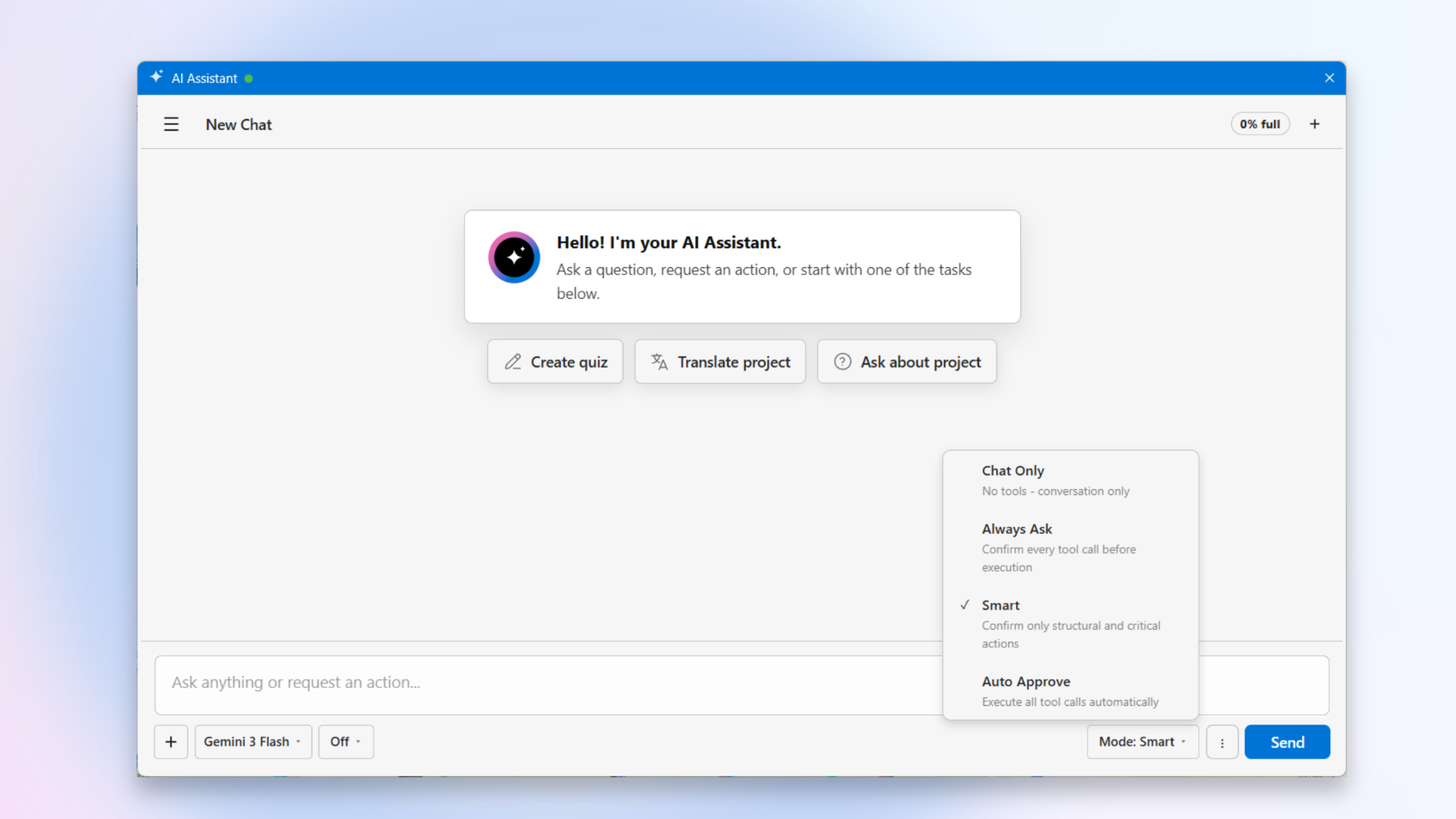
The standout feature of version 10.5 is the AI Assistant, a sophisticated chat assistant that fundamentally changes how you interact with your projects. Instead of navigating through multiple menus to perform repetitive tasks, you can now simply ask ActivePresenter to do them for you using natural language.
Whether you need to generate quiz ideas, translate an entire project, or rewrite narration to sound more professional, the AI Assistant is your go-to partner. Accessible via the AI tab, this panel offers two distinct ways to help:
- Consultative Mode: It can draft content, answer questions, or plan lesson structures directly in the chat without modifying your project.
- Action Mode: It can actively inspect your project, edit objects, update slides, and even generate scripts when given permission.
Personalize Your AI Experience
ActivePresenter 10.5 gives you granular control over the “brain” behind the assistant:
- Choosing Your Model: Depending on your needs, you can select different chat models that vary in response speed, file support, and reasoning capabilities.
- Adjustable Thinking Levels: For simple tasks like text correction, a lower thinking level ensures speed. For complex tasks, like analyzing a multi-branching project structure, you can increase the reasoning power to handle multi-step logic.
- Multi-Modal Attachments: You are no longer limited to text. Depending on the model, you can attach images, documents, audio, or video files to provide the assistant with the exact context it needs to help you.
Smart Permissions & Controls
We know that control and security are vital. That’s why we’ve introduced four Permission Modes to determine how the AI interacts with your project files:
- Chat Only: The AI can analyze your project data to answer questions, suggest scripts, or review content, but it cannot make any direct changes to your files. All interactions stay within the chat pane.
- Always Ask: You approve every single change the AI proposes.
- Smart: The AI acts autonomously but pauses for your confirmation on critical or structural changes.
- Auto Approve: For a more seamless and convenient workflow, the AI executes all actions and modifications automatically without requiring individual approvals.
Advanced Session Management
To keep your workflow organized, you can now manage Multiple Chat Sessions. Rename them, delete them, or use the Clear Session tool to start fresh. To handle long, complex conversations, the new Compact Context feature summarizes previous messages, ensuring the AI remains fast and focused even in deep project dives.
2. MCP Connect for Power Users
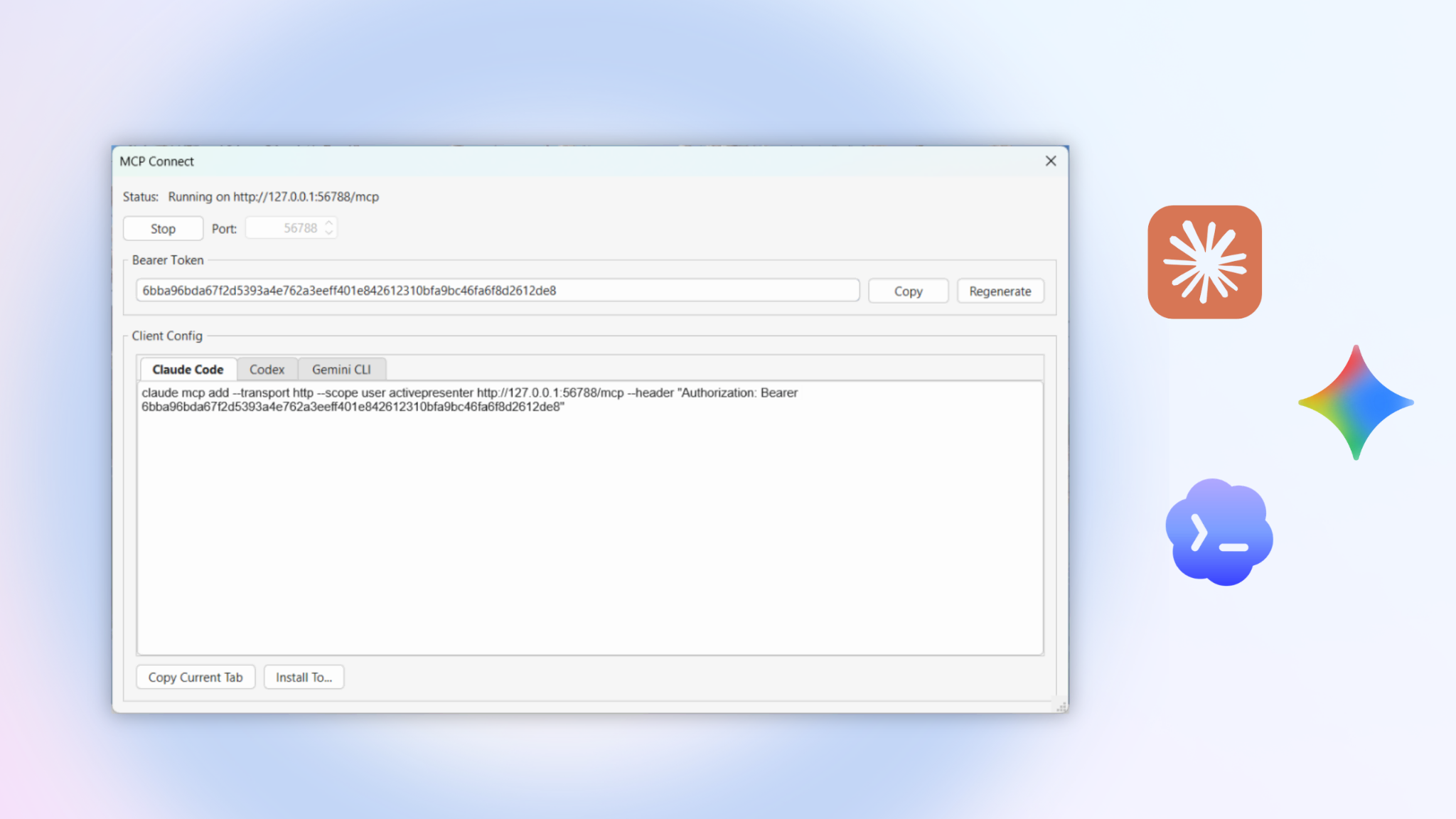
For developers and advanced authors, ActivePresenter 10.5 now supports MCP (Model Context Protocol) Connect. This allows you to turn ActivePresenter into a local MCP server. By doing so, you can connect external AI clients, like Claude Code or Gemini CLI, directly to ActivePresenter, allowing you to use your favorite external tools to inspect or modify your current project.
3. Tracing Interactions: The Ultimate Tool for Handwriting and Path-Based Learning
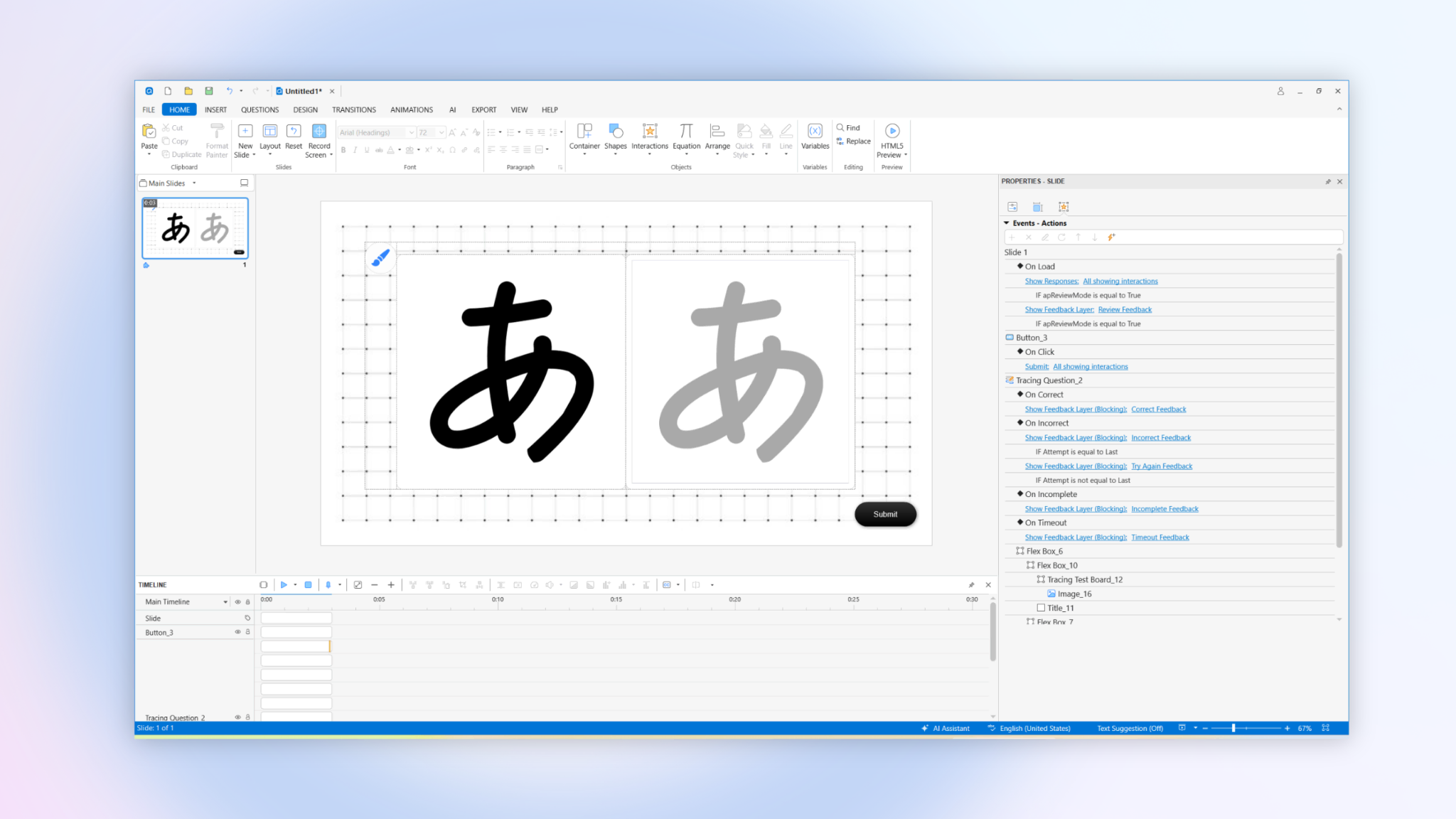
The new Tracing feature is one of the most exciting additions to ActivePresenter 10.5. Designed specifically for handwriting practice, language learning (such as practicing Kanji or Cyrillic characters), this interaction allows learners to draw strokes that are automatically evaluated against predefined shapes or paths.
Tracing Interaction vs. Tracing Question: Which is right for you?
In this update, you have two ways to implement tracing:
- Tracing Interaction: A standalone object that gives you the freedom to let learners draw anywhere on the slide area. It’s perfect for open-ended creative tasks or simple path-following exercises.
- Tracing Question: A structured question group that includes a dedicated Guide Board and Test Board. This is the preferred choice for formal assessments, as it neatly manages all scoring and feedback components within a single container.
How it Works: Guides and Testing
The power of the Tracing tool lies in its two-layered system:
- Guide Elements: These act as the reference for your learners. You can use predefined shapes (with line styles) or SVG images. In the final HTML5 output, learners can click the Guide button to watch a tracing animation, showing them exactly how the path should be followed before they attempt it themselves.
- Test Elements: These are the “invisible graders.” ActivePresenter evaluates the learner’s drawing against these paths. You can set strict requirements in the Tracing Properties, such as requiring the learner to follow a specific stroke order or a particular direction.
Tracing Interaction in HTML5
Every Tracing interaction comes with a customizable Drawing Controls panel. Depending on your lesson’s needs, you can allow learners to:
- Select from a variety of colors and adjust stroke width.
- Undo/redo strokes or clear the board to try again.
- Use a Compact Layout to save space on the slide, showing only the essential icons.
Canvas Drawing Tool for HTML5 Output
In addition to the Tracing interaction, you can now enable a general-purpose drawing tool for any HTML5 export. This allows learners to write notes, highlight content, or annotate directly on the screen during a session.
Important: Please note that these freehand annotations are temporary visual aids. They are not tracked, graded, or saved once the session ends or the browser is refreshed.
4. Professional Closed Captioning: Style, Sync, and Global Reach
Accessibility is no longer just a checkbox: it’s a central part of the design process. In ActivePresenter 10.5, we’ve completely revamped the closed caption (CC) system to give you professional-grade control over how your text looks, moves, and reaches a global audience.
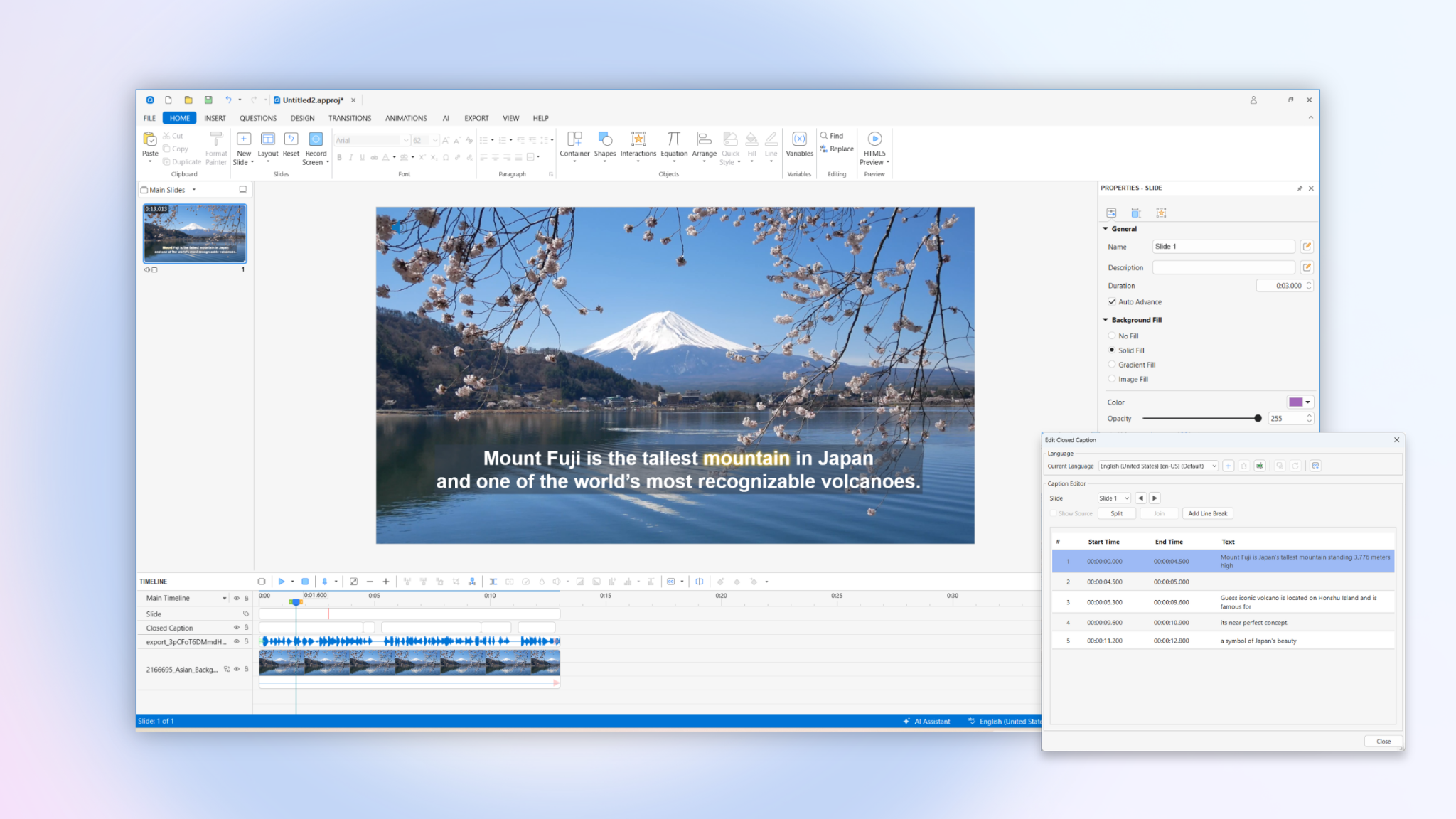
Brand-Consistent Preset Styles
Maintaining a consistent look across hundreds of slides is now effortless. Simply select your caption and head to the Format tab to choose from a gallery of built-in caption styles.
- One Change, Project-Wide: When you apply a style, including font, fill, and background settings, it is automatically applied to every caption in your project.
- Full Customization: While presets get you started, you can still fine-tune every detail (like opacity and text color) in the Properties pane.
Visual Word Highlighting & Progressive Display
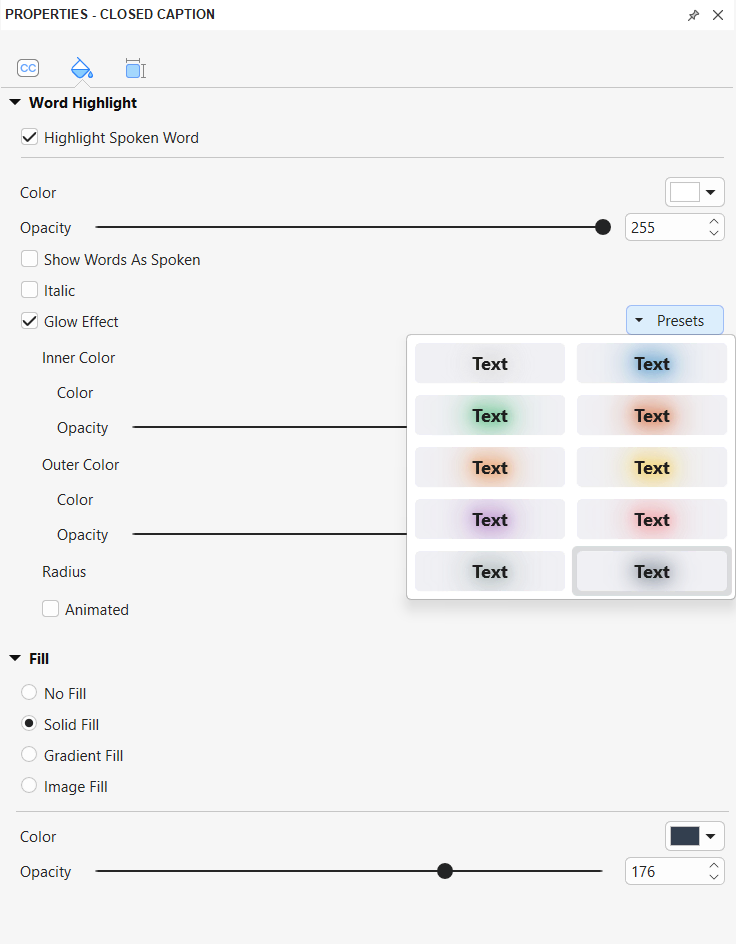
Engage your learners and improve retention with the new Word Highlight features. This “karaoke-style” effect highlights each word exactly as it is spoken.
- Show Words As Spoken: Instead of displaying the whole block at once, you can set captions to appear progressively.
- Glow Effects: Add a professional polish with customizable Glow Effects. You can adjust inner and outer glow, change colors, and even enable animated glows to make the current word truly pop on the screen.
Flexible Positioning: No More Blocked Content
One of the most requested features is finally here! You are no longer restricted to the bottom of the screen.
- Drag-and-Drop: Simply select a caption on the Canvas and drag it anywhere. This is perfect for avoiding overlapping with important UI buttons or distracting from key visuals.
- Slide-Specific Layouts: While styles are project-wide, positioning is slide-specific, giving you total design flexibility for every unique layout.
A Powerhouse Caption Editor for Global Content
The Caption Editor has been upgraded into a comprehensive localization and management hub:
- Auto-Translation: Adding a second or third language? Click Add Language and use the Auto Translation feature to instantly generate subtitles from your source text.
- Precision Editing: Easily Split a long caption node into two with a simple “Enter” keypress, or Join multiple nodes to simplify your timeline.
- Import/Export Standards: Seamlessly bring in or export your work using industry-standard .srt and .vtt formats for both single slides or your entire project.
5. Design Power-Ups: Animation Painter & Scale Text
Efficiency is at the heart of this update.
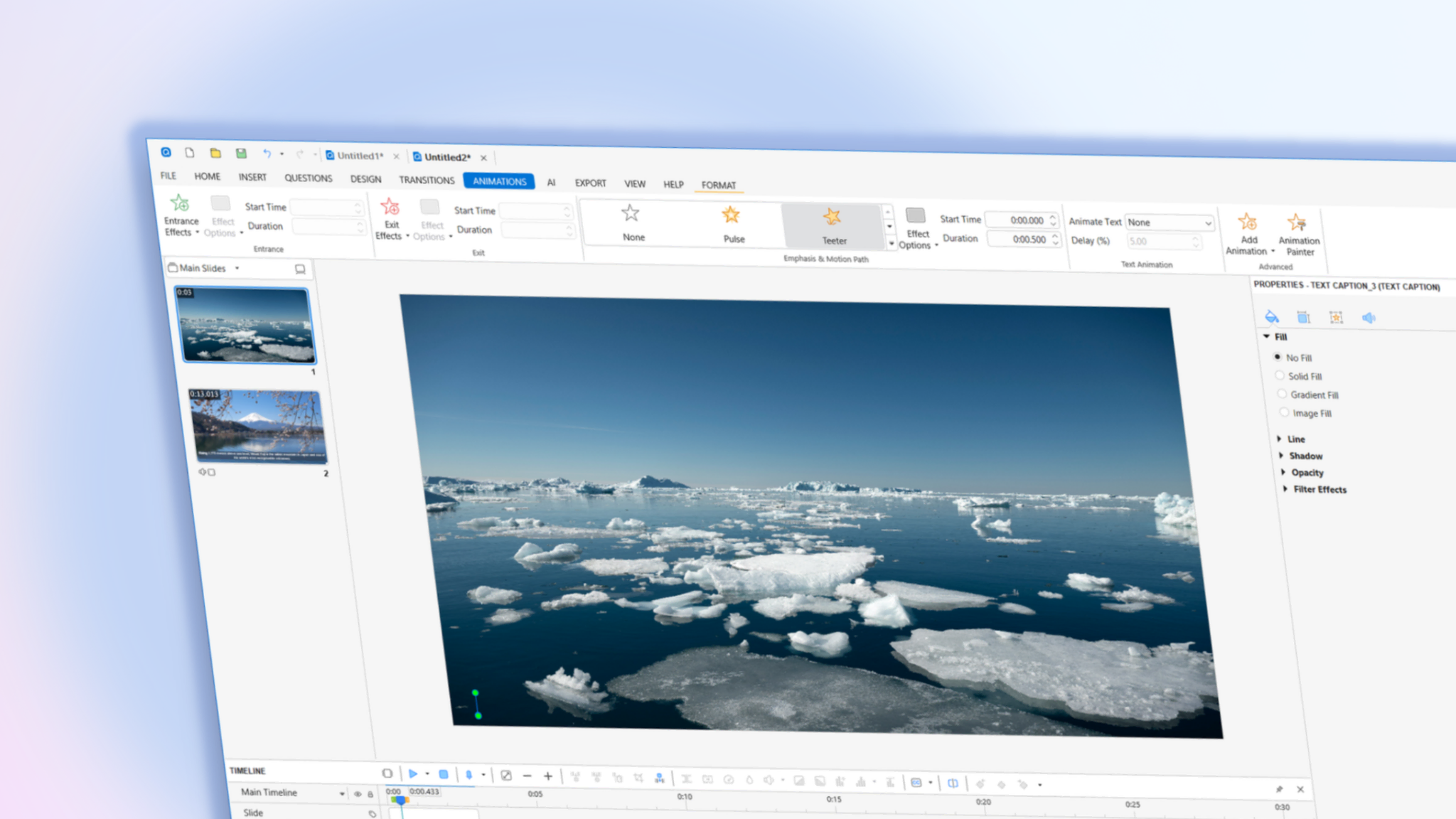
- Animation Painter: Love the animation you just created? Use the Animation Painter to “copy and paste” complex animation sequences from one object to another instantly.
- Scale Text with Object: No more manual font resizing! Text now automatically scales when you resize its container.
6. Smarter Media & UI Improvements
- WebP Support: Import and export images using the modern, lightweight WebP format for faster-loading web content.
- Auto-Captioning for Multiple Clips: Generate captions for all your audio/video segments simultaneously instead of one by one.
- Improved Selection Pane: Drag and drop objects directly into Flexbox containers or out of groups with ease.
7. High-Performance Multimedia & Encoding
For our power users and video editors, version 10.5 introduces significant upgrades to how media is processed and delivered.
- FFmpeg Support: ActivePresenter now supports the FFmpeg engine for both recording and exporting video. If FFmpeg is installed on your system and detected by ActivePresenter, you can leverage it for faster encoding speeds, better compression ratios, and improved compatibility across modern media players and devices.
- Support for Multiple Audio Streams: ActivePresenter now supports videos with multiple audio streams. When importing or inserting these files, the software automatically identifies and separates the individual tracks, allowing you to choose exactly which streams to include in your project.
Note: Please keep in mind that selected streams are mixed together during export. To ensure clarity for learners, it is recommended to select only one language track for the final output.
8. Automation with Script Runner: Let Python Do the Heavy Lifting
If you’ve ever found yourself performing the same repetitive task, like renaming fifty objects, importing a hundred images, or updating captions across dozens of slides, the new Script Runner is for you.
ActivePresenter 10.5 now includes a dedicated Python automation layer. This allows you to describe what you want to happen in code, and the software executes it instantly.
Why Use the Script Runner?
- Handle Bulk Tasks: Create slides, edit object properties, or configure complex quizzes in seconds rather than hours.
- Total Project Control: Access everything from slide transitions and timelines to text-to-speech settings via a structured API.
- Built-in Guidance: Located under the View tab, the Script Runner pane features an API Reference sidebar that helps you discover exactly which commands you need to use.
The AI Synergy
You don’t need to be a Python expert to use this! One of the most powerful workflows in version 10.5 is asking the AI Assistant to write an automation script for you. Once the AI generates the code, you can send it directly to the Script Runner with one click to perform complex project edits.
ActivePresenter 10.6 Updates (September 2026)
Creating effective eLearning content is about more than adding slides, recording a screen, or building a quiz. As learning experiences become more interactive, personalized, and media-rich, content creators need tools that make complex authoring workflows easier without limiting creative control.
That’s where ActivePresenter 10.6 eLearning authoring software does.
This update introduces several major improvements designed to help you build more engaging learning experiences, create polished screen recordings, work with AI directly on your computer, and develop more sophisticated interactions and assessments.
From the new Scenario Editor for visually designing branching learning paths to Smart Studio for automatically enhancing screen recordings, ActivePresenter 10.6 focuses on making content creation more powerful while keeping the authoring process efficient.
Here’s a closer look at what’s new.
1. Branching Scenario: Design Interactive Learning Paths Visually
Modern eLearning isn’t always linear.
Instead of presenting the same sequence of slides to every learner, you may want learners to make decisions, respond to situations, and follow different paths based on their choices. This is especially useful for compliance training, customer service training, leadership development, software training, and other scenario-based learning.
ActivePresenter 10.6 makes these experiences easier to design with the new Scenario Editor.
Build branching scenarios with a visual graph
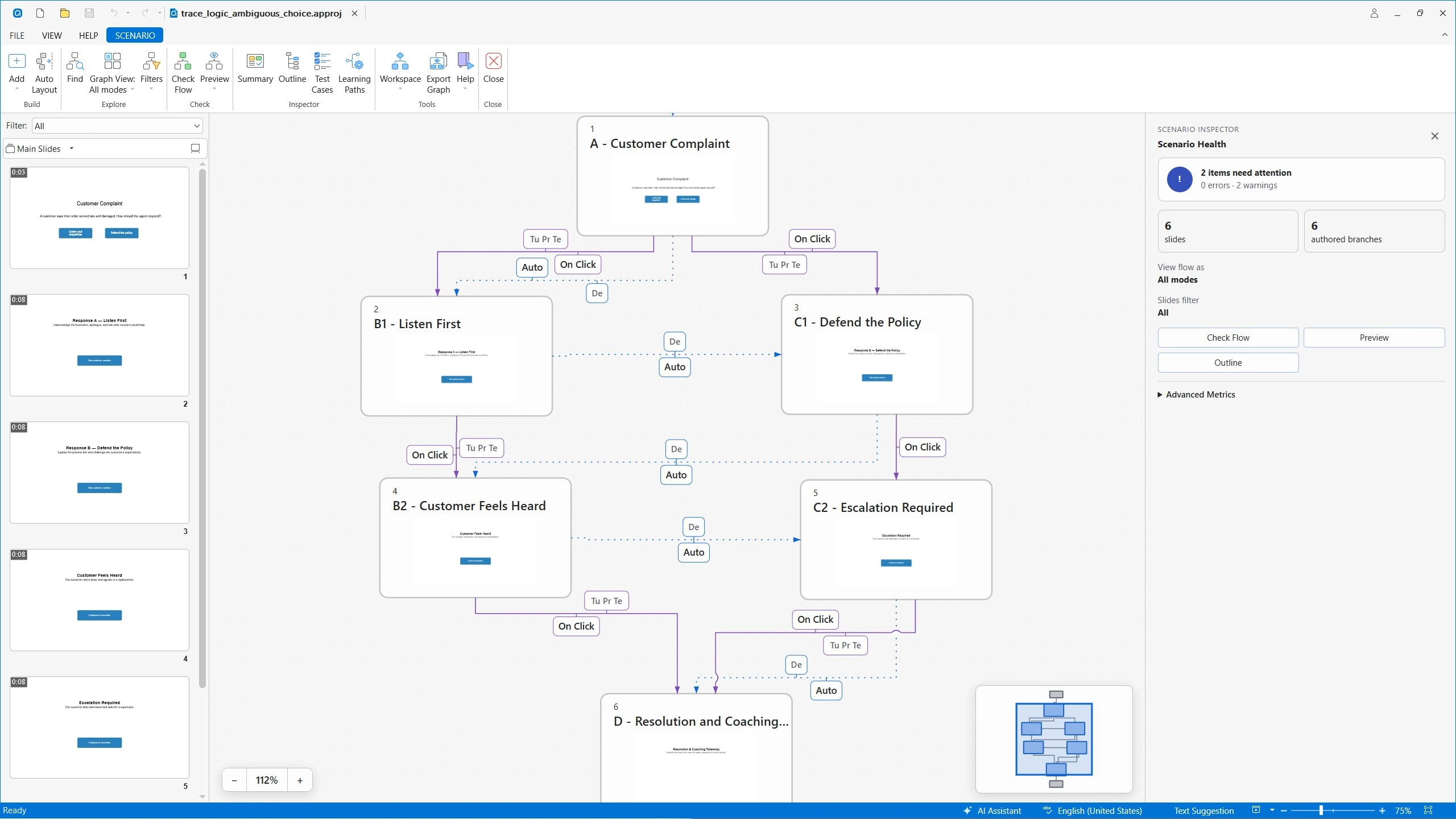
The Scenario Editor provides a visual graph that lets you create, review, validate, simulate, and export branching scenarios and learning paths.
Rather than managing complex branching logic entirely through individual slides and actions, you can view the overall structure of your scenario in one place.
For example, you could create a customer service simulation where a learner starts with a customer complaint and chooses how to respond.
One decision might lead to:
Customer complaint → Response A → Positive outcome
while another might lead to:
Customer complaint → Response B → Escalation → Resolution
This visual approach makes it easier to understand how different choices connect and where each learning path leads.
Review and validate your learning paths
As branching scenarios become more complex, it can be difficult to keep track of every possible route.
The Scenario Editor helps authors review the structure of their scenarios and identify potential issues before publishing. You can also simulate scenarios to understand how learners will move through different paths.
This is particularly useful when creating decision-based training where learner choices need to lead to specific outcomes.
Create more realistic decision-based learning
Branching scenarios can turn passive content into active learning.
Instead of simply asking learners to remember information, you can place them in realistic situations and ask them to decide what to do next.
With ActivePresenter 10.6, you have a more visual way to design those experiences and organize complex learning paths.
2. Smart Studio: Create Better Screen Recordings Automatically
Screen recording is one of ActivePresenter’s core capabilities, and version 10.6 introduces Smart Studio, designed to make full-motion recordings more polished with less manual editing.
Instead of spending tons of time manually adding zoom effects, adjusting cursor movement, or creating presentation layouts, Smart Studio can automatically enhance your recordings with professional visual elements.
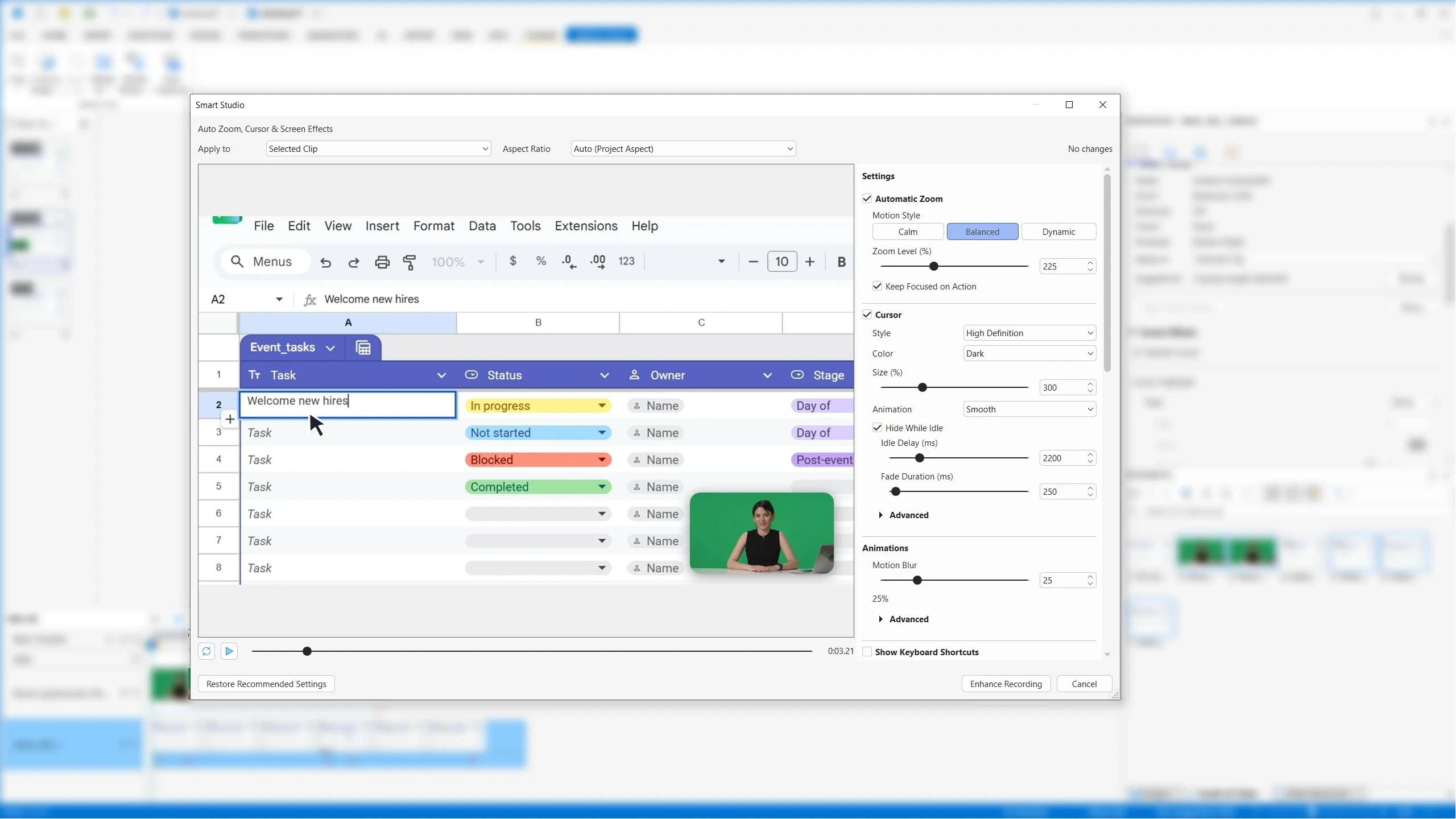
Automatic zoom for better focus
Long screen recordings can be difficult to follow when everything on the screen remains at the same scale.
Smart Studio adds automatic zoom to help emphasize important areas of the screen. This can make software demonstrations, tutorials, and product walkthroughs easier to follow.
For example, when demonstrating a specific button or menu, the recording can automatically focus attention on the relevant area rather than leaving viewers to search the entire screen.
Smooth cursor movement
Cursor movement is another small detail that can have a major impact on the viewing experience.
Smart Studio enhances cursor movement to make screen recordings feel smoother and more intentional. This is particularly useful for software tutorials where viewers need to follow exactly where the presenter is clicking.
High-definition cursors with background
Smart Studio also improves cursor presentation with high-definition cursors, helping the pointer remain clear and visible throughout the recording. You can also adjust background for more dynamic and visual attraction to your recordings. This is especially valuable when recording at high resolutions or demonstrating detailed software interfaces.
Keyboard shortcut overlays
When creating software tutorials, simply showing what happens on screen isn’t always enough.
Keyboard shortcuts can help learners understand how an action was performed. Smart Studio can display keyboard shortcut overlays so viewers can see the keys being pressed during the recording.
This makes software training and productivity tutorials more informative without requiring the author to manually add every shortcut afterward.
3. Local AI & More Processing on Your Video Recordings
AI is becoming an increasingly important part of content creation, but not every AI-powered workflow needs to rely on cloud services.
ActivePresenter 10.6 introduces local processing capabilities that can help authors analyze and work with media directly on their computers.
This includes Local Speech-to-Text (Auto Captions) & Local Media Analysis, and Text-to-speech generation.
Local Speech-to-Text (Auto Captions)
With Local Speech-to-Text, ActivePresenter can transcribe media directly on your computer without sending the audio to a cloud service.
The key difference is where the AI processing happens.
With a cloud-based AI workflow, audio is typically uploaded to a remote service, processed by an AI model on the server, and then returned as text.
So conceptually:
Cloud AI:
Audio → Internet → AI server → Transcript → Computer
Local AI:
Audio → AI model on your computer → Transcript
Since the model runs on the user’s computer, there will be no cloud AI request and no AI credits consumed.
In other words, the transcription process doesn’t depend on sending the audio to an online AI service for inference.
This can be particularly useful when working with recordings that contain sensitive training content, internal company information, or other material that users may prefer not to send to a third-party cloud service.
Batch Options to Generate Text-to-Speech Audio
ActivePresenter 10.6 also makes text-to-speech (TTS) generation more flexible. You can generate TTS audio for multiple text objects across a project in a single click.
This can be useful when creating narration for slides, instructional content, software tutorials, or localized versions of a course.
Instead of recording narration separately for every text element, authors can generate all audio directly from the text objects within the selected slides from the project.
Green Screen Effect
Create a more immersive webcam, spokesperson video with the improved Green Screen (Chroma Key) effect. You can remove a solid-color video background with greater accuracy while keeping edges smooth and natural.
You simply pick a background color directly from your video, then adjust Strength to control how much of the selected color is removed and Edge Softness to refine the transition around your subject. This makes it easy to place presenters or webcam footage into a cleaner, more polished visual environment.
4. Smarter Interactions & Assessments
Assessment is an essential part of eLearning, but effective assessment often requires more than traditional multiple-choice questions.
ActivePresenter 10.6 expands the possibilities for creating flexible questions, validating learner responses, and building more sophisticated interaction logic.
Flexible Fill-in-the-Blank Questions
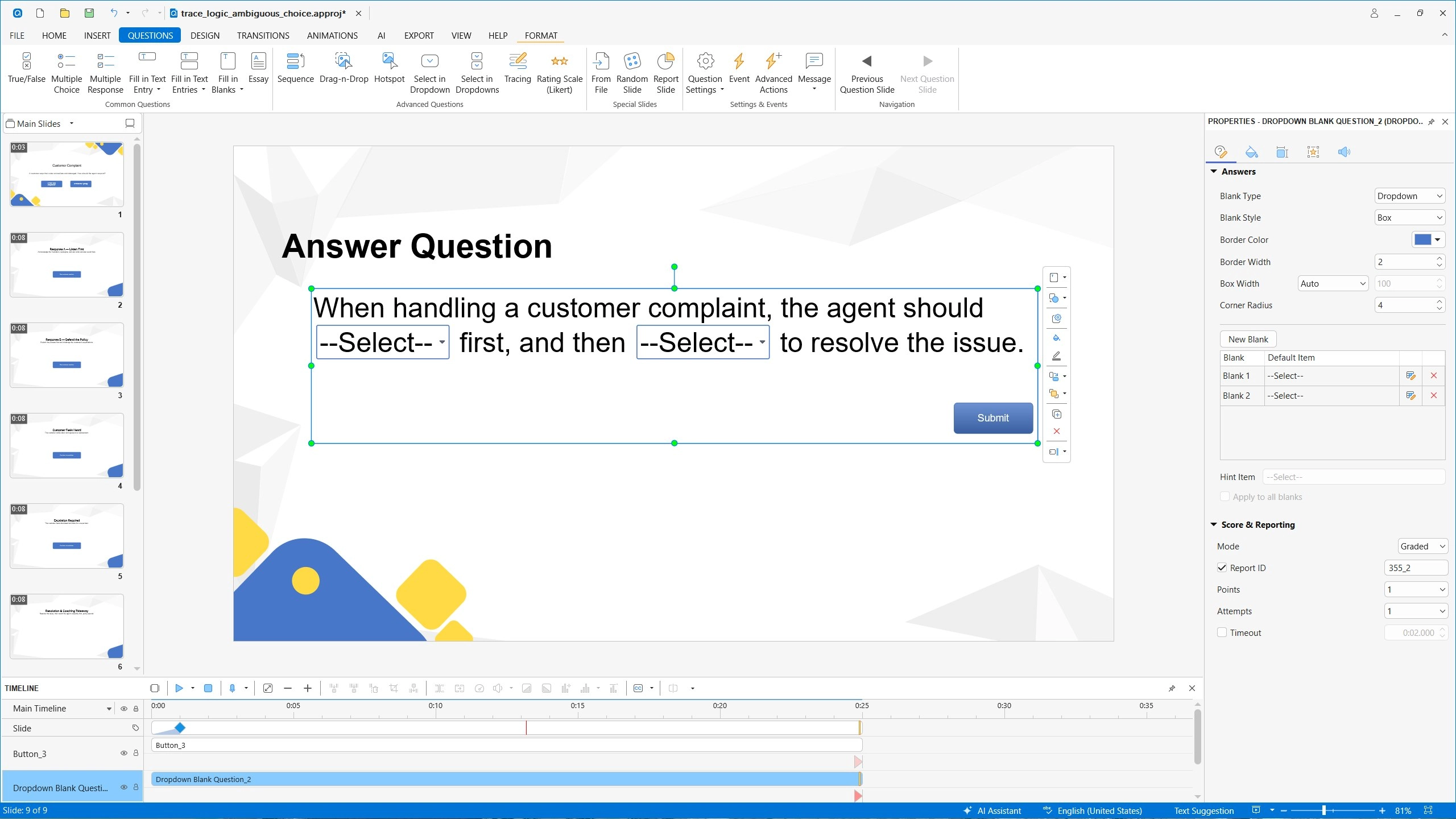
Fill-in-the-Blank questions now support several types of inline blanks:
- Text Entry
- Dropdown
- Drag-and-Drop
This gives authors more control over how learners provide their answers.
For example, instead of requiring learners to type every answer manually, you could combine a text entry field with a dropdown or drag-and-drop blank within the same question. Multiple accepted answers are particularly useful when a question has more than one valid way to express the same concept.
More Option for Text Entry Questions
Text Entry objects now support both Text and Numeric answer types.
Numeric input validation and comparison rules provide greater control over how learner responses are evaluated.
This is useful for subjects involving calculations, measurements, percentages, scores, dates, or other numerical responses.
Conditional Actions
ActivePresenter 10.6 also expands interaction logic with more powerful conditional actions.
Authors can now create:
- IF/THEN/ELSE logic
- Ordered actions
- Nested All/Any condition groups
This makes it possible to create more sophisticated interactions without having to rely on simple one-condition actions.
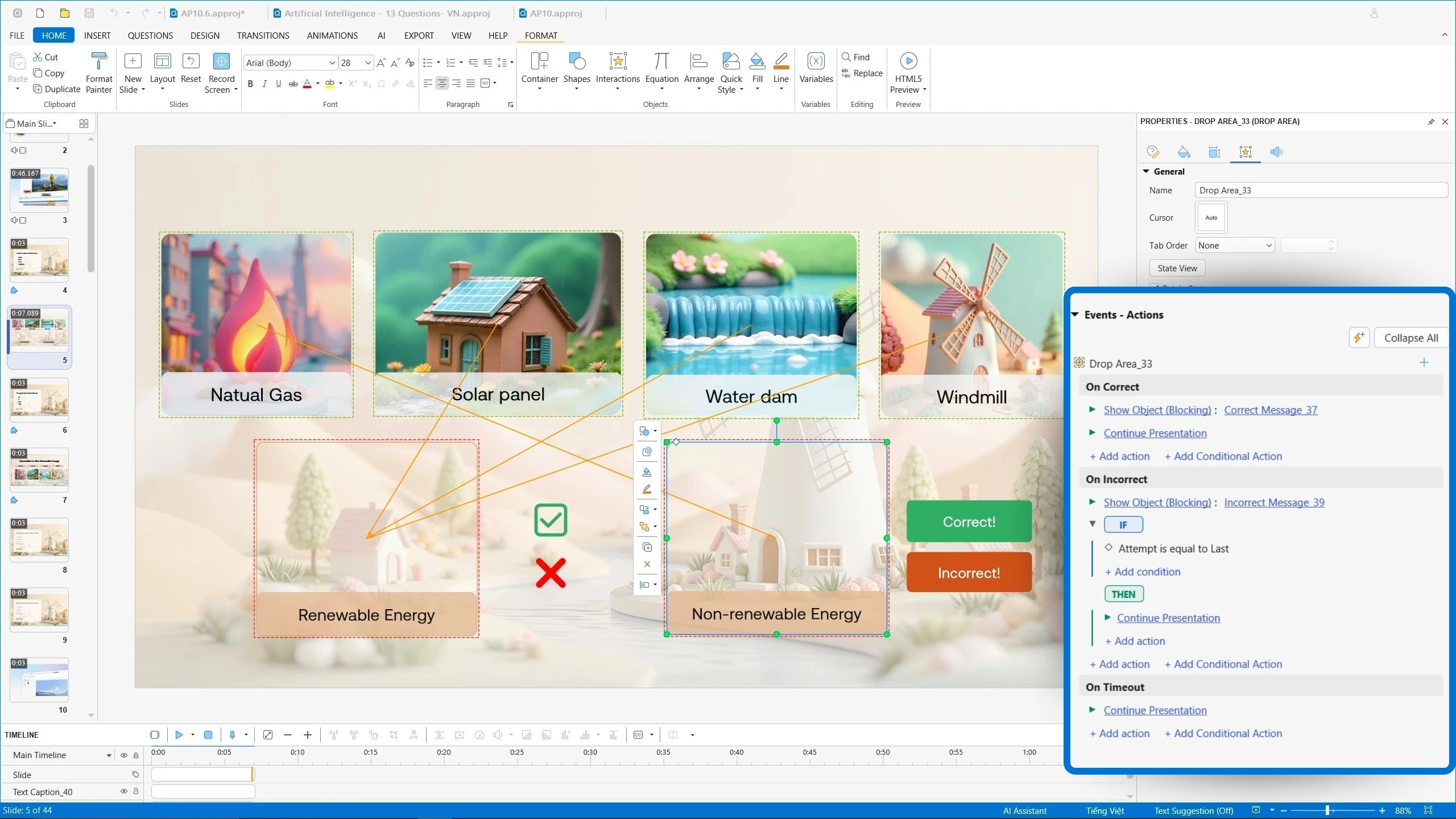
For example:
IF the learner selects the correct answer
AND completes a required interaction
THEN show feedback and continue to the next section.
More complex conditions can also be nested to support interactive learning logic.
Better Quiz Results
Quiz results can now support grading scales with custom grades and feedback.
This allows authors to move beyond a simple percentage score and provide learners with more meaningful outcomes.
For example:
90–100% → Excellent
80–89% → Good
70–79% → Needs Improvement
Below 70% → Review Required
Authors can also provide feedback associated with different grades, helping learners understand what their results mean and what they should do next.
Report slides can additionally show unanswered questions as Not Answered in the details table, giving learners and instructors a clearer picture of assessment performance.
5. More Powerful Shapes & Visual Design
ActivePresenter 10.6 also brings a collection of improvements for authors who want more control over visual design and interactive objects.
Merge Shapes
The new Merge Shapes capabilities allow authors to create more complex visual objects using:
- Union
- Combine
- Fragment
- Intersect
- Subtract
These operations make it easier to build custom graphics for templates directly inside ActivePresenter instead of relying on external design software.
The update also supports editable multi-subpath shapes and multiple Spotlight areas, giving authors greater flexibility when creating visual explanations and interactive demonstrations.
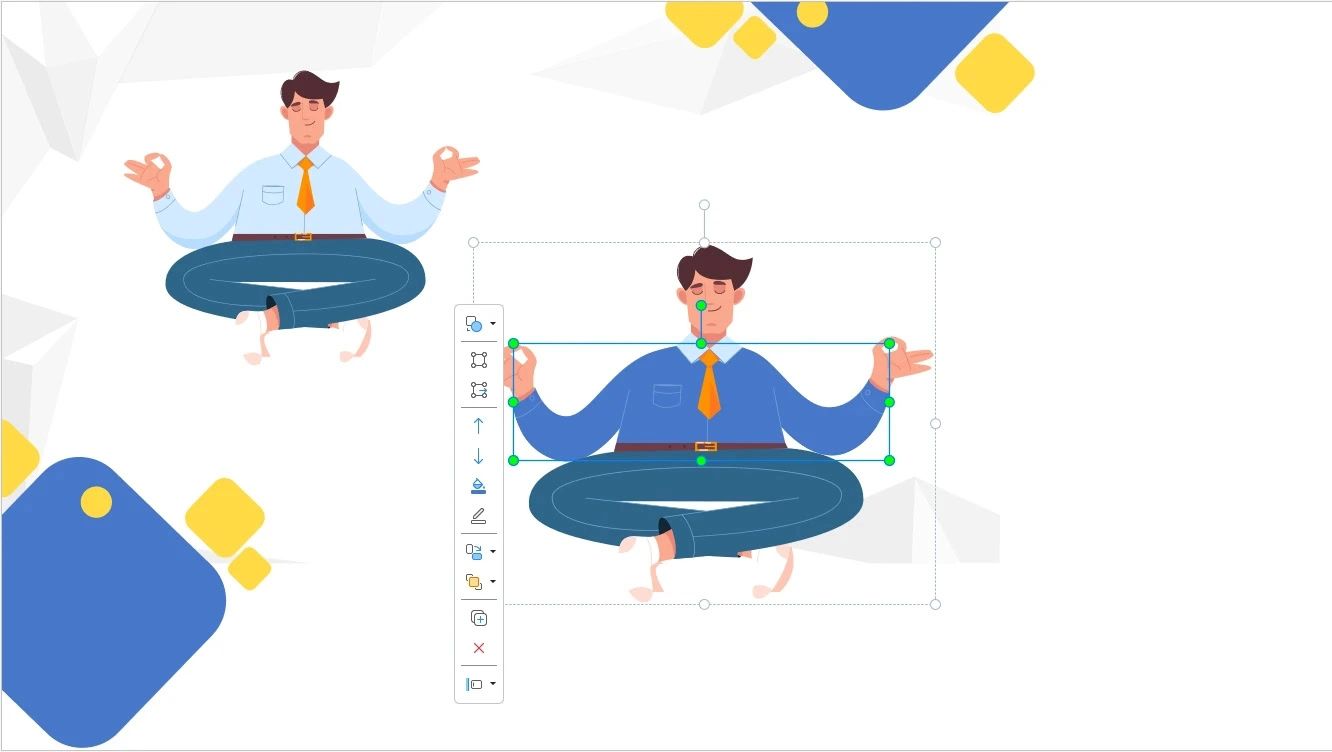
Convert SVG Images to Editable Shapes
SVG images can now be converted into editable shapes.
This provides more control over vector graphics after importing them into a project. Instead of treating an SVG as a single image, authors can work with its editable shape components. This means, you can change color, shadow to play around with the visual objects.
This can be useful for customizing icons, diagrams, illustrations, and other vector-based assets.
New Slide Transitions
ActivePresenter 10.6 adds two new slide transitions:
- Peel Off
- Page Curl
These provide additional options for creating visual movement between slides bringing the feeling of reading an online book and can help vary the presentation style of different projects.
Progress Timer Shapes
New customizable Progress Timer shapes provide another way to visually communicate timing and progress within interactive content.
These can be useful for timed activities, quizzes, simulations, or instructional sequences where learners need to understand how much time remains.
Dark Blue Application Theme
A new Dark Blue application theme is also available, giving users another interface appearance option while working in ActivePresenter.
Save Shapes as Pictures
Eligible shapes and objects can now be saved as pictures, making it easier to reuse visual assets across projects or outside ActivePresenter.
More Improvements in ActivePresenter 10.6
Beyond the major features above, ActivePresenter 10.6 includes a wide range of workflow, export, accessibility, and platform improvements.
Better video proxy workflow: Video proxy creation now supports reusable profiles, along with a combined import confirmation and profile-selection dialog.
More efficient question editing: Question editing has been improved with question-type conversion and Enter-key insertion for new answer options.
Better image handling: Oversized imported PNG and JPEG images can now be automatically resized while preserving the original source files.
More flexible publishing: ActivePresenter 10.6 also adds options to customize filenames for exported SCORM and xAPI ZIP packages.
Improved HTML5 and LMS output: HTML5 Preview now honors font-embedding settings and includes fonts used across multiple-slide layers.
Conclusion
ActivePresenter 10 brings a brand new appearance with AI toolkits covering all you need for the eLearning design process. Whether you’re updating existing projects or starting fresh, these new tools can help you work more efficiently and deliver a better learning experience.
And now, the journey continues with ActivePresenter 10.5, introducing even more intelligent tools and refinements to boost your productivity.
Download ActivePresenter 10.5 and start creating smarter, faster, and more engaging eLearning content today!
