
Have you ever had an idea to show your course that made from ActivePresenter course creation tool as a part of your webpage? If yes, this tutorial is for you. Today, I will show you the way to embed HTML5 course into a webpage using iframe.
Make sure to download ActivePresenter for free to create HTML5 eLearning projects before exporting!

There are 2 main steps to bring your ActivePresenter course to your website:
- Export your course to HTML5 format and upload the files to your web server.
- Get the URL of an uploaded course and insert it into the iframe code.
Exporting and Uploading HTML5 Course
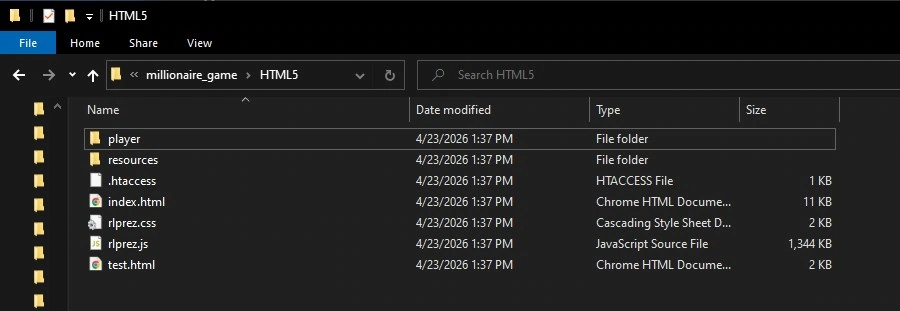
HTML5 output is an ultimate output that allows learners to view and interact with the interactive contents and quizzes. After creating a course with ActivePresenter and exporting it to HTML5 output, we will have this kind of output folder:
If you want to know more about exporting ActivePresenter projects to HTML5, please refer to Export to HTML5
In terms of uploading your course to your webpage, you need to upload all the files in the output folder to your web server. For example, I use Filezilla to transfer the files from my local computer to the web server (WordPress.org). Please follow the steps in this detailed guide to know how to upload FTP files to WordPress.
Using iframe to Embed HTML5 Output
To embed HTML5 course into your webpage, you need to use an iframe (inline frame). The iframe is just a very simple HTML code that used to display content from another source into a webpage. To be more precise, this is an example line of code you can use to add to your webpage:
<div style="width:100%; padding-bottom:56.25%; position:relative;">

  <iframe src="path/to/ActivePresenter/HTML file" style="position:absolute; top:0px; left:0px; width:100%; height:100%; border: none; overflow: hidden;"></iframe>

</div>
The src attribute specifies the URL (web address) of the inline frame page.
After copying and pasting the line of code above to your page, get the HTTP URL of your uploaded HTML5 course and replace the src link for instance:
<iframe src="/samples/activepresenter-9-0/en/millionaire-quiz-game/HTML5/tutorial.html?v=9.1.2"...</iframe>And here’s an example of an iframe showcasing my millionaire quiz game:
That’s it! You can preview your page now! Using iframe to embed the HTML5 course into webpage is that simple. Try export HTML5 projects from ActivePresenter and share with us your experience!
See also:
Host & Share eLearning Project Outside LMS (For Free)