
Choosing a screen recorder means deciding what happens after you stop recording: send a quick link, polish a tutorial, or build training that learners can practice. Cap covers the first two workflows, while ActivePresenter Free Edition offers another starting point for non-commercial tutorial videos.
In this Cap screen recorder review, we examine its recording modes, pricing, pros, and limitations, then explain when ActivePresenter’s video tools or paid eLearning features fit your next project.
Cap Screen Recorder Review at a Glance
Our verdict: Cap deserves consideration for quick video communication and edited screen demonstrations. For tutorial projects, compare the editing workflow and final output you need. For interactive training, evaluate a dedicated authoring tool.
| Decision | What to know |
|---|---|
| Best fit | Quick walkthroughs, bug reports, and edited screen demonstrations |
| Two video workflows | Instant for a share link; Studio for a local editing project |
| Free / paid distinction | Personal use is free; commercial rights and cloud services have separate conditions |
| Main considerations | Cloud entitlements, source-dependent editing, and interactive-training requirements |
| Tutorial alternative | Explore ActivePresenter Free Edition for non-commercial video lessons |
Research note: We reviewed official product documentation on October 26, 2026. This article supports 2027 planning, rather than reviewing a separately announced 2027 release. It presents documented capabilities and editorial assessments, not independent performance benchmarks. Atomi Systems develops ActivePresenter.
What Is Cap Screen Recorder?
Cap is an open-source screen recorder and video-sharing application. It captures software workflows, camera footage, and audio, with local editing and optional cloud sharing. Screenshot capture is also available.
Instant Mode vs Studio Mode: Which Workflow Do You Need?
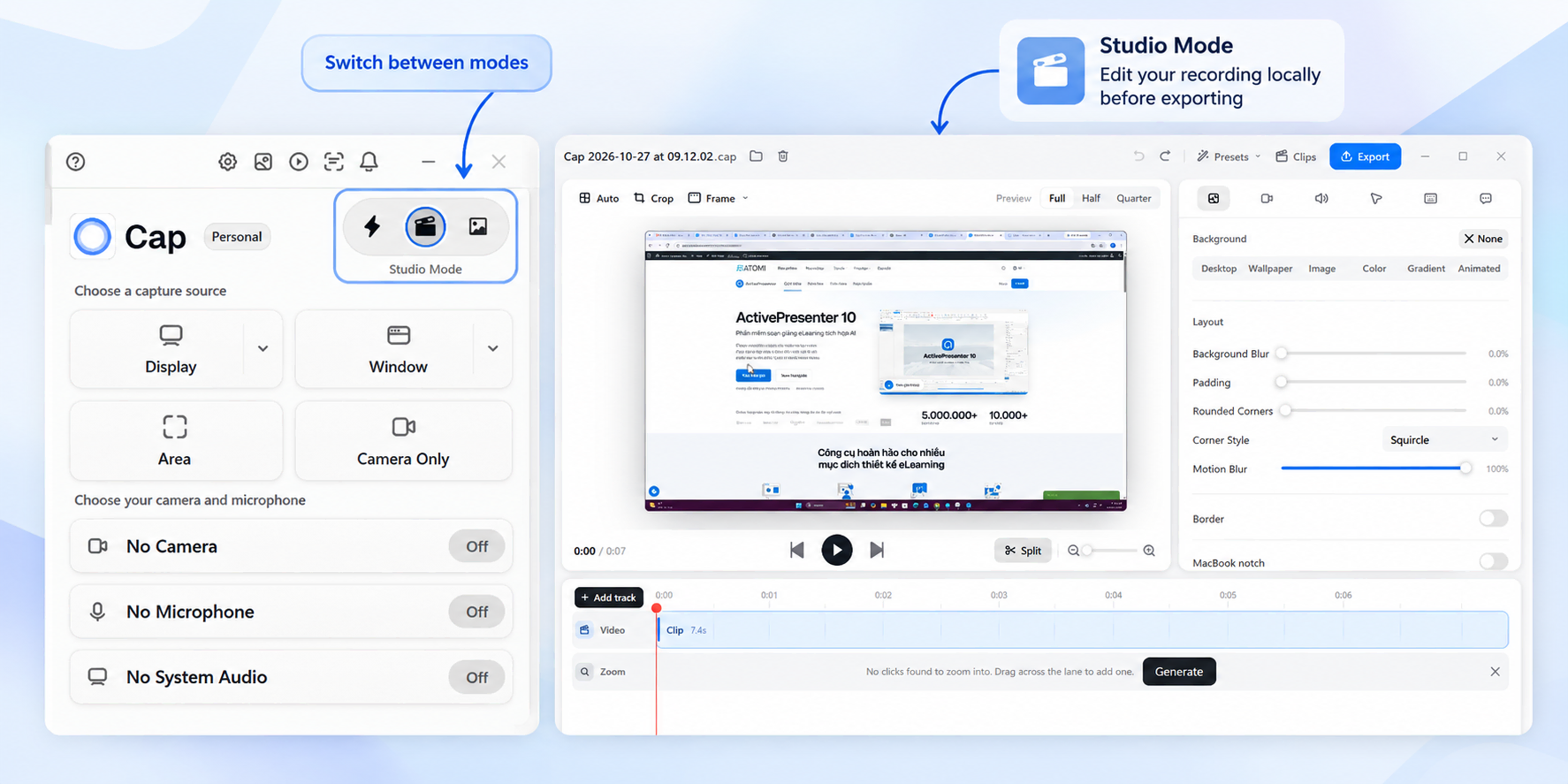
Instant Mode uploads recording data during capture and prepares a share page afterward. It suits a quick explanation you want someone else to watch in a browser. A link is ready when Cap finishes processing; connection and recording details affect that timing.
Studio Mode creates a local project for editing before export. You can refine footage and save a video without uploading it. The choice is about your next action: share an explanation or prepare an edited asset.
Cap Screen Recorder Pricing: Free vs Desktop License vs Pro
Cap separates personal use, commercial desktop use, and expanded cloud services. These are different purchasing decisions.
| Plan | Published price | Main purpose |
|---|---|---|
| Free | $0 | Personal recording and editing; limited cloud sharing |
| Desktop License | $29/year or $58 one-time | Commercial desktop recording and editing; limited cloud links |
| Cap Pro | $12/user/month; $8.16/user/month billed annually | Desktop rights plus expanded cloud sharing, AI organization, and analytics |
Is Cap Free? Local Recording vs Cloud Sharing Limits
Yes, Cap offers free personal use. Its pricing page states that local recordings have no time limit, while free cloud shareable links are limited to five minutes each.
Cap offers free personal use with no stated time limit on individual local recordings. Free cloud shareable links are limited to five minutes each. However, Cap lists the broader “unlimited local recordings & editing” entitlement under its paid plans, so users planning frequent or extensive recording should confirm the applicable Free plan terms.
Desktop License vs Cap Pro: When Do You Need to Pay?
Commercial use of Cap’s officially distributed desktop application requires a paid license. The Desktop License covers commercial local recording and editing; Pro adds expanded cloud sharing and services. Cap’s commercial-license documentation distinguishes distributed binaries from versions you build yourself.
Choose according to the bottleneck. A local video deliverable and a shared team recording library have different requirements.
Cap Screen Recorder Pros: What It Does Well
Quick Screen and Webcam Recording
Cap combines screen capture with camera and microphone options. For example, a developer explaining a reproducible bug can show the failed action and narrate the expected result in one recording.
The benefit is a clear explanation that a teammate can revisit without reconstructing the issue from messages.
Built-in Editing with Studio Mode
Studio supports trimming, splitting, arranging clips, zooms, visual styling, and camera-layout adjustments. Its documented MP4 output supports up to 4K at 60 fps.
These tools can produce a cleaner demonstration without a separate editing application. Keep the original project so you can revise the explanation later.
Convenient Link Sharing and Feedback
Instant Mode shortens the path from recording to a viewing page. Browser playback and contextual feedback suit asynchronous updates.
This is most valuable when sharing and discussion are recurring tasks. If you only need an exported file, assess the editor separately from the cloud features.
Cap Screen Recorder Cons: Limitations to Consider
Cloud Sharing and AI Organization Depend on Your Plan
Free cloud links have limits; unlimited cloud sharing, viewer analytics, and cloud-generated titles, summaries, chapters, and transcripts are associated with Pro.
That subscription may be useful for frequent team communication. For occasional tutorial production, calculate whether you need those services in addition to local recording. Paying for a hosting workflow makes less sense when your organization already distributes finished videos elsewhere.
Some Editing Tools Depend on the Recording Source
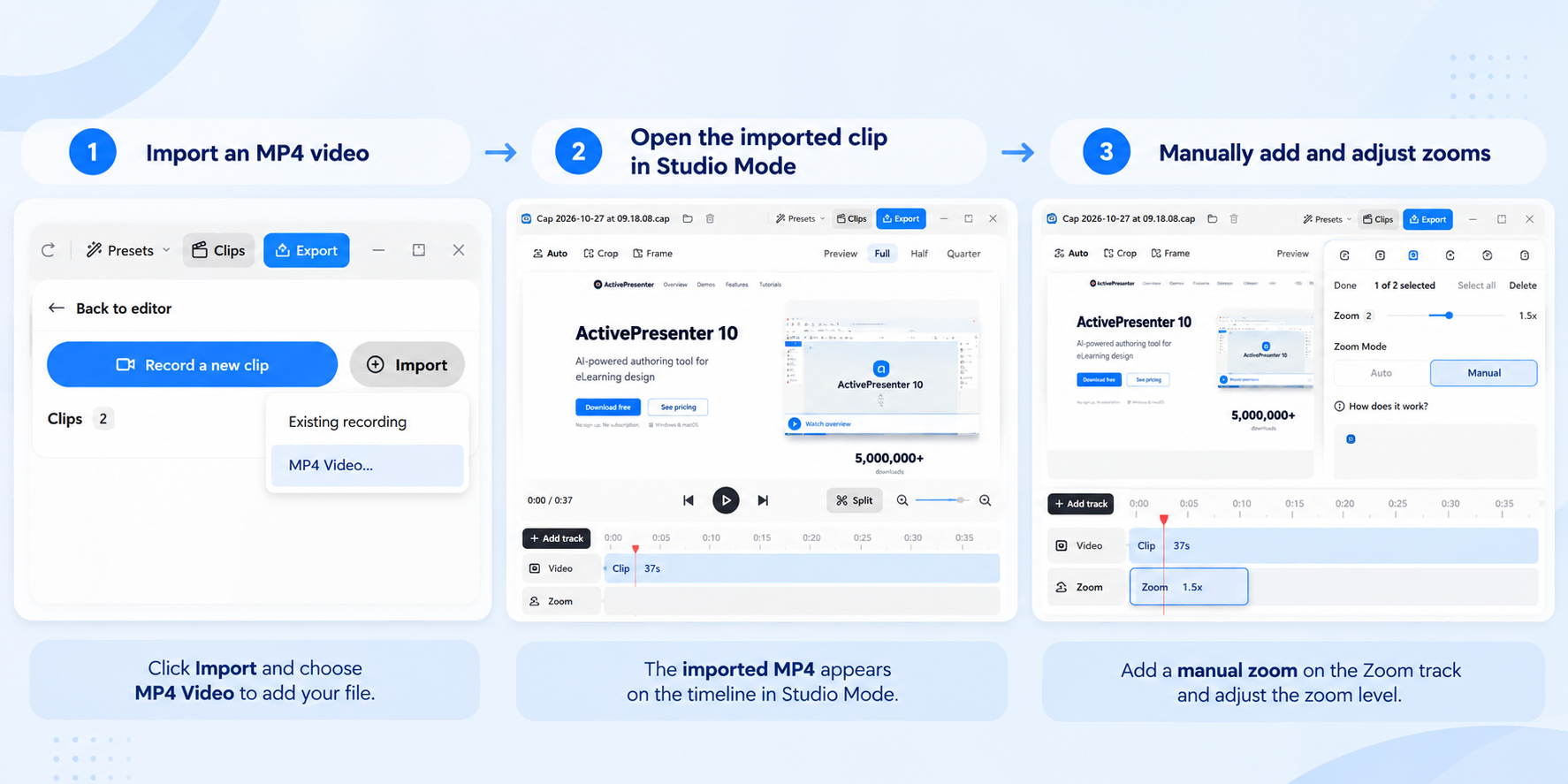
Cap’s automatic click-based zoom generation requires cursor and click metadata from a compatible Studio recording. Importing an MP4 does not recreate that information, although manual zooms remain available.
Privacy masks also stay in the region you position for a timeline segment; they do not automatically track a moving field or window. A tutorial assembled from existing footage may therefore need more manual adjustment than a fresh capture.
Pro tip: Try a representative imported clip before choosing an editor for an existing video library. Check which effects work with that source, then review the complete export.
Self-Hosting Adds Setup and Maintenance Work
Self-hosting gives teams another way to control the sharing infrastructure, but someone must manage deployment, storage, updates, and access.
This is an optional deployment choice, not a requirement for ordinary use. A small teaching team should decide whether that operational responsibility solves a real need. Otherwise, local exports or managed services may be simpler to maintain.
Video Recording Does Not Replace Interactive Course Authoring
Cap can create instructional videos. A limitation arises when the required output changes from a demonstration to a practice activity with assessed responses.
Watching a procedure, commenting on a video, and completing a scored simulation are different learning tasks. The Cap workflows reviewed here focus on recording, editing, and sharing rather than dedicated quiz and LMS-course authoring.
That distinction matters for training decisions, but it should not be confused with saying Cap cannot make useful tutorials.
Cap vs ActivePresenter: Which Fits Your Tutorial Workflow?
Start with the deliverable. A short message, an annotated video, and a trackable interactive lesson require different tools and licenses.
| Need | Cap | ActivePresenter Free | ActivePresenter Pro |
|---|---|---|---|
| Screen / webcam capture | Supported | Supported | Supported |
| Basic editing / video export | Studio workflow | Supported | Supported |
| Cloud link workflow | Built-in; plan limits apply | Video export; arrange hosting separately | Video export; publishing options differ |
| Commercial output | Paid license for distributed app | Not permitted under Free terms | Permitted |
| Interactive authoring / LMS packages | Not a documented core workflow | Paid features may be tried with watermarked outputs | Dedicated authoring; SCORM / xAPI / HTML5 |
Edition distinctions follow the ActivePresenter feature comparison. Free allows trial and non-commercial use; outputs using paid features include a watermark. Standard supports commercial video work, while Pro adds interactive eLearning publishing.
Choose Cap for Quick Record-and-Share Videos
Choose Cap when a browser link, discussion around a recording, and cloud organization are central to your work. Studio also deserves consideration when you want to edit locally before sharing.
You do not need an eLearning authoring workflow merely to explain a software task.
Consider ActivePresenter Free Edition for Tutorial Videos
ActivePresenter’s free screen recorder and video editor is worth exploring when your output is a non-commercial video lesson. Screen recording, basic audio/video editing, and visual annotations let you develop the explanation within one project.
For example, a teacher preparing a spreadsheet tutorial could:
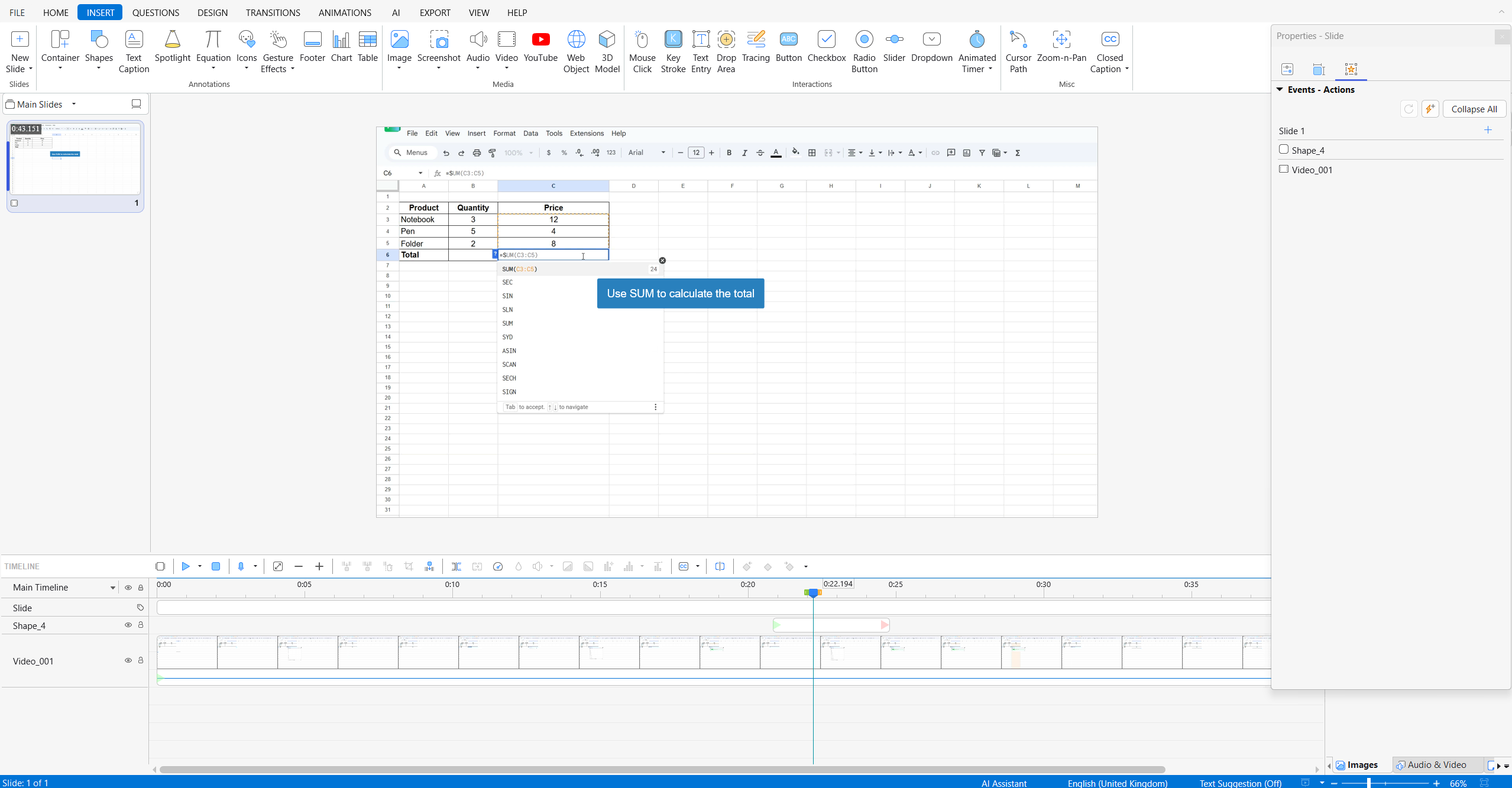
This is an illustrative workflow, not a measured speed comparison. Cap also edits local recordings; choose by the explanation tools and authoring experience your lesson requires.
Teaching tip: Show one meaningful action at a time. A readable interface and a well-timed explanation usually matter more than decorative effects.
When Interactive Training Calls for ActivePresenter Pro
Consider a training team introducing a new CRM. A video can demonstrate entering a customer record, but learners may also need to practice the sequence and receive feedback.
ActivePresenter Pro supports interactive Software Simulations, quizzes, branching, responsive projects, and HTML5, SCORM 1.2, SCORM 2004, and xAPI publishing. Use the simulation recording workflow when you need captured actions and interaction objects; a finished MP4 does not automatically become an interactive simulation.
Pro is a paid step beyond Free’s video use case. Smart Studio and paid AI tools should likewise not be presented as free-edition benefits. ActivePresenter Standard and Pro are available through one-time license purchases, with future upgrades and additional services subject to their applicable terms.
Cap Screen Recorder FAQ
Can Cap Record Offline?
Studio Mode supports local recording and editing without uploading the project. Creating a cloud share link requires connectivity. Prepare any necessary downloads before relying on an offline workflow.
Does Cap Work on Windows, Mac, and Linux?
Cap’s current download page provides macOS, Windows, and Linux options. Windows is labeled beta, and Linux packages have system requirements. Check the build for your computer rather than assuming identical behavior across platforms.
Can Cap Record System Audio and Webcam Together?
Cap documents screen, camera, microphone, and supported system-audio capture options. Availability depends on the operating system, selected target, permissions, and build. Make a short sample to confirm every required source before recording a complete lesson.
Is ActivePresenter a Free Alternative to Cap?
For non-commercial screen recording and tutorial editing, ActivePresenter Free Edition is an option. It is not a substitute for every Cap cloud-sharing feature. Commercial outputs and paid features require the appropriate license; Outputs created with non-free features include a watermark until the appropriate license is activated.
Final Verdict: Is Cap Screen Recorder Worth Trying in 2027?
Cap is worth considering when recording and sharing are the main jobs. Its two video workflows let you choose between a quick viewing link and a local project you can edit before export.
For tutorials, judge the tool by the explanation you need to create. For assessed practice or LMS publishing, include dedicated authoring capabilities and licensing in the decision.
Create Your Next Tutorial with ActivePresenter Free Edition
Start with one procedure you already need to explain. Record it, remove distractions, add visual guidance, and review the exported video.
Explore ActivePresenter Free Edition for your next non-commercial tutorial project. If you are ready to install it, download ActivePresenter.
