
Saola Animate 4 can let an AI agent work on your project with you. Ask it to build a scene, arrange elements, animate them or export HTML5, then review every change in the editor, undo what you do not want, and preview the result in your browser.
The connection uses MCP (Model Context Protocol), an open standard that AI clients use to work with other applications.
How it works
- Off until you turn it on. Saola’s MCP server is off by default. Turn it on in File > Connect AI Agent…, and off again there or in Preferences.
- Local only. The server accepts connections from your own computer only. Saola and the AI client, or its connector, must run on the same computer.
- You stay in control. The agent edits the project that is open in Saola, in the current layout or symbol, as you would. Each of its operations is a step you can undo and redo. Saving and exporting are separate operations.
- Your AI service is separate. The account and any charges of your AI client are separate from your Saola Animate license.
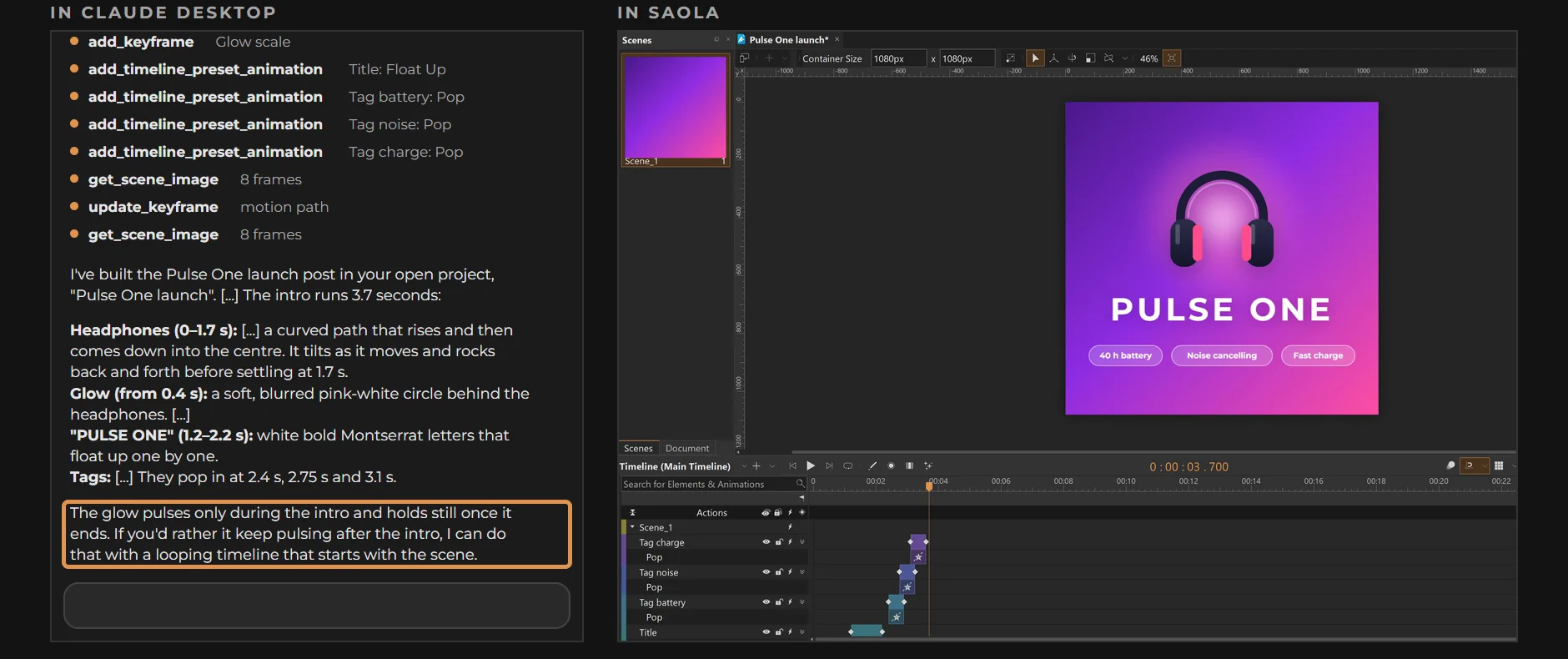
What you can ask for
- “Create a 1200 × 628 banner with a headline that slides in from the left and a button that fades in after it.”
- “Add a text element that says Welcome and animate its horizontal position over two seconds.”
- “When the button is clicked, go to the next scene.”
- “Add a tablet layout and put the image above the text there.”
- “Export the project to HTML5.”
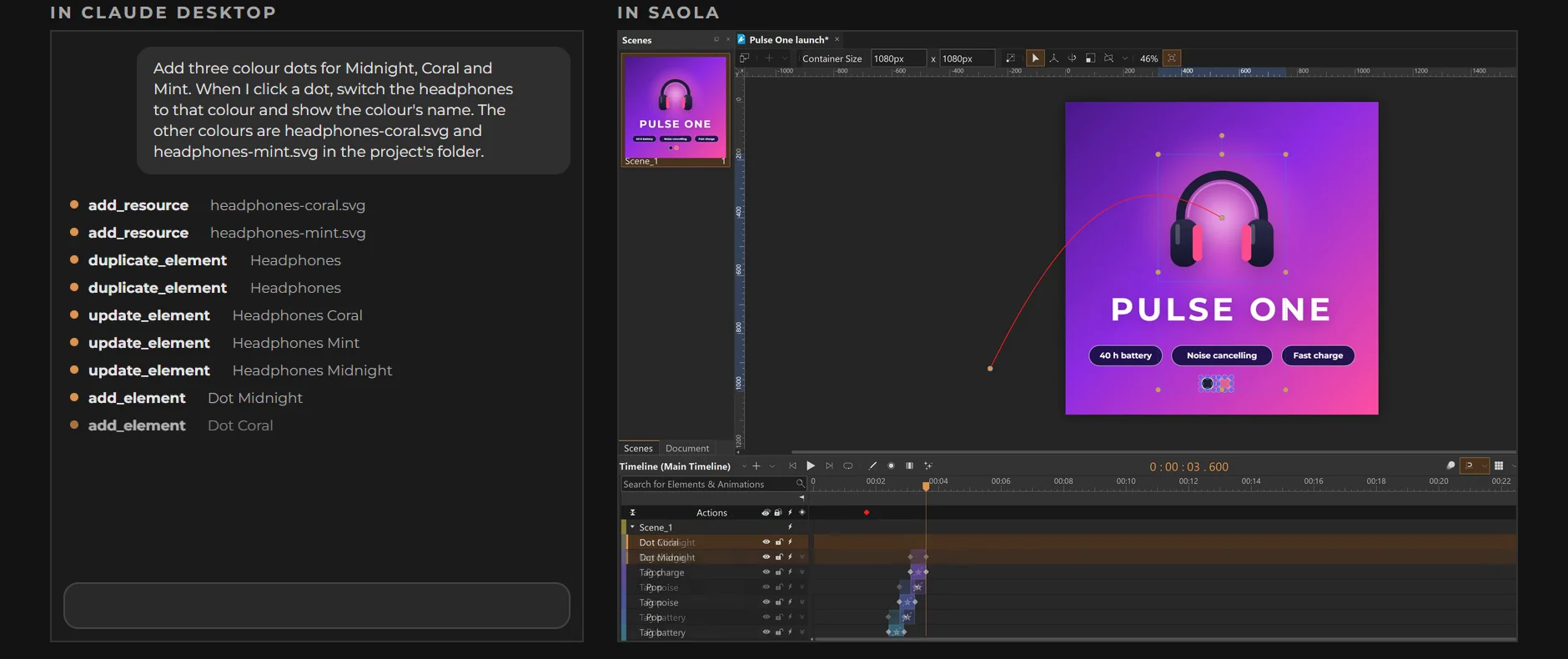
Start with a small, concrete request on a copy of your project, and check the result before asking for more.
Set up your AI client
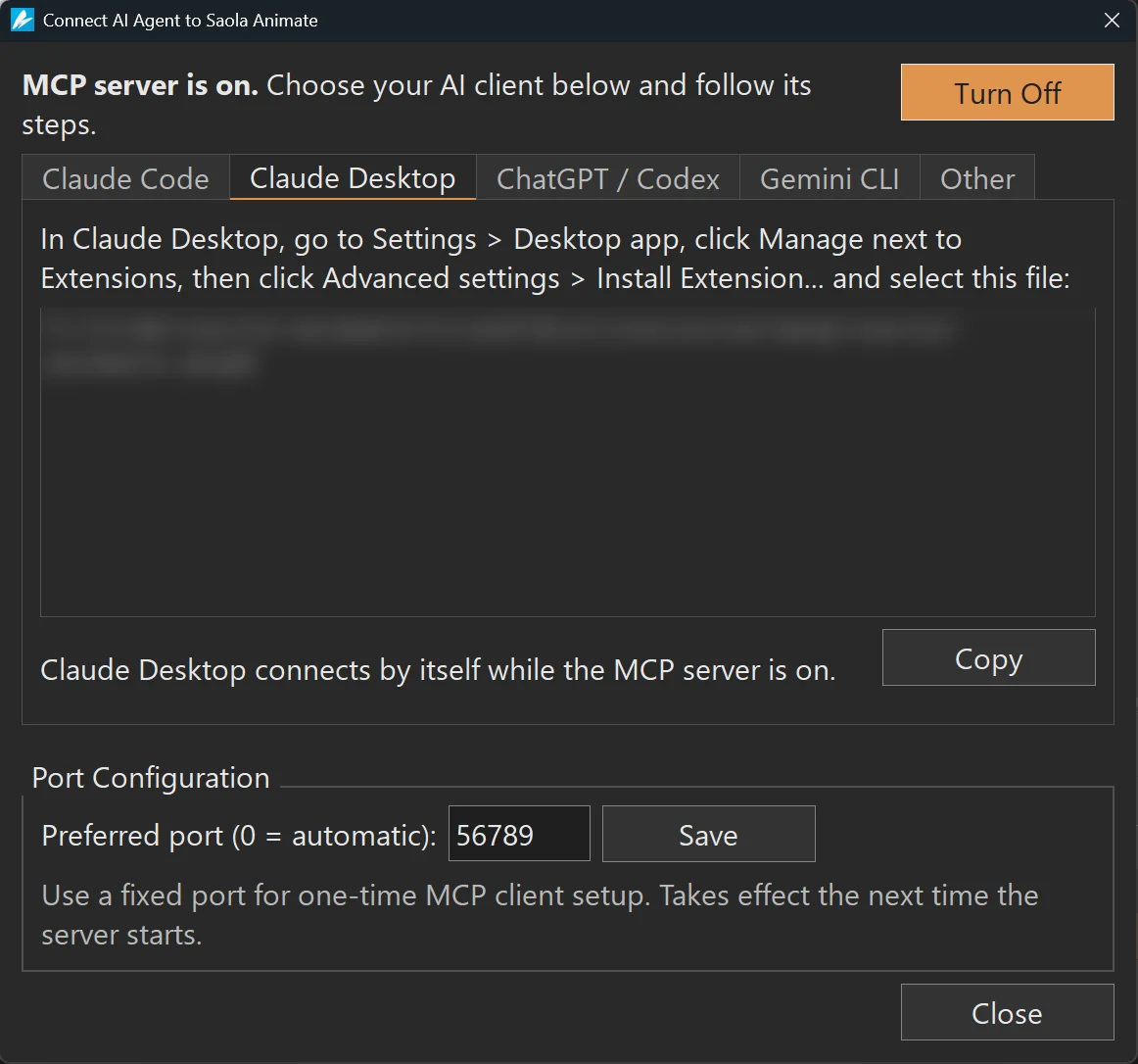
- In Saola Animate 4, open File > Connect AI Agent… and click Turn On.
- Select the tab of your client and follow its steps.
- Keep a project open in Saola; if none is open, create one first. Then, in your client, ask the agent to look at the open project before it makes changes.
| Client | Setup |
|---|---|
| Claude Code | Run the copied commands once in a terminal. They install the Saola Animate plugin from your Saola installation. Then start a new Claude Code session. |
| Claude Desktop | In Settings > Desktop app, click Manage next to Extensions, then Advanced settings > Install Extension…, and select the file shown in the tab. |
| ChatGPT desktop app | Click Open in ChatGPT, then Install plugin on the Saola Animate page that ChatGPT shows, and start a new chat. No terminal is needed. ChatGPT on the web cannot reach your computer. |
| Codex | Run the copied commands once in a terminal, then start a new session. |
| Gemini CLI | Run the copied command once in a terminal. |
| Other clients | Enter the Server URL in your client’s MCP settings and send the Header value as an HTTP header. The client must support local Streamable HTTP MCP with bearer authentication, directly or through a local connector. |
The Saola Animate plugin comes with Saola and needs no other software, such as Node.js. Besides the connection, it gives the agent skills for creating animations, adding motion and interactions, adding custom code, building responsive layouts, editing existing projects, and adding voice-over.
Good to know
- Keep the token shown in Connect AI Agent private, and check your AI client’s data-sharing settings before you give it access to confidential projects.
- Saola does not interrupt a request with its own questions. The agent asks you in its chat before it replaces a file, converts an old project or closes a project with unsaved changes.
- If a request is interrupted, look at the project before you repeat it, so the agent does not make the same change twice.
- After you install a new version of Saola, start a new session in your client.
- If you change the server port in Connect AI Agent, update the URL in clients you set up from the Gemini CLI or Other tab. The plugin and the Claude Desktop extension need no update.
For every step and for troubleshooting, see the chapter Working with AI Agents in the Saola Animate user manual.