
Saola Animate 4 lets an AI agent work on your projects with you, turns text into narration, makes video export more faithful to your timeline, and brings a redesigned Welcome screen, two dark themes and a Vietnamese interface. The workflow stays the one you know: create scenes, animate elements on timelines, add interactions, and publish HTML5 or video.
Saola Animate 4 is available for Windows. The Mac version follows; until then, Saola Animate 3.1.4 for Mac remains available.
Work with an AI agent in the editor
Turn on the optional MCP server in File > Connect AI Agent… and an AI client on your computer can inspect and edit your project. Ask it to create a scene, arrange elements, adjust keyframes or export HTML5, then review its work in the editor and in the browser preview. Its edits can be undone like your own.
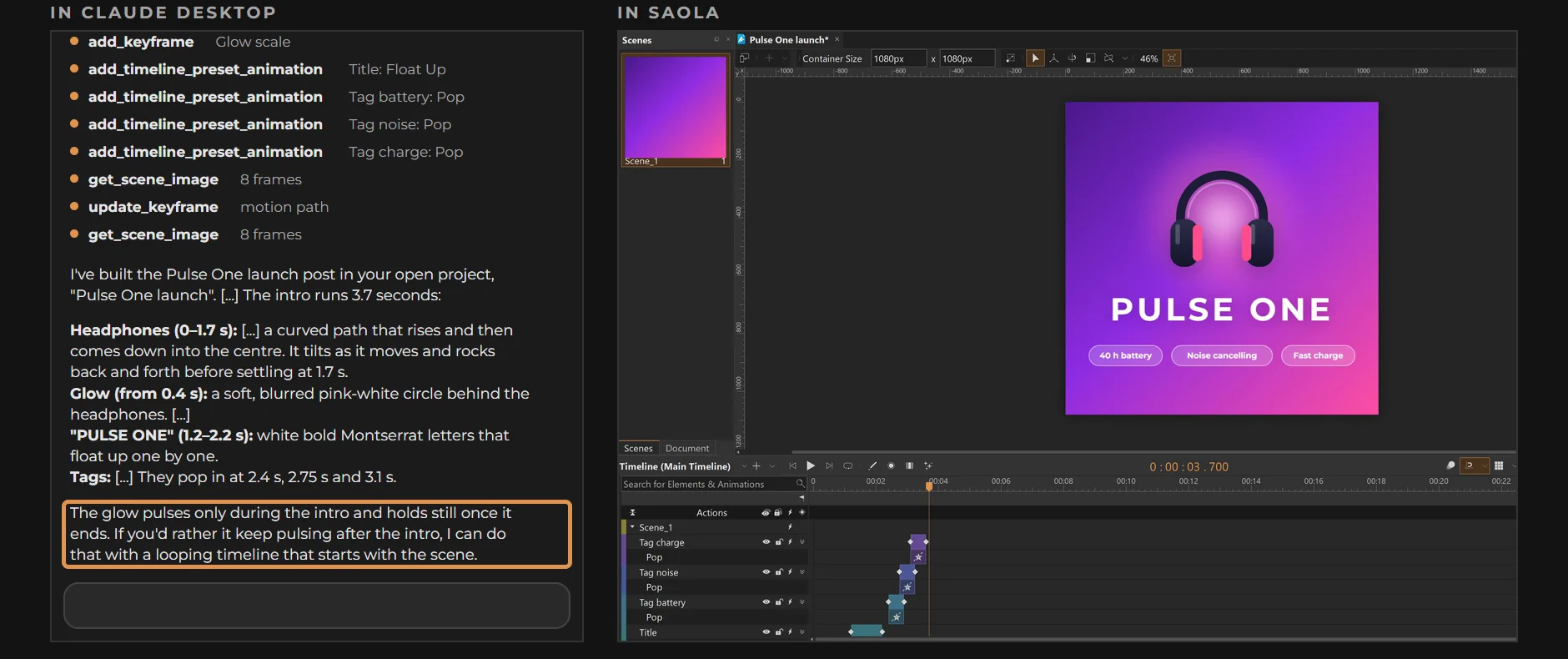
The server is off by default and accepts connections from your own computer only. Saola installs a plugin for Claude Code, Codex and the ChatGPT desktop app that connects the client by itself and adds skills for creating animations, adding motion and interactions, adding custom code, building responsive layouts, editing existing projects and adding voice-over. It needs no other software, such as Node.js. Your AI account and any service charges are separate from Saola Animate.
Turn text into narration
Text to Speech…, next to Audio, generates narration with a cloud voice from ElevenLabs, Azure AI Speech or Amazon Polly. Type the text, pick a voice by language and gender, preview it and insert it: Saola adds the audio and a Start playback action at the playhead, in one undo step. Use Edit Speech… in the Properties pane or the Resources pane to change the words or the voice later.
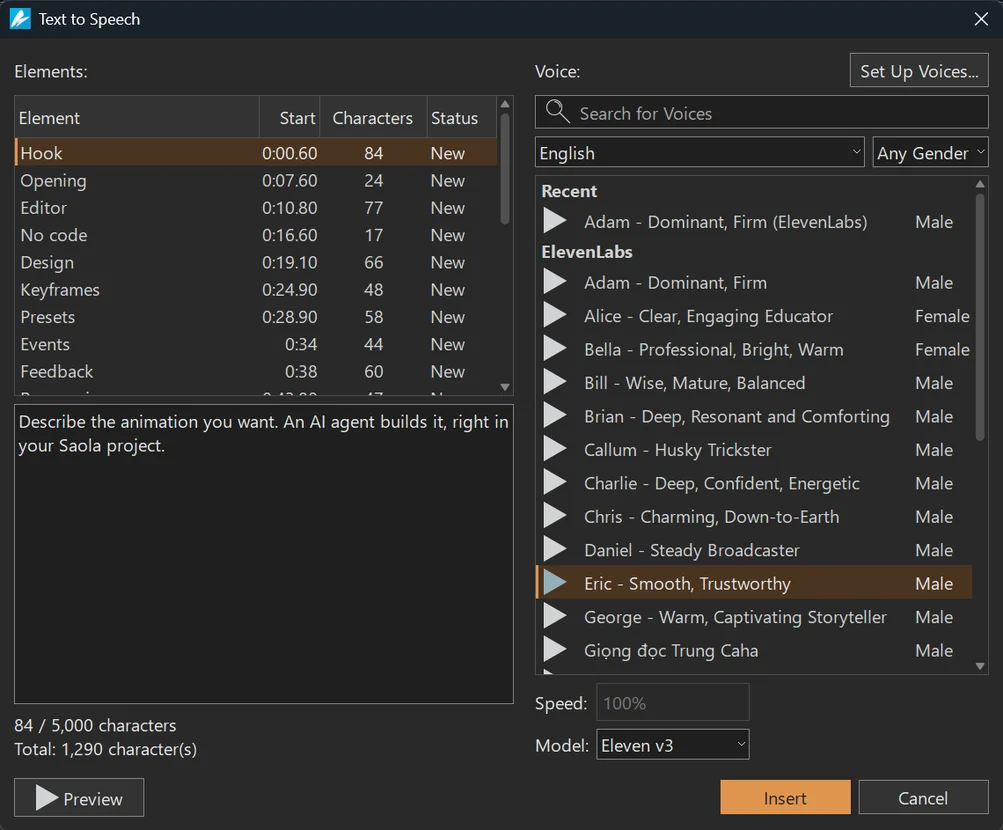
Listen inside the Text to Speech dialog, with pause and a slider to seek through the audio. Insert reuses the matching audio you just previewed. Reopening Edit Speech… lets you preview the saved audio without generating it again when the text and voice settings are unchanged, even after reopening the project. Use Regenerate when you want a new take.
Saola can also read out the text that elements show. Select texts, divs, shapes or a group, right-click and select Text to Speech…: each element gets its own audio, which starts with its first entrance effect, or at the playhead when it has none. With several elements, one voice applies to all of them and a single Undo removes all their speech. The audio stays linked to its element: when you change the text, the Properties pane says so, and Use Current Text in Edit Speech brings the new text into the speech.
Set up your own account with each provider in the new Voices tab of Preferences. Keys stay in the credential store of your computer, never in projects. The provider bills each new generation, including one started by Preview, under your plan with it; replaying saved or cached audio does not generate it again. Amazon Polly has no Vietnamese voices.
Export video that follows your timeline
- Short audio no longer cuts an exported video short, and frame timing no longer drifts.
- Media keep their timing through playback speed changes, scene transitions and across-scene layers, including media inside symbols.
- Exported videos apply the volume of each media element, volume and mute actions, and Mute All.
- Autoplay media and media started by triggers play in real time, and looping media continue from their start.
- Rotated videos are no longer distorted.
- A failed or canceled export leaves the file you were replacing untouched.
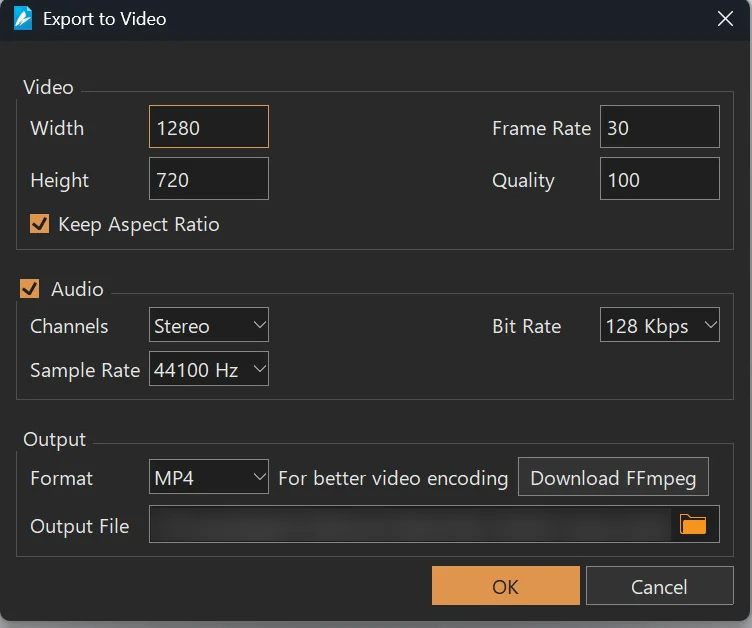
You still need nothing else to export video. To use FFmpeg instead, click Download FFmpeg in the Export Video dialog, or keep FFmpeg in PATH. Codec options depend on the encoder and your hardware. Videos do not keep interactivity.
Better HTML5 playback and touch
Text animations keep combined characters and emoji sequences intact. When a browser blocks media playback, Saola tries again after the viewer interacts with the page and still respects mute choices. Swipe actions leave native scrolling in the other direction and pinch zoom working, and video fullscreen uses the iPhone’s native method when standard fullscreen is not available.
Edit with fewer interruptions
- No more freeze when inserting a keyframe into a motion path whose positions are identical, and symbols keep the keyboard focus when moved or resized.
- Double-clicking the center of a text box or shape with a motion path opens the text editor again.
- Saving or closing a project while you edit text keeps the text you typed.
- Rotated groups keep their elements inside the box when resized, and rotating a group or a flipped element turns its elements the right way.
- In responsive projects, the shape adjustment handle, Paste Path, Fit Size to Path, Restore Original Size and Make Same Size respect each layout and its units.
- Convert to Symbol keeps every selected element and the timelines that animate them in other layouts; paste, duplicate and Convert to Symbol keep the layout overrides of preset effects.
- Paste and Insert Symbol no longer let a symbol contain itself, and pasting the same symbol again from another project no longer adds a duplicate.
- Save As writes the new project without renaming or removing the original first, and saving handles write errors more carefully.
Start from better defaults
New images, audio, videos, HTML widgets and custom elements appear in the center of the scene, and images and videos larger than the scene scale down to fit. A click on the Canvas inserts a DIV or shape at the default size. New text is left-aligned, and white on a dark solid background. HTML widgets have no default border or background; a dashed outline shows their area on the Canvas only.
Text elements grow taller as their text needs more room and shrink back to the height you gave them. To keep a fixed height, set Overflow to Hidden, Scroll or Auto.
Custom elements, from Canvas to export
Custom-element HTML can refer to imported project resources by file name, and Saola resolves them on the Canvas, in the browser preview and in exported HTML5. The Canvas and scene thumbnails show custom elements as static content; their JavaScript runs in the browser preview and in exported HTML5.
Two dark themes
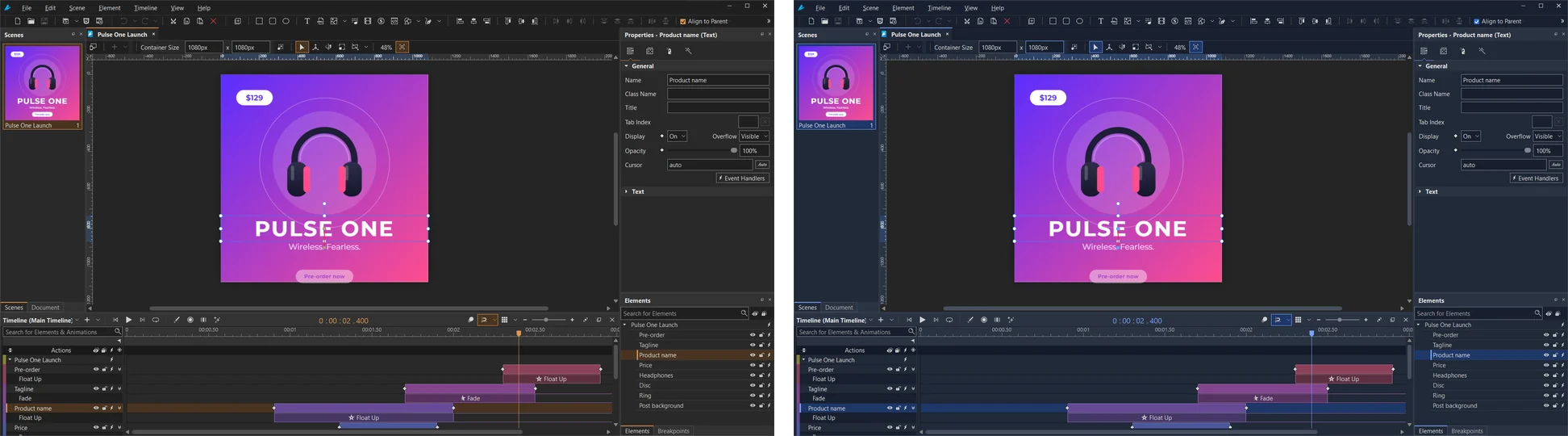
The redesigned Dark theme pairs charcoal panels with an orange accent, clearer contrast, readable selected text and visible keyboard focus. Royal Blue pairs navy panels with a blue accent. Switch in View > Theme or in Preferences, instantly, without restarting or closing your projects. Themes change the editor only, not your projects or their output.
A new Welcome screen
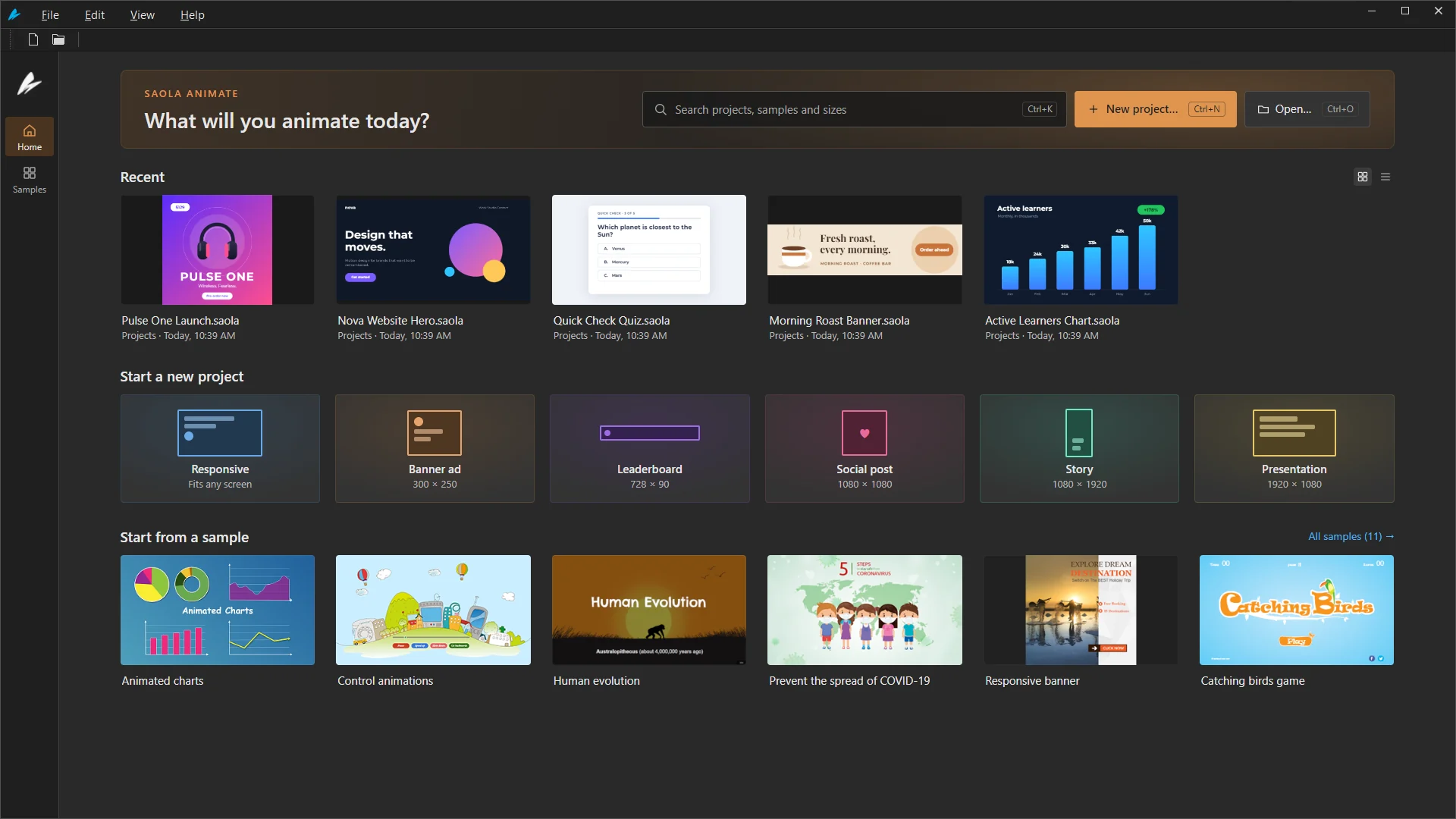
Start from your recent projects with thumbnails, and pin the ones you use most. One search field finds projects, samples and sizes. Start from a format such as a banner ad or a social post, or open a sample.
Fit the interface to your screen
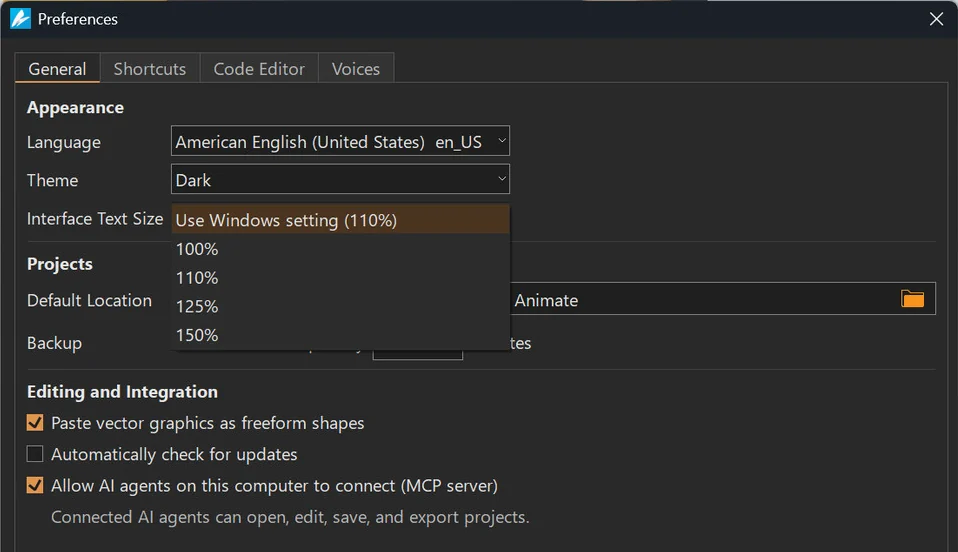
On Windows, Interface Text Size in Preferences follows the Windows text size or uses 100% to 150%, starting from the next run. View > Reset Pane Layout returns all panes to their default position, size and visibility.
Vietnamese, and product-key activation
Vietnamese joins English, German, Spanish, French, Italian, Polish and Russian, and the existing translations now use the terms of common applications. Choose View > Language and restart Saola.
Activate Saola with your product key in Help > Activate License. Account sign-in and My Account have been removed.
Upgrading
| Saola Animate 4 | |
|---|---|
| Windows | Windows 10 version 1809 or later and Windows 11, 64-bit |
| Hardware | 2 GHz or faster 64-bit processor, 8 GB of RAM |
| Mac | Follows the Windows release, for macOS 12 or later on Apple silicon and Intel; 3.1.4 remains available until then |
| HTML5 on mobile | Safari on iOS 13 or later, Chrome on Android 10 or later |
| Price | USD 79 per computer, perpetual, with one year of free upgrades |
| Free upgrade | Licenses bought on or after November 29, 2023 |
| Paid upgrade | USD 31.60 per computer for earlier paid licenses |
Check your product key on the upgrade page, and see the upgrade FAQ. Before opening an existing project in version 4, keep a copy of it, and check the browser preview and the HTML5 output before replacing published content.