
Creating a course often means managing chapter quizzes, adapting layouts for smaller screens, preparing narration, and checking that everything works before publishing. ActivePresenter 10.7 brings new tools and improvements to help you handle these tasks within one authoring workflow.
This update introduces Section Reports, responsive Content Blocks, Slide Notes, Analyze Media, and more. Smart Studio also gains new ways to create different video formats and change your presenter’s appearance throughout a recording.
Let’s explore what’s new in ActivePresenter 10.7 and how these updates can support your next course, presentation, or video tutorial.

1. Give Each Chapter Its Own Results with Section Reports
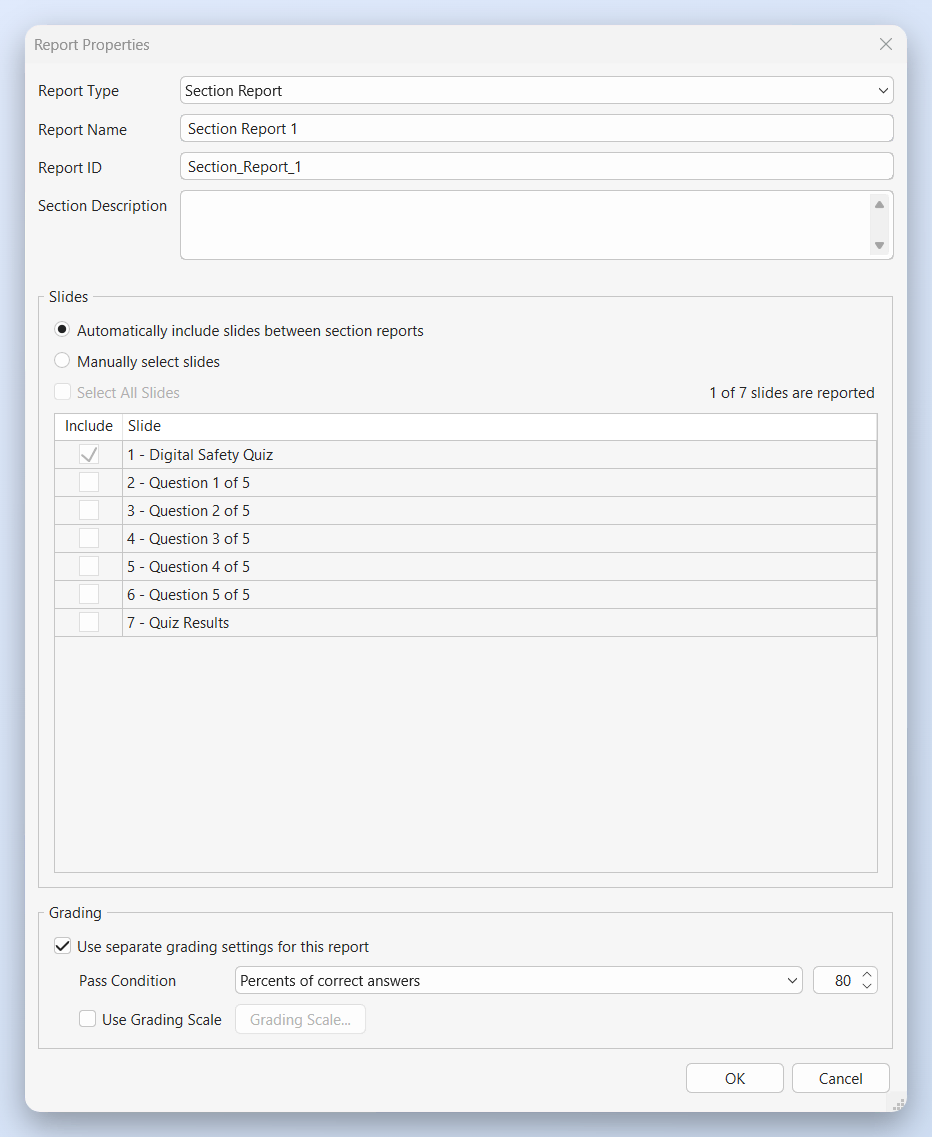
A single final score may not tell learners enough about their performance in a course with several chapters. With Section Reports, you can provide results for individual parts of a project.
Each Section Report calculates results for its assigned slides and can have its own pass condition and grading scale. You can select the slides manually or include them automatically between section reports.
To get started, open Questions > Report Slide > Report Type and choose the report you need.
The reporting workflow includes two closely related options:
| Report type | What it shows |
| Section Report | Results for the slides assigned to a particular section. |
| Project Report (Section Summary) | Selected Section Reports together with the overall project result. |
For example, an onboarding course could contain separate quizzes for workplace policies and information security. Learners would see feedback after each quiz, followed by a final summary showing both sections.
Learners can also review or restart a section without clearing results from other sections. For more customized feedback, section-specific variables such as apQuizScore.Chapter1 and apQuizPassed.Chapter1 make those results available to your project logic.
This gives you more flexibility when designing interactive quizzes and assessments within a larger course.
2. Build Responsive Pages with Content Blocks
Designing for desktop and mobile involves more than making objects smaller. Text, images, and cards often need to rearrange as the available width changes.
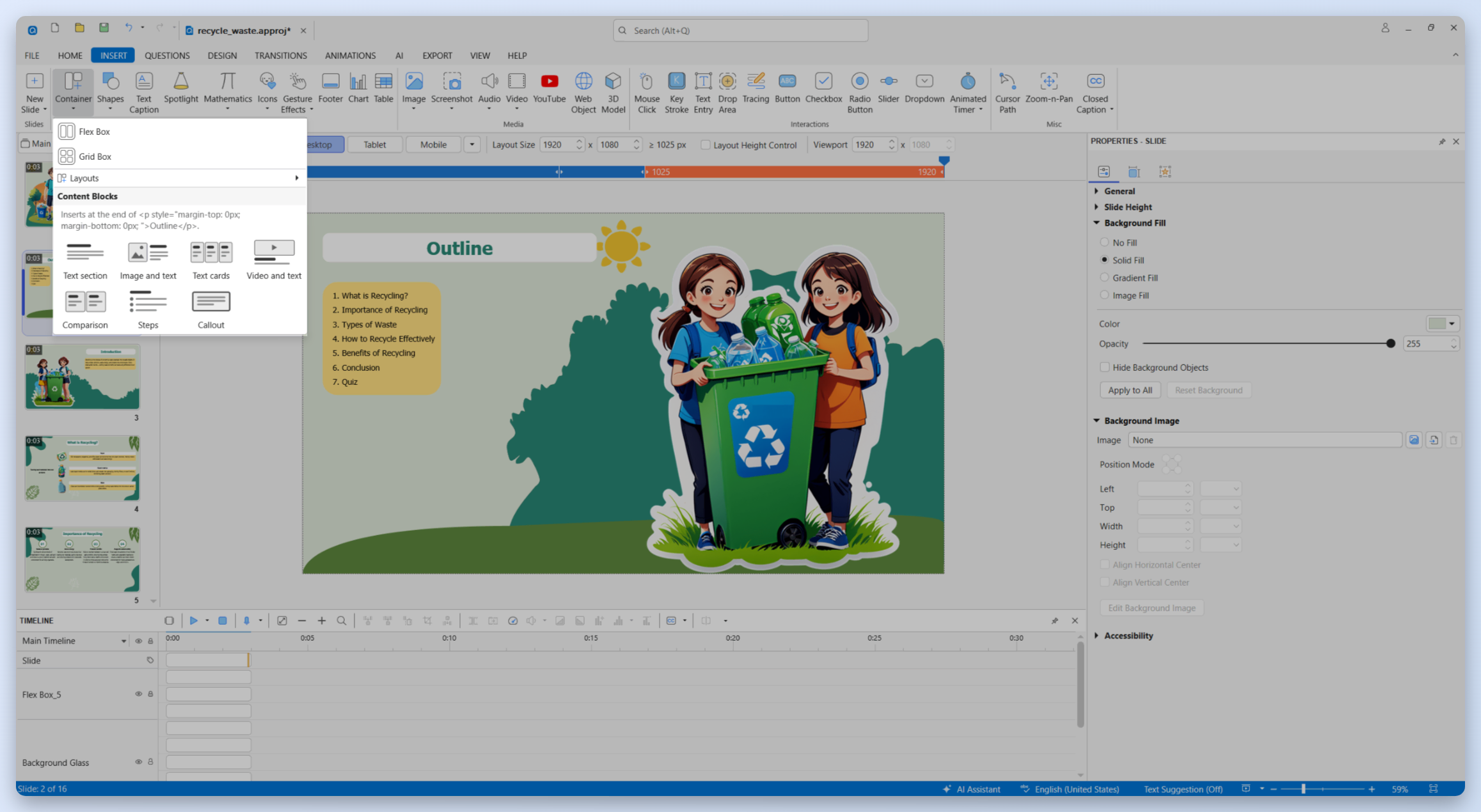
ActivePresenter 10.7 expands responsive authoring with flowing content layouts and ready-made Content Blocks. These blocks combine text, cards, images, videos, and flex containers with responsive layout rules already configured.
Insert a block through Home or Insert > Container > Content Blocks. Depending on your selection, you can place it at the end of a slide, after an object, or inside a selected flex box.
Once inserted, the block remains a collection of ordinary editable objects and flex boxes. You can replace its content and adjust its design to suit your lesson.
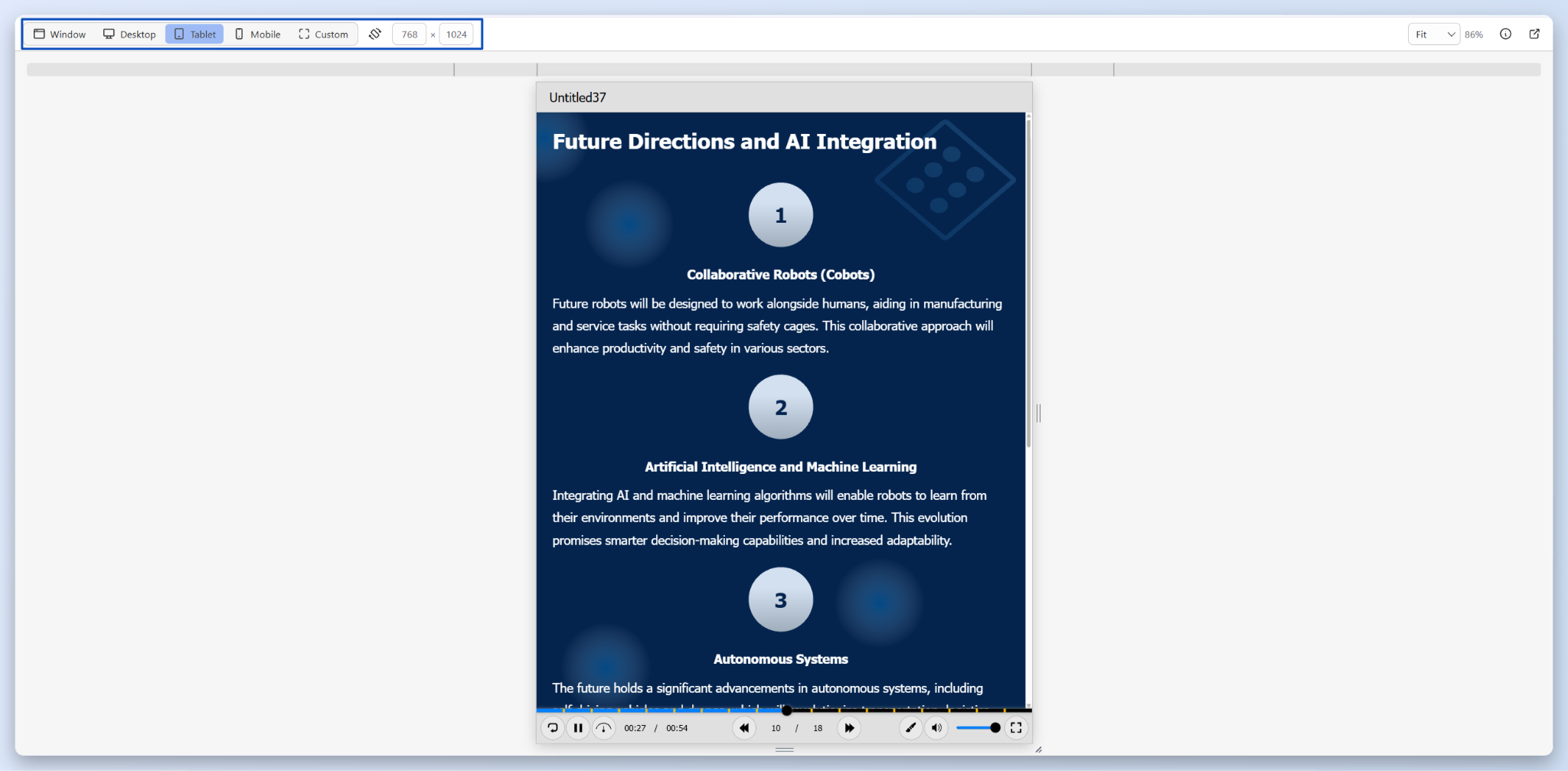
For example, a teacher could use an image-and-text block to explain a science concept. On a wide screen, the image and explanation could appear side by side. On a narrower screen, they could stack vertically for easier reading.
Flexible sizing, automatic columns, minimum and maximum sizes, and Fit height to content also support longer pages.
3. Keep Speaking Prompts Organized with Slide Notes
Need to record a reminder, flag content for revision, or explain how a slide should work? Slide Notes gives you a dedicated place to keep these details while building your project. You can document changes, track items that need checking, or leave context for colleagues who will edit the course later.
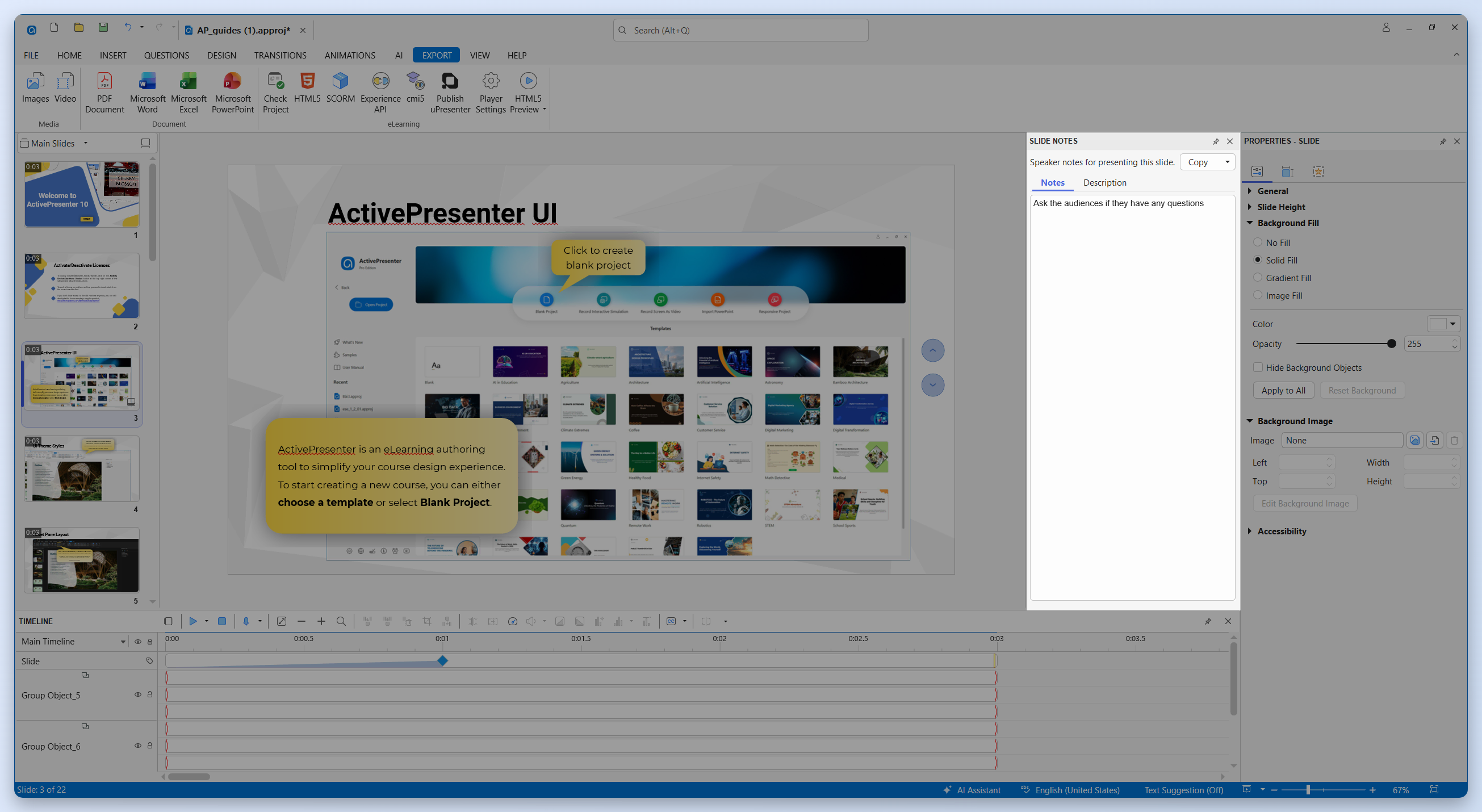
Open View > Slide Notes to access the pane’s separate Notes and Description tabs. Notes support rich text, search, and Undo/Redo. A badge on slide thumbnails helps you identify slides that contain notes.
For example, you could note that a screenshot needs updating, a quiz answer requires confirmation, or a branching interaction still needs testing.
Slide Notes also supports presentation and export workflows. You can:
- Import and export PowerPoint speaker notes.
- Include notes in Microsoft Word or PDF handouts independently of Description.
- Choose whether notes appear in the HTML5 sidebar, Presenter Window, or both.
For live presentations, the Presenter Window displays notes alongside current and next slide thumbnails, elapsed time, and navigation controls.
4. Find Editing Points Faster with Analyze Media
Reviewing a long recording can mean repeatedly scrubbing through the Timeline to find pauses, scene changes, or playback problems.
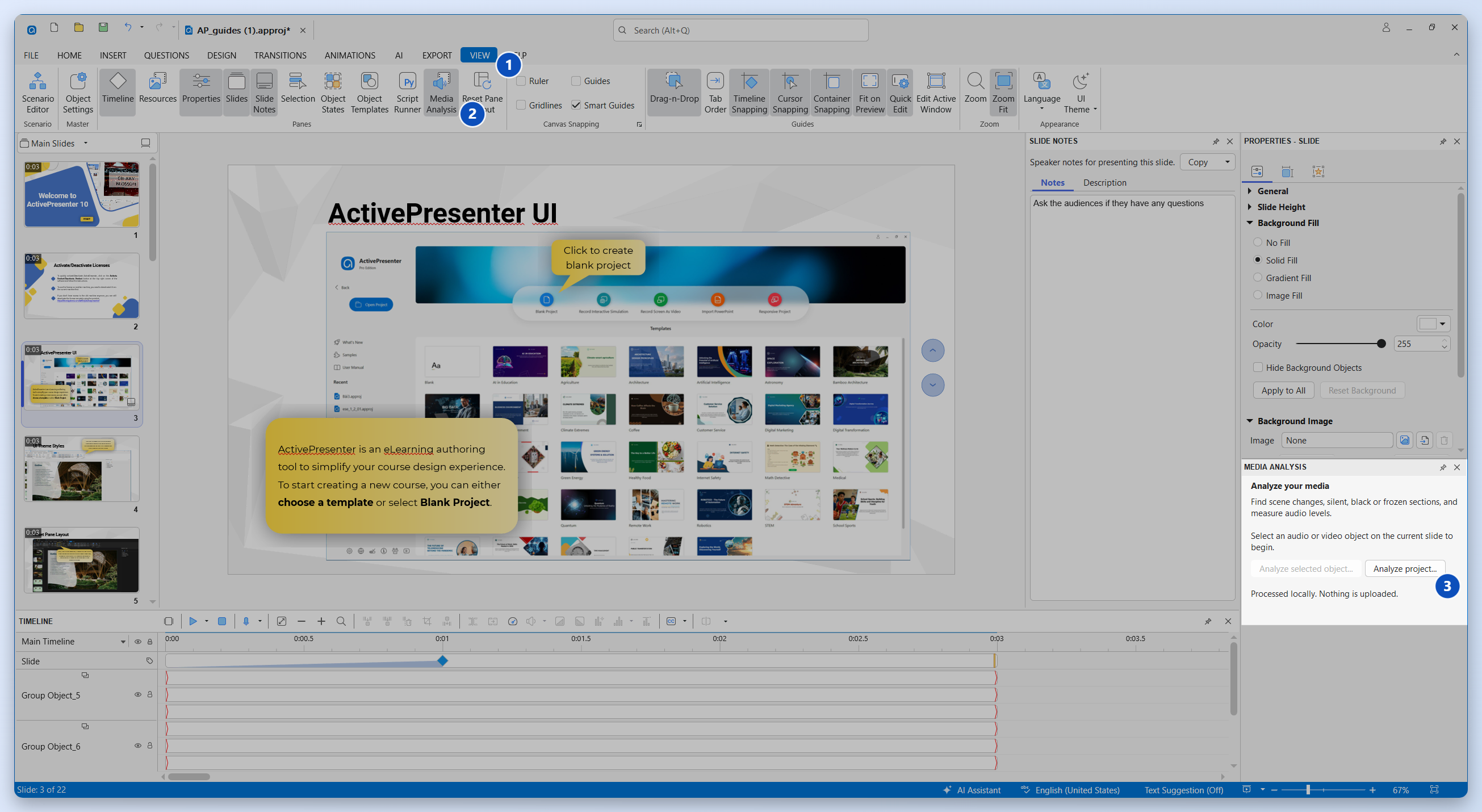
The new Analyze Media feature helps locate:
- Scene changes.
- Silent sections.
- Black frames.
- Frozen video.
- Audio-level information.
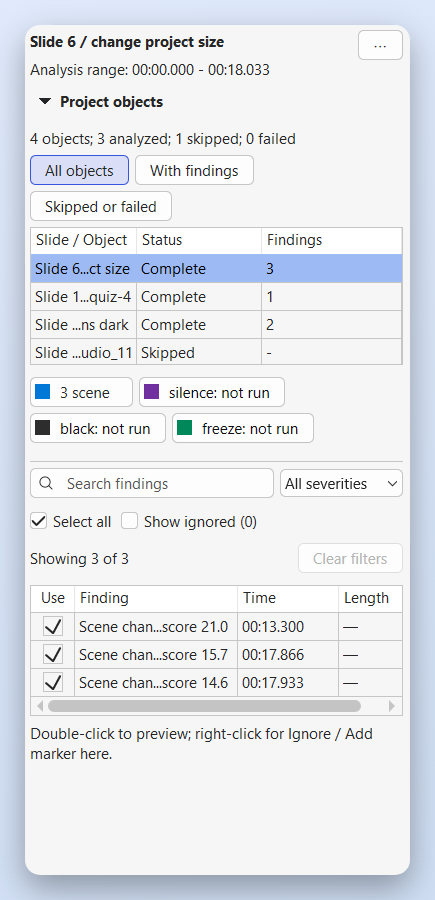
Select a supported audio or video object on a regular slide, then right-click it on the Canvas or Timeline and choose Analyze Media. You can reopen the results through View > Media Analysis.
Analysis runs locally, without uploading your media. The results panel stays available while you work with the Canvas and Timeline.
Findings are also non-destructive: analysis does not automatically cut or change your recording. You decide whether to add markers, select ranges, or split media.
For instance, a trainer reviewing a recorded software lesson could locate a long pause, inspect a frozen section, and mark scene changes before making edits with the built-in video editor.
5. Create More Video Formats with Smart Studio
Smart Studio gains two major improvements in ActivePresenter 10.7: multiple camera variants and timed Presenter segments.
Save Different Camera Variants for One Recording
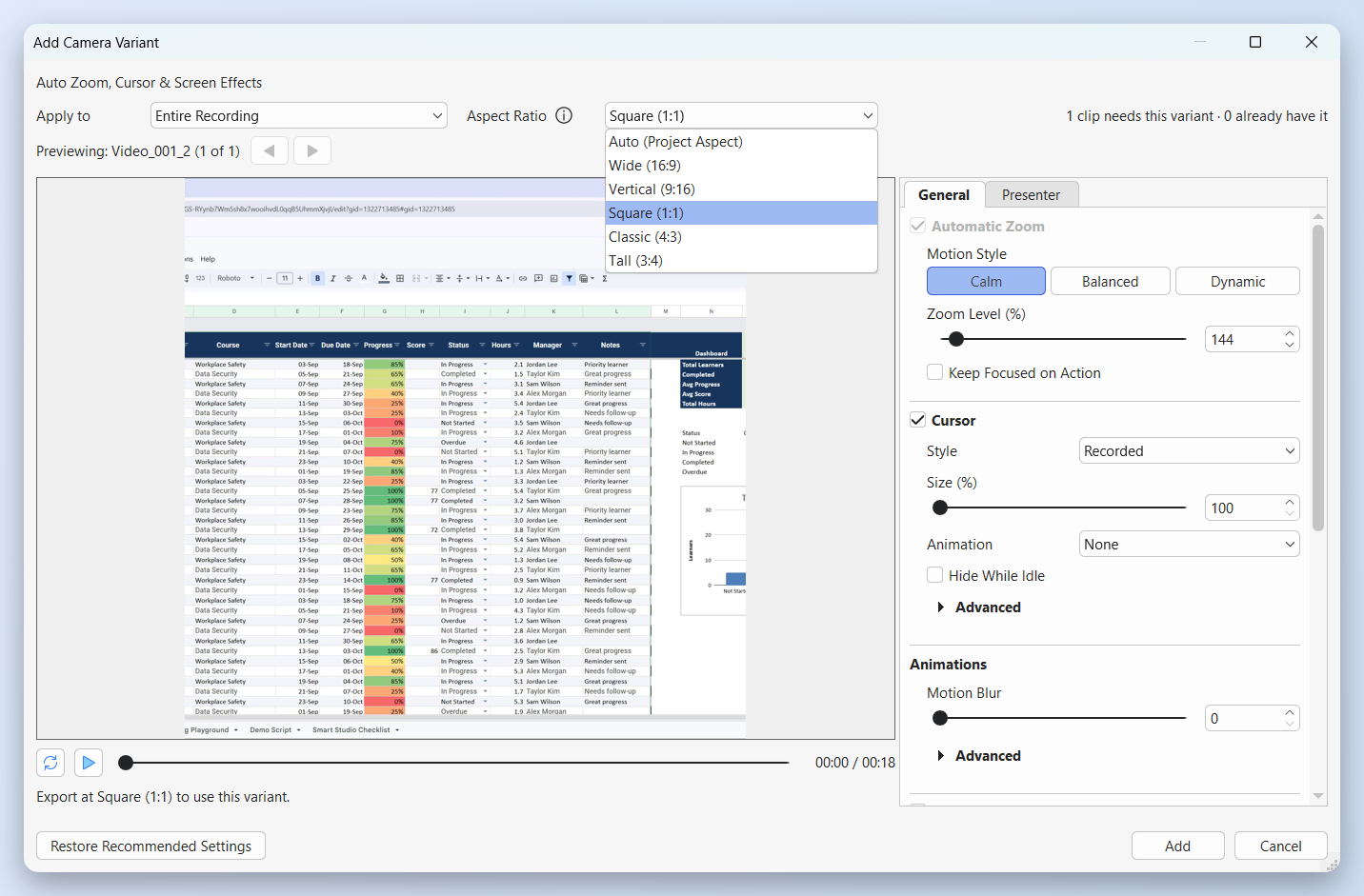
After recording with your free screen recorder – ActivePresenter, you can now keep separate camera work for Adaptive, 16:9, 9:16, 1:1, 4:3, and 3:4 output.
Each aspect ratio can have its own camera shots, zoom, focus, Frame, and Presenter appearance. This lets you prepare wide, vertical, and square versions without duplicating the recording just to change its framing.
To add a variant, select an eligible screen recording and open Properties > Media > Smart Studio > More > Add Camera Variant.
You can inspect a saved variant using Preview Camera, then select the required Aspect Ratio when exporting video. Adding a variant preserves existing camera work and keeps the saved Canvas/HTML5 aspect ratio unchanged.
Change the Presenter Layout Over Time
Timed Presenter segments let you change the presenter’s layout and appearance during a continuous recording.
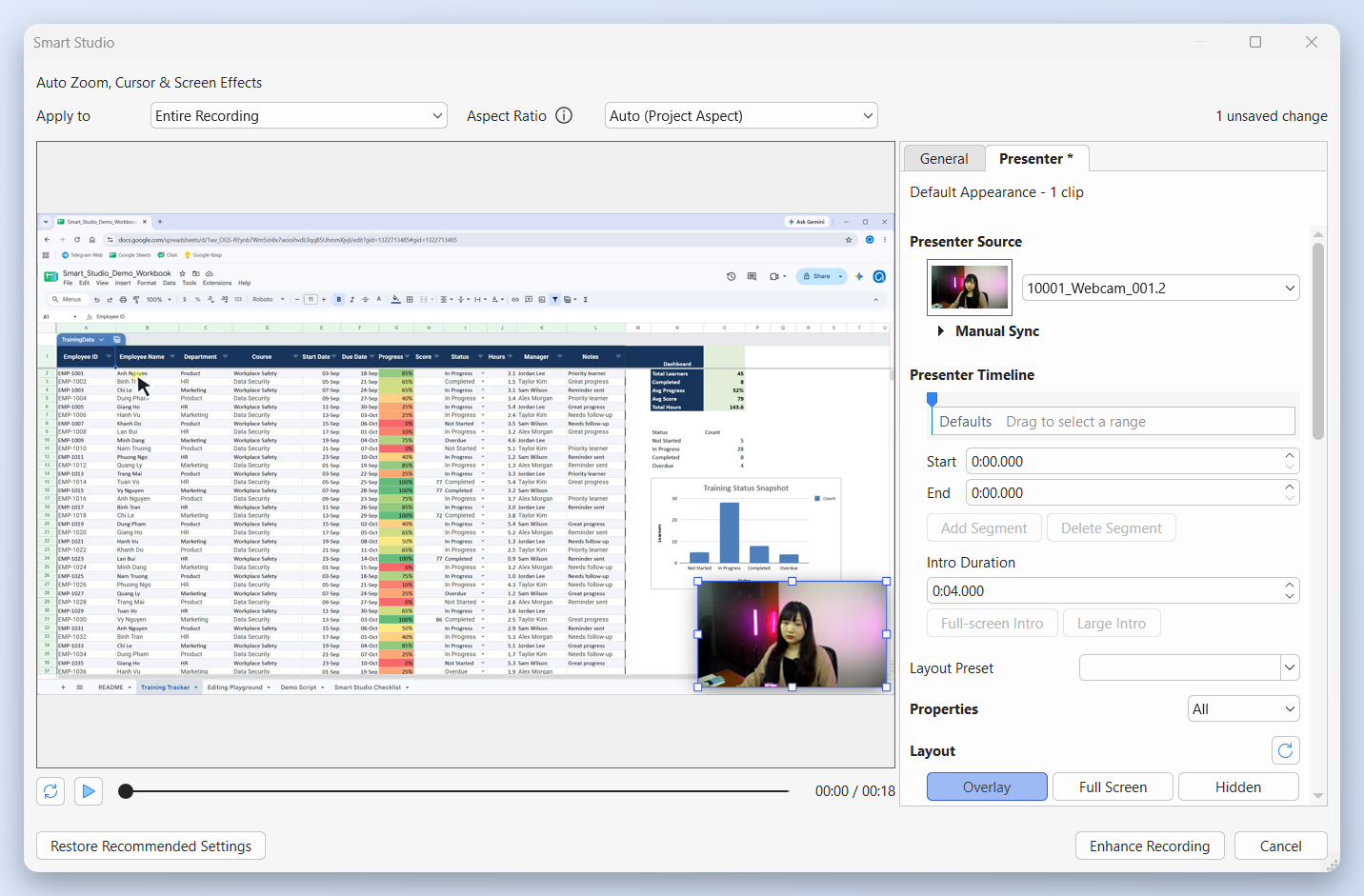
For example, you could:
- Begin with a full-screen presenter introduction.
- Switch to a circular corner overlay during the tutorial.
- Hide the presenter while showing a detailed interface.
Open Smart Studio’s Presenter tab, choose the Presenter Source, then select a time range and click Add Segment.
Segments can override layout, position, size, shape, crop, border, shadow, visibility, and Presenter audio. Default Appearance controls the gaps between segments.
Changes remain in preview until you click Apply Changes, giving you time to review the sequence before updating the project.
6. Review Your Course with Check Project
Before publishing, Check Project helps identify issues that may affect navigation, assessment, reporting, resources, sound, network requests, and responsive output.
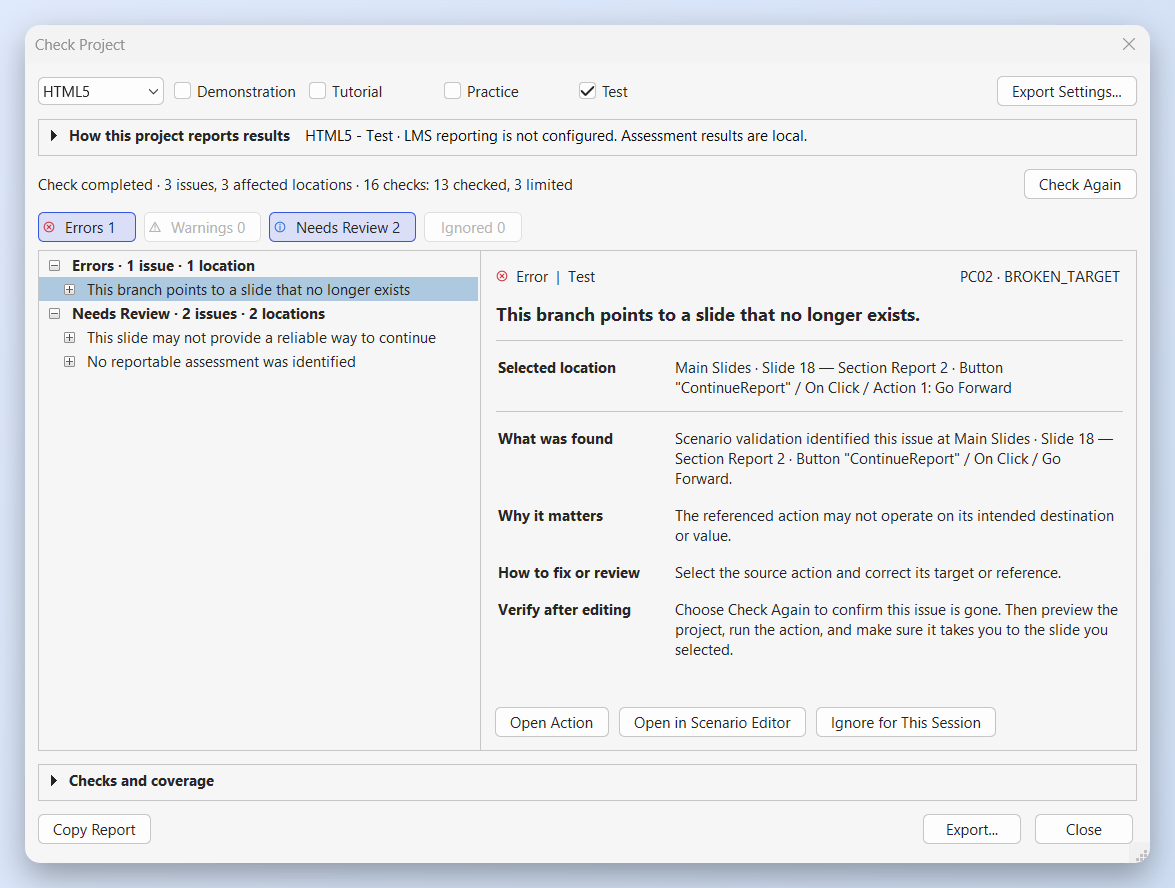
Open Export > Check Project, or access it from the Scenario tab in Scenario Editor.
Findings are grouped as Error, Warning, and Needs Review. Each finding explains what was detected, why it matters, and how to fix or review it. Navigation controls take you to the relevant slide, object, action, or settings.
Check Project provides guidance and does not block export. A Needs Review item calls for author judgment or runtime testing.
Scenario Editor also gains clearer branch indicators, issue badges, and navigation. Trace Logic follows a possible learner path without playing slide media, while Export Graph saves the graph as PNG, SVG, or PDF for review and documentation.
7. Publish with cmi5 and More Flexible Player Controls
ActivePresenter 10.7 adds cmi5 export for cmi5-compatible learning management systems. This combines an LMS launch workflow with xAPI statements sent to a Learning Record Store.
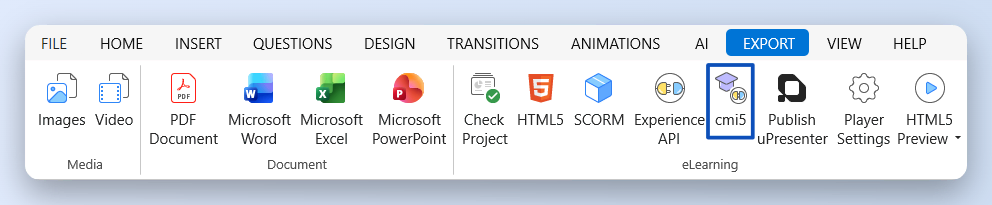
Access it through Export > cmi5. Each selected Operation Mode produces its own ZIP package containing one course and one assignable unit.
A cmi5 package requires an LMS launch; opening its HTML file directly does not replace that delivery workflow.
The HTML5 player also gains more display options:
- Always Visible keeps player bars docked.
- Auto Hide During Playback temporarily hides the bars.
- Collapse on Short Screens saves space in shorter windows.
- Initially Collapsed starts the sidebar closed.
These settings apply through the shared player to HTML5, SCORM, xAPI, and cmi5 output.
8. Enjoy Smoother Everyday Authoring
Command Search helps you find and run commands by name, shortcut, alias, or interface location. Use the top application bar, Alt+Q on Windows, or Ctrl+Shift+P on macOS.
New Canvas rulers provide pixel references and let you create guides by dragging from a ruler or double-clicking it.
PowerPoint workflows gain more compatible animation effects and transitions, along with improved preservation of text, media, notes, layout, and timing during import and export.
Other refinements cover Timeline rendering, media preview, large-project editing, accessibility, and stability. Video export can also retry with compatible H.264 settings when the selected FFmpeg encoder fails.
Other Notable Improvements
ActivePresenter 10.7 also brings several updates to everyday authoring:
- Expanded Text-to-Speech options: Create narration with downloadable Vietnamese voices or explore additional cloud voices, including Gemini.
- Paragraph text animation: Animate text by paragraph to introduce information gradually and help learners follow your explanations.
- More PowerPoint-compatible effects: Add variety with additional animation effects and slide transitions, with improved fidelity during PowerPoint import and export.
- Easier animation organization: Move effects between timelines and convert between Main Timelines and Click Sequences without recreating your animations.
- Improved caption workflows: Preview captions before insertion or export, with consistent caption-splitting controls across Transcribe File and Auto Captions.
- Smoother editing and more reliable export: Benefit from refinements to media preview, Timeline interaction, large-project editing, and video export.
Explore ActivePresenter 10.7
Whether you are building chapter-based assessments, designing responsive lessons, or preparing several versions of a video tutorial, ActivePresenter 10.7 gives you more control over the authoring process.
Explore ActivePresenter and visit the download page to get started with the latest available version.