
If you’ve been searching for a free screen recorder no watermark, you already know how frustrating the options can be. Some cap your recording time, some block audio features, and others ruin your final video with branding. In this guide, we’ll show you the best tools that truly offer free screen recording on PC with audio and no watermark.
I’ve personally tested over 30+ screen recorders in the past year alone. Below are the 5 that genuinely deliver free screen recording on PC with system audio and microphone — no watermark, no hidden gotchas — plus a detailed breakdown of which one fits your specific use case.
Why “Free, No Watermark” Is Harder to Find Than You’d Think
Before we dive into the list, let’s address the elephant in the room: why is this so difficult?
Screen recording software costs real money to develop and maintain. Companies need revenue. The three most common monetization strategies for “free” tools are:
- Watermark gating — The tool works great, but the exported video carries a logo. You pay to remove it.
- Time-limit gating — Free recordings are capped at 1–10 minutes. Useless for anything beyond a quick demo clip.
- Feature gating — Recording is free, but editing, audio, or HD export requires a paid plan.
The tools below avoid all three traps — at least for the core recording-with-audio workflow. Some do gate advanced features (like SCORM export or cloud storage), but the fundamental promise holds: record your PC screen with audio, export without a watermark, no time limit.
How I Evaluated These 5 Tools (My 5-Point Criteria)
After testing dozens of screen recorders over the years, I’ve narrowed my evaluation down to five criteria that actually predict whether a tool works for real-world projects — not just a quick test clip:
| Criteria | Why It Matters | What to Look For |
| Watermark-free export | Non-negotiable for professional output | Verify on the exported file, not just the preview |
| No recording time limit | Real sessions run 20–75 minutes | Test with a 30+ minute recording before committing |
| Audio recording (system + mic) | Most tutorials need both narration and app sounds | Check that system audio and microphone can record simultaneously |
| Built-in video editor | Eliminates juggling multiple apps | Look for multi-track timeline, not just trim/cut |
| Export format flexibility | Different platforms need different formats | MP4 (universal), SCORM/xAPI (eLearning), HTML5 |
With that framework in mind, here are the 5 tools that made the cut.
Table of contents
- Why “Free, No Watermark” Is Harder to Find Than You’d Think
- How I Evaluated These 5 Tools (My 5-Point Criteria)
- Top 5 Free Screen Recorders for PC with Audio — No Watermark (2026)
- Head-to-Head Comparison Table
- 3 Real-World Scenarios: Free Screen Recorder, No Watermark, Professional Results
- Insider Pro Tips (From 10+ Years of Screen Recording)
- Pros & Cons: An Honest Assessment of ActivePresenter as Your Primary Tool
- The Bottom Line: Which Free Screen Recorder Should You Actually Use?
- Start Recording Your First Professional Video Today — For Free
Top 5 Free Screen Recorders for PC with Audio — No Watermark (2026)
1. ActivePresenter — Best All-in-One for Training & eLearning
Platform: Windows, macOS
Price: Free (with Pro upgrade available)
Watermark: ✅ None in Free version
Time Limit: ✅ Unlimited
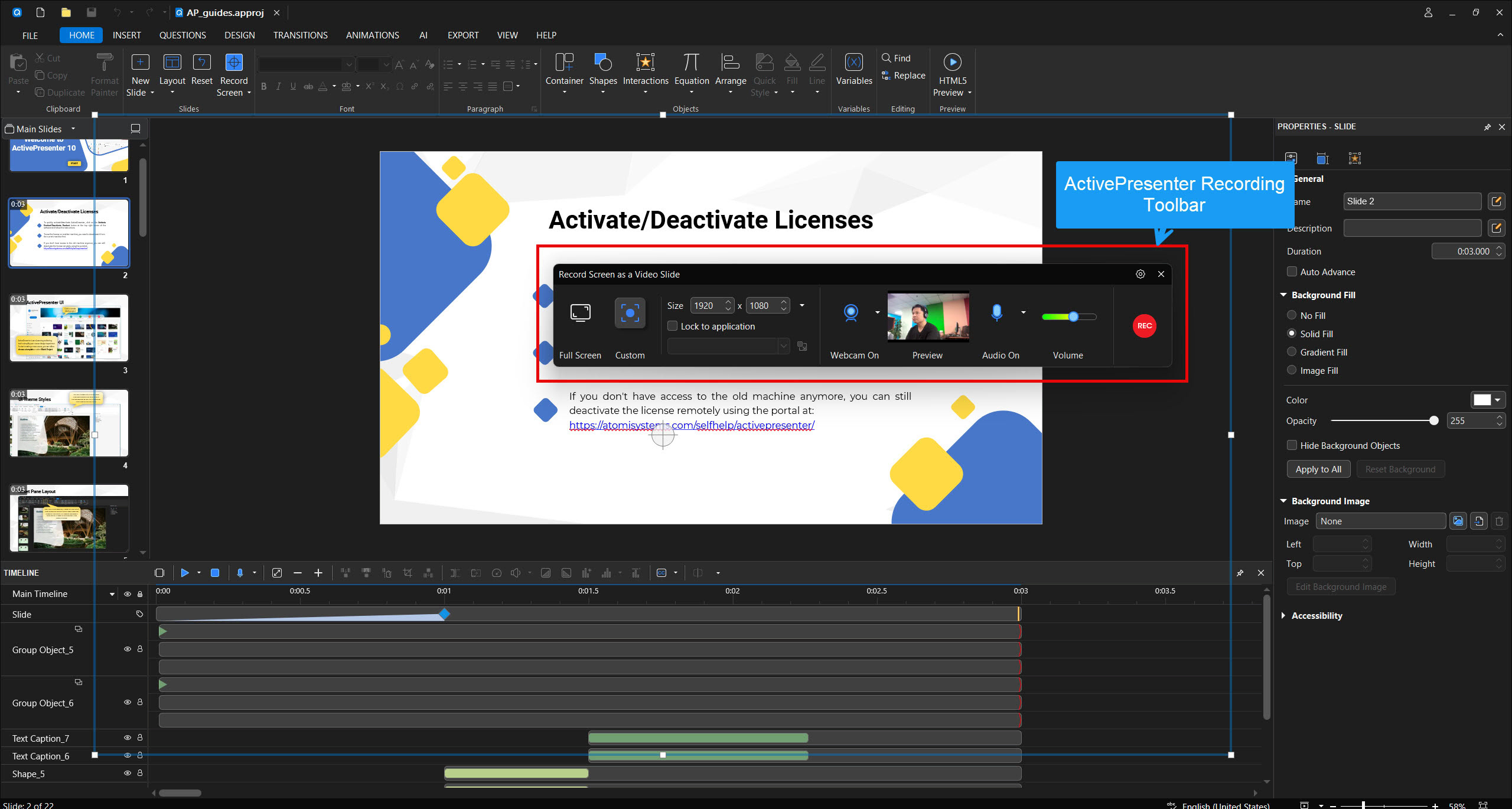
If you’re recording screen tutorials, training videos, or eLearning content, ActivePresenter is the tool I recommend first — and it’s not particularly close. Here’s why: it’s the only free screen recorder that gives you unlimited recording, zero watermarks, simultaneous system audio + microphone capture, and a professional-grade multi-track video editor in the same application.
What sets it apart:
- Multi-track timeline editor — Layer screen capture, webcam, microphone audio, and system audio on separate tracks. Adjust levels independently.
- Comprehensive annotation tools — Cursor highlights, spotlight effects, zoom-n-pan, shapes, text callouts. Essential for directing learner attention.
- Non-destructive editing — Your original recording is never altered. Every cut, every effect is reversible.
- Split video feature — Perfect for breaking long recordings into microlearning chunks.
- Long session stability — I’ve recorded 75+ minute sessions without frame drops or audio drift. This matters more than most people realize until they experience a corrupted 45-minute recording with a lesser tool.
What the Free version doesn’t include:
- SCORM/xAPI export (requires Pro)
- No Linux support
- Desktop app only — no cloud-based collaboration
Best for: Trainers, educators, L&D teams, course creators, anyone who needs to record and edit in one workflow.
💡 Pro Tip: When recording long sessions (45+ minutes), set the recording format to AVI with a lossless codec. The file will be large, but you preserve maximum quality for editing. Convert to H.264 MP4 only at the final export stage. This avoids compressing twice and the “generation loss” that comes with it.
2. OBS Studio — Best for Raw Capture Power
Platform: Windows, macOS, Linux
Price: 100% Free (open source)
Watermark: ✅ None
Time Limit: ✅ Unlimited
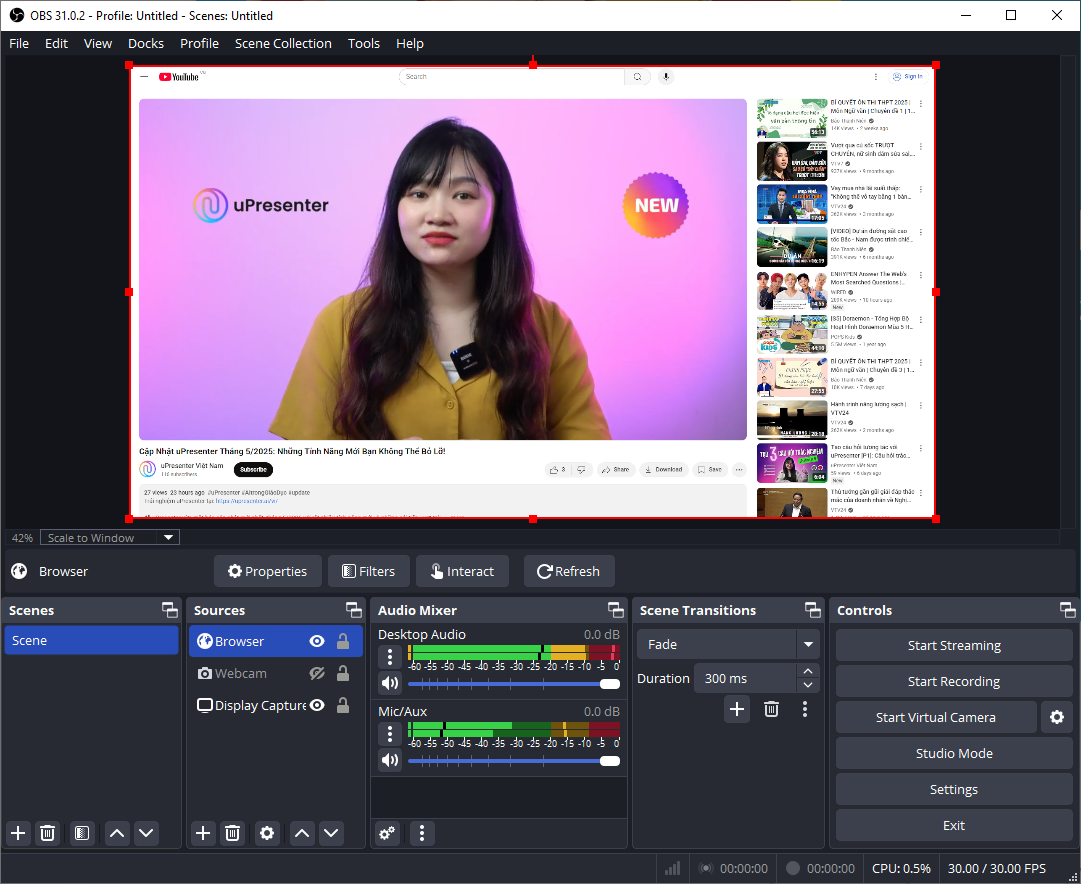
OBS Studio is the gold standard for raw screen capture. It’s what streamers use, and for good reason: rock-solid recording, highly configurable audio mixing, and zero cost with zero restrictions.
Strengths:
- Records system audio and microphone simultaneously with granular mixer controls
- Scene-based recording lets you switch between layouts on the fly
- Extremely lightweight on system resources once configured
- Linux support
Weaknesses:
- No built-in video editor at all. You’ll need a separate tool (like ActivePresenter) to edit.
- No annotation tools — no cursor highlights, no callouts, no zoom effects
- Steeper initial setup (configuring audio sources, encoders, bitrates)
Best for: Users who want maximum capture quality and don’t mind editing in a separate application. Streamers and capture purists.
3. ShareX — Best for Quick Captures & Screenshots
Platform: Windows only
Price: 100% Free (open source)
Watermark: ✅ None
Time Limit: ✅ Unlimited
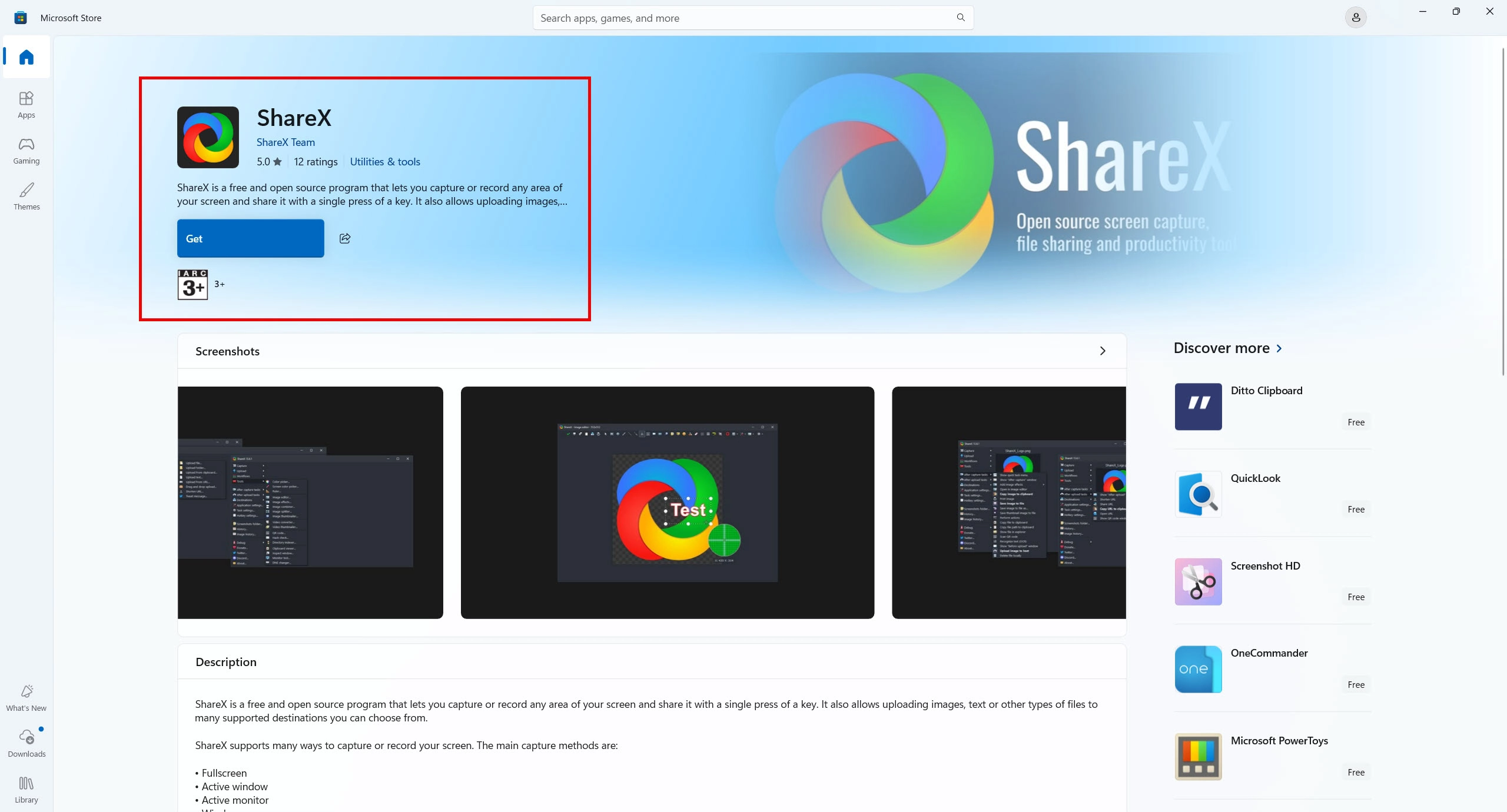
ShareX is a Swiss Army knife for screen capture. It records video with audio, takes screenshots, creates GIFs, and uploads to dozens of cloud services — all for free.
Strengths:
- Extremely fast workflow for quick captures
- Records system audio + microphone via FFmpeg integration
- Annotation tools for screenshots (less so for video)
- Highly customizable automation and hotkeys
Weaknesses:
- Video editing is minimal (basic trim only)
- The interface is functional but not intuitive — expect a learning curve
- Windows only
Best for: IT professionals, developers, and power users who need fast screen captures with audio for documentation.
4. ScreenPal (formerly Screencast-O-Matic) — Best for Casual Quick Shares
Platform: Web + Desktop (Windows, macOS)
Price: Free tier available
Watermark: ✅ None on free features
Time Limit: ⚠️ Limited in free tier
ScreenPal is the friendliest tool on this list. If you need to record a quick 5-minute walkthrough and share it immediately, ScreenPal gets you there faster than anything else.

Strengths:
- Dead-simple interface — record in under 60 seconds
- Webcam recording overlay
- Basic trim/cut editing built in
- Quick sharing via link
Weaknesses:
- Free tier has recording time limits
- Editing capabilities are basic (trim/cut only — no multi-track)
- Not practical for long-form training content
Best for: Casual users, quick team communications, short demo clips.
5. Xbox Game Bar — Best for Zero-Setup Windows Recording
Platform: Windows 10/11 (built-in)
Price: Free (pre-installed)
Watermark: ✅ None
Time Limit: ✅ Up to 4 hours
Already on your PC. No download required. Press Win + G and start recording.
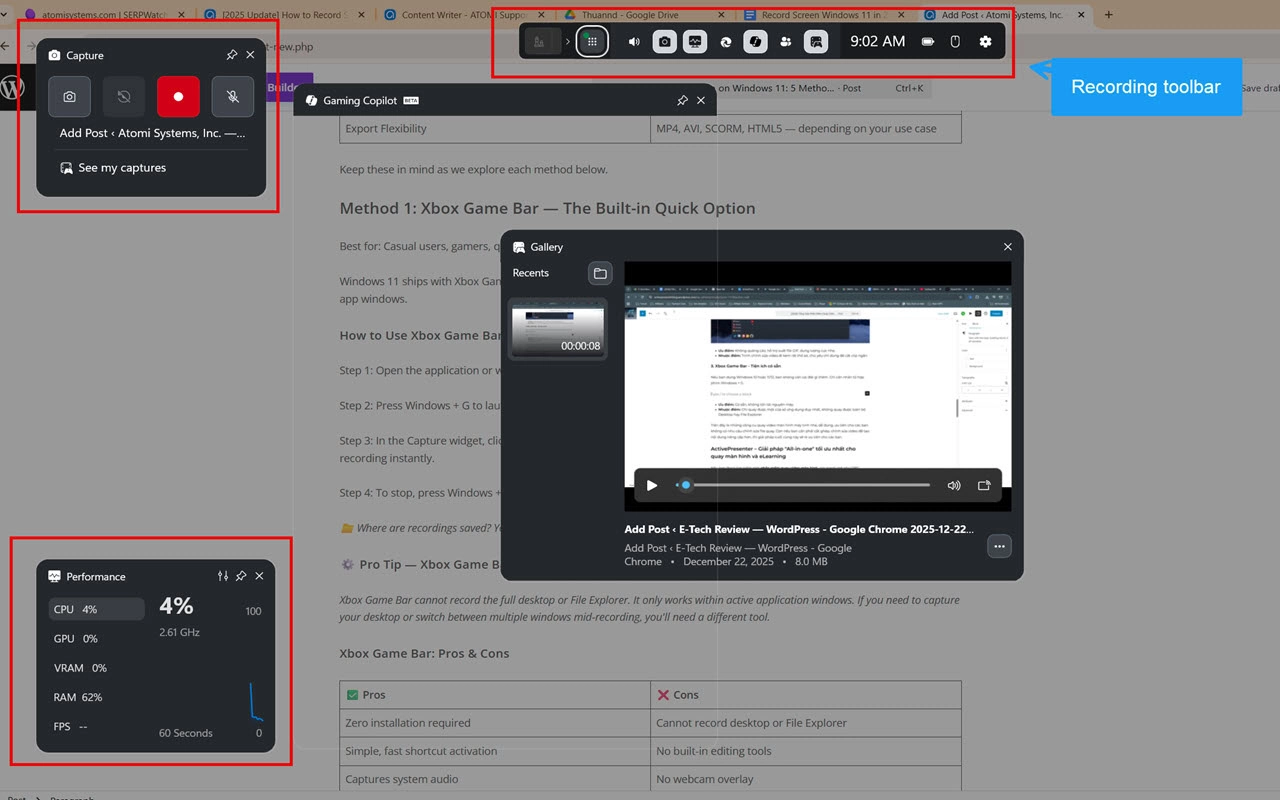
Strengths:
- Zero installation — it’s built into Windows
- Records system audio and microphone
- Surprisingly good quality for a built-in tool
- No watermark, generous time limit
Weaknesses:
- Cannot record the desktop or File Explorer — only application windows
- No editing tools whatsoever
- No annotation capabilities
- Limited format options (MP4 only)
Best for: Emergency recordings, quick app demos when you don’t have time to install anything.
Head-to-Head Comparison Table
| Feature | ActivePresenter | OBS Studio | ShareX | ScreenPal | Xbox Game Bar |
| Watermark-free | ✅ | ✅ | ✅ | ✅ | ✅ |
| No time limit | ✅ | ✅ | ✅ | ⚠️ | ✅ (4hr) |
| System + Mic audio | ✅ | ✅ | ✅ | ✅ | ✅ |
| Built-in video editor | ✅ Advanced | ❌ | ⚠️ Basic | ⚠️ Basic | ❌ |
| Annotations/Callouts | ✅ | ❌ | ⚠️ Screenshots | ⚠️ Basic | ❌ |
| Webcam overlay | ✅ | ✅ | ❌ | ✅ | ❌ |
| eLearning export | ✅ (Pro) | ❌ | ❌ | ❌ | ❌ |
| Best for | Training & eLearning | Raw capture | Quick captures | Casual shares | Zero-setup |
3 Real-World Scenarios: Free Screen Recorder, No Watermark, Professional Results
Scenario 1: Corporate Software Training for 200+ Employees
An L&D manager at a logistics company needs to create inventory management training for warehouse staff across three locations. She uses ActivePresenter’s free version to record the ERP software walkthrough with microphone narration and system audio (for button click sounds that confirm actions). She adds cursor highlights so employees can track exactly where to click, inserts zoom-n-pan effects on small UI elements, and splits the 40-minute recording into four 10-minute microlearning modules. Final export: MP4 for their internal LMS. Total software cost: $0.
Scenario 2: University Lecture Capture (75-Minute Sessions)
An economics professor records 75-minute lectures with a webcam overlay in the corner. ActivePresenter handles the long recording sessions without frame drops or audio drift — a problem she’d experienced with two other “free” tools that silently degraded quality after 30 minutes. She trims dead air, adds chapter markers, and exports directly to MP4 for her students.
Scenario 3: Freelance Course Creator Building for Udemy
A freelance developer records coding tutorials averaging 15–20 minutes per lesson. He uses ActivePresenter’s multi-track timeline to layer screen capture, microphone audio, and background music on separate tracks — adjusting levels independently. The annotation tools let him circle code blocks and add explanatory text without switching to a separate editor.
Insider Pro Tips (From 10+ Years of Screen Recording)
🎯 Tip 1: Lossless First, Compress Last
When recording long sessions (45+ minutes), capture in a lossless format. The file will be huge, but you preserve maximum quality for editing. Convert to H.264 MP4 only at the final export stage. This avoids double compression and the “generation loss” that makes text look fuzzy in software tutorials.
🎯 Tip 2: Record at 1920×1080 — Always
Even if your monitor is 4K, set your recording resolution to 1080p. It’s the sweet spot: sharp enough for UI details, compatible with virtually every LMS and video platform, and the file sizes stay manageable.
🎯 Tip 3: Increase Your Cursor Size Before Recording
Go into your OS settings and make the cursor slightly larger than default. This one change eliminates the #1 complaint in training video feedback: “I couldn’t see where you were clicking.”
🎯 Tip 4: Close Everything, Enable Do Not Disturb
Every notification popup is a potential re-record. Slack messages, email alerts, Windows Update reminders — they will appear at the worst possible moment. Close unnecessary apps and turn on Do Not Disturb mode before you hit record.
🎯 Tip 5: Use an External Microphone
Even a $30 USB microphone dramatically outperforms built-in laptop mics. If your audio sounds like you’re recording inside a tin can, no amount of editing will save it. This is the single highest-ROI investment for recording quality.
Pros & Cons: An Honest Assessment of ActivePresenter as Your Primary Tool
No tool is perfect. Here’s my candid evaluation:
| ✅ Pros | ⚠️ Cons |
| Free version with no watermarks and no time limit | Windows & macOS only (no Linux support) |
| All-in-one workflow: record, edit, publish in one tool | Desktop app only — no cloud-based collaboration |
| Advanced multi-track timeline editor | Mobile recording not supported |
| Comprehensive annotation and callout tools | SCORM/xAPI export requires Pro version |
| Excellent stability for long recording sessions (45+ min) | Steeper learning curve than basic tools like ScreenPal |
| Non-destructive editing preserves original recordings | |
| Split video feature for microlearning chunks | |
| Active community and thorough documentation |
The Bottom Line: Which Free Screen Recorder Should You Actually Use?
Here’s my decision framework after a decade of doing this:
- If you need to record AND edit training content → Start with ActivePresenter. The all-in-one workflow saves more time than any individual feature.
- If you only need raw capture and will edit elsewhere → Use OBS Studio for recording, then edit in ActivePresenter or DaVinci Resolve.
- If you need a 2-minute clip shared in 5 minutes → ScreenPal or Xbox Game Bar will get you there fastest.
- If you’re on Linux → OBS Studio is your primary (and best) option.
For the majority of readers searching for a “screen recorder for PC with audio, free, without watermark” — meaning you want a complete, professional result without paying — ActivePresenter is the strongest choice. It’s the rare tool where the free version is genuinely usable for real work, not a crippled demo designed to frustrate you into upgrading.
Start Recording Your First Professional Video Today — For Free
Ready to stop searching and start recording? Here’s your next step:
👉 Download ActivePresenter Free — No watermark, no time limit, no credit card. Install it, record your first screen capture with audio, and see the difference a professional-grade tool makes.

Have questions about setup or workflow? The Atomi Systems community forum is full of experienced users and the development team actively responds. It’s one of the most helpful software communities I’ve encountered in this space.
Your expertise deserves to be captured clearly. Don’t let a watermark undermine it.
Last updated: April 2026. All tools tested on Windows 11 with the latest available versions.