
Let’s be honest: PowerPoint was built for boardrooms, not for interactive online learning. Yet, teams constantly try to force-fit static slides into their LMS.
Table of contents
- The Trap of Free Online Converters
- The Superiority of Standalone Authoring Tools
- The Basics: Why Does PPT Need SCORM?
- The Pre-Conversion Checklist (In-the-Trenches Advice)
- Best Tools to Convert PPT to SCORM
- The 5-Step Conversion Workflow
- Never Skip Testing
- The Professional’s Choice: How to Convert PPT to SCORM with ActivePresenter
- Final Thoughts
When the lack of tracking finally becomes a problem, the exhausting search begins. You dig through clunky “free” cloud converters that ruin your formatting, expose your internal documents to third-party servers, or slap massive watermarks on your slides. The alternative? Getting trapped in enterprise training software ecosystems that demand eye-watering annual subscription fees just to perform what should be a straightforward conversion.
It shouldn’t be this hard. Converting your PowerPoint to the SCORM standard is the definitive way to bridge the gap between a static presentation and a measurable learning experience. When you make this transition, you instantly unlock critical capabilities that PowerPoint alone cannot provide:
- Actionable Analytics: Track exact completion rates, the time learners spend on each slide, and overall progress directly within your LMS dashboard.
- Automated Assessment Reporting: Embed knowledge checks and quizzes that automatically feed scores and pass/fail statuses back to your system.
- Controlled Navigation: Restrict the course player so users cannot blindly click through or skip ahead, ensuring mandatory compliance training is genuinely completed.
- Universal Compatibility: Package your course once and deploy it flawlessly across almost any modern LMS on the market.
However, how you convert that file dictates the quality of the final course.
The Trap of Free Online Converters
While a quick, free web converter seems tempting, it is almost always a compromise. These tools simply “wrap” your file. They often strip away your custom PowerPoint animations, misalign text, and offer zero capability to enhance the material. The result is a flat, unengaging module. Furthermore, uploading proprietary company training data to an unverified free server is a major security risk.
The Superiority of Standalone Authoring Tools
To create professional-grade E-learning, you need a dedicated desktop authoring tool. A comprehensive standalone solution like ActivePresenter allows you to import your PPT natively—meaning your layouts, fonts, and graphics remain intact and high-resolution.
Instead of just changing the file format, a desktop authoring tool allows you to actually elevate the content. You can insert interactive triggers, add branching scenarios, and sync voiceovers perfectly with on-screen text.
Furthermore, from a business perspective, the way you invest in your software matters. Opting for a robust authoring tool that offers a perpetual license means you own the software outright. You secure the high-end interactivity and seamless SCORM 1.2 or 2004 exporting capabilities of premium software, but avoid the drain of recurring yearly subscriptions, ultimately driving a much higher, long-term return on investment (ROI) for your training budget.
The Basics: Why Does PPT Need SCORM?
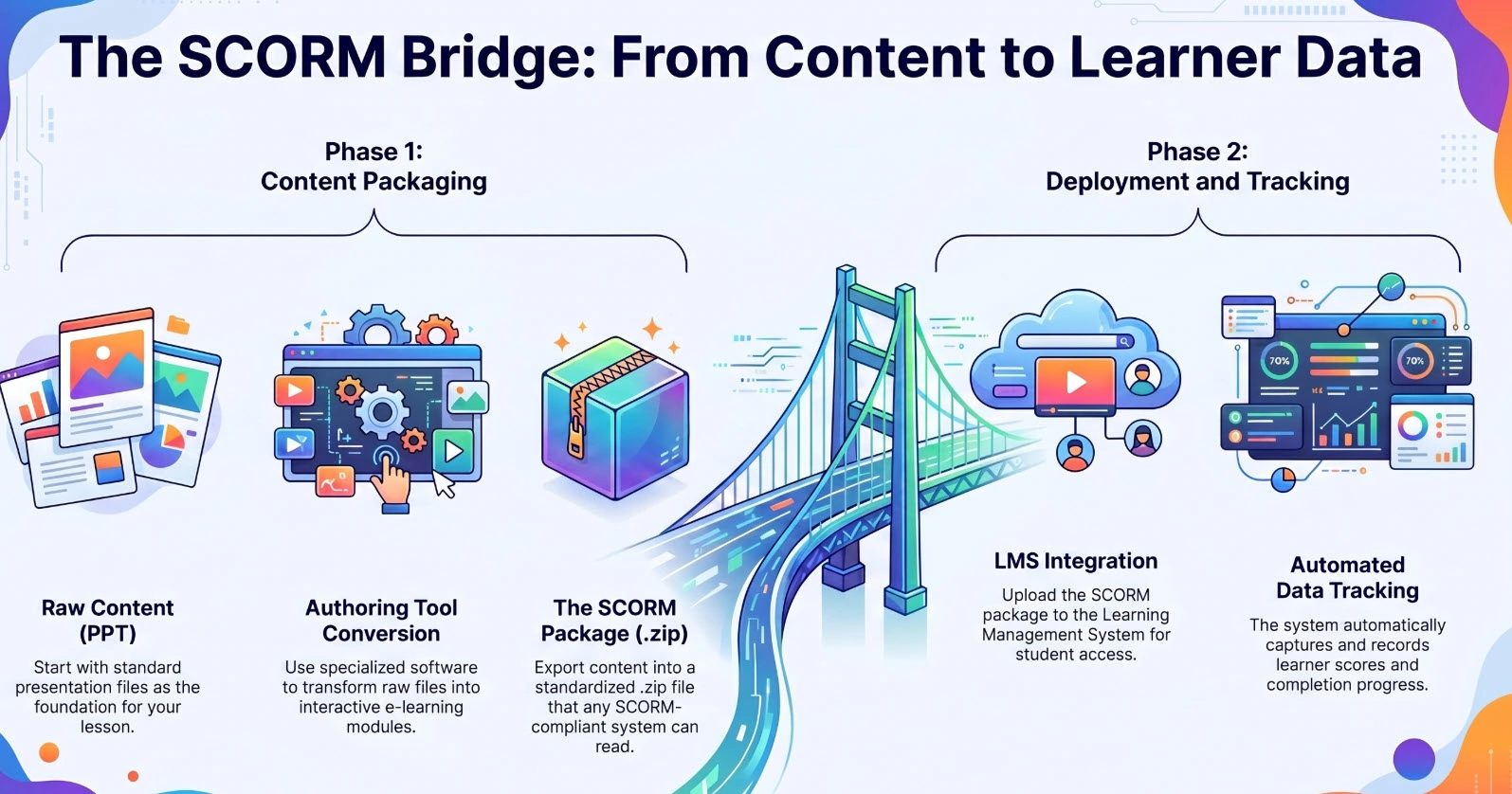
Simply put, SCORM (Sharable Content Object Reference Model) is the international standard that allows your training content and your LMS to “talk” to each other.
Leaving your file as a .ppt or .pptx makes it a one-way reading document. By converting it to SCORM, you instantly unlock essential capabilities:
- Progress Tracking: Know exactly what percentage of the course a learner has completed.
- Preventing Skipping: Force learners to view the entire slide before the “Next” button becomes active.
- Assessment Reporting: Feed quiz scores directly into your LMS’s reporting dashboard.
Choosing the Right Standard: SCORM 1.2 vs. SCORM 2004
When you are ready to export your converted presentation, your authoring tool will ask you to select a SCORM version. While both do an excellent job of tracking, understanding their key differences will save you from LMS compatibility headaches down the road:
- SCORM 1.2 (The Reliable Classic): Released in 2001, this is the industry’s gold standard for compatibility. It is virtually guaranteed to work flawlessly on any LMS. It handles all the essentials perfectly: bookmarking where a learner left off, tracking time spent, and reporting a final score. If your converted PowerPoint is a straightforward, linear course, SCORM 1.2 is your safest and most reliable choice.
- SCORM 2004 (The Advanced Standard): This upgraded version was built for more complex training data. Its biggest advantage is that it separates Completion Status (Did the learner view all the slides?) from Success Status (Did they pass the quiz?). SCORM 1.2 lumps these together, but SCORM 2004 gives you granular analytics. Additionally, it supports advanced “sequencing” (allowing you to build branching scenarios) and holds significantly more data for bookmarking, making it ideal for massive, highly interactive courses.
The Pre-Conversion Checklist (In-the-Trenches Advice)
Don’t rush to import your PPT into a conversion tool right away. From my experience handling hundreds of E-learning projects, I highly recommend doing a quick “cleanup” to prevent systemic errors:
- Optimize Media Size: Compress heavy images and trim unnecessary video clips. The lighter your SCORM package, the smoother it will load on the LMS.
- Clean Up Animations: Remove overly complex PowerPoint animations (like spinning text or letter-by-letter appearances). These often glitch when translated into an E-learning format.
- Prepare Your Script: Write down exactly what needs to be said in the Speaker Notes section of your PowerPoint. This makes recording or generating voiceovers much easier later on.
Best Tools to Convert PPT to SCORM
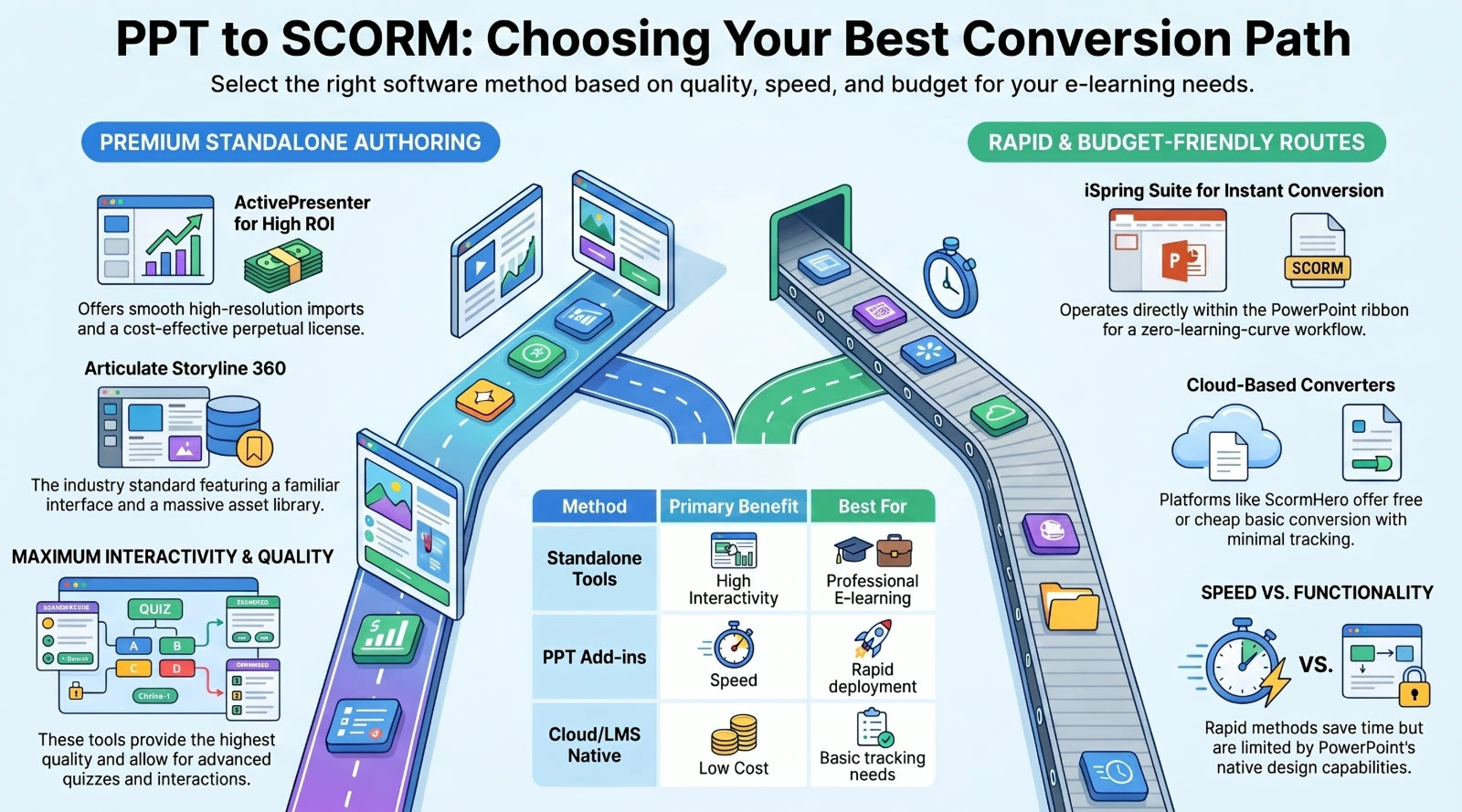
Depending on your budget and the level of interactivity you need, you can choose from the following methods:
Method 1: Standalone Authoring Tools (Highly Recommended)
This method yields the highest quality. You import your PPT into dedicated E-learning software to refine it, add quizzes, and package it.
- ActivePresenter: I personally highly rate this tool. Its PowerPoint import feature is incredibly smooth, retaining high resolution. Furthermore, it offers a massive suite of features for adding interactions, audio, and quizzes. For those optimizing ROI, its perpetual license is much more cost-effective than annual subscription-based software.
- Articulate Storyline 360: An industry standard with a user-friendly interface that mimics PowerPoint, backed by a massive asset library—though it comes with a premium subscription price.
Method 2: PowerPoint Add-ins (The Fastest Route)
- iSpring Suite: This tool operates as an extra tab right on your PowerPoint ribbon. With just a few clicks, you can turn your slides into a SCORM package.
- Verdict: Incredibly fast with zero learning curve, but you are limited to the design capabilities of PowerPoint itself.
Method 3: Cloud-Based Converters & Native LMS Features
- Many LMS platforms (like TalentLMS) or online tools like ScormHero allow you to upload a PPT directly to the web, automatically generating a basic SCORM file.
- Verdict: Free or very cheap, but it offers almost zero interactivity or advanced tracking.
The 5-Step Conversion Workflow
Regardless of the software you choose, the standard workflow generally involves these five steps:
- Step 1 – Import: Open your Authoring Tool and select Import PowerPoint. The system will take a few moments to convert the slides and layers.
- Step 2 – Enhance Interactivity: This is where you upgrade the course. Add knowledge checks at the end of chapters, insert voiceover audio, and sync the audio with the appearance of your text.
- Step 3 – Configure the Player: Customize the learner’s interface (borders, colors, table of contents). Pro tip: Set the navigation to “Restricted” to lock the Next button, requiring learners to watch the full timeline of the slide.
- Step 4 – Choose the SCORM Version: Most tools support multiple formats. Opt for SCORM 1.2 (the most widely used standard, compatible with 99% of LMSs) or SCORM 2004 (if you need highly complex reporting and sequencing).
- Step 5 – Publish: Export the course. The final result will be a .zip file. Never extract or unzip this file.
Never Skip Testing
A fatal mistake many beginners make is uploading the exported .zip file directly to their live company LMS without testing. If there’s a bug, fixing it on a live system is a massive headache.
The Solution: Use SCORM Cloud—the industry-standard testing ground for SCORM packages. Create a free account, upload your .zip file, and take the course as a test user. Verify that the audio plays correctly and that the quiz scores register. Only when everything displays perfectly (showing a Pass/Completed status) should you upload it to your official LMS.
The Professional’s Choice: How to Convert PPT to SCORM with ActivePresenter
While many tools can handle a basic conversion, taking your slides to the next level requires a robust authoring environment. If you want to truly elevate your training materials without getting trapped in expensive, recurring subscription fees, ActivePresenter is the definitive standalone solution.
Its perpetual license model offers an unmatched ROI for E-learning teams, giving you lifetime ownership of a powerhouse authoring tool. Here is how seamless the workflow is when upgrading your PPTs using ActivePresenter:
Step 1: Flawless Native Import
Unlike lightweight converters that flatten your slides into uneditable images, ActivePresenter natively imports your .ppt or .pptx files. It retains your exact layouts, text boxes, object layers, and high-resolution graphics. You pick up right where PowerPoint left off, but inside a dedicated E-learning canvas.
Step 2: Elevate with Unique Interactivity
This is where you transform a one-way presentation into a highly engaging SCORM course:
- Replace Static IT Slides with Real Practice: If your presentation includes static screenshots of software tutorials, you can easily replace them using ActivePresenter’s Record Software Simulation feature. This unique tool captures your screen interactions and automatically builds a realistic, interactive simulation where learners must click, type, and navigate exactly as they would in the real software.
- Generate Seamless Audio: Instead of spending hours recording audio, utilize the built-in AI Text-to-Speech to generate professional voiceovers from your PPT speaker notes. Furthermore, if you work across multiple computers activated under a single license key, your AI credits are conveniently shared across those devices, making the production workflow incredibly flexible.
- Embed Advanced Assessments: Drag and drop a variety of interactive quizzes—from multiple choice to drag-and-drop interactions—that will later communicate your learners’ scores directly to the LMS.
Step 3: Publish to SCORM in One Click
Once your presentation is enhanced, navigating the export process is incredibly straightforward.
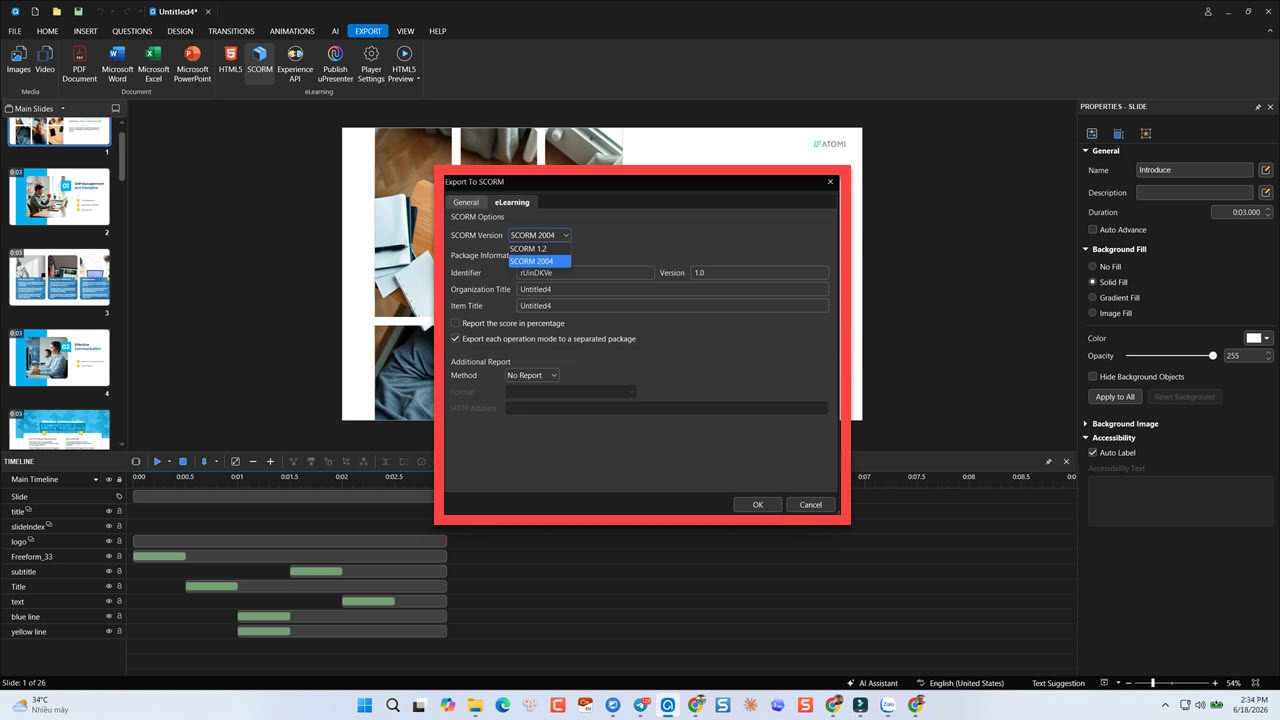
- Navigate to the Export tab.
- Select HTML5 and enable the SCORM reporting option.
- Choose between SCORM 1.2 or SCORM 2004 based on your LMS requirements.
- Set your pass/fail conditions (e.g., passing score of 80%, or requiring learners to view 100% of the slides).
- Hit Export.
Within seconds, ActivePresenter generates a clean, bug-free .zip package. You achieve enterprise-grade SCORM compliance, high-end interactivity, and deep LMS reporting—all without the burden of enterprise subscription costs.
Final Thoughts
Converting a presentation from PowerPoint to SCORM is more than just changing a file format; it is a leap in training quality. By combining your existing expertise with powerful tools, you can create professional, measurable, and highly effective learning experiences.
ActivePresenter has a free edition with no trial limit for you to test the software. Don’t hesitate to download it and create completed e-Learning courses yourself!
