
If you design employee training, you may already have an approved standard operating procedure (SOP): a document that explains how to carry out a recurring task. To turn SOPs into training, give employees a chance to use the procedure. A slide can explain a rule. Applying it to an unfamiliar case shows whether the employee can act on it.
The sample lesson in this guide follows an invoice clerk. A purchase order lists 10 units and the invoice lists 12 for the same item. The employee finds the relevant entries, chooses a response, and carries it out in a simulated application.
In ActivePresenter, you’ll build a worked demonstration, guided practice, and an independent assessment around that decision. The seven steps take you from the approved SOP to a course you can test and publish.

What Interactive SOP Training Looks Like
A clerk can remember the discrepancy rule and still click the wrong row. Build three activities around the same invoice so you can tell whether the employee found the evidence, interpreted it correctly, and acted on it.
Three interactions for one invoice check
| SOP task | What the employee does in ActivePresenter |
| Locate the corresponding item. | Selects the quantity field on the correct purchase order (PO) row in a Hotspot question. |
| Apply the discrepancy rule. | Chooses the next action in a graded Multiple Choice question and receives feedback. |
| Place the invoice on hold. | Uses the hold control through a Mouse Click interaction in a software simulation. |
Building the Lesson With ActivePresenter
Step 1. Choose the Task for Your SOP Training
Confirm the invoice clerk’s role, the SOP owner, and the approved revision. Limit this lesson to the quantity check.
Use an observable outcome:
Given an invoice and its purchase order, the clerk can locate the corresponding item, compare quantities, and carry out the next action required by the approved SOP.
Prepare four pairs of fictional or anonymized records with several line items. Use a matching pair for the demonstration and the 10-versus-12 discrepancy for guided practice. Reserve two unseen pairs for assessment, one match and one mismatch.
Step 2. Record the Workflow in ActivePresenter
To turn SOPs into training, focus on recording the actions employees need to perform. Keep reference information, such as review contacts, in the directory employees use at work.
| Example SOP content | Treatment in the course | Reason |
| Compare the quantity on the invoice with the quantity on the purchase order. | Demonstrate the comparison, then give the employee fresh records. | The employee must find and compare the correct values. |
| Place an invoice with a quantity discrepancy on hold for review. | Turn the rule into a decision with feedback. | The employee’s choice determines what happens to the invoice. |
| Use the review contact listed in the current directory. | Link to the directory. Include a lookup if the handoff requires it. | The employee can find the current contact when needed. |
Open the sample records in a training copy of the invoice application. On the ActivePresenter Start Page, select Record Interactive Simulation and set the capture area. Record the matching case through the next required check, then record the discrepancy case through the hold action.
Review the slides and click targets. If you only have images of the records, you can build the field and decision questions manually. For the final action, add an image of the application screen and place a click target over the appropriate control.
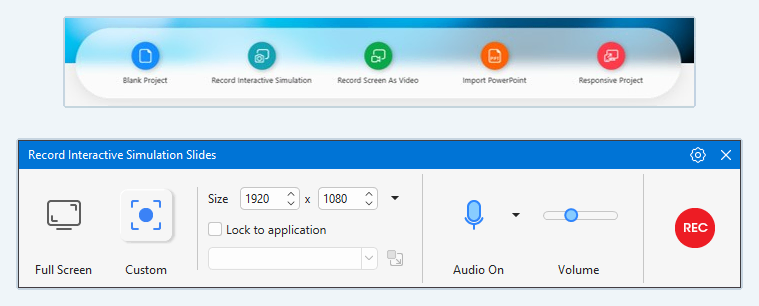
Start Page and recording controls. Choose Record Interactive Simulation, then set the capture area.
Step 3. Demonstrate the Task and Build the First Interaction
In the worked example, identify the same item on the invoice and PO before highlighting its quantities. Both documents list eight units. Show the clerk continuing to the next required check. Keep the two outcomes in this illustrative SOP distinct:
- Quantities match. Continue to the next required check.
- Quantities differ. Place the invoice on hold for review.
A match completes the quantity check. Price is a separate check, and payment approval comes later. For guided practice, choose Questions → Hotspot and use the image button to add a fresh PO. Ask the employee to select the ordered quantity for the item named on the invoice.
Select the answer area, open the plus menu, choose Rectangle, and position it over that one cell. Check that the hotspot is marked Correct. In the question’s Interactivity settings, under General, clear Multiple Response so only the last click counts. This checks whether the employee located the evidence. The next question checks how they interpret it.
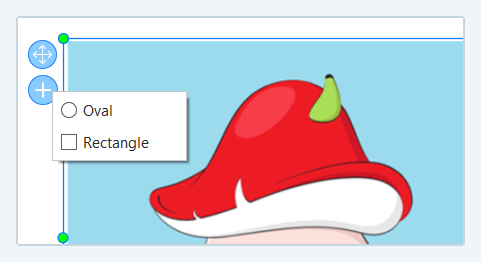
The example menu shows where to choose Rectangle. In your lesson, place it over the ordered quantity.
Step 4. Let the Employee Practice With Guidance
Use Demonstration for the worked match. For the 10-versus-12 case, choose Tutorial so the employee can perform the recorded steps with hints. Practice hides tutorial hints, although some targets can appear after an error. Test keeps those targets hidden. You choose the mode when previewing or publishing each version.
Allow a retry in guided practice. After an incorrect selection, display a hint: “Which PO row lists the item named on the invoice?” Check Show in Mode for hints and feedback before you preview.
Prepare the screen the employee will use after choosing how to handle the discrepancy. Place a Mouse Click target over the simulated hold control. Try clicking a neighboring control to make sure it falls outside the target.
If you’re comparing eLearning authoring tools, use this pair of activities as a test. Can you show the comparison in the first case, then give the employee control in the second?
Step 5. Score the Decision and the Action
When you turn SOPs into training, assess both the decisions employees make and the actions they perform. Start with a guided decision activity, keeping both documents visible so employees can review the evidence after answering.
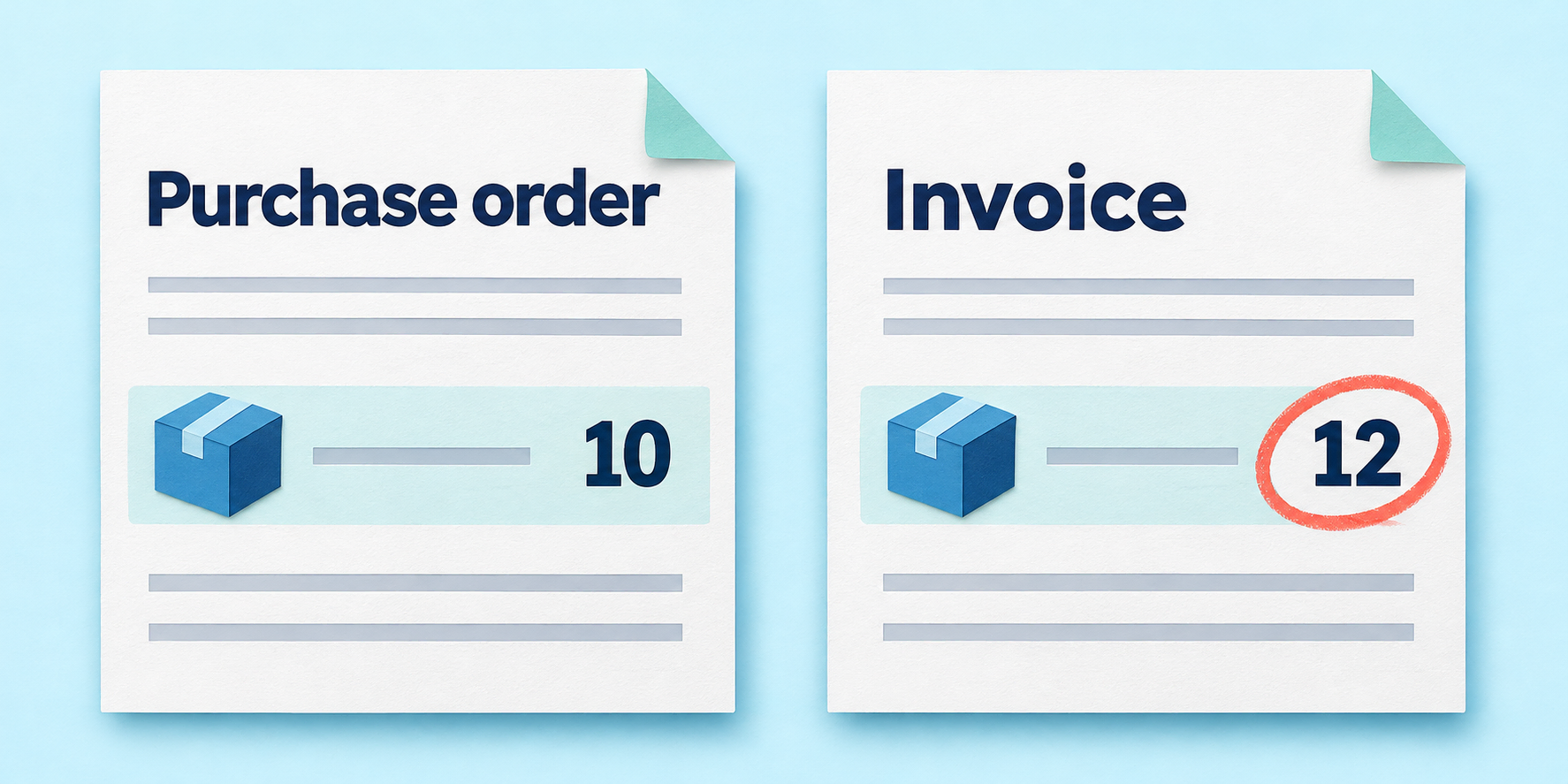
The purchase order lists 10 units. The invoice lists 12 for the same item. What should you do next?
- Continue to the next check.
- Place the invoice on hold for review.
Use a Multiple Choice question in Graded mode to check the decision. During practice, give feedback after submission and let the employee use the evidence to correct a mistake.
| Employee’s choice | Feedback shown |
| Continue to the next check | “The invoice lists 12 units, two more than the 10 on the purchase order. The procedure requires a hold when quantities differ. Place the invoice on hold for review.” |
| Place the invoice on hold for review | “Correct. The invoice and purchase order show different quantities for the same item. That discrepancy requires a hold.” |
For the independent assessment, give the employee two unseen cases. After each decision, use Events – Actions to go to that case’s simulated screen regardless of the submitted answer. Show the same available controls either way. Defer corrective feedback until both the decision and the action have been submitted.
Score the decision and the Mouse Click separately. For a simple four-point assessment, give one point for each correct decision and one for each correct action across the two cases. Exclude practice items from the score. Set Pass Condition to require all four points and allow one assessed attempt per item. Always selecting hold, or choosing correctly but clicking the wrong control, then falls short.
Step 6. Preview the Lesson and Test Both Paths
Ask the SOP owner to check both outcomes against the approved procedure. Then open HTML5 Preview on the Export tab to test what the employee sees.
Use Preview Current Slide to try the correct quantity field and an adjacent row. Use Preview Project to run both cases. In Tutorial, trigger a hint and try again. In Test, submit a wrong answer and check that the next screen gives no clue before the employee acts.
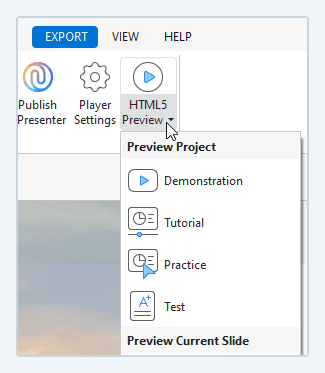
To check the whole lesson without tutorial hints, use Export → HTML5 Preview → Preview Project → Test.
| Check | Who and how | Example acceptance check |
| Procedural accuracy | The SOP owner checks each instruction, choice, feedback message, and answer key against the approved section. | A matching case leads to the next required check. No screen describes the invoice as approved for payment. |
| Learner experience | A representative employee completes the activity. You test both choices, feedback, navigation, and scoring. | In practice, a wrong choice explains the discrepancy. In assessment, the next screen withholds that explanation until the action is complete. |
Run a four-point pass and a three-point fail. Record the SOP section, slide, expected result, and actual result so you can retest each fix.
Step 7. Publish the Course and Verify the Result
Once you turn SOPs into training, make sure the published course works as intended on the platform employees will use.
For LMS delivery, use ActivePresenter Pro to export a SCORM package with reporting and tracking. Select a SCORM standard your LMS supports, upload the package, and sign in as a test learner. Check access, the recorded score, and completion after a known pass and a known fail.
For direct online delivery, Publish to uPresenter is available in the Free, Standard, and Pro editions. You need a uPresenter account to publish. Open the shared course with learner access, complete a test attempt, and verify progress, quiz results, and completion status.
Give employees access to the current approved SOP alongside the course so they can consult it during real work. If several teams need assigned courses, progress tracking, or completion records, include those requirements when comparing training software for employees.
SOP-to-Training Checklist
Use these checks before distributing the lesson.
| Element | What to check |
| Approved SOP and revision | The lesson cites the current approved section and revision. |
| Performance outcome | The outcome covers both choosing and performing the action. |
| Demonstration | The worked example shows the action and explains the decision. |
| Practice | The employee gets fresh records and a chance to try the task with guidance. |
| Decisions and exceptions | Both cases accept the intended response and lead to the correct screen. |
| Feedback | Each response identifies the evidence that supports the correct action. |
| Assessment | Fresh cases produce the expected pass, fail, score, and completion in the published course. |
| SOP reference | Employees can open the authoritative document when they need it. |
Final Thoughts
An approved SOP tells employees how to do the job. An interactive lesson gives them a place to find the evidence, make a decision, and practice the action before handling a live record.
Start with one rule and one case employees encounter at work. In ActivePresenter, put the records, question, simulated action, and feedback together. When the SOP changes, retest both paths before sharing the updated lesson.