
When you’re just starting out, choosing a video tutorial maker can be surprisingly difficult. Many tools appear free at first, but once you actually try to export your video, the limitations show up: watermarks, time restrictions, missing editing features, or no easy way to fix mistakes without recording everything again.
That’s where most beginners get stuck. The problem isn’t just about recording, it’s about having a smooth, practical workflow from start to finish.
After years working in eLearning and tutorial content production, one thing becomes clear: the best tools aren’t just recorders. They combine recording, editing, and refinement in one place.
Therefore, this blog will walk you through 5 video tutorial makers that let you create and export videos without a watermark. Instead of just listing features, we’ll evaluate each tool based on what actually matters: ease of use, editing flexibility, export quality, and how well it supports a real-world tutorial workflow.
By the end, you’ll have a clearer idea of which tool fits your needs, whether you’re creating quick walkthroughs, polished training videos, or scalable learning content.
Why Choosing the Right Video Tutorial Maker Matters
A lot of beginners assume any screen recorder will do. In practice, that usually leads to problems like:
- blurry recordings
- weak audio
- no editing timeline
- watermark on exported videos
- having to use 2-3 separate apps just to finish one tutorial
In real production, the right tool saves more time than any microphone upgrade or visual effect. A good tutorial video maker should help you:
- record your screen in high quality
- capture webcam and microphone audio
- edit mistakes without destructive changes
- add annotations, zooms, highlights, and captions
- export clean videos without a watermark
- optionally publish interactive learning content such as SCORM or xAPI
For beginners, the best tool is often the one that removes friction—not the one with the longest feature list.
How I Evaluated These 5 Tools
To make this comparison useful, I used the same criteria I’d use in a real eLearning or training workflow.
1. Recording quality: Can it capture screen, webcam, and audio reliably in high resolution?
2. Editing flexibility: Can you trim mistakes, annotate, zoom, and improve the tutorial without re-recording everything?
3. No-watermark export: Can you publish clean videos, especially in the free version?
4. Beginner-friendliness: Is the interface approachable for first-time creators?
5. Advanced use cases: Does it support interactive training, quizzes, software simulations, or LMS export?
6. Value for money: Does the tool justify its pricing with practical features?
Top 5 Video Tutorial Maker Tools with No Watermark
1. ActivePresenter – Best All-in-One Video Tutorial Maker for Beginners and Trainers
If I had to recommend one video tutorial maker for beginners who want room to grow, it would be ActivePresenter.
It’s one of the few tools that gives you:
- unlimited screen recording
- no watermark
- built-in advanced video editor
- support for interactive eLearning content (13 types of interactive questions with slide pools & randomization)
- Export video in 5 formats: MP4, AVI, MKW, WebM, WMV
- export options for SCORM/xAPI in the Pro version
This matters because beginners often start by making simple software tutorials, but later need quizzes, clickable demos, or LMS-ready lessons. ActivePresenter lets you grow into that without changing your workflow.

Key strengths
- High-quality screen, webcam, and audio recording
- Advanced multi-track editing
- Callouts, annotations, zoom and pan effects
- Software simulation and interactive learning support
- 13 types of interactive questions
- SCORM/xAPI export for training teams and educators
- No watermark in free recording/export on supported features
Best for
- Beginners who want one tool for recording and editing
- Educators and trainers
- L&D teams creating structured learning content
- Anyone who wants more than just raw screen capture
Pros
- Excellent free tier (no time limits)
- Combines recording, editing, and eLearning authoring
- Strong value with one-time purchase option
- Great for both video tutorials and formal training content
Cons
- Not available for mobile devices
- Some advanced eLearning outputs require Pro editions (for examples AI features)
Expert insight
In long-form software tutorials, mistakes are almost unavoidable. What stands out about ActivePresenter is how it minimizes the cost of those mistakes. Instead of re-recording an entire 20-minute walkthrough because of a single wrong click, you can simply edit that specific section, add a callout, or replace the narration seamlessly.
Moreover, the Split feature allows you to break a long video into smaller, slide-based segments. This makes it much easier to create a structured table of contents, so viewers can quickly jump to the parts that matter most to them.
2. OBS Studio – Best Free for Budget-Conscious Users
OBS Studio is one of the best free recording tools available. The catch is simple: it’s mostly for capture, not end-to-end tutorial creation. To edit properly, many users have to switch to other software.

Key strengths
- Completely free
- No watermark
- Powerful recording setup
- Flexible for advanced users
Best for
- Creators with zero budget
- Technically comfortable users
- Raw video recording workflows
Pros
- Free and powerful
- Great control over recording quality
- No subscription pressure
Cons
- Requires other tool to edit
- Steeper learning curve
- Less efficient for beginners
- No built-in eLearning features
This combo works, but for beginners, it often creates friction: file management, multiple exports, and more chances to lose time.
3. Loom – Best for Quick and Informal Tutorial Sharing
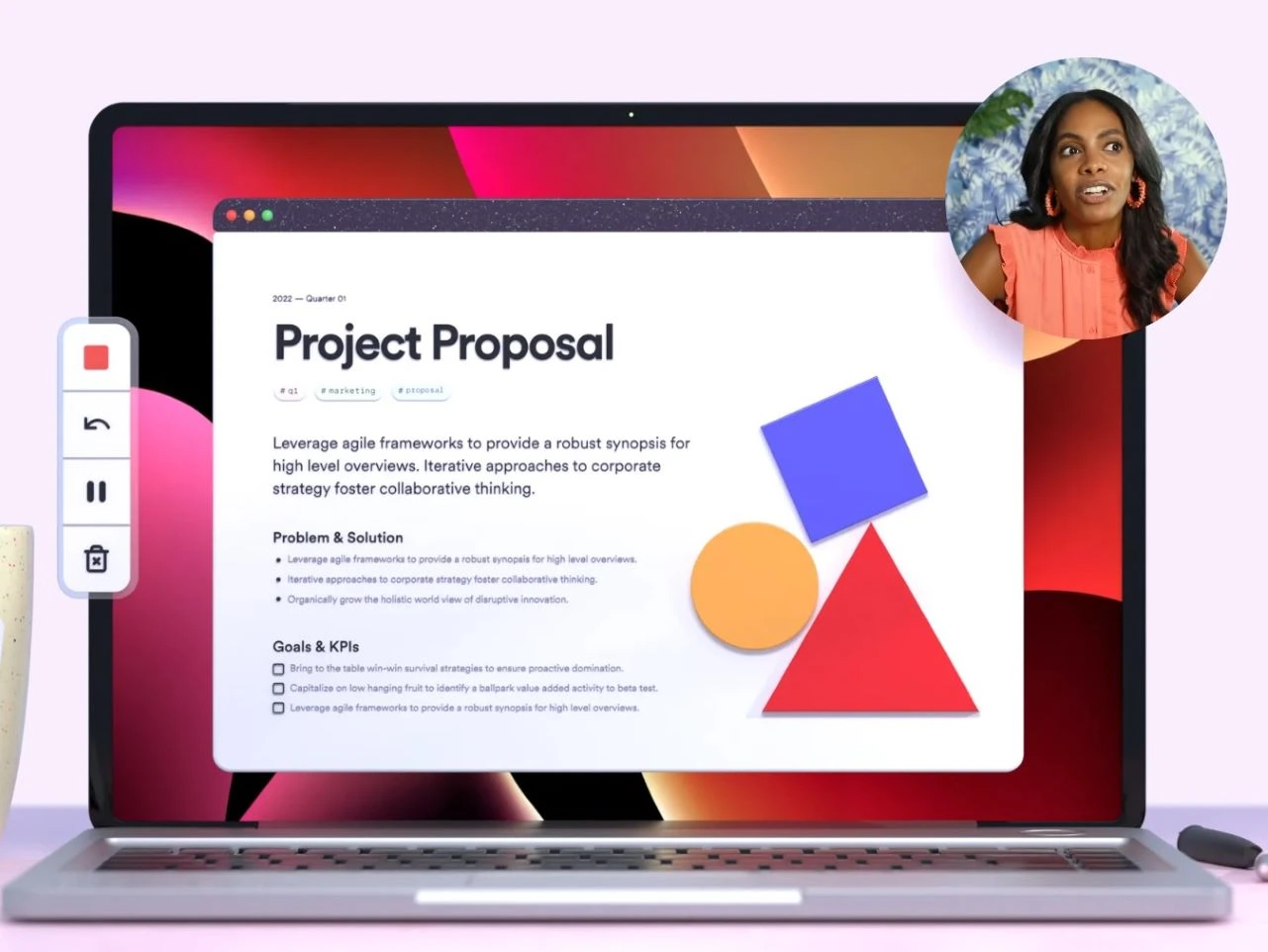
Loom is primarily known as a video messaging tool, but it has become one of the fastest ways to create tutorial-style content, especially for quick explanations and walkthroughs.
Instead of focusing on heavy editing, Loom emphasizes speed: you record your screen, optionally add your webcam, and instantly get a shareable link. This makes it incredibly useful for async communication, product demos, and internal training where speed matters more than production quality.
Key Strength
- Instant recording & sharing: Record and generate a shareable link in seconds
- Seamless screen + webcam capture: Perfect for personal, engaging tutorials
- Cloud-based workflow: No need to manage files locally
- Viewer insights: Track views, engagement, and interactions
Best For
Remote teams, SaaS demos, customer support, and quick tutorial explanations.
Pros & Cons
Pros:
- Extremely fast workflow
- Clean and intuitive UI
- Great for async communication
Cons:
- Limited editing features
- Not suitable for long-form polished videos
- Free plan has limitations (limited to 5 minutes recording only)
4. VSDC Free Video Editor
VSDC Free Video Editor is a standout choice for creators who want professional-quality results without spending a dime — or dealing with watermarks.
Available for Windows, VSDC delivers a full suite of multimedia editing tools with no watermarks on exported videos, making it ideal for tutorial makers on a budget.
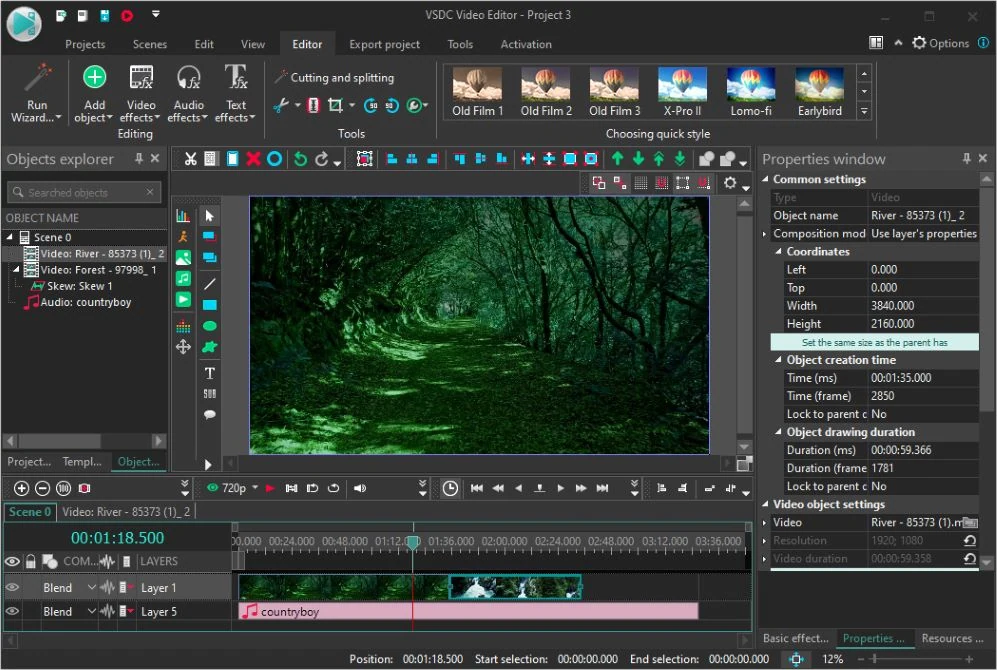
Whether you’re recording your screen with the built-in screen recorder or layering multiple video tracks for a polished tutorial, VSDC gives you the creative control you need.
Key Features
- Non-linear timeline editing – cut, trim, rotate, and blend multiple layers of footage into a single composition, enabling picture-in-picture and split-screen effects with ease
- 4K & HDR support – edit high-resolution footage from any camera, including RAW formats like BRAW and ProRes RAW, using video proxy technology for smooth playback
- Built-in screen recorder – capture desktop video for tutorials, demos, and presentations without needing a third-party tool
- No watermark, ever – both the free and Pro versions export clean video with zero branding imposed on your content
Best For
VSDC is best suited for Windows-based content creators who need a capable, watermark-free editor without a subscription fee. It’s particularly well-matched for:
- Tutorial and course creators who need screen recording and timeline editing in one place
- Budget-conscious creators
Pros & Cons
Pros
- Completely watermark-free exports on the free version
- Supports 4K, HDR, and RAW video formats
- Built-in screen recorder included at no extra cost
- No subscription required
Cons
- Windows only, no Mac support
- Interface can feel dated and overwhelming for beginners
- No mobile app for editing on the go
- Recording and editing are on two separate apps (VSDC Free Screen Recorder & Video Editor)
5. Apowersoft Free Online Screen Recorder
ApowerREC by Apowersoft is a dedicated screen recording solution built for creators who need more than just a basic capture tool.
Available on Windows, Mac, and iOS, it records all screen activities including display footage, webcam, system audio, and microphone input, making it a strong pick for tutorial makers who want clean, commentary-ready recordings from day one.
With a focus on smart recording features and flexible sharing options, ApowerREC positions itself as a productivity-first tool for educators, business presenters, and content creators alike.
Key Features
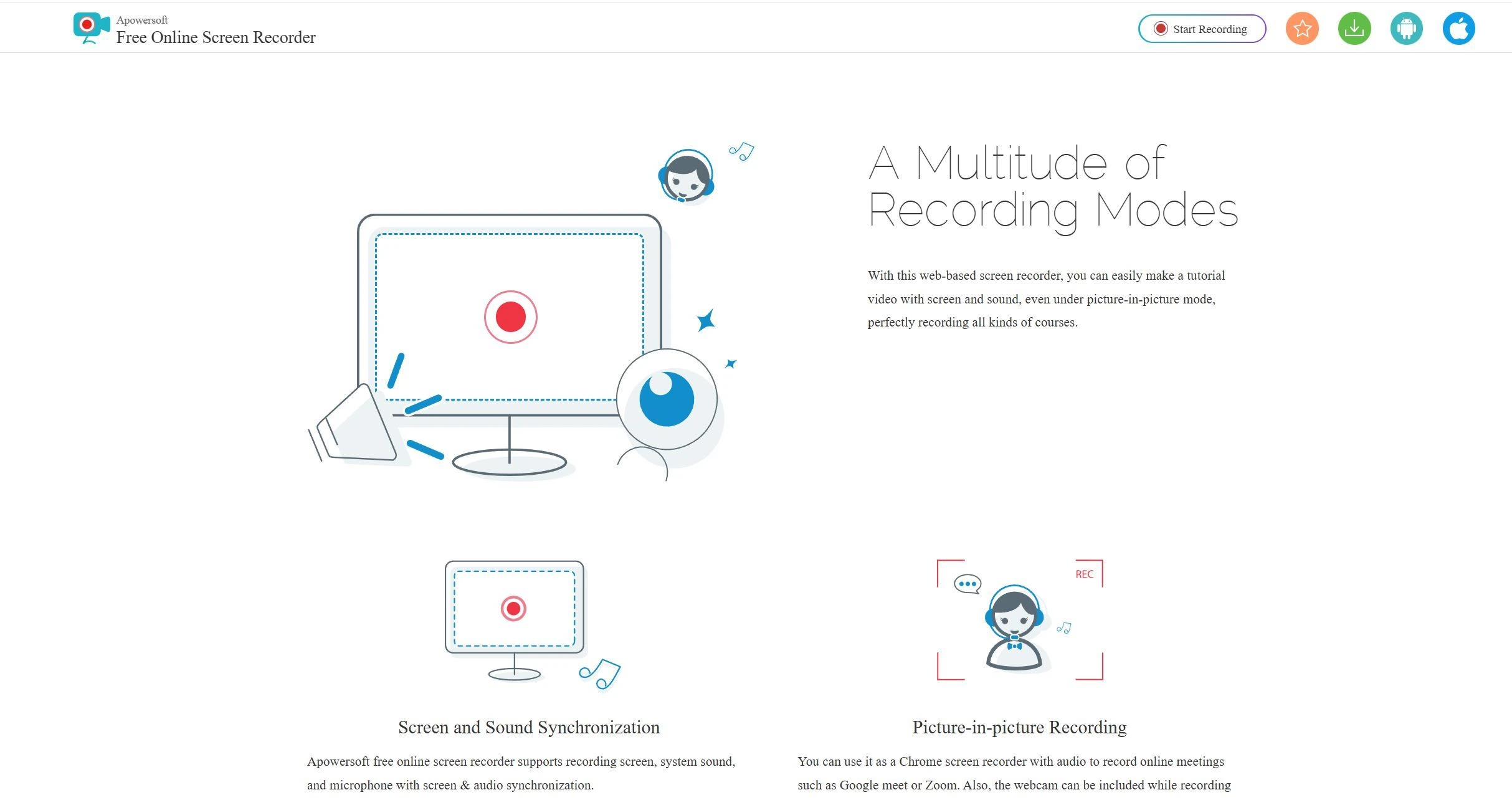
- Full screen & webcam recording – capture your display, webcam only, or both simultaneously for face-cam style tutorials
- Real-time annotation – add texts, lines, arrows, and other markup elements directly during recording
- Zoom & spotlight tools – zoom into a specific area of the screen or highlight key content during recording using shortcut keys
- Locked window recording – record a specific window exclusively without interruption, even when switching between other programs
- Built-in video editor – trim footage, add watermarks, and perform other basic edits after recording
- One-click sharing – upload directly to YouTube, Google Drive, Dropbox, or host recordings on RecCloud for online backup and sharing
Best For
ApowerREC is best suited for creators and professionals who prioritize screen capture quality and workflow efficiency over deep video editing. It’s a particularly strong fit for:
- Gamers and streamers who want smooth HD gameplay recording with screenshot capabilities
- Remote teams needing quick screen recordings for troubleshooting, customer support, or async communication
Pros & Cons
Pros
- Cross-platform support across Windows, Mac, and iOS
- Real-time annotation tools built into the recorder
- Zoom and spotlight features for focused tutorial content
- One-click upload to YouTube, Google Drive, and Dropbox
- Locked window recording prevents interruptions mid-capture
- iOS screen recording with microphone and facecam support
Cons
- Free version adds a watermark to recorded videos, a paid plan is required for watermark-free output
- Built-in editing tools are basic; not suitable for complex post-production
- Full feature access requires a subscription or one-time purchase
- No Android screen recording support in ApowerREC specifically
- RecCloud integration for cloud storage adds another platform to manage
Comparison Summary: Which Tool Is Best for You?
You choose ActivePresenter if:
- You want recording + editing + eLearning in one tool
- You want no watermark
- You need room to grow from beginner tutorials to interactive training
- You want SCORM/xAPI support later
Or choose OBS if:
- Your budget is zero
- You’re comfortable with screen features only
Otherwise choose Loom if:
- You need fast internal explanations.
Choose VSDC if:
- You want a simple recording tool for teaching.
Choose Apowersoftware if:
- You want to record what’s on your screen quickly and cleanly
What Beginners Should Look for First
If you’re new, don’t choose based on brand popularity alone. Ask:
- Can I record and edit in the same app?
- Does the free version add a watermark?
- Can I grow into more advanced content later?
- Is the interface understandable after one afternoon of use?
Last Words
If you want the best video tutorial maker with no watermark, the strongest all-around choice is ActivePresenter.
Why? Because it covers the full workflow:
- screen recording
- webcam capture
- advanced editing
- annotations and callouts
- interactive eLearning creation
- SCORM/xAPI publishing
That combination is rare, especially in a tool that offers such a capable free experience.
Try It for Free
Ready to create your first clean, professional tutorial without a watermark?
Download ActivePresenter and try it free to record, edit, and publish tutorial videos in one workflow.
