
We’re thrilled to announce the release of ActivePresenter 10.5! Following the major launch of version 10, this update brings a series of “quality-of-life” improvements and powerful new eLearning authoring tools designed to make your experience more intelligent and your workflow significantly faster.
This version introduces a more capable AI Assistant, the highly requested Tracing Interaction, and the game-changing features of Closed Caption. Whether you are building complex compliance training or simple educational tutorials, ActivePresenter 10.5 is built to help you achieve more with less effort.
1. The All-New AI Assistant: Experience Natural Language Authoring
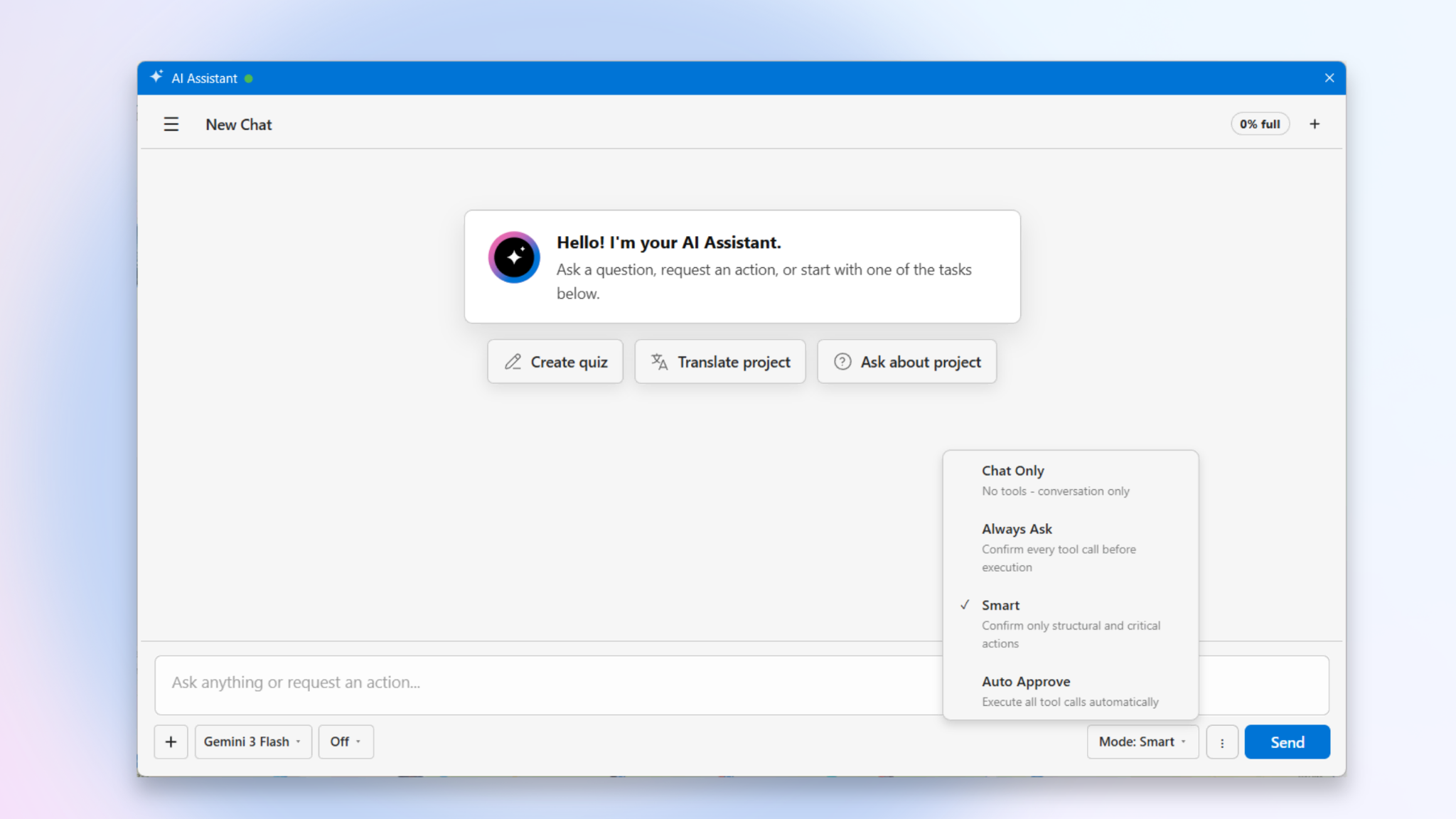
The standout feature of version 10.5 is the AI Assistant, a sophisticated chat assistant that fundamentally changes how you interact with your projects. Instead of navigating through multiple menus to perform repetitive tasks, you can now simply ask ActivePresenter to do them for you using natural language.
Whether you need to generate quiz ideas, translate an entire project, or rewrite narration to sound more professional, the AI Assistant is your go-to partner. Accessible via the AI tab, this panel offers two distinct ways to help:
- Consultative Mode: It can draft content, answer questions, or plan lesson structures directly in the chat without modifying your project.
- Action Mode: It can actively inspect your project, edit objects, update slides, and even generate scripts when given permission.
Personalize Your AI Experience
ActivePresenter 10.5 gives you granular control over the “brain” behind the assistant:
- Choosing Your Model: Depending on your needs, you can select different chat models that vary in response speed, file support, and reasoning capabilities.
- Adjustable Thinking Levels: For simple tasks like text correction, a lower thinking level ensures speed. For complex tasks, like analyzing a multi-branching project structure, you can increase the reasoning power to handle multi-step logic.
- Multi-Modal Attachments: You are no longer limited to text. Depending on the model, you can attach images, documents, audio, or video files to provide the assistant with the exact context it needs to help you.
Smart Permissions & Controls
We know that control and security are vital. That’s why we’ve introduced four Permission Modes to determine how the AI interacts with your project files:
- Chat Only: The AI can analyze your project data to answer questions, suggest scripts, or review content, but it cannot make any direct changes to your files. All interactions stay within the chat pane.
- Always Ask: You approve every single change the AI proposes.
- Smart: The AI acts autonomously but pauses for your confirmation on critical or structural changes.
- Auto Approve: For a more seamless and convenient workflow, the AI executes all actions and modifications automatically without requiring individual approvals.
Advanced Session Management
To keep your workflow organized, you can now manage Multiple Chat Sessions. Rename them, delete them, or use the Clear Session tool to start fresh. To handle long, complex conversations, the new Compact Context feature summarizes previous messages, ensuring the AI remains fast and focused even in deep project dives.
2. MCP Connect for Power Users
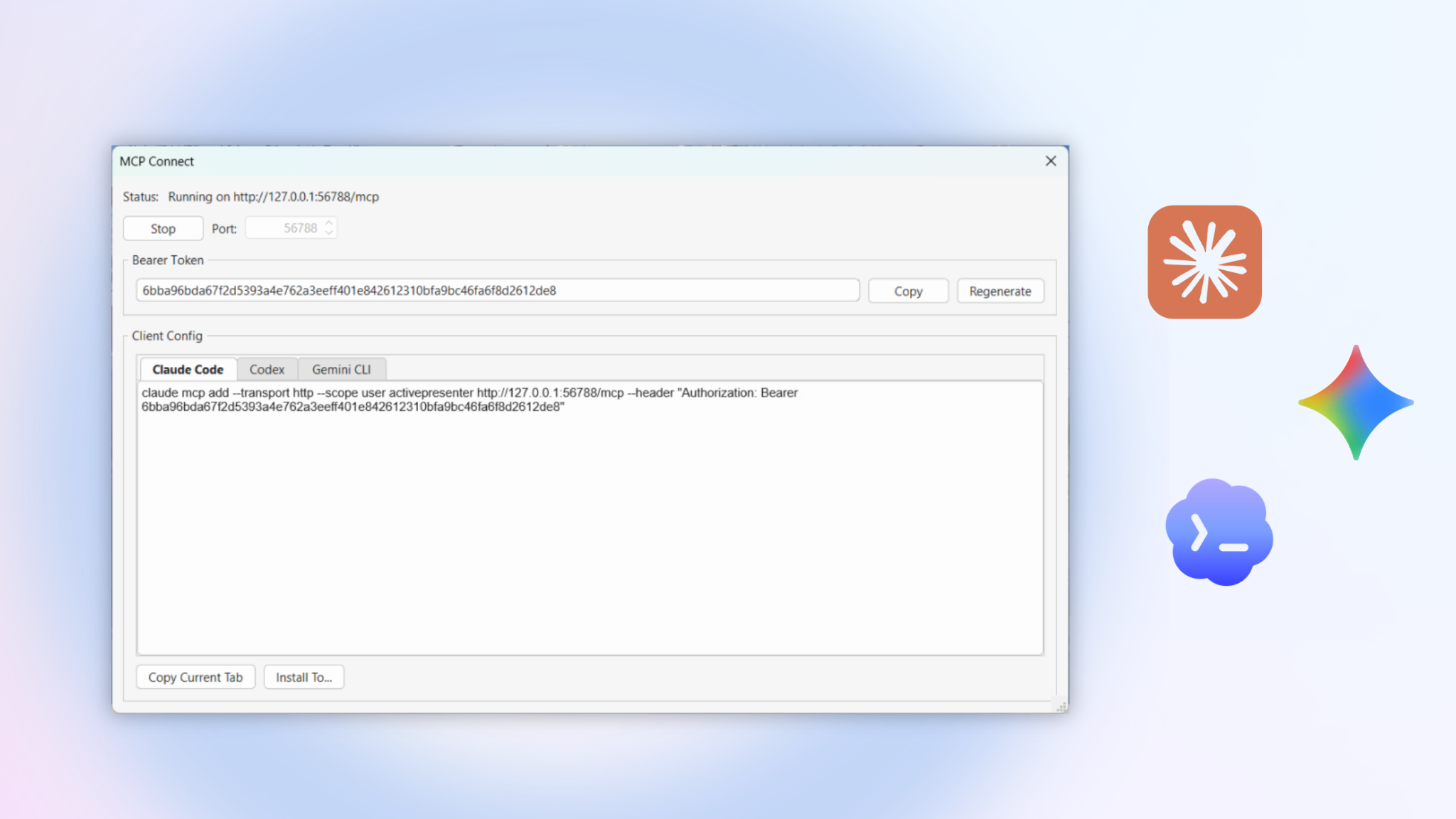
For developers and advanced authors, ActivePresenter 10.5 now supports MCP (Model Context Protocol) Connect. This allows you to turn ActivePresenter into a local MCP server. By doing so, you can connect external AI clients, like Claude Code or Gemini CLI, directly to ActivePresenter, allowing you to use your favorite external tools to inspect or modify your current project.
3. Tracing Interactions: The Ultimate Tool for Handwriting and Path-Based Learning
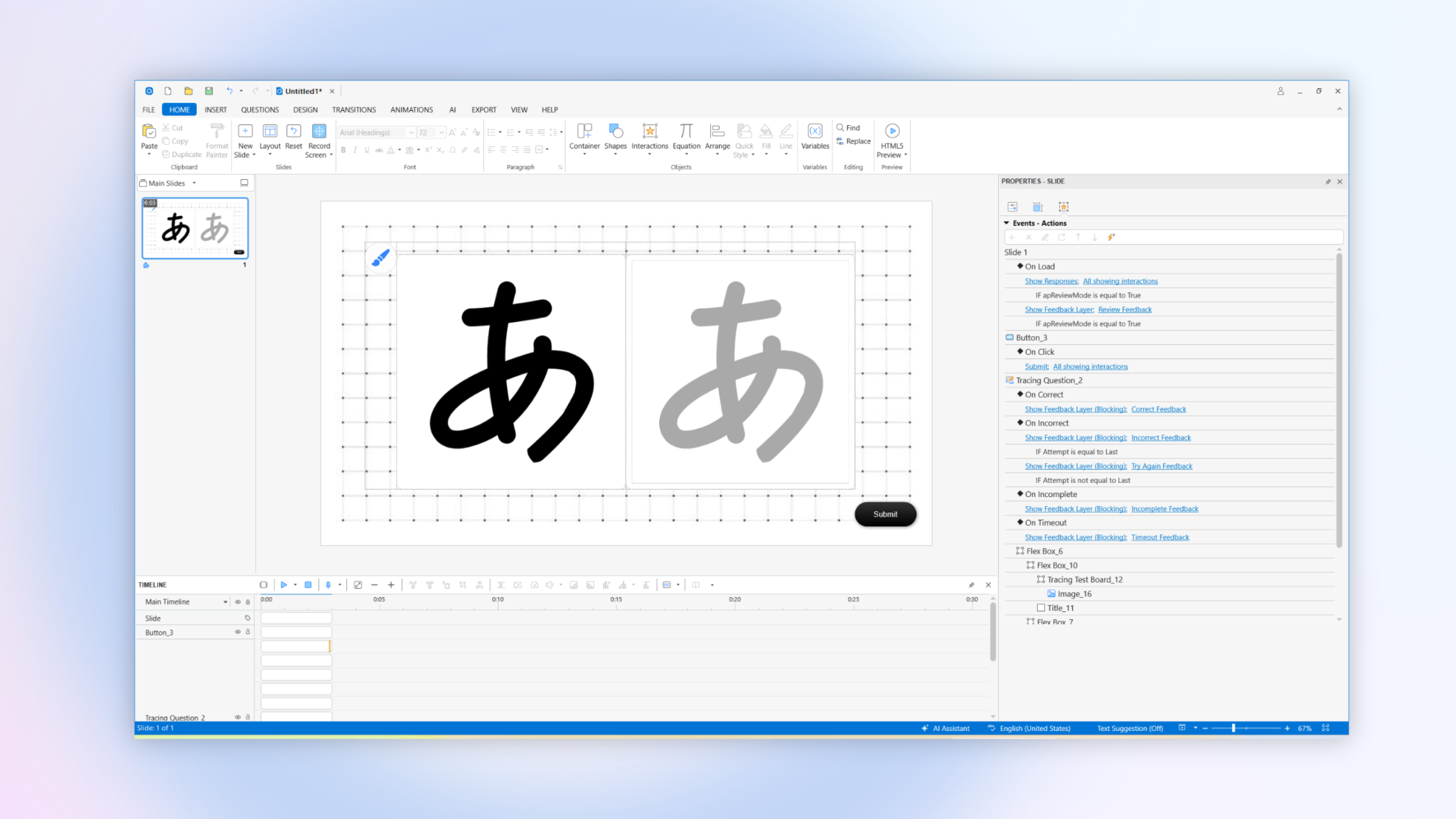
The new Tracing feature is one of the most exciting additions to ActivePresenter 10.5. Designed specifically for handwriting practice, language learning (such as practicing Kanji or Cyrillic characters), this interaction allows learners to draw strokes that are automatically evaluated against predefined shapes or paths.
Tracing Interaction vs. Tracing Question: Which is right for you?
In this update, you have two ways to implement tracing:
- Tracing Interaction: A standalone object that gives you the freedom to let learners draw anywhere on the slide area. It’s perfect for open-ended creative tasks or simple path-following exercises.
- Tracing Question: A structured question group that includes a dedicated Guide Board and Test Board. This is the preferred choice for formal assessments, as it neatly manages all scoring and feedback components within a single container.
How it Works: Guides and Testing
The power of the Tracing tool lies in its two-layered system:
- Guide Elements: These act as the reference for your learners. You can use predefined shapes (with line styles) or SVG images. In the final HTML5 output, learners can click the Guide button to watch a tracing animation, showing them exactly how the path should be followed before they attempt it themselves.
- Test Elements: These are the “invisible graders.” ActivePresenter evaluates the learner’s drawing against these paths. You can set strict requirements in the Tracing Properties, such as requiring the learner to follow a specific stroke order or a particular direction.
Tracing Interaction in HTML5
Every Tracing interaction comes with a customizable Drawing Controls panel. Depending on your lesson’s needs, you can allow learners to:
- Select from a variety of colors and adjust stroke width.
- Undo/redo strokes or clear the board to try again.
- Use a Compact Layout to save space on the slide, showing only the essential icons.
Canvas Drawing Tool for HTML5 Output
In addition to the Tracing interaction, you can now enable a general-purpose drawing tool for any HTML5 export. This allows learners to write notes, highlight content, or annotate directly on the screen during a session.
Important: Please note that these freehand annotations are temporary visual aids. They are not tracked, graded, or saved once the session ends or the browser is refreshed.
4. Professional Closed Captioning: Style, Sync, and Global Reach
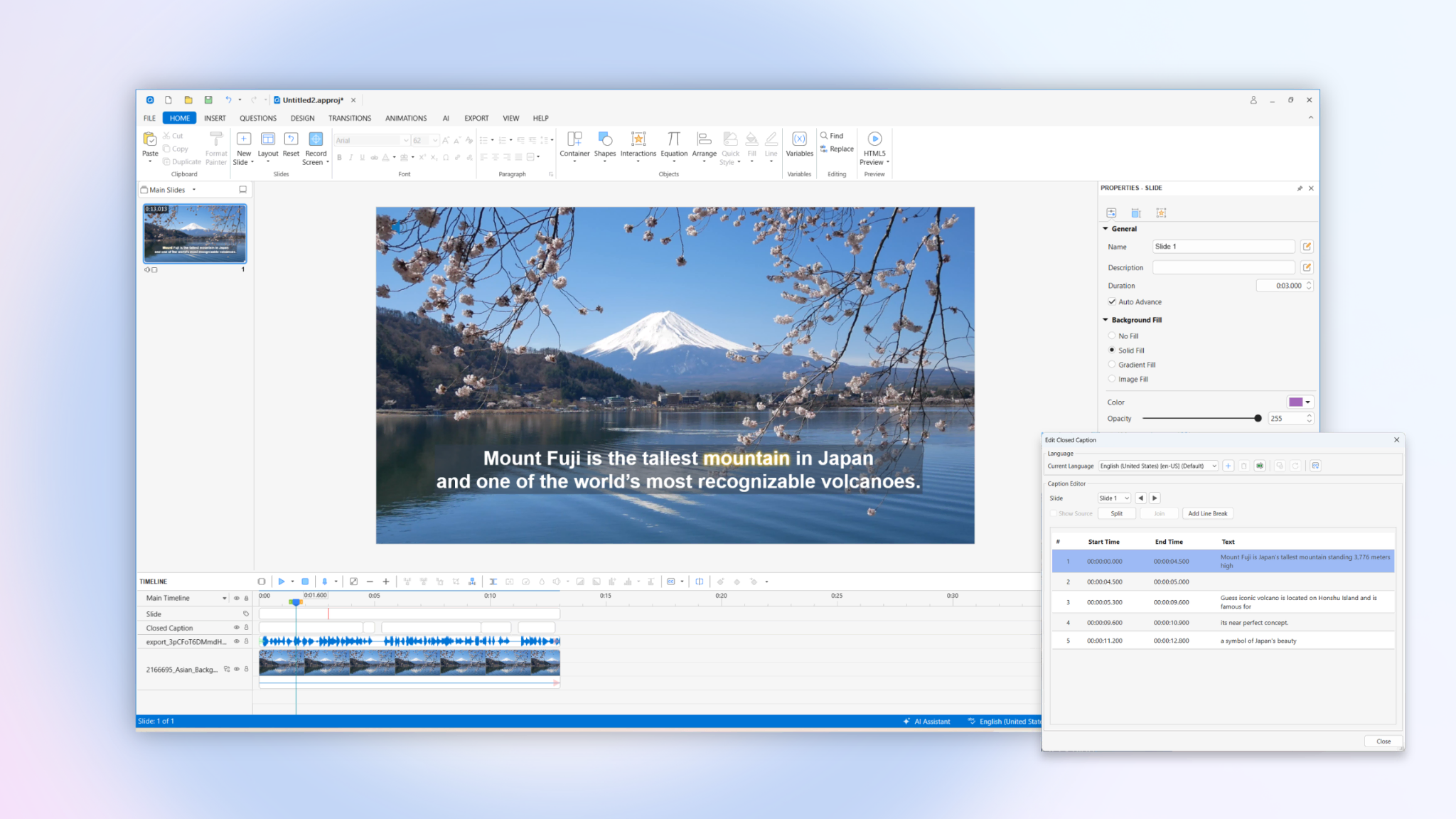
Accessibility is no longer just a checkbox: it’s a central part of the design process. In ActivePresenter 10.5, we’ve completely revamped the closed caption (CC) system to give you professional-grade control over how your text looks, moves, and reaches a global audience.
Brand-Consistent Preset Styles
Maintaining a consistent look across hundreds of slides is now effortless. Simply select your caption and head to the Format tab to choose from a gallery of built-in caption styles.
- One Change, Project-Wide: When you apply a style, including font, fill, and background settings, it is automatically applied to every caption in your project.
- Full Customization: While presets get you started, you can still fine-tune every detail (like opacity and text color) in the Properties pane.
Visual Word Highlighting & Progressive Display
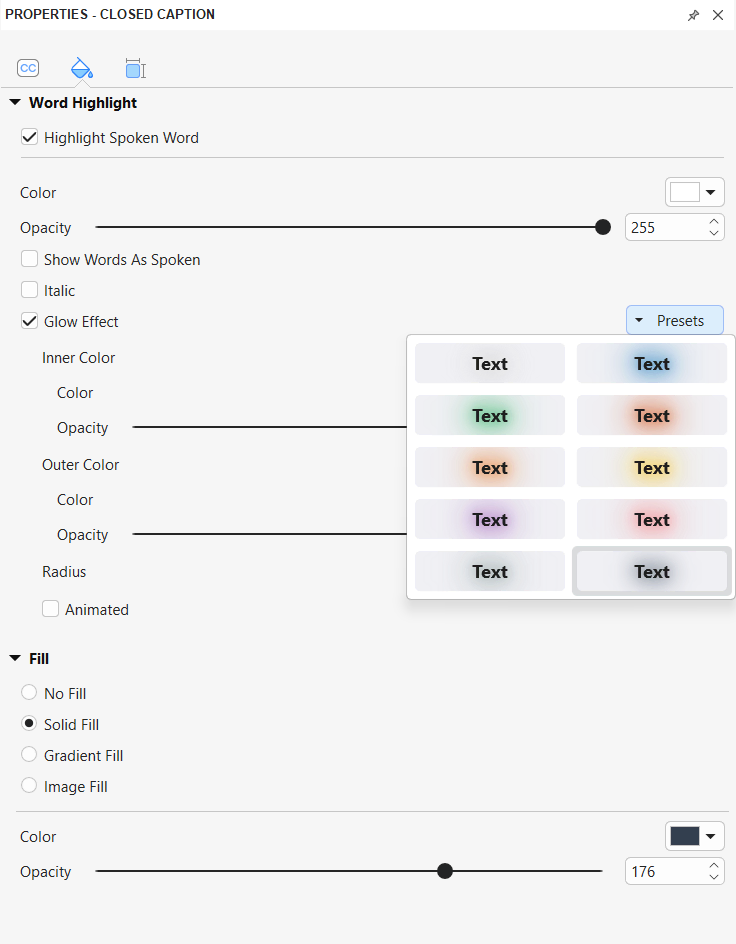
Engage your learners and improve retention with the new Word Highlight features. This “karaoke-style” effect highlights each word exactly as it is spoken.
- Show Words As Spoken: Instead of displaying the whole block at once, you can set captions to appear progressively.
- Glow Effects: Add a professional polish with customizable Glow Effects. You can adjust inner and outer glow, change colors, and even enable animated glows to make the current word truly pop on the screen.
Flexible Positioning: No More Blocked Content
One of the most requested features is finally here! You are no longer restricted to the bottom of the screen.
- Drag-and-Drop: Simply select a caption on the Canvas and drag it anywhere. This is perfect for avoiding overlapping with important UI buttons or distracting from key visuals.
- Slide-Specific Layouts: While styles are project-wide, positioning is slide-specific, giving you total design flexibility for every unique layout.
A Powerhouse Caption Editor for Global Content
The Caption Editor has been upgraded into a comprehensive localization and management hub:
- Auto-Translation: Adding a second or third language? Click Add Language and use the Auto Translation feature to instantly generate subtitles from your source text.
- Precision Editing: Easily Split a long caption node into two with a simple “Enter” keypress, or Join multiple nodes to simplify your timeline.
- Import/Export Standards: Seamlessly bring in or export your work using industry-standard .srt and .vtt formats for both single slides or your entire project.
5. Design Power-Ups: Animation Painter & Scale Text
Efficiency is at the heart of this update.
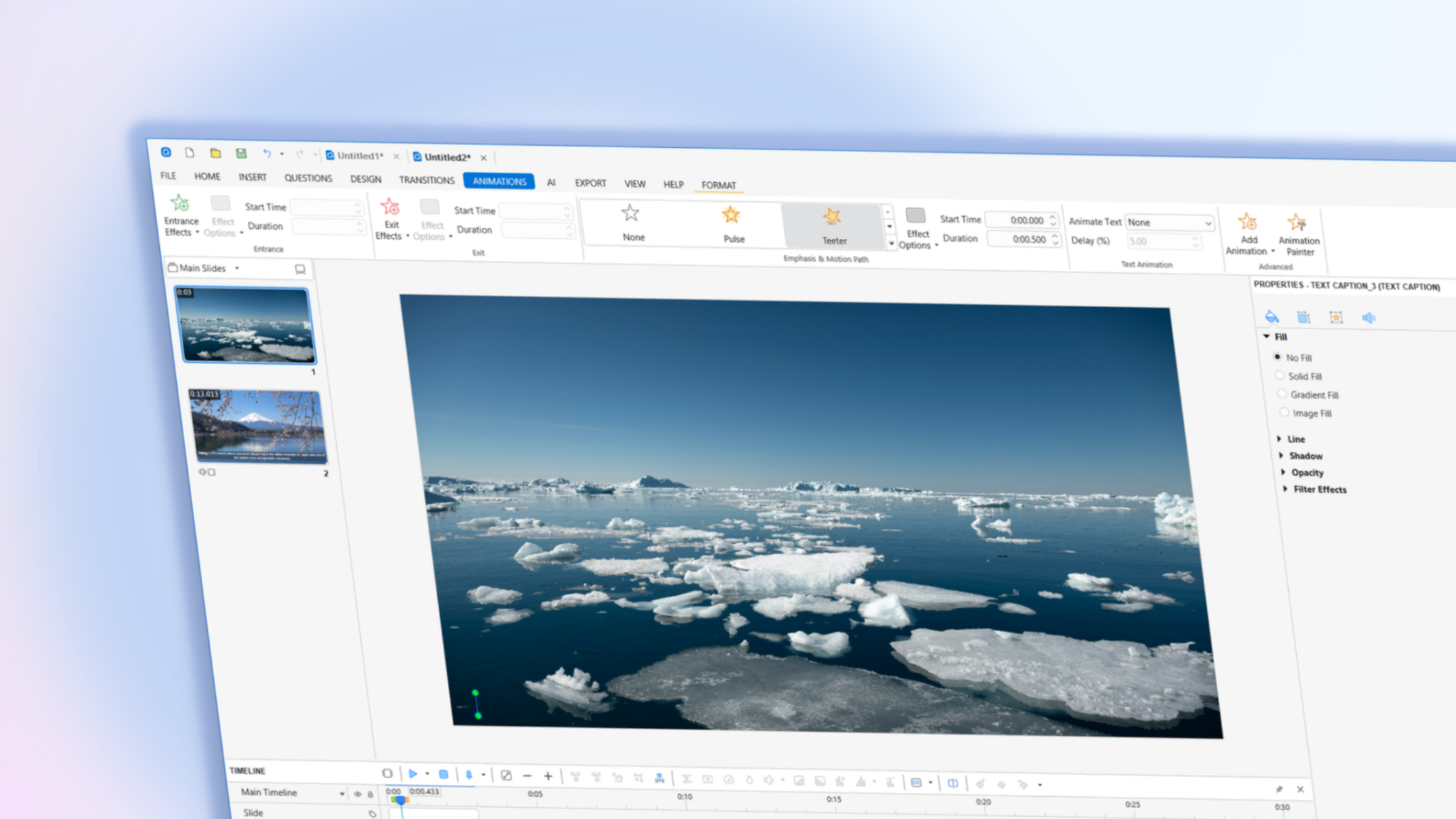
- Animation Painter: Love the animation you just created? Use the Animation Painter to “copy and paste” complex animation sequences from one object to another instantly.
- Scale Text with Object: No more manual font resizing! Text now automatically scales when you resize its container.
6. Smarter Media & UI Improvements
- WebP Support: Import and export images using the modern, lightweight WebP format for faster-loading web content.
- Auto-Captioning for Multiple Clips: Generate captions for all your audio/video segments simultaneously instead of one by one.
- Improved Selection Pane: Drag and drop objects directly into Flexbox containers or out of groups with ease.
7. High-Performance Multimedia & Encoding
For our power users and video editors, version 10.5 introduces significant upgrades to how media is processed and delivered.
- FFmpeg Support: ActivePresenter now supports the FFmpeg engine for both recording and exporting video. If FFmpeg is installed on your system and detected by ActivePresenter, you can leverage it for faster encoding speeds, better compression ratios, and improved compatibility across modern media players and devices.
- Support for Multiple Audio Streams: ActivePresenter now supports videos with multiple audio streams. When importing or inserting these files, the software automatically identifies and separates the individual tracks, allowing you to choose exactly which streams to include in your project.
Note: Please keep in mind that selected streams are mixed together during export. To ensure clarity for learners, it is recommended to select only one language track for the final output.
8. Automation with Script Runner: Let Python Do the Heavy Lifting
If you’ve ever found yourself performing the same repetitive task, like renaming fifty objects, importing a hundred images, or updating captions across dozens of slides, the new Script Runner is for you.
ActivePresenter 10.5 now includes a dedicated Python automation layer. This allows you to describe what you want to happen in code, and the software executes it instantly.
Why Use the Script Runner?
- Handle Bulk Tasks: Create slides, edit object properties, or configure complex quizzes in seconds rather than hours.
- Total Project Control: Access everything from slide transitions and timelines to text-to-speech settings via a structured API.
- Built-in Guidance: Located under the View tab, the Script Runner pane features an API Reference sidebar that helps you discover exactly which commands you need to use.
The AI Synergy
You don’t need to be a Python expert to use this! One of the most powerful workflows in version 10.5 is asking the AI Assistant to write an automation script for you. Once the AI generates the code, you can send it directly to the Script Runner with one click to perform complex project edits.
Conclusion
ActivePresenter 10.5 is more than just a seasonal update; it’s a fundamental shift in how creators approach eLearning development. By bridging the gap between artificial intelligence and human creativity, this version empowers you to spend less time on repetitive technical tasks and more time on what truly matters: crafting impactful learning experiences.
Whether you’re leveraging the AI Assistant to automate your workflow, utilizing the Tracing Interaction to build immersive practice exercises, or using the Animation Painter to polish your design in seconds, version 10.5 provides the professional toolkit needed for the modern digital landscape.
Ready to transform your workflow?
- Existing Users: Open ActivePresenter and go to the Help tab > Check for Updates to download version 10.5 today.
- New Users: Download the Free Trial and experience the future of intelligent authoring firsthand.
