
Creating captions manually for a video or eLearning course can take a considerable amount of time and effort. You need to listen to each segment, transcribe the spoken words, and carefully adjust the timing so that the captions appear in sync with the audio. For longer videos or content-heavy courses, this process can quickly become repetitive and time-consuming.
Thanks to recent advances in artificial intelligence (AI), generating and editing captions has become much easier. However, most online speech-to-text services require an Internet connection and consume AI credits or charge usage fees. This can be inconvenient and costly if you frequently work with long videos or large volumes of captioned content.
Alternatively, generating captions locally on your computer is worth considering if your hardware is powerful enough. Offline speech recognition can help reduce ongoing costs while giving you greater control over your audio data.
In this guide, we’ll walk you through the entire process of generating auto captions in ActivePresenter 10.6, using both online AI services and offline speech recognition models. You’ll also learn how to edit, format, and export captions for videos and interactive eLearning courses.
Beyond automatic caption generation, ActivePresenter is an all-in-one solution for screen recording, video editing, interactive eLearning authoring, quiz creation, and content publishing.
To get started, download the latest version of ActivePresenter and follow the steps below.

Prepare Your Audio or Video for Automatic Captioning
Before generating captions, add the audio or video you want to transcribe to your ActivePresenter project.
You can generate captions immediately after inserting the media or wait until you’ve finished editing. If the narration is still subject to change, it’s best to generate captions afterward to avoid unnecessary revisions.
For better speech recognition results, use audio with clear speech, minimal background noise, and as little overlapping dialogue as possible. Poor-quality recordings may cause the software to misrecognize words or leave some out.
On the Timeline, select the audio or video object you want to generate captions for. You can also select multiple objects to process them in a single operation.
Then, choose one of the following methods.
Method 1: Generate Auto Captions Using Online AI Services
This method uses an online speech recognition service to convert spoken audio from your video or audio file into text.
You’ll need an Internet connection and a properly configured service provider. Supported languages, recognition accuracy, and usage costs depend on the selected provider and model.
Step 1: Open the Auto Captions Dialog
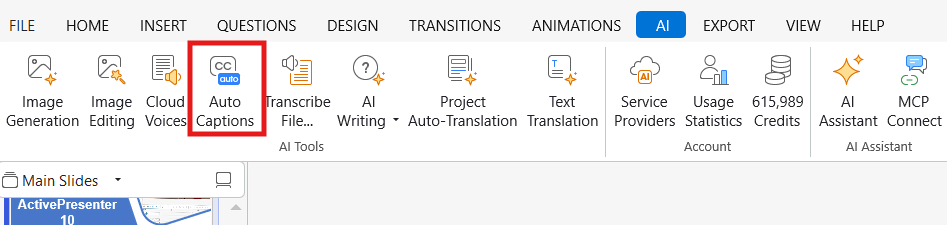
After selecting your audio or video object, open the Auto Captions dialog using either of these options:
- Go to the AI tab > Auto Captions.
- Go to the Insert tab > Closed Caption > Auto Captions.
- Go to the Media tool > Auto Captions.
In this dialog, you can choose a speech recognition service, specify the spoken language, and configure how the transcript is divided into captions.
Step 2: Select a Service Provider and Language
Choose the speech-to-text service provider you want to use.
If the service hasn’t been configured yet, add the provider and enter the required connection information according to its setup instructions.
Next, select the language spoken in your audio or video.
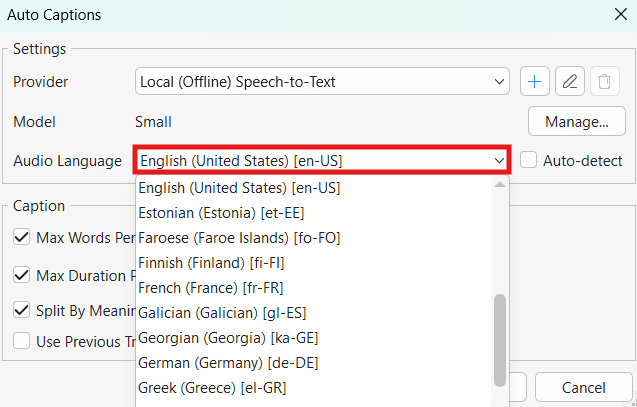
If your selected provider supports it, you can choose Auto Detect to let the system identify the spoken language automatically.
Keep in mind that this option may not be available for every provider, as explained in Atomi Systems’ speech-to-text documentation.
Step 3: Configure Caption Segmentation Settings
In the Captions section, adjust the available settings to divide the transcript into readable caption segments.
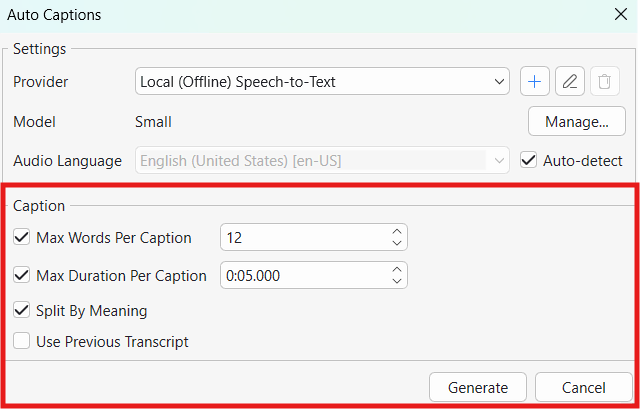
Maximum Words per Caption
This option limits the number of words in each caption segment.
Decrease the value to create shorter captions, or increase it to include more text in each segment.
Maximum Duration per Caption
This setting limits how long each caption segment appears on screen.
Consider both the word count and display duration to ensure viewers have enough time to read each caption comfortably.
Semantic Segmentation
This option allows ActivePresenter to prioritize natural breaks in speech, such as those between sentences or clauses.
After generating captions, review the segmentation to make sure no breaks interrupt the meaning of a sentence.
Reuse Previous Transcript
This option lets you reuse an existing transcript.
It’s particularly useful when you want to change how captions are divided without running speech recognition again.
Step 4: Generate Captions
Once you’ve configured the settings, click Generate to start the process.
ActivePresenter will convert the spoken audio into text, divide the transcript into caption segments, and assign the corresponding display times.
Note: If the slide already contains captions, ActivePresenter may ask you to confirm before replacing them. Review and save any existing captions you want to keep before proceeding.
When the process is complete, the Edit Captions dialog appears.
You can review the generated text and timing by following the instructions in the Edit and Format Captions After Generation section below.
Method 2: Generate Auto Captions Using an Offline Model
ActivePresenter 10.6 also supports speech recognition directly on your computer.
With this method, your audio doesn’t need to be uploaded to a cloud-based service for transcription.
Offline caption generation is especially useful if you need to work without an Internet connection, regularly process large numbers of videos, or prefer to keep your audio data on your local device.
You’ll need an Internet connection to download the speech recognition model initially. Once the model is installed, transcription can run offline.
Processing speed depends on the selected model and your computer’s hardware specifications.
Step 1: Select Offline Speech Recognition
On the Timeline, select the audio or video object you want to generate captions for.
Open the Auto Captions dialog using one of the methods described earlier.
From the provider list, select Local (Offline) Speech-to-Text
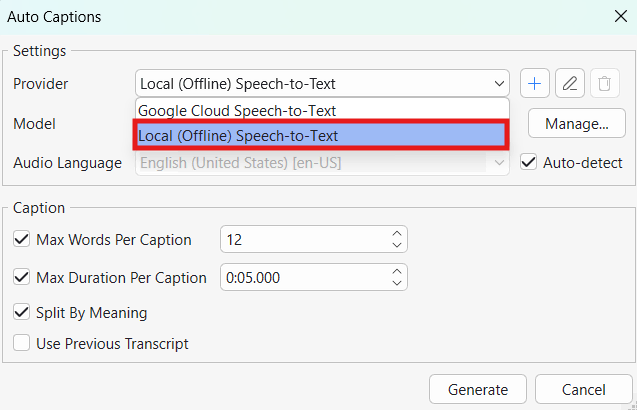
If you haven’t installed a speech recognition model yet, you’ll need to download and install one before continuing.
Step 2: Download and Select a Speech Recognition Model
Click Manage to open the model manager.
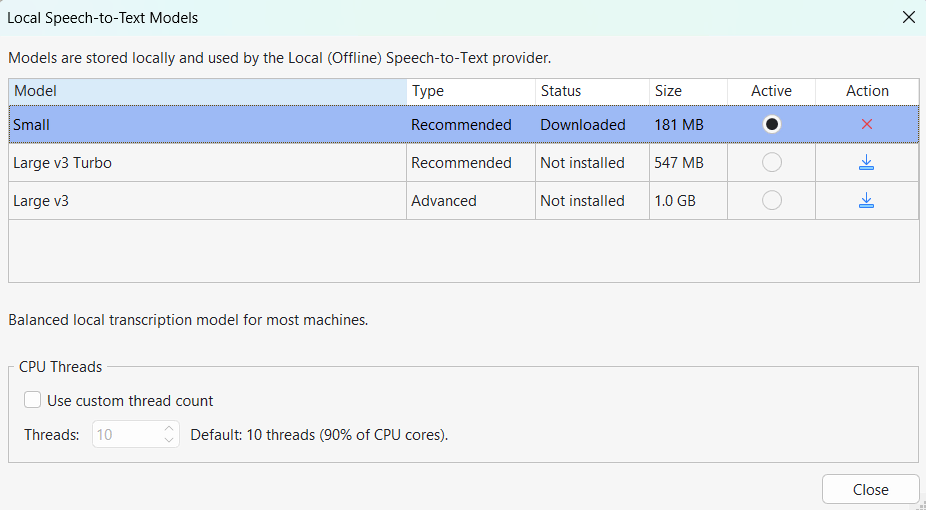
Review the available models, including their types, sizes, and installation status.
Choose a model that suits your needs and your computer’s processing capabilities, then download it.
Once the installation is complete, select the model you want to use for speech recognition.
The model manager also allows you to remove models you no longer need.
If you want to adjust processing resources, configure the number of CPU threads according to your computer’s capabilities.
Pro Tip: If you plan to generate captions without Internet access, download and select your preferred model before going offline.
Step 3: Select the Language and Configure Caption Settings
Return to the Auto Captions dialog and select the language spoken in your audio or video.
If the selected model supports automatic language detection, you can use this option when you’re unsure which language is being spoken.
Next, configure caption segmentation using the following settings:
- Maximum Words per Caption
- Maximum Duration per Caption
- Semantic Segmentation
- Reuse Previous Transcript
These settings work similarly to those used with online AI services. Refer to the caption segmentation instructions in Method 1 for more details.
Step 4: Generate Captions
Click Generate to begin.
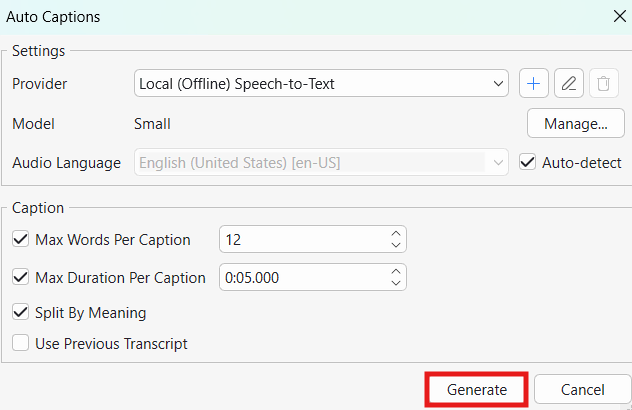
ActivePresenter will use the installed model to recognize speech directly on your computer, create a transcript, and divide it into caption segments with corresponding timestamps.
The processing time depends on the length of your audio or video, the selected model, and your computer’s hardware.
Once the process is complete, review the results in the Edit Captions dialog.
Edit and Format Captions After Generation
Whether you use an online AI service or an offline speech recognition model, it’s important to review your captions before publishing.
Pay particular attention to proper names, technical terms, abbreviations, and sections with background noise.
In addition to text accuracy, caption segmentation and timing should be adjusted to make the content easy to follow.
Edit Caption Text
In the Edit Captions dialog, review each caption segment and compare it with the spoken audio.
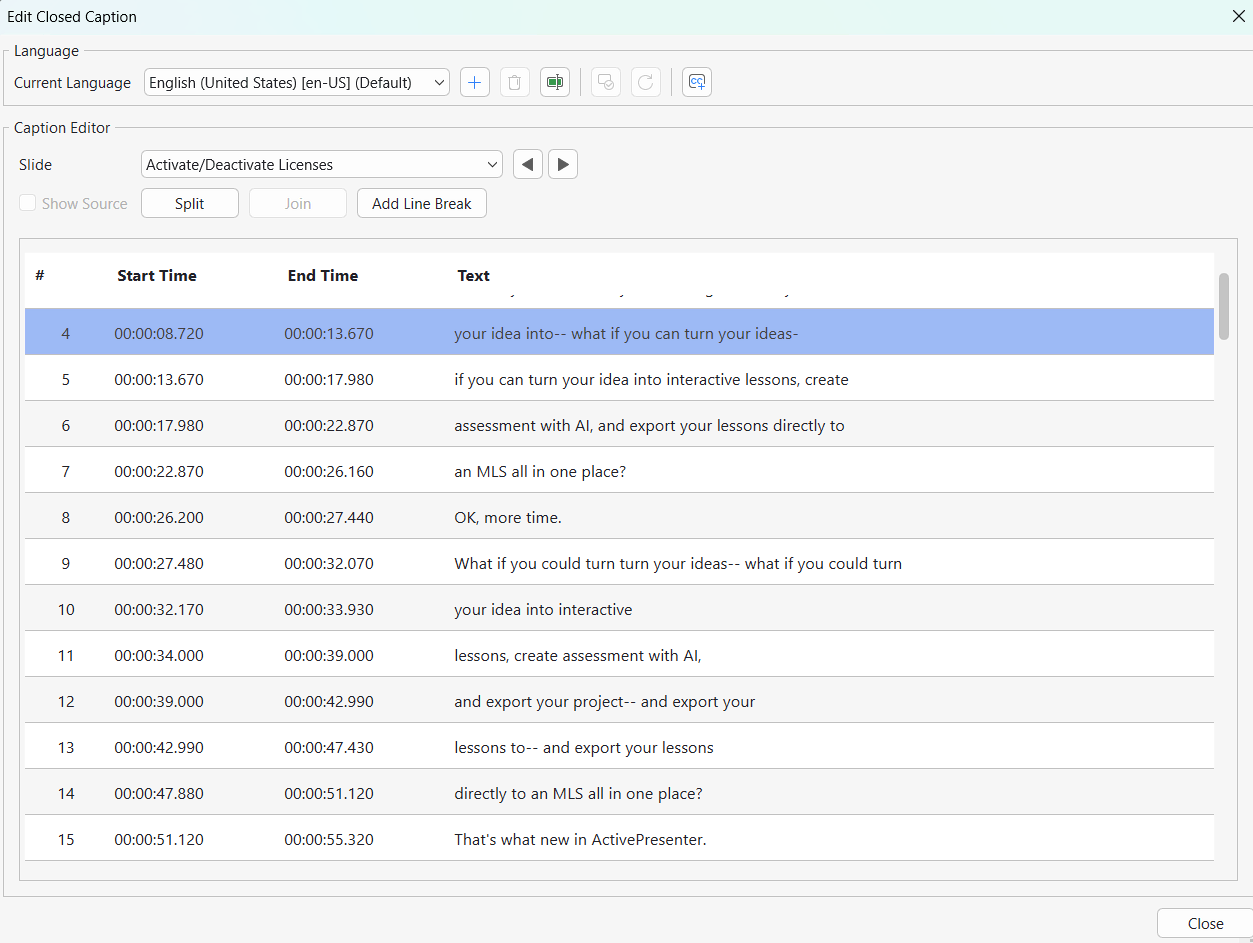
Double-click the content in the Text column to correct misrecognized words, add punctuation, or adjust capitalization and spelling.
Try to keep the captions as close to the original speech as possible. Avoid excessive paraphrasing, as it may cause the captions to no longer match the audio.
For longer segments, you can insert line breaks where appropriate.
Ideally, break lines between meaningful phrases rather than splitting proper names or words that naturally belong together.
Use the navigation buttons to review captions on other slides.
If your course requires captions in multiple languages, you can add and manage each language in this dialog.
When you’ve finished editing, click Close and save your project.
Synchronize Caption Timing with Speech
Check the start and end times of each caption segment.
Make adjustments if captions appear too early, disappear before the speaker finishes, or remain visible after the next sentence begins.
In the Edit Captions dialog, double-click the timing value you want to modify and enter a new value.
Then, play the audio or video again and check the following:
- Do the captions appear when the speaker begins talking?
- Does the displayed text match the words being spoken?
- Do viewers have enough time to read each caption before the next one appears?
Pro Tip: Don’t rely on timestamps alone. Listen to the audio while reading the captions at a natural pace to determine whether the display duration feels comfortable.
Customize Caption Appearance
Captions should be clear and easy to read without covering important visual information.
When formatting captions, pay attention to these elements:
- Font: Choose a simple, readable typeface that supports the language used in your captions.
- Font size: Make sure the text is large enough to read comfortably on the devices your audience is likely to use.
- Text color: Use a color that provides sufficient contrast against the background.
- Caption background: Add a background when the video contains complex or constantly changing visuals.
- Position: Avoid covering important actions, charts, or information viewers need to see.
Keep caption formatting consistent throughout your course.
For software tutorials, minimize unnecessary visual effects so viewers can focus on the instructions.
Export Videos, Caption Files, and eLearning Courses
After reviewing and editing your captions, you can export them in different ways depending on how you plan to use your content.
You can burn captions directly into a video, save them as a separate file, or include them in an interactive eLearning course.
Export a Video with Captions
Open the Export tab > Video to configure your video export settings.
If you want captions to remain permanently visible in the video, select the option to Export Closed Captions as Hard Subtitles.
With this option, captions become part of the video image. Viewers cannot turn them off or change their appearance through the video player.
If you prefer to save captions as a separate file alongside the video, select the option to Export Closed Captions as Soft Subtitles.
This allows you to use separate caption tracks in compatible video players or platforms.
For more information about video output settings, refer to the ActivePresenter User Manual.
After exporting, play the video to verify the caption text, positioning, and timing.
Export Captions as an SRT File
If you only need the caption file, you can export it separately in SubRip Subtitle (.srt) format.
An SRT file contains caption text along with the start and end timestamps for each segment.
In the Edit Captions dialog, use the caption export function to save your captions as an SRT file.
You can also export captions from the caption menu on the Timeline or the Add tab.
Once exported, the SRT file can be uploaded to platforms that support external captions, such as YouTube.
If you need to edit or reuse the captions later, you can import the file back into ActivePresenter.
Note: SRT files primarily store caption text and timing information. Their visual appearance may be controlled by the video player or publishing platform.
Export an HTML5 or SCORM eLearning Course
For interactive eLearning content, you can export your ActivePresenter project as HTML5 for browser-based playback or package it as SCORM for use in a Learning Management System (LMS).
Before exporting, preview your project to check how captions appear and review the relevant player settings.
Then, test the published content in its intended learning environment.
Make sure learners can access the captions conveniently and that the text remains accurately synchronized with the audio.
Online AI Services vs. Offline Models: Which Should You Choose?
Both methods can convert spoken audio into captions automatically.
The main differences involve where the audio is processed, Internet connectivity requirements, and potential service costs.
| Criteria | Online AI Services | Offline Models |
| Processing location | On the service provider’s servers | Directly on your computer |
| Internet connection | Required during online recognition | Required to download the model; recognition can run offline afterward |
| Accuracy | Depends on the provider, model, language, and audio quality | Depends on the model, language, and audio quality |
| Supported languages | Depends on the provider and model | Depends on the installed model |
| Processing speed | Depends on the service, network connection, and content length | Depends on the model, hardware, and content length |
| Recognition cost | May consume AI credits or incur API charges | Does not consume AI credits for local recognition |
| Initial setup | Configure the provider and connection details | Download, install, and select a model |
If you already have access to a suitable speech recognition service and a stable Internet connection, the online method may be a convenient choice.
If you need to work offline or prefer to process audio directly on your computer, consider using a local model.
Neither method consistently produces better results in every situation.
For the best outcome, test both methods with a representative audio sample to compare recognition accuracy and processing time before applying them to your entire project.
Conclusion
With the Auto Captions feature in ActivePresenter 10.6, you can significantly reduce the time spent transcribing speech and synchronizing captions with audio.
Depending on your needs, you can use online AI services or offline speech recognition models to generate captions without uploading your audio to the cloud.
Whichever method you choose, remember to review the generated text, fine-tune the timing, and adjust the caption formatting before publishing.
Accurate, readable captions make your content easier to follow, especially in software tutorials, instructional videos, and eLearning courses.
Ready to simplify your captioning workflow?
Download ActivePresenter and start creating captions for your videos and eLearning courses with less manual effort.