
How to speed up training video creation with AI caption in ActivePresenter
Spending an entire afternoon manually typing timestamps for a 15-minute training video is a frustration every instructional designer knows. Scale that across dozens of lessons, multiple languages, and frequent content updates, and captioning quickly becomes one of the most time-consuming parts of course production.
Fortunately, AI Auto Captions for Training Videos eliminate most of that manual work. Instead of transcribing every sentence by hand, AI automatically converts narration into synchronized captions that you can edit, style, translate, and publish in minutes.
In this guide, you’ll learn how to create AI-generated captions step by step using ActivePresenter, an all-in-one screen recorder, video editor, and eLearning authoring tool.

Why Use AI Auto Captions for Training Videos?
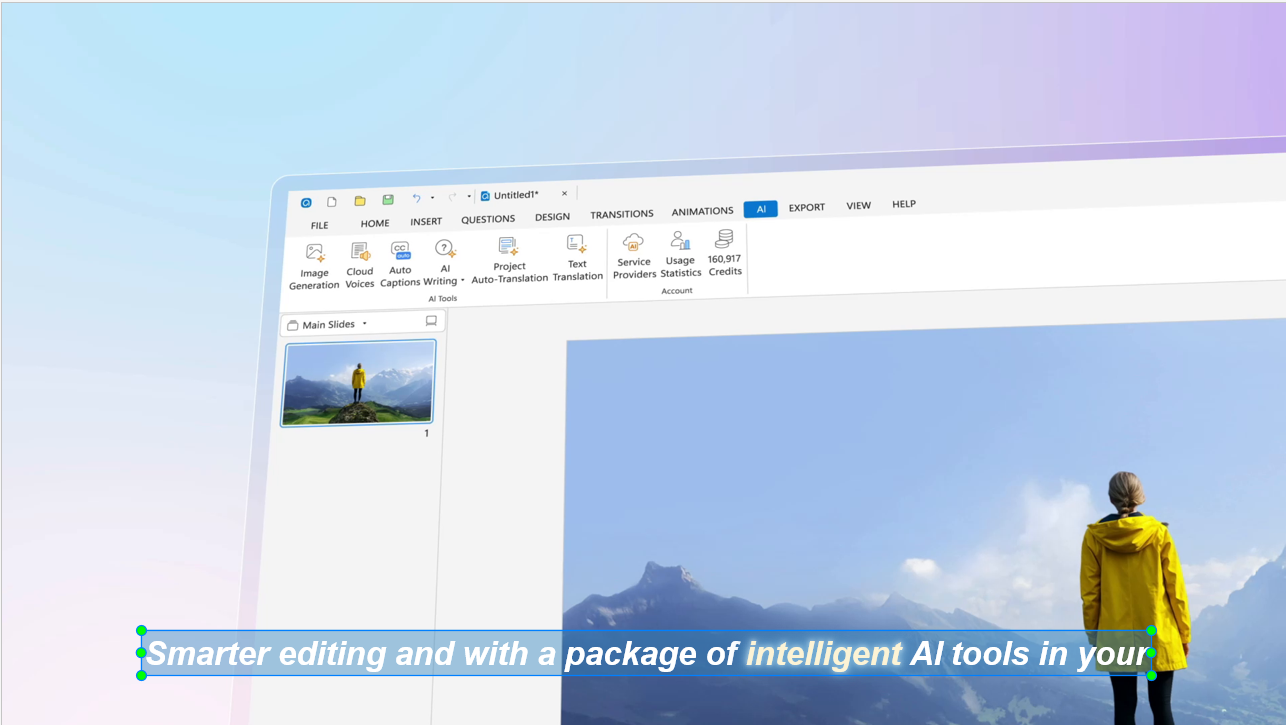
AI-generated captions offer much more than convenience. They help training teams:
- Produce captioned videos up to 10x faster
- Improve accessibility for learners
- Support multilingual training initiatives
- Increase learner engagement and comprehension
- Meet compliance and accessibility requirements
Instead of juggling separate transcription, editing, and localization tools, modern AI caption workflows combine everything into one project.
How to Create AI Auto Captions for Training Videos
Follow these five simple steps.
Step 1. Import or Record Your Training Video
Begin with your source material.
You can:
- Record a software demonstration with ActivePresenter’s free screen recorder.
- Capture your screen and webcam simultaneously
- Import an existing training video
If you’re creating software tutorials, record your narration after your screen recording is finalized for the best transcription accuracy.
Step 2. Generate AI Auto Captions
Once your narration is ready, generate captions automatically.
ActivePresenter analyzes the narration track using AI speech recognition and creates synchronized caption blocks directly on the timeline.
Instead of manually creating timestamps, the captions are already aligned with your audio and ready for review.
Step 3. Customize Caption Appearance
After generating captions, make them match your course branding.
Rather than editing captions one by one, apply a Preset Style to update every caption throughout the project simultaneously.
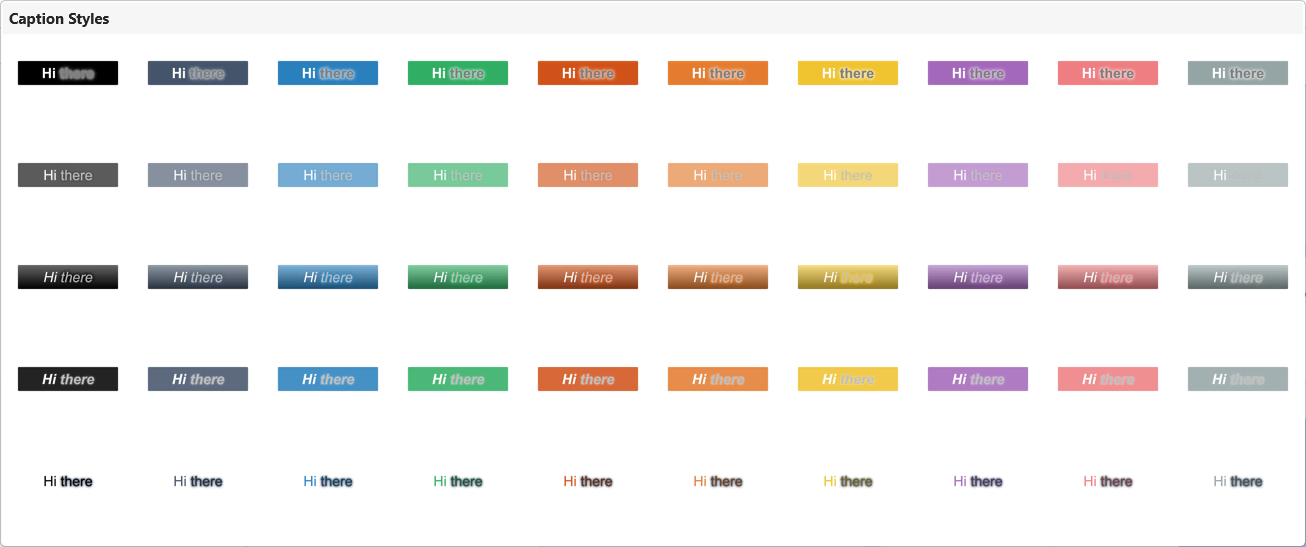
You can customize:
- Font
- Text color
- Background
- Position
- Size
Because the style is applied globally, updating hundreds of captions only takes a few clicks.
Step 4. Translate Captions into Multiple Languages
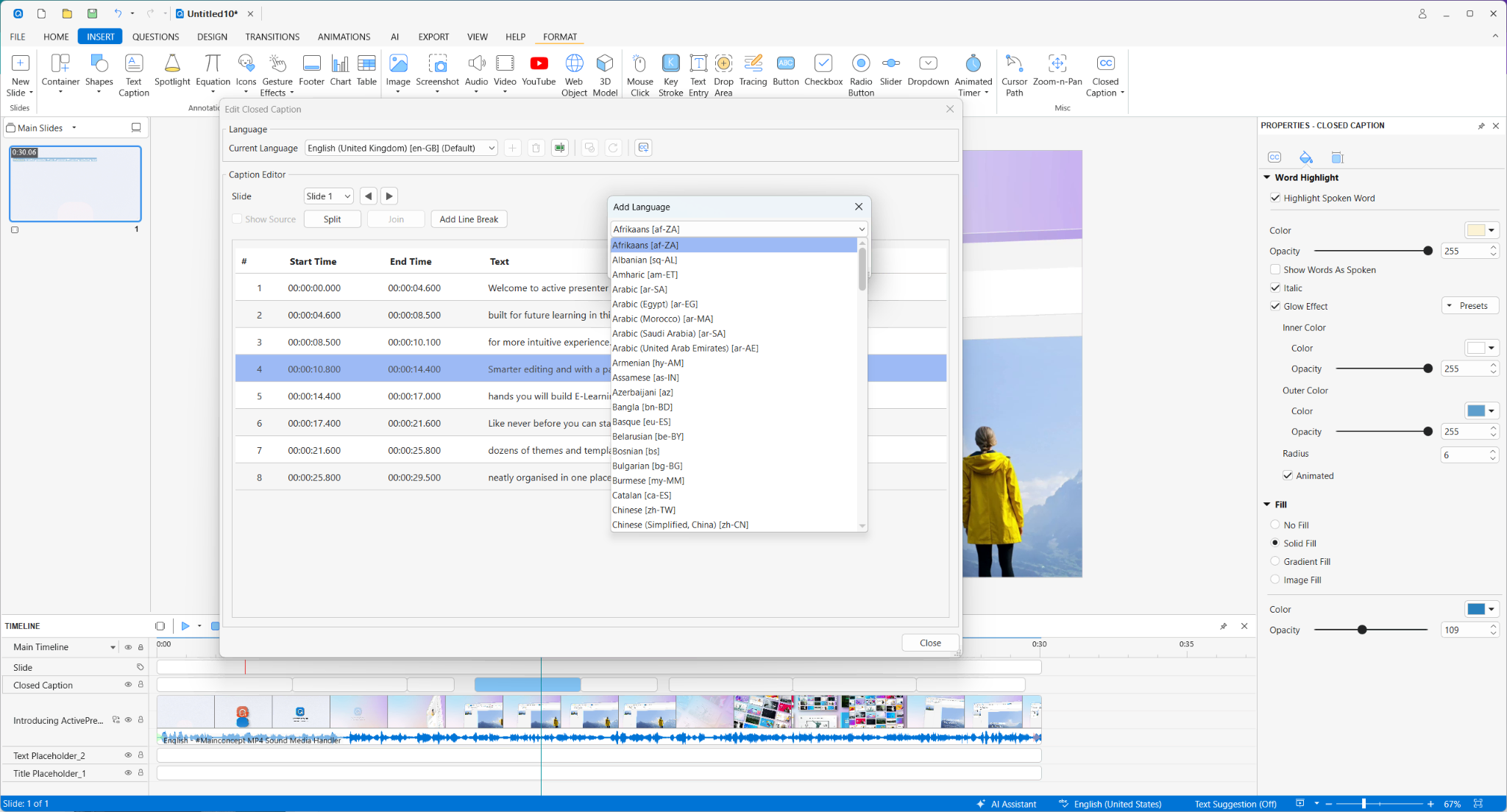
If your organization delivers global training, localization is just as important as caption generation.
With Project Auto-Translation, ActivePresenter translates captions together with:
- Slide text
- On-screen objects
- Narration scripts
This removes the need to recreate captions manually for every language.
Step 5. Export Your Captioned Training Video
When everything looks correct, publish your project.
Depending on your needs, you can:
- Export captions as SRT
- Export captions as VTT
- Publish interactive courses as SCORM 2004
- Export xAPI packages for LMS deployment
Your captions remain synchronized throughout the publishing process.
Start Creating AI Auto Captions for Training Videos Today
Manual captioning no longer needs to slow down your production workflow.
With ActivePresenter, you can automatically generate subtitles, apply consistent styling, translate captions into multiple languages, and publish LMS-ready courses, all from a single application.
If you’re still creating captions manually, try the workflow on your next training project and see how much production time you can save.