
Creating a quiz is only part of building an online assessment. You also need to make sure learners can submit their answers, receive accurate scores, and have their results recorded in your learning management system.
This guide explains how to create a SCORM quiz with ActivePresenter, from planning the assessment to exporting and validating the final package. We’ll build a simple five-question quiz, set an 80% passing requirement, and check that the LMS records the expected results.
You’ll learn how to:
- Plan questions around learning objectives.
- Build and score a quiz in ActivePresenter.
- Add feedback and a results slide.
- Export a SCORM package.
- Test scores, status, and resume behavior in your LMS.

What Is a SCORM Quiz?
A SCORM quiz is an interactive assessment packaged to communicate with a compatible LMS. SCORM stands for Sharable Content Object Reference Model. It defines how learning content is packaged, launched, and tracked.
The package typically contains the quiz’s web files, media, and a manifest that tells the LMS how to launch the content. When learners take the assessment through the LMS, the content can report information such as their score, status, and question responses.
However, the reports available to instructors depend on the LMS. A platform may store interaction data without displaying every detail in its standard reports.
ActivePresenter – a scorm authoring tool that supports exporting projects as SCORM 1.2 or SCORM 2004 packages. Choose the version your destination LMS supports and recommends.
Download Button
Completion and Passing Mean Different Things
Completion describes whether a learner has finished an activity. Passing describes whether their performance meets your assessment requirement.
For example, someone who finishes a quiz with 60% may have completed the activity but failed the assessment.
SCORM 2004 provides separate completion and success status fields. SCORM 1.2 uses a single lesson-status field, so the way an LMS presents these outcomes can differ. Check the recorded status alongside the score during testing.
How to Create a SCORM Quiz in ActivePresenter
For this walkthrough, we’ll create a short digital-safety assessment with these settings:
| Setting | Example |
| Number of questions | Five |
| Question type | Multiple Choice |
| Points per question | One |
| Maximum score | Five points |
| Passing requirement | 80% |
| Question attempts | One |
| Expected passing result | Four correct answers out of five |
Using equal point values makes the first package easier to validate. You can introduce partial scoring or more complex interactions after confirming the basic workflow.
Step 1: Plan the Assessment Before Building Slides
Start with what learners should be able to do after the lesson. Then write questions that provide evidence of that ability.
For a digital-safety lesson, an objective might be:
Given a suspicious email, identify the safest next action.
A question could present an unexpected message asking the learner to reset a password. The answer options would describe possible responses, with the correct option directing them to verify the request through an approved channel.
Prepare a question plan containing:
- The learning objective.
- The question and answer options.
- The correct answer.
- The point value.
- Feedback explaining the answer.
Design tip: Build distractors around realistic mistakes. Obviously incorrect options make a question easier without necessarily showing whether learners understand the topic.
Also decide whether the activity is guided practice or a final assessment. Practice may allow repeated attempts and explanatory feedback, while a final assessment may require stricter rules.
Step 2: Create a Project and Add Questions

Open ActivePresenter and select Blank Project on the Start Page. Save the project with a descriptive name, such as Digital_Safety_Quiz.
Add an introductory slide explaining the number of questions, passing requirement, and how to submit answers.
Next:
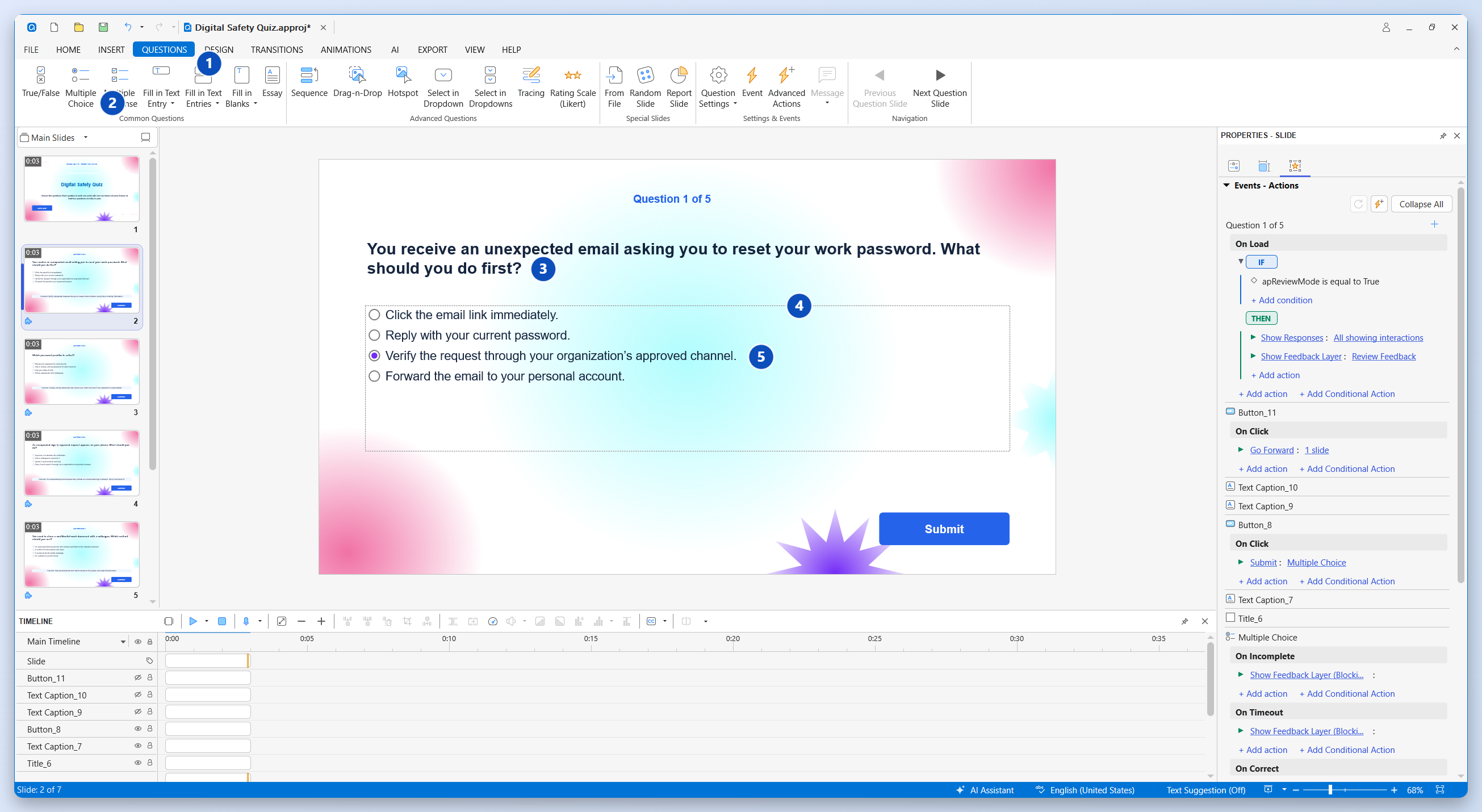
- Open the Questions tab.
- Select Multiple Choice.
- Replace the question placeholder with your question.
- Enter the answer options.
- Double-click the radio button beside the correct option to mark it as correct.
A Multiple Choice question accepts one correct answer. For a question requiring several correct selections, use Multiple Response instead.
Repeat the process until you have five questions. Keep question text, answer spacing, and Submit buttons consistent.
Step 3: Configure Scores, Attempts, and Reporting
Select the question’s answer area, then open Properties > Interactivity > Score & Reporting.
For the example quiz, configure each question as follows:
| Property | Setting |
| Mode | Graded |
| Points | One |
| Attempts | One |
| Report ID | Enabled, with a unique ID |
Graded questions measure performance. Survey questions collect responses without treating them as correct or incorrect.
Use recognizable Report IDs such as Safety_Q1 and Safety_Q2 if you want to identify questions more easily when inspecting reporting data.
ActivePresenter also supports partial scoring for supported question types. For your first validation package, keep the scoring straightforward so you can predict the result before taking the quiz.
Important: Question attempts and LMS attempts are separate settings. Allowing one submission per question does not automatically prevent learners from launching another quiz attempt through the LMS. Review both policies.
Step 4: Add Feedback and a Results Slide
Feedback should explain the decision behind an answer.
Instead of simply displaying “Incorrect,” use a short explanation such as:
Verify an unexpected password-reset request through your organization’s approved channel before using the link.
ActivePresenter provides feedback layers for question outcomes. Review their content and behavior, including what happens when learners submit an answer or try to continue without answering.
Then add a results slide through Questions > Report Slide. This slide summarizes performance and can provide a review option.
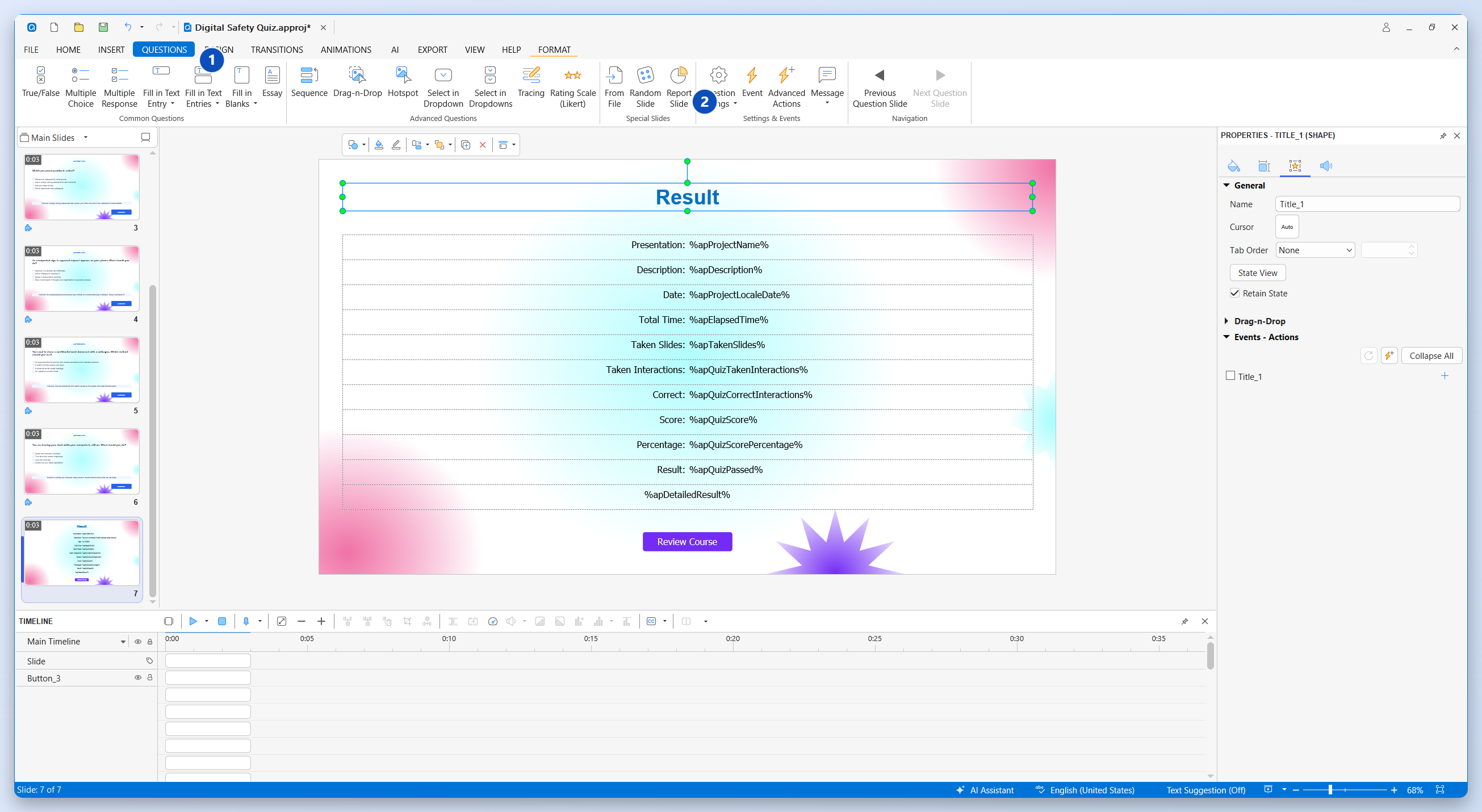
Treat the Report Slide as the learner-facing summary. Its appearance alone does not prove that the LMS has received the final result.
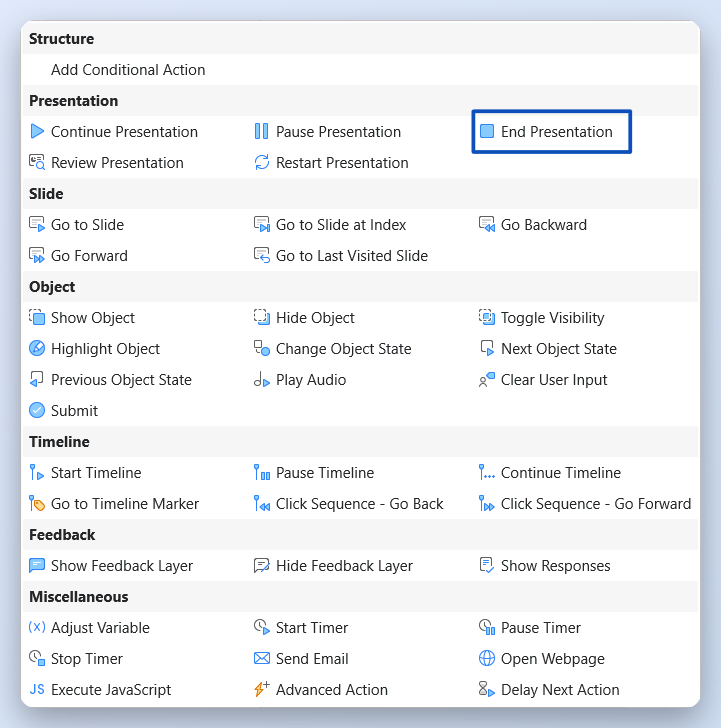
Provide a clear way to finish the quiz. For example, add a Finish button with an End Presentation action under Properties > Interactivity > Events – Actions. Test this route through the LMS so learners do not have to guess whether closing the browser completes the activity.
Step 5: Set the Passing Requirement
Open Export > SCORM. In the General tab, review Operation Modes and Pass Condition.
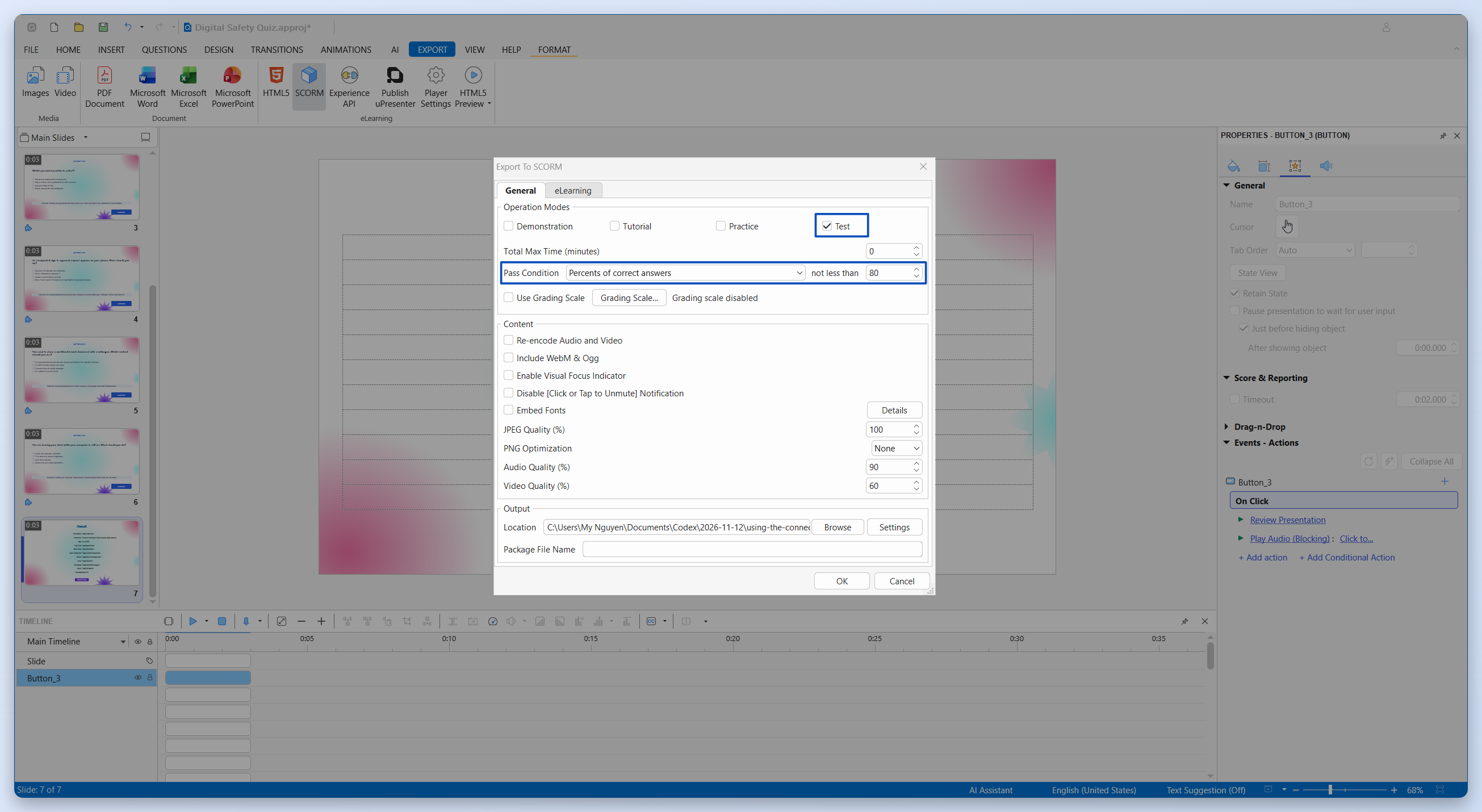
For this assessment:
- Select Test as the delivery mode.
- Choose the percentage-based pass condition.
- Set the minimum requirement to 80.
With five equally weighted questions, four correct answers should produce 80% and meet the passing requirement.
Other available conditions include points gained, number of correct answers, and slides viewed. Choose a condition that reflects your assessment goal. Viewing slides provides different evidence from answering questions correctly.
If Use Grading Scale is enabled, the selected lowest passing grade determines the pass condition. Check this setting if the threshold cannot be edited directly.
Validation tip: Write down two expected outcomes before testing: “4/5 passes at 80%” and “3/5 fails at 60%.”
Step 6: Preview the Entire Quiz
Open the HTML5 Preview dropdown in the Export tab and choose Preview Project > Test.
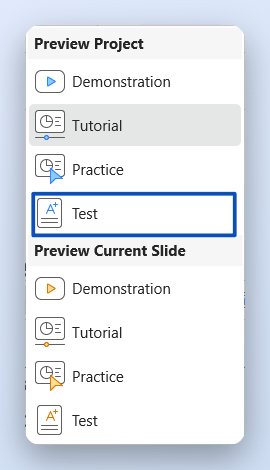
Preview from the beginning to check the full learner journey:
- Instructions are clear.
- Answers can be selected and submitted.
- Correct and incorrect answers receive the intended scores.
- Feedback and navigation work.
- The results slide shows the expected outcome.
- The Finish button ends the activity.
Run a passing attempt and a failing attempt. Also try submitting without selecting an answer.
Check keyboard navigation, focus visibility, text readability, and media controls. If the quiz includes narration or video, review captions and playback at the intended player size.
Preview helps you inspect the content. LMS reporting still needs to be tested after export.
Step 7: Export the Quiz as a SCORM Package
Return to Export > SCORM.
On General, confirm the selected mode, pass requirement, and output location. If Package File Name is available in your installed build, enter a clear filename such as digital-safety-quiz-v1.zip.
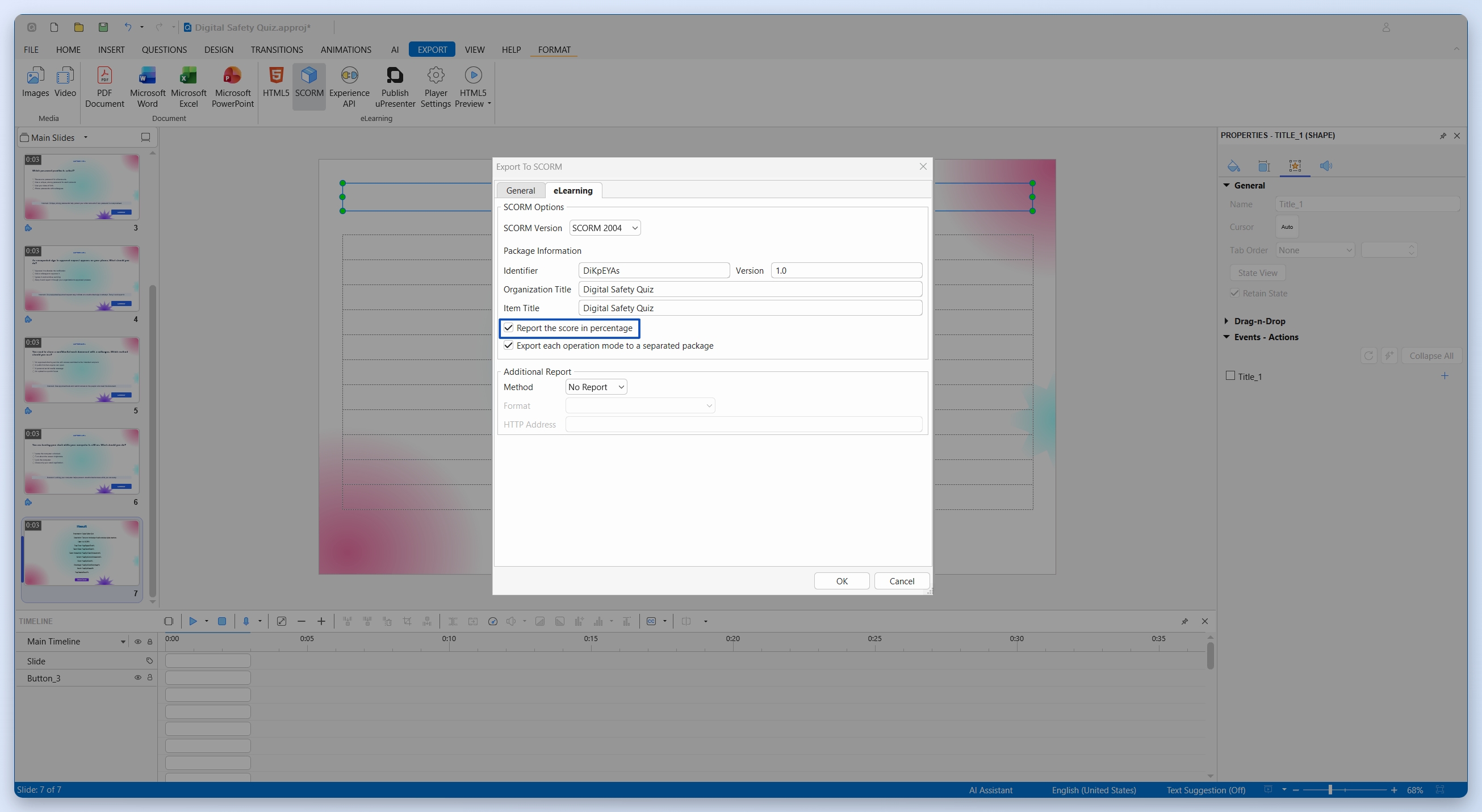
Next, open eLearning > SCORM Options:
- Choose SCORM 1.2 or SCORM 2004.
- Review Identifier and Version.
- Set meaningful Organization Title and Item Title values.
- Review the score-reporting options.
SCORM 1.2 scores are normalized to 0–100. SCORM 2004 includes a Report the score in percentage option. Ordinary SCORM tracking does not require configuring an additional HTTP report.
Complete the export and locate the generated ZIP. Keep the package intact for uploading.
Step 8: Upload the Package to Your LMS
The exact menus depend on your platform, but the general process is:
- Open the destination course with editing permissions.
- Add a SCORM activity or use the platform’s SCORM import option.
- Upload the exported ZIP.
- Configure availability, attempts, grading, and completion settings.
- Save the activity.
- Launch it through the learner-facing course page.
Uploading the ZIP as a downloadable resource does not establish SCORM tracking. Learners must launch the imported activity through the LMS.
Check that LMS grading and completion rules agree with your assessment plan. For example, a rule based only on opening the activity may not represent successful assessment completion.
Create Your First SCORM Quiz
Learning how to create a SCORM quiz means connecting assessment design, scoring, packaging, and LMS validation. A successful export is one checkpoint; the final check is whether a learner’s attempt produces the result you planned.
Start with five questions and a predictable passing requirement. Download ActivePresenter – an all-in-one eLearning software to build your quiz, and validate a passing, failing, and interrupted attempt before sharing it with learners.