
Free online screen recorders are ideal for quick demonstrations, browser walkthroughs, and videos you need to share immediately. Desktop screen recorders are often a better fit when your workflow involves detailed editing, recurring tutorials, or interactive training. However, desktop recording software can also be free, so the choice isn’t simply about price.
This guide compares free online vs desktop screen recorders across recording control, editing, privacy, cost, and long-term workflow needs to help you choose the right approach.
We’ll also introduce ActivePresenter, a desktop screen recorder that combines video editing and eLearning authoring tools for creating software tutorials, training videos, and interactive learning content.
Online vs Desktop Screen Recorders: What’s the Difference?
The main difference is how the software runs and how recording fits into your content creation process.
What Is a Free Online Screen Recorder?
A free online screen recorder typically works through a web browser, allowing you to capture your screen without installing a dedicated desktop application.
This approach works particularly well for short demonstrations, quick explanations, and occasional recording tasks.
However, free online recorders vary considerably. Some offer basic trimming, while others provide more extensive editing or cloud storage. Recording limits, watermarks, and export options may also depend on the service or subscription plan.
What Is a Desktop Screen Recorder?
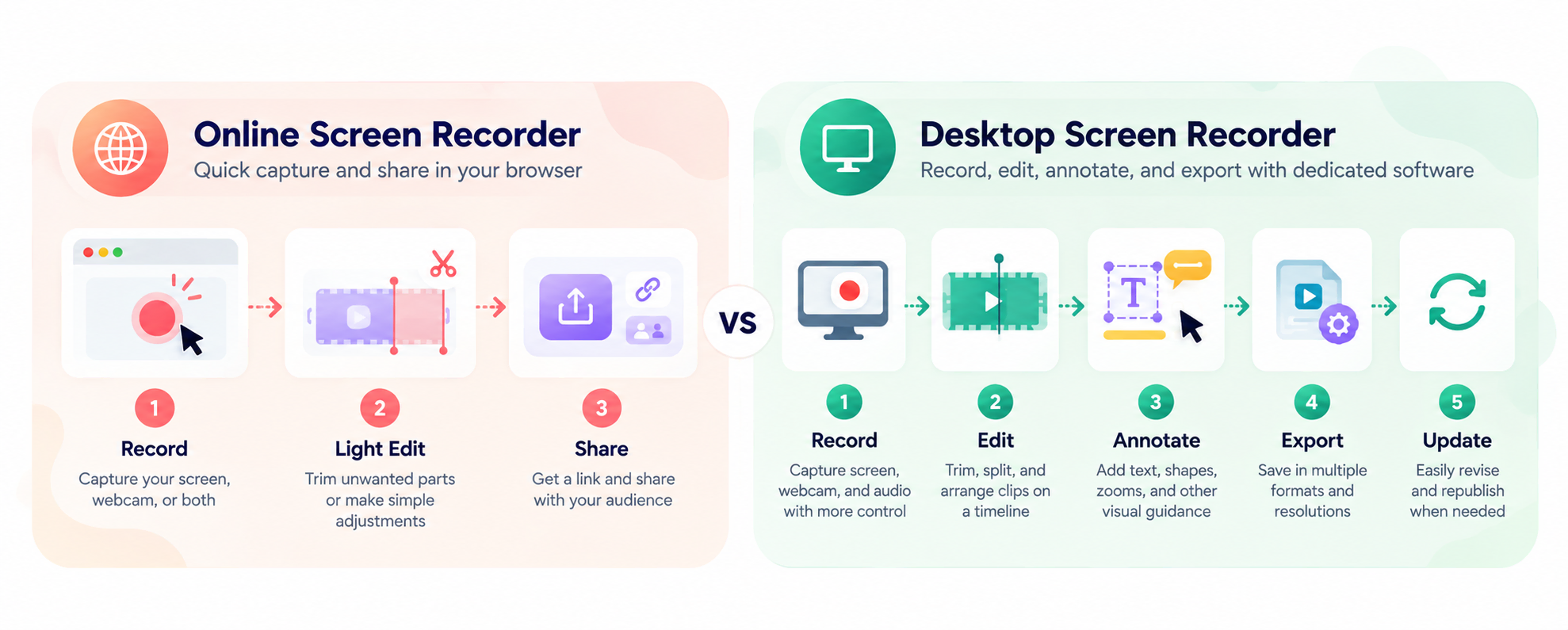
A desktop screen recorder is software installed directly on your computer. It captures screen activity and may include additional tools for audio recording, video editing, annotations, and project management.
Unlike lightweight browser-based tools, some desktop applications support a complete production workflow—from recording and editing to exporting the finished content.
For instructional designers, this can be particularly useful when creating multi-part tutorials, software training materials, or courses that require frequent updates.
The key distinction: Online recorders often prioritize convenience and quick sharing, while dedicated desktop solutions can provide greater control over complex content production.
Free Online vs Desktop Screen Recorders: Key Differences
Before choosing a recorder, consider what happens after you press the Stop button.
A simple recording might be ready to share immediately. A training video, however, may need trimming, voice narration, visual annotations, and multiple revisions.
Here’s how the two approaches generally compare.
| Feature | Free Online Screen Recorders | Desktop Screen Recorders |
| Setup | Usually no dedicated installation | Requires installation |
| Recording options | Often browser-based capture controls | Often more configurable recording options |
| Video editing | Basic to moderate, depending on the tool | Can offer advanced timeline editing |
| Cost & free-plan limits | Free plans may limit recording duration, storage, editing, or exports | Free and paid editions are available; features and licensing vary by product |
| Privacy | Depends on permissions and data handling | Can support local-first workflows |
| Performance | Depends on browser, hardware, and service | Depends on hardware and software optimization |
| File management | Often download or cloud-based sharing | Typically supports local projects and exports |
| eLearning authoring | Usually limited or unavailable | Available in specialized authoring tools |
| Best suited for | Quick, straightforward recordings | Detailed tutorials and repeatable production |
These are general differences rather than fixed rules. The capabilities of individual products may overlap.
1. Recording Capabilities and Control
For a quick browser walkthrough, selecting a tab or screen and pressing Record may be enough. But software tutorials often require more precise control, especially when you’re demonstrating small interface elements or switching between applications.
Free online recorders typically offer straightforward screen-sharing options, while desktop recording software may provide more flexibility in selecting recording areas, capturing audio sources, and managing cursor activity.
If you’re creating step-by-step training videos, check whether your recorder can capture the right screen area, microphone narration, system audio, and webcam footage without adding unnecessary steps to your workflow.
2. Video Editing, Narration, and Annotations
You’ve just finished recording a ten-minute software tutorial, only to notice that you clicked the wrong menu halfway through. Starting over would waste time, especially if the rest of the recording is fine.
This is where editing tools make a difference. Some online recorders let you trim unwanted sections or make simple adjustments. For more detailed changes, such as adding captions, highlighting interface elements, or adjusting narration, a desktop recorder with a built-in video editor may be more practical.
Dedicated desktop software with a video editor can support more detailed changes, such as:
- Splitting and trimming recorded clips.
- Adding text captions, shapes, and callouts.
- Highlighting important interface elements.
- Adjusting narration and audio levels.
- Applying zoom effects to focus attention.
- Combining multiple recordings into one tutorial.
They also make future revisions easier, particularly when a software interface changes but most of the tutorial remains relevant.
3. Privacy and Data Handling
If you’re recording an internal training session, your screen might show employee information, customer details, or other sensitive data. Before choosing a recorder, it’s worth checking where that recording will be processed and stored.
With online screen recorders, data handling depends on the specific service. Some browser-based tools process recordings locally, while others upload files to cloud servers for editing, storage, or sharing.
Therefore, using an online recorder does not automatically mean your recording is uploaded to the cloud.
Desktop recorders can offer workflows in which project files and recordings remain on your computer. This may provide greater control over where files are stored and how they are shared.
However, desktop software is not inherently more secure. Local device protection, access permissions, cloud integrations, and organizational policies still matter.
Pro Tip: Before recording sensitive material, check the tool’s privacy policy, storage location, sharing permissions, and data retention practices. Whenever possible, use demonstration accounts with fictional data.
4. Performance and Recording Stability
A short screen recording may run smoothly on almost any modern computer. But longer tutorials, especially those involving multiple applications, webcam footage, or high-resolution capture, can put more pressure on your system.
Online recorders run within the browser, so having too many tabs or applications open may affect recording performance. Desktop recorders also use system resources, particularly when capturing high-resolution video or editing large projects.
Before recording an important lesson, try a short test with your intended screen resolution, microphone, and webcam settings. Check the video for lag, dropped frames, or audio synchronization issues. A few minutes of testing can save you from having to record an entire tutorial again.
5. File Management and Workflow Efficiency
Imagine you’ve created a series of software tutorials, but the application receives an update a few months later. Some buttons have moved, and several instructions are no longer accurate. If you’ve kept your original project files, updating the affected sections can be much easier than starting over.
Online recorders often focus on downloading or sharing finished videos, which works well for one-time recordings. Desktop editing software may offer project-based workflows that let you organize recordings, narration, and other assets for future revisions.
Here’s how the workflows typically differ:
Online recording: Open the recorder → Capture your screen → Make basic edits → Download or share.
Desktop production: Create a project → Record → Edit video and audio → Add annotations → Export → Save the project for future updates.
For course creators who regularly maintain training materials, having editable project files can be just as important as the recording itself.
6. Cost and Free-Plan Limitations
Is an online screen recorder always cheaper? Not necessarily.
Some free online tools restrict recording duration, cloud storage, video resolution, editing features, or export options. Desktop screen recorders can also offer free editions, although available features and licensing terms vary by product.
Before choosing a recorder, check what the free edition actually allows you to record, edit, export, and use commercially.
When Is a Free Online Screen Recorder the Better Choice?
A free online screen recorder is often sufficient when your goal is to capture information quickly rather than produce a highly edited video.
Quick Tutorials and One-Time Demonstrations
Suppose you’re creating a two-minute walkthrough showing students how to submit an assignment in a Learning Management System (LMS).
You need to demonstrate a few clicks, explain the process, and share the recording.
If the video requires little editing, a browser-based recorder may be the simplest option.
Other suitable situations include:
- Explaining a website feature to a colleague.
- Recording a short troubleshooting demonstration.
- Providing visual feedback on an assignment.
- Creating a temporary walkthrough for a small group.
Lightweight Recording Without Installing Software
Online recorders can also be convenient when you’re working on a shared computer or a device where installing software is restricted.
You can start recording with minimal setup, provided the browser and operating system allow the necessary screen-sharing permissions.
Pro Tip: Before committing to an online recorder, verify its free-plan restrictions. Check recording duration, export resolution, watermarks, audio support, and whether you can download the recording without upgrading.
Best fit: Choose an online recorder when speed, convenience, and simple sharing matter more than advanced editing or long-term project maintenance.
When Does Desktop Screen Recording Software Make More Sense?
Desktop recording software becomes more attractive when screen capture is part of a larger instructional design workflow.
Creating Polished Tutorials and Training Videos
Consider an instructional designer developing a series of onboarding videos for a Customer Relationship Management (CRM) system.
Each video needs clear narration, highlighted interface elements, consistent visual styling, and occasional updates.
A desktop recorder with built-in editing capabilities can help manage these requirements within a structured project.
For example, when the CRM interface changes, the designer may only need to replace an outdated recording segment and adjust its annotations instead of recreating the entire lesson.
This is particularly useful for recurring training programs and software documentation.
Developing Software Training and Interactive eLearning
Sometimes, watching a process is not enough.
Imagine employees learning how to complete a transaction in an internal business application. A video can show the correct steps, but learners may also need opportunities to practice.
This is where specialized eLearning authoring software goes beyond conventional screen recording.
A Software Simulation can capture an application workflow and turn it into an interactive learning activity. With tools such as ActivePresenter, you can create and refine interactive software simulations that allow learners to practice clicking controls, entering information, and completing tasks.
For example, a corporate trainer could develop a banking software simulation that lets employees practice navigating a transaction workflow without interacting with real customer accounts.
Interactive Quizzes and knowledge checks can then help evaluate understanding.
Pedagogical Insight: Use video demonstrations to explain a process, and interactive practice activities when learners need to apply that process themselves.
For projects like these, a basic screen recorder may not be enough. Having recording, editing, and interactive authoring tools in one application can make it easier to develop and maintain training content.
How ActivePresenter Supports Desktop Recording and eLearning Workflows
ActivePresenter brings screen recording, video editing, and eLearning authoring together in one desktop application. Instead of treating recording as a separate task, you can use ActivePresenter to capture software demonstrations, refine your videos, and develop interactive learning materials as part of the same project workflow.
Record Screen Activity, Audio, and Webcam
With ActivePresenter, you can record screen as video, capturing your entire screen or selecting a specific area to focus on the application you’re demonstrating. You can also capture microphone narration, system audio, and webcam footage when your tutorial needs them.
For example, when creating a software walkthrough, you might want learners to hear your explanations without losing important sounds from the application. ActivePresenter can capture microphone and system audio as separate editable objects, giving you more flexibility when adjusting the recording afterward.
This is especially useful for narrated tutorials, where clear audio matters as much as what learners see on screen.
Edit Recordings and Add Instructional Annotations
A recording rarely comes out exactly as planned. You might pause for too long, click the wrong button, or realize that an important step needs more explanation.
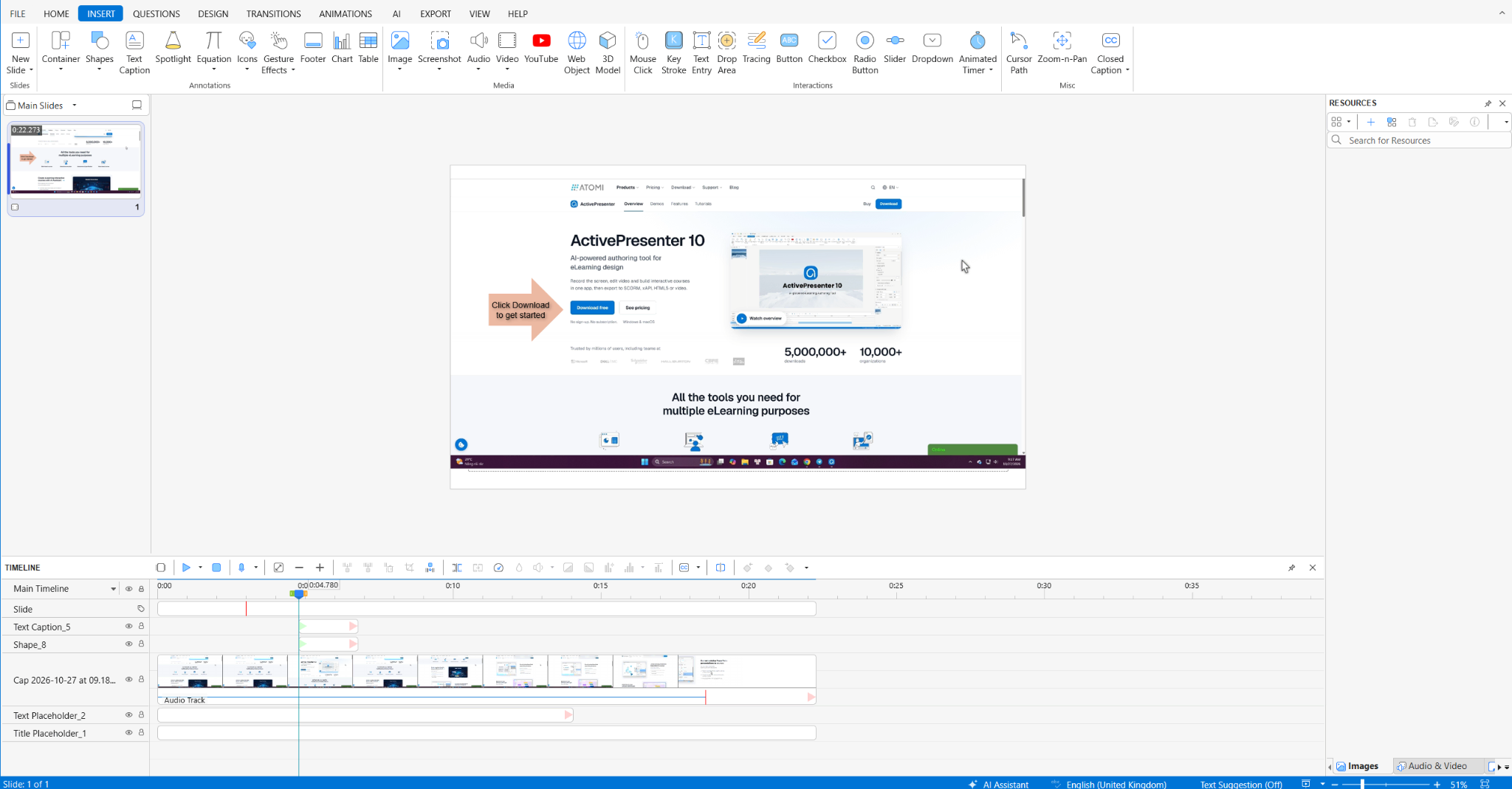
ActivePresenter includes a timeline-based editor where you can trim unwanted sections, split clips, adjust audio, and add text captions or visual annotations. Cursor effects and zoom effects can also help draw attention to the parts of the screen learners need to follow.
For supported recordings, Smart Studio in ActivePresenter Standard and Pro provides automated zoom, cursor, and screen effects that can help make software demonstrations easier to follow.
These tools are particularly helpful when creating step-by-step tutorials, where small interface details can make a big difference to the learner’s understanding.
Go Beyond Video with Interactive Software Simulations
Watching a software tutorial helps learners understand a process, but practicing the steps themselves can make the training more effective.
This is where ActivePresenter goes beyond conventional screen recording. With its Record Interactive Simulation feature, you can capture a software workflow and turn it into a slide-based project for interactive software simulations. Instead of simply watching a demonstration, learners can practice actions such as clicking buttons, entering text, and following instructions in a simulated environment.
For example, when training employees to use a CRM system, you can create a simulation that lets them practice entering customer information without working in the live application.
ActivePresenter also supports Interactive Quizzes and other interactive elements to help reinforce learning. With ActivePresenter Pro, you can publish interactive courses to HTML5, SCORM 1.2/2004, or xAPI (Tin Can) formats for compatible learning platforms.
For instructional designers, this means screen recording can become the starting point for a more hands-on learning experience, rather than the final output.
Which edition should you use?
ActivePresenter offers Free, Standard, and Pro editions. The Free edition supports screen recording and selected video editing features for non-commercial use. Standard adds advanced editing and commercial-use rights, while Pro provides interactive eLearning authoring and publishing capabilities.
You can explore many Pro features in the Free edition, but outputs using non-free features may include watermarks until the appropriate license is activated.
For commercial training or LMS-ready interactive courses, compare ActivePresenter editions to check which features, publishing options, and license terms fit your needs.
How to Choose the Right Screen Recorder for Your Workflow
The best screen recorder isn’t necessarily the one with the most features. It’s the one that fits what you need to create, how much editing you’ll do, and whether you’ll need to update the content later.
Here’s a quick guide to help you choose:
| Your Project | Recommended Approach |
| Short browser demonstration | Free online screen recorder |
| Quick explanation or feedback video | Free online screen recorder |
| Multi-part tutorial with narration and annotations | Desktop screen recorder with video editing |
| Software training that requires regular updates | Desktop recorder with editable projects |
| Interactive software practice | eLearning authoring tool with simulation features |
| Interactive course for LMS delivery | eLearning authoring tool with supported LMS export |
Pro Tip: Before settling on a tool, record a short tutorial, edit a mistake, and export the result. This quick test can reveal how well the recorder fits your workflow beyond simply capturing the screen.
Frequently Asked Questions
Can free online screen recorders capture system audio?
Some can, but support depends on the recorder, browser, operating system, and recording source. Before starting, check whether the tool can capture microphone audio, system audio, or both.
Are desktop screen recorders more private than online tools?
Not necessarily. Some browser-based recorders process recordings locally, while others use cloud services. Desktop software may offer more control over local file storage, but privacy also depends on permissions, sharing settings, and how the software handles data.
Do free screen recorders add watermarks?
It depends on the product and the features you use. Some free tools export videos without watermarks, while others apply them to certain outputs or paid features. For example, ActivePresenter Free may add watermarks when exported content uses non-free features.
Which screen recorder is better for long tutorials?
For long tutorials that require multiple edits, narration, annotations, or future updates, desktop software with project-based editing may be more practical. However, recording stability still depends on your computer, the software, and the recording settings.
Conclusion: Choose the Recorder That Fits Your Content Workflow
The right screen recorder depends on what you need to do after recording. Free online tools are often enough for quick demonstrations and simple sharing, while desktop software can offer more flexibility for detailed editing, recurring tutorials, and interactive training.
With ActivePresenter, you can record software demonstrations, refine tutorials, and explore interactive learning workflows within one application.
Ready to create your next tutorial or training project? Download ActivePresenter and compare the available editions to find the features and license that fit your needs.
