
If you’ve ever stared at a 60-slide PowerPoint deck and thought, “There’s no way I’m rebuilding this from scratch in an authoring tool,” you’re not alone. Most trainers and instructional designers already have years of content locked inside .pptx files — the real problem isn’t creating new material, it’s turning what you already have into something learners can actually interact with.
In this guide, we’ll walk through exactly how to import PowerPoint into ActivePresenter, what happens to your slides once they land in the app, and — more importantly — how to turn those flat slides into a genuinely interactive, trackable eLearning course. We’ll also cover real-world use cases and a few pro tips I’ve picked up after years of building training content for very different industries.
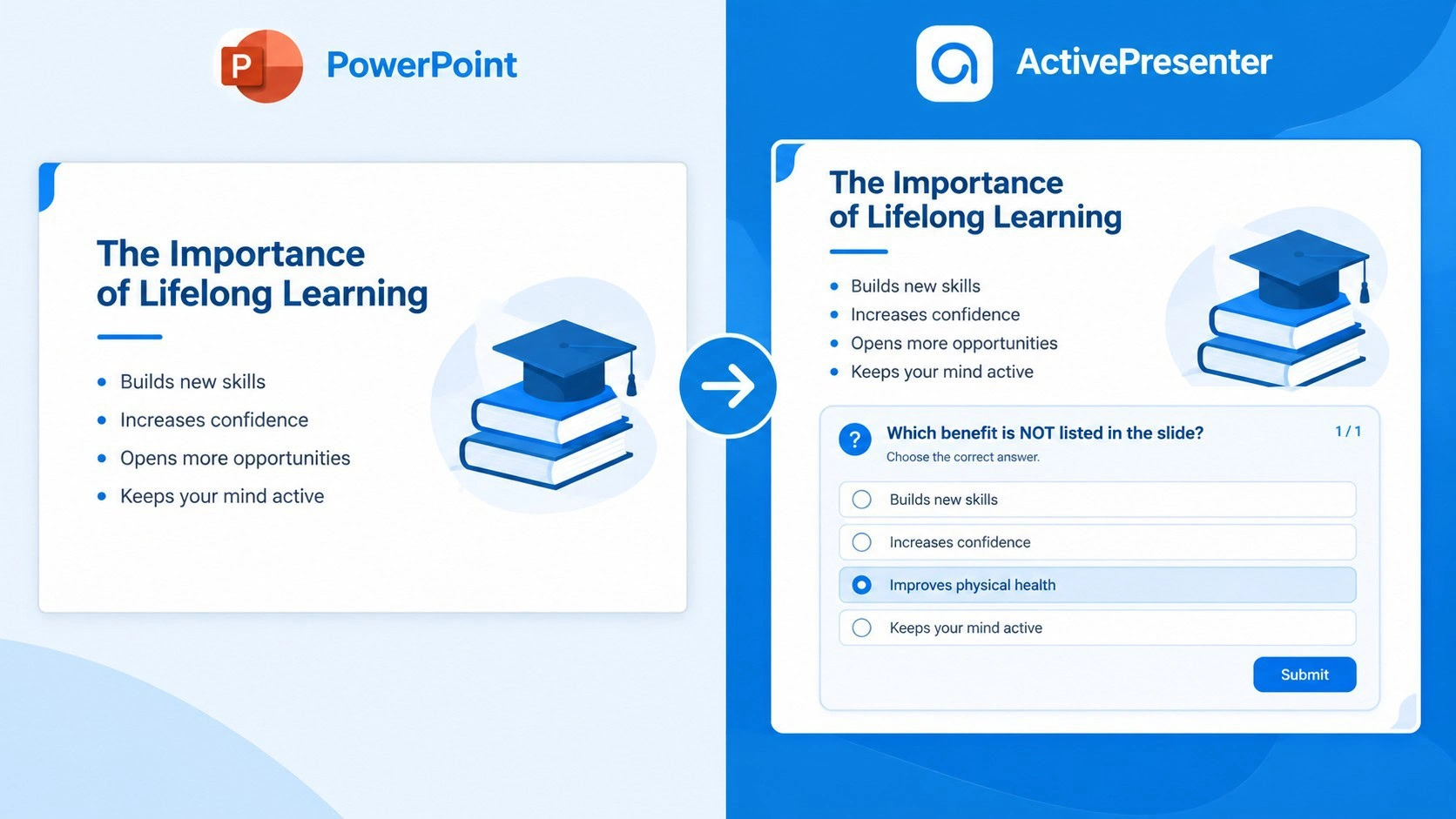
Why Turn a PowerPoint Deck into an Interactive eLearning Course?
PowerPoint is great for presenting — live, in a room, with someone talking over it. But the moment you need learners to go through material on their own, track their progress, or prove they understood something, a static deck falls apart. There’s no way to check comprehension, no way to report a score to your LMS, and no way to make a learner actually do something instead of just clicking “next.”
That’s the gap ActivePresenter fills. It lets you keep every slide, layout, and graphic you already built in PowerPoint, then layer in quizzes, branching, simulations, and narration — without starting over. If you’re interested in creating Scorm package from PowerPoint, take a look at below tutorial video:

How to Import PowerPoint into ActivePresenter (Step-by-Step)
Before You Import: Check Your File Format
ActivePresenter natively imports .ppt and .pptx files — even if Microsoft PowerPoint isn’t installed on your computer. One thing to flag early: if your file was created in OpenOffice or LibreOffice (.odp), you’ll need to convert it to .pptx first, since ActivePresenter can’t read the ODP format directly.
Two Ways to Import a PPT/PPTX File
You’ve got two quick options:
- From the Start Page — Click Import PowerPoint, then browse and select your file.
- From inside the workspace — Go to File > Import PowerPoint, then choose your file.
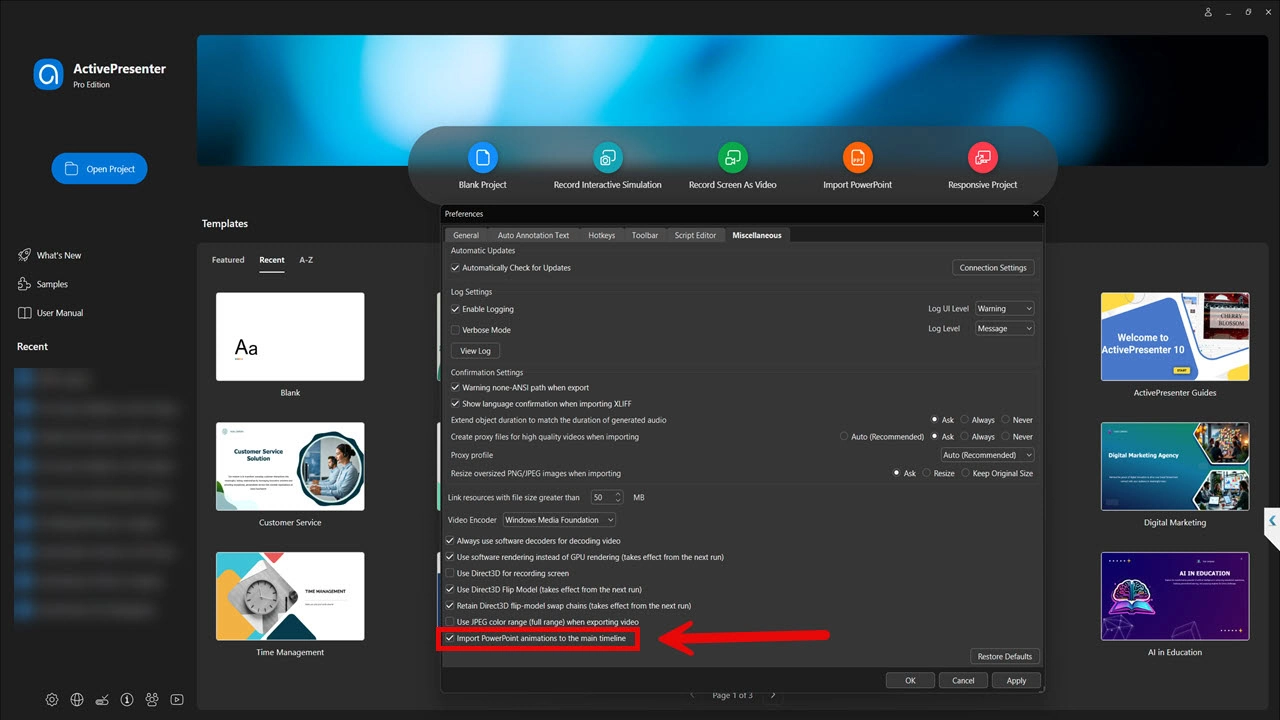
Before you do either, it’s worth checking one setting in Preferences > Miscellaneous: “Import PowerPoint animations to the main timeline.” If your slides have PowerPoint animations and you want them to play automatically, enable this. If you’d rather control each animation with a click (great for self-paced courses), leave it off — animations will go into the Click Sequence timeline by default.
What Happens to Your Slides After Import
Once imported, every PowerPoint slide becomes a fully editable ActivePresenter slide — not a flattened image. That means object layers, text boxes, and high-resolution graphics stay intact, and you can keep working exactly as you would in PowerPoint: copy, cut, delete, split, or merge slides, change transitions, and reorganize the flow. You’re literally picking up where PowerPoint left off, just inside a dedicated eLearning canvas.
From Static Slides to Interactive Course: What to Do Next
This is the part that actually matters — because importing is just step one. Here’s where a one-way presentation becomes a course people can learn from, not just watch.
Clean Up and Customize Imported Slides
Before adding interactivity, take a pass through your slides. Merge thin slides, split overloaded ones, and adjust transitions so the pacing feels right for self-study rather than a live presentation.
Add Quizzes and Drag-and-Drop Interactions
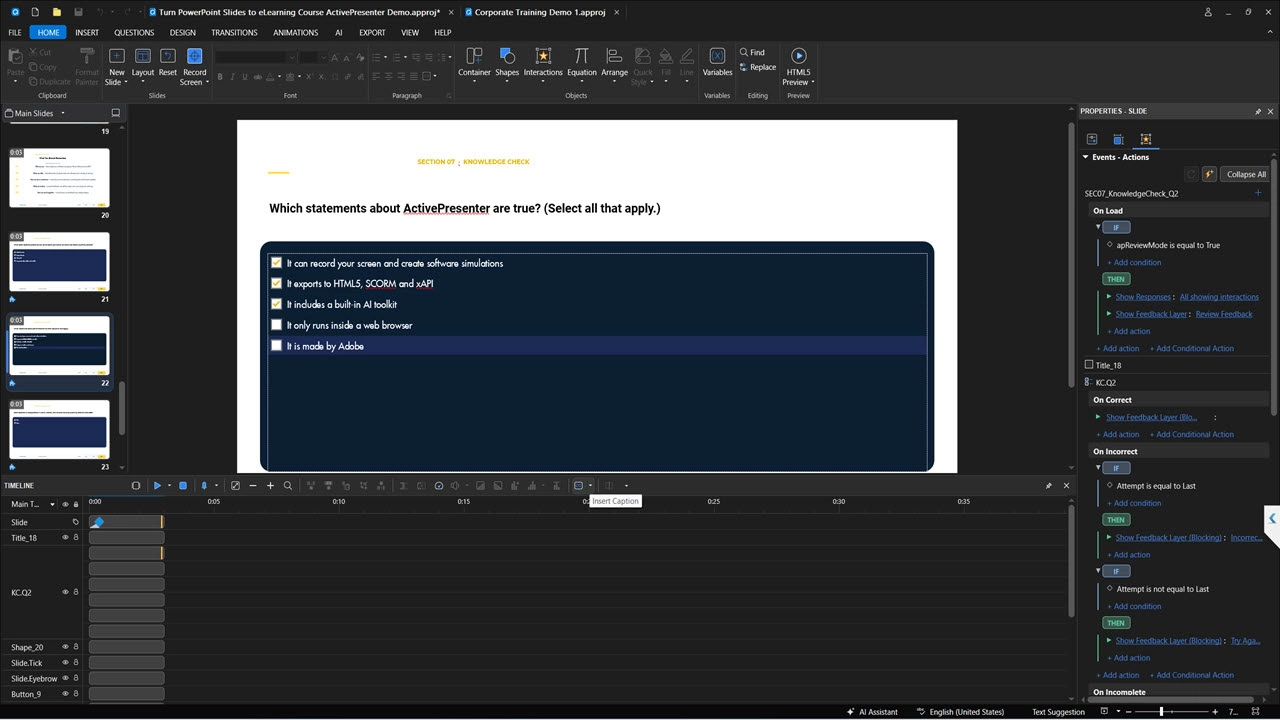
Drag in multiple-choice questions, drag-and-drop activities, or fill-in-the-blank interactions directly onto your slides. These aren’t cosmetic — they’re built to report scores back to your LMS once published, which is the whole point of converting a deck into a course in the first place.
Generate Professional Voiceover with AI Text-to-Speech
If your original PowerPoint has detailed speaker notes, don’t waste them. ActivePresenter’s built-in AI Text-to-Speech can turn those notes into natural-sounding narration automatically — no microphone, no recording booth, no re-takes. This alone can save a content team days of production time on a long course.
Replace Dead Screenshots with Real Software Simulations
Here’s one most people miss: if your PowerPoint slides include static screenshots of a software walkthrough (think “here’s how to submit an expense report” with five annotated screenshots), you don’t have to settle for that anymore. Swap them out using Record Interactive Simulation — ActivePresenter captures your actual screen interactions and builds a realistic simulation where learners have to click, type, and navigate exactly as they would in the real system. That’s a different league of engagement compared to a screenshot with a red arrow on it.
Publishing: Turning Your Course into SCORM, xAPI, or HTML5
Once your slides are enhanced, publishing is straightforward:
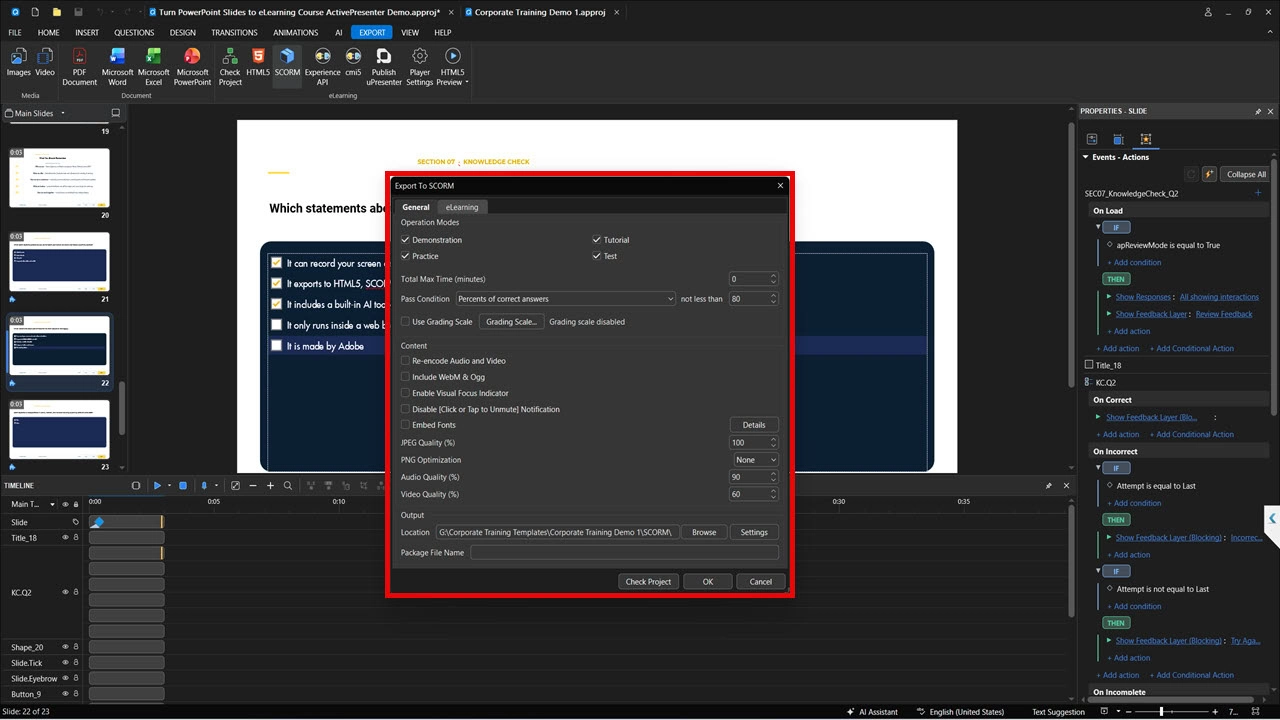
- Go to the Export tab.
- Select HTML5 and enable the SCORM (or xAPI) reporting option.
- Choose SCORM 1.2 or SCORM 2004, depending on what your LMS supports.
- Set your pass/fail rules — for example, a passing score of 80%, or requiring learners to view 100% of slides before completion.
- Hit Export.
From there, you can upload the package to virtually any LMS, publish it as a responsive HTML5 course that adapts to desktop, tablet, and mobile, or push it directly to uPresenter LMS for built-in reporting and learner analytics — no separate LMS subscription needed.
Why ActivePresenter Is a Smart Choice for This Workflow
Beyond the PowerPoint import itself, a few things make ActivePresenter particularly well-suited to this kind of project:
- High-quality screen, webcam, and audio recording — all captured simultaneously, so you’re not juggling three separate tools.
- Non-destructive video editing — trim, layer, and adjust without ever permanently altering your original footage.
- An advanced eLearning authoring toolkit — quizzes, branching scenarios, variables, and interactions built specifically for courses, not just presentations.
- SCORM and xAPI publishing — your course reports real learner data back to whatever LMS you’re already using.
- MCP Connect for AI agent workflows — letting you plug AI-driven automation into parts of your content pipeline as your team scales up production.
- Per-author licensing — you pay for the people creating content, not per learner or per course, so one license can support unlimited courses and unlimited learners.
- A genuinely unlimited free trial to test the full workflow before you commit, plus a perpetual license model (no forced subscriptions) — and for schools and universities, Pro Edu pricing starts at $249 with volume discounts up to 45%.
FAQs
Can I import a PowerPoint that was made in LibreOffice or OpenOffice?
Not directly — convert the .odp file to .pptx first, then import as usual.
Will my PowerPoint animations still work after import?
Yes, you choose in Preferences whether they play on the main timeline automatically or get placed in the Click Sequence timeline for click-triggered playback.
Do I need PowerPoint installed to import a file?
No. ActivePresenter imports .ppt/.pptx files natively, even without Microsoft PowerPoint on your machine.
Conclusion & Next Steps
You already did the hard part when you built that PowerPoint deck. Turning it into a real, trackable, interactive eLearning course isn’t about starting over — it’s about importing what you have and layering in the right tools: quizzes, narration, simulations, and a proper SCORM export.
If you’ve got a deck sitting on your desktop right now, there’s no reason to keep presenting it the old way. Download the free ActivePresenter trial, import that file, and see how far you can take it in an afternoon. And if you get stuck or want to swap ideas with other course creators, the Atomi Systems community and support team are there to help you figure out the fastest path from “slide deck” to “finished course.”
