
Active window area is the window of an application that you are currently working with. This feature is helpful when you create interactive simulations, in which there are specific windows that you want to capture or export.

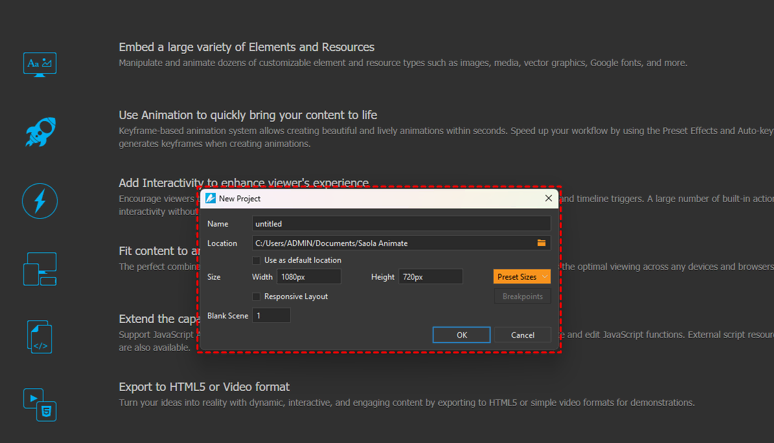
For example, you want to create a manual about how to create a new project in Saola Animate by recording interactive simulations. After recording, you will receive a slide-based project. By using the active window feature, you can emphasize crucial information. Active Presenter 10 will detect the area you are working in so that users can follow easily. Then, the app allows you to export the active window only in document format.
Tables of content:
Edit Active Window
Sometimes, you may need to edit the active window. To do that, open the View tab > Edit Active Window.

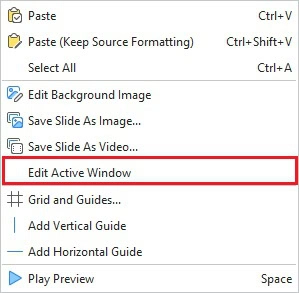
Alternatively, right-click anywhere on the Canvas and select Edit Active Window.
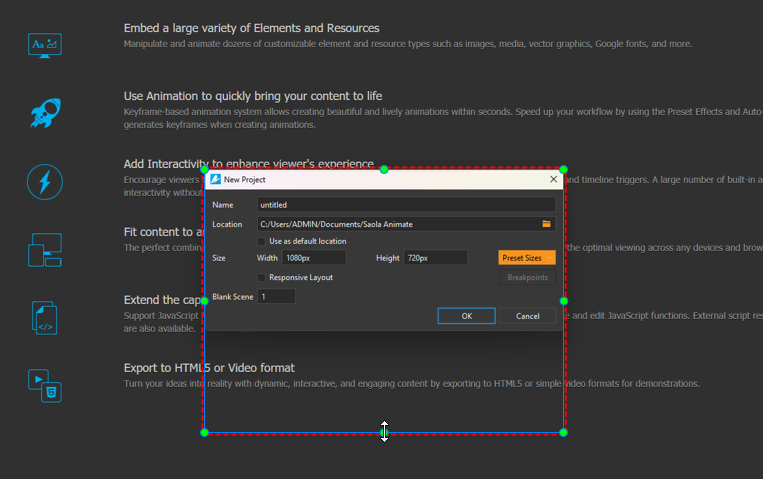
Then, drag the red dashed border to resize the window area.
Export Active Window Only
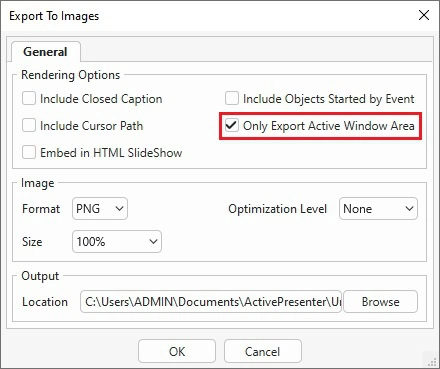
As mentioned above, ActivePresenter 10 allows you to export the active window only when you export projects to images, or document formats. In the export dialog, remember to select the Only Export Active Window Area checkbox.
That’s all about the active window feature in ActivePresenter 10. Try it and feel free to contact us if you need any support, or ask us in the online community.
See more:
Export To Images
Export to Videos
Export to uPresenter LMS