
In most online courses available today, video is a vital element of any training program. Whether you’re delivering general knowledge, teaching vocational skills, or conducting internal training, video remains the most visual and effective way to convey content to learners. As a result, choosing video-based eLearning creation tool is often one of the very first decisions when building an online course. However, at the early stage, the goal isn’t to pick the most powerful tool right away, but to choose the tool that best fits your goals & objectives.
Some software focuses on helping you create videos quickly and efficiently. Others aim to produce more polished, professional-looking videos. And a few are designed specifically to build complete eLearning courses.
Choosing Video-based Creation Software for Beginners
In this blog, the software are selected based on practical criteria:
- Easy to learn, easy to use: beginners can get started right away
- Able to create video lectures: including screen recording, audio recording, and basic editing
- Suitable for a wide range of users: teachers, trainers, and individual course creators
I will introduce some of the most popular and accessible video-based creation tools for beginners. However, among these four options, only one truly stands out as interactive course creation software: ActivePresenter.
ActivePresenter covers course structure, interactive content, as well as tracking and measuring learning outcomes.
The other three tools are excellent for quickly creating video-based tutorials & lectures, but they are not optimized for building well-structured, professional eLearning courses.
You can download ActivePresenter for a free trial here:

In the following sections, I will go through each software in turn:
- What are the strengths of each tool?
- Where are the limitations?
- And who is this tool suitable for?
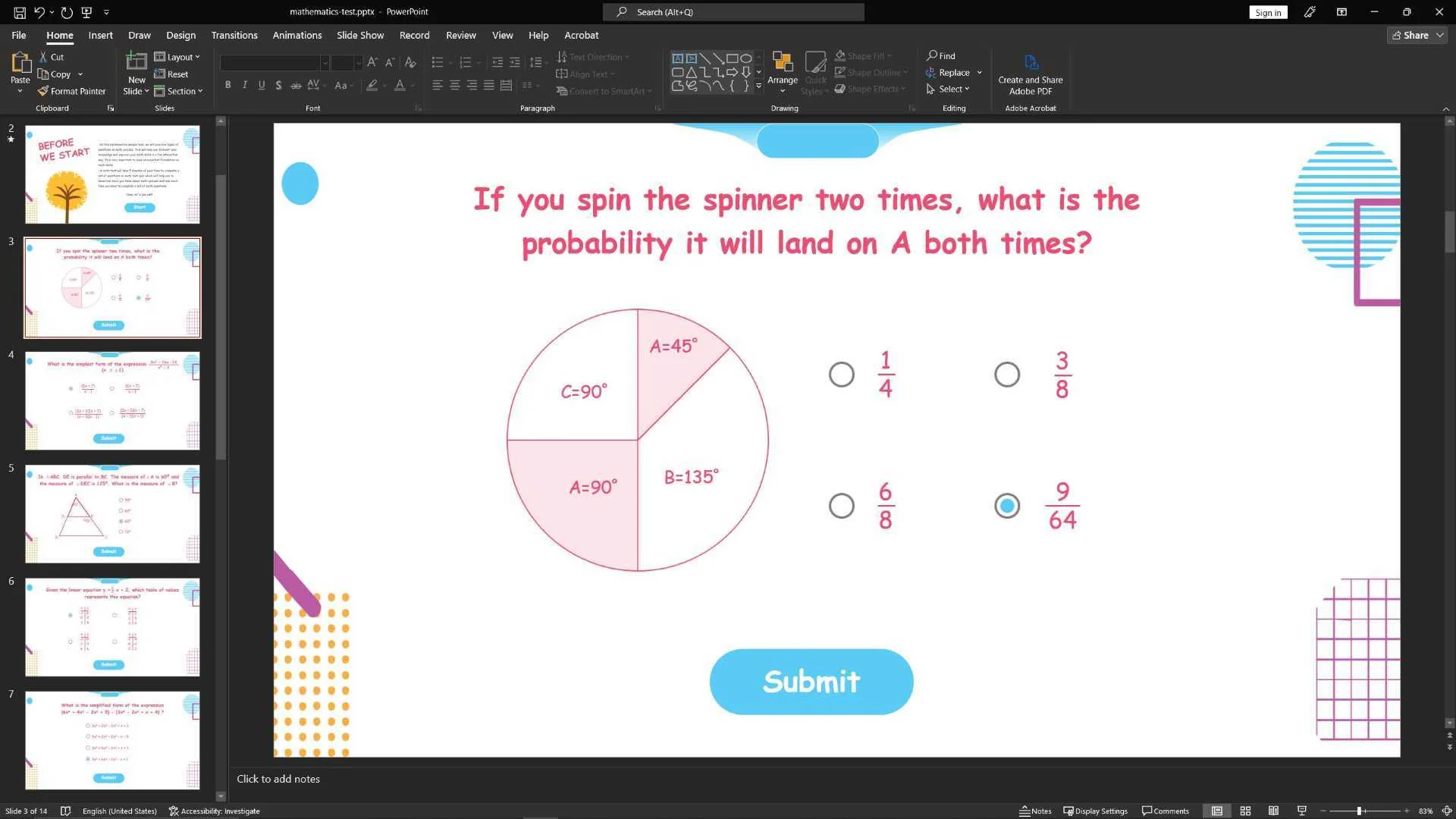
1. PowerPoint – A familiar starting point
PowerPoint is often the first tool that comes to mind for teachers and trainers, for good reason:
❌ No need to learn from scratch
❌ No need to install new or complex software
✅ With ready-made slides, you can quickly transition offline lectures to online ones
In practice, PowerPoint is commonly used as a simple, entry-level workflow: Create slides → Record with a webcam → Export as a video → Share with learners
For beginners, this is the safest and least restrictive approach.
Advantages
- Familiar and easy to use:
Most teachers and trainers have been using PowerPoint for a long time, so there is little to no learning curve or retraining cost.
- Create presentation slides quickly:
PowerPoint makes it easy to organize and present content in a clear, structured way.
- On-slide annotation:
When recording videos with PowerPoint, teachers and students can also take notes directly, mark up, or draw illustrations on the slides.
- Suitable for use as a pilot lecture:
If you’re just starting out and want to try making a few presentations, PowerPoint is a low-risk option.
Limitations
- Limited video editing capabilities
Editing recordings is extremely restricted. Cutting, trimming, refining details, or adding advanced effects is difficult, if not impossible. - Lack of eLearning interactivity
PowerPoint does not support true interactive elements such as quizzes or learner input. Interaction is limited to basic triggers like clicks or mouse hover actions. - One-way learning experience:
Learners mostly watch passively, with little opportunity to actively engage with the content. - Poor scalability for structured courses:
As your needs grow, quizzes, interactions, learner tracking, or LMS integration, PowerPoint quickly shows its limitations.
Who is It Suitable For?
PowerPoint is suitable if you:
- Are just starting to create video lectures
- Are comfortable teaching with slides and want to transition to recorded lessons
- Only need basic video content, without interaction or learner tracking
- Want to test a course idea before investing in advanced eLearning tools
However, if you plan on creating a long-term eLearning course with questions, interaction, and learner tracking, PowerPoint should be seen as a starting point, not the final solution.
2. Camtasia – Easy-to-use video editing and lecture recording software
Camtasia is one of the most popular tools for recording and editing lecture videos, especially in training, instructional, and internal learning contexts. Its strength lies in producing clear, professional, and easy-to-follow video lectures rather than fully interactive eLearning courses.
Camtasia does include basic quiz functionality, but interaction is limited. It supports only four question types: True/False, Fill in the Blank, Short Answer, and Multiple Choice, and these quizzes simply pause the video at specific points.
While Camtasia works very well for recording individual lecture videos, it is not designed to represent or manage the structure of an entire course.

Advantages
- Stable and flexible screen recording
Camtasia allows you to record the full screen, a specific window, or a selected region, while capturing webcam video and high-quality audio. - Visual, beginner-friendly video editing
Its intuitive timeline, drag-and-drop workflow, cutting and trimming tools, text overlays, callouts, zoom effects, and transitions make it easy to learn for beginners. - Well-suited for training and tutorial videos
Camtasia is especially effective for software demonstrations, walkthroughs, and step-by-step instructional videos.
Limitations
- Not a true eLearning authoring tool
Camtasia is built for linear video creation. It does not support advanced interactivity, learner tracking, or meaningful assessment of learning outcomes. - Limited scalability for structured courses
As soon as you need quizzes, branching interactions, or LMS export, you’ll have to rely on additional tools. Camtasia’s built-in quizzes are minimal and mainly intended for pausing the video rather than evaluating learning.
- Limited trial version
Camtasia offers only a 30-day trial and requires you to provide an email address.
Who is it suitable for?
Camtasia is suitable if you:
- Primarily create software demos and how-to videos
- Do not yet require diverse quizzes, advanced interaction, or LMS integration
- Are comfortable using a dedicated video editing tool alongside other tools when needed
Camtasia is a good choice for producing clear, professional training videos. However, if your goal is to build fully interactive eLearning courses, it should be viewed as a supporting tool, not a complete solution.
3. Screen Studio – Quickly and easily record your course screen
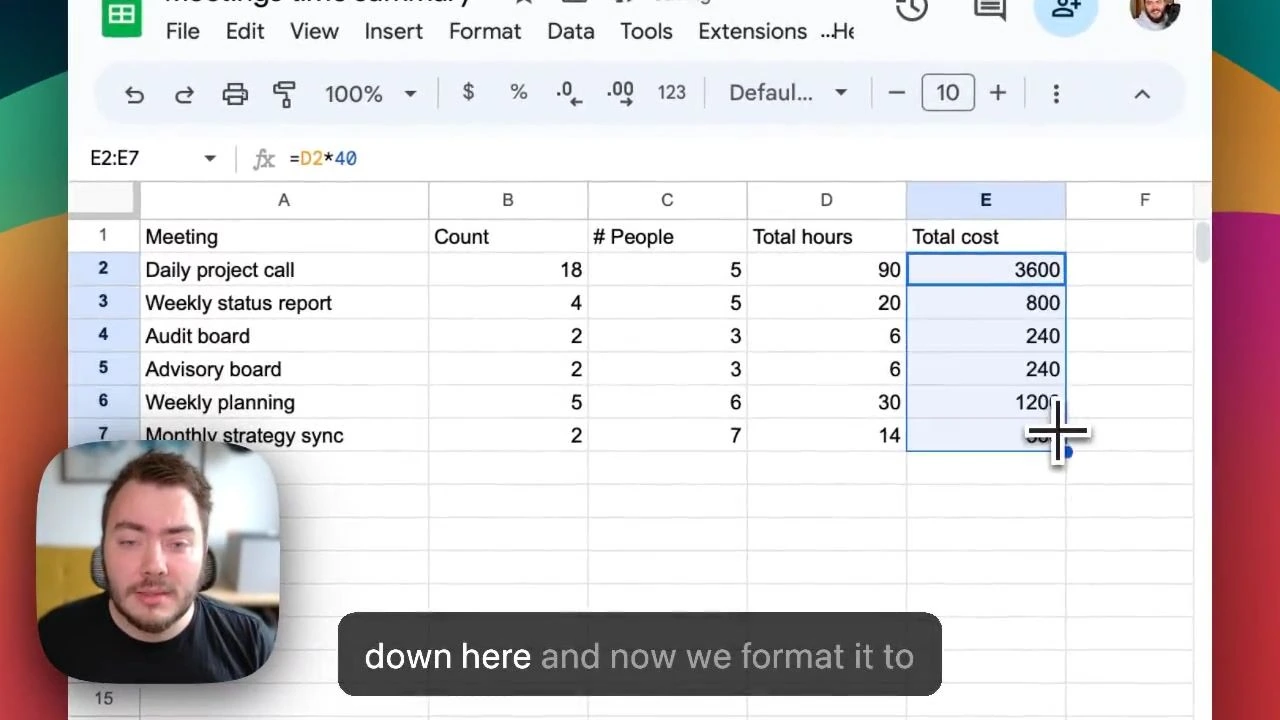
Screen Studio is a screen-recording tool that focuses on speed and visual polish. This software is not intended for building full-fledged video-based eLearning courses. Instead, it serves a very clear purpose: creating fast, smooth, and modern-looking screen recordings with minimal effort.
With Screen Studio, you simply start recording and interacting with your screen as usual, and the software will automatically handle the rest (zoom, transitions, mouse movements, etc.).
Advantages
- Smooth, modern-looking videos
Automatic zoom, focus, and motion effects give your videos a professional feel without manual editing. - Time savings
There’s no complicated timeline or post-production process, making it ideal for quick tutorial videos. - Great for demos and short tutorials
Screen Studio works especially well for software demonstrations, feature introductions, and concise how-to videos.
Limitations
- Not an eLearning authoring tool
Screen Studio does not support slides, interactive quizzes, learner tracking, or assessments. - Limited editing capabilities
While it allows light editing, it lacks the depth and control of full-featured video editing software. - Not suitable for long, structured courses.
There is no built-in support for organization, chapter structure. - Platform and pricing limitations.
Screen Studio is available only on macOS, and there is no free trial. You must pay to export videos.
Who Is It Suitable For?
Screen Studio is suitable if you:
- Want to record screen videos quickly, cleanly, and beautifully
- Create short tutorials, product demos, or feature walkthroughs
- Do not need quizzes, interaction, or LMS integration
- Prioritize speed and visual quality over building a structured course.
If your goal is fast, polished screen recordings with minimal setup, Screen Studio is an excellent choice. However, it is best suited for standalone videos, not a comprehensive eLearning course.
4. ActivePresenter – A Natural Step Up from PowerPoint to Structured eLearning
Familiar interface, easy to get started.
One of the biggest advantages of ActivePresenter is its user-friendly interface: PowerPoint.
You work with slides, layers, timelines, and effects – those elements will feel natural if you’ve ever used PowerPoint. As a result, the learning curve is much easier than with many other eLearning authoring tools.
Think of it this way: “1 slide = 1 lesson unit”`
ActivePresenter allows you to organize content in a way that is well-suited for eLearning:
- Each slide can be viewed as a video or a separate learning activity.
- A project can represent an entire course.
- The lesson is divided into several small, clear, and easy-to-follow sections.
This structure makes it:
- Easy to manage and control content
- Simple to edit or update individual parts
- Straightforward to expand the course later without starting over.

Advantages
Unlike PowerPoint, ActivePresenter goes beyond just presentations and video export. It is built specifically to support the full range of needs that arise when creating training courses:
- Screen recording: Record the full screen, a specific window, or a selected area, with optional webcam recording
- Slide-based video editing: Cut, merge, annotate, blur, and highlight content directly on slides
- Supports 13 types of interactive questions, including multiple choice, drag-and-drop, fill in the blank, and true/false. Lessons are no longer just one-way videos.
- Interactive eLearning features: Drag and drop, buttons, countdown, etc.
- Multiple export formats: Export to video, HTML5, SCORM, or xAPI. This is ideal for online sharing or uploading to the uPresenter LMS for learner tracking and reporting
- Free trial: No time limit, no email required. You just download and use it on Windows or macOS.
Limitations
- Requires some initial learning time
For complete beginners, it may take a bit of time to get familiar with the interface and workflow. However, once you’re comfortable, ActivePresenter can support more advanced eLearning needs as your courses grow.
Who is It Suitable For?
ActivePresenter is suitable if you:
- Already familiar with PowerPoint and want to move toward structured eLearning.
- Create video lectures and interactive quizzes in the same tool.
- Need a clear course structure, with lessons divided into manageable sections
- Plan to upload courses to an LMS or track learner progress
- Need a tool that is powerful enough for long-term use but still approachable for beginners.
If PowerPoint is your first step into online teaching, then ActivePresenter is the logical next step, a proper eLearning tool that’s powerful, structured, and still easy to get started with
Video-based eLearning Course Creation Tools Comparison
| Criteria | PowerPoint | Camtasia | Screen Studio | ActivePresenter |
| Main objective | Creating basic slides and video lectures | Record and edit lecture videos | Quick and easy screen recording | Building structured eLearning courses |
| Ease of use for beginners | 5/5 | 4/5 | 4/5 | 4/5 |
| Create lecture slides | ✅ | ❌ | ❌ | ✅ |
| Screen recording | ✅ | ✅ | ✅ | ✅ |
| Video editing | ⚠️ (Restricted) | ✅ | ⚠️ (Restricted) | ✅ |
| Interactive Questions | ❌ | ⚠️(Restricted) | ❌ | ✅ (13 types) |
| Lecture/Course Structure | ❌ | ❌ | ❌ | ✅ |
| Learning tracking & measurement | ❌ | ❌ | ❌ | ✅ |
| Export video | ✅ | ✅ | ✅ | ✅ |
| Export eLearning (HTML5, LMS) | ❌ | ⚠️(Restricted) | ❌ | ✅ |
| Suitable for long-term eLearning | 3/5 | 3/5 | 2/5 | 5/5 |
Summary
If you’re just getting started, PowerPoint or a simple screen-recording tool can be a perfectly fine place to begin. However, if your goal is to build structured, long-term eLearning courses with measurable learning outcomes, choosing ActivePresenter from the start will save you significant time and effort down the road.