
How to Create Quizzes in ActivePresenter
Creating quizzes in ActivePresenter allows you to design interactive assessments with multiple question types, instant feedback, and flexible scoring. You can use these quizzes in eLearning courses, training videos, or classroom lessons, then publish them as SCORM, xAPI, HTML5, or uPresenter LMS for easy sharing and tracking.
Table of contents
- Why use quizzes in eLearning and training?
- Quiz types you can create in ActivePresenter
- Step-by-step: How to create a quiz in ActivePresenter
- How to customize quiz design and interaction
- How to add quizzes to training videos
- How to publish and share your quiz
- Common mistakes when creating quizzes
- Tips for creating quizzes in ActivePresenter
- When should you use quizzes in ActivePresenter?
- FAQs
Why Use Quizzes in eLearning and Training?
Quizzes play an essential role in both education and corporate training. They help learners actively engage with the content instead of passively watching or reading. Well-designed quizzes also allow instructors and trainers to check understanding, reinforce key concepts, and measure learning outcomes more accurately.
In online courses and training programs, quizzes are often used to assess progress, validate completion, and provide feedback that helps learners improve. This makes quizzes especially valuable for compliance training, onboarding programs, and interactive lessons.
Quiz Types You Can Create in ActivePresenter
ActivePresenter supports a wide range of quiz types, making it suitable for different learning objectives:
- Multiple Choice: Learners select one correct answer from a list of options.
- Multiple Response: Learners select multiple correct answers from a list of options.
- True/False: Learners choose whether a statement is true or false for quick knowledge checks.
- Fill in the Blank: Learners type missing words to complete a sentence.
- Fill in Text Entry: Learners enter short text responses based on a given prompt.
- Essay: Learners write longer, open-ended answers to demonstrate deeper understanding.
- Drag and Drop: Learners drag items and drop them onto the correct targets for higher interactivity.
- Hotspot: Learners click on the correct area within an image to answer a question.
- Sequence: Learners arrange items in the correct order or sequence.
- Select in Dropdown: Learners choose the correct answer from a dropdown list.
Each question type can be customized with feedback, scoring, and attempts.
Step-by-Step: How to Create a Quiz in ActivePresenter
Step 1: Create a New Project or Open an Existing One
Start by launching ActivePresenter. You can create a new blank project or open an existing eLearning or video project. Choose an appropriate slide size based on where the quiz will be used, such as desktop, mobile, or LMS delivery, in the Design tab > Slide Size.
Step 2: Insert a Question Slide
Go to Questions and select the question type you want to create. ActivePresenter automatically generates a question slide with a default layout, including placeholders for the question text and answer options.
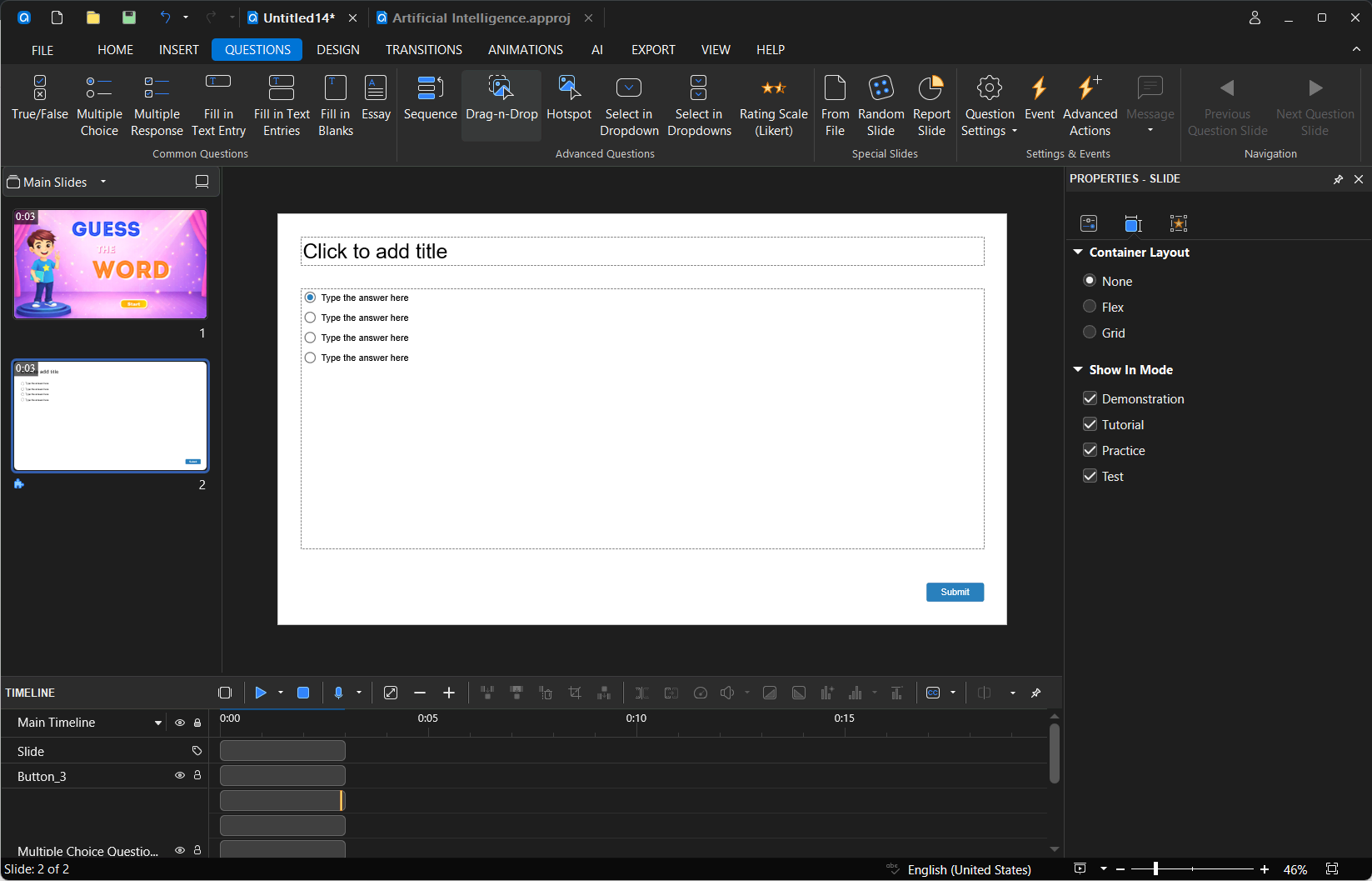
Step 3: Add Questions and Answer Options
Enter the question text and configure learner responses based on the selected question type. For Multiple Choice and Multiple Response questions, provide the available options and mark the correct answers. In True/False questions, choose the correct statement. For Fill in the Blank, Fill in Text Entry, and Essay questions, define the expected input or evaluation criteria. Drag and Drop, Hotspot, Sequence, and Select in Dropdown questions require setting up interactive elements and specifying the correct outcomes.
Step 4: Configure Scoring and Attempts
Set the score for each question and define how many attempts learners are allowed. You can also configure pass and fail conditions for the quiz, which is especially useful for graded assessments and compliance training.
Step 5: Customize Feedback
Feedback is added to questions by default through the event–action system. You can customize feedback for correct and incorrect answers, add hints to guide learners when they answer incorrectly, and include audio feedback such as sound effects or voice narration to reinforce responses.
How to Customize Quiz Design and Interaction
ActivePresenter allows you to customize both the visual design and interaction of your quizzes. You can change fonts, colors, and themes to match your course branding. Images, audio, and animations can be added to make questions more engaging.
With the development of AI, ActivePresenter 10 also enables you to generate and edit AI images directly within the authoring environment. You can create custom visuals from text prompts, quickly adjust styles or elements, and replace generic stock images with visuals that better match your lesson context.
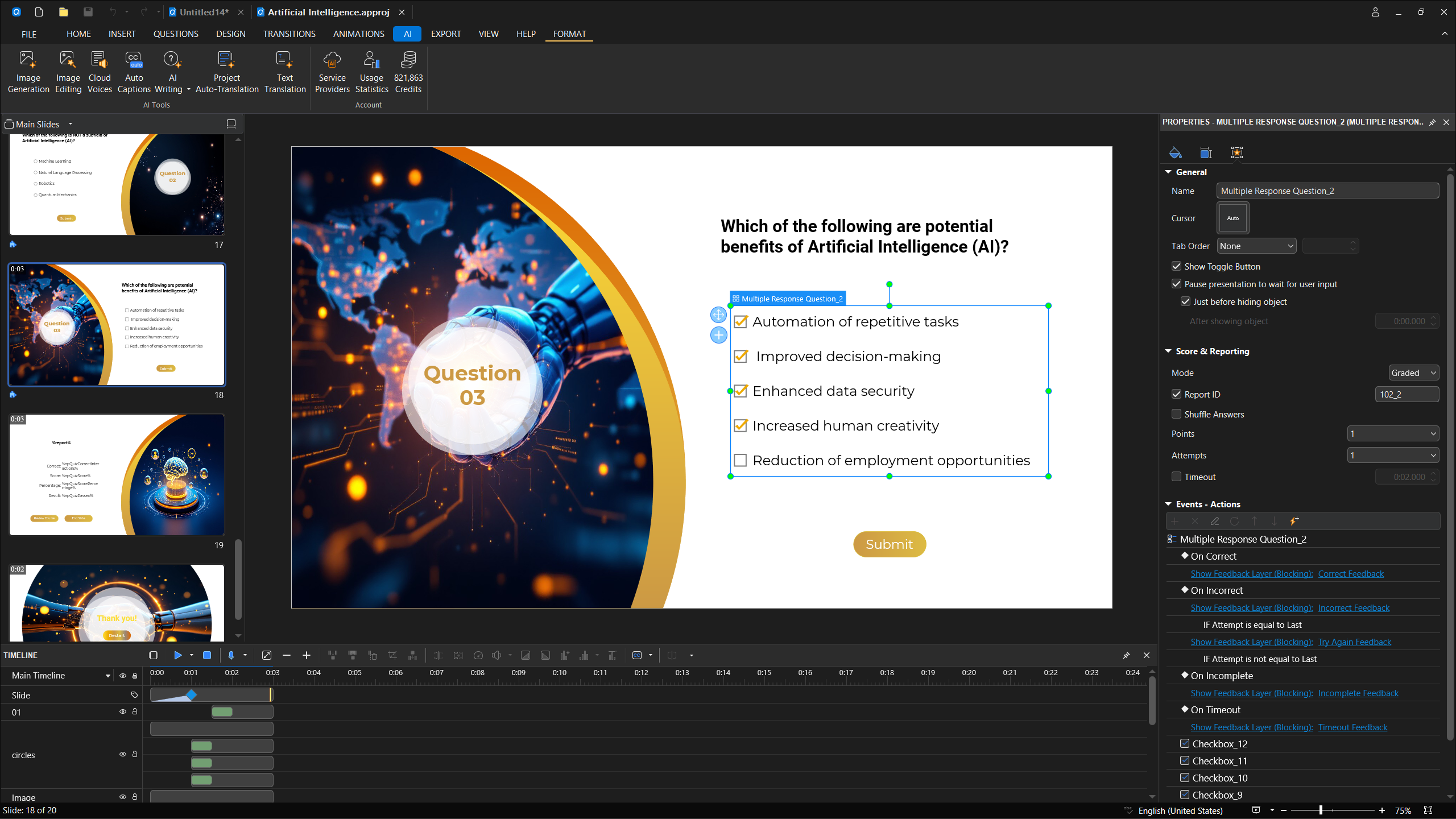
For more advanced interaction, you can adjust the timeline and triggers to control how objects appear or respond to learner actions. This flexibility helps you create quizzes that feel more like interactive activities than traditional tests.
How to Add Quizzes to Training Videos
Quizzes can also be embedded directly into training videos. This interactive video quiz is useful for keeping learners engaged and checking understanding during long video lessons. You can pause the video at specific points, display a quiz question, and then continue playback after the learner responds.
This method is commonly used in corporate training, safety training, and onboarding programs where attention and retention are critical.
How to Publish and Share Your Quiz
Once your quiz is complete, you can publish it in several formats depending on your needs:
- SCORM or xAPI: Upload to an LMS to track learner progress and scores.
- HTML5: Host the quiz on a website or share it via a link.
- Video: Combine quizzes with video content for interactive video training.
- uPresenter: Publish your quiz to uPresenter to deliver interactive lessons and assessments online, manage learner access, and collect detailed attempt and performance reports.
Publishing options make it easy to reuse the same quiz across different platforms.

Common Mistakes When Creating Quizzes
When designing quizzes, it is easy to make mistakes that reduce effectiveness. Common issues include placing too many questions on a single slide, providing unclear feedback, or forgetting to test the quiz before publishing. Incorrect scoring settings can also lead to inaccurate results in an LMS.
Testing the quiz from a learner’s perspective before sharing it helps avoid these problems.
Tips for Creating Quizzes in ActivePresenter
In the Questions tab, Question Settings lets you define shared properties for your quiz questions such as scoring, number of attempts, and answer shuffling. Instead of adjusting each question individually, you can set these options once and apply them across multiple questions in your project, saving time and keeping everything consistent.
When Should You Use Quizzes in ActivePresenter?
Quizzes in ActivePresenter work well in many situations, including:
- Classroom lessons: to boost student participation and check understanding
- Online courses: to assess learners’ knowledge and progress
- Corporate training: to ensure understanding and compliance
- Employee onboarding: to reinforce company policies and procedures
Frequently Asked Questions
Can I track quiz results in an LMS?
Yes. When published as SCORM or xAPI, quiz results can be tracked in most learning management systems supporting these eLearning standards.
How are scores recorded and sent to the LMS?
ActivePresenter sends quiz results to the LMS when the learner completes the course. The LMS receives overall data such as session time, final score, lesson status, progress, and detailed interaction data (Report ID, learner response, correct response (if graded), and result (correct/incorrect – not the score). What you can see depends on your LMS’s reporting features.
In ActivePresenter, you can also add a Report Slide to show results to learners and manage question scoring in each question’s Score & Reporting settings. Enabling the Report ID checkbox ensures the results of that interaction are displayed on the Report Slide.
Does ActivePresenter support drag-and-drop quizzes?
Yes. Drag-and-drop is one of the supported question types and can be customized extensively.
Conclusion
Creating quizzes in ActivePresenter is a practical way to make learning more interactive and measurable. You can start by building simple questions and gradually add more advanced interactions as your course design skills grow.
Try creating your first quiz with ActivePresenter, explore free quiz templates, or start a free trial to experience advanced eLearning features.
