
How to Use Learner’s Name Throughout the Course with Text Variables in ActivePresenter 10
Text variable is one of the three variable types in ActivePresenter SCORM authoring tool. The practical example you can use is to capture learners’ names and display those names throughout the course. It’s a great way to make the training more personalized.
Suppose you want to give the learner a certificate containing his name when he completes a mathematics test. To get it done, you can create a customized text variable in Active Presenter 10. Then reference it anywhere in the course. The variable will update its value automatically depending on the learner’s input.

Here are the steps:
- Create a Text Variable
- Insert a Text Entry to Use the Created Variable
- Reference the Variable in the Course
Create a Text Variable
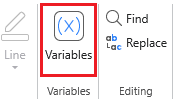
Text variables hold text-based values. So you can use them to store information such as names, passwords, and years. To create a text variable, you access the HOME tab, then click on Variables.
In the dialog that pops up, click on the blue plus icon in the top toolbar to add a new variable, then select the TEXT type, and define its initial value if any.
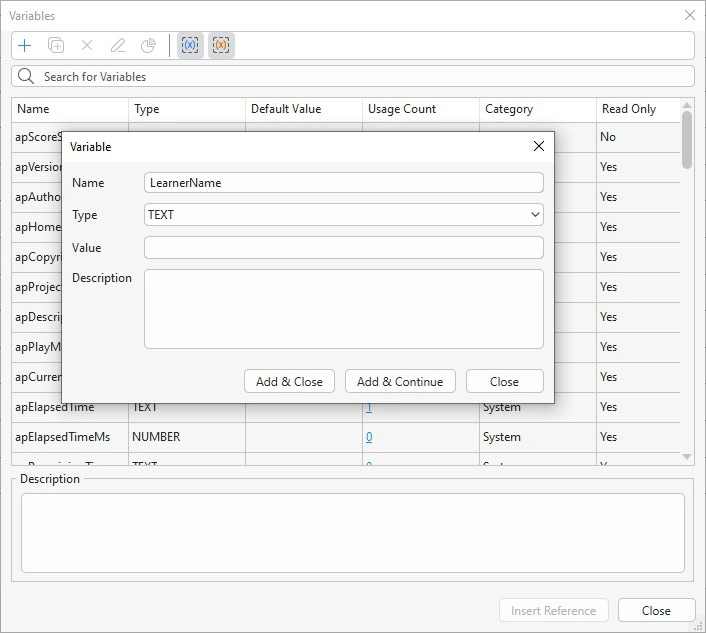
Click Add & Close to finish.
Insert a Text Entry to Use the Created Variable
The next step is to insert a text box where learners can enter their names. To do so, click the Insert tab > Text Entry. Hold the mouse button and draw it anywhere on the Canvas.

Now we come to the most important part. You can use this Text Entry to store the learner’s name when he enters his name into it. Do as follows:
Step 1: Select the Text Entry. Then, navigate to its Properties pane > Interactivity > Score & Reporting > Variable.
Step 2: Click the combo box and select the variable created earlier.
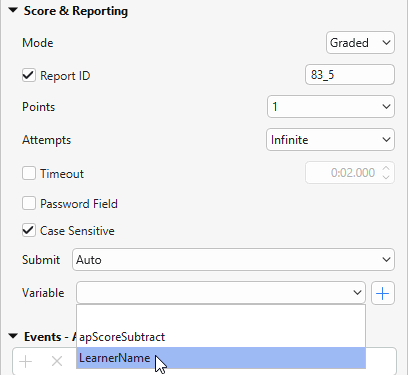
Alternatively, if you haven’t made a text variable before, you can click on the green plus button next to it to create a new one.
Note: This a reminder that in this Score & Reporting section, you should take notice of the Attempts option. Change the Attempts value to Infinite so there is no limit on the number of characters that learners could enter.
Once you’ve done assigning a text variable to the Text Entry, it will store text-based data from learners.

Reference the Variable in the Course
While variables store data, variable references retrieve and display the data anywhere in your course. You can add variable references to any text caption, shape, button, or other text-based objects in ActivePresenter.
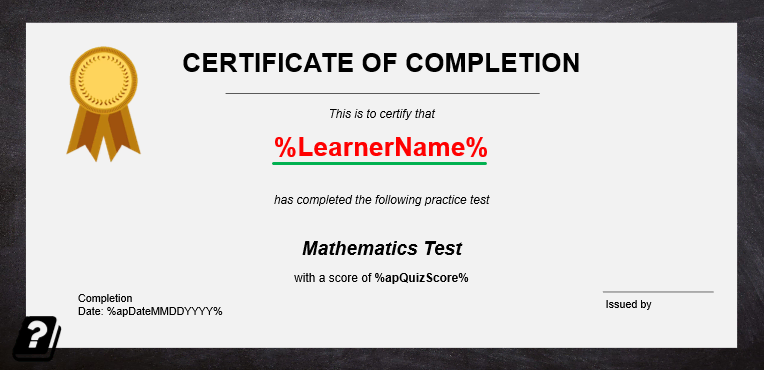
To insert a reference into a text-based object, do the following:
- Click the text area of the caption to open the inline text editor.
- Click the HOME tab > Variables. Then, select the LearnerName variable and click the Insert Reference button to finish.
Tip: If you remember precisely a variable name, you can type the name and put it between the % signs to reference that variable.
And that’s enough for today’s tutorial on how to use text variables to display the learner’s name throughout the course. Let’s download Active Presenter 10 to create more personalized eLearning courses.

See also: