
Building a massive eLearning course with dozens of slides and zero interactive check-ins is a recipe for learner fatigue. If you want to ensure your audience actually retains knowledge before moving on to the next topic, inserting section-based assessments is an absolute must.
That’s where section quizzes come in. While ActivePresenter makes it easy to create interactive quizzes, by default it tracks a single score across the entire project. For larger courses, you may need a more flexible approach—one that allows each section to have its own score, pass criteria, and retake option.
Imagine you’re creating compliance training or software onboarding. You may want learners to pass Section 1 before unlocking Section 2, or allow them to retake only one section without restarting the entire course.
ActivePresenter is an all-in-one eLearning authoring tool that lets you create these interactive eLearning activities without knowing a single line of code. Using variables, actions with conditions, you can design eLearning courses that respond dynamically to learner behavior.
From simple pass/fail navigation to complex adaptive learning paths, ActivePresenter gives you complete control over how learners move through your content.

Download ActivePresenter for free and follow along this blog tutorial to create section quizzes on your own

In this tutorial, you’ll learn how to create section quizzes in ActivePresenter using variables and actions. You’ll build a system where:
- Each section has its own score.
- Learners must achieve a passing score (60%, 80% or 100%) before continuing.
- Failed sections can be retaken independently.
- The total score for each section is displayed automatically.
Let’s get started.
Why Create Section Quizzes?
Many training courses are divided into modules, chapters, or lessons.
Instead of evaluating learners only at the end of the course, section quizzes help ensure they understand each topic before moving forward.
Section quizzes are especially useful for:
- Employee onboarding
- Compliance training
- Software tutorials
- Certification courses
- Product knowledge training
For example:
Suppose your course has two learning modules.
Each module contains 5 quiz questions.
You require learners to score 60%, meaning they must answer at least 3 out of 5 questions correctly before accessing the next module.
If they fail, they simply retake that section instead of restarting the entire course.
Can AI Create Section Quizzes?
There are several ways to create quizzes in ActivePresenter:
- Create questions manually
- Import questions from a formatted CSV file
- Generate quizzes using the built-in AI Assistant
- Create questions with MCP Connect
These methods make quiz creation much faster.
However, the default grading system still calculates the score for the entire project.
If you need independent scoring for each course section, you’ll need to customize the grading logic.
Fortunately, it’s easier than it sounds.
How Section Quizzes Work
Before building the project, let’s understand the logic.
Suppose your course contains:
- Section 1: 5 questions
- Section 2: 5 questions
For each section:
- Every correct answer increases the score by 1.
- The section score is stored inside its own variable.
- If the learner scores 3 or higher, the Next Section button appears.
- If the learner scores less than 3, the Retake Quiz button appears.
- Retaking the quiz clears previous answers and starts the section over.
The overall project score can still be displayed separately if needed.
Step 1. Create Variables for Each Section
The first step is creating variables to track scores independently.
Go to:
Home > Variables > Click the + button.
Create a variable called:
Score_Section1, Configure it as:
- Type: Number
- Initial Value: 0
Repeat this for every quiz section.
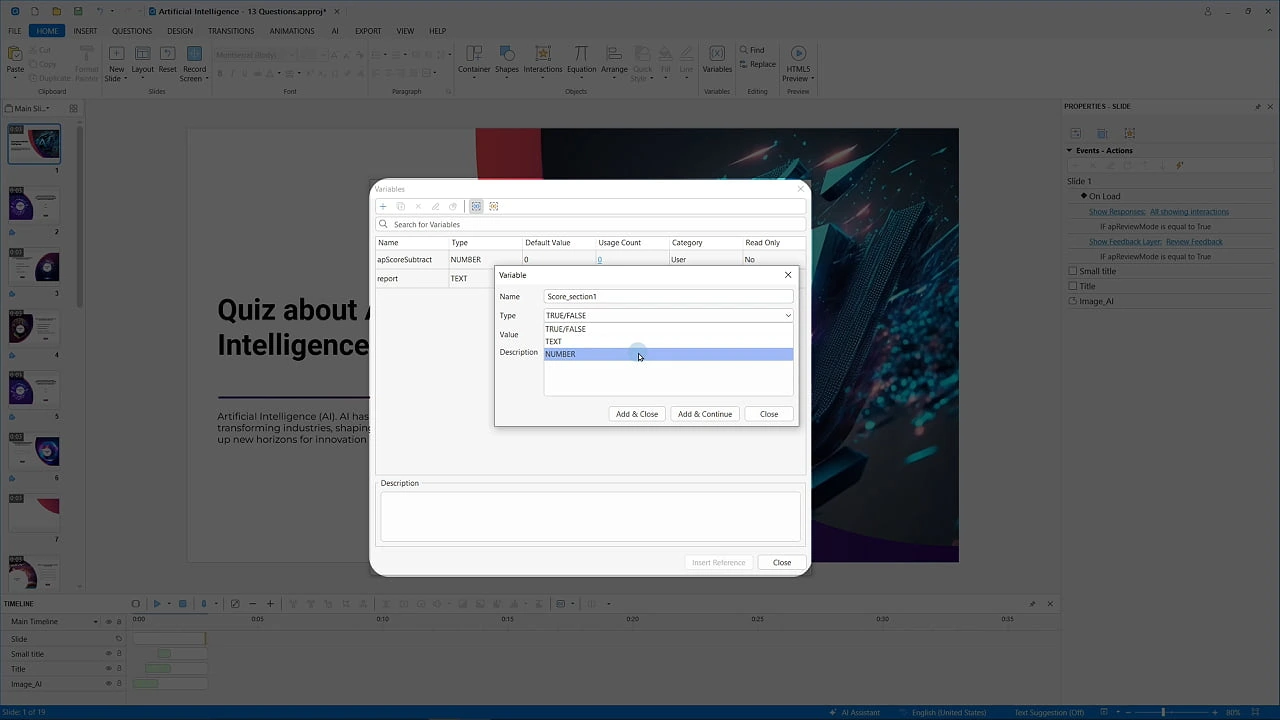
For example:
- Score_Section1
- Score_Section2
- Score_Section3
Each variable will store the correct answers for only that section.
Initialize the Variables
On your opening slide, assign each variable a value of 0.
This ensures every learner begins with a fresh score.
Your Start button simply moves learners to the first lesson.
Step 2. Create the Quiz Questions
Now you need to add your quiz questions. Go to:
Question > True/False (or any other question type you prefer.
Insert your question, images, and answer choices.
Open the Interactivity tab, set Attempts = Infinite
This allows learners to retry questions when they retake the section.
Increase the Score on Correct Answers
Open Events – Actions, under On Correct, add:
Adjust Variable, configure:
- Variable: Score_Section1
- Operation: Add
- Value: 1
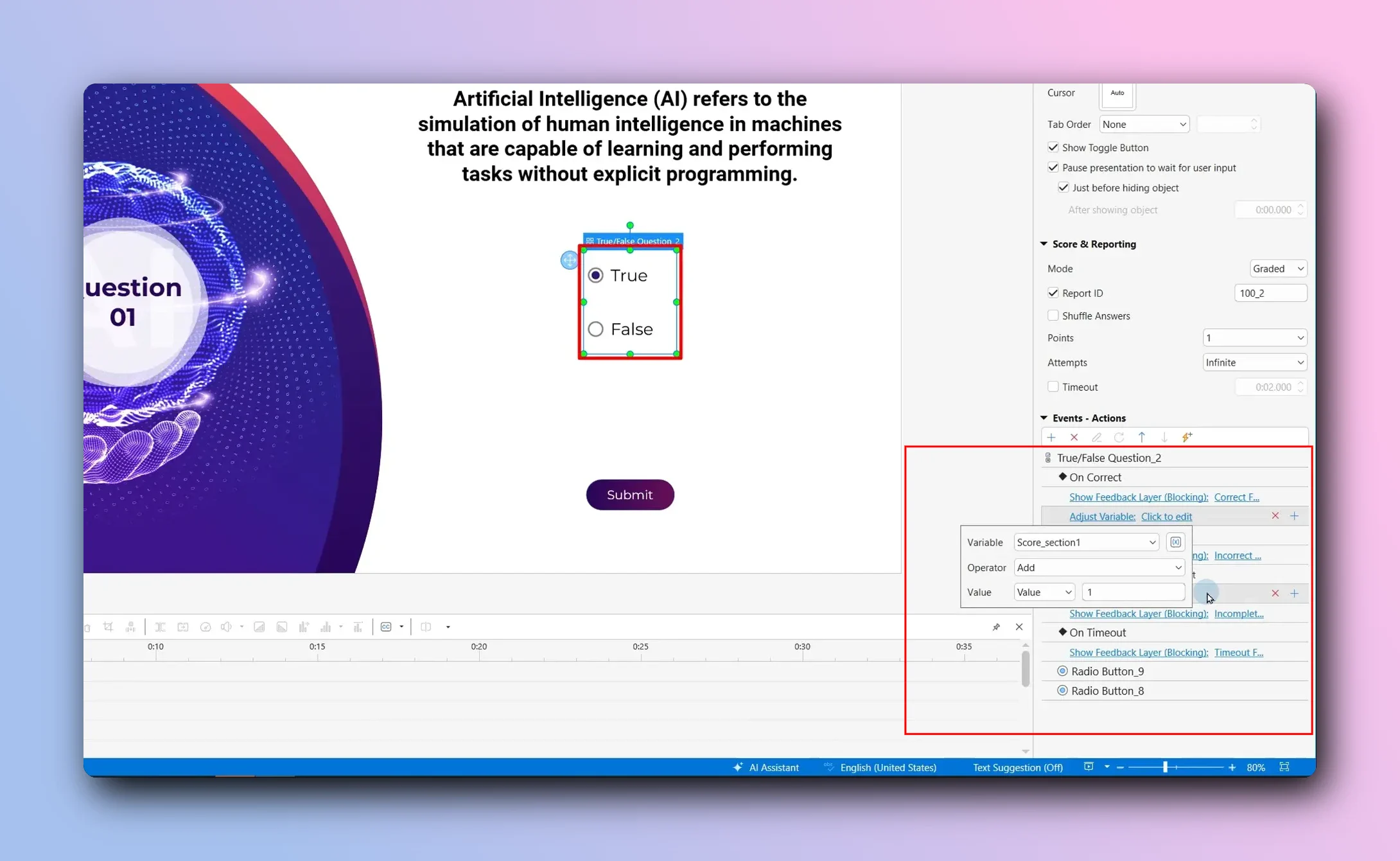
Now every correct answer increases the section score.
Repeat this for every question in that section.
Clear Previous Answers
To ensure learners start with a clean quiz after clicking Retake quiz. You select the question slide, under On Load in Interactivity tab, add: Clear User Input
This removes previous answers each time the learner revisits the question.
Step 3. Build the Section Result Slide
Now it’s time to control what happens after learners finish the section. You create two buttons:
- Next Section
- Retake Quiz
Right-click both buttons and choose: Initially Hidden
They’ll only appear when specific conditions are met.
Configure the Buttons
For the Next Section button: On Click event → Go to Next Slide
For the Retake Quiz button: On Click → Go to: Slide 1
This restarts only that quiz section.
Now it’s time to decide what learners can do after completing the quiz.
On the Section Result slide, you’ll create two buttons:
- Next Section
- Retake Quiz
To prevent them from appearing immediately, right-click each button and select Initially Hidden.
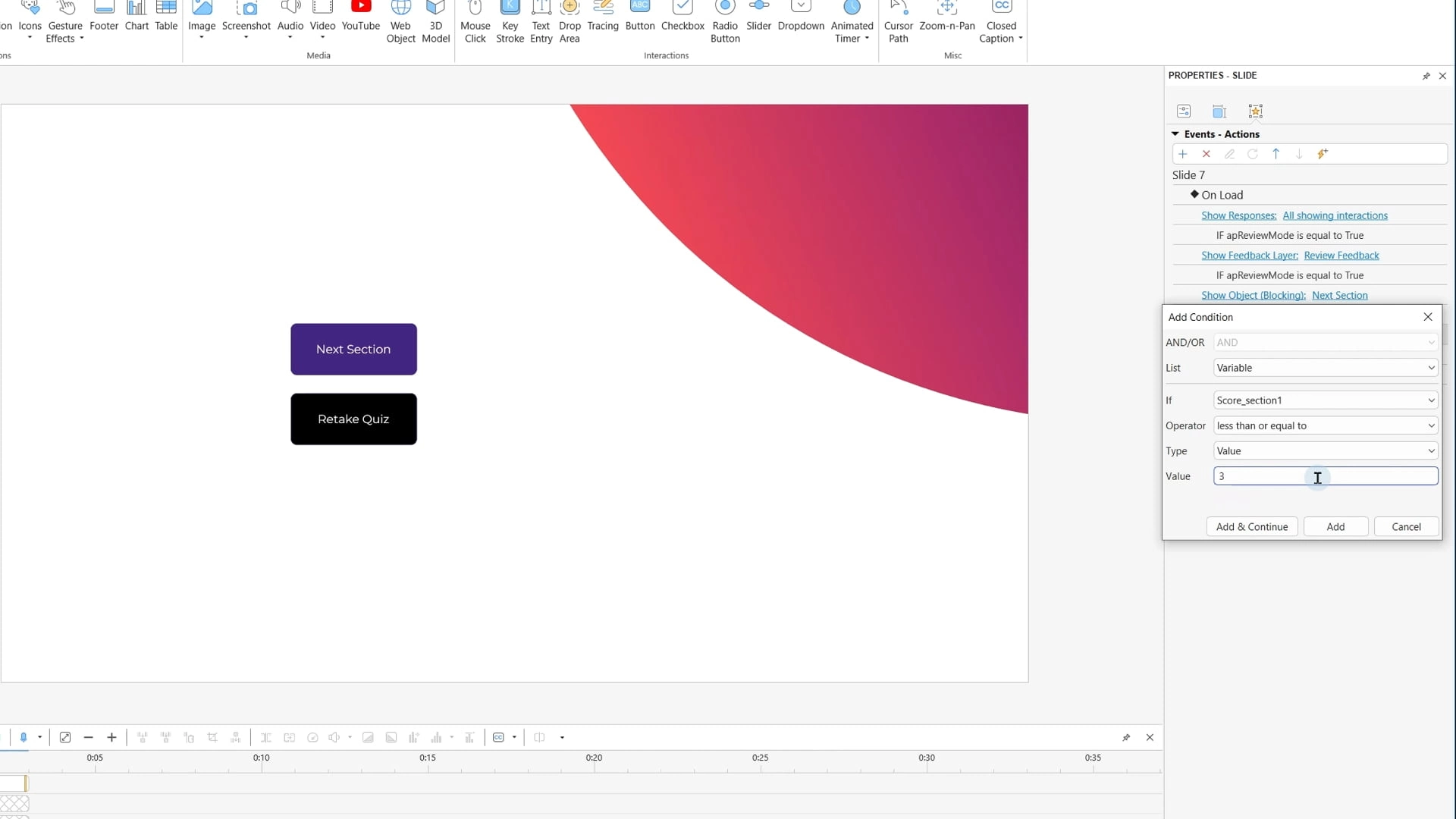
Next, select the Result Slide and open:
Events – Actions → On Load
Here, you’ll create conditional actions that determine which button is displayed based on the learner’s score.
If the Learner Passes, create the following condition:
IF Score_Section1 >= 3
THEN Show Object → Next Section
This means learners who answer at least 3 out of 5 questions correctly (60%) will be allowed to continue to the next section.
If the Learner Fails, create another condition:
IF Score_Section1 < 3
THEN Show Object → Retake Quiz
Learners who don’t meet the passing score will see the Retake Quiz button instead. When they click it, they’ll return to the beginning of the section and try again without affecting the rest of the course.
Using conditional actions like these creates a smoother learning experience by ensuring learners master one section before moving on to the next.
Display the Learner’s Section Score
In addition to controlling navigation, it’s helpful to show learners how well they performed.
On the Result Slide, insert a Text object where you want the score to appear. Then go to:
Home → Variables
Select the Score_Section1 variable and click Insert Reference.
Finally, type /5 after the variable reference to indicate the total number of questions.
The result will display dynamically, for example: 3/5;4/5
Displaying the section score gives learners immediate feedback on their performance and helps them understand whether they’ve met the required passing score before continuing.
Benefits of Using Section Quizzes
Creating custom section quizzes gives you much more control over learner progress.
Some key benefits include:
- Independent scoring for every module
- Better knowledge validation before learners continue
- Section-specific retakes without affecting other modules
- Clear progress tracking throughout the course
- More flexible certification and compliance training
This approach is especially useful when each lesson builds upon the previous one.
Wrap It Up
Although ActivePresenter automatically grades quizzes across an entire project, it’s easy to create section quizzes with a few variables and conditional actions.
By assigning a separate score variable to each section, increasing the score on correct answers, and controlling navigation with conditions, you can build professional learning experiences that guide learners step by step.
Whether you’re developing employee onboarding, software training, or compliance courses, section quizzes help ensure learners truly master each topic before moving on.
If you’re looking to create even smarter quizzes, ActivePresenter also lets you use AI to create interactive questions like AI Assistant or MCP Connect, saving valuable development time while keeping your course interactive and engaging.
Frequently Asked Questions
Can I require 100% instead of 60% to pass a section?
👉 Yes. Simply change the conditional action on the result slide. For a 5-question quiz, require the score variable to be greater than or equal to 5 instead of 3.
Can learners retake only one section?
👉 Yes. By resetting only the section’s questions and keeping separate score variables, learners can retake an individual section without affecting the rest of the course.
Can I still display the overall project score?
👉 Absolutely. Section scores are stored independently, so you can also calculate or display a total project score if needed.
Can AI automatically create section quizzes?
👉 The AI Assistant and MCP Connect can help generate quiz questions, but section-based scoring still requires custom variables and actions to manage independent grading.