
Choosing an eLearning authoring tool for 2027 starts with the training you need to deliver. An editor may produce attractive slides yet leave you struggling to update a procedure, support mobile learners, or report course results correctly in your learning management system.
An eLearning authoring tool is software for creating digital learning content, including lessons, interactions, and assessments. Your LMS typically handles delivery and learner administration; the authoring tool determines what you can build and publish.
For your next purchase, look beyond a feature list. Ask how each capability supports a learning objective and whether it works in your actual training environment.
In this guide, we’ll explore eight feature areas, use ActivePresenter examples to illustrate practical workflows, and show you how to evaluate a sample course before building your software shortlist.
What Makes a Great eLearning Authoring Tool in 2027?
A useful authoring tool supports the entire life of a course: creation, review, delivery, and updates. Planning for 2027 means checking whether today’s capabilities can meet your upcoming requirements.
Start with three questions:
- What must learners do? Explaining a policy, practicing software, and making a customer-service decision require different learning activities.
- Where will the course run? Your LMS, browsers, learner devices, and accessibility requirements shape publishing choices.
- Who will maintain it? Consider the people who create, approve, translate, and revise the content.
The eight features below are evaluation areas to prioritize around those answers. A solo course developer may have little need for simultaneous coauthoring. A software training team may consider interactive recording essential. Choose capabilities that support your work rather than treating every feature as equally important.
8 Essential eLearning Authoring Tool Features
For each feature, examine what you can create, how easily you can change it, and what happens after publishing. A small, realistic test project will reveal more than a polished vendor demonstration.
1. AI-Assisted Course Creation
AI can help you draft explanations, generate initial quiz questions, create images, or prepare narration. The useful question is how much control you retain over those materials.
Look for editable output and a workflow that lets you supply learning objectives and approved source content. You should be able to revise wording, reject an unsuitable question, and correct narration without rebuilding the course.
Ask what information is sent to external services, what usage is included, and whether additional credits or subscriptions are required. These details affect everyday production costs and handling of internal training materials.
ActivePresenter includes AI writing, image generation, and text-to-speech capabilities. Use assistance like this to develop a first draft, then review accuracy and instructional relevance.
Try this: Supply a short, approved procedure and request three knowledge-check questions. Check whether each question measures the stated objective and whether the explanation supports the correct answer. A plausible question is not necessarily a useful assessment.
2. Screen Recording and Interactive Software Simulations
Software training often needs both demonstration and practice. A recording shows learners a procedure; an interactive simulation asks them to perform actions and respond to feedback.
Evaluate clear screen capture, editable annotations, cursor visibility, and the ability to revise individual steps. For simulations, check how the tool handles correct actions, mistakes, hints, and retries.
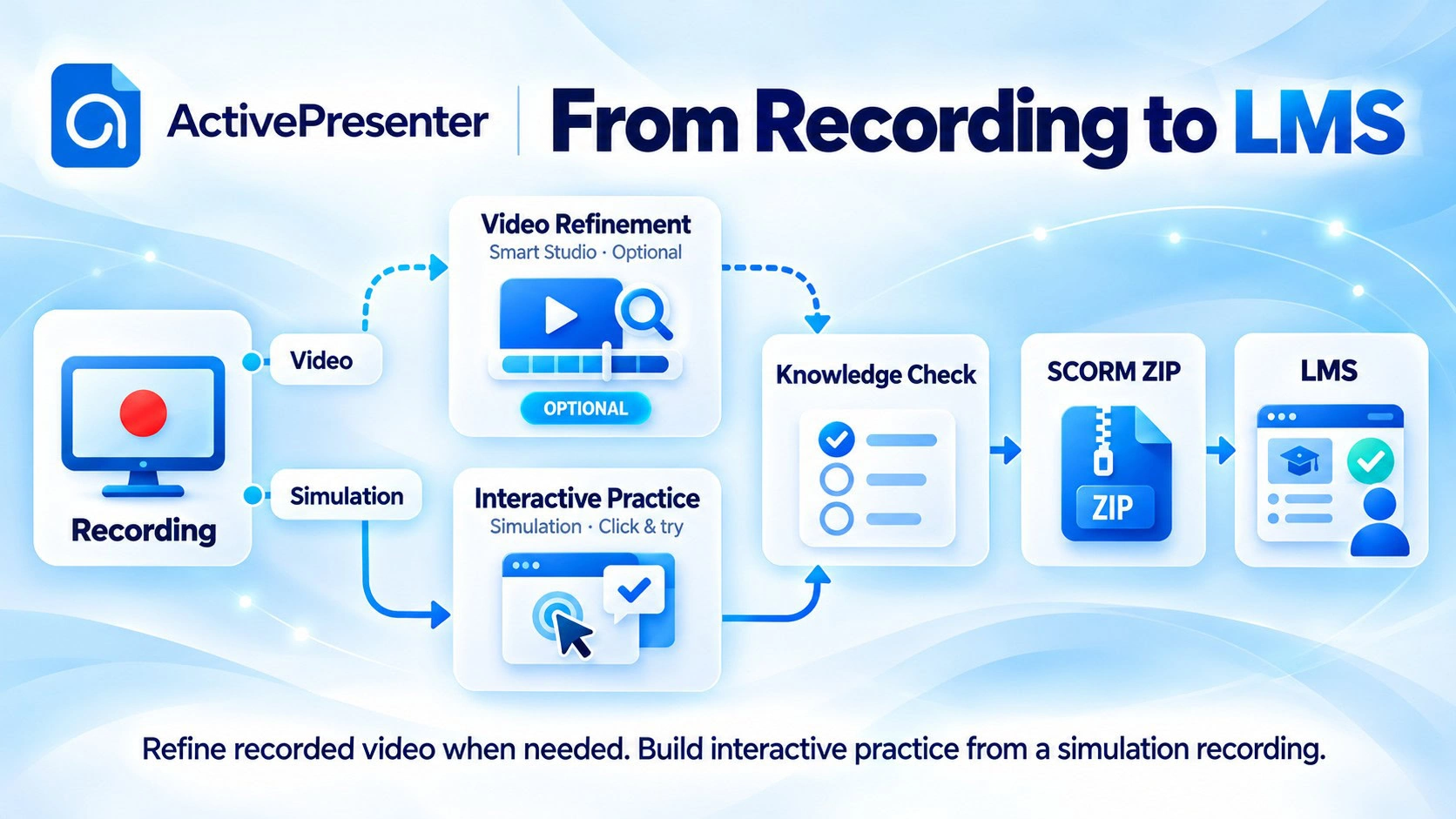
Imagine a sales enablement team teaching new hires to create a CRM opportunity. The lesson could demonstrate the task, provide guided practice, and finish with a knowledge check before LMS delivery. This illustrative workflow connects authoring features to a specific workplace skill.
In ActivePresenter, use the software simulation recording workflow to capture an interactive procedure. For a separate video demonstration, Smart Studio can refine an eligible ActivePresenter recording with zoom and cursor effects. Those video improvements do not automatically turn a recording into interactive practice.
Try this: Capture a three-step task, then select the wrong control during practice. Check whether feedback helps the learner recover and whether you can edit an outdated step without rebuilding the entire lesson.
3. Interactive Quizzes, Assessments, and Branching
An authoring tool should help you measure understanding and provide useful feedback. Question variety matters when it lets you match an activity to the skill being taught.
Look for configurable scoring, attempts, feedback, and navigation. Branching should let you route learners according to a response or condition, while keeping the resulting paths manageable.
Consider a customer-service scenario in which a learner chooses how to respond to a dissatisfied customer. An unsuitable response could lead to an explanation and another attempt. A suitable response could move the learner to a more complex decision.
ActivePresenter supports events, actions, conditions, and variables for interactive learning scenarios. Its slide pools and randomization also provide options for varying assessments. These capabilities still need deliberate instructional design: more branches do not automatically produce a better lesson.
Try this: Complete every route, including incorrect responses and retries. Confirm that feedback, navigation, and scoring match your intended behavior. Also distinguish course completion from passing an assessment; learners may finish a module without meeting its passing threshold.
4. SCORM, xAPI, and LMS Compatibility
A course is only useful in your delivery environment if it launches correctly and reports the results you need. Check the formats your LMS accepts before choosing an authoring tool.
SCORM 1.2 and SCORM 2004 are common options for packaging courses and communicating results to an LMS. SCORM 2004 distinguishes completion from success status. xAPI records learning experiences through statements sent to a learning record store, or LRS; the supporting delivery and reporting setup needs its own verification.
ActivePresenter supports SCORM 1.2, SCORM 2004, and xAPI publishing. Regardless of the tool you choose, format support should be followed by a test in your actual LMS.
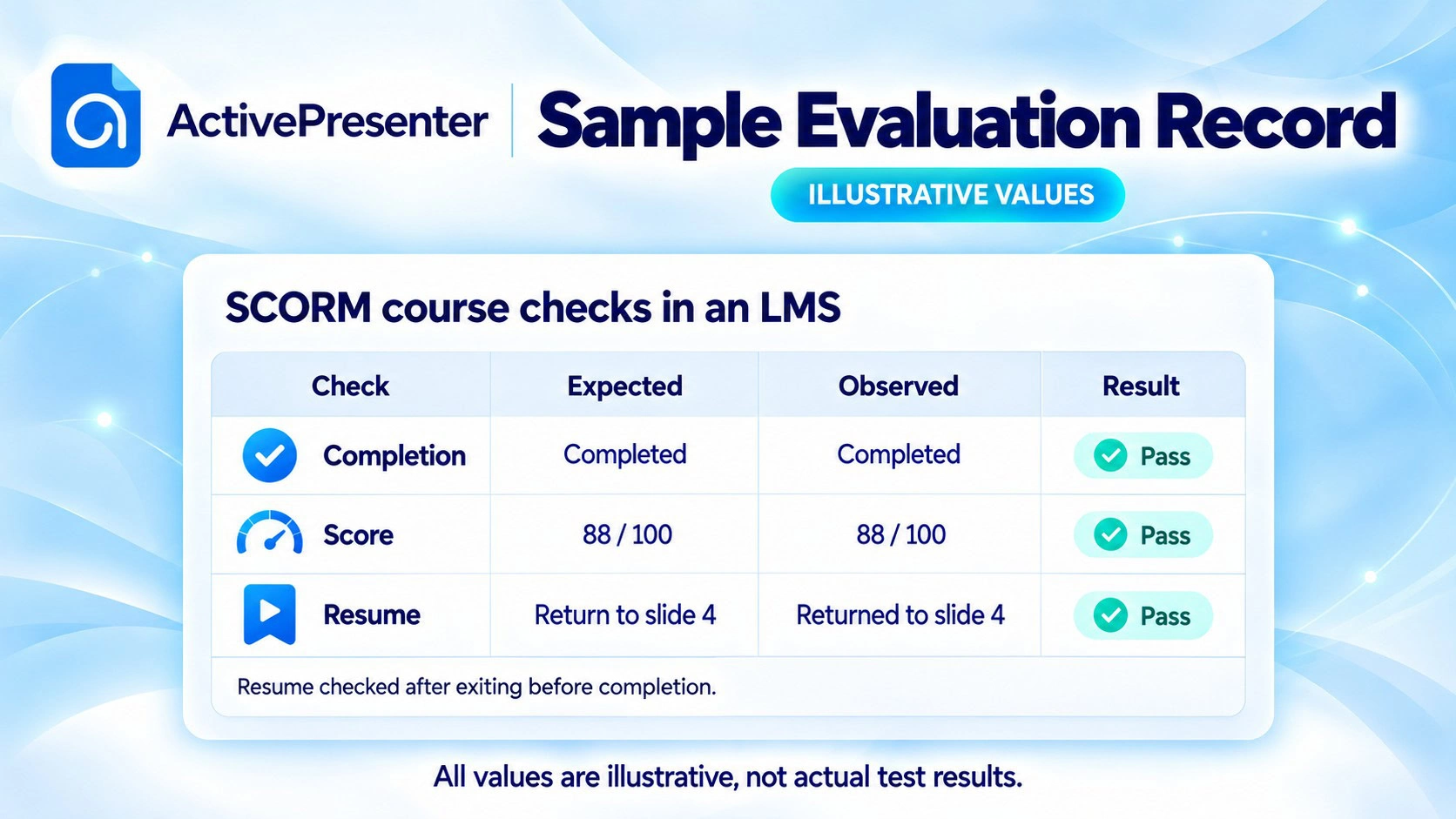
Verify the score, passing threshold, completion rule, and behavior when learners leave and return. Test a passing attempt, a failed attempt, and a session interrupted halfway through. Compare the learner’s actions with the recorded results.
Practical tip: Decide what should trigger completion before publishing. Viewing every slide and passing a final assessment represent different requirements.
Before choosing an authoring tool, check the formats your LMS accepts and test how it records scores, completion, and resumed sessions. Then explore our Top 10 SCORM authoring tools guide to compare options against those requirements.
5. Responsive Design and Accessibility
Your course should remain usable across the devices and access methods your learners use. Responsive design and accessibility address different parts of that goal.
Responsive design adapts a layout to available space. Check whether text remains readable, controls remain usable, and interactions work on smaller screens. Shrinking a desktop slide can leave learners with tiny labels and difficult targets.
Accessibility includes text alternatives, captions, keyboard access, meaningful focus order, and sufficient contrast. The W3C WCAG quick reference provides criteria and techniques to guide this review.
ActivePresenter provides responsive layout tools. As with any authoring software, their availability does not establish that every course you create will be accessible. Your content, interaction choices, and published output need assessment.
Try this: Open the published course on a phone, complete it using only a keyboard, and check representative content with a screen reader. Review captions for accuracy and confirm that important instructions are available without relying only on sound or color.
Practical tip: Identify accessibility requirements when designing the sample project. Fixing reading order or replacing an inaccessible interaction late in production can affect the entire lesson. Include those checks before expanding a template across multiple courses.
6. No-Code Editing and Reusable Templates
Visual editing helps authors build lessons without programming every interaction. Reusable themes, layouts, and assets can also help your team maintain a consistent design.
Evaluate the editing work you will perform most often: changing an instruction, replacing a screenshot, updating feedback, or adjusting a shared style. Check whether reusable elements remain editable and how changes affect existing slides.
For example, an IT trainer may need to update a password-reset lesson after the application interface changes. The author should be able to replace the relevant step, preserve the surrounding instruction, and verify the revised interaction.
ActivePresenter offers themes and templates as starting points for course creation. Complex scenarios still require time to learn the authoring workflow.
Try this: Ask a colleague who will maintain the course to make a small revision. Observe where they need help and whether the update introduces navigation or layout problems.
7. Collaboration and Course Review
Course development often involves an author, a subject-matter expert, and someone responsible for approval. Your workflow should make feedback clear and keep revisions traceable.
Look for comments tied to specific content, defined reviewer access, version history, and a way to record approval. Separate simultaneous coauthoring from reviewing a published preview: they solve different problems.
A cloud platform may bring several authors into one project. A desktop workflow may use shared files and an external review process. Assess the complete arrangement, including the extra tools and coordination it requires.
Try this: Send a sample lesson to a reviewer, collect a correction, revise the content, and request approval. Check whether everyone can identify the latest version and see which issues remain unresolved.
If your team works across departments or time zones, a reliable handoff may matter more than the ability to edit simultaneously.
8. Flexible Publishing and Content Ownership
Consider how you will deliver, back up, and update a course after the first release. Editable source projects and published course files serve different purposes.
An HTML5 export may let you host the output, but it does not necessarily let you reconstruct the editable project. Keep the source, required assets, and a clear version record.
Ask what happens to authoring access, exports, and hosted courses if a subscription ends. Review contractual ownership and asset licensing terms separately from where files are stored. A perpetual license also needs its own upgrade and support review.
The ActivePresenter publishing features include HTML5 and learning-standard output options. Evaluate those options alongside your source-project backup process.
Try this: Export the sample course, back up its source, reopen it, change one instruction, and republish. Confirm that another authorized author can access the materials needed for future updates.
How to Evaluate an eLearning Authoring Tool Before Buying
Use the same small project for each tool on your shortlist. We recommend a sample built around an actual training objective rather than an empty template.
- Define the outcome. Choose one task learners should perform, such as creating a CRM opportunity correctly.
- Build a short lesson. Include a demonstration, a practice interaction, feedback, and a scored knowledge check using approved materials.
- Test the learner experience. Check correct and incorrect actions, navigation, mobile usability, captions, and keyboard access.
- Publish to your LMS. Verify the score, completion, failure, and resume behavior against your expected results.
- Revise and review. Change a procedure step, collect reviewer feedback, and check the licensing requirements for the workflow you used.
Record expected and observed behavior in a simple evaluation sheet. Rate each requirement from 0 to 2: missing, workable with limitations, or meets your needs.
Treat essential requirements as pass/fail before comparing totals. A convenient editor cannot compensate for a course that fails to report required completion data. Record workarounds, extra software, and recurring costs so your comparison reflects the complete production process.
This approach gives your team a repeatable basis for choosing software and identifying the areas that need further testing.
Which Features Matter Most for Your Training Use Case?
Use your training workflow to decide where to spend evaluation time.
| Training use case | Features to prioritize |
|---|---|
| Software onboarding | Recording, interactive simulations, step-level updates, and LMS tracking |
| Policy or customer-service training | Scenarios, useful feedback, assessment rules, and reporting |
| Distributed course development | Review, reusable design, version control, and source access |
Accessibility and compatibility with your target LMS should be considered across these use cases. If you deliver courses in several languages, add translation, localization, and multilingual review to your requirements. Those workflows may be essential even though they sit outside this eight-feature list.
Compare the Best SCORM Authoring Tools
Once you know which features matter, you can compare products against a clear set of requirements. Our companion guide covers free and paid options, with different approaches to authoring and delivery.
Ready to build your shortlist? Compare the best free and paid SCORM authoring tools, then test the options that match your training workflow.
Use the comparison to identify candidates. Your sample project will help you decide which one fits your learners, production process, and LMS.
Frequently Asked Questions
What features should an eLearning authoring tool include?
Look for content editing, meaningful interactions, assessment controls, accessibility support, appropriate publishing formats, and a manageable update process. Recording, AI assistance, and collaboration become priorities when your use case requires them. Choose features around a learning objective and test their behavior in a published sample course.
Do I need both SCORM and xAPI?
Not necessarily. Your delivery platform and reporting requirements determine the formats you need. SCORM may suit an LMS-based course that reports completion and scores. An xAPI workflow requires a compatible learning record store and supporting setup. Confirm the requirements with your LMS administrator before selecting publishing options.
Can a free eLearning authoring tool support corporate training?
It can, if its license permits the intended commercial use and its features meet your requirements. Check watermarks, export access, support, and any restrictions. A free download does not automatically mean unrestricted corporate publishing. Assess the complete workflow, including maintenance and delivery, before relying on a free edition.
Final Thoughts and Next Steps
The right eLearning authoring tool helps you create, deliver, and maintain the training your learners need. Use these eight feature areas to define your requirements, then verify them with a realistic sample project.
Start with the SCORM tool comparison above to build your shortlist. To evaluate a recording and simulation workflow, download ActivePresenter and build a sample project before choosing an edition.
