
Your course looks right in preview, but will the LMS record the right result? To export a cmi5 course in ActivePresenter 10.7, choose Export > cmi5, configure the package, and upload the resulting ZIP to a cmi5-compatible LMS. Then test the learner experience and the results recorded by the platform.
The important step is the LMS launch. Opening an exported HTML file directly cannot verify cmi5 tracking. This tutorial walks you through preparing the course, exporting it, and checking launch, completion, assessment, and resume behavior.
What Is cmi5, and When Should You Use It?
cmi5 is an xAPI profile for learning activities launched from a learning management system (LMS). It defines rules for launching content and exchanging learning records. A Learning Record Store (LRS) receives and stores those records, while an Assignable Unit (AU) is a separately launchable learning activity.
Use cmi5 when your delivery platform explicitly supports its import and launch workflow. Support for SCORM or generic xAPI alone does not establish cmi5 compatibility. Confirm the required format with your LMS administrator before exporting. If you are reviewing tools for an existing SCORM workflow, compare SCORM authoring tools for beginners and verify cmi5 support separately before switching formats.
ActivePresenter 10.7 introduced native cmi5 export. Each selected Operation Mode produces a separate ZIP containing one course and one AU. Selecting several modes therefore creates separate packages rather than a combined course with a mode-selection menu.
Before You Export Your cmi5 Course
Start with a saved project and a clear definition of success. Decide what learners must finish, whether they must pass an assessment, and what should happen if they leave before the end.
- Confirm the version and edition. Use ActivePresenter 10.7 or later. cmi5 publishing is a Pro feature; check the current edition details if you are evaluating the software.
- Prepare the learner path. Check navigation, quiz scoring, feedback, media, and the route to the end of the lesson.
- Prepare a test environment. Use a cmi5-compatible LMS with a test learner account, or a supported testing platform such as SCORM Cloud.
- Write down expected results. Include an early exit, a successful completion, a failed assessment, and an unfinished attempt that should resume.
Use HTML5 Preview to review appearance, interactions, and player settings. Treat this as a content check before testing the LMS connection.
How to Export a cmi5 Course in ActivePresenter 10.7
Step 1: Check the Project
Open Export > Check Project and review findings for the output and learner modes you intend to publish. Address relevant errors and warnings, and inspect items marked Needs Review. Run the check again after making changes.
Check Project can help identify potential issues, but it does not block export or replace runtime testing. A course still needs to be exercised in the system that will deliver it.
Step 2: Open the cmi5 Export Dialog
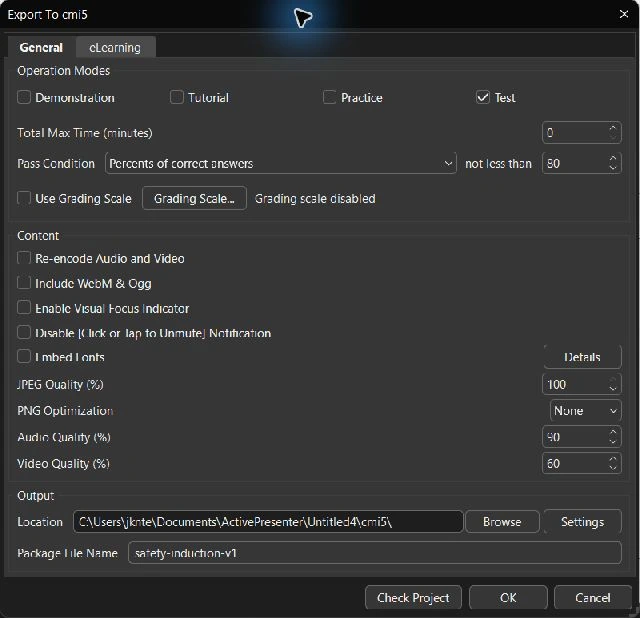
Choose Export > cmi5. The dialog has General and eLearning tabs. On General, select the required modes and output location. Package File Name sets the ZIP name; ZIP packaging is automatic.
For an assessed course, start by testing the intended assessment mode on its own. Give the file a recognizable version name, such as safety-induction-v1.zip, so testers can identify the package they received.
Step 3: Review Assessment and LMS Settings
Check the authored pass condition before publishing. A simple quiz might require 80% correct, while a different learning design may use another rule. For the assessment setup, see how to set pass/fail conditions in ActivePresenter.
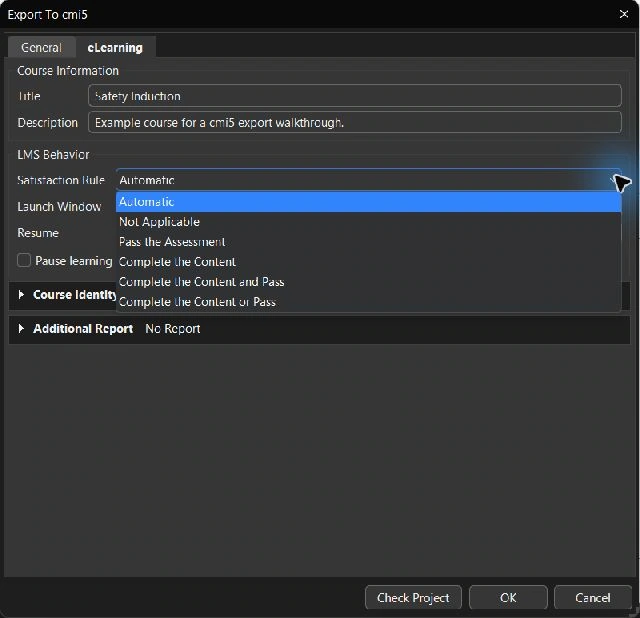
On eLearning, enter the required Title and Description. Review Satisfaction Rule, which controls what the LMS requires: Automatic, Not Applicable, Pass the Assessment, Complete the Content, Complete the Content and Pass, or Complete the Content or Pass.
Keep content completion and assessment success distinct. In cmi5, the moveOn requirement determines which evidence satisfies an AU. For example, a requirement for both completion and passing needs both results; a passing score alone is insufficient. For unassessed content, plan a completion requirement rather than a passing requirement.
Before changing a platform’s imported completion or mastery settings, discuss the intended outcome with the LMS administrator. The cmi5 best practices recommend testing such changes before assigning learners.
Step 4: Review Resume and Course Identity
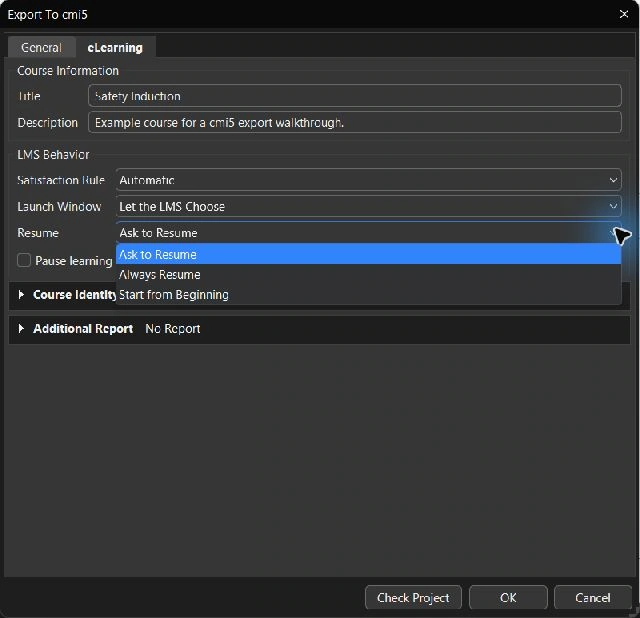
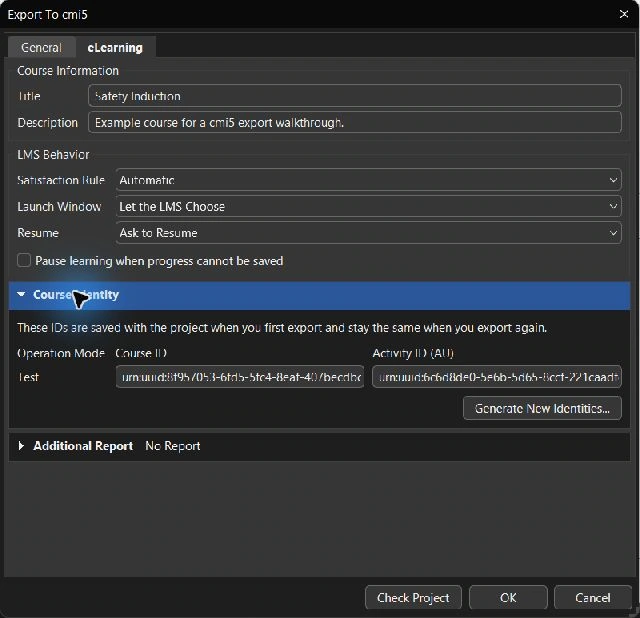
Choose Resume behavior: Ask to Resume, Always Resume, or Start from Beginning. Keep Course Identity stable for updates. Generate New Identities… is for an independent course. Additional Report is separate from cmi5 tracking.
Include the package version, selected mode, and intended completion rule in your handoff notes. These details help an administrator reproduce a result without guessing which export was tested.
Step 5: Export and Upload the ZIP
Click OK to export, then upload the generated ZIP through the platform’s cmi5 import workflow. Import each mode’s package separately if you exported several modes.
Launch the imported course from the LMS as a learner. Do not use an extracted launch page as the tracking test.
How to Test Your cmi5 Course
Option 1: Test in Your Target LMS
The target LMS is where you should verify the final delivery behavior. Use a test learner with the same access and launch route your audience will use. Keep the test account separate from your own administrator account so the learner experience is easier to assess.
Record the expected outcome before each run, perform the learner actions, then compare the LMS result with your notes. If the platform exposes LRS statements or diagnostic logs, use them to investigate a mismatch rather than relying only on what the course displays.
For a sample test plan, use the following cases. The scores are illustrative, not a required cmi5 configuration.
- Early exit: Leave before the required content is finished. Verify that the platform does not award completion or success that the learner has not earned.
- Passing attempt: With an illustrative 80% threshold, finish the required content and score above it. Check the recorded score and success result.
- Failing attempt: Finish with a score below the threshold. Verify that the LMS distinguishes the assessment result from content completion.
- Unfinished attempt: Leave at a known point, return through the LMS, and compare the outcome with the selected Resume setting.
- Threshold boundary: Test a score exactly at the pass mark as well as one below it. This helps reveal a mismatch between the intended rule and the LMS configuration.
- Exit and return: Finish the intended learner path, exit normally, then inspect the stored result. Check again after reopening the course.
For a retake test, use the LMS’s supported new-attempt workflow. Keep the distinction between a new assessed attempt and reviewing an earlier result clear in your test notes.
Option 2: Use SCORM Cloud for an Additional Check
Despite its name, SCORM Cloud supports cmi5 content. Its documented import workflow is Add Content > Import a SCORM, AICC, xAPI or cmi5 package, followed by Choose File and Import Course.
After importing the ZIP, use Launch in the course Sandbox and work through the course. Rustici’s importing and testing guide describes the Sandbox as a place for repeated testing and links to diagnostic options.
Repeat the same passing, failing, and unfinished-attempt cases. Compare what the platform records after each run. If you need to test resume, preserve the attempt’s progress between launches; resetting it would change the case you are testing.
Use this extra test to narrow an issue. If behavior differs between SCORM Cloud and your target LMS, compare import settings, launch context, and logs. A successful run in one environment does not prove that every LMS configuration will behave the same way.
Troubleshooting cmi5 Export and Tracking
The Package Will Not Import
First confirm that the destination accepts cmi5 packages and that you selected the ZIP from the intended export. Ask the administrator for the complete import error. If it mentions a missing course structure, inspect whether cmi5.xml is present at the ZIP root, as required by the cmi5 specification.
The Course Opens, but the Result Is Unexpected
Compare three things: the authored pass condition, the package’s satisfaction requirement, and the LMS settings applied at import or launch. Test a fresh learner attempt with one deliberately chosen outcome so that you can identify where the records diverge.
Do not treat an on-screen score as proof that the platform stored the expected result. Include the normal end and exit path in the test, then check the LMS report.
Resume Does Not Match Your Expectation
Check that the test uses the same learner, course, operation mode, and unfinished attempt. Review whether the LMS created a new attempt instead of reopening the existing one. Note exactly where the learner stopped and what appeared on relaunch.
The Course Works in One Browser but Not Another
Repeat the failing case with the same package and learner conditions in a browser your organization supports. Record the browser version, launch route, and error text. Change one variable at a time so the comparison remains useful.
Frequently Asked Questions
Can I Test cmi5 by Opening index.html?
A direct HTML launch is not a valid test of LMS tracking. Use HTML5 Preview for content review and launch the imported cmi5 package through a compatible platform for tracking tests.
Is a cmi5 Package the Same as an xAPI Package?
No. cmi5 adds an LMS launch and interoperability profile to xAPI. Use the export format requested by the destination platform rather than assuming its xAPI import accepts cmi5.
What If My LMS Only Accepts SCORM?
Use a format supported by the destination, such as SCORM 1.2 or SCORM 2004, after confirming the version with the administrator.
Can I Evaluate Authoring Tools Before Buying?
Yes. This overview of free eLearning authoring tools can help you compare evaluation options and upgrade considerations. Verify each product’s current export features and licensing before choosing it for production.
Publish After the Recorded Results Match Your Test Plan
A cmi5 export is ready for learners when the package launches correctly and the platform records the outcomes your learning design requires. Keep the tested ZIP, settings notes, and evidence together so future updates can be checked against the same cases.
Download ActivePresenter to prepare your course, export it with cmi5, and run the test plan in your delivery environment before assigning learners.
