
AI-generated infographics are everywhere right now, and one of the rising stars is Nano Banana 🍌. This image generation feature has quickly gained attention for its ability to create clean, structured, textbook-style visuals from a single prompt. This solves the problem of what educators and trainers actually need: clear infographics, accurate annotations, and logical layouts.
But here’s the real opportunity most people stop at: turning those static infographics into interactive learning experiences.
In this article, you’ll learn how to create interactive infographics for free. We’ll walk through how to create an infographic using Nano Banana. After that, we would show you how to add simple interactivity, like click-to-play audio explanations, so learners can explore the content instead of just looking at it.
What You’ll Learn:
- Create an infographic with one prompt (example given)
- Add interactivity: click to speak audio
- Publish and share your interactive content online for free
Tools Used To Create Interactive Infographic
AI Image Generation
Google Gemini, when used with the Nano Banana feature, is especially effective for generating infographic-style visuals. Unlike typical AI image outputs that focus on artistic styles, Nano Banana is optimized for structured, educational diagrams-such as exploded views, labeled components, and technical layouts.
With the right prompt, you can generate:
- Cleanly separated parts
- Accurate labels and annotations
- Clear layouts suitable for teaching and presentations
While Gemini is the tool demonstrated in this article, the same prompt structure can be adapted for other AI image generators if needed.
ActivePresenter – Interactive eLearning Authoring Tool
To transform static infographics into interactive learning content, this workflow uses ActivePresenter.
ActivePresenter is an eLearning software that allows you to:
- Record screen and edit videos
- Add interactivity such as click-based actions, audio, and quizzes
- Publish content online and track learner interactions
One major advantage of ActivePresenter is that it supports interactive elements without requiring any coding, making it accessible for educators, trainers, and content creators.
Beyond that, ActivePresenter enables you to create professional-grade interactive eLearning courses, export them to SCORM or xAPI, and publish them directly to host and share your eLearning content online.
Note: ActivePresenter is also capable of creating AI images having a Nano Banana model, and it can enhance your prompt automatically in a single click too!
Ready to make your infographics interactive?
Get ActivePresenter for free and follow along to create interactivity from your infographics!

Step 1: Create Infographic with Nano Banana
Start by opening Google Gemini or any AI image generator you prefer. At this stage, you have two flexible options depending on how specific your visual needs are.
You can upload reference images, textbook diagrams, or existing learning materials to guide the AI toward a more accurate result.
Alternatively, if you don’t have reference materials available, you can generate the image entirely from text prompt. With a well-structured prompt, Gemini is capable of producing clean, educational visuals from scratch.
Example:
“Create an exploded-view airplane illustration with clearly separated parts and accurate annotations with 5 part maximum designed for primary students, in a 16:9 technical diagram format, based on the above information.”
Result return:
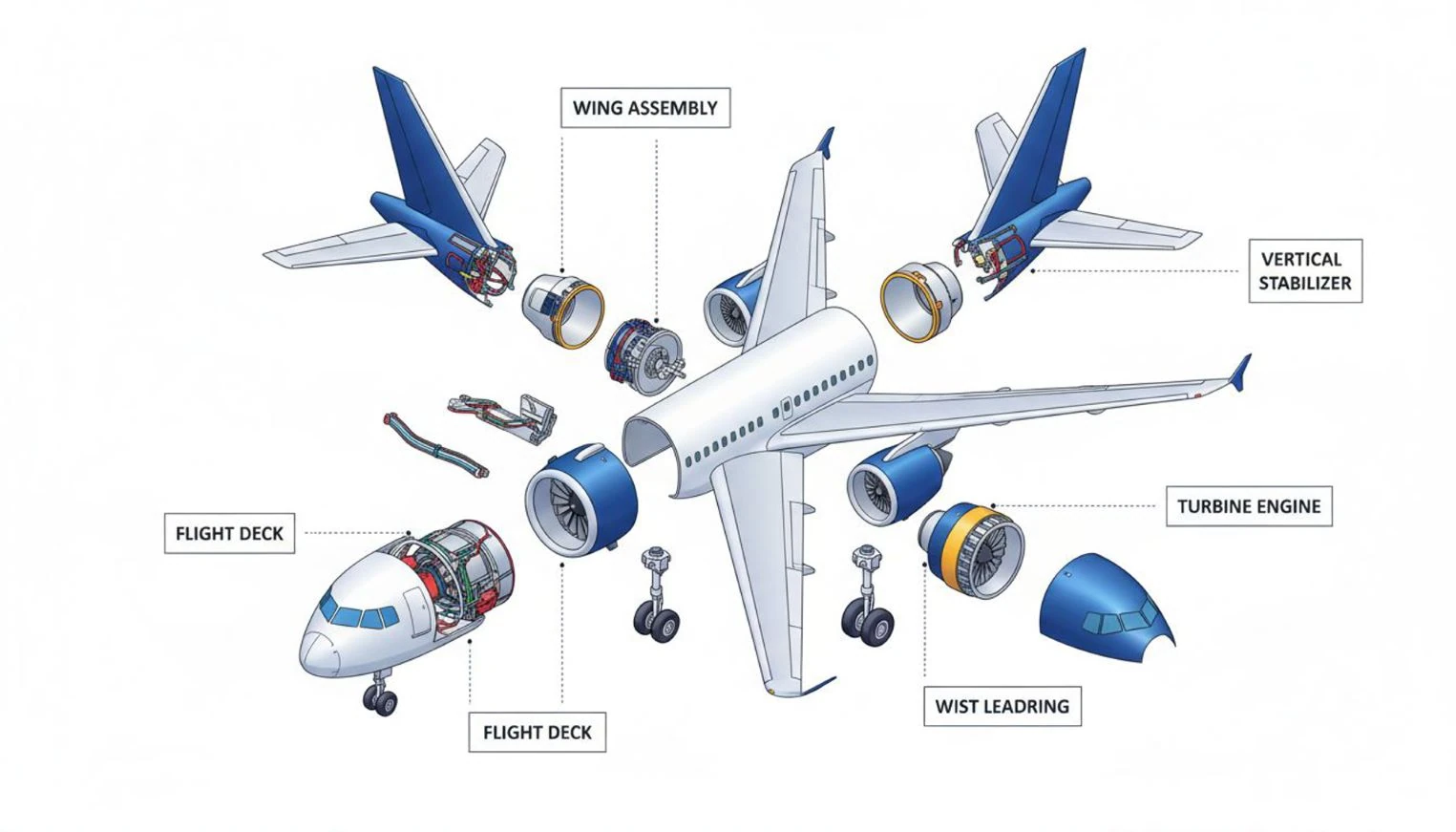
Here’s how it works:
- Define the audience: Level of detail matches the learner’s age or background
- Specify visual type: such as an exploded view or technical diagram, to guide the layout and composition
- Set aspect ratio: 16:9 ratio is ideal for presentation and horizontal content.
- Describe the information to display, including the number of object parts, labeling requirements, and the level of accuracy needed.
Create Infographic with AI right inside ActivePresenter
In addition to working with external AI image generators, ActivePresenter is also capable of creating AI-powered eLearning infographic directly inside the tool. One notable advantage is that ActivePresenter can automatically enhance your prompt with a single click. Instead of manually refining wording, formatting, ActivePresenter optimizes the prompt for clarity, structure, and learning goals fit.
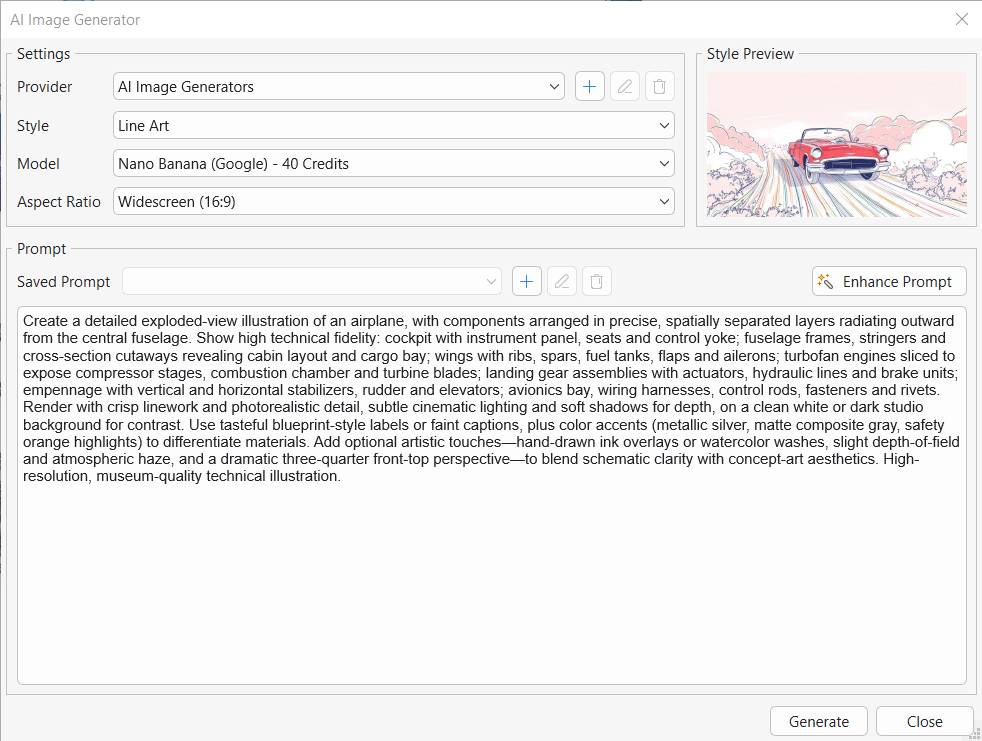
This helps ensure the generated infographic includes clean layouts, accurate labels, and content, especially useful for educators who want consistent results with minimal trial and error.
Note: This feature require internet access & AI credits
Step 2: Make Infographic Interactive with ActivePresenter
Once your infographic image is ready, open ActivePresenter and create a new project. Simply drag and drop the infographic into the workspace.
From here, every interactive element, such as audio explanations or clickable icons will be built directly on top of this visual, making it easy for learners to explore each part of the diagram.
- To add audio explanations, go to Insert → Audio → Create New.
ActivePresenter provides built-in machine voices that you can use for free. If you need more voice variety or higher-quality narration, you can optionally upgrade or connect external voice providers.
- Next, type or paste the explanatory text for each part of the infographic. You can preview the narration by clicking Speak, then Generate the audio once you’re satisfied.
Note: To keep your project organized, rename each audio file so it’s easy to identify later.
- Finally, set the audio to initially hidden on the timeline so it doesn’t autoplay when the slide loads. This ensures audio only plays when learners choose to interact.
With the audio ready, the next step is to make the infographic interactive by adding actions.
- Insert an icon using Insert → Icon, or use any custom icon you prefer. These icons will act as visual cues for learners to click.
- Click Interactivity in the Properties pane and add a new event.
- Set the trigger to On Click > Play Audio, and then link it to the corresponding audio file you created earlier.
- Repeat this process for each part of the diagram to create a fully interactive learning content.
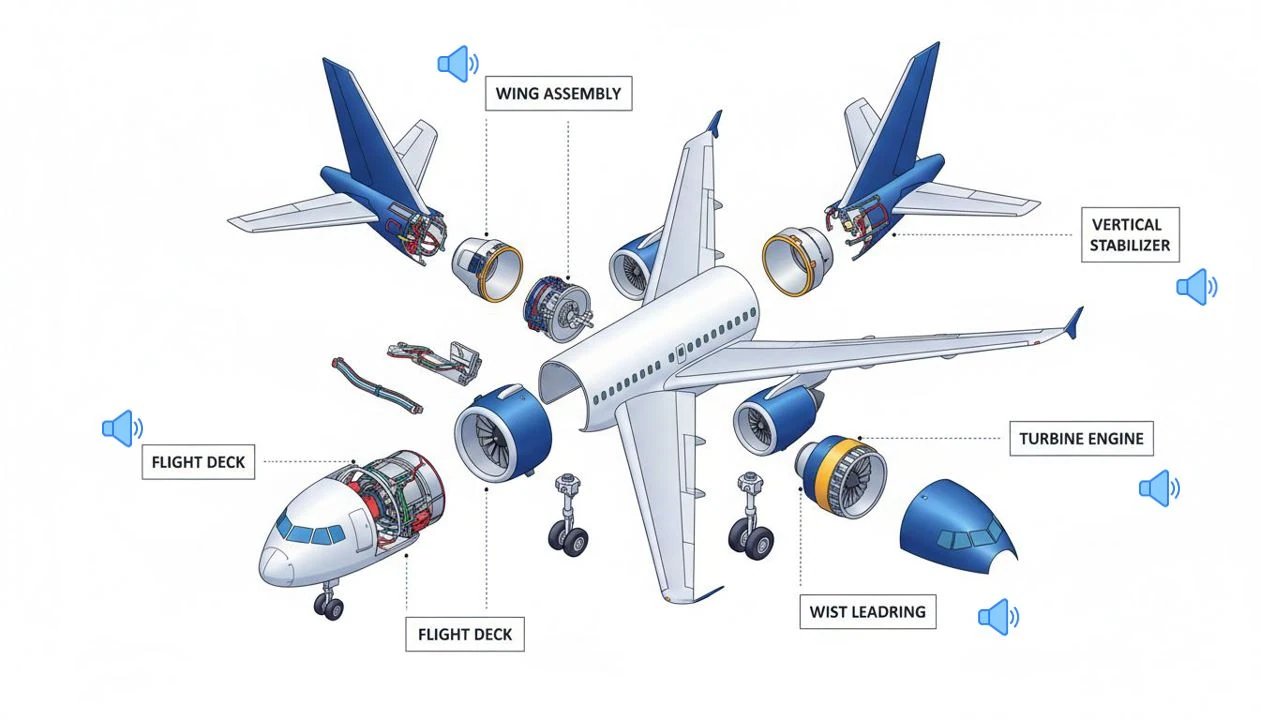
Step 3: Publish and Share Your Interactive Infographic
When your interactive infographic is complete, it’s time to publish and share it with learners. In ActivePresenter.
- Go to the Export tab and select Publish uPresenter.
uPresenter is a lightweight eLearning creation platform designed specifically to host and deliver ActivePresenter projects online.
At this point, you’ll be asked to sign in to your uPresenter account. If you don’t have one yet, you can create a free account in less than a minute. Existing users can simply log in and continue.
Once signed in, the publishing dialog will appear, allowing you to configure how your course is delivered.
- You can choose whether to publish the project as a new course or update an existing one.
- Additional options include enabling practice mode so learners can freely navigate between slides.
For most use cases, the default settings work perfectly well.
- After reviewing the settings, click OK to start the upload process.
ActivePresenter will publish your course to uPresenter while preserving all interactive elements, including click-to-play audio and other learner interactions.
Once the upload is complete, you can generate a public sharing link and distribute it to students, colleagues, or learners so they can view and interact with your infographic online.
Wrap Up
AI has made it easier than ever to generate high-quality educational infographics in just seconds. With tools like Nano Banana, educators and content creators can produce clean, well-structured infographics that rival traditional textbook diagrams without needing design skills.
However, the real learning impact comes from what you do next. By adding interactivity, static images become clickable elements, audio explanations help transform infographics from something learners simply look at into something they can engage with.
With the right prompt structure and the right tools, educators can significantly save time, increase learner engagement, and create professional eLearning content without writing a single line of code.
Download ActivePresenter to start creating your interactive infographic right away!