
Before you pour your time and effort into creating a dedicated eLearning project, you want to know which formats an authoring tool actually supports. Knowing this upfront helps you avoid investing hours into content that can’t be delivered in the format you need, whether that’s video, PDF, or a fully trackable LMS course.
With ActivePresenter, an all-in-one eLearning authoring software, you’re not locked into a single output format. You can record screen, webcam, and audio simultaneously, edit and annotate your recordings, and build complete eLearning courses with AI-assisted features.
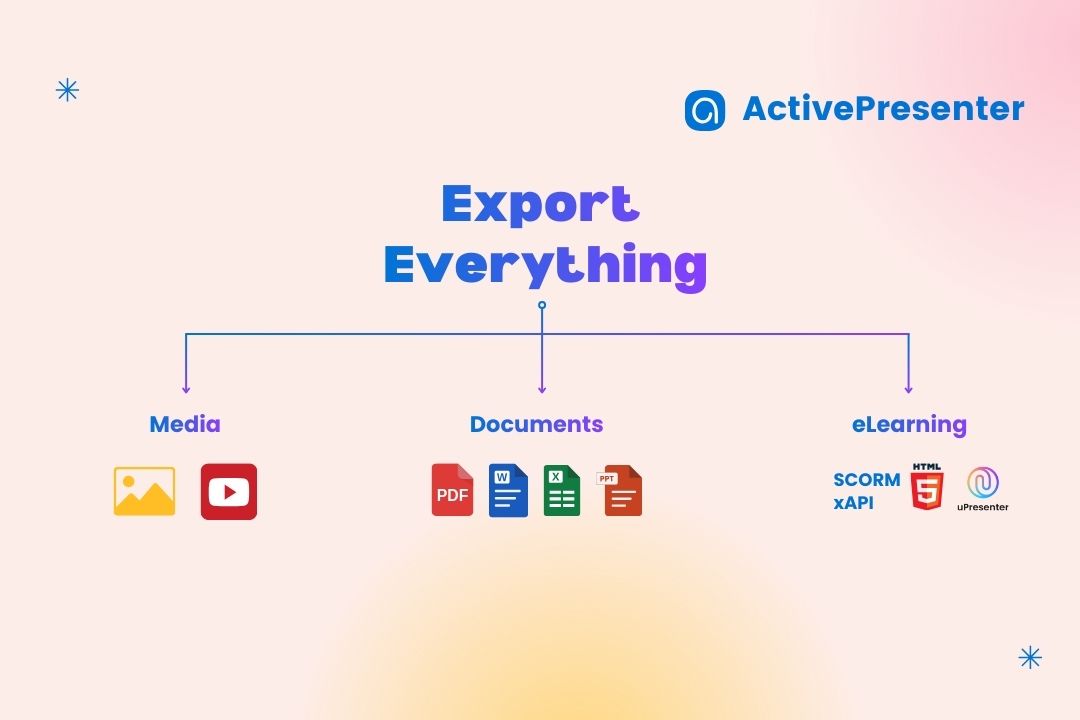
From there, you can export your project across a wide range of outputs, from media like images and videos, to documents, and even interactive eLearning standards such as SCORM and xAPI.
Download ActivePresenter for free and explore ActivePresenter export capabilities 👇

This blog will cover:
- Before Export: Player Settings
- Export to Media
- Export Documents
- Export to eLearning
- Export Options by Edition (ActivePresenter Free vs Standard vs Pro)
Let’s walk through one by one
1. Before Export: Player Settings
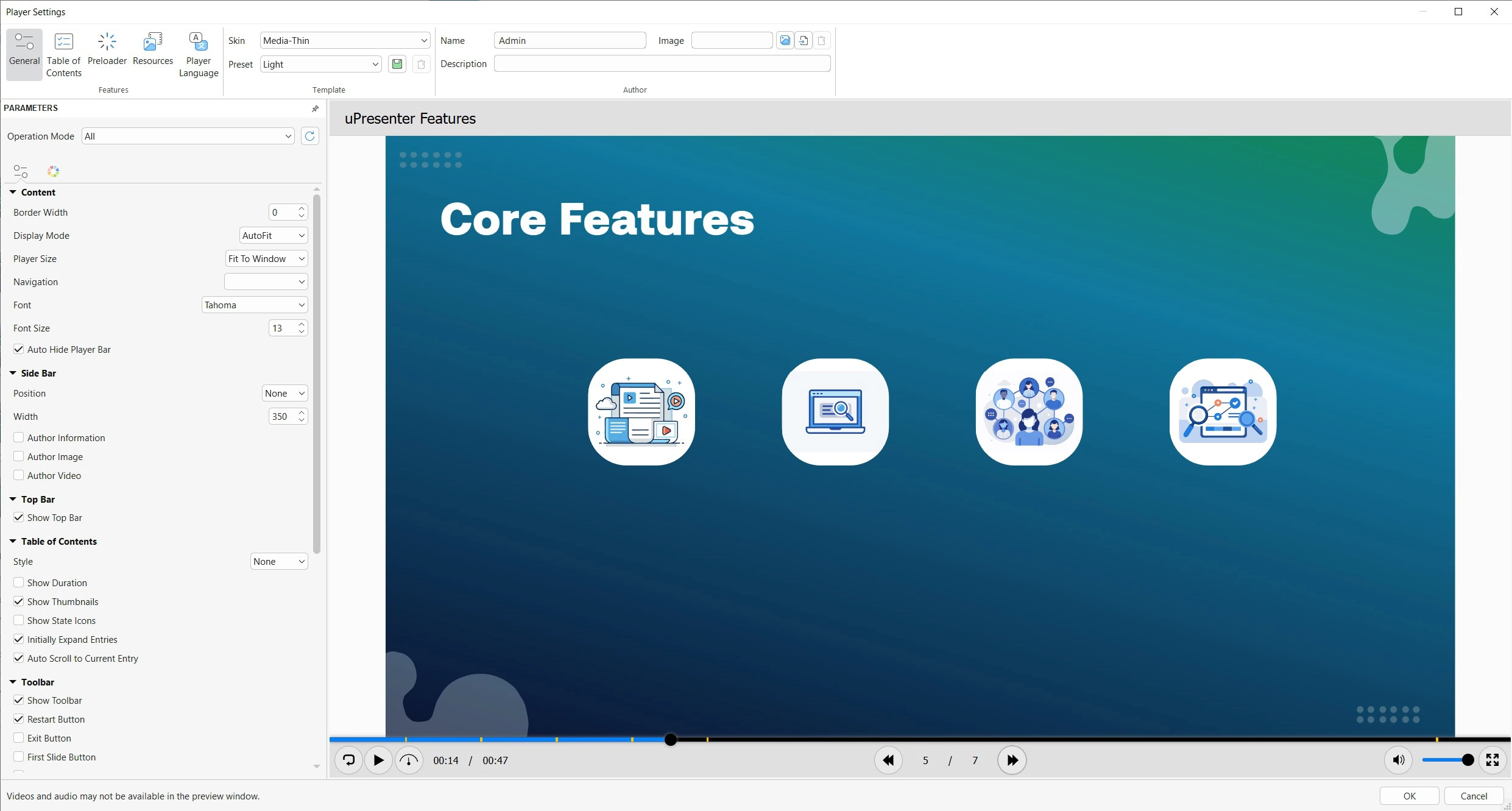
Before exporting your project, it’s worth spending a few minutes reviewing the player and export settings. These options directly affect how learners navigate your content, how progress is tracked, and how your course behaves across different devices and platforms.
Author Name & Information
This setting gives you credibility of owners, authoring name and description, so your learners know who they are learning with.
Player Controls and Navigation
ActivePresenter allows you to customize how learners move through your project.
You can enable or disable Table of Contents, navigation buttons such as Next, Previous, Play, and Pause, or lock navigation entirely to guide learners through a fixed sequence. This is especially useful for structured lessons or compliance training where content must be viewed in order.
You can also control whether learners can revisit completed slides or skip ahead, helping you balance flexibility and instructional control.
Preloader
The Preloader controls what learners see while your course is loading. You can adjust the loading effects with styles and color to match your project color palette, let learners know your course is well-prepared from the start
Preview Before Exporting
Before finalizing any export, you should always preview your project, especially when exporting to HTML5 or eLearning formats. The HTML5 Preview allows you to test navigation, interactions, quizzes, and feedback exactly as learners will experience them. This step helps you catch issues early, saving time and avoiding re-exports later.
2. Export to Media (Image & Video)
You are able to export a specific part without exporting the whole project by right clicking at a single slide then choosing Save slide as image/video.
Otherwise, you can export the whole project to Images or Video as well.
Export as Images
You can export as a static images in the following formats: PNG, JPEG
When to use:
- PNG is best when you need high-quality visuals, sharp text, or transparent backgrounds. It’s ideal for diagrams, UI screenshots, or instructional graphics. Export in PNG will result in heavy file size.
- JPEG produces smaller file sizes and works well for photo-based slides or when file size matters more than absolute image quality.
This option is useful for creating visuals for blog posts, handouts, presentation decks, or learning management system thumbnails.
Export as Video in ActivePresenter
Not just an eLearning authoring tool, ActivePresenter also can play a small role as a free screen recorder, therefore you can select to export among 5 video popular formats (MP4, AVI, MKV, WMV, WebM).
Common export videos include:
- Animated explanation slide
- Short micro-lesson
- Social media video
- Standalone instructional visual
MP4 is generally recommended for YouTube, LMS platforms, and internal training systems due to its broad compatibility.
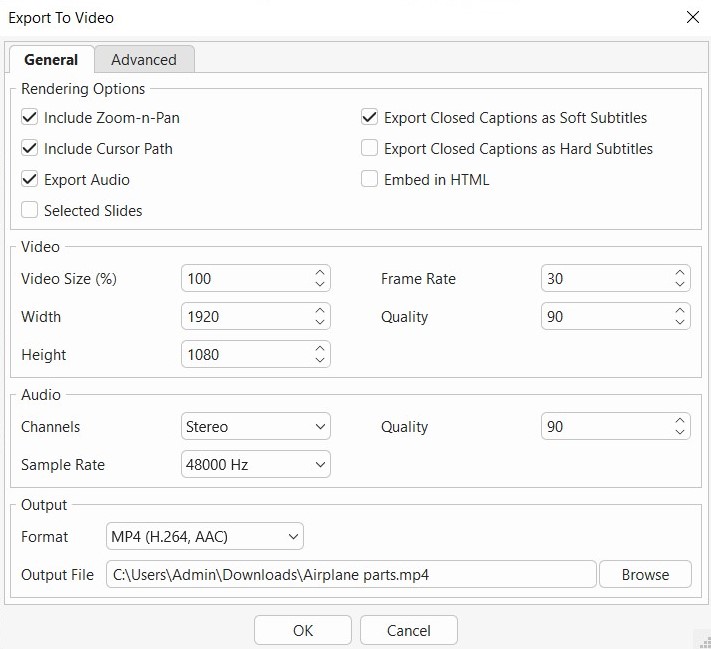
Higher settings result in better quality but larger file sizes. For most eLearning and training purposes, 1080p with a standard frame rate (30), quality 90-100% provides a good balance.
If you do not want to export audio, uncheck Export Audio.
If you want to export several slides only, select multiple slides you want (holding Shift to click one by one) then right click > Save Selected Slides as Video
Best Practices for Video Export
- YouTube: Use MP4 H.264 ACC, 1080p resolution, and clear audio normalization.
- LMS upload: Keep file size reasonable to avoid long loading times.
- Internal training: Match resolution to screen size and bandwidth limitations.
3. Export to Documents in ActivePresenter
ActivePresenter supports exporting projects to a variety of document formats, including PDF, Microsoft Word, Excel, and PowerPoint.
Each format offers customizable export settings, allowing you to tailor the output to your specific needs. This is especially useful for creating handouts, training manuals, reports, or presentation-ready slide decks from your existing content.
Export to PDF
Exporting to PDF means ActivePresenter will export slides as images and convert it into a PDF file.
✔ Create a bookmark means: you create the table of contents of the PDF so you can revisit or jump to any slide in the PDF exported file.
✔ Include Main Page: It shows the name, description and author of the project.
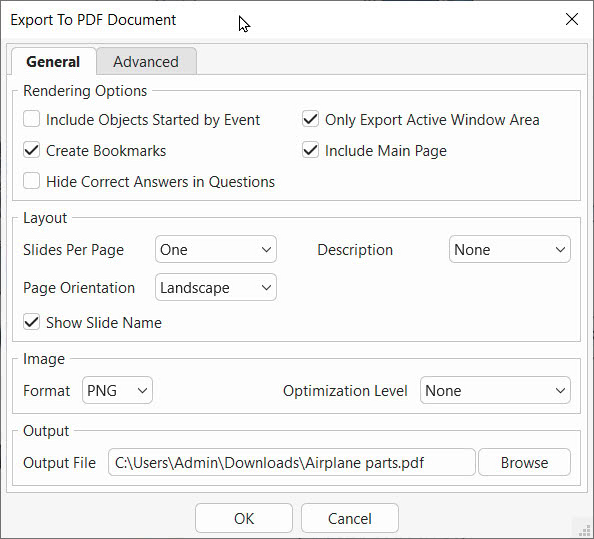
Make sure you have selected the number of slides displayed in one page, the page orientation, with or without Show the Slide Name.
Even so, you are able to set the password for your PDF file. It will require learners to enter the password before they can open or view the document.
Export to PowerPoint
Using this feature, you are allowed to convert ActivePresenter slides into PowerPoint slides. After that, this file can be edited further in Microsoft PowerPoint.
⚠ Please note that after converting, charts, tables, 3D models will be converted into images.
Export to Microsoft Word
The settings for exporting to Microsoft Word in the General tab are quite similar to those for exporting to PDF, except the option:
✔ Create Table of Contents: Add a table of contents to the document with hyperlinks to slides.
✔ Custom Word Templates: This option is recommended when you want to export your project to Microsoft Word using a predefined template. It allows you to control the document structure, for example, placing the slide name and slide description before each exported slide.
If you check this box, this means that you can not adjust the layout (slide per page, slide orientation, slide name & description).
Then choose image format with optimization level if needed. The higher the optimization level, the lower the file size.
Export to Microsoft Excel
This feature lets you export slides as editable shapes, text, and images into an *.xls/ *.xlsx file. The exported content can then be further edited in Microsoft Excel.
With pretty much the same as before, you set the slide per page & page orientation with slide name & slide description position.
⚠ Export to Word, Excel and PowerPoint is available for Windows only.
4. Export to eLearning
Export to HTML5
Exporting to HTML5 allows you to publish your ActivePresenter project as a web-based course that runs directly in a browser. This option is ideal when you want to share interactive content online without relying on an LMS or eLearning standards like SCORM or xAPI.
What HTML5 Output Includes
When you export a project to HTML5, ActivePresenter generates a set of web files that include:
- All slides, animations, and transitions
- Interactive elements such as buttons, layers, and feedback
- Quizzes and basic interactions (without LMS tracking)
- Audio, video, and captions
- A built-in course player for navigation
The result is a self-contained web experience that learners can access by opening the main HTML file in a supported browser.
Running Courses in a Browser
HTML5 output runs directly in modern web browsers such as Chrome, Edge, Firefox, and Safari. Learners do not need to install any plugins or additional software, everything plays natively in the browser.
This makes HTML5 a convenient option for quick sharing, internal training, or embedding learning content into websites and portals.
Hosting Options
After exporting to HTML5, you will receive a zip file. From there, you can host your course in several ways:
- Web server: Upload the exported folder to a public or private web server so learners can access it via a URL.
- Internal portal or intranet: Share the course within a company network for internal training.
- Local hosting: Run the course locally for offline use or demonstrations (note that some browser security restrictions may apply).
Because HTML5 output is not packaged as a single file, it’s important to keep all exported files together when uploading or sharing.
Export to SCORM
SCORM is one of the most widely used standards in eLearning. If your course needs to be uploaded to an LMS and tracked, exporting to SCORM is often the default choice.
In simple terms, SCORM tells the LMS:
- Who accessed the course
- Whether they completed it
- How they performed on quizzes or assessments
Supported LMS Platforms
SCORM packages exported from ActivePresenter can be uploaded to most popular LMS platforms that support SCORM 1.2 or SCORM 2004, including corporate, academic, and open-source LMSs.
As long as your LMS is SCORM-compliant, the exported package should work without additional configuration.
What Can Be Tracked
When exporting to SCORM, ActivePresenter allows you to track:
- Completion status (completed / incomplete)
- Quiz score
- Pass or fail conditions
- Time spent
This makes SCORM ideal for formal training, compliance courses, and certification programs.
Operation Modes
- Demonstration: In this mode, learners are not supposed to interact with the content but only to view it.
- Tutorial: This mode allows learners to try the steps with hint messages and annotations provided to each one.
- Practice and Test: Learners have a chance to try the task themselves to see how well they understand it. There will be no hint message or annotation in these modes.
The only difference between these two modes is that interactions (Mouse Click, Key Stroke, and Drop Area) will only appear in the Practice mode if learners perform the steps incorrectly.
Completion Criteria
You can define what counts as “completed” in your course. For example:
- Percents of correct answers
- Points gained
- Number of correct answers
- Number of slides viewed
Choosing the right completion rule ensures accurate reporting in your LMS.
Export to xAPI
xAPI, also known as Experience API or Tin Can API, is an eLearning standard designed to capture learning experiences in more flexible and detailed ways than traditional LMS-based tracking.
xAPI sends learning data to a Learning Record Store (LRS). This allows learning activities to be tracked across different platforms, devices, and environments, not just inside a single LMS.
In practical terms:
- SCORM answers: Did the learner complete the course and pass the quiz?
- xAPI answers: What did the learner do, when, where, and how?
This makes xAPI more flexible and suitable for modern learning ecosystems.
When exporting to xAPI, ActivePresenter packages your course into a zip file so it can send learning statements (for example, started, completed, answered, passed) to an LRS. These statements provide detailed insight into how learners interact with your content, not just whether they finished it.
uPresenter LMS
This is the most convenient way to upload, host and share your interactive eLearning projects. uPresenter is an eLearning creation platform that directly hosts your eLearning project from ActivePresenter, and you are able to launch your courses in a few minutes. Export settings are quite similar to above eLearning export options.
Even so, you are able to
- Share the project for public access via the link
- See learners interact and engage with your projects, and their results.
5. Export Options by Edition (ActivePresenter Free vs Standard vs Pro)
Here is the comparison table of how ActivePresenter export options work in different editions.
| Export to | Free | Standard | Pro |
| Image | ✅ | ✅ | ✅ |
| Video | ✅ | ✅ | ✅ |
| PDF / Office | ⚠ (Watermark) | ✅ | ✅ |
| HTML5 | ⚠ (Watermark) | ⚠ (Watermark) | ✅ |
| SCORM | ⚠ (Watermark) | ⚠ (Watermark) | ✅ |
| xAPI | ⚠ (Watermark) | ⚠ (Watermark) | ✅ |
| uPresenter LMS | ⚠ (Watermark) | ⚠ (Watermark) | ✅ |
In Brief
ActivePresenter offers a wide range of export options, allowing you to repurpose a single project across different formats and platforms. Whether you need a simple video, printable documents, web-based content, or a fully trackable eLearning course, choosing the right export format early on helps ensure your content reaches learners in the way you intended.
By understanding what each export option does and which ActivePresenter edition supports it, you can avoid unnecessary rework, and focus on creating meaningful learning experiences.