
If you’re one of the people who want to create elearning content, you’ve probably run into the same friction many people did over the years: recording voice talent takes time, coordinating scripts is messy, and localizing for global learners costs an arm and a leg…
The good news is, modern eLearning tools now offer 100+ voices across 20+ languages, so you can generate voiceovers, keep iterations fast, and publish multilingual courses without waiting on another round of recordings.
In this review-style guide, I’ll break down what these voice capabilities mean in real eLearning production and how to use them efficiently inside a workflow that also respects video quality, editing stability, and interactive publishing.
1. Why AI Text-to-Speech Matters for eLearning
When teams talk about AI voices, they often focus on sound quality. That matters, but the real ROI (return on investment) comes from:
- Speed: update narration instantly after script changes
- Consistency: one style across entire modules and lessons
- Localization: swap languages without redoing the whole production pipeline
- Accessibility: pair narration with auto captions for easier comprehension
2. AI Voice Options on The Market
There’s no shortage of AI voice tools out there right now, OpenAI, Google AI Studio, ElevenLabs, and a bunch of others all let you type in text and get back a surprisingly natural-sounding voice clip. For quick voiceovers or one-off audio, that’s great.
But for eLearning, it falls apart fast. These tools just hand you a finished audio file, that’s it. They don’t know about your slides, your timeline, or where that narration is supposed to sync up. So you end up with a folder full of separate audio clips you have to manually drag into your course, line up with each slide, and hope the timing holds.
With that in mind, let’s weigh the pros and cons of AI text-to-speech tools in the market.
Pros:
- Sounds genuinely natural, much closer to a real voice than older robotic TTS
- Lots of voice and language choices to pick from
- Many tools are cheap or free to try, good for one-off clips
Cons:
- You just get a raw audio file with no connection to your slides or course timeline
- Every clip has to be manually dragged in and lined up with the right slide
- Fixing one line means regenerating that clip, downloading it again, and re-syncing it manually.
- Doing this across a whole course means juggling dozens of separate audio files
- No easy way to tweak timing or pacing once the audio’s already exported
Introducing the All-in-One eLearning tool for AI Voice Text to Speech: ActivePresenter
For eLearning developers who want to create text-to-speech with AI, ActivePresenter stands out as a premier authoring tool that integrates text to speech directly into the production workflow.
It eliminates the friction of traditional recording by offering a built-in Text-to-Speech (TTS) feature that instantly transforms written scripts into natural-sounding voiceovers.
ActivePresenter provides access to over 100+ AI voices in more than 20 languages, making it an ideal solution for rapid localization and global accessibility.
By utilizing Cloud Voices from industry-leading providers like OpenAI, Amazon Polly, Google Cloud, and Microsoft Azure, you can generate professional narration that matches your audience’s tone, whether it’s for corporate onboarding, healthcare training, or IT support.

Why ActivePresenter 10 is the Right Choice for AI Text-to-speech:
- Generate narration right inside your project: pick from over 100 voices across 20+ languages, type or paste your script, and the audio drops directly onto your slide. No exporting, no importing, no juggling files.
- Auto-generate captions for your videos and translate them into other languages with one click, so your closed captions (CC) keep pace with your narration without retyping anything.
- Edit and re-sync instantly: change a line in your script, regenerate just that clip, and it slots right back into the timeline at the same spot. No re-dragging, no re-aligning, no hunting for the right audio file in a folder.
- Localization Efficiency: Switch languages and regenerate voiceovers rapidly within the same project structure, allowing you to ship multilingual versions in the same course.
Whether you are building complex branching scenarios or simple video tutorials, ActivePresenter ensures your voiceovers are high-quality, consistent, and perfectly synced with your interactive content.
3. Practical Workflow: How “AI Voice + eLearning Authoring” Should Work Together
People often treat text-to-speech as a last step (“add narration at the end”). In practice, the best results come when AI narration is integrated into your authoring workflow, especially for interactive and video-heavy courses.
A production-ready workflow typically looks like this:
Step 1: Write and structure your learning content
Use clear segments: instruction, example, reinforcement, summary.
You need to keep sentences short enough for natural pacing. AI voices sound best when the script is “instructional,” not “literary.”
Step 2: Generate voiceovers with AI (cloud TTS)
Recording human voiceovers is expensive, slow, and hard to update. A script revision means rebooking a voice actor, sometimes it takes weeks. AI-generated narration removes that bottleneck entirely.
In ActivePresenter, navigate to Cloud Voices to
- browse available speakers,
- preview voices in real time,
- and generate narration in seconds.
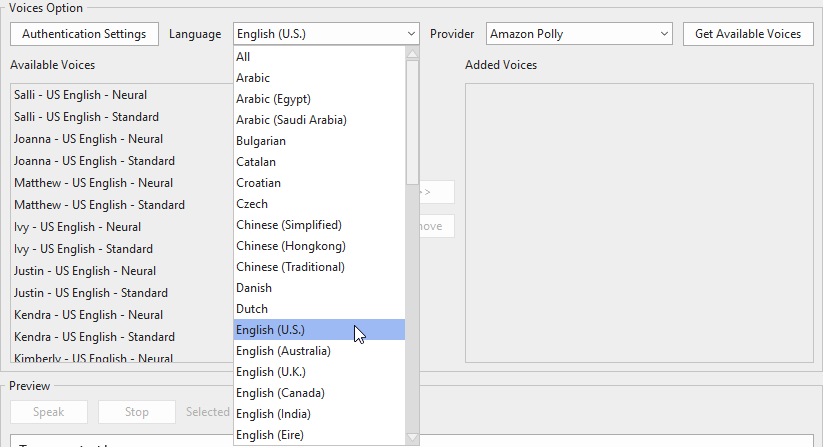
You can fine-tune speed and volume before committing, making it easy to match the tone and pace your audience expects — whether that’s a calm tutorial voice or a more energetic instructional style.
Note: Cloud-based AI features usually require an active internet connection and may use AI credits per generation.
Step 3: Insert narration into your eLearning objects
After that, you are able to place audio onto:
- slides / learning screens
- interactive annotations
- quizzes and feedback messages
- instruction overlays for video segments
Step 4: Add auto captions for video (Optional)
Captions are no longer optional in modern eLearning, they’re expected. Research consistently shows that captions improve retention, support non-native speakers, and make courses accessible to learners with hearing impairments. They also benefit anyone watching in a noisy environment or without headphones.
Whether your narration is AI-generated or recorded, ActivePresenter’s auto captions (speech-to-text) dramatically cut down your captioning workload. Instead of transcribing manually, captions are generated automatically and synced to your audio.
You can then apply built-in style presets and effects to match your course’s brand guideline.
Step 5: Export and publish in the formats learners actually use
A finished course is only as good as how it reaches learners. ActivePresenter supports the delivery formats your audience actually uses without requiring a separate authoring or publishing tool.
Publish directly to uPresenter for a fully interactive, hosted eLearning experience that preserves all your interactivity and tracking out of the box.
Or you can export as SCORM/xAPI packages to deploy on any standard LMS, giving your organization complete control over learner data, progress tracking, and completion reporting.
4. ActivePresenter AI Text-to-speech Pros & Cons (Honest Review)
Pros
- Fully integrated workflow
AI voiceover generation lives inside the same tool where you build slides, add interactions, and export your course. There’s no need to switch between a separate text to speech service, an audio editor, and your authoring tool, everything happens in one place, which significantly speeds up production. - Multiple Cloud Voice options
ActivePresenter connects cloud-based text to speech engines, giving you access to a range of voices across languages, genders, and speaking styles. You can preview before generating, which helps you match the right tone to your course content without committing to a full render first. - Tight audio-object integration
Generated narration can be attached directly to any eLearning object: slides, annotations, quiz feedback, video overlays. This level of granularity means audio reinforces learning at exactly the right moment, not just as background narration on a slide. - Easy to update and iterate
When course content changes, you regenerate the affected narration in seconds without re-recording, or waiting on a voice actor. For courses that need frequent updates (compliance training, product tutorials), this is a substantial time saver. - Consistent voice quality across courses
Unlike human recordings that may vary between sessions or speakers, AI voices maintain consistent tone, pronunciation, and pacing throughout an entire course.
Cons
- Requires internet and AI credits: Cloud text to speech is not available offline. Every generation call depends on an active connection and consumes AI credits, which means production costs can scale with course length.
- Desktop-based application (no browser access)
ActivePresenter is a desktop application, meaning you need to install it on your machine and work locally. That said, this is also a deliberate trade-off, because your projects and assets stay on your local machine, privacy is significantly higher than with cloud-first authoring tools. Sensitive training content, proprietary processes, or confidential product information never leaves your environment by default. - No talking avatar or character library
ActivePresenter doesn’t include built-in talking avatars or an AI character library. If your instructional design relies on a visible on-screen narrator or character-driven storytelling, you’d need to source that from a separate tool and bring the output into ActivePresenter manually. However, for straightforward tutorial and knowledge-transfer courses, this gap rarely matters.
Practical Examples (Real Use Cases You Can Copy)
Scenario 1: IT Support Microlearning for a Global Team
You have troubleshooting steps for error messages. With AI text-to-speech, you are able to:
- generate English narration
- localize to Vietnamese, Spanish, and other target languages
- attach captions to every step
Result: learners in different regions follow the same process without waiting for recordings.
Scenario 2: Banking / Compliance Training Simulations
Compliance content needs a consistent instructor tone. With 100+ voices:
- choose a professional narration style
- keep pacing steady across modules
- add voice for scenario feedback (“Correct/Incorrect, here’s why”). You reduce localization overhead while maintaining training clarity.
Scenario 3: Product Tutorials for a SaaS Team
If you update features weekly:
- update text instructions
- regenerate voiceovers instantly
- re-export only the modified lesson
This shortens the time between product releases and learning updates.
Localization: How AI Text-to-Speech Helps You Publish Multilingual Courses Faster
This is the part people who want to create text to speech with AI often care about most.
With multilingual TTS, your localization workflow can become modular:
- translate the course text
- generate narration per language
- apply consistent caption styling
- publish the localized project without rebuilding the learning experience
Ready to Try AI Text to Speech for Your Next eLearning Project?
If you want to create multilingual narration faster without hiring a full set of voice actors, start by testing AI text-to-speech in your real workflow.
Download a free trial of ActivePresenter (including AI voice features in the paid edition) and experiment with:
- selecting voices for different languages
- generating narration from your lesson scripts
- pairing it with auto captions for accessibility
