
Creating a professional video tutorial is never just about hitting “Record.” The right authoring tool for video tutorials determines how fast you produce content, how polished it looks, and — critically — whether learners actually engage with it or click away after 90 seconds.
I’ve spent the better part of a decade building training content across industries: onboarding for financial institutions, IT software walkthroughs, compliance modules for healthcare teams, and interactive courses for global LMS platforms. In that time, I’ve tested more tools than I care to count. The list below isn’t a random roundup — it’s the shortlist I’d hand to a colleague starting fresh in 2026.
💡 Quick Tip: If your top priority is professional screen recording and video editing without the price tag, you should definitely check out ActivePresenter. Its free version offers a full suite of powerful editing features with no time limits and no watermarks—a rare find among “free” tools in the market today.

Table of contents
- Why Your Choice of Authoring Tool Matters More Than Your Camera Setup
- Evaluation Criteria: How I Ranked These Tools
- Top 5 Authoring Tools for Professional Video Tutorials
- Head-to-Head Comparison Table
- Which Authoring Tool Should You Choose?
- Final Verdict: The One Tool Worth Starting With
- Frequently Asked Questions
- Summary: Top 5 Authoring Tools for Video Tutorials at a Glance
Why Your Choice of Authoring Tool Matters More Than Your Camera Setup
Here’s something most beginner tutorial creators get wrong: they obsess over resolution and microphones, then build their content inside a basic screen recorder that can’t handle interactive elements, SCORM export, or even basic annotation editing.
The authoring tool is the backbone. It dictates:
- How quickly you can fix mistakes without re-recording
- Whether you can add branching scenarios and knowledge checks
- How easily your content integrates with an LMS
- The total production time per minute of finished tutorial
With that framing in mind, here are the criteria I used to evaluate every tool on this list.
Evaluation Criteria: How I Ranked These Tools
Before jumping into the list, here’s the scorecard I used — the same one I apply when advising teams on their eLearning toolstack:
| Criterion | What I Looked For |
| Recording Quality | Resolution support (4K), system audio, webcam overlay |
| Editing Flexibility | Non-destructive editing, timeline control, annotation editing |
| Interactivity | Quizzes, branching, events-actions logic, variables |
| Export & LMS Compatibility | HTML5, SCORM 1.2/2004, xAPI, MP4, PDF |
| Free Tier Generosity | What you actually get without paying |
| Learning Curve | Time to first publishable project for a new user |
| Value for Price | Cost vs. feature depth compared to alternatives |
Top 5 Authoring Tools for Professional Video Tutorials
1. ActivePresenter — Best All-in-One Authoring Tool for Video Tutorials
If I had to rebuild my entire content workflow from scratch today, ActivePresenter would be my first install. It’s the rare tool that genuinely earns the “all-in-one” label — not as marketing fluff, but as a technical reality.
ActivePresenter is a desktop-based eLearning authoring platform developed by Atomi Systems. It combines high-fidelity screen recording, professional video editing, and advanced interactive course authoring into a single interface, with no subscription required to access its most powerful features.
What Makes ActivePresenter Stand Out
Smart Screen Recording & Software Simulation
Most screen recorders capture pixels. ActivePresenter captures data. When you record a software walkthrough, it doesn’t just log video — it records every mouse click, keystroke, and UI interaction as editable objects on a slide timeline.
The practical impact? If you click the wrong button during a recording, you don’t re-record. You edit the click path, swap the annotation text, and move on. This alone saves hours per project.
- Supports 4K recording with lossless quality settings
- Webcam overlay with shape masking (circular crop, etc.)
- Simultaneous system audio and microphone capture
- Auto-generates step-by-step slide sequences from a single recording session
Non-Destructive Video Editing Timeline
The editing environment works like a proper video editor — with a multi-track timeline, object-level animation controls, zoom/pan effects, and cursor path editing. Unlike tools that bake your recording into a flat video file, ActivePresenter keeps every element separate and adjustable.
Advanced Interactivity Without Coding
This is where ActivePresenter genuinely outperforms tools at twice the price. Its Events-Actions system lets you build logic-driven interactivity:
- “If the user clicks the wrong answer three times, show a hint panel”
- “If the variable score exceeds 80, jump to the advanced module”
- “When cursor enters this zone, play this audio clip”
No JavaScript. No plugins. Just a visual editor that handles conditional logic, variables, and dynamic feedback natively.
SCORM/xAPI Export & LMS Readiness
Package any project as SCORM 1.2, SCORM 2004, or xAPI with a few clicks. The HTML5 output is clean, responsive, and tested across major LMS platforms including Moodle, TalentLMS, and Cornerstone.
3 Real-World Use Cases
- IT Help Desk Training: A SaaS company uses ActivePresenter to build interactive software simulations for onboarding new support agents — learners practice inside a simulated UI, not just watch a video.
- Banking Compliance Modules: A regional bank’s L&D team creates SCORM-packaged compliance courses with branching scenarios and scored assessments, deployed to their LMS quarterly.
- Product Demo Videos: A product marketing team records feature walkthroughs with cursor highlights and callout annotations, exporting as MP4 for YouTube and as HTML5 for their help center.
Pro Tips (From Actual Heavy Use)
💡 Pro Tip #1: Use the “Reduce File Size” export option under HTML5 settings to compress embedded media. For a standard 20-minute course, this can cut output size by 40–60% without visible quality loss.
💡 Pro Tip #2: When recording software simulations, use “Demonstration” mode first, then convert to “Practice” and “Test” modes automatically. You get three interaction modes from one recording session.
💡 Pro Tip #3: Map your keyboard shortcut for “Snap to Grid” (under View settings) before any complex layout work. It saves significant time when aligning callout boxes across dozens of slides.
Pros & Cons
| ✅ Pros | ⚠️ Cons |
| Extremely generous free tier (no watermark on video exports) | Desktop-only; no browser-based editing |
| Smart recording captures editable interaction data | Steeper learning curve for advanced Events-Actions features |
| Full SCORM/xAPI support without add-ons | UI can feel dense for first-time users |
| Non-destructive editing on all recorded elements | Collaboration features are limited vs. cloud tools |
| No subscription required for core features |
Best For: Instructional designers, L&D teams, IT trainers, and anyone who needs to produce simulation-based training or SCORM-ready courses at a professional level.
🔗 Download ActivePresenter Free — No watermark. No time limit. No credit card.
2. Camtasia — Best for Polished Standalone Video Tutorials
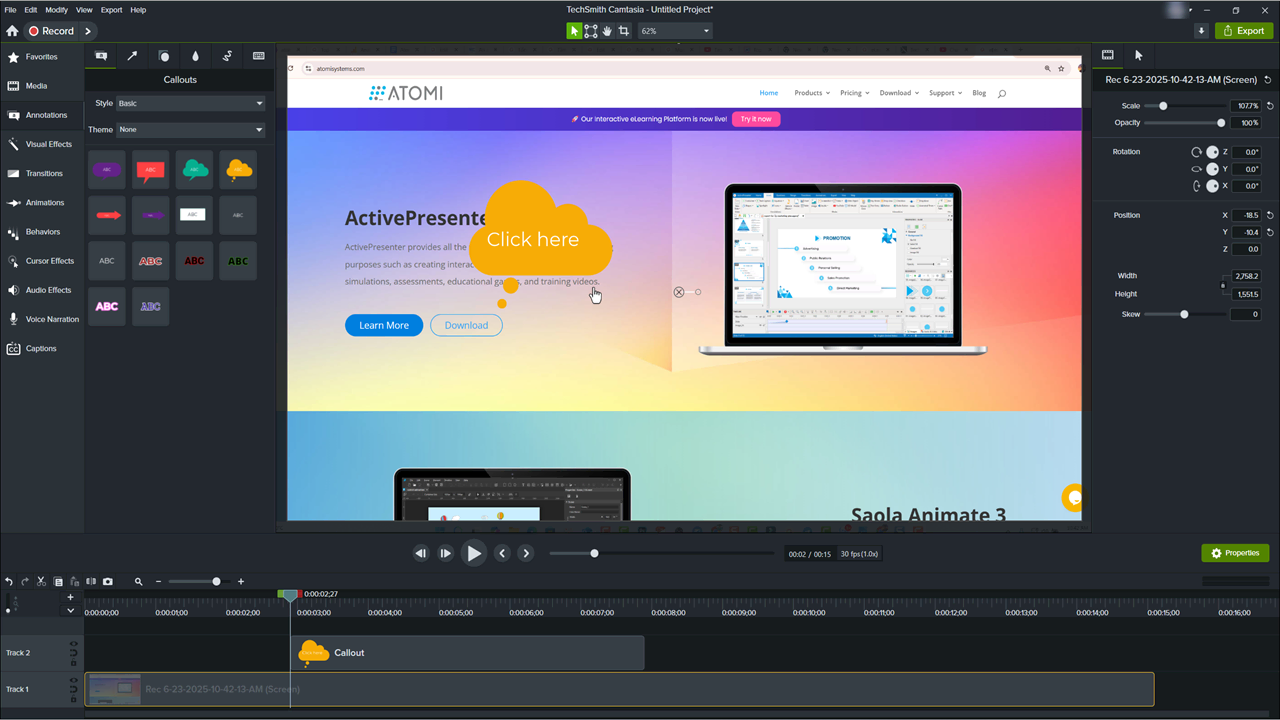
Camtasia by TechSmith has been the go-to screen recording + video editor for tutorial creators since before most people knew what eLearning was. It’s powerful, approachable, and produces consistently professional results.
Strengths:
- Excellent built-in asset library (music, transitions, callouts)
- Intuitive multi-track timeline with drag-and-drop simplicity
- Strong annotation and zoom-n-pan toolset
- Direct upload to YouTube, Vimeo, Google Drive, and Screencast
Limitations:
- Quiz and interaction features are basic compared to dedicated authoring tools
- SCORM export requires the separate TechSmith Knowmia platform
- Licensing cost is significant (one-time purchase or subscription per seat)
- No variables, branching logic, or Events-Actions system
Best For: Individual content creators, YouTubers, and corporate trainers who primarily produce video-based content without complex branching or LMS requirements.
3. Articulate Storyline 360 — Best for Enterprise eLearning Teams
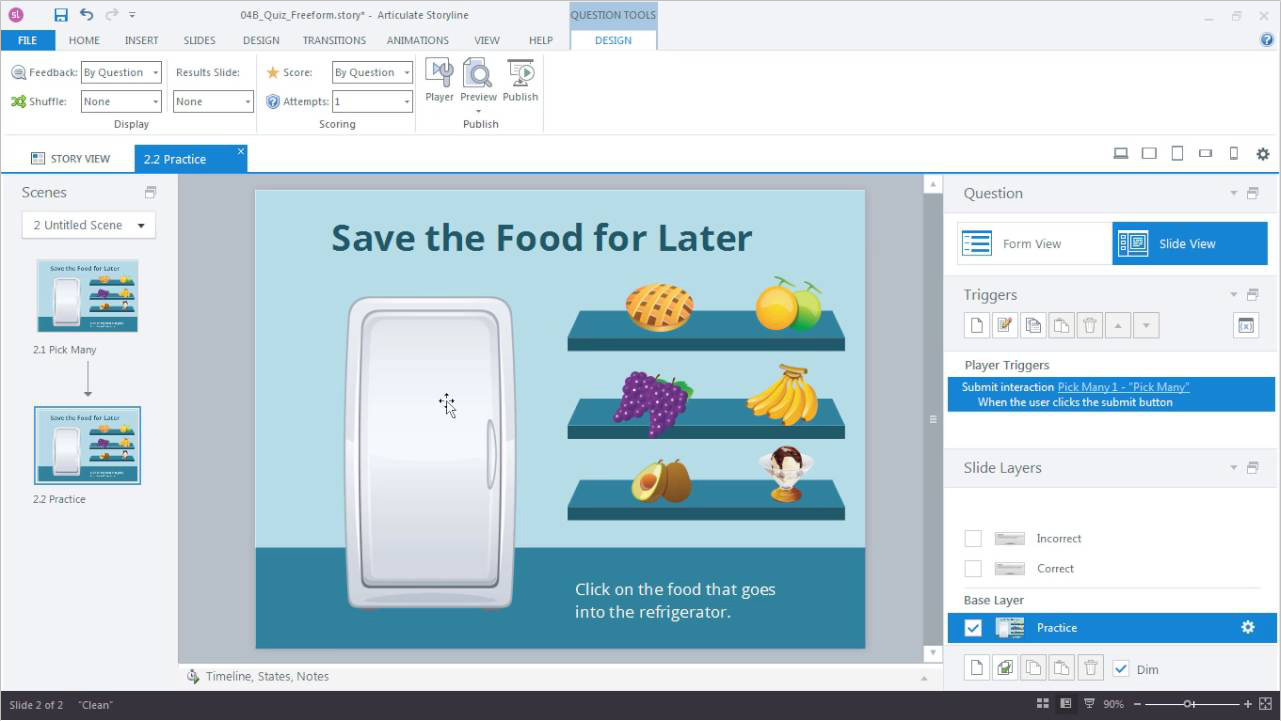
Articulate Storyline 360 is the industry benchmark for enterprise-grade eLearning authoring. If you’re building large-scale, heavily interactive courses for Fortune 500 deployment, this is the tool most enterprise L&D teams default to.
Strengths:
- Industry-leading branching and scenario-building capabilities
- Massive community and template library (Articulate 360 ecosystem)
- Robust slide layers and state management for complex interactions
- Excellent SCORM/xAPI compliance record across LMS platforms
Limitations:
- Annual subscription is expensive (~$1,299/user/year as of 2025)
- Bloated for small teams or single creators who don’t need enterprise depth
- Screen recording and video editing features are noticeably weaker than dedicated tools
- No meaningful free tier — trial is limited to 60 days
Best For: Enterprise L&D departments with dedicated instructional designers, large course libraries, and formal LMS infrastructure.
4. Adobe Captivate — Best for Complex Software Simulations (Advanced Users)
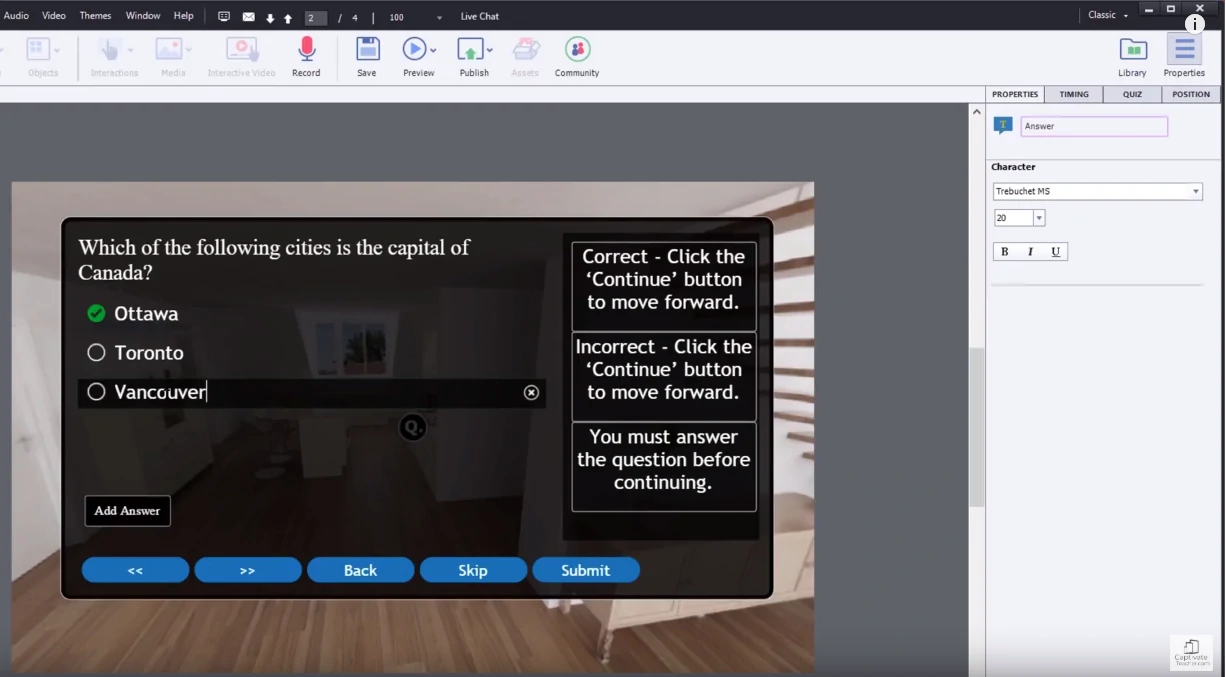
Adobe Captivate occupies a specific niche: it’s purpose-built for software simulation at enterprise scale. Its VR support and responsive design engine are genuinely impressive — but it demands a steep learning investment.
Strengths:
- Powerful software simulation with branching practice modes
- Native VR/360° learning experience support
- Fluid boxes for fully responsive course layouts
- Integration with Adobe Creative Cloud assets
Limitations:
- Notoriously steep learning curve; not recommended for beginners
- UI feels dated and unintuitive compared to modern tools
- Subscription-based pricing (~$33.99/month standalone)
- Recent product direction has been inconsistent (multiple major pivots)
Best For: Advanced instructional designers at organizations already embedded in the Adobe ecosystem.
5. iSpring Suite — Best for PowerPoint-Native Teams
iSpring Suite is the ideal tool for teams whose content lives in PowerPoint. It installs as a PowerPoint add-in and turns existing slide decks into interactive, SCORM-compatible eLearning courses with minimal friction.
Strengths:
- Zero learning curve for anyone familiar with PowerPoint
- Clean, professional quiz builder with 14 question types
- Good video editing features via iSpring Cam Pro
- Reliable SCORM and xAPI export
Limitations:
- Fully dependent on PowerPoint — not viable as a standalone authoring environment
- Video tutorial production capabilities are limited compared to dedicated tools
- Subscription-based; cost adds up for larger teams
- Less flexibility for complex interactive logic
Best For: Instructional designers and HR teams who already have a large PowerPoint content library and want a fast path to LMS-ready courses.
Head-to-Head Comparison Table
| Feature | ActivePresenter | Camtasia | Storyline 360 | Adobe Captivate | iSpring Suite |
| Free Tier | ✅ Generous | ❌ Trial only | ❌ Trial only | ❌ Trial only | ❌ Trial only |
| 4K Recording | ✅ | ✅ | ⚠️ Limited | ✅ | ⚠️ Via add-on |
| Non-Destructive Editing | ✅ | ✅ | ⚠️ Partial | ✅ | ❌ |
| Events-Actions/Variables | ✅ Advanced | ❌ | ✅ Advanced | ✅ Advanced | ⚠️ Basic |
| SCORM/xAPI Export | ✅ | ⚠️ Via Knowmia | ✅ | ✅ | ✅ |
| Software Simulation | ✅ Smart | ⚠️ Basic | ⚠️ Basic | ✅ Advanced | ❌ |
| Pricing Model | One-time / Free | One-time | Annual subscription | Monthly subscription | Annual subscription |
| Learning Curve | Medium | Low | Medium–High | High | Low |
Which Authoring Tool Should You Choose?
Here’s the honest decision framework I use with teams I advise:
- You need a free, professional-grade tool with SCORM support → ActivePresenter is the clear answer. Nothing else at zero cost comes close in depth.
- You make standalone video tutorials for YouTube or a help center → Camtasia gives you the cleanest results fastest.
- You’re an enterprise L&D team with a dedicated budget → Storyline 360 is the safe, industry-standard choice.
- You’re already living in PowerPoint and need a fast conversion path → iSpring Suite removes all friction and gets you to SCORM in minutes.
- You’re an advanced instructional designer in the Adobe ecosystem → Adobe Captivate gives you simulation depth and VR capabilities no other tool matches.
Final Verdict: The One Tool Worth Starting With
If you’re new to this space or rebuilding your workflow from the ground up, the decision is simpler than the feature tables make it look.
ActivePresenter is the only tool on this list that gives you professional-grade screen recording, non-destructive video editing, advanced interactivity, and full SCORM/xAPI export — for free, without a watermark, and without a subscription.
The tools above it in price and brand recognition (Storyline 360, Captivate) don’t offer a meaningful free tier. Camtasia and iSpring are excellent in their lanes, but those lanes are narrower. ActivePresenter covers the full field.
For teams with budget and enterprise requirements, Articulate Storyline 360 remains the industry standard — and for good reason. But for everyone else — individual creators, small L&D teams, consultants, educators — ActivePresenter in 2025 is the highest-value authoring tool for professional video tutorials, full stop.
Frequently Asked Questions
Q: What is the best free authoring tool for video tutorials?
ActivePresenter offers the most generous free tier of any professional authoring tool. It includes screen recording, video editing, interactive elements, and HTML5 export — all without watermarks or time limits. For SCORM and xAPI export, a paid license is required, but the free version alone is more capable than most tools’ paid tiers.
Q: Do I need an authoring tool or just a screen recorder?
If your tutorials are purely informational video content (think YouTube walkthroughs), a screen recorder like OBS or Loom may be sufficient. But if you need quizzes, branching scenarios, LMS integration, SCORM compliance, or learner tracking — you need a dedicated authoring tool. The gap between a screen recorder and a proper authoring environment is significant.
Q: Can I use these tools without video editing experience?
Yes — most tools on this list are designed for instructional designers, not video professionals. Camtasia and iSpring Suite have the lowest learning curves. ActivePresenter has a moderate learning curve for its advanced features, but its recording and basic editing workflows are approachable for beginners.
Q: Which authoring tool is best for SCORM compliance?
All five tools support SCORM to some degree. ActivePresenter, Articulate Storyline 360, Adobe Captivate, and iSpring Suite all offer robust SCORM 1.2 and SCORM 2004 export. Camtasia requires an additional platform (TechSmith Knowmia) for SCORM packaging.
Q: Is a perpetual license better than a subscription for authoring software?
For most individual creators and small teams, a perpetual license provides significantly better long-term value. ActivePresenter’s Pro license at $499 (one-time) vs. Articulate 360 at ~$1,299/year means you break even in under five months — and continue saving every year after. If your team scales rapidly or needs frequent enterprise feature updates, a subscription may make more sense.
Summary: Top 5 Authoring Tools for Video Tutorials at a Glance
| Tool | Best For | Pricing Model | Free Tier |
| ActivePresenter | All-in-one: recording, editing, authoring | One-time / Free | ✅ Generous |
| Camtasia | Polished standalone video tutorials | One-time | ❌ Trial only |
| Articulate Storyline 360 | Enterprise eLearning teams | Annual subscription | ❌ Trial only |
| Adobe Captivate | Advanced software simulations + VR | Monthly subscription | ❌ Trial only |
| iSpring Suite | PowerPoint-native rapid course creation | Annual subscription | ❌ Trial only |
Ready to get started? Download ActivePresenter for free and build your first professional video tutorial today — no credit card, no watermark, no time limit.