
Finding a truly free video editor — one that doesn’t slap a watermark on your final export — is harder than it sounds. Most “free” tools are just demos in disguise, locking your best features behind a paywall or branding your video with their logo the moment you hit export.
Over the past decade working in e-learning content development and video production, I’ve tested dozens of tools across Windows, macOS, and Linux. The five editors in this list have earned their spots not just because they’re free, but because they’re genuinely capable — tools that professionals and educators actually rely on.
Whether you’re a teacher building online courses, a content creator editing YouTube videos, or an IT trainer producing software walkthroughs, this guide will help you choose the right tool without wasting time on trial and error.
This guide provides a comprehensive comparison of top-tier screencasting and video editing tools, detailing their unique capabilities to help you find the perfect fit for your projects. Whether you’re a teacher building online courses, a content creator editing YouTube videos, or an IT trainer producing software walkthroughs, this guide will help you choose the right tool without wasting time on trial and error.
Ready to elevate your content? Download ActivePresenter, our winning star free video editing software with no watermark on top of the list, today and discover why it’s the preferred all-in-one solution for educators and creators worldwide—start your first project for free!

Table of contents
- How We Evaluated These Tools
- Top 5 Free Video Editing Software with No Watermark in 2026
- 1. ActivePresenter — Best Free Video Editor for eLearning & Training Content
- 2. DaVinci Resolve — Best Free Video Editor for Professional-Grade Filmmaking
- 3. CapCut (Desktop) — Best Free Video Editor for Social Media Creators
- 4. Kdenlive — Best Free Open-Source Video Editor for Linux & Power Users
- 5. Shotcut — Best Free Video Editor for Beginners on Windows
- Quick Comparison Table
- Which Free Video Editor Should You Choose?
- Final Thoughts
- 🚀 Ready to Start Creating?
How We Evaluated These Tools
Before diving into the list, here’s the criteria used to evaluate each software. A good free video editor should score well across all five dimensions:
| Criteria | What We Looked For |
| No Watermark | Clean export on the free tier — no branding overlays |
| Feature Depth | Timeline editing, transitions, effects, audio tools |
| Ease of Use | Learning curve appropriate for the target audience |
| Performance | Runs smoothly without requiring a high-end GPU |
| Export Quality | Supports common formats (MP4, MOV) at high resolution |
💡 Pro Tip: Always test your chosen editor by exporting a 1-minute clip before committing to a full project. Performance issues show up fast at export time.
Top 5 Free Video Editing Software with No Watermark in 2026
1. ActivePresenter — Best Free Video Editor for eLearning & Training Content
Platform: Windows, macOS
Learning Curve: Moderate
Best For: Educators, instructional designers, corporate trainers, IT professionals
If you work in e-learning or need to create training videos with interactive elements, ActivePresenter by Atomi Systems is in a league of its own. It’s the only tool on this list that combines professional video editing with full-featured screen recording and eLearning authoring — all in a single, free application with no watermark on exports.
Key Features
- Screen Recording + Video Editing in One Workflow: Record your screen, webcam, and system audio simultaneously, then edit everything in a non-destructive timeline. No need to switch between apps.
- Interactive eLearning Elements: Add quizzes, branching scenarios, click simulations, and drag-and-drop interactions directly onto your video timeline.
- Text-to-Speech & Closed Captions: Generate narration automatically and add accessible captions — critical for compliance-focused training content.
- Multi-Export Formats: Export to MP4, HTML5, SCORM 1.2, SCORM 2004, and xAPI (Tin Can) for direct LMS deployment.
- Annotation & Callout Tools: Highlight UI elements, add arrows, and spotlight mouse clicks — ideal for software tutorials.
Real-World Use Cases
- Corporate Software Training: An HR team at a financial institution uses ActivePresenter to build interactive software simulations for onboarding new banking staff — complete with scored quizzes and SCORM packages uploaded directly to their LMS.
- IT Helpdesk Tutorials: An IT support team creates step-by-step screen recording walkthroughs for internal ticketing systems, exported as MP4 and embedded into their intranet wiki.
- Academic Course Creation: A university lecturer records lecture slideshows with voiceover, adds knowledge-check questions at key moments, and publishes the course as an HTML5 package for students to access on any device.
Pros & Cons
| ✅ Pros | ❌ Cons |
| No watermark on free version | Not ideal for pure cinematic video editing |
| Screen recording + editing in one tool | Some advanced interactions require learning the interface |
| SCORM/xAPI export — rare in free tools | Limited color grading compared to other video editors |
| Lightweight — runs well on average hardware | Fewer trendy social media effects |
| Active community and documentation support |
💡 Pro Tip: Use ActivePresenter’s “Smart Capture” mode when recording software tutorials. It automatically detects mouse clicks and keystrokes, creating interactive simulation layers you can later turn into assessments — without any manual annotation work.
Free Version Includes: Full feature access for projects up to a certain slide/scene count. No watermark. Export to video and eLearning formats.
2. DaVinci Resolve — Best Free Video Editor for Professional-Grade Filmmaking
Platform: Windows, macOS, Linux
Learning Curve: Steep
Best For: Filmmakers, colorists, professional video editors, advanced users
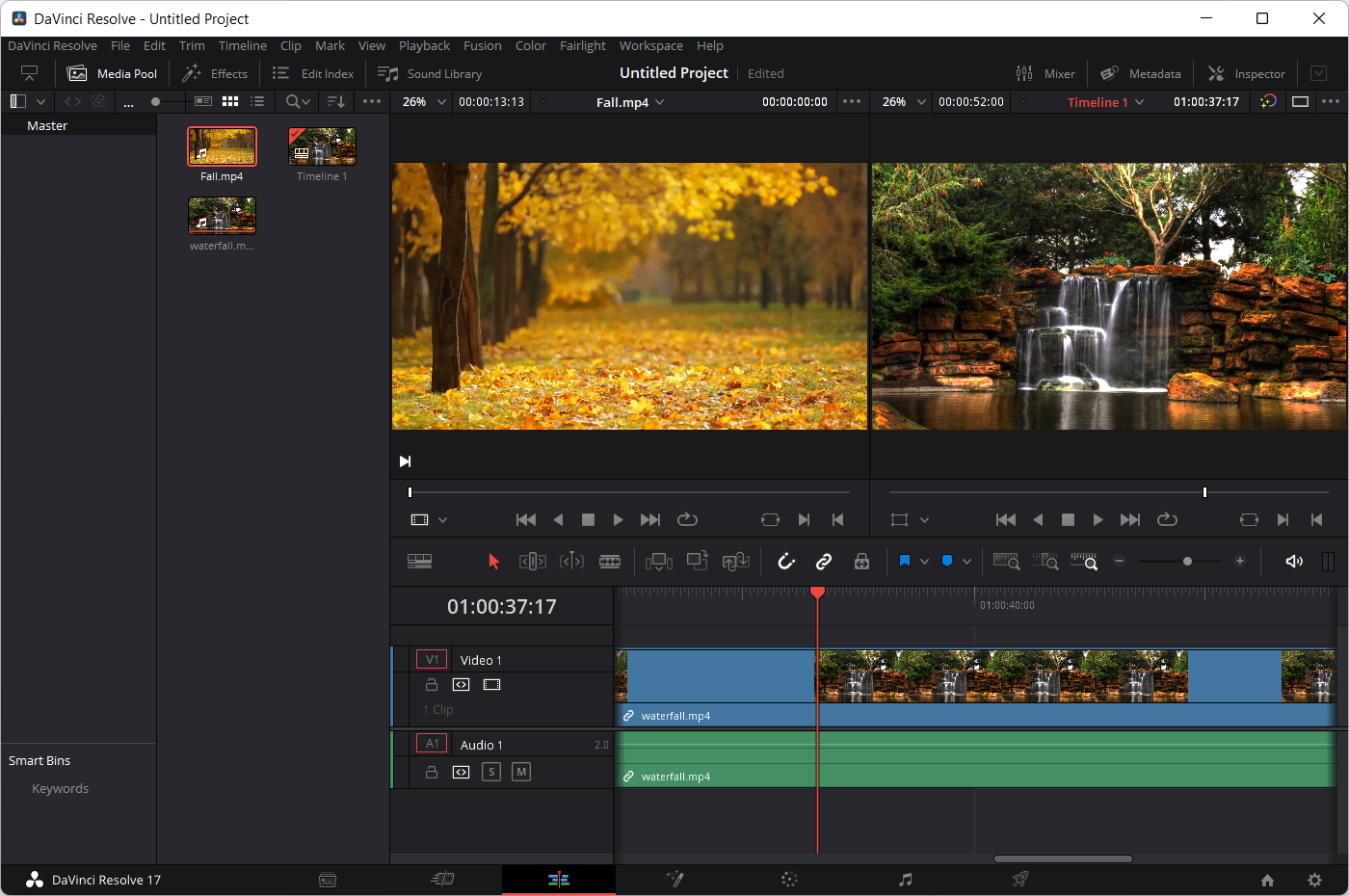
DaVinci Resolve is the industry standard for color grading and professional post-production. The free version is extraordinarily powerful — used by Hollywood studios and independent filmmakers alike. There’s no watermark, no time limit, and the feature set rivals paid software costing hundreds of dollars per year.
Key Features
- Industry-Leading Color Grading: The Color page offers node-based grading with HDR support, scopes, and LUT management that professionals trust for broadcast-quality output.
- Fairlight Audio Studio: A fully integrated professional audio workstation within the same app — EQ, compression, noise reduction, and spatial audio mixing.
- Fusion Visual Effects: A node-based compositor for motion graphics, VFX, and compositing — directly inside your editing timeline.
- Multi-Camera Editing: Sync and cut between multiple camera angles with automatic audio sync.
- Collaborative Editing: Multiple editors can work on the same project simultaneously (requires DaVinci Resolve Server setup).
Real-World Use Cases
- Documentary Post-Production: An independent filmmaker grading a 90-minute documentary uses DaVinci’s color wheels and curves to match shots across different cameras and lighting conditions.
- YouTube Channel Production: A tech reviewer uses DaVinci Resolve to edit weekly videos, applying custom LUTs for a consistent visual brand identity.
- Corporate Video Production: A marketing agency delivers broadcast-ready commercial spots using Fairlight for audio mastering and the Cut page for fast, deadline-driven turnarounds.
Pros & Cons
| ✅ Pros | ❌ Cons |
| Unmatched color grading tools | Very steep learning curve for beginners |
| No watermark, no time-limited exports | Requires a powerful computer (GPU recommended) |
| Professional audio editing built-in | Overkill for simple tutorial or eLearning videos |
| Regular updates with new features | Collaboration features require paid Studio version |
| Trusted by Hollywood professionals | Large installation size |
💡 Pro Tip: Use DaVinci’s “Proxy Workflow” when editing 4K footage on a mid-range laptop. Generate proxy files at ¼ resolution for smooth editing, then switch back to full resolution only at export — this alone can save hours of frustration.
3. CapCut (Desktop) — Best Free Video Editor for Social Media Creators
Platform: Windows, macOS, iOS, Android, Web
Learning Curve: Very Easy
Best For: Social media creators, marketers, beginners, short-form content
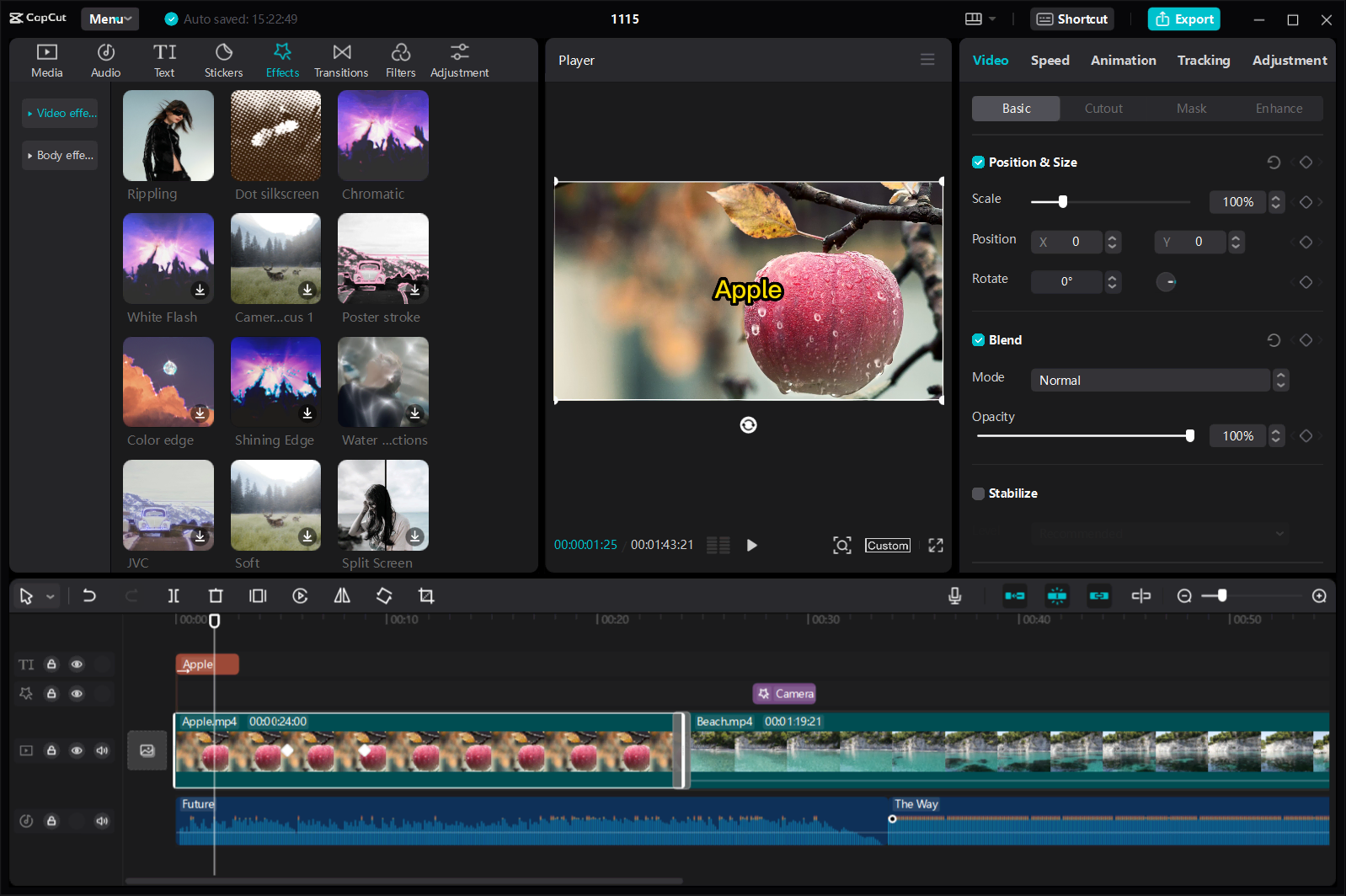
CapCut has become the go-to tool for creators who need fast, polished results without a steep learning curve. Its AI-powered features — auto-captions, background removal, text-to-video — make it genuinely useful for modern content workflows. The desktop version exports without a watermark on the free tier.
Key Features
- AI Auto-Captions: Transcribes your video audio and generates styled captions in seconds — a huge time-saver for accessibility and engagement.
- AI Background Removal: Remove or replace video backgrounds without a green screen.
- Trending Effects & Transitions: A constantly updated library of social-media-native effects synchronized with platform trends.
- Direct Social Media Export: One-click export optimized for TikTok, Instagram Reels, and YouTube Shorts aspect ratios.
- Background Music Library: Royalty-free music and sound effects included in the app.
Real-World Use Cases
- Social Media Marketing: A small business owner creates weekly Instagram Reels promoting products using CapCut’s templates and auto-caption feature — no video editing experience required.
- Online Course Promotion: An e-learning creator repurposes longer tutorial videos into short-form clips with AI trimming and trending captions to drive course enrollment.
- Event Recap Videos: A corporate events team quickly assembles highlight reels from conference footage using CapCut’s auto-edit feature, delivering same-day social content.
Pros & Cons
| ✅ Pros | ❌ Cons |
| Extremely easy to learn | Limited for long-form or complex projects |
| Strong AI automation features | Less suitable for professional color grading |
| No watermark on desktop exports | Some AI features require internet connection |
| Cross-platform (desktop + mobile + web) | Privacy considerations with cloud-based AI processing |
| Regular trend-aligned updates | Not suitable for eLearning/SCORM output |
💡 Pro Tip: CapCut’s “Auto Reframe” feature intelligently crops landscape video for vertical formats — saving you from manually re-editing content for different platforms. Batch process multiple clips in one go.
4. Kdenlive — Best Free Open-Source Video Editor for Linux & Power Users
Platform: Windows, macOS, Linux
Learning Curve: Moderate
Best For: Open-source advocates, Linux users, intermediate editors who want full control
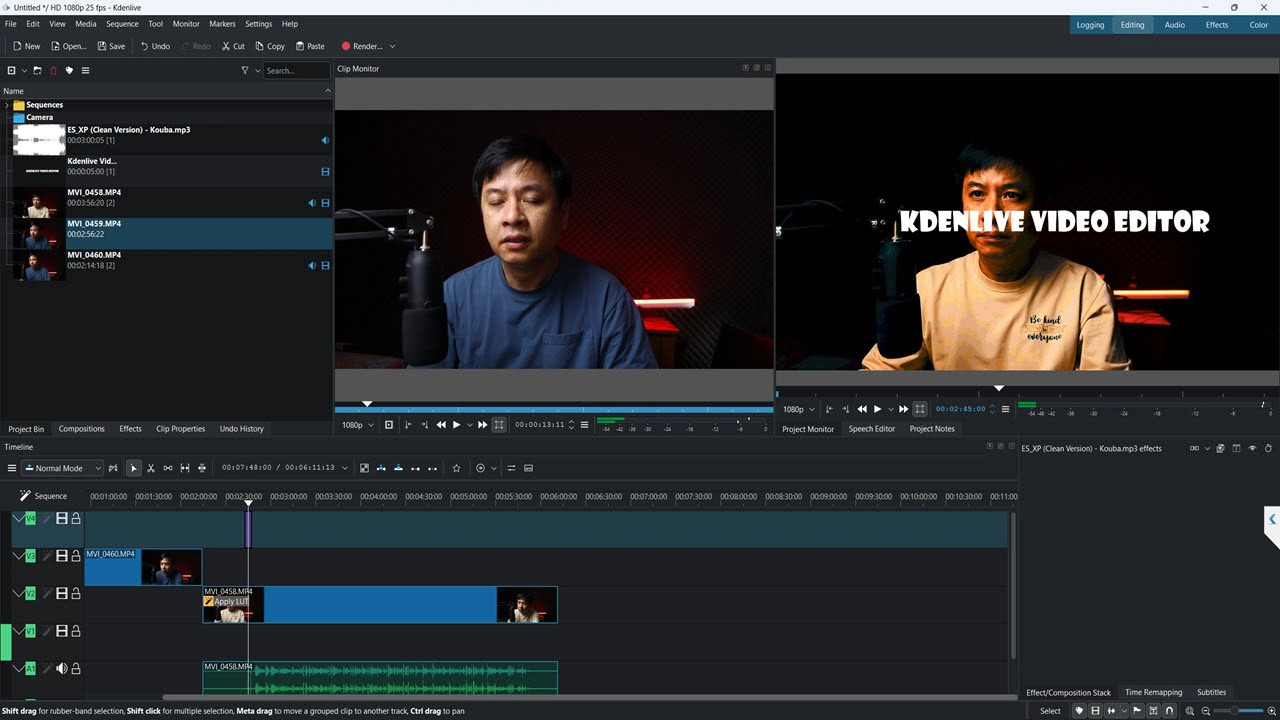
Kdenlive is the most capable open-source video editor available today. It’s completely free, has no watermark, and offers a surprisingly deep feature set for a community-driven project. It’s particularly popular among Linux users who have fewer commercial options.
Key Features
- Multi-Track Timeline Editing: Full non-linear editing with unlimited video and audio tracks.
- Extensive Format Support: Handles virtually any codec or container thanks to FFmpeg integration — including formats that commercial editors often reject.
- Hardware Acceleration: GPU-accelerated rendering on supported systems significantly speeds up export times.
- Keyframe Animation: Animate effects, positions, and opacity over time with precise keyframe control.
- Plugin Architecture: Extend functionality with MLT framework effects and filters.
Real-World Use Cases
- Open-Source Educator: A university professor running a Linux-based classroom uses Kdenlive to edit lecture recordings and tutorial videos without any licensing costs or restrictions.
- Indie Game Developer: A solo game developer creates gameplay trailers and devlog videos using Kdenlive’s chroma key and motion tracking features.
- Non-Profit Video Production: A non-profit organization produces advocacy videos and documentaries using Kdenlive on a zero-budget, keeping all production costs internal.
Pros & Cons
| ✅ Pros | ❌ Cons |
| Completely free and open-source | Interface can feel less polished than commercial tools |
| No watermark | Occasional stability issues on Windows |
| Excellent format compatibility | Steeper initial setup compared to CapCut |
| Active development community | Limited built-in asset library (music, effects) |
| Hardware acceleration support | Less intuitive for absolute beginners |
💡 Pro Tip: Enable “Proxy Clips” in Kdenlive’s project settings before importing footage. This creates lightweight preview files that make the timeline responsive even on modest hardware — a lifesaver for long-form editing projects.
5. Shotcut — Best Free Video Editor for Beginners on Windows
Platform: Windows, macOS, Linux
Learning Curve: Moderate
Best For: Beginners, Windows users, educators looking for a simple free editor
Shotcut is a reliable, no-nonsense free video editor that has been around long enough to have a mature, stable codebase. It handles a wide range of formats natively, requires no installation of additional codecs, and exports clean video without any watermark.
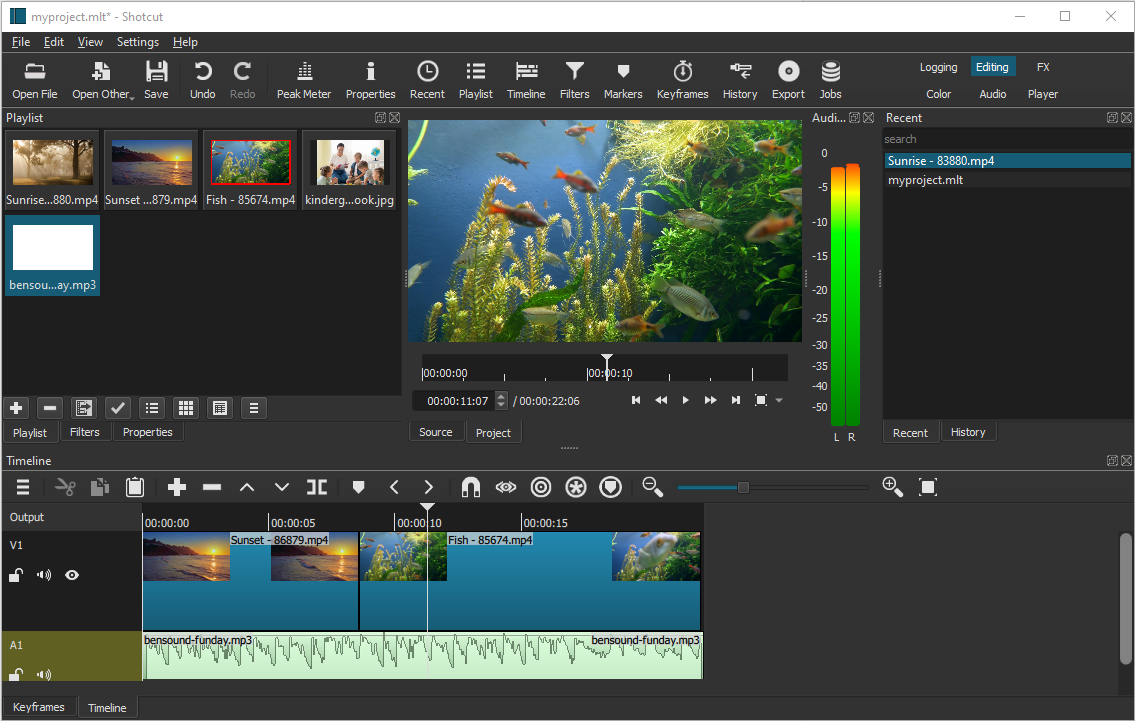
Key Features
- Native Format Support: Opens virtually any video format without needing external codecs — a common frustration with other free editors.
- Chroma Key (Green Screen): Remove backgrounds with the built-in chroma key filter.
- Color Correction Tools: Basic color grading with curves, white balance, and hue/saturation controls.
- Audio Filters: Normalize, equalize, and reduce noise from audio tracks directly in the timeline.
- Portable Version Available: Run Shotcut from a USB drive without installation — useful in managed IT environments.
Real-World Use Cases
- Teacher-Created Content: A high school teacher uses Shotcut to edit classroom video recordings and create supplementary tutorial videos for students, all on a standard school-issued laptop.
- Podcast Video Production: A podcaster records their show and uses Shotcut to add intro/outro sequences, lower-thirds with guest names, and export to YouTube.
- Small Business Explainer Videos: A local business owner creates simple product explainer videos using Shotcut’s text overlays and basic transitions — no design background required.
Pros & Cons
| ✅ Pros | ❌ Cons |
| No watermark | Interface can feel dated compared to newer tools |
| Wide native format support | Less intuitive than CapCut for beginners |
| Portable/no-install version available | Limited effects library |
| Stable and mature codebase | No built-in screen recording |
| Lightweight on system resources | Fewer AI-powered automation features |
💡 Pro Tip: Shotcut’s “Export” presets include platform-specific profiles (YouTube, Vimeo, mobile). Always start from a preset rather than custom settings — it prevents common encoding mistakes that result in blurry or oversized files.
Quick Comparison Table
| Feature | ActivePresenter | DaVinci Resolve | CapCut | Kdenlive | Shotcut |
| Platform | Win, Mac | Win, Mac, Linux | Win, Mac, iOS, Android, Web | Win, Mac, Linux | Win, Mac, Linux |
| Watermark (Free) | ❌ None | ❌ None | ❌ None | ❌ None | ❌ None |
| Screen Recording | ✅ Yes | ❌ No | ❌ No | ❌ No | ✅ Yes |
| eLearning Export (SCORM) | ✅ Yes | ❌ No | ❌ No | ❌ No | ❌ No |
| Color Grading | Basic | ⭐ Professional | Basic | Basic | Basic |
| AI Features | Text-to-Speech | Limited | ⭐ Extensive | ❌ No | ❌ No |
| Learning Curve | Moderate | Steep | Very Easy | Moderate | Moderate |
| Best For | eLearning, Training | Pro Video/Film | Social Media | Linux/Open-Source | Beginners/Windows |
| Pricing (Paid) | $199 Standard / $399 Pro | $295 Studio | $9.99/mo Pro | Free | $29.99/yr Pro |
Which Free Video Editor Should You Choose?
The “best” editor depends entirely on your use case. Here’s a decision guide:
- Creating eLearning courses or software training videos? → ActivePresenter is your answer. Nothing else on this list exports SCORM, handles interactive simulations, and records the screen — all for free.
- Editing cinematic footage or professional commercial video? → DaVinci Resolve is the industry standard. Invest time in learning it; the payoff is enormous.
- Making short-form content for TikTok, Reels, or YouTube Shorts? → CapCut gets you from raw footage to published content faster than any other tool here.
- Running Linux or committed to open-source? → Kdenlive is the most capable open-source option available.
- Just starting out and need something simple on Windows? → Shotcut is stable, free, and gets the job done without overwhelming you.
Final Thoughts
In 2026, there’s genuinely no reason to pay for a watermarked video export. Every tool on this list offers a clean, professional output at zero cost — the differences lie in what kind of video you’re making and how deep you need to go.
For content creators in the e-learning and training space, ActivePresenter stands out as the most complete free solution — combining screen capture, interactive authoring, and video editing into a single workflow that no other free tool can match.
For pure video production professionals, DaVinci Resolve remains unbeatable.
The best advice? Download two or three of these tools and spend 30 minutes with each. You’ll know within the first session which one fits your brain and your workflow.
🚀 Ready to Start Creating?
Download ActivePresenter for free and experience the only tool that combines screen recording, video editing, and eLearning authoring — with no watermark, no time limit, and no credit card required.
Have questions or want to share which tool works best for your workflow? Drop a comment below or join theAtomi Systems community forum — we’re always happy to help.
Last updated: March 2026 | Tested on Windows 11 and macOS Sequoia