
Finding a genuinely free video editor that doesn’t stamp a watermark on your exports feels like searching for a unicorn — until you stumble across Shotcut. But in 2026, with AI-powered editors and increasingly polished free tools flooding the market, is this veteran open-source editor still worth your time? After spending over 10 years reviewing content creation software, I put Shotcut through a thorough, real-world test. Here’s my honest breakdown.
What Is Shotcut? A Quick Overview
Shotcut is a free, open-source, cross-platform video editor that has been around since 2011. It runs on Windows, macOS, and Linux, and — critically for many creators — it exports your finished videos with absolutely no watermark, no time limit, and no hidden paywalls.
Unlike many “free” editors that gate essential features behind a subscription, Shotcut gives you the full toolset from day one. It supports a wide range of native formats (MP4, MOV, MKV, AVI, and hundreds more via FFmpeg), making it one of the most format-flexible editors available at any price point.
At a glance:
| Detail | Info |
| Price | 100% Free (Open Source) |
| Platforms | Windows, macOS, Linux |
| Watermark | ❌ None |
| Best For | Beginners, Windows users, simple editing projects |
| Learning Curve | Moderate |
Who Is Shotcut Best For?
Before diving into features, let’s set expectations. Shotcut is not trying to be DaVinci Resolve. It’s not gunning for CapCut’s social media crown. And it certainly doesn’t compete with specialized tools like ActivePresenter in the eLearning space.

Shotcut is built for:
- Beginners who need a straightforward, no-cost entry point into video editing
- Windows users looking for a stable, lightweight editor that won’t tax their hardware
- Budget-conscious creators — think small business owners, students, hobbyist YouTubers
- Linux enthusiasts who want a reliable editor outside the Adobe/Apple ecosystem
If that sounds like you, keep reading. If you need interactive eLearning authoring, screen recording, or SCORM export, I’ll point you to a better option later in this review.
Key Features of Shotcut in 2026
Wide Native Format Support
This is where Shotcut genuinely shines. Thanks to its FFmpeg backbone, it handles virtually every video, audio, and image format you throw at it — no codec packs, no conversion steps. In my testing, I imported 4K MP4, ProRes MOV, and even legacy AVI files without a single hiccup.
Non-Destructive, Multi-Track Timeline Editing
Shotcut offers a proper multi-track timeline with non-destructive editing. You can layer video and audio tracks, trim clips, apply transitions, and rearrange your project without permanently altering your source files.
For basic to intermediate projects — think YouTube tutorials, product explainers, podcast video edits — this is more than sufficient.
Built-In Filters & Effects
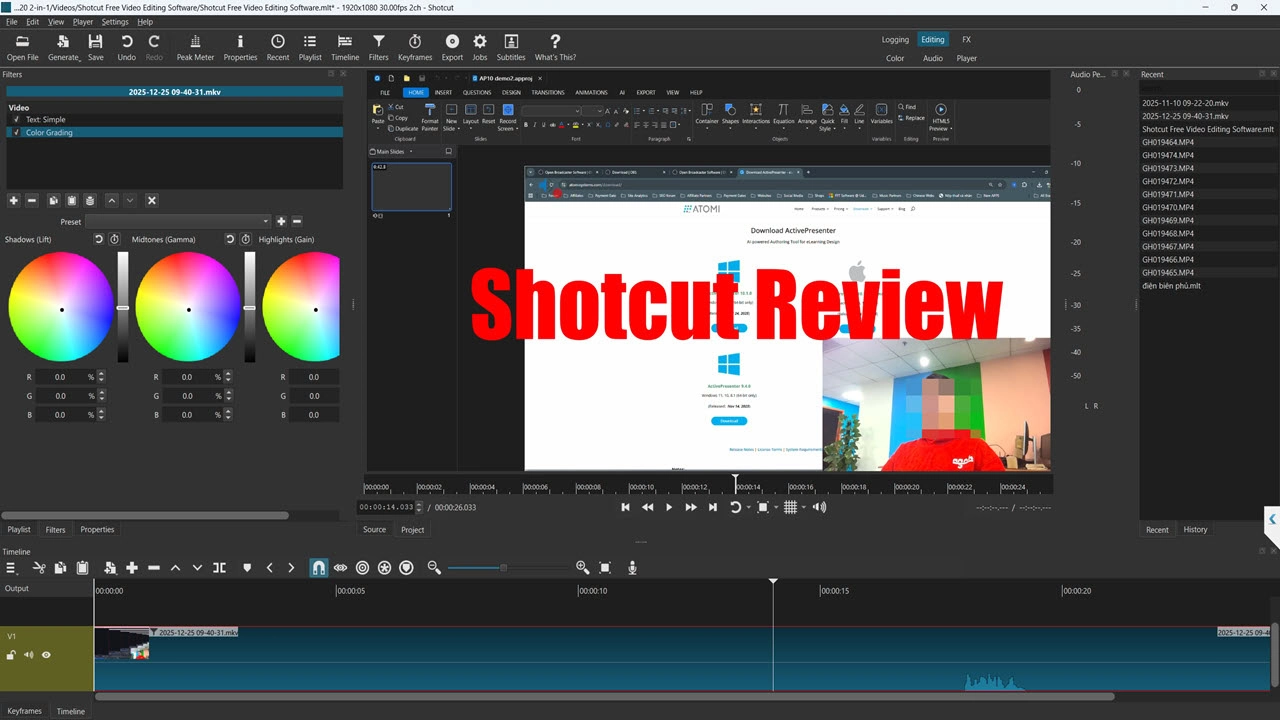
Shotcut ships with a solid library of video and audio filters:
- Color correction (white balance, color grading basics, LUT support)
- Text overlays and title cards
- Chroma key (green screen removal)
- Audio normalization, compression, and EQ
- Blur, sharpen, stabilize — the essentials are all here
Are these Hollywood-grade? No. But for a free tool, the filter library covers 80% of what most creators need.
Platform-Specific Export Presets
One underrated Shotcut feature: it includes export presets optimized for YouTube, Vimeo, and mobile devices. This is a small but significant quality-of-life detail.
💡 Pro Tip: Always start from one of Shotcut’s built-in export presets rather than configuring custom settings from scratch. In my experience, this single habit prevents the most common encoding mistakes — blurry output, oversized files, or audio sync issues that waste hours of troubleshooting.
Portable Version Available
Shotcut offers a portable/no-install version for Windows. You can run it from a USB drive, which is surprisingly useful for students working on shared computers or IT professionals who can’t install software on managed machines.
3 Real-World Use Cases for Shotcut
After years of reviewing video editors, I’ve learned that features on a spec sheet mean nothing without context. Here’s how real people are actually using Shotcut in 2026:
1. Student Video Projects on Limited Hardware
A college student creating a video essay for a media studies class doesn’t need DaVinci Resolve’s node-based color grading. They need an editor that runs on a standard school-issued laptop, handles basic cuts and transitions, and exports a clean MP4 they can submit — without a watermark plastered across their work.
Shotcut fits this scenario perfectly. It’s lightweight, free, and gets the job done.
2. Podcast Video Production
Podcasters who want to publish video versions of their episodes can use Shotcut to:
- Sync their audio recording with a webcam capture
- Add intro/outro sequences
- Insert lower-thirds with guest names
- Export directly to YouTube-optimized MP4
It’s not flashy, but it’s functional — and the price is unbeatable.
3. Small Business Explainer Videos
A local business owner creating simple product walkthrough videos doesn’t need motion graphics or AI-powered editing. Shotcut’s text overlays, basic transitions, and straightforward export workflow let them produce clean, professional-looking content without a design background or a software subscription.
Shotcut Pros & Cons — An Honest Assessment
After extensive testing, here’s my balanced evaluation:
✅ Pros
| Advantage | Why It Matters |
| No watermark — ever | Your exports are clean and professional, even on the free version |
| Wide native format support | Import almost any file without conversion headaches |
| Cross-platform (Win/Mac/Linux) | One editor, any operating system |
| Portable version available | Run from USB — great for shared/managed computers |
| Lightweight on system resources | Runs smoothly on older or budget hardware |
| Stable, mature codebase | 13+ years of development means fewer crashes and bugs |
| No account required | Download and start editing — no sign-up, no cloud dependency |
❌ Cons
| Limitation | What You Should Know |
| Interface feels dated | The UI hasn’t kept pace with modern editors like CapCut or DaVinci Resolve |
| Less intuitive for absolute beginners | The learning curve is moderate; expect to spend time with documentation |
| Limited effects library | Fewer built-in transitions and effects compared to commercial tools |
| No built-in screen recording | You’ll need a separate tool for capturing your screen |
| No AI-powered features | No auto-captions, no AI editing assistance, no smart tools |
| No eLearning export (SCORM/xAPI) | Cannot create interactive training content or LMS-ready packages |
| Fewer social media–optimized templates | No TikTok/Reels templates or vertical video presets |
Evaluation Criteria: How I Scored Shotcut
To keep this review objective, I evaluated Shotcut against 7 criteria that matter most to creators choosing a free video editor in 2026:
| Criteria | Score (out of 10) | Notes |
| Ease of Use | 6/10 | Functional but not intuitive; dated UI |
| Feature Depth | 6/10 | Covers basics well; lacks advanced tools |
| Export Quality | 8/10 | Clean output, good presets, no watermark |
| Performance | 8/10 | Lightweight; runs well on modest hardware |
| Format Support | 9/10 | Best-in-class for a free editor |
| Screen Recording | 0/10 | Not available |
| eLearning Capabilities | 0/10 | Not applicable |
Overall Score: 6.5/10 — A solid, reliable free editor for basic video projects, but it shows its age in 2026’s increasingly competitive landscape.
Where Shotcut Falls Short — And What to Use Instead
Here’s where I have to be direct, because this is the part most reviews skip.
Shotcut is a general-purpose video editor. It does basic editing well and charges nothing for it. But if your work involves any of the following, you’ll hit a wall:
❌ Need Screen Recording?
Shotcut can’t record your screen. Period. If you’re creating software tutorials, IT walkthroughs, or any content that starts with a screen capture, you need a different tool.
❌ Need Interactive eLearning Content?
If you’re an instructional designer, corporate trainer, or educator who needs to build quizzes, branching scenarios, click simulations, or export to SCORM/xAPI for LMS deployment — Shotcut simply doesn’t operate in that space.
❌ Need Screen Recording + Video Editing + eLearning in One Workflow?
This is where ActivePresenter becomes the obvious recommendation — and I say this not as a sales pitch, but as someone who has tested dozens of tools in this category.
ActivePresenter combines:
- Screen recording (screen, webcam, and system audio simultaneously)
- Non-destructive video editing on a full timeline
- Interactive eLearning authoring (quizzes, simulations, drag-and-drop)
- Text-to-speech and closed captions
- Export to MP4, HTML5, SCORM 1.2, SCORM 2004, and xAPI
And here’s the kicker: ActivePresenter’s free version also has no watermark.
💡 Pro Tip from 10 Years in the Field: If you’re building software training content, use ActivePresenter’s Smart Capture mode. It automatically detects mouse clicks and keystrokes during recording, creating interactive simulation layers that you can later convert into scored assessments — without any manual annotation. This single feature has saved me countless hours on corporate training projects.
Shotcut vs. ActivePresenter: Quick Comparison
| Feature | Shotcut | ActivePresenter |
| Price | Free | Free (Paid: $249 Standard / $499 Pro) |
| Watermark | ❌ None | ❌ None |
| Platform | Win, Mac, Linux | Win, Mac |
| Screen Recording | ❌ No | ✅ Yes |
| Video Editing | ✅ Yes | ✅ Yes |
| eLearning Export (SCORM/xAPI) | ❌ No | ✅ Yes |
| Interactive Quizzes | ❌ No | ✅ Yes |
| AI Text-to-Speech | ❌ No | ✅ Yes |
| Best For | Basic video editing | eLearning, training, software tutorials |
The bottom line: if you’re editing simple videos, Shotcut works. If your workflow involves teaching, training, or screen-based content, ActivePresenter does everything Shotcut does — and a whole lot more.
3 Power-User Tips for Getting the Most Out of Shotcut
If you do decide Shotcut is the right fit, here are tips that only come from extended use:
1. Use Proxy Editing for 4K Footage
Shotcut supports proxy editing — create lower-resolution copies of your clips for smooth timeline playback, then export from the original high-res files. This is essential if you’re working on older hardware.
2. Master the Keyboard Shortcuts
Shotcut’s interface isn’t the most intuitive, but keyboard shortcuts dramatically speed up your workflow:
- I / O — Set in/out points
- V — Insert clip at playhead
- B — Overwrite clip at playhead
- Ctrl+Shift+X — Ripple delete (removes clip and closes the gap)
3. Always Preview Your Export Settings
Before committing to a full project export, render a 30-60 second test clip first. Shotcut’s encoding can behave differently depending on your source footage and chosen preset. A quick test export catches resolution, bitrate, or audio sync issues before you waste 20 minutes on a full render.
Final Verdict: Should You Use Shotcut in 2026?
Shotcut remains a legitimate, capable free video editor with no watermark — and that alone keeps it relevant. For students, hobbyists, and budget-conscious creators who need straightforward cuts, transitions, and clean exports, it delivers.
But let’s be honest: the video editing landscape has evolved significantly, and Shotcut’s dated interface, lack of AI features, and absent screen recording capability make it harder to recommend as a primary tool in 2026 — especially when alternatives have raised the bar.
My recommendation:
- Use Shotcut if you need a simple, free, no-strings-attached video editor for basic projects — especially on Linux.
- Use ActivePresenter if your work involves screen recording, software tutorials, eLearning content, or any training-related video production. It gives you everything Shotcut offers plus an entire eLearning authoring suite — also free, also no watermark.
🚀 Ready to Level Up Your Video + eLearning Workflow?
If Shotcut’s limitations are holding you back — especially the lack of screen recording and interactive content tools — download ActivePresenter for free and experience the only tool that combines screen capture, video editing, and eLearning authoring in a single application.
No watermark. No time limit. No credit card required.

Have questions? Join the Atomi Systems community where thousands of educators, trainers, and content creators share tips, templates, and real-world workflows.
Last updated: April 2026. This review reflects hands-on testing of Shotcut’s latest stable release and ActivePresenter 9.x.