
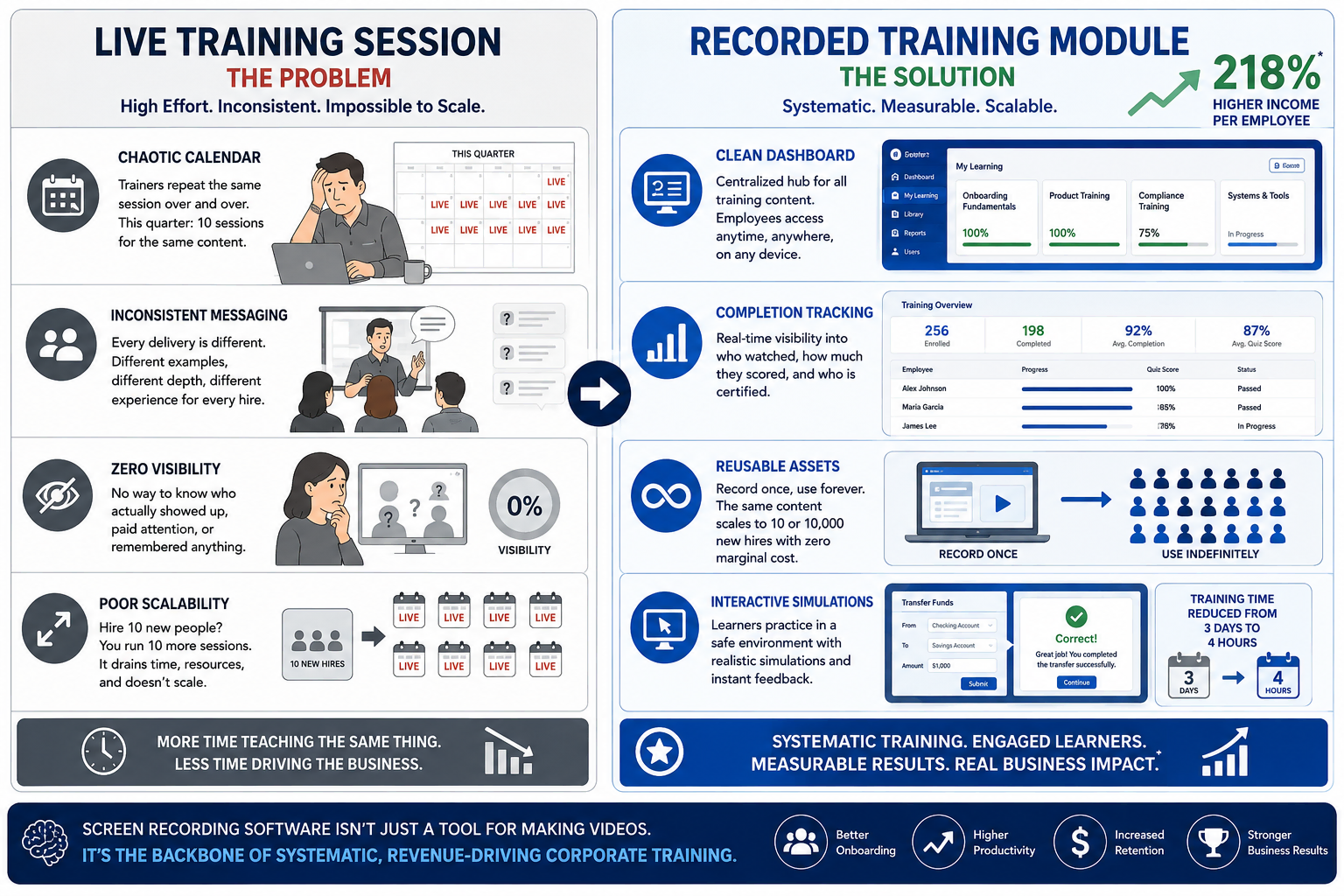
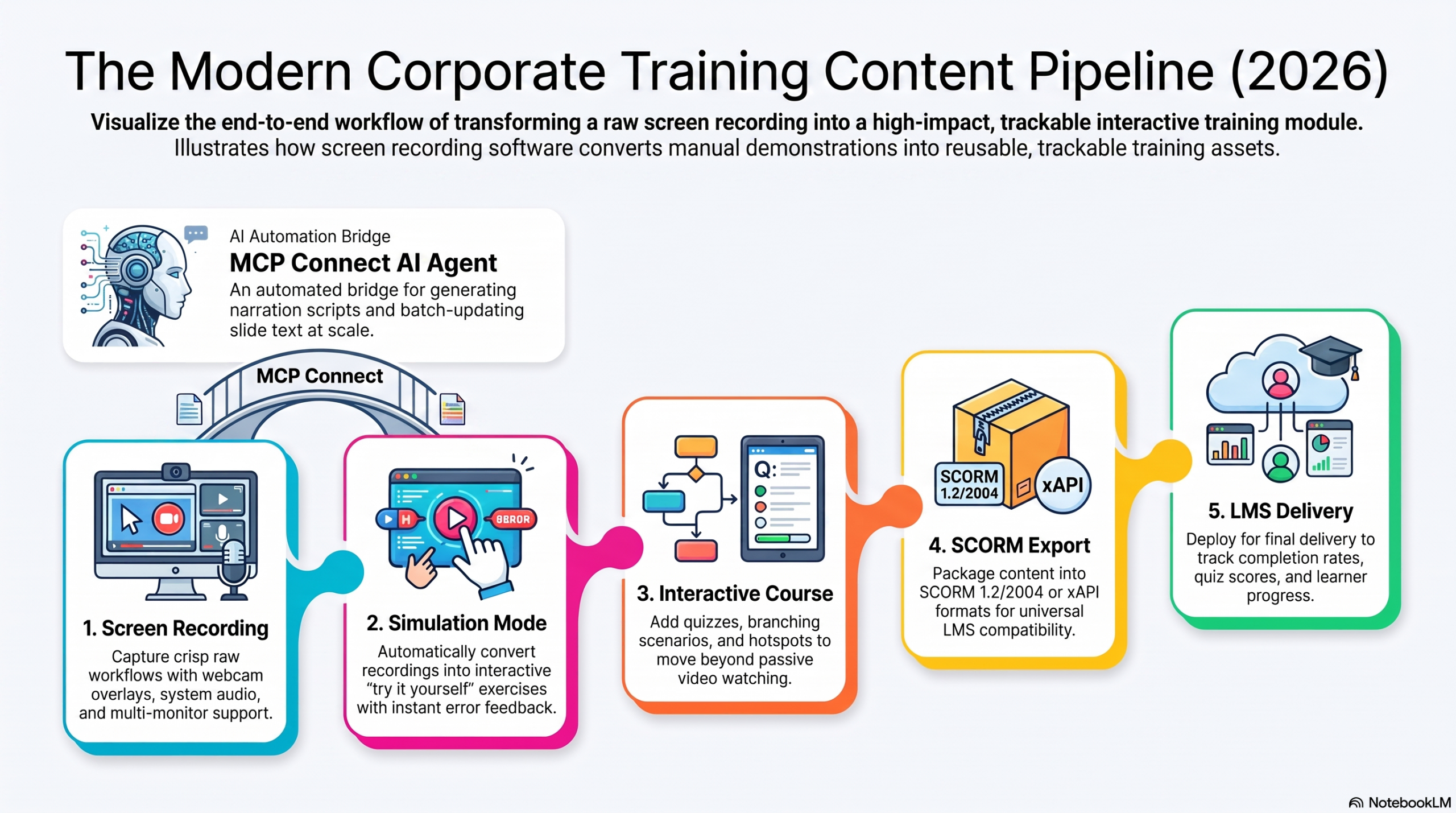
If you’ve ever tried to onboard 50 new hires using nothing but PowerPoint and a shared Zoom link, you already know the pain: inconsistent messaging, zero completion tracking, and a trainer who has to repeat the same session for the tenth time this quarter. Screen recording software fixes exactly this problem , turning a one-time live demo into a reusable, trackable training asset. This guide breaks down what to look for, which tools actually deliver in 2026, and how to pick the right one without wasting your L&D budget.
Why Screen Recording Software Is the Backbone of Corporate Training in 2026
The “let’s just wing it with Zoom” approach costs more than it looks like it does. Every live session you run instead of recording once is time you’re never getting back , and it scales terribly. Hire 10 people, and you’re running 10 more sessions. Meanwhile, you have almost no visibility into who actually absorbed the material.
According to the Association for Talent Development, companies with structured training programs generate 218% higher income per employee than those without one. That’s not a soft metric , that’s revenue tied directly to how systematically you train people.
The moment you record a process once and turn it into an interactive module, you’ve built an asset that scales indefinitely, no marginal cost per new hire.
7 Evaluation Criteria for Choosing Screen Recording Software
Before comparing tools by name, use this framework , it applies whether you’re evaluating a $0 free tier or a five-figure enterprise contract:
| Criterion | What to Look For |
| Recording Quality | Crisp screen capture, webcam overlay, system audio, and multi-monitor support |
| Simulation Mode | Can you turn a screen recording into an interactive “try it yourself” exercise? |
| Editing Flexibility | Non-destructive editing , can you revise without redoing the whole recording? |
| Interactivity | Quizzes, branching scenarios, hotspots, drag-and-drop |
| Export Options | HTML5, SCORM 1.2/2004, xAPI, MP4 , and does it match your LMS? |
| Pricing Model | Perpetual license vs. subscription; is there a genuinely usable free tier? |
| Automation Readiness | Can the tool connect to AI workflows for faster content production at scale? |
Best Screen Recording Software for Corporate Training, Reviewed
1. ActivePresenter
Best All-in-One Pick for SMEs
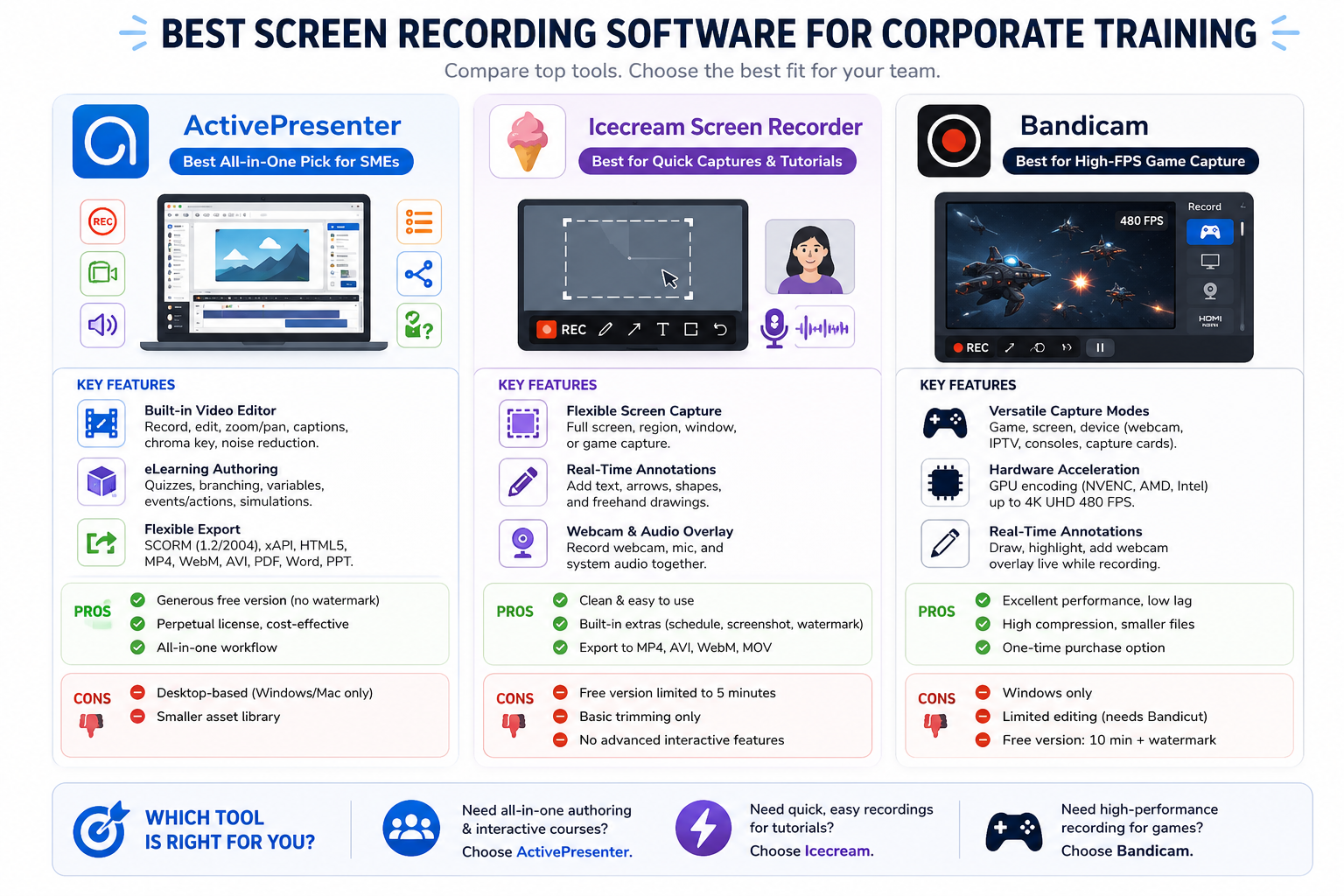
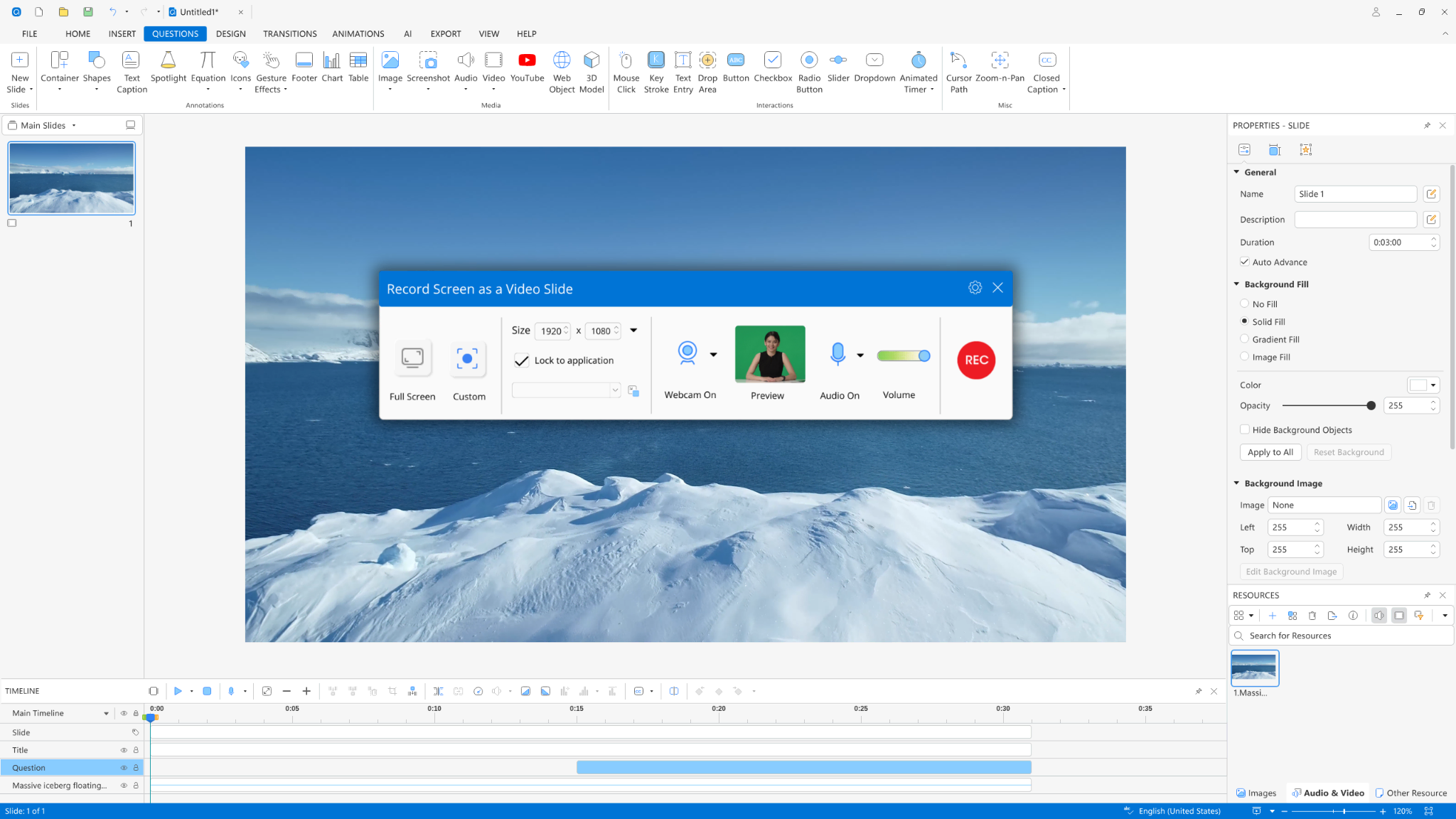
ActivePresenter combines free screen recording, advanced video editing, and full eLearning authoring into a single desktop application. It’s an ideal choice for teams that need high flexibility and complex interactive content without juggling multiple software subscriptions.
Key Features
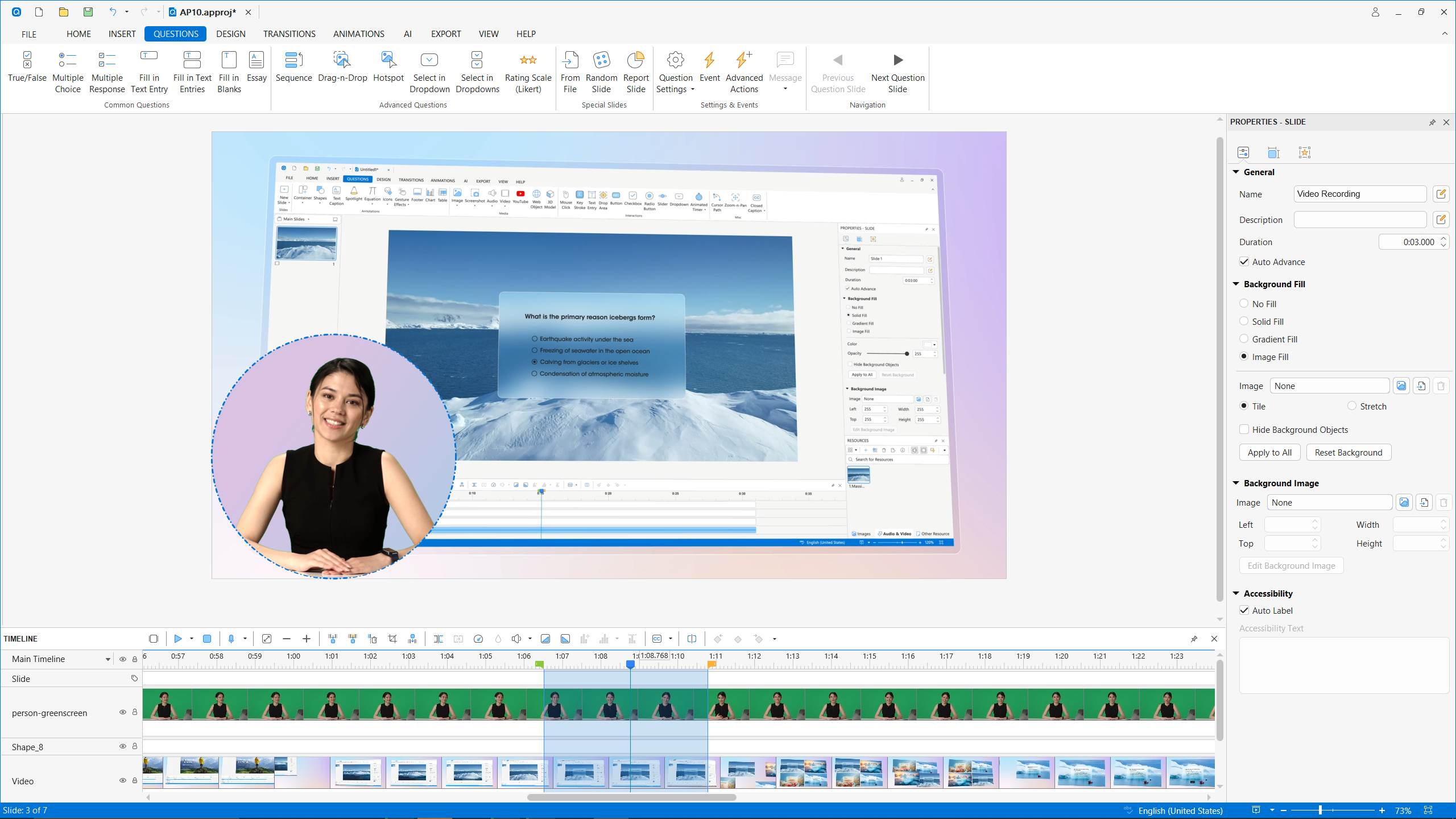
- Built-In Video Editor: Includes screen recording, multi-track timeline editing, audio noise reduction, dynamic zoom/pan, green screen (chroma key), and closed captions.
- Interactive eLearning Authoring: Features slide-based design, branching logic, variable tracking, events/actions, quizzes, and software simulation captures.
- Flexible Export Options: Supports SCORM (1.2 and 2004), xAPI, HTML5, video formats (MP4, WebM, AVI), and document formats (PDF, Word, PowerPoint).
Pros
- Genuinely Generous Free Version: The free edition has no time limit or watermarks on non-commercial exports, allowing thorough testing.
- Cost-Effective Pricing: Offers perpetual (one-time purchase) licenses instead of mandatory recurring subscriptions.
- All-in-One Workflow: Eliminates the need for separate screen capture, video editing, and instructional design tools.
Cons
- Desktop-Bound: Lacks a cloud-based web editor, requiring installation on local machines (Windows/Mac).
- Smaller Asset Library: Stock assets, templates, and pre-built elements are less extensive compared to cloud competitors.
2. Icecream Screen Recorder
Best for: Quick Screen Captures & Simple Video Tutorials
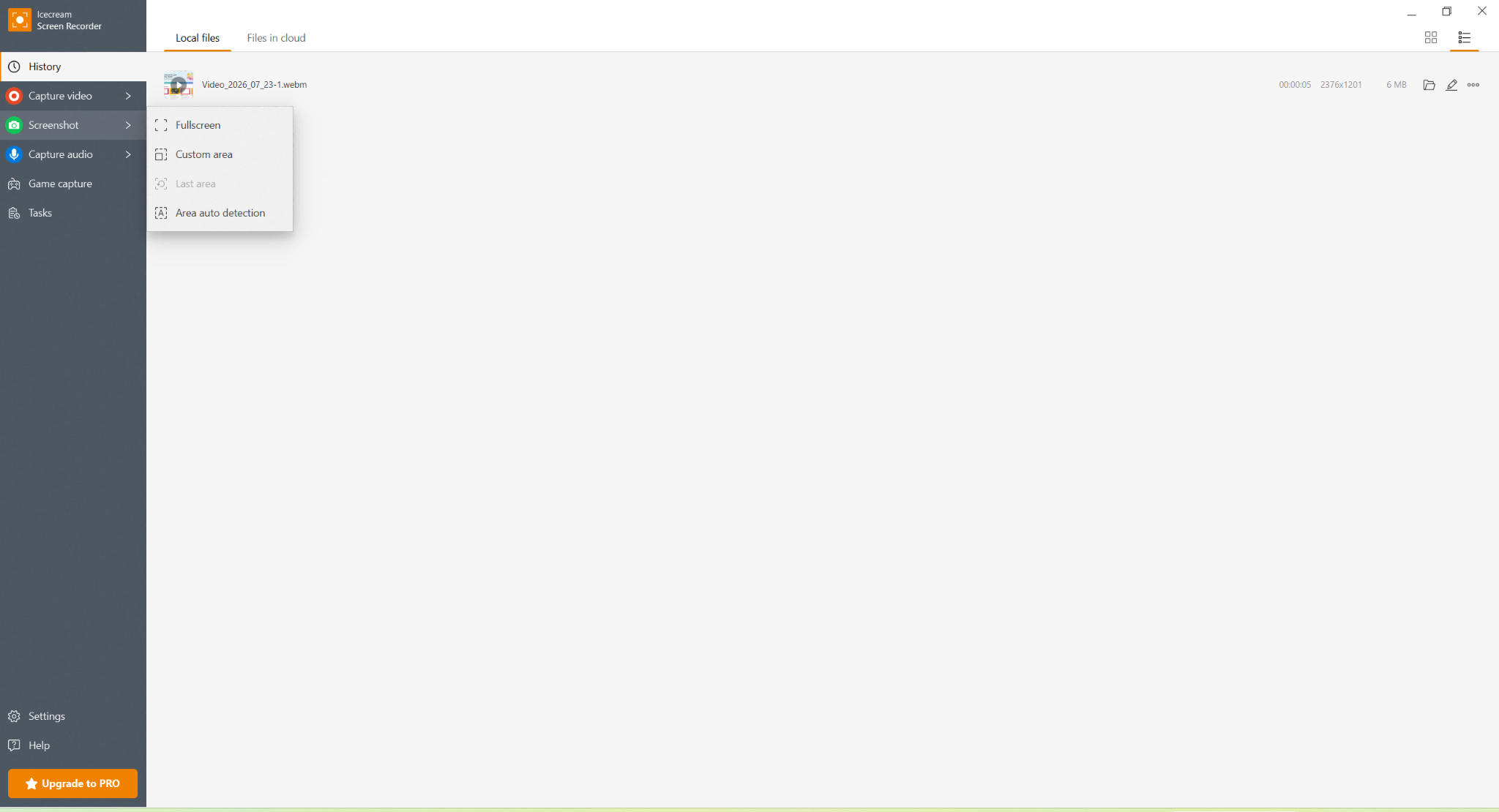
Icecream Screen Recorder has been around for years and is best known for its ease of use and lightweight performance. It is a good solution for users running older or lower-spec computers who simply need a fast, straightforward way to capture their screen without slowing down their system. However, the free version restricts recordings to under 5 minutes and offers virtually no video editing capabilities..
Key Features
- Flexible Screen Capture: Allows you to capture full-screen video, custom selected regions, active windows, or specific game screens with customizable output quality.
- Real-Time On-Screen Annotations: Enables you to add text, arrows, shapes, and freehand drawings directly onto the screen while recording.
- Webcam & Audio Overlay: Simultaneously captures system audio, microphone input, and a webcam feed for personalized picture-in-picture recordings.
Pros
- Clean & Easy to Use: Minimalist user interface that lets you start recording within seconds.
- Multi-Format Export Support: Allows exporting recordings in popular formats such as MP4, AVI, WebM, and MOV.
Cons
- Strict Limits on Free Version: The free version limits recording duration to 5 minutes and exports with a restricted feature set.
- Basic Internal Editing: Editing capabilities are restricted to simple trimming (cutting the start and end of videos); advanced timeline editing requires a separate video editor.
- No Advanced Interactive Features: Lacks advanced e-learning tools like embedded quizzes, interactive hotspots, or automated cursor smoothing.
3. Bandicam
Best for: High-FPS Game Capture & Lightweight Desktop Recording
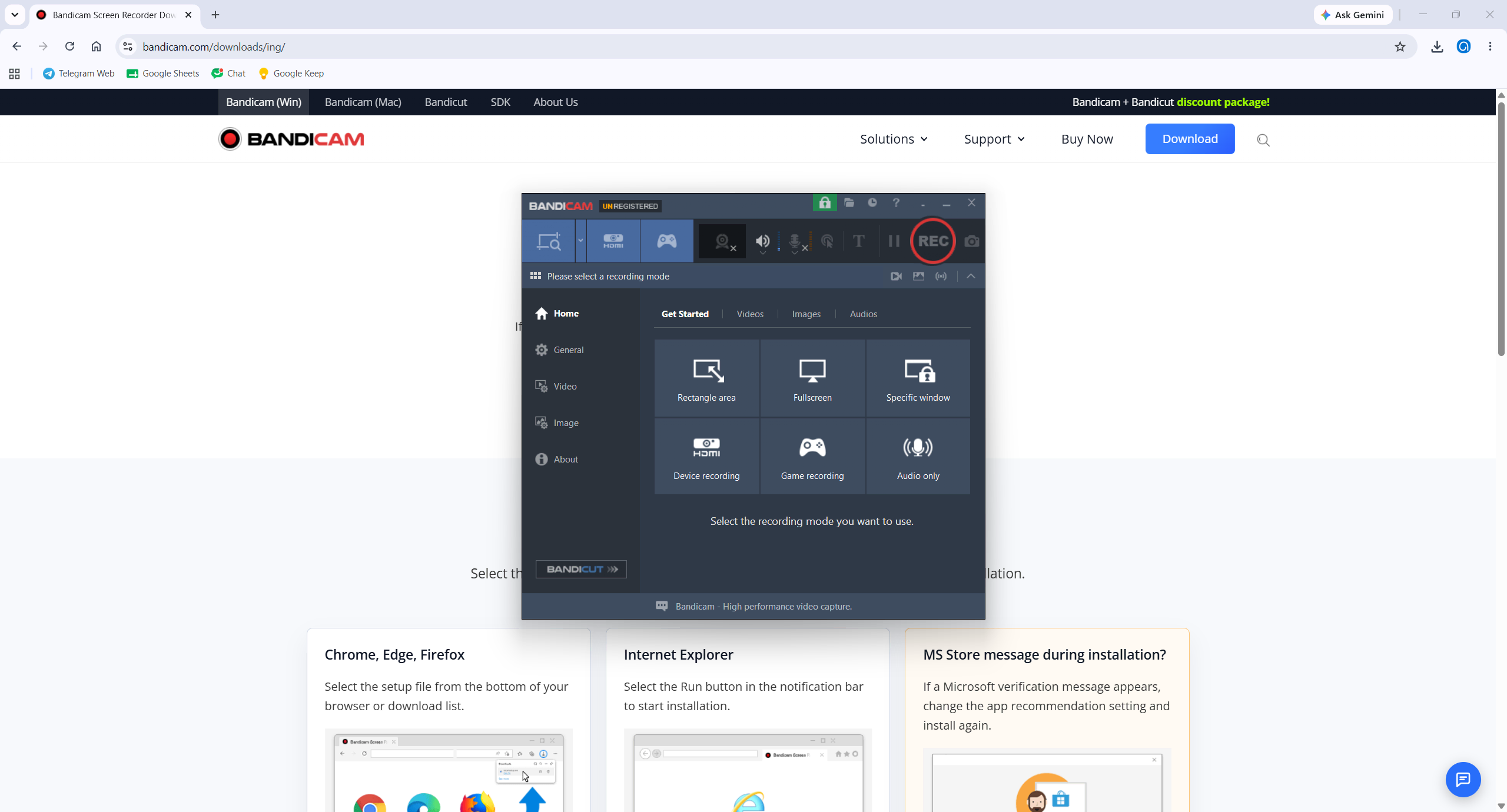
Bandicam is a high-performance screen recording tool engineered for capturing high-definition desktop activities. One thing to keep in mind is that it is limited strictly to Windows OS, leaving macOS and Linux users out. Additionally, unlike full-suite tools, Bandicam lacks comprehensive internal editing, requiring a separate purchase of Bandicut for advanced video edits, and its free trial imposes a strict 10-minute recording limit accompanied by a prominent watermark on all output files
Key Features
- Versatile Capture Modes: Supports dedicated Game Recording (using DirectX/OpenGL/Vulkan hardware acceleration), Screen Recording, and Device Recording (webcams, IPTV, Xbox/PlayStation, and capture cards).
- Hardware-Accelerated Compression: Utilizes GPU hardware acceleration (NVIDIA NVENC, AMD VCE/VCN, Intel QuickSync) to record high-bitrate, 4K UHD video up to 480 FPS with low CPU usage.
- Real-Time Annotations & Webcam Overlay: Enables live drawing, line/arrow insertion, highlighting, and webcam facecam integration directly while recording.
Pros
- Exceptional Performance & Efficiency: Highly optimized to record demanding 3D games without causing significant in-game frame rate drops or lag.
- Ultra-High Compression Ratios: Produces significantly smaller file sizes compared to traditional uncompressed screen capture software while maintaining high visual quality.
Cons
- Windows-Only Availability: Lacks native support for macOS and Linux operating systems.
- Limited Built-in Video Editing: Only offers basic recording capabilities; performing advanced trims or multi-track edits requires purchasing Bandicam’s separate video editor (Bandicut).
- Watermark & Time Limits on Free Version: The trial version restricts recordings to 10 minutes per video and adds a prominent watermark at the top of the output file.
ActivePresenter Deep Dive: The Features That Matter for Training Teams
High-Quality Screen Recording & Simulation Mode
Beyond standard screen capture, ActivePresenter’s Software Simulation mode automatically converts a recorded workflow into a clickable, step-by-step exercise , complete with instant feedback when a learner clicks the wrong element. This is the difference between watching a demo and actually practicing it.
Non-Destructive Video Editing
Stakeholders will always request “just one more change” after a review round. Non-destructive editing means you can adjust captions, trim clips, or swap slides without re-recording from scratch , a genuine time-saver during iterative course development.
Advanced eLearning Authoring & Interactivity
Branching scenarios, drag-and-drop questions, hotspot interactions, fill-in-the-blank, and conditional logic let you build assessment-rich courses rather than passive video-watching experiences.
SCORM/xAPI Export & LMS Integration
Whatever LMS you’re running, Moodle, TalentLMS, Cornerstone, or an internal system , SCORM 1.2, SCORM 2004, and xAPI export means your completion data, quiz scores, and time-on-module actually flow back into your reporting.
👉 Curious what this looks like on your own workflow? The free edition has no time limit, so you can build a real pilot module before spending a dollar , download ActivePresenter free and test it against your actual training content.
AI Agent Connectivity via MCP Connect
One of the more forward-looking capabilities worth watching is MCP Connect , a bridge that lets AI agents interact directly with your ActivePresenter projects. For training teams producing high volumes of content, this opens the door to automating repetitive tasks (like generating first-draft narration scripts or batch-updating slide text) without leaving your authoring environment. It’s still an emerging piece of the workflow, but for teams thinking about scale in 2026 and beyond, it’s a meaningful differentiator.
Pros & Cons , An Honest Look
✅ Pros
- All-in-one platform: recording, editing, and eLearning authoring without juggling three tools
- Genuinely unlimited free edition , not a 14-day trial
- Perpetual licensing available (no forced subscription)
- Comprehensive export suite: HTML5, SCORM, xAPI, MP4, WebM, PDF, Word, PowerPoint
- Non-destructive editing for painless revisions
⚠️ Cons
- Advanced features like variables and conditional logic have a learning curve
- Smaller template ecosystem
Final Verdict
After weighing these platforms against the real constraints most SMEs face, limited budget, small teams, mixed technical skill levels, and the need to scale without scaling cost , ActivePresenter consistently comes out as the strongest fit for corporate training in 2026. It’s not the flashiest name in the room, but it covers the entire workflow, from recording to LMS-ready output, without locking you into a subscription you didn’t ask for.
Ready to see it for yourself? Download the free edition, no time limit, no credit card, and build your first training module this week. If you get stuck or want to compare notes with other L&D teams doing the same thing, join the Atomi Systems community forum, where our support team and other users are actively sharing real workflows.
