
Have you just installed ActivePresenter – a powerful eLearning authoring tool, and are ready to create your very first project? In this tutorial, we’ll explore the different ways you can create a blank project in ActivePresenter 10 to get started quickly and confidently.
Create a Blank Project
From the Start Page
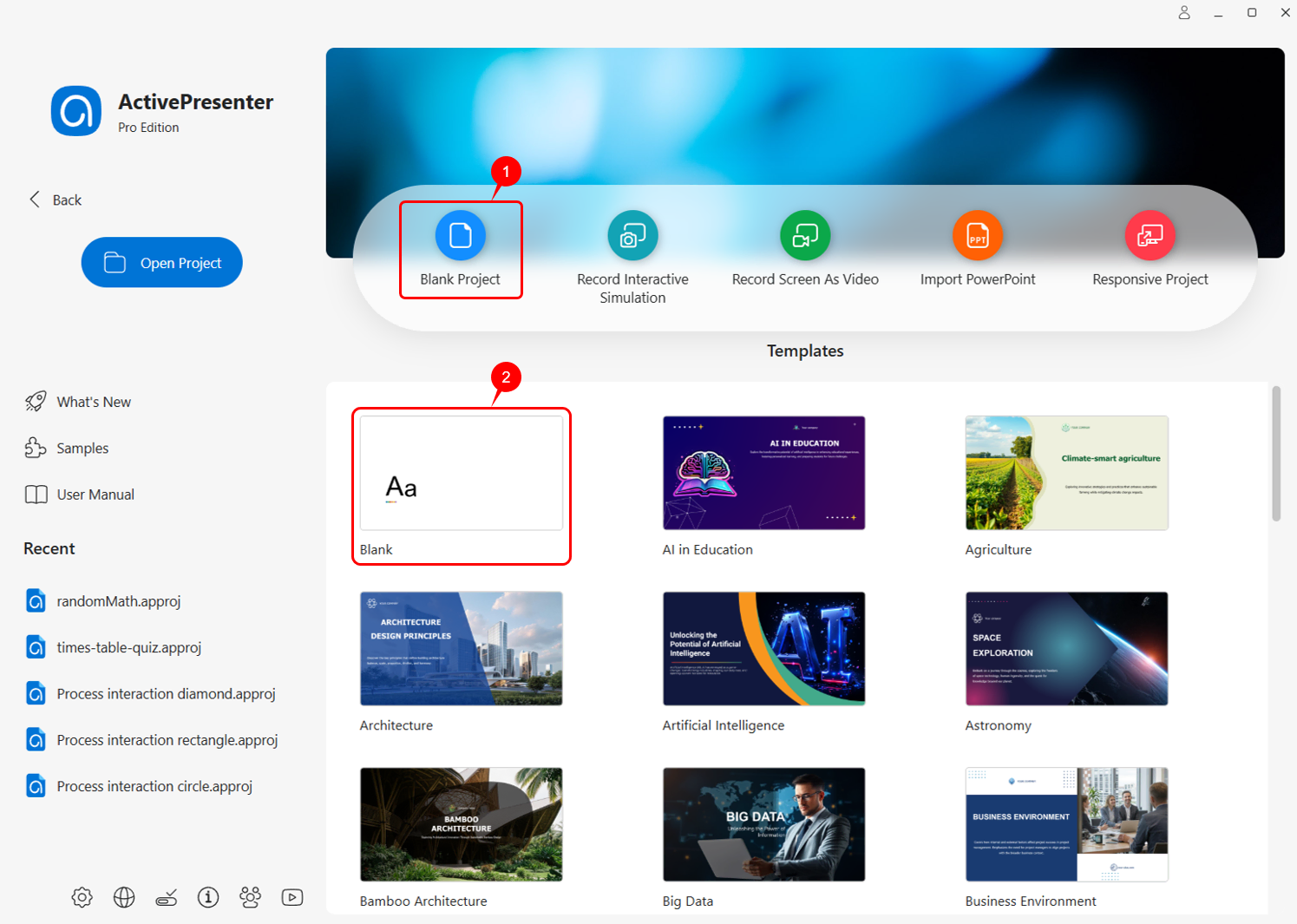
When you launch ActivePresenter, the Start Page appears. To create a new blank project:
Click Blank Project (1) to instantly open a new project.
Or select the Blank template (2) and then choose Blank Project.
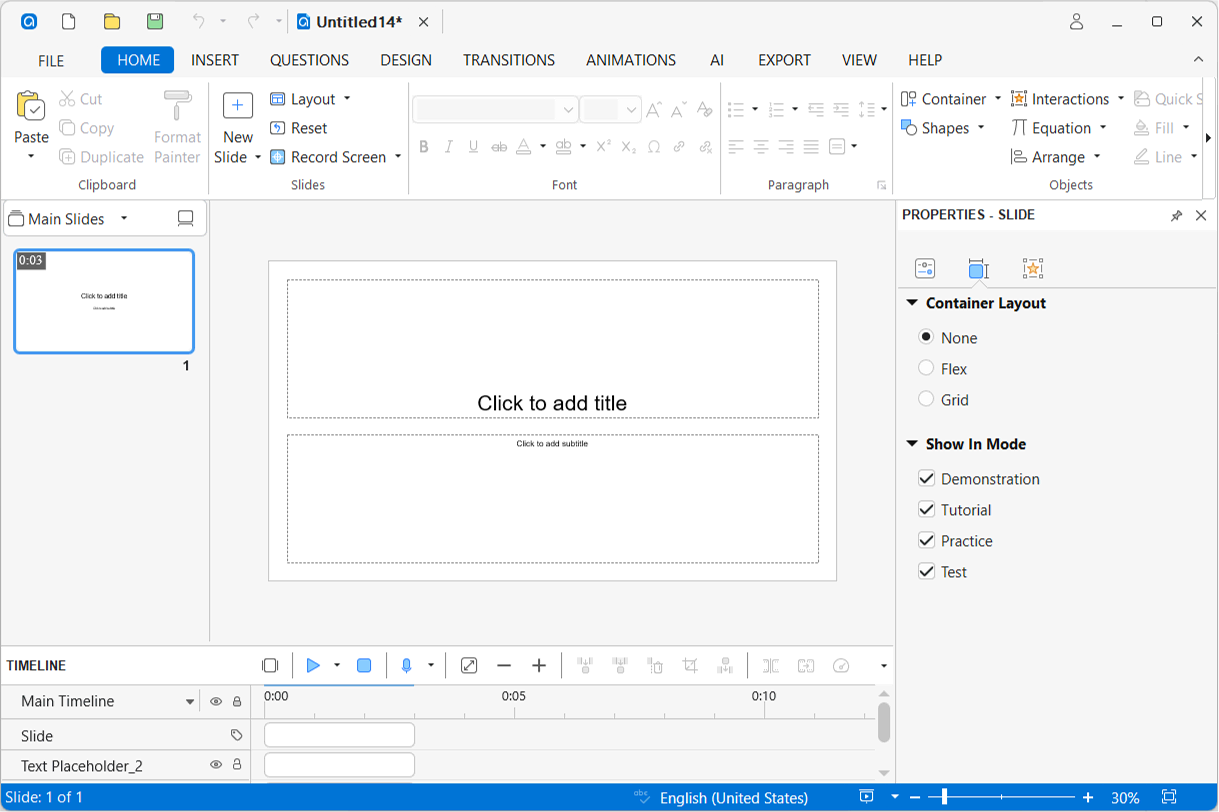
A new project will open with one Title slide containing two placeholders, ready for you to start designing your content.
From the Working Window
If you already have a project open and want to create another blank project, you can:
- Click Create Blank Project on the Quick Access Toolbar, or
- Go to File > Blank Project.
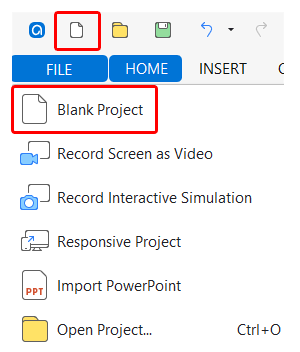
This will immediately launch a new blank project without closing your current one.
Other Ways to Create a New Project
ActivePresenter 10 offers more than just blank projects. You can also create projects in several other ways:
1. Record Your Screen
You can start a new project by recording your screen as either a video or an interactive simulation.
From the Start Page:
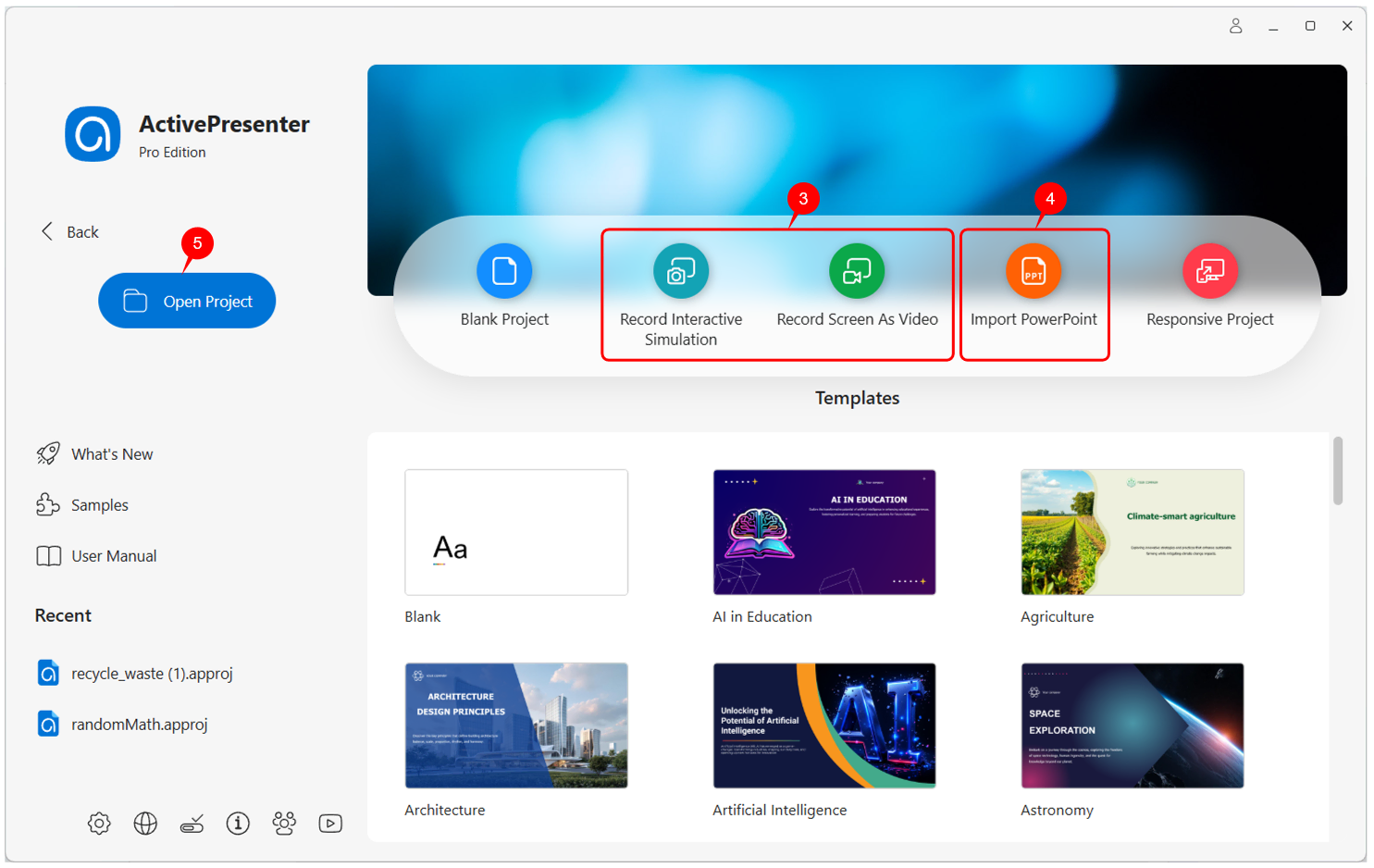
- Click Record Screen as Video or Record Interactive Simulation (3).
From the workspace:
- Go to File and select your preferred recording mode.
After recording, ActivePresenter automatically creates a new project based on your captured content.
2. Import a PowerPoint Presentation
If you already have content in PowerPoint, you can easily convert it into an ActivePresenter project.
From the Start Page:
- Click Import PowerPoint (4).
From the workspace:
- Go to File > Import PowerPoint.
ActivePresenter enhances your slides using its powerful features. You can then edit, enrich interactions, and export the final project to HTML5 if needed.
3. Create a Project from a Video
You can also create a new project by opening a video file from your computer.
From the Start Page:
- Click Open Project (5) and choose your video file.
From the workspace:
- Go to File > Open Project…, or
- Click Open Existing Project on the Quick Access Toolbar.
ActivePresenter will create a new project with the selected video placed on the first slide. The video becomes an editable object, allowing you to add annotations, interactions, quizzes, or export it in various formats.
What’s Next?
Now you know the different ways to create a new project in ActivePresenter 10. Whether starting from scratch, recording your screen, importing PowerPoint, or editing a video, you’re ready to begin building engaging eLearning content.
Want to explore further? Visit our Tutorials page, Blog, and YouTube channel for more inspiration and step-by-step guides.
Download ActivePresenter today and start creating your own interactive eLearning courses!
