
Apart from SAPI5-compatible voices installed on your computer, ActivePresenter 10 allows you to get more third-party text-to-speech voices, including Amazon Polly, Google Cloud, and Microsoft Azure. Keep reading today’s tutorial to learn how.
Text-to-Speech is a handy built-in feature that helps you create audio tracks directly within the app. As a powerful all-in-one eLearning software, ActivePresenter 10 enables you to integrate cloud-based voices from different providers to generate natural-sounding narration for your projects. Sound interesting? Download the latest version of ActivePresenter to discover more:

The article covers:
Get more third-party Text-to-Speech voices
Let’s begin!
Enable Text to Speech Feature
As mentioned in the previous article, the Text to Speech feature (TTS) is a convenient way to generate audio from text or convert closed captions to speech. You can find this feature in the Properties pane:
- Media tab of an audio object.
- Audio tab of an object with attached audio.
- Size & Properties tab of a CC node.
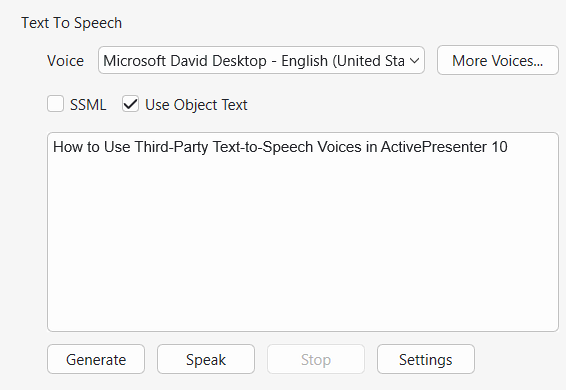
Here, you can choose one voice from the Voice drop-down list, select Settings to adjust the speed and volume if you want to. Getting done by the way, it creates a TTS audio.
For more detail, see Use Text to Speech Feature.
If the available voices in the Voice drop-down list do not satisfy you, you can click More Voices… to access other cloud voices. However, you need to do some further settings. That will be discussed in the next part.
Get More Text-to-Speech Voices
Access Voices
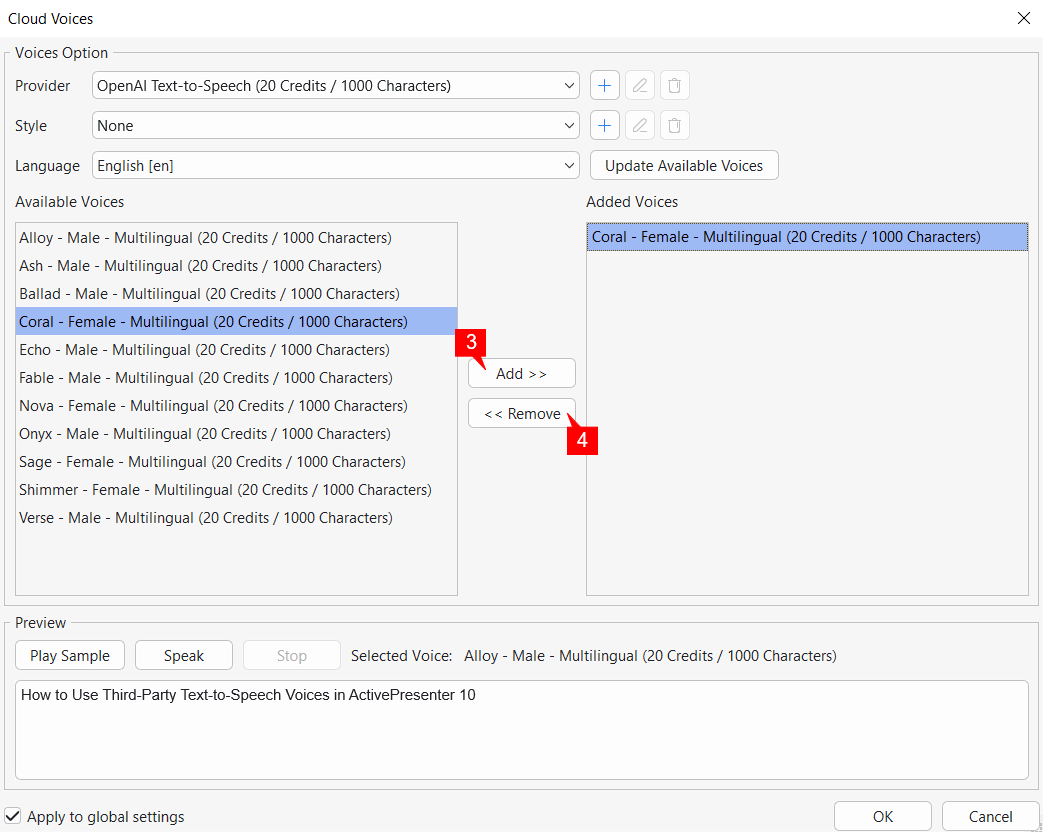
Once you click the More Voices… button, a Cloud Voices dialog appears allowing you to access more voices. However, to make voices accessible, you first have to get authentication from the voice providers. Do the following:
Step 1: Either click Add Custom TTS Provider button > choose among three providers, which are Amazon Polly, Microsoft Azure, Google Cloud
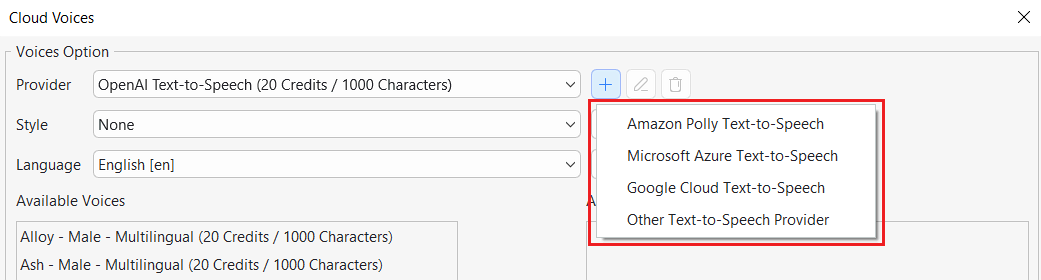
After that, the Add Custom Text-to-Speech Provider dialog appears, allowing you to enter the authentication information for the voice provider you want to use. Depending on the provider, you may need to provide details such as the access key, secret key, API key, or region. To obtain these credentials, you must first create an account with the corresponding provider.
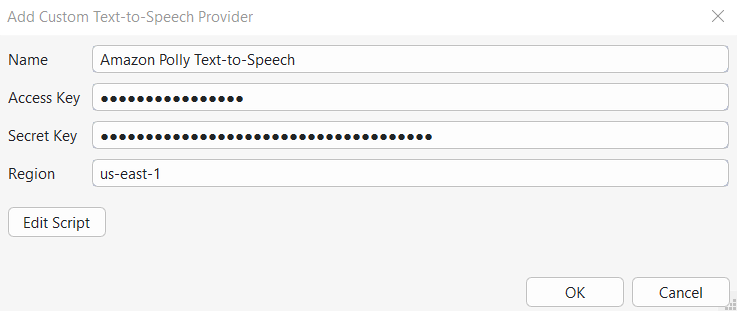
Below are some helpful references that you may want to take a look at:
- Amazon Polly: https://docs.aws.amazon.com/IAM/latest/UserGuide/id_credentials_access-keys.html#Using_CreateAccessKey
- Google Cloud: https://cloud.google.com/docs/authentication/api-keys
- Microsoft Azure: https://docs.microsoft.com/en-us/azure/cognitive-services/cognitive-services-apis-create-account?tabs=multiservice%2Cwindows
Step 2: Click OK to apply and go back to the Cloud Voices dialog.
Choose Language
After you successfully got authentication, available voices will appear in the Voices Option section.
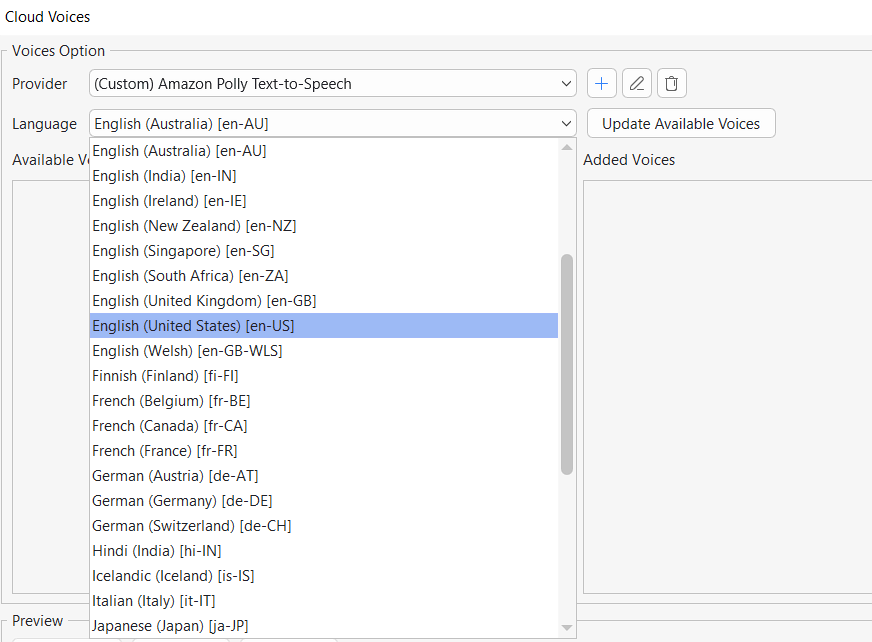
Here, you can:
- Click the drop-down arrow in the Language combo box to choose your desired language.
- The available voices of the selected language of the corresponding provider will be shown in the Available Voices list.
Preview Voices
To preview a voice, follow these steps:
- Select a voice in the Available Voices list.
- Enter a text in the Preview text box.

3. Click Speak or Play Sample to listen to the voice and click Stop to stop listening
- Speak reads your custom text and consumes credits.
- Play Sample plays the default sample without using credits
Manage Voices
If you are satisfied with a voice, you can click the Add button (3) to add that voice to the Added Voices list.
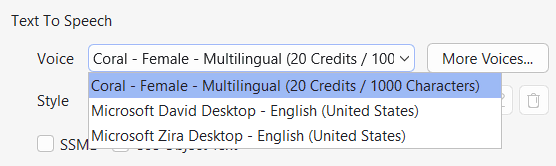
Then, the added voice will be shown in the Voice drop-down list of the Text to Speech section in the Properties pane, accordingly.
When you no longer need to use any voice, just click Remove (4). As a result, that voice will no longer be displayed in the Voice list.
Use SSML Tags for SSML-Supported Voices
Most of the cloud voices are SSML (Speech Synthesis Markup Language) – supported voices. That means you can enhance that voice with SSML tags. For example, you can use SSML tags to add pauses and other speech effects such as emphasis, volume, speaking rate, pitch, and more to that voice.
In the Text to Speech dialog, you can:
- Choose any cloud voices already added here.
- Select the SSML checkbox to enable this function.
- Enter plain text with SSLM tags (eg. </speak>, <break>, <prosody>, <phoneme>, <p>, <s>, etc.)
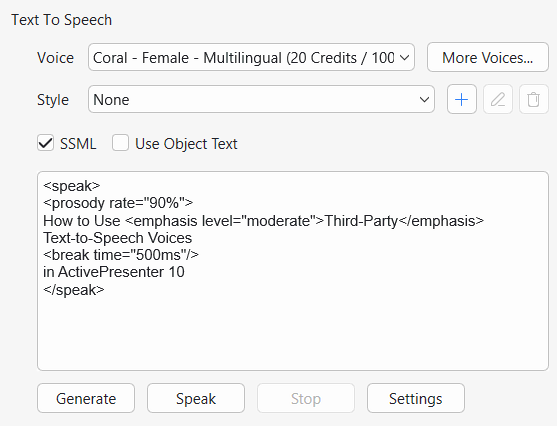
Meanwhile, if you select the Use Caption/Object Text checkbox, you just simply adjust the plain text without any SSML tags.
For more information about supported SSML tags, you can take a look at corresponding references: Amazon Polly, Google Cloud, and Microsoft Aruze.
That’s it. Now, you can access and adjust more third-party text-to-speech voices right within ActivePresenter 10. Feel free to contact us if you need any help.