
Choosing a screen recorder shouldn’t feel like a gamble. Yet with dozens of tools flooding the market — each promising crystal-clear video, zero lag, and a seamless experience — it’s surprisingly easy to download the wrong one and waste hours you’ll never get back.
Bandicam has been one of the most searched screen recording tools for over a decade. But does its reputation hold up in 2026? After testing it extensively across real-world use cases — from game capture to eLearning content production — I’m giving you the honest, no-fluff breakdown you actually need.
Quick tip: If you find Bandicam’s lack of built-in editing tools limiting, try ActivePresenter. It’s a powerful, all-in-one alternative that combines high-performance screen recording with advanced video editing and interactive eLearning features—all available in a feature-rich free version.

Table of contents
- What Is Bandicam? A Quick Overview
- Bandicam Key Features: What You’re Actually Getting
- Bandicam Pros and Cons: The Honest Breakdown
- Bandicam Pricing: Free vs. Paid
- 3 Real-World Use Cases: Where Bandicam Works (and Where It Doesn’t)
- Bandicam vs. Alternatives: How Does It Stack Up?
- Pro Tips: What Long-Term Bandicam Users Know
- Evaluation Criteria: How We Assessed Bandicam
- Final Verdict: Is Bandicam Worth It in 2026?
- 🚀 Looking for a More Complete Solution?
What Is Bandicam? A Quick Overview
Bandicam is a lightweight Windows-based screen recording software developed by Bandisoft, a South Korean software company. First released in 2009, it’s built primarily around three core recording modes:
- Screen Recording Mode — Captures any area of your desktop
- Game Recording Mode — Uses hardware-accelerated capture for high-FPS gameplay
- Device Recording Mode — Records from external devices like webcams, HDTV tuners, or IPTV
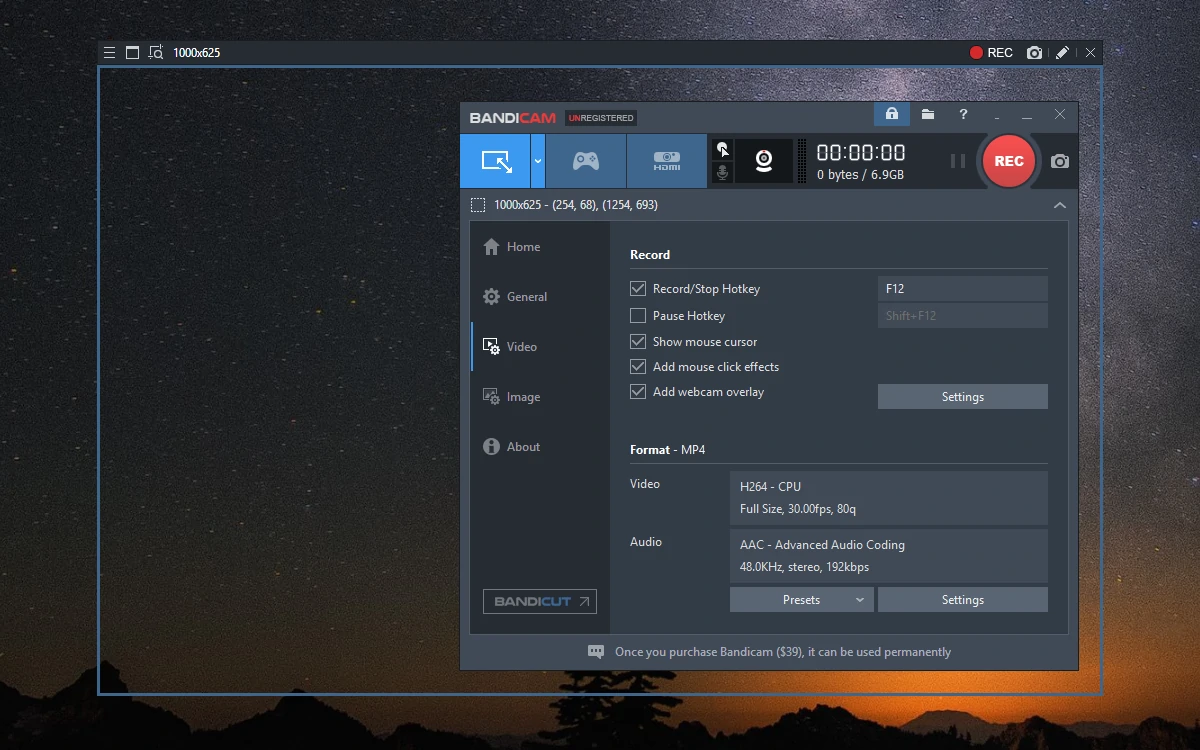
Over the years, Bandicam has carved out a loyal user base among gamers, tutorial creators, and educators who need reliable, high-quality recordings without the complexity of professional video production suites.
But here’s the thing I’ve learned after nearly a decade in content production: a tool’s reputation is built on what it does well — and what it quietly struggles with. Let’s dig into both.
Bandicam Key Features: What You’re Actually Getting
Before we get into the pros and cons, let’s map out what Bandicam brings to the table in 2026.
🎮 Hardware-Accelerated Game Recording
Bandicam’s standout feature. It leverages NVIDIA NVENC, AMD VCE, and Intel Quick Sync to record gameplay at up to 4K resolution and 480 FPS with minimal CPU impact. For streamers and gaming content creators, this is genuinely impressive.
🖥️ Flexible Screen Capture Modes
You can record a custom rectangle, a specific window, or your full screen. The real-time drawing tools (arrows, highlights, text overlays) are particularly useful for tutorial makers.
🎙️ Audio Recording Options
Bandicam supports simultaneous recording of system sound and microphone audio on separate tracks — a feature that many entry-level recorders still don’t offer properly.
📹 Webcam Overlay
Add a picture-in-picture webcam feed directly into your recording. You can customize the position, size, and shape (including circular crop) — which works well for presenter-style tutorial videos.
⏱️ Scheduled & Auto-Stop Recording
Set recordings to start/stop automatically at specific times. Useful for recording live streams, webinars, or long training sessions unattended.
🗜️ High Compression, High Quality
Bandicam uses its own codec to achieve smaller file sizes without significant quality loss — a genuine advantage if you’re recording long sessions and storage is a concern.
Bandicam Pros and Cons: The Honest Breakdown
This is the section most reviews gloss over. I’m not going to do that.
✅ Pros of Bandicam
1. Exceptional Game Recording Performance
In my testing, Bandicam consistently outperformed many competitors in the game recording category. The hardware acceleration is real and measurable — recording a GPU-intensive game at 1080p/60fps added less than 3% CPU overhead in most scenarios. For content creators who can’t afford frame drops, this matters.
2. Lightweight and Stable
Bandicam is refreshingly lean. It doesn’t hog system resources when idle, installs quickly, and rarely crashes. For users on mid-range hardware, this stability is a significant selling point.
3. Intuitive Interface for Beginners
The UI is clean and logically organized. A first-time user can start recording within 60 seconds of installation — no manual required. The three-mode layout (Screen, Game, Device) removes decision fatigue.
4. Solid 4K Recording Support
Not all screen recorders handle 4K gracefully. Bandicam does — and does it without demanding enterprise-level hardware.
5. Scheduled Recording & Auto Features
The ability to schedule recordings and set file size/duration limits for automatic splitting is a genuinely practical feature for long-form content creators and educators running live sessions.
6. Real-Time Drawing Tools
The annotation tools — though basic — are functional for quick tutorial recordings. Arrows, text, and highlight effects can be added during recording, not just in post.
❌ Cons of Bandicam
1. Windows Only — No Mac or Linux Support
This is a hard dealbreaker for a significant portion of the market. In 2026, with macOS being the dominant platform in creative and education industries, Bandicam’s Windows exclusivity is a meaningful limitation.
2. Free Version Is Heavily Restricted
The free tier adds a watermark to all recordings and caps recording time at 10 minutes per session. For anyone doing serious content work, the free version is essentially a trial — not a usable product.
3. Limited Built-In Video Editing
Bandicam is a recorder, not an editor. The built-in editing features are minimal: basic trimming and mixing. If you need to add annotations in post, create interactive elements, or build structured eLearning content, you’ll need a separate tool entirely.
4. No Native SCORM/xAPI Export
For eLearning professionals, this is a significant gap. Bandicam has no capability to produce interactive courseware, quizzes, or LMS-compatible packages. It’s a recording tool — full stop.
5. Watermark Branding in Free Tier
Worth repeating: the Bandicam watermark in the free version is prominent and positioned centrally. For professional use, this makes the free version essentially non-viable without purchase.
6. No Cloud Storage or Direct Sharing Integration
In 2026, most modern tools offer direct upload to YouTube, Google Drive, or cloud platforms. Bandicam still requires manual file management and upload — a minor but real friction point.
7. Limited Cross-Device Recording Flexibility
While the Device Recording mode exists, it’s relatively basic compared to dedicated capture card software or more versatile tools.
Bandicam Pricing: Free vs. Paid
| Plan | Price | Key Limitations |
| Free | $0 | Watermark, 10-min recording limit |
| Personal (1 PC) | ~$39.95 one-time | Full features, 1 PC license |
| Business (2 PCs) | ~$59.95 one-time | Full features, 2 PC licenses |
Pricing subject to change — verify on the official Bandicam website.
Pro Tip 💡: Bandicam occasionally runs promotions through software bundle sites. If you’re considering a purchase, check platforms like StackSocial or Bandisoft’s own seasonal sales before paying full price.
3 Real-World Use Cases: Where Bandicam Works (and Where It Doesn’t)
🎮 Use Case 1: Gaming Content Creator Recording Gameplay
Verdict: Excellent
A YouTube gaming creator recording 1-2 hour sessions at 1080p/60fps will find Bandicam genuinely excellent. The hardware acceleration, file size management, and stability make it one of the better dedicated game recorders available. If your primary need is capturing gameplay with minimal performance impact, Bandicam delivers.
📚 Use Case 2: Corporate Trainer Creating Software Tutorials
Verdict: Adequate for Recording, Insufficient for Full Production
A corporate trainer recording software walkthroughs (e.g., onboarding videos for a new CRM system) can use Bandicam to capture the screen reliably. However, they’ll immediately hit a wall when they need to add interactive elements, branching scenarios, knowledge checks, or export to their LMS. Bandicam records the raw material — but it can’t build the course.
🏦 Use Case 3: Bank Employee Compliance Training Simulation
Verdict: Wrong Tool for the Job
Creating a compliance training simulation for bank employees — where learners need to practice navigating software, respond to branching scenarios, and be assessed — requires a dedicated eLearning authoring tool. Bandicam simply isn’t designed for this. You’d record with it, then need to import footage into a proper authoring platform.
Bandicam vs. Alternatives: How Does It Stack Up?
| Feature | Bandicam | OBS Studio | ActivePresenter |
| Game Recording | ⭐⭐⭐⭐⭐ | ⭐⭐⭐⭐ | ⭐⭐⭐ |
| Screen Recording | ⭐⭐⭐⭐ | ⭐⭐⭐⭐ | ⭐⭐⭐⭐⭐ |
| Built-in Video Editing | ⭐⭐ | ⭐⭐ | ⭐⭐⭐⭐⭐ |
| eLearning / SCORM Export | ❌ | ❌ | ✅ |
| Interactive Quizzes | ❌ | ❌ | ✅ |
| Mac Support | ❌ | ✅ | ✅ |
| Free Usable Tier | Limited | ✅ Full | ✅ Full |
| Annotation Tools | ⭐⭐⭐ | ⭐⭐ | ⭐⭐⭐⭐⭐ |
💡 Expert Insight: In my experience working with eLearning teams, the biggest mistake I see is using a recording tool and an authoring tool as two completely separate workflows. The back-and-forth between Bandicam and a video editor and then an authoring platform creates unnecessary friction — and version control nightmares. Tools that combine recording, editing, and publishing in one environment consistently produce better results with less effort.
Pro Tips: What Long-Term Bandicam Users Know
🔧 Tip 1: Use the “Around Mouse” Capture Mode for Tutorials
Instead of recording your full screen, use the “Around Mouse” mode to keep the focus tight on your cursor. This is especially effective for software tutorial recordings where viewers need to track exactly what you’re clicking.
🔧 Tip 2: Set Automatic File Splitting for Long Sessions
Under Settings > Video, enable automatic file splitting by size (e.g., every 4GB) or duration. This prevents massive single files that are harder to edit and more likely to corrupt if something goes wrong.
🔧 Tip 3: Record Audio Tracks Separately
Enable “Separate” audio recording (system + microphone on different tracks) even if your editor doesn’t immediately require it. Having separate audio tracks gives you far more flexibility in post-production — especially if background noise becomes an issue.
🔧 Tip 4: Use the “FPS Overlay” During Game Recording
Bandicam’s built-in FPS counter (shown in the corner during recording) helps you monitor performance impact in real-time. If your FPS drops significantly when recording starts, lower your output resolution or switch to a faster encoder preset.
Evaluation Criteria: How We Assessed Bandicam
For transparency, here’s the framework used in this review:
| Criterion | Weight | Bandicam Score |
| Recording Quality | 25% | 8.5/10 |
| Ease of Use | 20% | 8/10 |
| Feature Depth | 20% | 6/10 |
| Value for Money | 15% | 7/10 |
| Platform Compatibility | 10% | 4/10 |
| eLearning Capability | 10% | 1/10 |
| Overall | 100% | 6.8/10 |
Final Verdict: Is Bandicam Worth It in 2026?
Bandicam is a genuinely good tool — within a specific, well-defined niche.
If you’re a Windows-based gamer or gaming content creator who needs reliable, high-performance gameplay recording with minimal setup, Bandicam is a strong choice and worth the one-time license fee.
If you’re an educator, corporate trainer, eLearning developer, or instructional designer, Bandicam will get you partway there — but it will leave you needing additional tools to actually produce finished, interactive learning content. That gap has real costs in time and workflow complexity.
The honest truth? Most professionals in the eLearning and tutorial space outgrow Bandicam quickly. Not because it’s bad — but because they need a tool that records and edits and builds interactive content and exports to LMS platforms. All in one place.
🚀 Looking for a More Complete Solution?
If you’ve been using Bandicam and finding yourself constantly exporting files into other tools to finish your projects, it might be time to explore a more integrated approach.
ActivePresenter by Atomi Systems is a professional screen recording and eLearning authoring platform that lets you record, edit, annotate, and publish interactive courses — all within a single workflow. It supports SCORM/xAPI export, interactive simulations, branching scenarios, and professional-grade video editing without the constant app-switching.
👉 Download ActivePresenter Free — No watermarks. No time limits on the free tier. Just a genuinely capable tool built for content professionals.
Try it alongside your current workflow. Most users notice the difference within the first project.
Have questions about which screen recording or eLearning tool is right for your specific use case? Drop a comment below or reach out to the Atomi Systems community — we’re here to help you make the right call.