
Creating video tutorials shouldn’t mean uploading your screen recordings to the cloud. Whether you’re demonstrating internal software, developing employee training, or recording online course lessons, you may need to keep your videos private and stored directly on your computer.
Fortunately, several free offline screen recorders let you capture your screen, record narration, and save videos locally without requiring cloud uploads. Some even include editing tools to turn raw recordings into polished instructional content.
In this guide, we’ll explore the top 5 best free offline screen recording tools, compare their features, and show you how to record professional tutorials without uploading your videos online.
Out of all five tools, ActivePresenter stands out as the ultimate choice for creators who need both screen recording and robust post-production editing in a single offline package. It’s ideal for educators, corporate trainers, and software developers who prioritize data privacy above all else.
Try ActivePresenter today and discover how easy it is to produce professional-grade tutorials entirely on your local machine!

Top 5 Best Free Offline Screen Recorders Comparison Table
All five tools support local screen recording. The table below compares their free recording options, built-in editing tools, and main limitations. Paid eLearning capabilities are identified separately.
| Screen recorder | Best for | Platform | Free recording time limit | Watermark | Built-in editing | Interactive eLearning | Main limitations |
| ActivePresenter | Edited tutorials, software walkthroughs, and course creation | Windows, macOS | No fixed limit | None when using free features; non-free features add a watermark | Timeline editing, trimming, splitting, joining, captions, and annotations; advanced effects require payment | Available in Pro, including interactive simulations, quizzes, and SCORM/xAPI publishing | Free edition is for trial and non-commercial use; advanced effects and eLearning publishing require a paid license |
| OBS Studio | Gameplay recording and productions with multiple sources | Windows, macOS, Linux | No fixed limit | None | Scene composition and audio mixing; no built-in timeline editor for recorded clips | No built-in authoring tools | Post-recording editing requires another application; source and encoding setup may take time |
| Cap | Visually polished screen demos | Windows, macOS, Linux | No time limit for local Studio Mode recordings | None in Studio Mode | Timeline editing, zoom effects, cursor controls, text, and visual styling | No built-in authoring tools | Free plan is for personal use; commercial use requires payment; cloud sharing has separate limits |
| QuickTime Player | Quick screen recordings on Mac | macOS | No fixed limit specified by Apple | None | Basic trimming, splitting, and clip rearrangement | No built-in authoring tools | Limited annotation and audio-mixing controls; system-audio capture depends on macOS version |
| FlashBack Express | Narrated Windows tutorials and quick demonstrations | Windows 10 and 11 | No fixed limit | None on free recordings; watermark-free edited exports require a paid plan | Live annotations during recording; watermark-free video and audio editing requires payment | No built-in authoring tools | Windows only; editing without an export watermark requires a paid plan |
“No fixed limit” refers to software-imposed recording duration. Available storage and computer resources still affect recording length.
Why Choose a Free Offline Screen Recorder?
An offline screen recorder is desktop software that captures your screen and saves the recording to local storage, such as your computer’s hard drive or an external drive.
Unlike cloud-based recording platforms, offline screen recording tools do not require you to upload video footage to a remote server as part of the normal recording workflow.
For instructional designers and course creators, this approach offers several advantages.
Keep Sensitive Training Content Private
Training videos sometimes contain confidential information, including internal dashboards, proprietary workflows, employee records, or unpublished course materials.
Recording locally helps you maintain control over where those files are stored and who can access them.
For example, an instructional designer creating a tutorial about an organization’s internal HR system may prefer recording directly to an approved local folder rather than uploading the footage to a third-party platform.
However, offline recording does not automatically guarantee complete privacy. You should still review the software’s telemetry, update settings, optional integrations, and data-handling policies.
Record Without a Constant Internet Connection
An offline screen recorder can capture videos without depending on a stable internet connection.
This is especially useful when you’re:
- Developing training content in restricted network environments.
- Recording tutorials while traveling.
- Working in locations with unreliable internet.
- Creating course materials on computers without cloud access.
Once the software is installed and configured, its local recording features can generally operate independently of the internet.
Avoid Large Video Uploads
High-resolution screen recordings can produce large files, particularly when capturing long software demonstrations or full-screen video at 60 frames per second.
With local recording, you don’t have to wait for those files to upload before reviewing or editing them.
You can record, inspect, and refine your footage directly on your computer.
Maintain Control Over Your Editing Workflow
For course creators, recording is only the first stage of video production.
You may also need to remove mistakes, add captions, highlight important actions, adjust narration, or export lessons in formats compatible with your Learning Management System (LMS).
A desktop screen recorder with integrated editing capabilities can simplify this workflow without requiring an online video editor.
Top 5 Best Free Offline Screen Recorders for Tutorials and Online Courses
Not all free screen recorders offer the same functionality. Some prioritize simple recording, while others provide advanced audio controls, video editing, or specialized eLearning features.
Here are five options worth considering.
1. ActivePresenter
ActivePresenter is our top pick for the best free offline screen recorder for tutorials and video lessons. Developed by Atomi Systems, it combines screen recording and video editing in one desktop application, allowing you to record, edit, and export videos offline.
You can capture your screen alongside webcam footage, microphone narration, and system audio. After recording, the built-in editor lets you remove mistakes, adjust audio, and add visual explanations. For example, an educator can record a software walkthrough, cut unnecessary steps, and add annotations before exporting the finished lesson.
For more advanced training needs, the Pro edition supports interactive software simulations, quizzes, and LMS-ready course publishing.
Key features
- Full-screen and custom-area screen recording.
- Simultaneous webcam, microphone, and system audio capture.
- Separate editable tracks for microphone and system audio.
- Timeline-based editing to trim, split, and join recordings.
- Text, closed captions, shapes, and cursor effects to clarify instructions.
- Video export to MP4, WebM, AVI, WMV, and MKV.
Pros
- Combines screen recording and video editing in one offline workflow.
- Supports watermark-free video exports with no recording time limit when using free features.
- Provides separate audio tracks for independent editing.
- Includes tools for adding visual explanations to tutorials.
Cons
- Learning the recording and editing tools may take time for beginners.
- The Free edition is intended for trial and non-commercial use.
- Advanced video effects require a paid edition, while interactive eLearning authoring and publishing require Pro.
Who is it for?
ActivePresenter suits educators, trainers, and content creators who want to record and edit tutorials or video lessons in one application. Its Free edition is particularly useful for non-commercial educational content, while paid editions support commercial video production and more advanced course development.
2. OBS Studio
OBS Studio is a free, open-source application for screen recording and live streaming. It supports offline recording, allowing you to save videos directly to your computer.
Its scene-based setup lets you combine screen captures, webcam footage, images, and audio sources in a single recording. For example, an instructor can record presentation slides with a webcam overlay, then switch to a software demonstration using a different scene.
OBS Studio also provides controls for audio mixing, video resolution, frame rate, and encoding. These settings offer flexibility, though configuring multiple sources may take some initial setup.
Key features
- Full-screen and individual-window recording.
- Multiple scenes with customizable layouts and transitions.
- Webcam, microphone, and system audio capture.
- Audio mixer with filters such as noise suppression and gain.
- Adjustable video resolution, frame rate, and encoding settings.
- Local recording without mandatory cloud uploads.
Pros
- Free and open source.
- Records offline and saves files directly to your computer.
- Supports flexible layouts with multiple video and audio sources.
- Offers detailed control over recording settings.
Cons
- Setting up scenes, sources, and encoding options can take time for beginners.
- No built-in timeline-based video editor for trimming or rearranging recordings.
Who is it for?
OBS Studio suits educators, trainers, and content creators who want to record presentations, software demonstrations, or lessons with webcam overlays. It is a practical choice for users who want control over their recording setup and are comfortable using a separate editor for post-production.
3. Cap
Cap is an open-source screen recording application with built-in tools for editing and styling videos. Its Studio Mode supports local recording and editing, making it an option for creating offline video tutorials and software demonstrations.
You can capture your screen with webcam footage and narration, then refine the result with trimming, cursor controls, and zoom effects. For example, an instructor can zoom in on a menu selection and adjust the webcam layout to keep important content visible.
Studio projects remain on your computer unless you choose to upload them. Cap is free for personal use, while commercial use requires a paid license.
Key features
- Display, window, and selected-area recording.
- Webcam and microphone capture.
- Timeline editing to trim, split, and rearrange clips.
- Automatic and manual zoom effects.
- Cursor smoothing and appearance controls.
- Customizable backgrounds, framing, and webcam layouts.
- Local video export and optional online sharing.
Pros
- Combines offline screen recording with built-in editing.
- Includes visual controls for highlighting actions in tutorials.
- Keeps Studio projects local until you choose to share them.
- Supports Windows, macOS, and Linux.
Cons
- The Free plan is limited to personal use.
- Automatic zoom and cursor controls depend on metadata captured during recording.
- Cloud sharing requires an internet connection and has separate plan limits.
Who is it for?
Cap suits educators and content creators who want to produce visually polished software walkthroughs and short video lessons. Its Free plan is useful for personal projects, while commercial training content requires a paid license.
4. QuickTime Player
QuickTime Player is a multimedia application included with macOS that also supports screen recording. It provides a convenient way to capture tutorials without installing additional recording software.
You can record your entire screen or a selected area, include microphone narration, and save the video locally. On recent macOS versions, choosing New Screen Recording in QuickTime Player opens the system’s Screenshot controls.
For example, a teacher can capture a narrated application demonstration, then trim the beginning and end before sharing it. QuickTime Player includes basic editing tools, though its recording and audio options depend on the macOS version.
Key features
- Full-screen and selected-area recording.
- Microphone narration.
- Optional mouse-click indicators.
- Local video saving and playback.
- Basic editing, including trimming, splitting, and rearranging clips.
Pros
- Included with macOS at no additional cost.
- Supports offline recording without a separate installation.
- Provides a straightforward workflow for simple tutorials.
- Includes basic tools for cleaning up recordings.
Cons
- Available only on macOS.
- Offers fewer annotation and audio-mixing controls than dedicated recording applications.
- System-audio capture depends on macOS: Apple documents a built-in option for macOS 27 or later; earlier versions may require additional audio-routing software.
Who is it for?
QuickTime Player suits Mac users who need a free offline screen recorder for short tutorials, narrated explanations, and occasional software demonstrations. It works well when basic recording and light editing are sufficient.
5. FlashBack Express
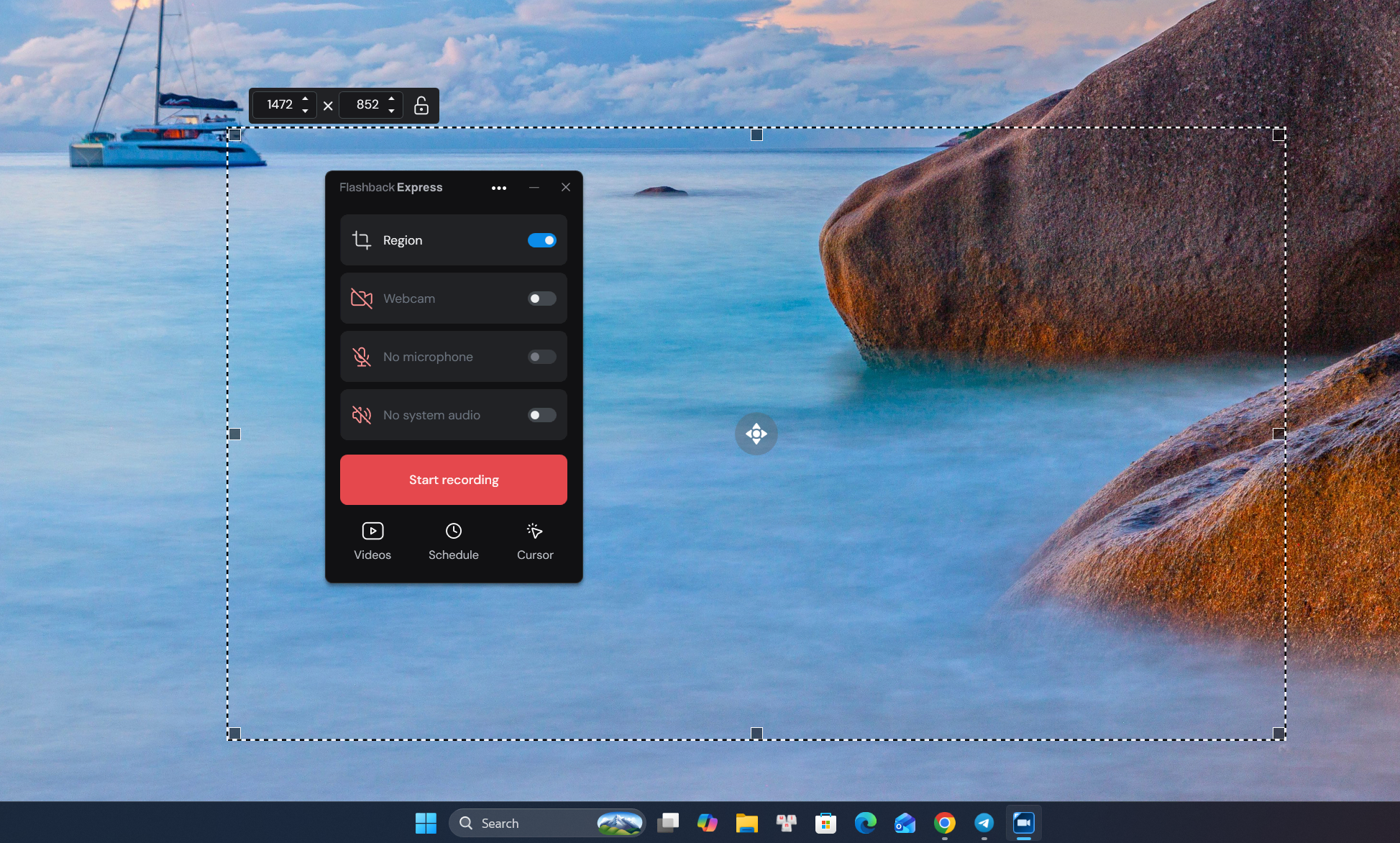
FlashBack Express is a screen recording application for Windows that captures desktop activity, webcam footage, microphone narration, and system audio. Its free recording tier lets you save recordings to your computer without watermarks or recording time limits.
You can capture a full screen, an individual window, or a selected region. Live annotations and cursor highlighting help viewers follow the recording, while scheduling lets you set a recording to begin later.
For example, a trainer can record an application walkthrough with narration and highlight important controls during capture. FlashBack Express also offers editing tools, although watermark-free use of its video and audio editing features requires a paid plan.
Key features
- Full-screen, window, and selected-region recording.
- Webcam, microphone, and system audio capture.
- Multi-monitor recording.
- Live annotations and cursor highlighting.
- Scheduled recording.
- Local saving directly to your computer.
Pros
- Free recordings have no watermark or recording time limit.
- Captures screen, webcam, and audio together.
- Includes tools for emphasizing actions while recording.
- Supports scheduled and multi-monitor recording.
Cons
- Available only on Windows.
- Watermark-free video and audio editing requires a paid plan.
Who is it for?
FlashBack Express suits teachers, trainers, and Windows users who need to capture narrated tutorials or software demonstrations. Its free tier is useful when you can explain and highlight steps during recording and need minimal editing afterward.
Which Offline Screen Recorder Should You Choose?
The right offline screen recorder depends on what you want to create.
For gamers who want to capture gameplay without editing it afterward, OBS Studio is a practical free option, with flexible controls for video and audio recording.
For polished software walkthroughs, ActivePresenter combines screen recording, video editing, and annotations in one application. If you also need interactive software simulations, quizzes, or structured eLearning courses, its Pro edition supports those workflows.
For quick demos, Cap, QuickTime Player, and FlashBack Express are also worth trying. Cap offers visual styling tools, QuickTime Player is convenient for basic Mac recordings, and FlashBack Express supports straightforward screen capture on Windows.
How to Record Your Screen Offline Using ActivePresenter
If you want to create a professional tutorial while keeping your recording on your computer, ActivePresenter provides a straightforward desktop workflow. Here’s how to get started.
Step 1: Download and Install ActivePresenter
Visit the ActivePresenter download page and download the installer for Windows or macOS.
Install the application and launch it.
The Free edition does not require product activation, so you can begin using its supported screen recording features without purchasing a license.
Step 2: Select Record Screen as Video
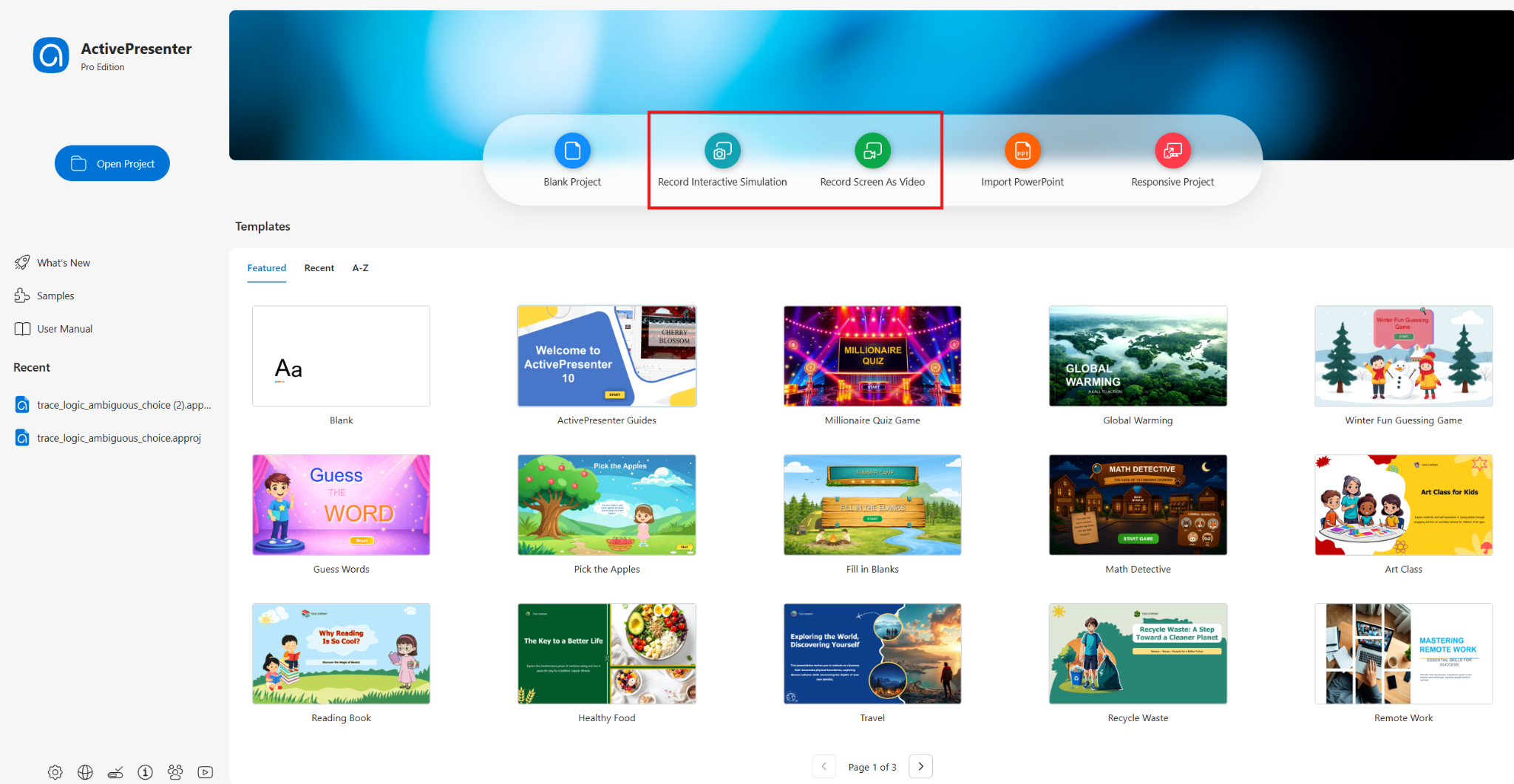
On the ActivePresenter Start Page, select Record Screen as Video.
Alternatively, open an existing project and navigate to File > Record Screen as Video.
A recording dialog will appear with options for the recording area, audio, webcam, and recording settings.
Choose one of the available capture modes:
- Full Screen: Records the entire display.
- Custom: Captures a selected region or application window.
For most software tutorials, recording a specific application window helps reduce distractions and keeps the learner focused on the relevant interface.
Pro Tip: If you plan to use Smart Studio in a licensed edition, capture enough surrounding screen area to accommodate automatic zoom and pan effects. Avoid cropping too tightly around individual controls.
Step 3: Configure Audio and Webcam
Next, decide which audio sources to include.
ActivePresenter supports recording microphone audio and system audio simultaneously.
For example, you can record your narration while demonstrating a software application that produces notification sounds.
The microphone and system audio are kept as separate editable tracks, allowing you to adjust them independently after recording.
You can also enable your webcam if you want to appear alongside the screen demonstration.
Before recording a full lesson, make a short test to confirm that your microphone is clear and your system audio is not overpowering the narration.
Step 4: Start and Stop Recording
Once everything is configured, click the red Record button.
ActivePresenter displays a short countdown before recording begins.
Demonstrate the process you want learners to follow. Move your cursor deliberately, pause briefly after important actions, and avoid unnecessary window switching.
When you’re finished, stop the recording using the recording toolbar or the appropriate keyboard shortcut.
ActivePresenter then opens the recorded project in its editing workspace.
Step 5: Edit Your Screen Recording
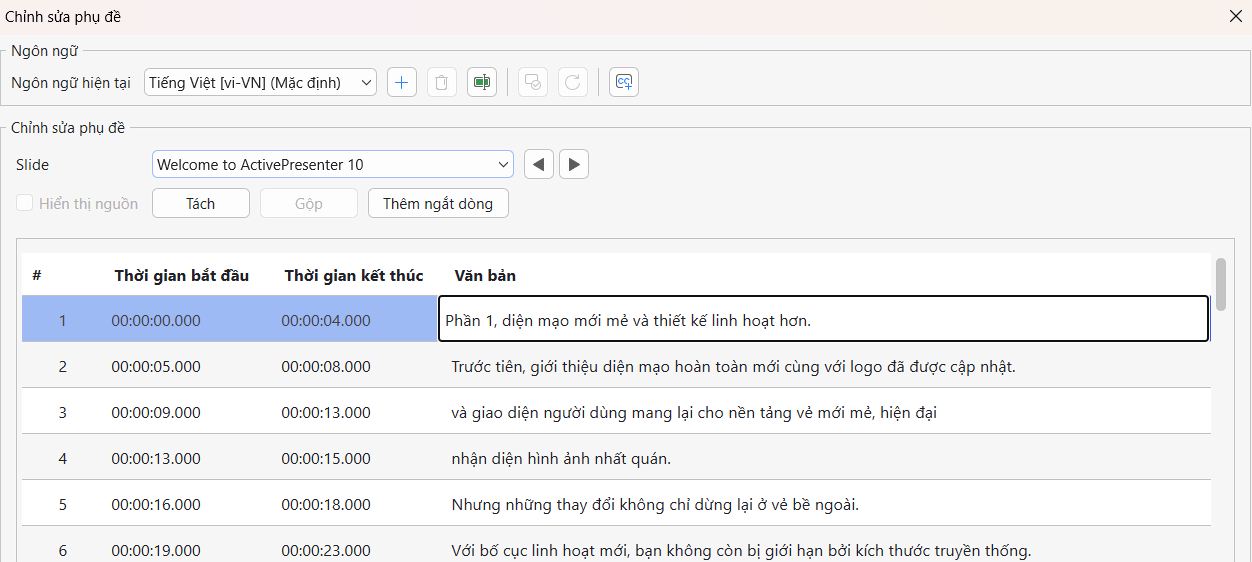
One advantage of ActivePresenter is that you don’t need to switch to another application for basic post-production.
You can use its built-in video editing tools to refine the recording.
For example, you can:
- Trim unnecessary footage at the beginning or end.
- Split recordings into smaller segments.
- Remove mistakes or long pauses.
- Add text captions and shapes to explain important steps.
- Adjust the timing of visual elements.
- Edit narration and system audio separately.
The timeline-based workflow also allows you to work with individual objects rather than treating the entire tutorial as a single uneditable video.
Advanced editing effects and features may require the Standard or Pro edition.
Step 6: Export Your Video Locally
After editing, open the Export tab and select Video.
Choose your preferred format and export settings.
For most online course platforms, MP4 is a practical choice because it is widely supported by modern browsers, devices, and LMS platforms.
Select a local destination folder and export your video.
Your completed tutorial can remain on your computer until you’re ready to distribute it through an approved channel.
Ready to create professional tutorials without uploading your recordings?
Download ActivePresenter for free and explore its screen recording and video editing capabilities. For more tips and guidance, visit the Atomi Systems Support Community.