
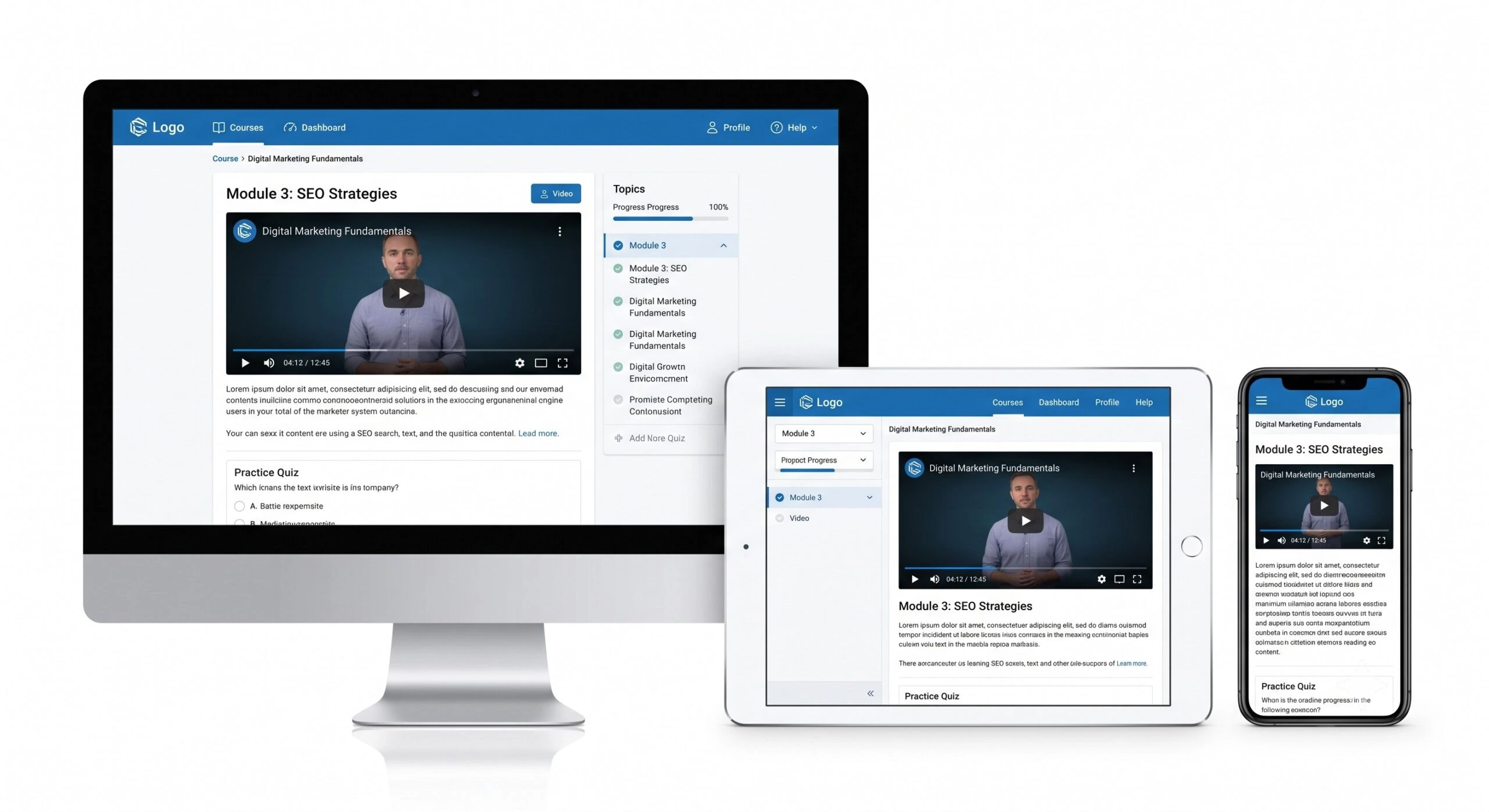
Building a great course takes weeks, but a bad mobile experience ruins it in seconds. Even now in 2026, too many authoring tools promise “fully responsive design” but deliver clunky, unreadable messes on small screens. You don’t have the time or budget to test them all, so we did it for you. Here is the no-nonsense guide to the eLearning software that actually adapts to any device, no extra coding required.
While there are a few heavy hitters on the market, one eLearning authoring tool that consistently passes our real-world responsive test is ActivePresenter. People often know it for its heavy-duty screen recording chops, but its responsive authoring engine is the real reason it stands out for modern instructional designers.
Unlike platforms that force you to build separate course versions for desktop and mobile, ActivePresenter relies on a true responsive layout system. You design your slide once, and its native FlexBox integration automatically reshuffles your text, buttons, and media to fit properly on any screen. Add in customizable breakpoints and instant device previews, and you get absolute control over how your learners experience the content—whether they’re swiping on an iPhone or clicking through on an ultrawide monitor.
Why Responsive Design Is Now Non-Negotiable in eLearning
The Mobile Learning Reality Check
Let’s be direct: your learners are not sitting at a desk waiting to take your course. They’re catching up on compliance training during a commute, reviewing onboarding modules between meetings, or completing a product knowledge quiz from a hotel room. The days when you could design for the desktop and call it done are long gone.
In my experience working with L&D teams across industries over the past decade, the single biggest source of learner drop-off isn’t boring content, it’s broken layouts. A button that’s too small to tap. Text that overflows its container. A drag-and-drop interaction that simply doesn’t function on a touchscreen. These friction points silently kill completion rates.
The business case is equally clear: organizations that deploy mobile-optimized eLearning report significantly higher completion rates and better knowledge retention scores. That’s not a coincidence, it’s the result of meeting learners where they actually are.
What “Responsive” Actually Means in eLearning Software
Here’s where many buyers get misled. “Mobile-friendly” on a vendor’s marketing page can mean several different things:
- Fluid/Responsive layout: The course automatically reflows content based on screen size — the gold standard.
- Scalable/Zoom-to-fit: The course simply shrinks to fit the screen, which often makes text unreadable.
- Separate mobile view: You design two versions of the same course — functional, but doubles your workload.
When evaluating any eLearning software, always ask: does it produce a genuinely fluid responsive output, or does it just scale down? The difference matters enormously for learner experience.
How to Evaluate eLearning Software: 6 Criteria That Matter
Before jumping into tool comparisons, let’s establish a consistent evaluation framework. These are the six criteria I use when advising L&D teams on software selection.
1. Responsive Output Quality
Does the published course actually adapt, not just shrink, across screen sizes? Test on a real device, not just a browser preview.
2. Interactivity & Assessment Depth
Static slides are not eLearning. Look for: branching scenarios, drag-and-drop activities, click-reveal interactions, software simulations, and randomized quiz pools. The richer the interaction toolkit, the more engaging your courses will be.
3. SCORM/xAPI Compliance
If you’re running courses through an LMS, SCORM 1.2, SCORM 2004, and xAPI (Tin Can) support are table stakes. Without these, you lose tracking, completion data, and score reporting.
4. Ease of Use vs. Feature Depth
This is the classic trade-off. Some tools are beginner-friendly but hit a ceiling fast. Others are powerful but have steep learning curves. The best eLearning software finds a balance, or offers tiered workflows that grow with you.
5. Pricing & Licensing Model
Subscription vs. perpetual license matters more than the monthly price tag. Calculate total cost of ownership over 3 years. Also check: do you retain ownership of your content if you cancel?
6. AI & Automation Capabilities
In 2026, AI integration is no longer a bonus feature — it’s a differentiator. Text-to-speech, AI image generation, speech-to-text transcription, and smart content suggestions can cut production time significantly.
Top eLearning Authoring Tools for Responsive Design (2026)
1. ActivePresenter — Best All-in-One Desktop Solution

Best for: Teams that need screen recording, video editing, and eLearning authoring in a single tool — without paying three separate subscriptions.
ActivePresenter is developed by Atomi Systems and has quietly built a strong reputation among L&D professionals who need serious depth without enterprise-level pricing. What sets it apart from most eLearning software on this list is its genuinely integrated workflow: you can record a software simulation, edit the resulting video with non-destructive editing tools, add interactive elements, and publish to SCORM — all without leaving the application.
Key strengths for responsive eLearning:
- HTML5 output that renders cleanly across devices without additional configuration
- Fluid Boxes — a responsive layout engine that automatically reflows content for different screen sizes, similar in concept to CSS flexbox
- Non-destructive editing: Make changes at any point without overwriting your original assets — critical for iterative course development
- Full SCORM 1.2, SCORM 2004, xAPI, and cmi5 export with LMS-ready packaging
- Built-in AI features: Text-to-speech in multiple languages, AI image generation, and speech-to-text transcription — all within the same workspace
- MCP Connect integration: For teams exploring AI agent workflows, ActivePresenter supports connection to AI agents via MCP (Model Context Protocol), opening up automation possibilities that most authoring tools don’t yet offer
- Unlimited free trial with no feature restrictions — you can build and export complete courses before spending a cent
Pricing: Free tier available (with watermark on export). Paid licenses are perpetual (one-time purchase), which gives ActivePresenter a significant long-term cost advantage over subscription-based competitors.
Ideal user profile: L&D professionals, corporate trainers, educators, and instructional designers who want professional-grade output without a professional-grade monthly bill.
💡 Pro Tip: When building software simulations in ActivePresenter, use the “Record Software Simulation” mode from the start — don’t record a screen video and try to add interactivity afterward. Simulation mode captures every click and keystroke as discrete, editable events, giving you full control over the interaction flow. This is the single biggest workflow efficiency gain most new users miss.
💡 Pro Tip on AI Credits: ActivePresenter’s AI credits (used for text-to-speech, image generation, etc.) are shared across all machines activated under the same license key. If you have a small team all using the same license, coordinate your AI usage to avoid running through your credit allocation mid-project.
2. Articulate Storyline 360 — Industry Standard for Enterprise
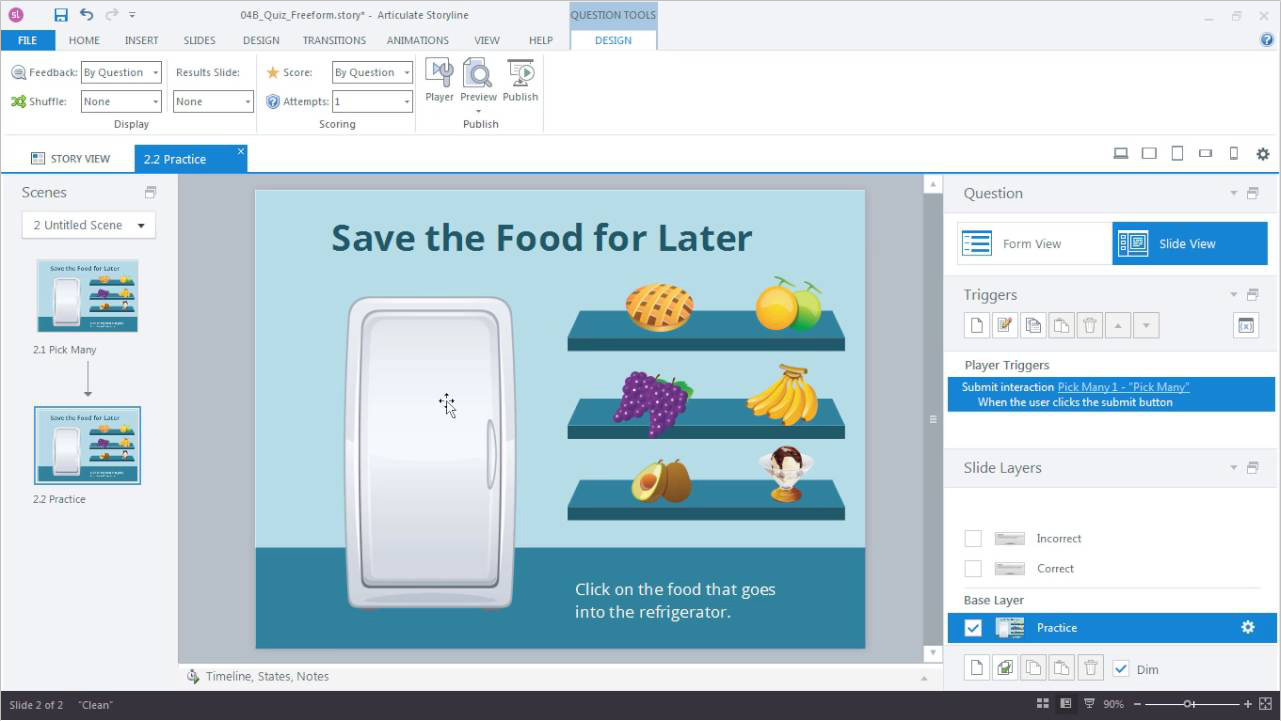
Storyline 360 is a widely recognized tool in the L&D industry, primarily known for its extensive interaction toolkit and a large user community. It excels in creating slide-based content with complex logic using its system of triggers and variables.
Key features for responsive eLearning:
- Responsive Player: The player frame (menus, controls) automatically adapts to different devices, though the slide content itself maintains a fixed aspect ratio.
- Articulate Review 360: A streamlined web-based tool for stakeholders to provide feedback directly on the course preview.
- Content Library 360: Provides access to a large collection of stock assets, characters, and templates within the interface.
Watch out for: It lacks a truly fluid responsive engine (content does not reflow like HTML); video editing and software simulation features are basic compared to specialized tools.
Pricing: Subscription-only (annual), usually bundled as part of the Articulate 360 suite.
Ideal user profile: Corporate instructional designers who work in teams requiring standardized workflows and a wide range of pre-built assets.
3. Adobe Captivate — Specialized for Simulations and VR
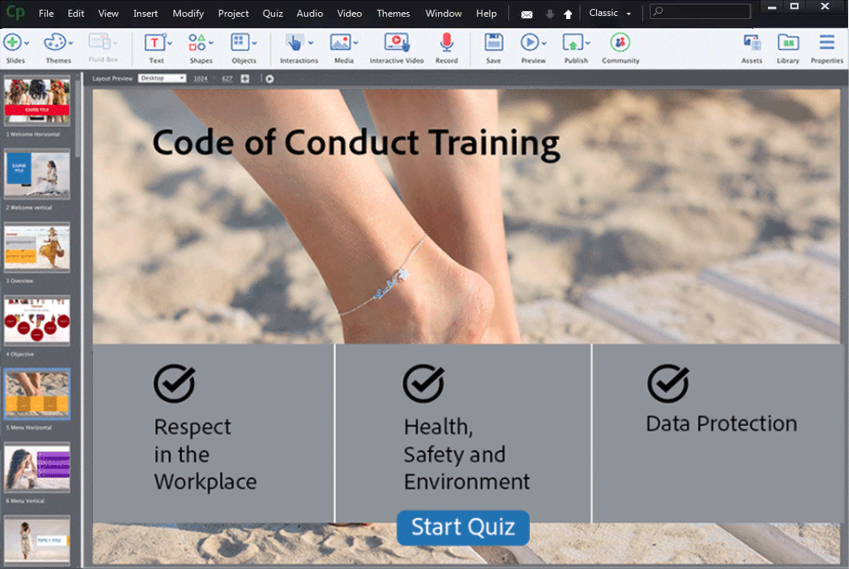
Best for: Technical trainers focused on software simulations and designers exploring 360° virtual reality scenarios.
Adobe Captivate has a long-standing presence in the market. In recent versions, it has shifted its focus toward AI-assisted authoring and immersive learning. It is one of the few desktop tools that offers dedicated support for VR walkthroughs.
Key features for responsive eLearning:
- Fluid Boxes: A layout system that allows objects to wrap and reflow based on the screen size, providing a more “web-like” responsive experience.
- 360° Media Support: Allows for the creation of interactive hotspots on top of 360° images and videos for immersive training.
- Adobe Ecosystem: Reasonable integration for those already using Adobe Creative Cloud assets.
Watch out for: The interface has a reputation for being complex for beginners; the software can be resource-intensive on mid-range computers.
Pricing: Monthly subscription model.
Ideal user profile: Technical authors and designers who need to build high-fidelity software simulations or immersive 360° environments.
💡 Pro Tip: When using Fluid Boxes, keep your layouts simple. Over-nesting boxes can lead to unpredictable scaling issues on smaller smartphone screens.
4. iSpring Suite — PowerPoint-Based Authoring
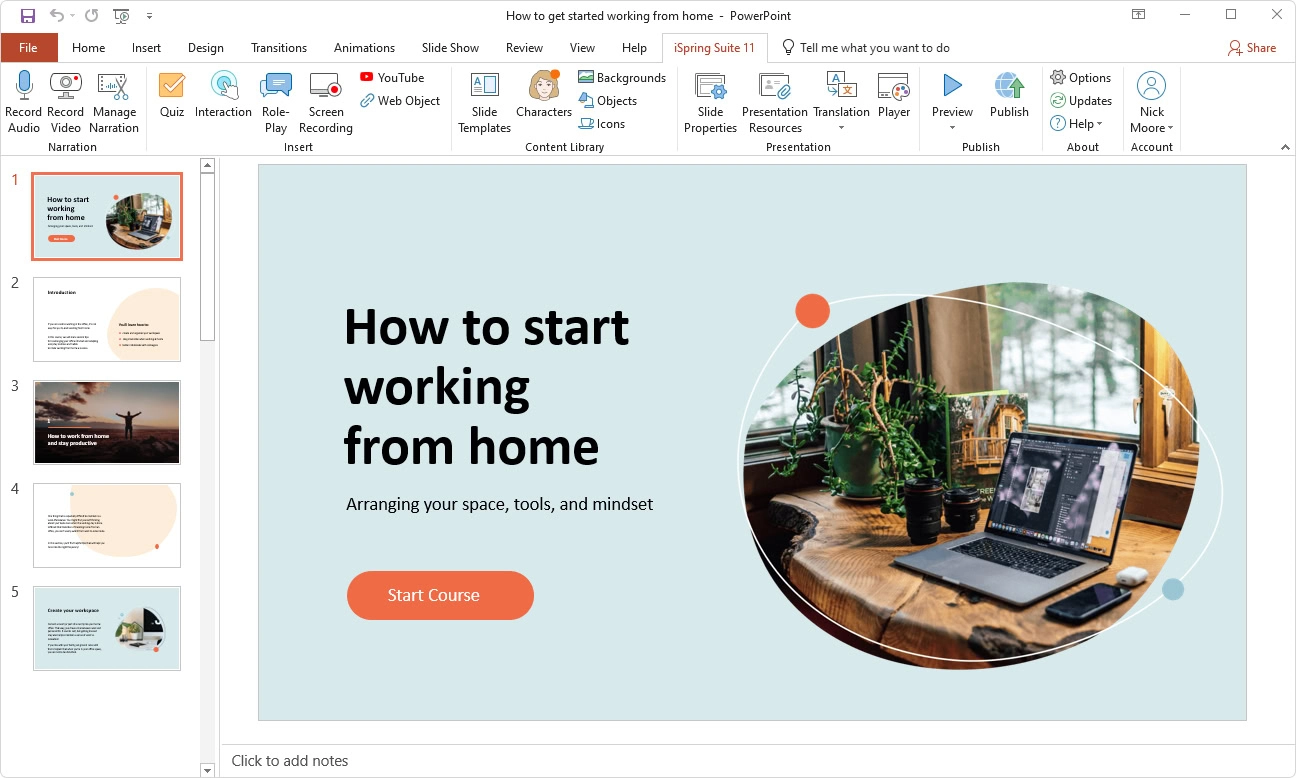
Best for: Subject matter experts and trainers who want to convert existing PowerPoint presentations into eLearning modules quickly.
iSpring Suite operates as an add-in for Microsoft PowerPoint. It is designed for speed and ease of use, allowing users to leverage their existing presentation skills to create SCORM-compliant content.
Key features for responsive eLearning:
- PowerPoint Integration: Directly converts PPT animations, transitions, and triggers into HTML5 format.
- Clean Mobile Output: The output is generally stable and renders well on mobile browsers without much manual adjustment.
- iSpring QuizMaker: A dedicated tool for building responsive assessments with various question types.
Watch out for: You are limited to PowerPoint’s capabilities; it lacks advanced logic, deep software simulation recording, and non-destructive video editing.
Pricing: Annual subscription per user.
Ideal user profile: Educators and HR professionals who need to produce high volumes of content in a short timeframe using familiar tools.
💡 Pro Tip: Since iSpring relies on PowerPoint, ensure your slide size is set to Widescreen (16:9) before you start. This provides the most consistent viewing experience across modern tablets and monitors.
5. Lectora — Strong Focus on Accessibility and Compliance
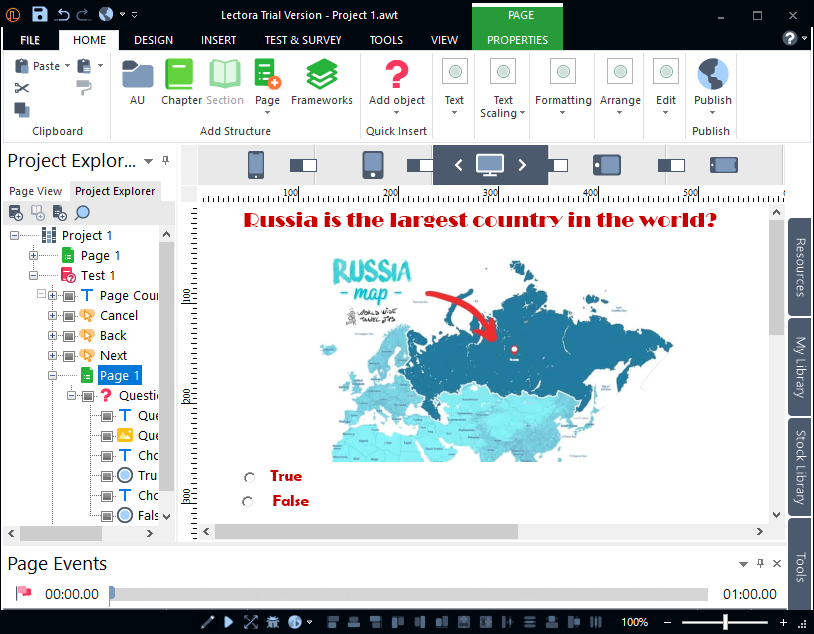
Best for: Government, healthcare, and financial institutions that must meet strict WCAG 2.1 AA and Section 508 accessibility standards.
Lectora is one of the more mature tools in the industry. It is highly regarded for its granular control over HTML5 output and its robust features for users with disabilities.
Key features for responsive eLearning:
- Responsive Course Design (RCD): A “design once, publish everywhere” approach that allows you to manually override layouts for specific device breakpoints (Desktop, Tablet, Mobile).
- Accessibility Tools: Built-in automated checks to ensure content meets legal compliance standards.
- High Customization: Allows for the insertion of custom scripts and CSS for teams with web development skills.
Watch out for: The user interface feels dated compared to modern alternatives; it has a steep learning curve for those without a technical background.
Pricing: Annual subscription with different tiers for desktop and online versions.
Ideal user profile: Technical authors in regulated industries where compliance is more important than visual flair.
💡 Pro Tip: Use the “Inheritance” feature in Lectora to save time. Any change made to the desktop view automatically flows down to the mobile views unless you specifically choose to override them.
Side-by-Side Comparison Table
| Criteria | ActivePresenter | Storyline 360 | Adobe Captivate | iSpring Suite | Lectora |
| True Fluid Responsive Layout | ✅ | ⚠️ Partial | ✅ | ⚠️ Partial | ✅ |
| SCORM 1.2 / 2004 / xAPI | ✅ All three | ✅ All three | ✅ All three | ✅ All three | ✅ All three |
| Screen Recording Built-in | ✅ | ❌ | ✅ | ❌ | ❌ |
| Non-Destructive Editing | ✅ | ⚠️ Limited | ⚠️ Limited | ❌ | ❌ |
| AI Features (TTS, Image Gen) | ✅ | ⚠️ Limited | ⚠️ Limited | ⚠️ Limited | ❌ |
| Free Trial (Full Features) | ✅ Unlimited | ✅ 30 days | ✅ 30 days | ✅ 30 days | ✅ 30 days |
| Perpetual License Option | ✅ | ❌ Sub only | ❌ Sub only | ✅ | ✅ |
| Beginner-Friendly | ✅ | ⚠️ Moderate | ❌ Steep | ✅ | ❌ Steep |
| Best For | All-in-one teams | Enterprise ID | Tech simulations | PPT users | Compliance |
Pro Tips for Getting the Most Out of Your eLearning Software
1. Test on a real device before publishing.
Browser developer tools give you a rough preview, but nothing replaces opening your published course on an actual smartphone. Pay particular attention to tap target sizes, font readability, and interaction behavior on touch screens.
2. Design for mobile first, then scale up.
If you start with a desktop layout and try to adapt it for mobile, you’ll fight the tool constantly. Start with the smallest screen size in mind, then confirm it looks good on larger screens. Most modern eLearning software handles the upscaling better than the downscaling.
3. Use Fluid Boxes (or equivalent) intentionally.
Responsive layout engines like ActivePresenter’s Fluid Boxes are powerful, but they require you to think in terms of content relationships rather than fixed pixel positions. Invest an hour learning how your tool’s responsive layout system works — it will save you hours of troubleshooting later.
4. Keep interaction complexity proportional to screen size.
Elaborate drag-and-drop interactions that work beautifully on a 27-inch monitor can become unusable on a 5-inch phone. For mobile-first courses, favor click-to-reveal, hotspot, and multiple-choice interactions over complex drag interactions.
5. Leverage AI text-to-speech strategically.
AI-generated voiceover has reached a quality level where it’s genuinely usable for professional eLearning. Use it for first-draft narration while the content is still being revised — then decide whether to record human voiceover for the final version. This approach saves significant studio time on content that may still change.
Choosing the Right eLearning Software: The Bottom Line
Responsive design isn’t a feature to check off a list — it’s a fundamental quality standard for any eLearning course in 2026. The right software makes that standard achievable without doubling your production workload.
For most L&D teams and educators, the practical decision comes down to this:
- If you need enterprise scale with a large existing team of instructional designers, Articulate Storyline 360 remains the industry benchmark — budget permitting.
- If your workflow involves heavy software simulation for technical training, Adobe Captivate earns its place.
- If your team lives in PowerPoint, iSpring Suite removes the adoption barrier almost entirely.
- If you want a single tool that handles screen recording, video editing, interactive eLearning, and SCORM publishing — with a perpetual license and a genuinely unlimited free trial — ActivePresenter is the most cost-effective and capable all-in-one solution available today.
The best eLearning software is the one your team will actually use consistently. That means ease of use matters as much as feature depth, and total cost of ownership matters as much as the monthly price.
Ready to see what your courses look like on every device?
👉Download ActivePresenter free — no time limit, no feature restrictions. Build your first responsive eLearning course today and publish it to SCORM before you spend a cent.

Have questions about which tool fits your specific workflow? Join the Atomi Systems community — our team and fellow L&D professionals are there to help you make the right call.