
In ActivePresenter 10.5, the closed caption (CC) system is redesigned to give you professional-grade control over how your text looks, moves, and reaches a global audience.
Whether you’re a teacher building lesson content, an eLearning creator optimizing engagement, or a video editor preparing subtitles for multiple languages: Closed Captions in ActivePresenter10.5 is built to reduce rework and make accessibility feel like part of your creative workflow, not a last-minute patch.
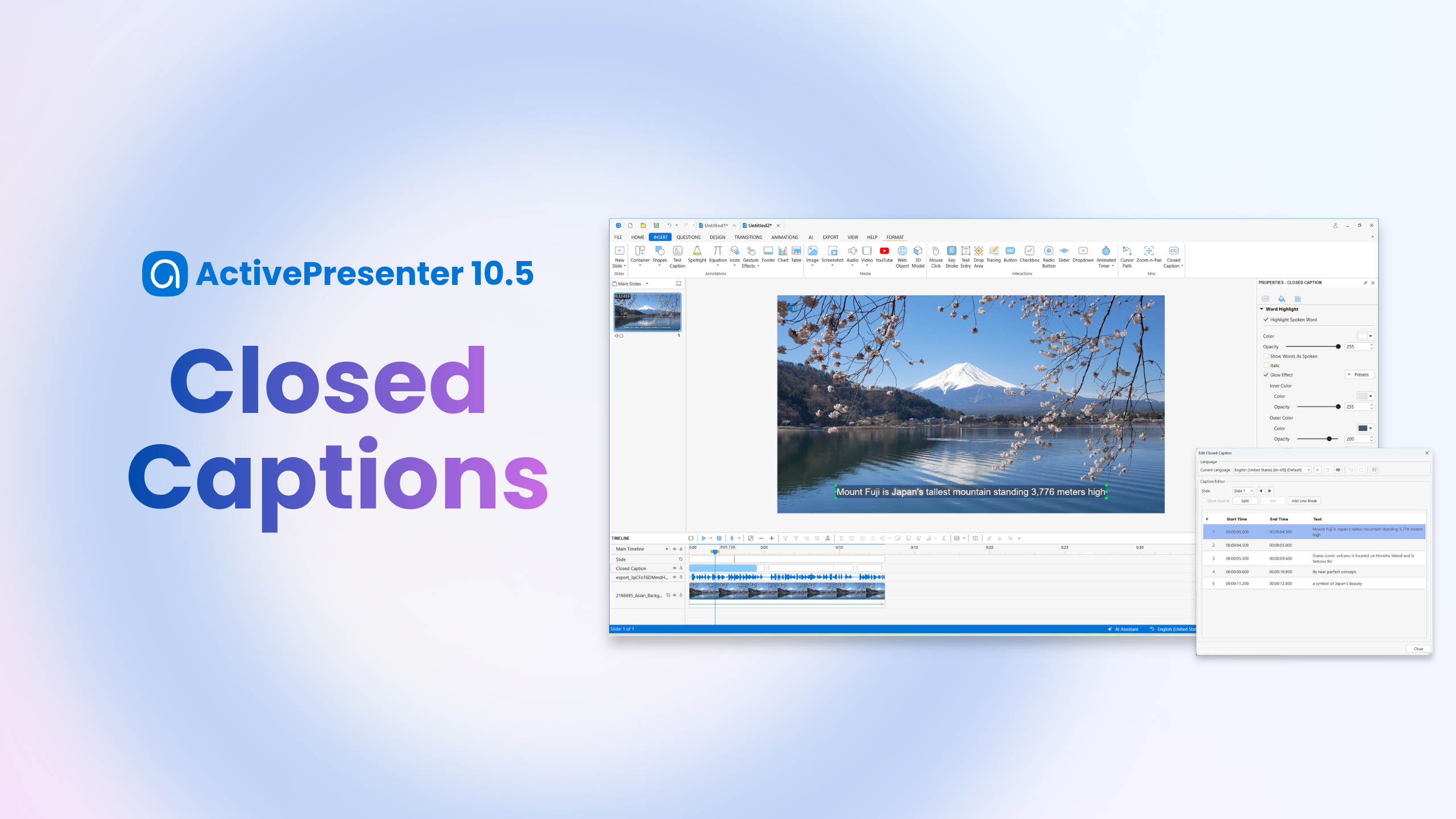

Why Closed Captions in ActivePresenter 10.5 changes the way you work
Most teams treat captions as two separate problems:
- Design problem: font, color, background, highlight effects
- Workflow problem: translation, editing, import/export
ActivePresenter 10.5 connects both into one smoother system—so you can:
- keep a consistent visual identity across slides
- highlight spoken words for better comprehension
- reposition captions to avoid covering critical UI
- localize efficiently with Auto-Translation and standard subtitle formats
1) Brand-Consistent Preset Styles: One look, project-wide
If you’ve ever adjusted caption styling on “just one slide”… and then spent hours repeating the same setup for the rest, you’ll appreciate what ActivePresenter 10.5 changed.
What you get
- Preset Styles in the Format tab (built-in caption style gallery)
- One change, project-wide: when you apply a style (including font, fill, and background settings), it’s automatically applied to every caption in your project
- Full customization: presets give you a fast start, but you can still fine-tune details in the Properties pane (opacity, text color, and more)
Why this matters in real work
Teachers and creators typically ship in “batches”: one course might have hundreds of slides. Project-wide styling reduces the chance of:
- inconsistent typography across modules
- mismatched readability between sections
- “version drift” when different team members edit different slides
2) Visual Word Highlighting & Progressive Display (the engagement boost)
Captions are helpful. Word Highlight is what makes captions sticky.
The “karaoke-style” Word Highlight feature
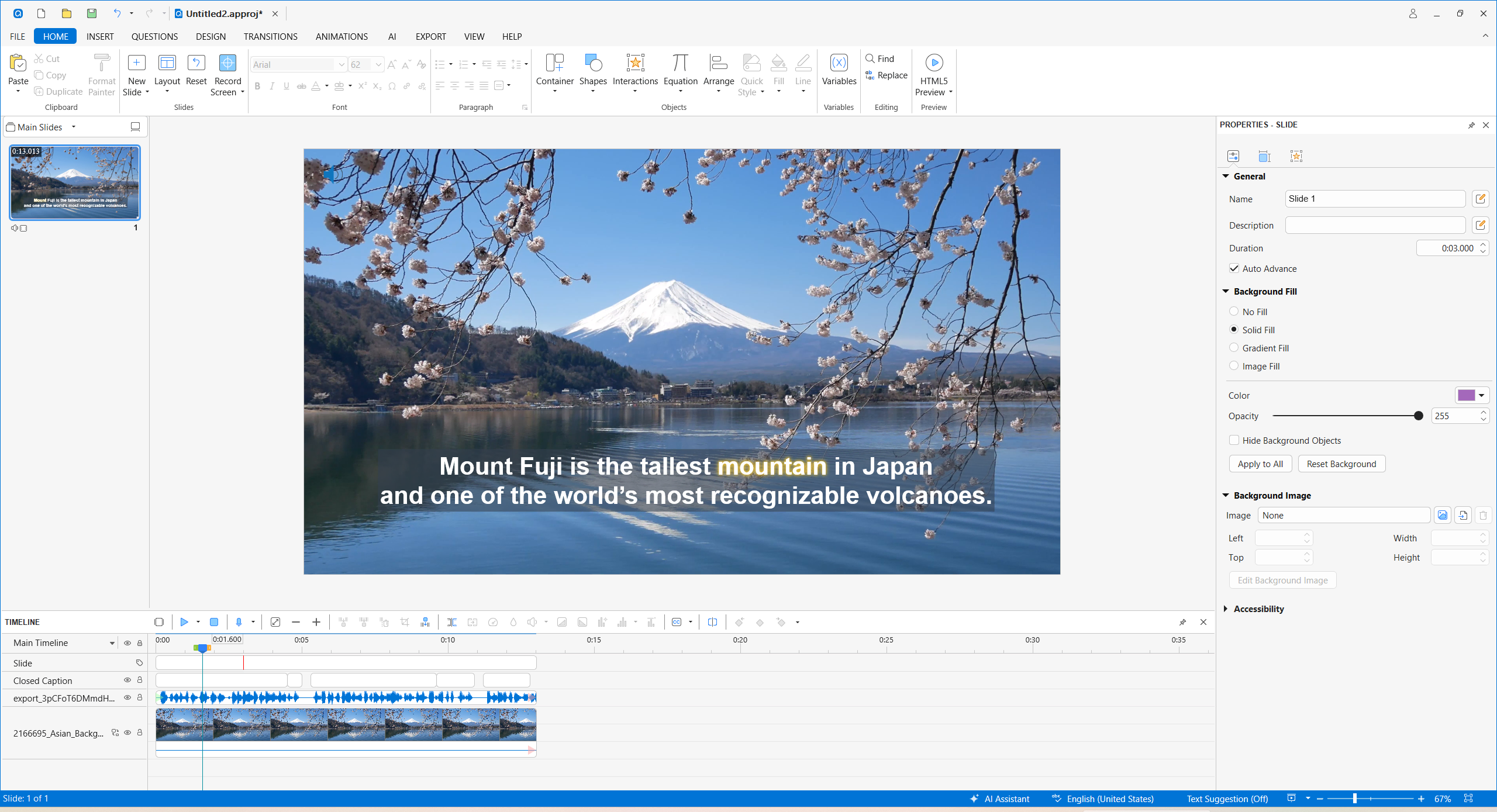
ActivePresenter 10.5 brings spoken-word highlighting that follows the narration:
- Highlight each word exactly as it is spoken
- Support progressive display so learners don’t see the whole block at once
Key options you can apply
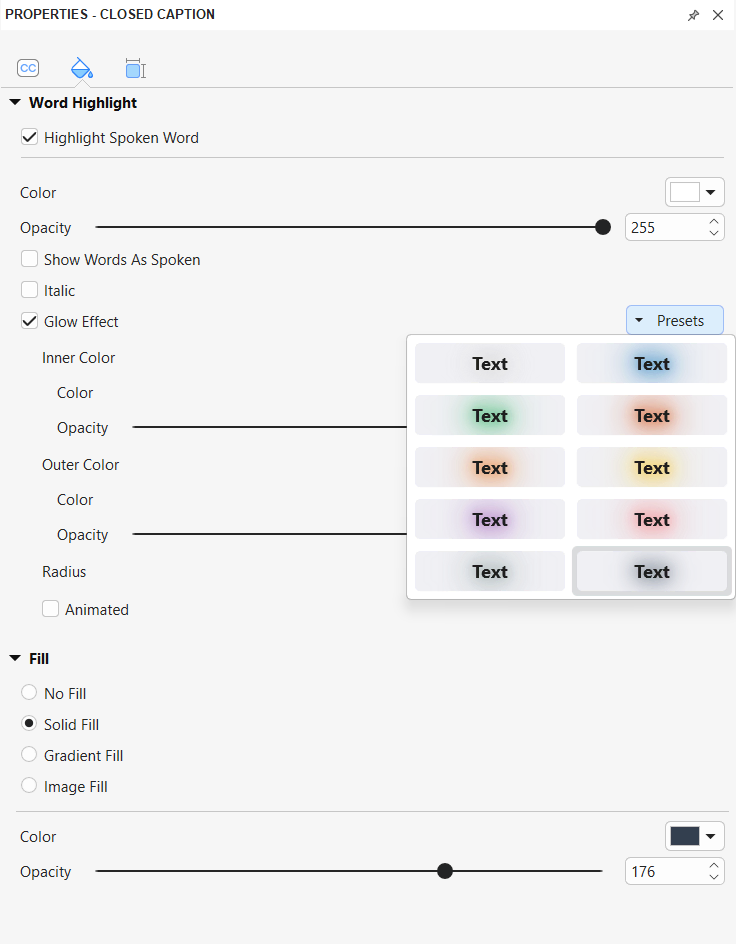
- Show Words As Spoken: captions appear progressively rather than all at once
- Glow Effects: customize inner/outer glow color and opacity, and even enable animated glows so the current word pops naturally
- Highlight Spoken Word + styling controls in the Properties pane > Closed Caption tab
Result you can measure in practice: fewer “backtracking” moments because learners can follow the audio linearly.
3) Flexible Positioning: No more blocked content
One of the most requested improvements is here: captions are no longer limited to the bottom of the screen.
Drag-and-drop positioning
- Select a caption node on the Canvas
- Drag it anywhere to avoid overlapping with UI buttons, important visuals, or subtitles already embedded in your scene
Slide-specific layouts (design flexibility without losing consistency)
- Styles remain project-wide
- But caption positioning is slide-specific, so you can:
- move captions per slide layout
- keep the “brand look” consistent
- still prevent readability issues in different screen compositions
4) A Powerhouse Caption Editor for Global Content
If you do multilingual versions (or plan to), this is where Closed Captions in ActivePresenter 10.5 really earns its keep.
Auto-Translation (instant second/third language)
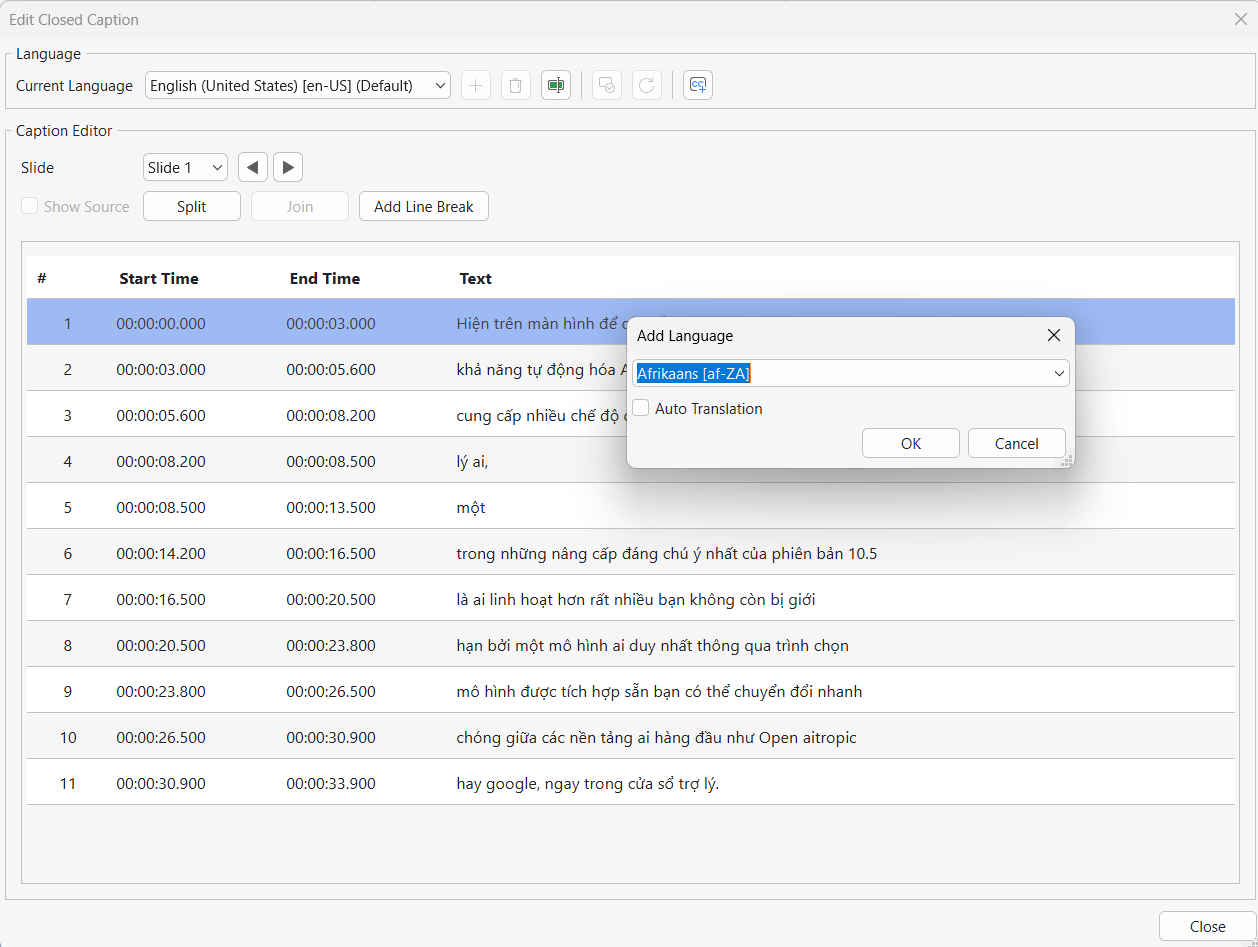
- Click Add Language
- Use Auto Translation to generate subtitles directly from your source text
- Then refine where needed (instead of building from scratch)
Precision editing: Split & Join caption nodes
When captions get long or your timeline gets messy:
- Split a long caption node into two using a simple Enter keypress
- Join multiple nodes to simplify the timeline
Import/Export standards (SRT/VTT)
Work with industry-standard formats:
- Import/export .srt and .vtt
- Do it for single slides or the whole project
This is especially useful when you:
- collaborate with translators
- need to hand subtitles to a separate editing tool
- publish to platforms that prefer SRT/VTT
Comparison Table: Old vs. ActivePresenter 10.5 CC workflow (what you feel day-to-day)
When evaluating how modern elearning authoring software impacts your daily production, comparing older, rigid subtitle setups against ActivePresenter 10.5 reveals a massive shift in efficiency
| Task | Common pain in older workflows | ActivePresenter 10.5 approach |
| Styling across many slides | Re-edit captions repeatedly | Preset styles apply project-wide |
| Following spoken speech | Learners struggle to track words | Word Highlight + Glow Effects |
| Captions covering visuals | Restricted caption placement | Drag-and-drop anywhere + slide-specific positioning |
| Adding languages | Manual subtitle creation | Auto-Translation + edit controls |
| Subtitle handoff | Tool-specific formats, friction | Import/export .srt/.vtt |
Try now!
If you want Closed Captions in ActivePresenter 10.5 to feel effortless, don’t start by editing every slide. Start by:
- applying a preset style,
- enabling Word Highlight,
- positioning captions where they won’t block content,
- then scaling to other languages via Auto-Translation.
Next step: download a trial and test with one real module (not a sample). If you want feedback and best practices from real creators, join the Atomi Systems support community and share your CC setup, we’ll help you tighten the workflow fast.