
When designing an eLearning course or instructional video, keeping learners engaged is half the battle. Visual movement, when used intentionally, acts as a roadmap for your audience’s attention. It cues them on what to read next, transitions them seamlessly from one concept to another, and prevents “cognitive fatigue.”
With the release of version 10.5, mastering ActivePresenter animations and responsive layouts has never been faster or easier. Whether you are using it as a specialized elearning authoring software or a powerful free video editor to create high-quality tutorials, understanding visual flow is essential. Alongside core structural movements like slide transitions, implementing impact-driven ActivePresenter animations allows you to guide your audience effortlessly. Plus, this latest update introduces a major workflow game-changer: the Animation Painter.
In this comprehensive guide, we’ll walk through how to harness basic slide transitions, set up eye-catching ActivePresenter animations, and use the new 10.5 feature to clone complex effect sequences instantly.
1. Setting the Stage: Basic Slide Transitions
Before diving deep into specific object movements, you need to establish how your project moves from one scene to the next. While ActivePresenter animations control elements within a slide, slide transitions act as the punctuation marks of your overall presentation. A subtle fade smoothly closes a chapter, while a crisp push signals a shift to a new, related sub-topic.
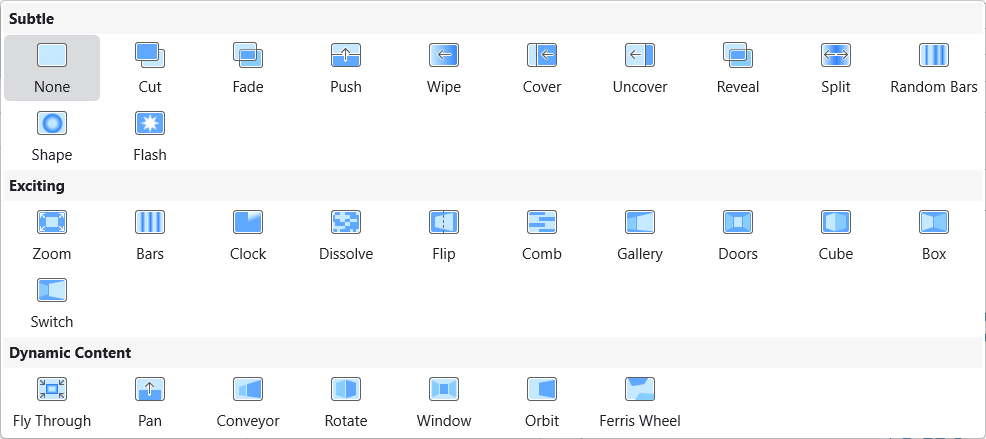
How to apply a Slide Transition:
- Select the target slide in the Slides pane (or switch to the newly improved Slides in Title view to easily drag, drop, and rearrange your structural flow).
- Navigate to the Transitions tab on the main application toolbar.
- Browse the transition gallery (e.g., Fade, Push, Wipe, Split) and select an effect.
- Customize the effect in the Effect Options menu to dictate direction (e.g., from left to right) and set the precise Duration in the properties panel.
Pro-Tip: To maintain a cohesive look across your course, click Apply to All Slides once you have found a transition speed and style that matches the pacing of your onscreen content.
2. Directing Attention with ActivePresenter Animations
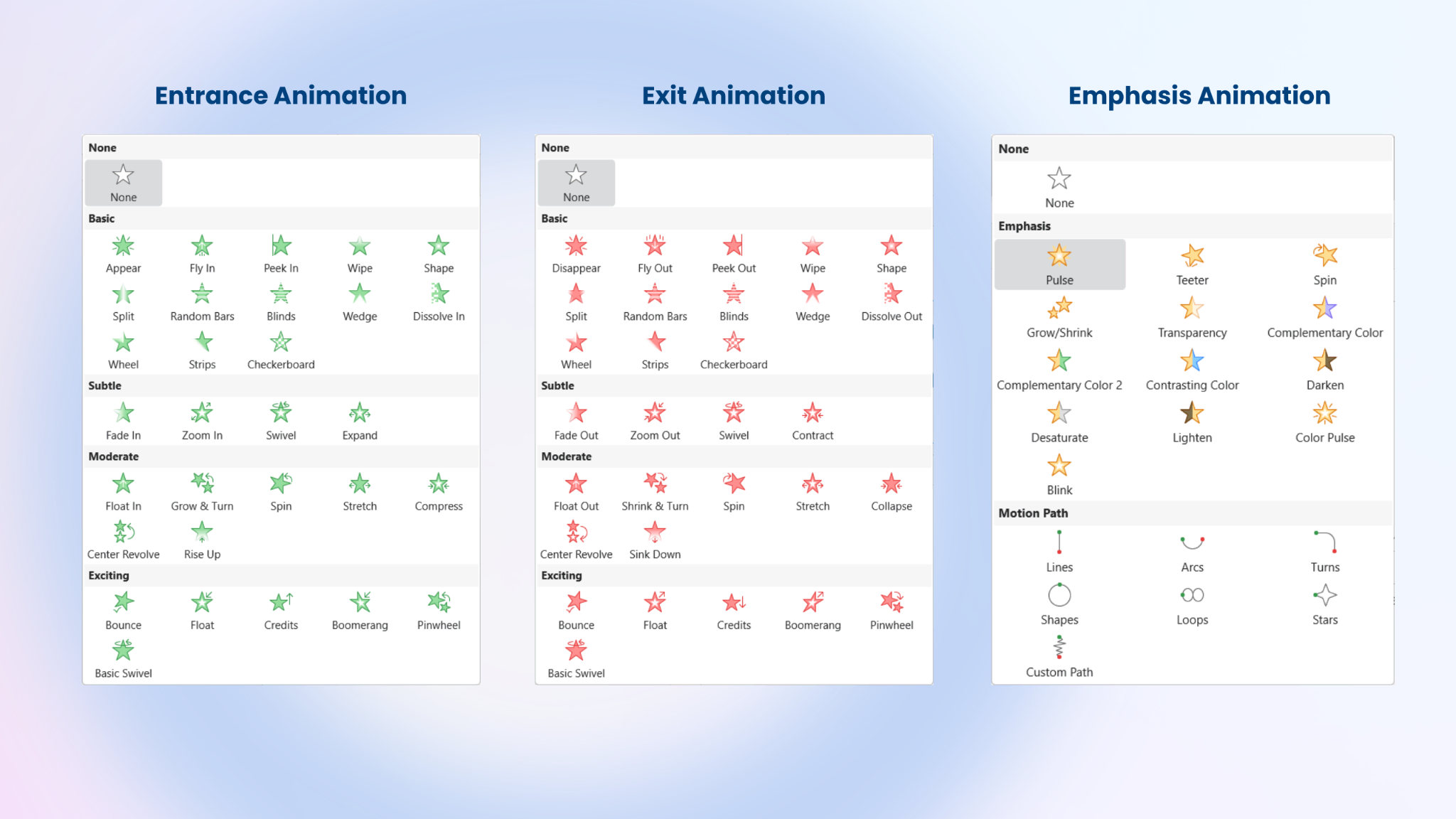
Once your slides flow correctly, it’s time to breathe life into the content on those slides. Utilizing ActivePresenter animations allows you to animate shapes, text boxes, images, and characters using four distinct timing stages:
- Entrance (Green): How the object appears on the slide (e.g., Fade In, Fly In, Zoom).
- Emphasis (Yellow): Subtle movements to draw attention to an active element (e.g., Pulse, Spin, Teeter).
- Exit (Red): How the object leaves the screen once its purpose is complete (e.g., Fade Out, Fly Out).
- Motion Paths: Custom lines, curves, or loops that an object travels along across the canvas.
How to add Object Animations:
- Click on the object (such as a text container or image) you wish to animate.
- Head over to the Animations tab.
- Click Add Animation and choose your desired effect from the extensive library of ActivePresenter animations.
- Adjust the timing by either modifying the parameters in the toolbar or dragging the colored animation bars directly in the Timeline pane at the bottom of your screen.
New in Version 10.5 – Scale Text with Object: When building dynamic ActivePresenter animations, you often have to resize containers to match visual movements. In version 10.5, text now automatically scales proportionally when you resize its container—meaning your typography remains perfectly formatted no matter how complex your animations are.
3. The 10.5 Productivity Booster: The Animation Painter
Historically, creating a perfectly synced, multi-layered sequence of ActivePresenter animations for an object, like adding a smooth Fade In, a mid-point Pulse emphasis, and a quick Fly Out exit, meant spending minutes tweaking timeline bars for a single asset. If you had ten similar assets on a slide, you had to manually recreate that process ten times over.
ActivePresenter 10.5 completely solves this bottleneck with the Animation Painter. Think of it as a format painter, but exclusively built for timing, motion, and visual effects. It copies complex ActivePresenter animations from one object and pastes them onto another instantly.
How to use the Animation Painter:
- Select the object that features the complex sequence of ActivePresenter animations you want to replicate.
- In the Animations tab, click on the Animation Painter tool icon.
- Your cursor will transform into a paintbrush. Simply click on any other object on your canvas.
- Boom! The entire stack of Entrance, Emphasis, and Exit animations: including their specific durations and delay properties, is cloned onto the new asset immediately.
Workflow Shortcut: If you have multiple objects you want to paste the animations onto, double-click the Animation Painter icon. This locks the tool in “active” mode, allowing you to click object after object across different slides until you press Esc to turn it off.
Best Practices for eLearning Animation
Movement should always serve a purpose. As you experiment with slide transitions and various ActivePresenter animations, keep these three rules of thumb in mind:
- Match Audio Cues: Ensure your object entrance animations line up perfectly with your narration or closed captions. (ActivePresenter 10.5 features powerful upgraded Auto-Captions and split/join timing controls to help you sync audio and visual triggers flawlessly).
- Maintain Stylistic Consistency: Don’t mix ten different transition types in a single module. Pick 1 or 2 standard transitions for structural shifts, and use the Animation Painter to replicate uniform ActivePresenter animations for buttons or image entrances.
- Keep It Snappy: Entrance and exit animations should rarely last longer than 0.3 to 0.5 seconds. Anything slower can make your learner feel like the interface is lagging.
Wrapping Up
ActivePresenter 10.5 strikes the perfect balance between high-end design capability and pure workflow speed. By understanding basic transitions, mastering object timelines, and leaning heavily on the new Animation Painter to copy your ActivePresenter animations, you can build cinematic, fluid, and deeply engaging learning environments in a fraction of the time.
Ready to streamline your design process? Open up your current project, build your ultimate animation sequence, and let the tool do the heavy lifting for the rest of your course!
