
The Camtasia Pricing Problem Nobody Warned You About
If you’ve been using Camtasia for years and recently logged into your TechSmith account only to discover your perpetual license is no longer supported, you’re not alone. TechSmith’s move to a subscription-only model has left thousands of educators, trainers, and content creators quietly furious, and actively searching for a way out.
In my nearly 10 years of producing eLearning content and video tutorials professionally, I’ve seen this pattern before: a great tool gets popular, then pivots to SaaS pricing, and the community scrambles. The good news? The alternatives in 2025–2026 have never been stronger.
This guide cuts through the noise. I personally tested and evaluated five Camtasia 2026 alternatives — ActivePresenter, OBS Studio, Filmora 15, Bandicam, and Screencastify, across real production scenarios. Whether you’re a solo instructor, a corporate L&D team, or a YouTube creator, there’s a better (and cheaper) option waiting for you.
💡 Quick verdict for busy readers: If you need a true Camtasia replacement for eLearning, ActivePresenter is the one. For pure game/screen capture, OBS Studio wins on power. For polished video editing, Filmora 15 delivers the best balance of simplicity and quality.

Table of contents
- The Camtasia Pricing Problem Nobody Warned You About
- What to Look for in a Camtasia Alternative: Evaluation Criteria
- Top 5 Camtasia 2026 Alternatives: Full Comparison
- 1. ActivePresenter — Best Camtasia Alternative for eLearning & Training
- 2. OBS Studio — Best Free Camtasia Alternative for Power Users
- 3. Filmora 15 — Best Camtasia Alternative for Video Editing & Content Creation
- 4. Bandicam — Best for High-Performance Screen & Game Recording
- 5. Screencastify — Best Browser-Based Camtasia Alternative for Quick Sharing
- Final Verdict: Which Camtasia 2026 Alternative Should You Choose?
- Frequently Asked Questions
What to Look for in a Camtasia Alternative: Evaluation Criteria
Before diving into the tools, let me share the framework I use when evaluating screen recording and video editing software. This keeps the comparison honest and practical.
Core Evaluation Criteria
| Criterion | Why It Matters |
| Screen Recording Quality | Resolution, frame rate, system audio/mic capture |
| Video Editing Depth | Timeline editor, effects, transitions, non-destructive editing |
| eLearning Features | Quizzes, simulations, SCORM/xAPI export, LMS compatibility |
| Annotation & Interactivity | Shapes, callouts, zoom effects, cursor highlighting |
| Export Flexibility | MP4, HTML5, SCORM, AVI, WebM options |
| Platform Support | Windows, macOS, browser-based |
| Pricing & Free Version | Watermarks, time limits, feature caps |
| Learning Curve | How quickly a new user can produce usable output |
With this framework in place, let’s get into the tools.
Top 5 Camtasia 2026 Alternatives: Full Comparison
Quick Comparison Table
| Feature | ActivePresenter | OBS Studio | Filmora 15 | Bandicam | Screencastify |
| Platform | Windows, macOS | Windows, macOS, Linux | Windows, macOS | Windows only | Browser (Chrome) |
| Primary Use | eLearning authoring + screen recording | Live streaming + screen capture | Video editing + screen recording | Game/screen recording | Quick browser recording |
| Video Editing | Advanced timeline, non-destructive | None (capture only) | Advanced timeline, AI tools | None | Basic trim/merge |
| eLearning/SCORM | ✅ Full SCORM/xAPI | ❌ | ❌ | ❌ | ❌ |
| Interactive Elements | Quizzes, simulations, branching | ❌ | ❌ | ❌ | ❌ |
| Free Version | ✅ Unlimited (no time cap) | ✅ Fully free | ⚠️ Watermark on free | ⚠️ Watermark on free | ⚠️ 5 min/video limit |
| Webcam Recording | ✅ | ✅ | ✅ | ✅ | ✅ |
| Output Formats | MP4, AVI, WMV, WebM, HTML5, SCORM | MP4, MKV, FLV | MP4, AVI, MOV, GIF | MP4, AVI, MOV | MP4, WebM, GIF |
| Offline Use | ✅ Fully offline | ✅ Fully offline | ✅ Fully offline | ✅ Fully offline | ❌ Cloud-dependent |
| Best For | Educators, L&D teams, trainers | Streamers, advanced recorders | YouTubers, content creators | Gamers, high-FPS capture | Teachers, quick sharing |
1. ActivePresenter — Best Camtasia Alternative for eLearning & Training
“This is the tool I recommend to every eLearning developer who asks me where to start — especially those coming from Camtasia.”
What Is ActivePresenter?
ActivePresenter, developed by Atomi Systems, is a full-featured eLearning authoring tool that doubles as a professional screen recorder and video editor. Unlike most screen recorders that simply capture footage and hand you back an MP4, ActivePresenter gives you a complete post-production and instructional design suite — all in one application.
What makes it stand out in 2025–2026 is its genuinely unlimited free version. No watermarks. No recording time limits. No credit card required. For someone migrating away from Camtasia’s subscription model, this alone is a compelling reason to look closer.
Key Features
- Screen recording with system audio, webcam, and microphone support (multi-track)
- Non-destructive timeline editor with visual effects, transitions, and zoom/pan animations
- Advanced annotation toolkit: shapes, callouts, spotlight effects, cursor path customization
- Interactive eLearning elements: quizzes (multiple choice, fill-in-the-blank, drag-and-drop), software simulations, branching scenarios
- SCORM 1.2, SCORM 2004, and xAPI export for seamless LMS integration
- HTML5 output for browser-based interactive content
- Export to MP4, AVI, WMV, WebM, MKV, and more
- Available on Windows and macOS
3 Real-World Use Cases for ActivePresenter
🏦 Use Case 1: Banking Software Training Simulation
A regional bank’s L&D team used ActivePresenter to create a click-through simulation of their new core banking system. Using the software simulation recording mode, the tool automatically captured mouse clicks and keyboard inputs, then generated interactive training slides with built-in assessment questions. The final package was exported as SCORM and uploaded directly to their LMS — no third-party tool needed.
💻 Use Case 2: IT Department Onboarding Videos
An IT manager used ActivePresenter to record step-by-step walkthroughs of internal ticketing software for new hires. The zoom-and-pan effects and cursor spotlight made it easy to direct attention to specific UI elements without re-recording. The videos were exported as MP4 and hosted on the company intranet.
🎓 Use Case 3: University Online Course Module
A university instructor built a 45-minute interactive lecture module with embedded knowledge checks. Using branching scenarios, students who answered incorrectly were routed to a review section before progressing. The HTML5 export worked seamlessly across all student devices without any plugin installation.
Pros & Cons
| ✅ Pros | ❌ Cons |
| Truly unlimited free version | Interface can feel overwhelming for total beginners |
| Full SCORM/xAPI/HTML5 export | No cloud storage (local save only) |
| Non-destructive video editing | Some advanced effects require a learning curve |
| Interactive quizzes and simulations | Less suitable for pure entertainment |
| Multi-track audio recording | |
| Windows + macOS support |
Pricing
- Free: Full-featured, no watermark, no time limit
- Standard License: One-time perpetual license (no subscription trap)
🎯 Pro Tip from 9+ Years of Experience: When exporting HTML5 content with embedded quizzes, use ActivePresenter’s “Publish to LMS” preset instead of the generic HTML5 option. It automatically bundles your xAPI tracking code and reduces the chance of compatibility issues with Moodle, TalentLMS, or Cornerstone.
2. OBS Studio — Best Free Camtasia Alternative for Power Users
What Is OBS Studio?
OBS Studio (Open Broadcaster Software) is the gold standard for free screen recording and live streaming. It’s open-source, completely free with no feature restrictions, and has a passionate developer community constantly pushing updates. If your primary need is capturing screen activity at high quality — especially for technical demonstrations, gaming content, or live webinars — OBS delivers where it counts.

Key Features
- Scene-based recording: layer multiple sources (screen, webcam, images, browser windows) simultaneously
- High-performance capture: supports up to 4K recording and high frame rates
- Audio mixer with noise suppression, filters, and multi-source audio
- Live streaming to YouTube, Twitch, and custom RTMP servers
- Plugin ecosystem: hundreds of community plugins for additional functionality
- Cross-platform: Windows, macOS, Linux
Where OBS Falls Short vs. Camtasia
OBS is a capture-first tool — it records beautifully but stops there. There is no built-in video editor. Once you’re done recording, you’ll need to import your footage into a separate editing tool (like Filmora 15 or DaVinci Resolve) to add callouts, trim sections, or add captions. For eLearning workflows, OBS alone is insufficient.
Pros & Cons
| ✅ Pros | ❌ Cons |
| 100% free, no watermarks | No built-in video editor |
| Extremely powerful capture engine | Steep learning curve for beginners |
| Cross-platform (Win/Mac/Linux) | No eLearning features (SCORM, quizzes) |
| Active plugin community | Interface can feel technical/intimidating |
| Great for live streaming | Requires separate editing software |
🎯 Pro Tip: Set up a dedicated OBS Scene Collection for screen recording tutorials (separate from your streaming setup). Use the “Lossless Quality” recording preset with MKV format to avoid file corruption if OBS crashes mid-session. Convert to MP4 afterward using OBS’s built-in Remux feature.
3. Filmora 15 — Best Camtasia Alternative for Video Editing & Content Creation
What Is Filmora 15?
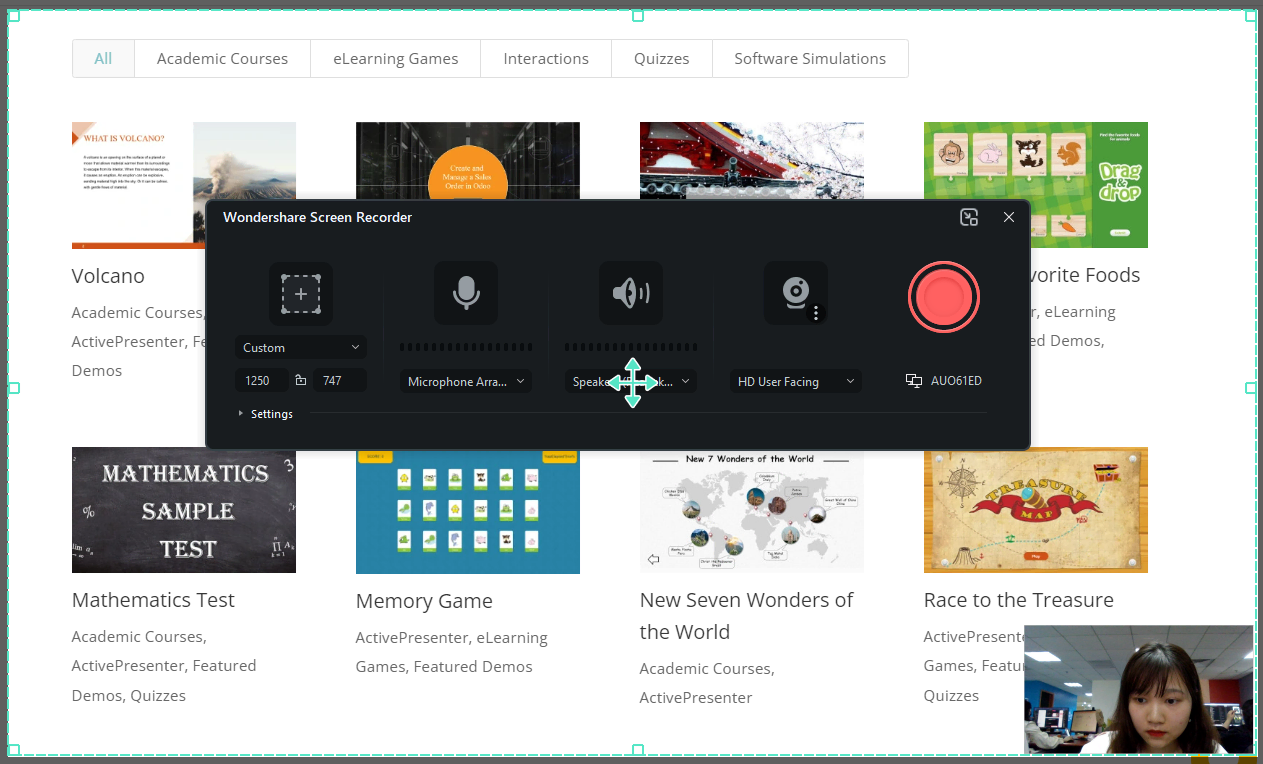
Wondershare Filmora 15 is a consumer-to-prosumer video editor that’s evolved significantly from its early “simple editing app” reputation. The 2025 version (Filmora 15) brings AI-powered tools that genuinely speed up production workflows, making it a compelling choice for content creators, YouTubers, and educators who want polished video output without a professional editor’s learning curve.
Key Features
- Screen recording with webcam overlay and system audio
- Advanced timeline editing with multi-track support, keyframing, and color grading
- AI tools: Auto-caption generation, AI background removal, smart scene detection, noise removal
- Motion graphics and transitions library (1,000+ assets)
- Speed ramping, zoom effects, and split-screen templates
- Export options: MP4, AVI, MOV, GIF, and direct upload to YouTube/Vimeo
Where Filmora 15 Falls Short
Filmora’s screen recording module is functional but not a primary focus. It lacks the depth of annotation tools, cursor effects, and especially the eLearning features (SCORM, quizzes, simulations) that Camtasia or ActivePresenter offer. Think of it as a strong video production tool that happens to record screens, rather than a dedicated screen recorder that edits.
Pros & Cons
| ✅ Pros | ❌ Cons |
| Polished, intuitive interface | Free version adds watermarks |
| Strong AI-powered editing tools | Subscription model (similar concern as Camtasia) |
| Large asset library (templates, music, effects) | No SCORM/xAPI export |
| Good for YouTube/social media content | Screen recording features are basic |
| Regular feature updates | Not ideal for eLearning authoring |
Real-World Use Case
📱 Use Case: Marketing Team Product Demo Videos
A SaaS marketing team used Filmora 15 to create product demo videos combining screen recordings with animated lower-thirds, background music, and AI-generated captions. The output was polished enough for website hero sections and LinkedIn campaigns — no professional video editor required.
🎯 Pro Tip: When exporting from Filmora 15 for web embedding, use the H.264 codec at CRF 23 (constant rate factor) instead of a fixed bitrate. This dramatically reduces file size while maintaining visual quality — critical if you’re hosting videos on a slow server or embedding in an LMS.
4. Bandicam — Best for High-Performance Screen & Game Recording
What Is Bandicam?
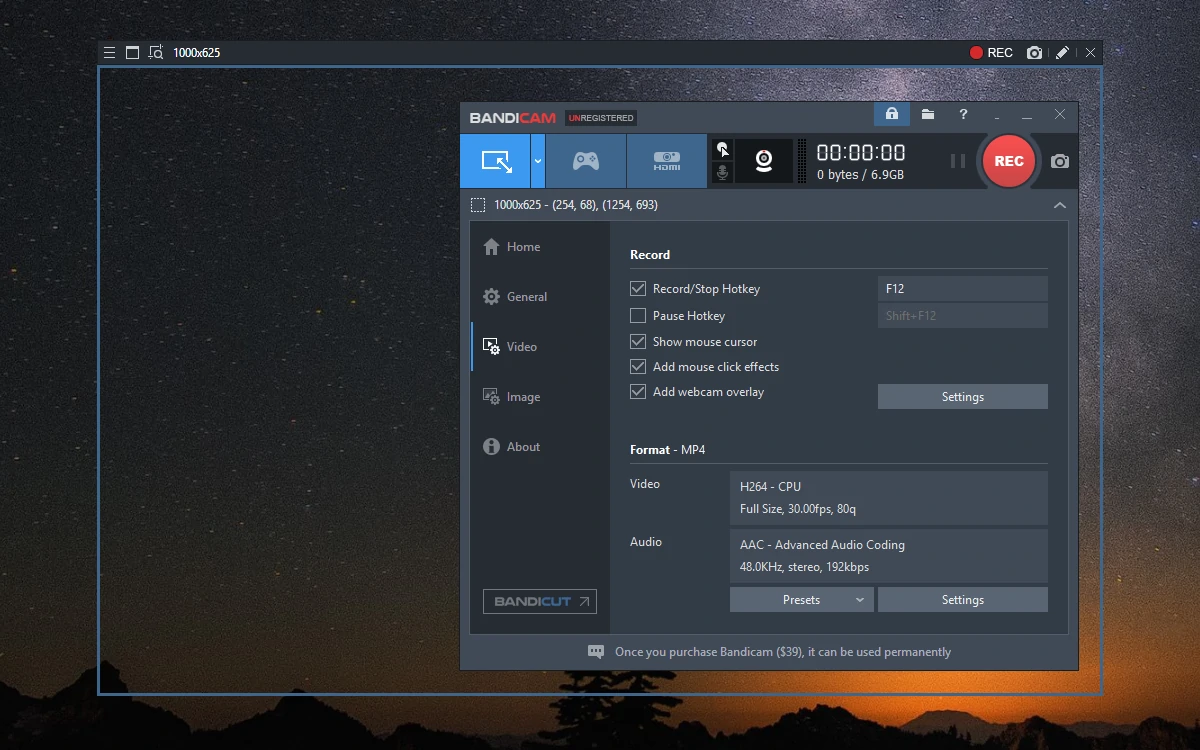
Bandicam is a Windows-exclusive screen recorder built for performance. It’s particularly well-regarded in the gaming community for its ability to record at high frame rates with minimal CPU impact. For corporate trainers or educators who need to record software demos on Windows without any performance lag, it’s a reliable choice.
However, Bandicam has no video editing capabilities — similar to OBS, it’s purely a capture tool. You’ll need to pair it with an editor for post-production work.
Key Features
- High-performance game recording: Uses DirectX/OpenGL/Vulkan hooks for minimal system impact
- 4K Ultra HD recording at up to 480fps
- Hardware-accelerated encoding (NVIDIA NVENC, Intel Quick Sync, AMD VCE)
- Real-time drawing tools during recording
- Scheduled recording and auto-split for long sessions
- Webcam overlay with customizable position and size
Pros & Cons
| ✅ Pros | ❌ Cons |
| Minimal performance impact during capture | Windows only |
| Excellent for high-FPS game recording | No built-in video editor |
| Hardware-accelerated encoding | Free version adds watermarks and 10-minute limit |
| Lightweight and fast to set up | Not suitable for eLearning authoring |
| Scheduled and auto-split recording | Requires separate editing software |
Pricing
Bandicam offers tiered pricing plans with a one-time purchase option, which is refreshing compared to Camtasia’s new subscription model. A free version is available but includes a watermark and caps recordings at 10 minutes.
🎯 Pro Tip: If you’re using Bandicam for software demo recordings (not gaming), enable the “Around Mouse” capture mode — it creates a dynamic follow-cam effect that keeps the cursor centered, which is surprisingly effective for recording small UI elements without zooming in post-production.
5. Screencastify — Best Browser-Based Camtasia Alternative for Quick Sharing
What Is Screencastify?
Screencastify is a Chrome browser extension that lets you record your screen, webcam, or both directly from your browser — no installation required beyond the extension itself. It’s designed for speed and simplicity: click record, capture what you need, and share via Google Drive or a direct link in seconds.
For teachers who need to record a quick lesson walkthrough, or team members who want to share a screen recording without any technical setup, Screencastify removes every possible barrier to entry.

Key Features
- One-click recording from Chrome browser
- Screen, tab, or webcam recording (or all three simultaneously)
- Basic editing: trim, merge clips, add text captions
- Direct Google Drive integration: recordings auto-save to Drive
- Shareable links generated instantly
- Drawing tools for annotating during recording
Where Screencastify Falls Short
Screencastify is intentionally simple — which is both its strength and its biggest limitation. There’s no advanced timeline editor, no SCORM export, no interactive elements, and no offline mode. It’s entirely cloud-dependent, which raises privacy considerations for enterprise or institutional users. Free users are capped at 5 minutes per video, which is a significant constraint for most professional use cases.
Pros & Cons
| ✅ Pros | ❌ Cons |
| Extremely easy to use — no learning curve | 5-minute limit on free plan |
| No software installation required | No offline use — 100% browser-dependent |
| Instant Google Drive sharing | Very limited editing tools |
| Great for teachers and quick demos | No SCORM, HTML5, or LMS export |
| Works on any OS with Chrome | Privacy concerns with cloud-only storage |
Real-World Use Case
🏫 Use Case: Elementary School Teacher Lesson Recap
A primary school teacher used Screencastify to record 3-minute recap videos of each math lesson, sharing the Google Drive links directly with students via Google Classroom. The zero-setup workflow meant she could record a video between classes and have it shared before the next period — something no desktop app could match for sheer convenience.
🎯 Pro Tip: Screencastify works best when paired with Google Slides. Present your slides in full-screen mode, enable the tab recording mode, and Screencastify will capture only the presentation — no desktop distractions in the background. This creates surprisingly clean-looking lecture recordings with almost zero effort.
Final Verdict: Which Camtasia 2026 Alternative Should You Choose?
After extensive testing, here’s the honest breakdown based on your specific situation:
| Your Situation | Best Pick |
| You create eLearning courses, software simulations, or SCORM content | ActivePresenter |
| You need maximum recording power for free, no editing required | OBS Studio |
| You want polished YouTube/social media videos with AI editing tools | Filmora 15 |
| You’re on Windows and need high-FPS game or software capture | Bandicam |
| You need quick recordings to share with students in under 60 seconds | Screencastify |
The Bottom Line
Camtasia’s pivot to subscription pricing was a wake-up call for a lot of users — but it’s also opened the door to a genuinely better ecosystem. Each tool in this list outperforms Camtasia in at least one key dimension, and none of them lock you into a costly yearly subscription (with the notable exception of Filmora’s subscription tier).
For most educators, trainers, and L&D professionals reading this: ActivePresenter is the closest true Camtasia replacement. It covers screen recording, video editing, and eLearning authoring in a single application — and its unlimited free version means you can evaluate it thoroughly before spending a cent.
→ Download ActivePresenter Free — No Credit Card Required
Frequently Asked Questions
Q: Is there a completely free Camtasia alternative with no watermark?
Yes. ActivePresenter offers a fully unlimited free version with no watermarks and no recording time limits. OBS Studio is also completely free and open-source.
Q: Can I use these tools to export SCORM packages for my LMS?
Only ActivePresenter supports SCORM 1.2, SCORM 2004, and xAPI export natively. The other tools on this list do not offer LMS-compatible output.
Q: Which Camtasia alternative works on Mac?
ActivePresenter, OBS Studio, and Filmora 15 all support macOS. Bandicam is Windows-only, and Screencastify works on any OS via the Chrome browser.
Q: Is Filmora 15 better than Camtasia for video editing?
For pure video production with AI-assisted tools, Filmora 15 offers a more modern editing experience. However, Camtasia (and ActivePresenter) remain superior for eLearning-specific workflows like software simulations and interactive assessments.
Q: What’s the best free screen recorder for teachers?
For teachers who need interactive content and quiz-based assessments, ActivePresenter is the best choice. For quick, no-fuss recordings shared via Google Classroom, Screencastify is unbeatable for convenience.
Found this guide helpful? Share it with a colleague who’s still paying for Camtasia. And if you’ve tried any of these tools, drop your experience in the comments — real user feedback is always more valuable than any benchmark.