
Recording your screen on a Mac sounds simple, until you need it to perform like training, not like a “video file.” In 2026, screen recorder mac 2026 users are no longer satisfied with basic capture. They want:
- predictable audio sync,
- clean exports,
- fast editing,
- and (for many teams) interactive learning outputs that actually load in an LMS.
In this guide, I’ll compare ActivePresenter on macOS 26 against built-in tools (like QuickTime Player screen recording and macOS capture features). I’ll also be transparent about what each approach is best at, because the wrong choice can force you to redo work.

The Real Question: What Happens After You Hit “Stop Recording”?
Before comparing tools, answer one thing:
When you finish recording, do you want to:
- Just save a video (and edit elsewhere), or
- Turn that recording into training (trim, annotate, add interactions, and publish)?
If your answer is #2, built-in capture alone is usually where teams lose time.
Built-in Screen Recording on macOS 26: When It Works (and When It Hurts)
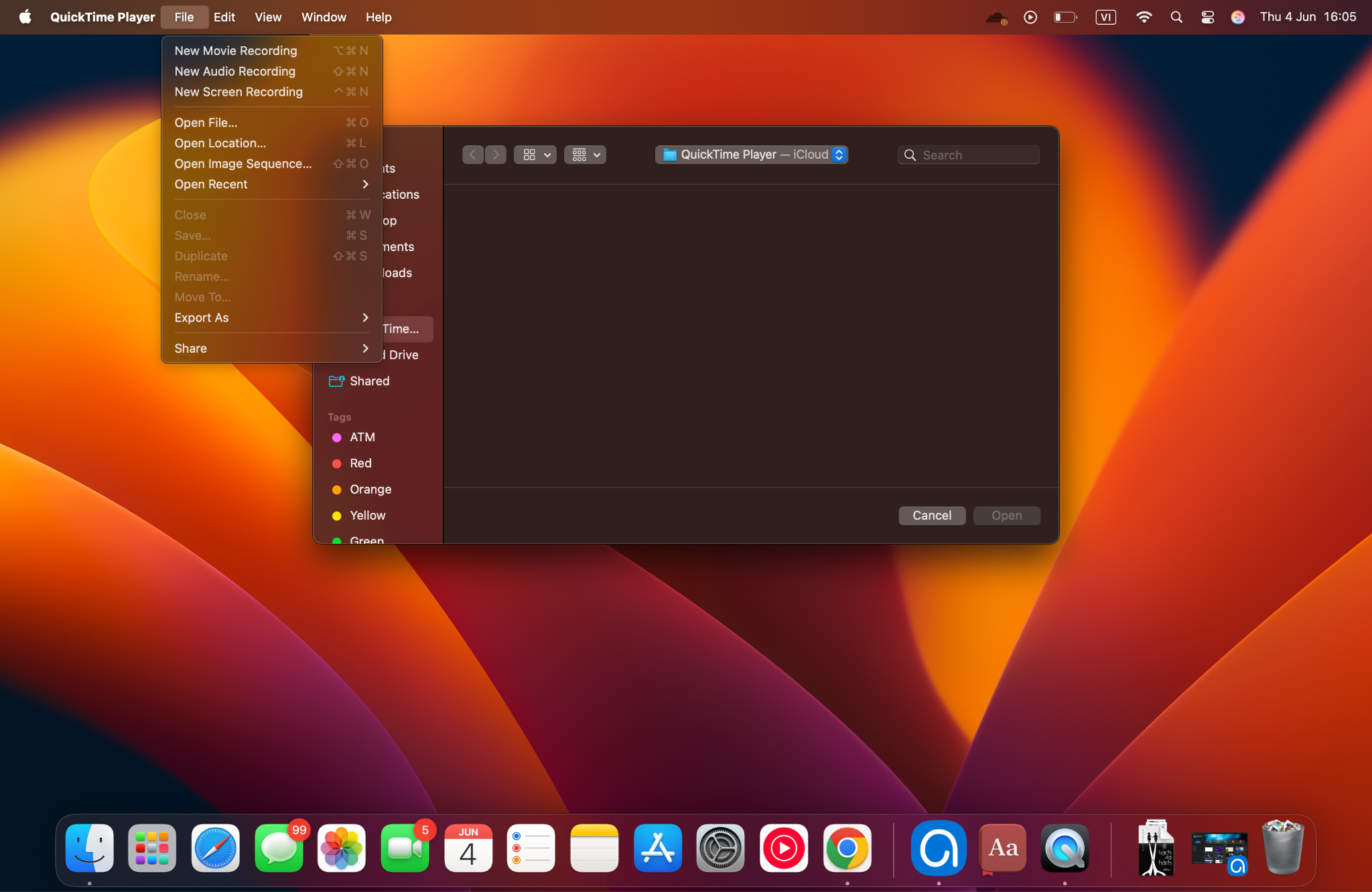
The built-in recording tools on macOS are undeniably convenient. They are instant to start, require zero installation, and adequately cover basic video capture.
What Built-in Tools Are Good At
- Fast capture: Perfect for generating short, simple videos on the fly.
- Quick sharing: Ideal for “here’s what I did” desktop walkthroughs sent to a colleague.
- Lightweight edits: Basic trimming and simple file handling.
What Built-in Tools Often Fail At (For eLearning-Grade Output)
- Editing workflow gaps: You are forced to jump back and forth between multiple apps, manually re-syncing audio tracks and managing continuous re-exports.
- Annotation limitations: Visual callouts and training-style highlights are rigid and incredibly tedious to refine quickly.
- No training-ready publishing pipeline: If your ultimate goal is to deliver interactive content or SCORM/xAPI packages, built-in tools offer no native path.
- Export bloat: Raw video captures result in massive, unoptimized files that lead to slower LMS streaming, especially after multiple file conversions.
If your team is producing training content repeatedly, those “small frictions” quickly turn into a massive, recurring workflow cost.
ActivePresenter on macOS 26: What Changes the Game
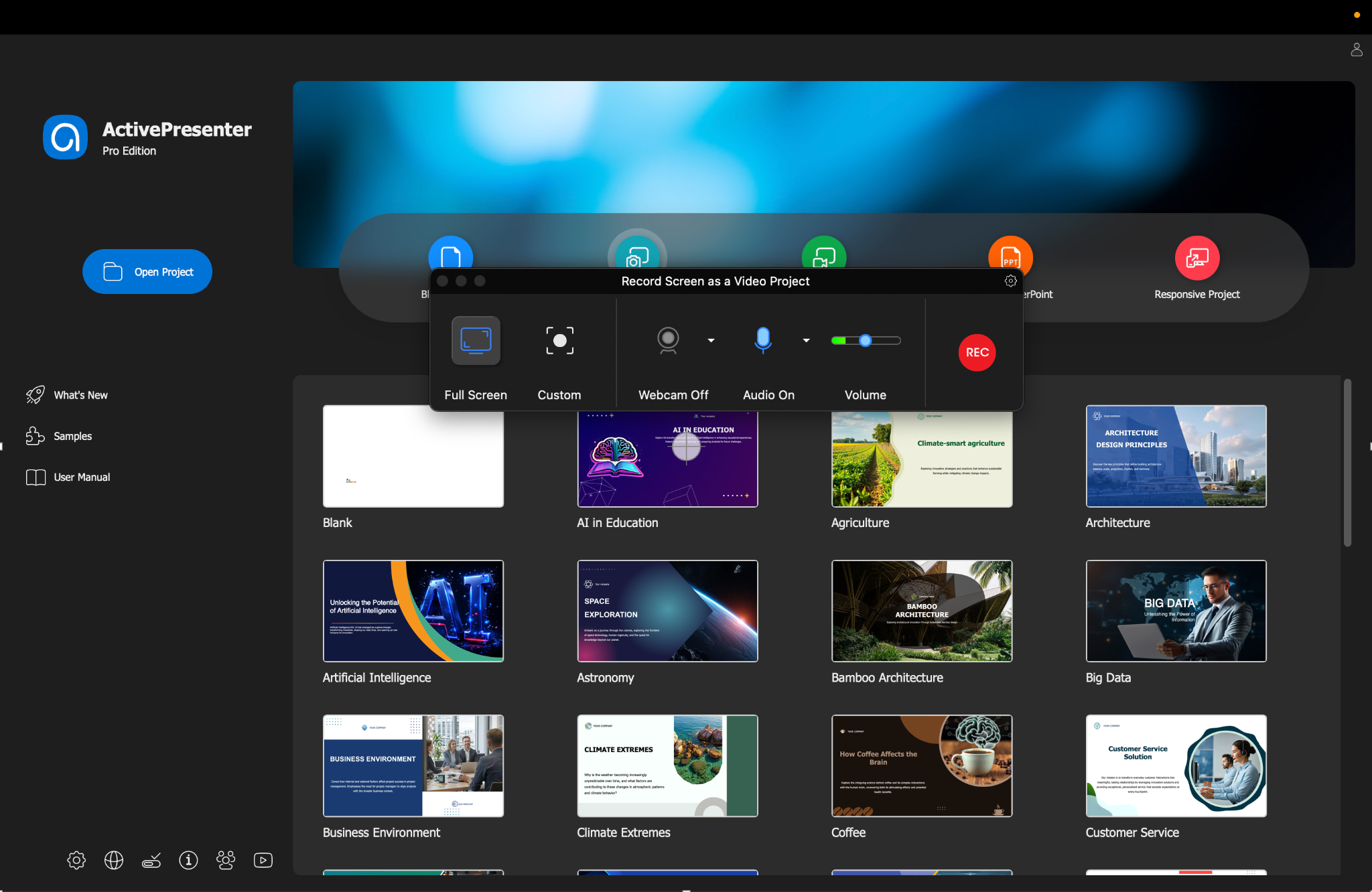
ActivePresenter stands apart because it doesn’t treat screen recording as a standalone task, it treats it as the foundational first step of an entire instructional design ecosystem. Instead of forcing you to string together three different applications to record, edit, and format a project, ActivePresenter runs natively on macOS to handle the entire lifecycle of your content.
When you record on a Mac, you aren’t just capturing flat pixels; you are capturing a rich layer of metadata that makes post-production incredibly flexible.
1. True Multi-Track Isolation (System Audio, Mic, and Screen)
ActivePresenter records your screen, webcam, microphone audio, and internal macOS system audio onto completely independent, synchronized tracks.
- Fix mistakes instantly: If you stumble over a sentence, you can silence or re-record just the microphone track for that specific 5-second window without touching the flawless on-screen video capture.
- Independent Cursor Editing: Because the cursor path is recorded as separate vector data, you can actually change the mouse pointer size, highlight color, or click sound effect after you finish recording.
2. The Power of Full-Fidelity Software Simulation
When you click a menu or type a command, the software automatically slices the recording into logical steps, creating:
- Smart Text Callouts: Automatically generates text boxes like “Click the ‘File’ menu” or “Select ‘Export to PDF'” based on your exact actions.
- Interactive Modes: Instantly converts a single recording session into three distinct learning modes: Demonstration (passive viewing), Practice (guided, hands-on walkthrough), and Test (unguidided assessment tracking).
3. Simple Asset Integration & Visual Polish
Built-in Mac tools expect you to be satisfied with a raw file. ActivePresenter gives you a full canvas right next to your timeline.
This completely eliminates the classic “edit-and-re-export” bottleneck that occurs when trying to fix up a basic QuickTime clip inside a heavy video editor. Everything remains fully editable within a single project file up until the moment you hit publish.
Comparison Table: ActivePresenter vs Built-in Tools (macOS 26)
| Feature / Outcome | Built-in macOS Tools | ActivePresenter (macOS 26) |
| Start recording | Very fast | Fast (desktop app) |
| Editing workflow | Limited; often requires another editor | Built-in editor + timeline workflow |
| Multi-track control (screen + mic + audio) | Usually not robust | Supported via multi-track timeline |
| Annotations for training | Basic and time-consuming to refine | Strong callouts/annotation tools |
| Interactive eLearning output | Not available | Supports interactive authoring (quizzes, hotspots, branching scenarios, etc.) |
| LMS compatibility | Requires external tooling | Exports for common LMS formats (SCORM/xAPI workflows) |
| Repeatability for long sessions | Can degrade depending on setup | Designed to handle longer capture sessions reliably |
| Re-export/rework risk | Higher when requirements evolve | Lower: capture → edit → publish stays in one process |
ActivePresenter: Feature Highlights That Matter for Real Training
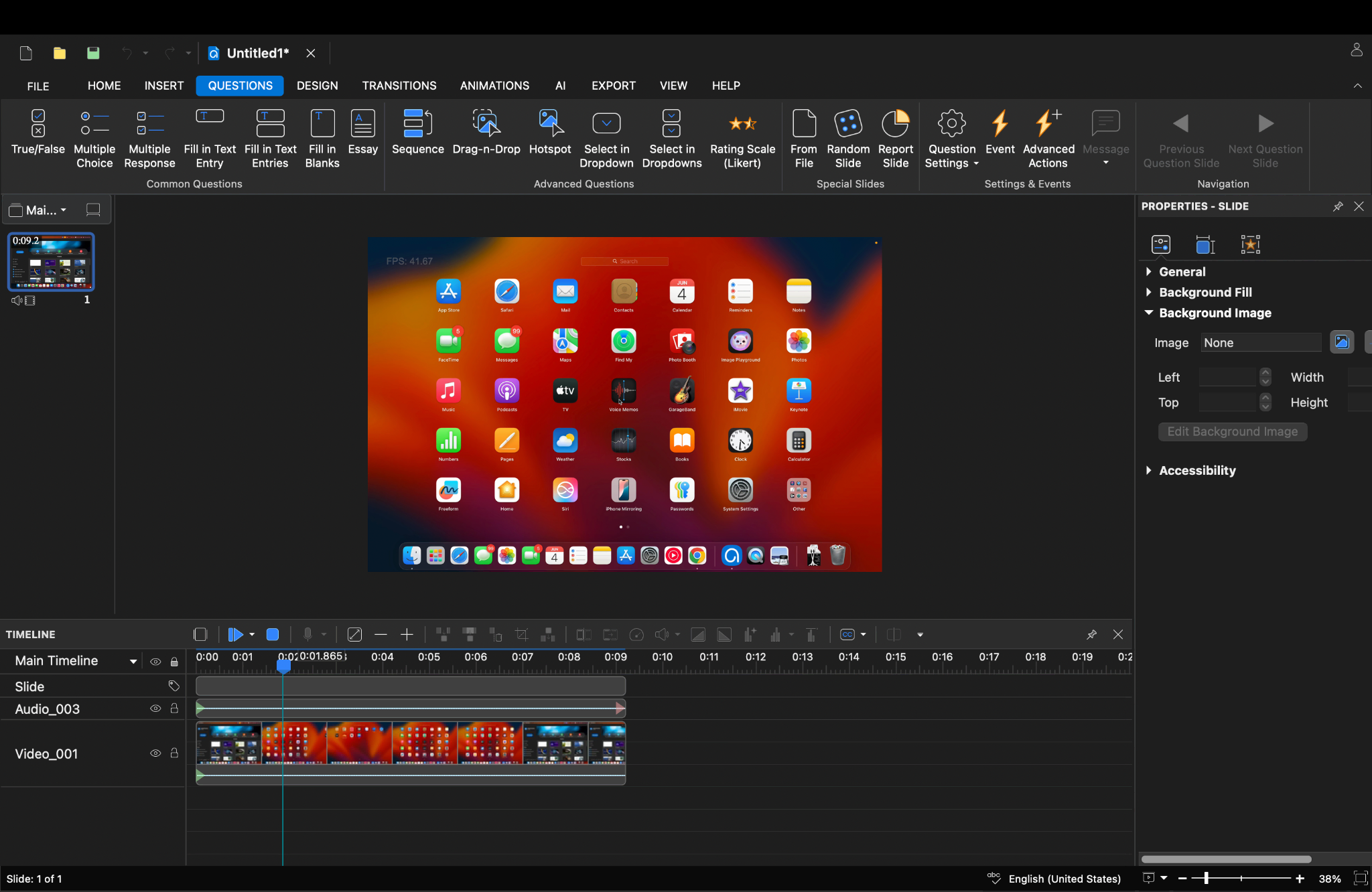
Let’s talk about the capabilities that directly affect output quality, not marketing headlines.
1) Interactive question types (for real assessments)
- 13 Interactive Formats: Includes multiple-choice, fill-in-the-blank, drag-and-drop, and coordinate hotspots.
- Immersive Training: Designed for active learning modules rather than passive, standalone videos.
- Competence Testing: Allows you to test actual operational skills (like forcing a learner to locate a specific button on an interface) instead of just memorized facts.
2) Software simulation recording for training realism
- Dynamic Capture: Goes beyond basic screen capture to record the background environment dynamically.
- Precise Tracking: Captures exact click paths, keyboard inputs, and system states.
- 3-in-1 Modes: Instantly converts a single live recording into three separate interactive modes: Demonstration, guided Practice, or a graded Test.
3) Branching scenarios & dialogue simulations (without coding)
- Complex Decision Trees: Mimics real-world learning scenarios, such as customer service or compliance dilemmas.
- Consequence-Driven Paths: Allows learners to navigate unique paths and face specific consequences based on their choices.
- No-Code Flow: Built natively within the platform, allowing non-technical trainers and subject matter experts to construct dialogue logic without writing code.
4) Events & Actions system (visual logic + JS support)
This is how you go from a static video to an adaptive learning experience. The platform uses a trigger-based system to change what happens On Click, On Correct Answer, or On Timeout:
- Visual Builder: Non-programmers can use conditional logic to trigger custom behaviors, show hidden panels, or swap on-screen graphics.
- JavaScript Support: Advanced users can write custom scripts to manipulate complex variables or communicate with external web hooks, making the logic infinitely scalable.
Built-in Tools vs ActivePresenter: Which One Should You Choose?
Choose built-in macOS tools (Screenshot Utility / QuickTime) if:
- You only need a simple, free screen recorder for short, linear screen videos: Your goal is a quick, straightforward recording—like a basic software walkthrough or a bug report video—where the viewer just needs to watch from start to finish without any interaction.
- You don’t need interactive quizzes, user tracking, or branching logic: The video is strictly for informal sharing (e.g., via Slack, Teams, or YouTube). You don’t need to grade viewers, track their completion rates, or create a path where they choose their own adventure.
- You plan to do all of your heavy video editing in a separate, dedicated app: You are completely fine with the built-in tool’s lack of editing features because you intend to drop the raw file straight into a third-party editor like iMovie, Final Cut Pro, or Premiere.
Choose ActivePresenter if:
- Your content needs to be training-grade: You are building formal eLearning courses that require seamless LMS integration, robust SCORM/xAPI tracking, or graded assessments to ensure compliance and measure actual user performance.
- You record frequently or manage long software capture sessions: You need an enterprise-ready engine that can handle extensive, high-resolution recording sessions without lagging, while automatically capturing background metadata like click paths and keystrokes.
- You want a single, unified pipeline from initial screen capture to final interactive export: You prefer to save time by doing everything in one place. ActivePresenter gives you a full-featured video editor, an HTML5 elearning authoring tool, and an advanced recording engine all wrapped into one seamless workflow.
Ready to experience a smarter screen recorder?
Don’t let audio drift, unoptimized file sizes, or disconnected editing tools slow your content pipeline down. We have just launched ActivePresenter 10.5, packed with workflow upgrades to keep your creation process completely seamless from screen capture to LMS deployment.
ActivePresenter’s free version removes every barrier to testing. There is no hidden 30-day countdown or credit card required, you can download, record, and build fully functional projects to evaluate on your own timeline.
While this guide focuses on macOS, users looking for Microsoft solutions can follow this comprehensive guide on how to record screen on Windows to achieve similar high-quality results.