
Need a quick and reliable way to record screen Windows 10? Whether you are a teacher creating a video tutorial, a marketer capturing a product demo, or a gamer saving an epic gameplay clip, having the right screen recorder is essential.
The good news is that Windows 10 comes with a built-in free tool that handles basic recordings instantly. However, if you need to capture your full desktop, edit out mistakes, add audio voiceovers, or create interactive software training, you will likely need a professional third-party software.
In this comprehensive 2026 guide, we review the top 8 screen recording tools for Windows 10 to help you choose the perfect fit for your workflow.
🚀 Streamline Your Screen Recording with ActivePresenter
Looking for more than just a raw video capture? ActivePresenter is the ultimate free screen recorder and video editor for Windows 10. Capture your screen in high quality, record smart software simulations, and edit your videos with professional tools—all in one place with no time limits and no watermarks for personal use.
👉 [Download ActivePresenter Free Edition for Windows 10]
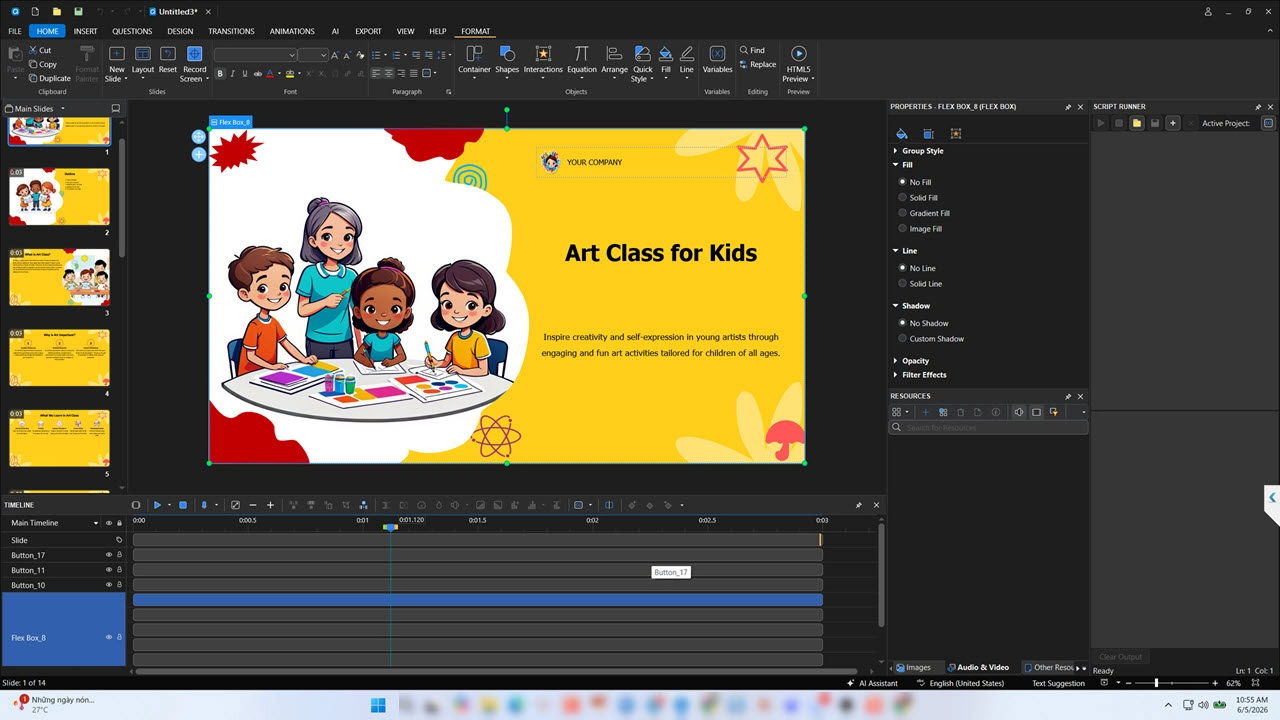
Summary Comparison Table: Best Windows 10 Screen Recorders
| Screen Recorder | Pricing Model | Built-in Video Editor? | Interactive Simulation? | Best For |
| ActivePresenter | Free / Perpetual | Yes (Advanced) | Yes (Exclusive) | eLearning, Software Tutorials, Professional Guides |
| Xbox Game Bar | Built-in (Free) | No | No | Quick application recording without editing |
| OBS Studio | Open-source | No | No | Live streaming & heavy gameplay capture |
| Camtasia | Subscription | Yes (Basic) | No | Standard business presentations |
| ShareX | Open-source | No | No | Quick snapshots & lightweight screen clips |
| Bandicam | Perpetual | No | No | High-FPS gaming and lag-free recording |
| Free Cam | Free / Paid | Yes (Basic) | No | Clean, simple video tutorial presentation |
| Snagit | Subscription | No | No | Visual feedback & quick team documentation |
Detailed Review of the 8 Best Screen Recorders for Windows 10
1. ActivePresenter (Best Overall for Recording & Advanced Editing)
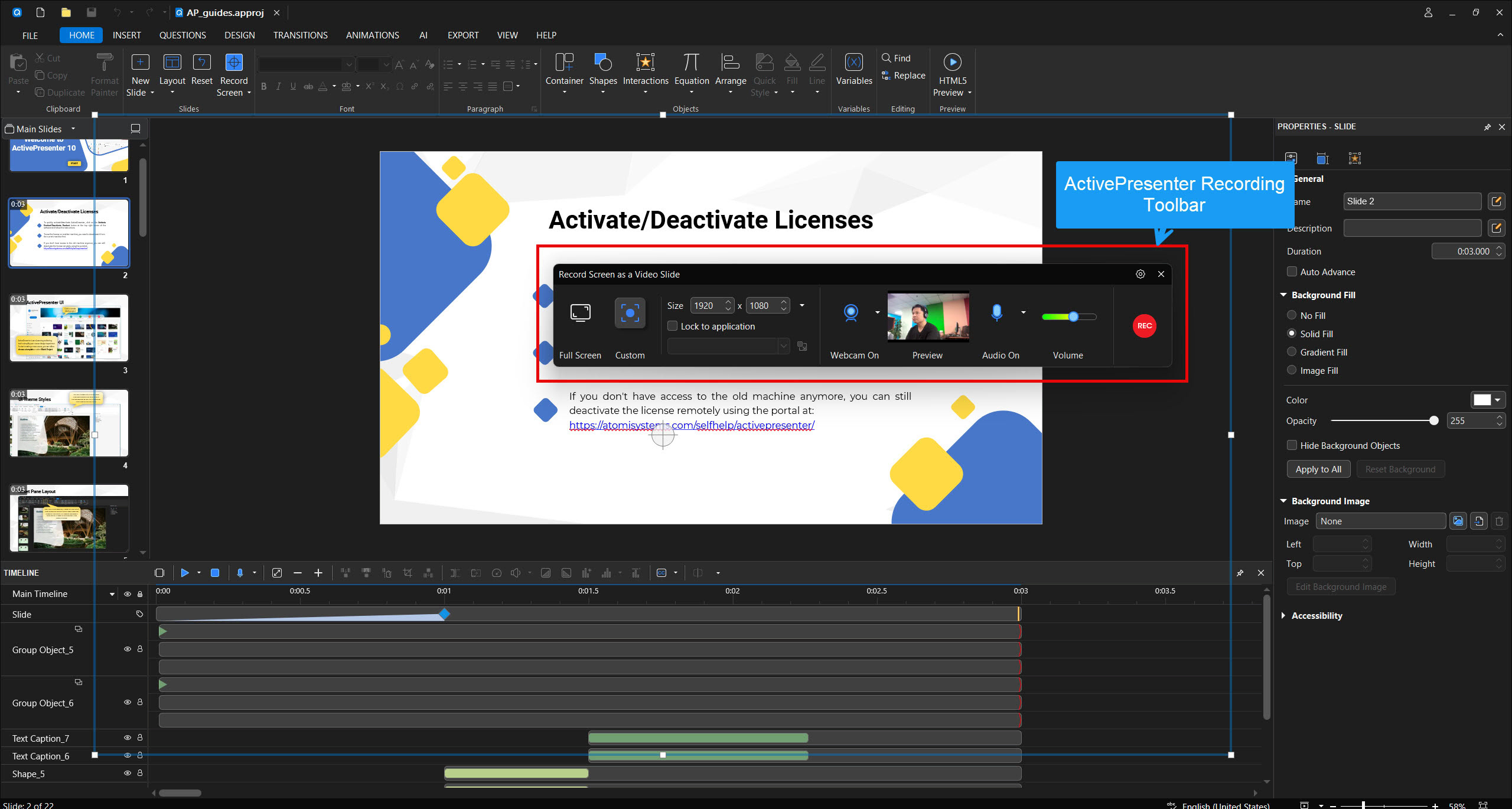
ActivePresenter is the most comprehensive free alternative to record screen Windows 10. Unlike regular capture tools that only export raw, uneditable video streams, ActivePresenter is uniquely built for content creators, corporate trainers, and educators.
- Key Highlights:
- Record Software Simulation (Exclusive): Automatically converts your mouse clicks and keystrokes into interactive slides with smart text callouts.
- Advanced Editor: Cut, crop, split videos, and add zoom-n-pan effects or closed captions instantly.
- No Time Limits: Record as long as you need without generic watermarks for personal use.
- How to record: Launch the app > select Record Video or Software Simulation > Define area > Click REC. (Shortcut to stop: Ctrl + End).
- Pricing: Free Edition available; Perpetual licenses for Pro features. Check out pricing plans of ActivePresenter here!
2. Xbox Game Bar (Best Free Built-in Tool for Quick Captures)
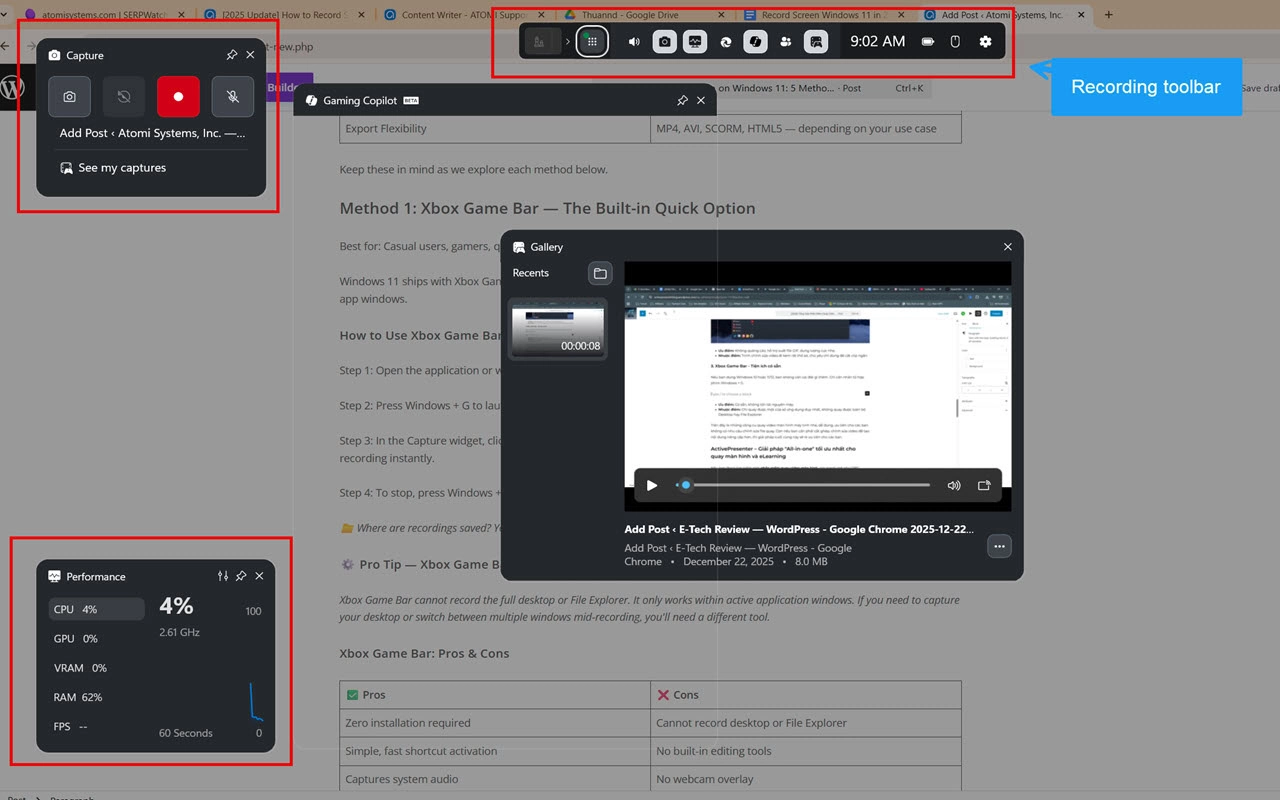
The absolute fastest way to record screen Windows 10 without downloading any software is the built-in Xbox Game Bar.
- Key Highlights: 100% free, pre-installed, and produces clean MP4 files.
- How to record: Press Windows Key + G > Click the Start Recording button (or press Win + Alt + R).
- Limitations: It cannot record the Windows Desktop or File Explorer. It lacks all video editing features.
- Pricing: Free.
3. OBS Studio (Best for Live Streaming & Professional Broadcasts)
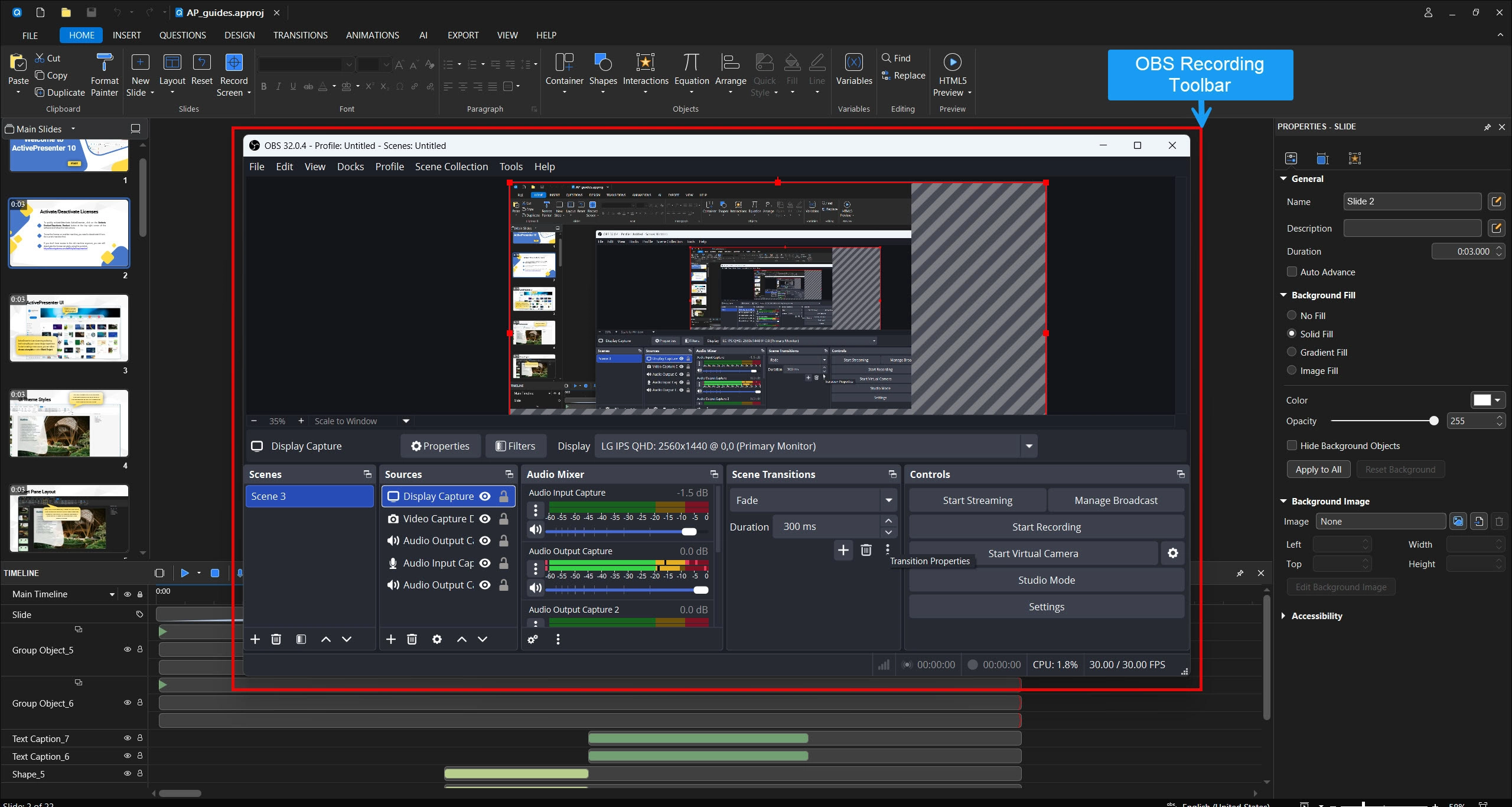
OBS Studio is a powerful, open-source program designed for power users and live streamers who require complete control over their video sources.
- Pros: Highly customizable scenes, supports multi-source broadcasting, and zero cost.
- Cons: Steep learning curve; no built-in video editor.
- Pricing: Free and open-source.
4. Camtasia (Best for Basic Corporate Presentation Layouts)
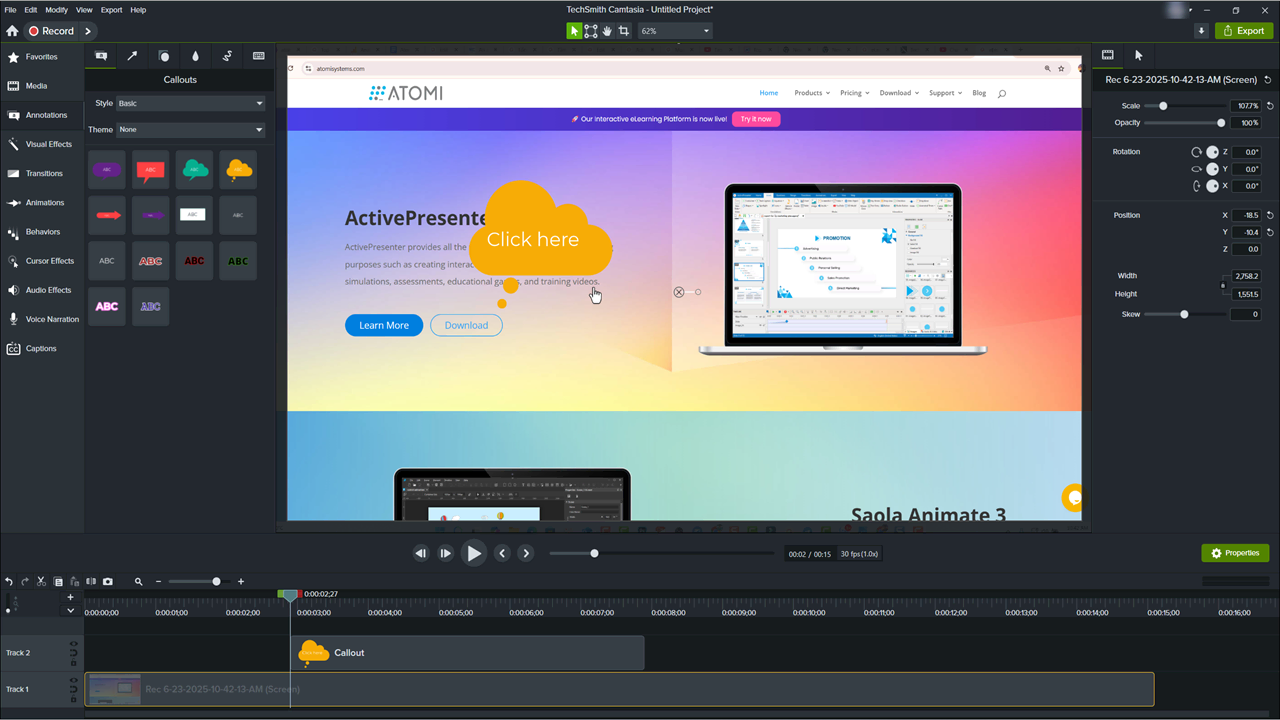
Camtasia is a popular commercial screen recorder designed for standard business presentations.
- Pros: Intuitive drag-and-drop timeline and a good library of pre-made graphics.
- Cons: High system resource usage. Unlike ActivePresenter, it lacks specialized eLearning tools like interactive simulations.
- Pricing: Subscription-based.
5. ShareX (Best for Rapid Screen Captures & Short GIFs)
ShareX is a lightweight productivity tool for professionals who need to grab quick screen recordings or short animated files for rapid sharing.
- Pros: Extremely fast, extensive hotkey customization, and automated cloud uploading.
- Cons: Chaotic user interface for beginners; no deep video or audio editing tools.
- Pricing: Free and open-source.
6. Bandicam (Best for High-FPS Gameplay Recording)
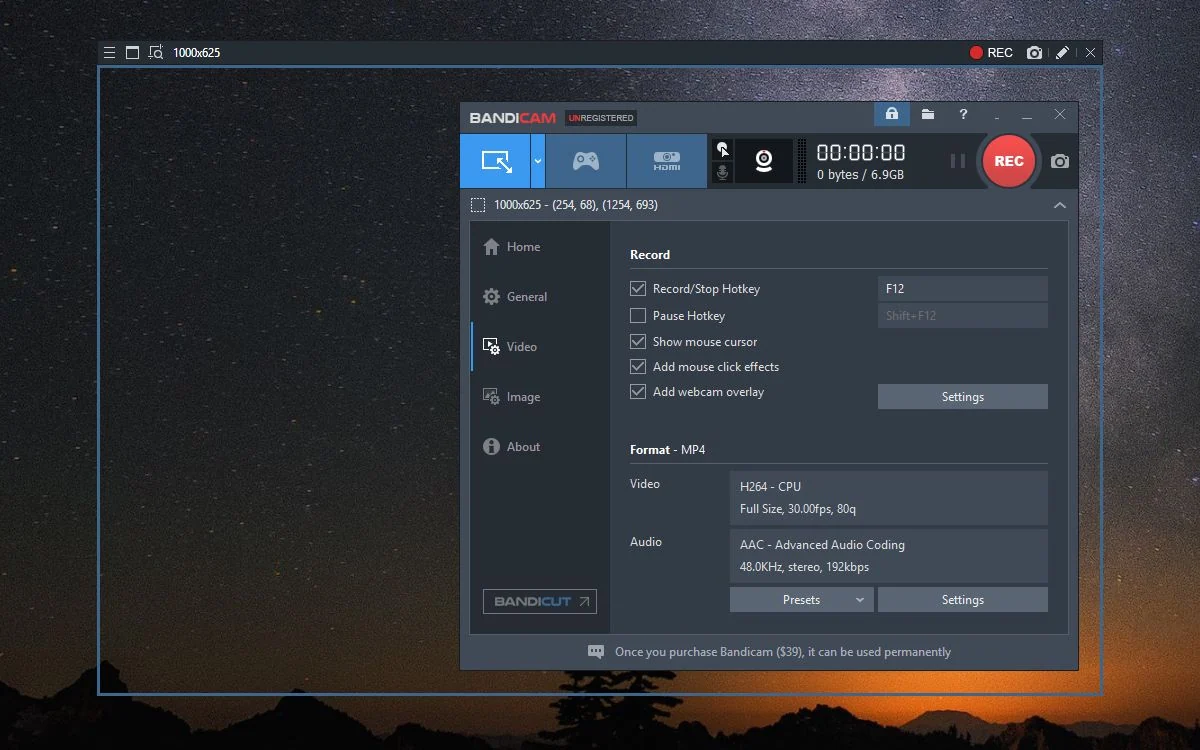
Bandicam is specialized for PC gamers due to its ability to record high-performance games without causing frame drops.
- Pros: High hardware acceleration support and optimized file compression.
- Cons: The free tier adds a prominent watermark and restricts clips to 10 minutes.
- Pricing: Perpetual license.
7. Free Cam (Best for Simple, Clean Desktop Video Tutorials)
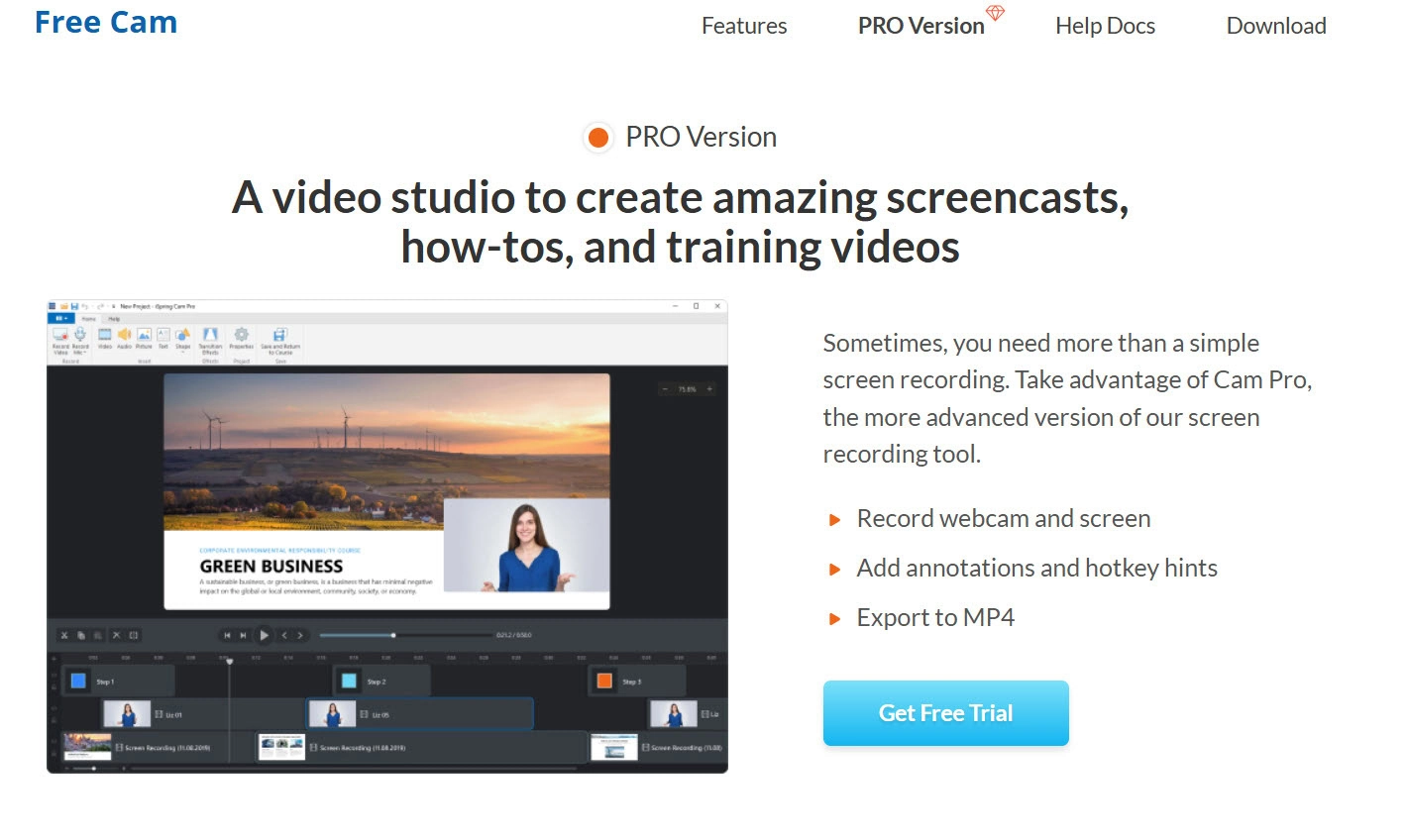
Free Cam is a streamlined program for beginners who need to produce fast, clean software recordings with basic voiceovers.
- Pros: No watermarks or time limits in the free version; includes a basic audio/video trimmer.
- Cons: Only exports to WMV format (MP4 requires paid upgrade); no webcam support.
- Pricing: Free / Paid Pro upgrade.
8. Snagit (Best for Visual Feedback & Internal Team Snippets)
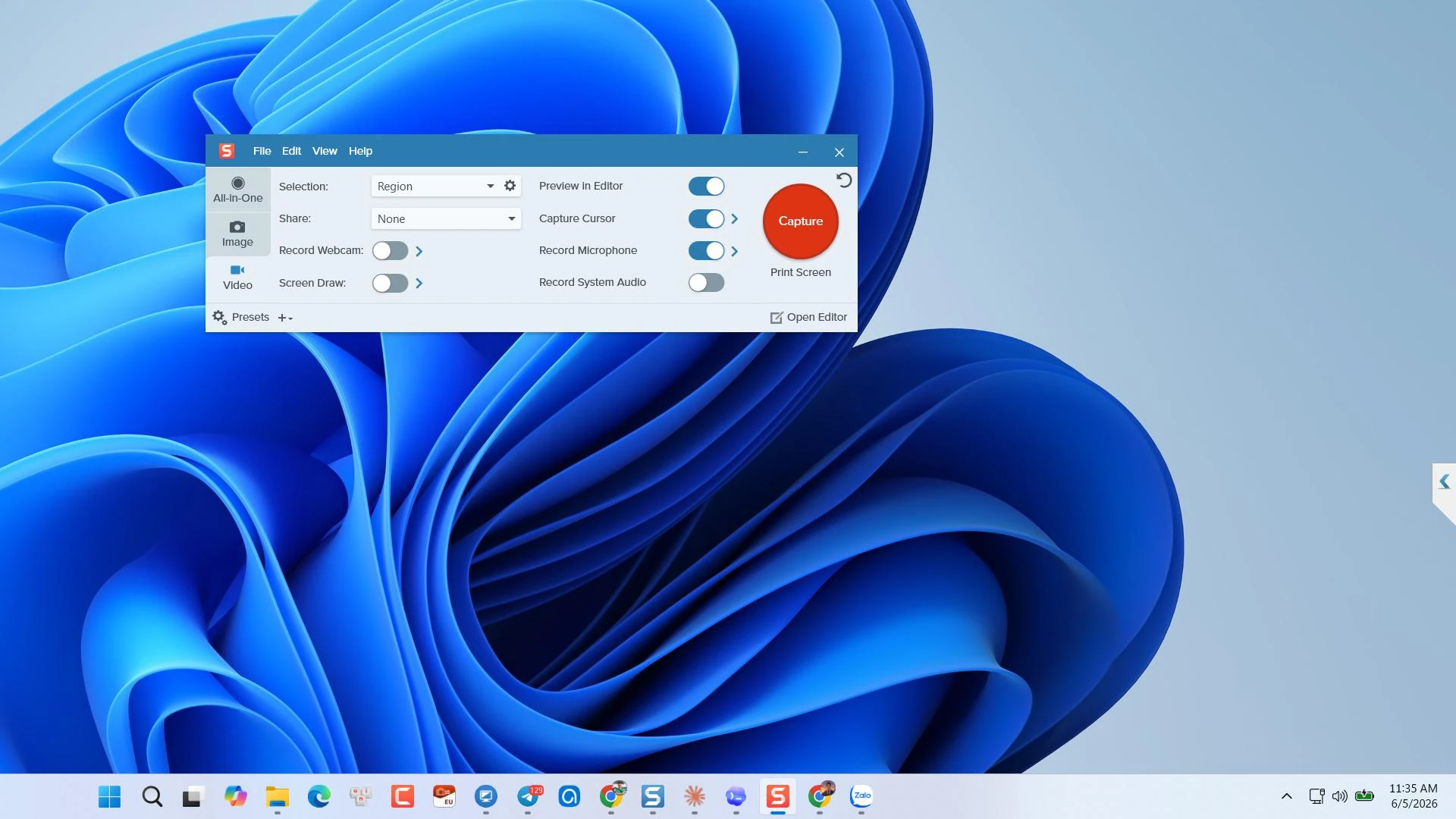
Snagit focuses on helping teams communicate faster using images and quick, informal video explainers.
- Pros: Exceptional markup tools (arrows, stamps, blur) for quick feedback.
- Cons: Highly restricted video workspace; only permits basic trimming.
- Pricing: Subscription-based.
Frequently Asked Questions (FAQs)
Where are Windows 10 screen recordings saved by default?
By default, Windows 10 saves all screen recordings captured via the Xbox Game Bar in the Captures folder: C:\Users\[YourUsername]\Videos\Captures. ActivePresenter allows you to customize your destination folder before exporting.
Why is the Xbox Game Bar greyed out or not working on my PC?
Xbox Game Bar cannot record the blank Windows 10 desktop or File Explorer. You must have an active application window open before pressing Win + G. Ensure the feature is toggled On in Settings > Gaming.
How do I record my Windows 10 screen with audio?
You must grant microphone permissions in Windows settings. Before recording in Xbox Game Bar or ActivePresenter, ensure your audio input device is selected and the Record Microphone toggle is turned on.
Conclusion: Which Windows 10 Screen Recorder Should You Choose?
Choosing the best screen recorder depends on your goals. For a quick, unedited clip of a single app, use Xbox Game Bar. For live streaming, OBS Studio is the best choice.
However, if you are creating professional video tutorials or interactive eLearning courses, ActivePresenter provides the most complete toolkit. It combines high-quality recording, a powerful built-in editor, and the exclusive Record Software Simulation feature in one package.
