
Introduction: The Tool That Promises Everything — But Should You Trust It?
Every year, thousands of content creators, marketers, and educators Google the same question: “Is Filmora actually good, or is it just great marketing?”
After spending years testing video editing and screen recording tools, from enterprise-grade platforms to budget alternatives, I’ve learned that the gap between a tool’s marketing page and its real-world performance can be enormous. Wondershare Filmora 15 is one of the most talked-about video editors of 2026, and for good reason: it’s polished, packed with AI features, and aggressively priced compared to Adobe Premiere Pro or Camtasia.
But is it the right tool for you? That depends entirely on what you’re trying to build.
In this Filmora 15 review, I’ll walk you through every major feature, give you an honest breakdown of its strengths and limitations, and tell you exactly who should — and shouldn’t — use it. No affiliate fluff. Just real analysis.
TOC
What Is Wondershare Filmora 15?
Wondershare Filmora 15 is a consumer-to-prosumer video editing software designed for content creators, marketers, YouTubers, and social media professionals. It positions itself as the middle ground between beginner-friendly tools like iMovie and professional-grade editors like Adobe Premiere Pro.
Version 15 (released in November,2025) introduced a significant leap in AI-powered features, including auto-caption generation, AI background removal, smart scene detection, and noise removal — capabilities that used to require expensive plugins or standalone tools.
💡 Quick Context: Filmora is developed by Wondershare, a Chinese software company also known for products like PDFelement and Dr.Fone. The company has been in the creative software space for over a decade, and Filmora has evolved considerably from its early “beginner-only” reputation.
💡 Expert suggestion: If you are looking for an all-in-one eLearning solution that seamlessly integrates video editing, screen recording, and powerful authoring tools, we highly recommend checking out our standout performer: ActivePresenter.

Filmora 15 Key Features: What’s Actually Inside
🎬 Advanced Timeline Editing
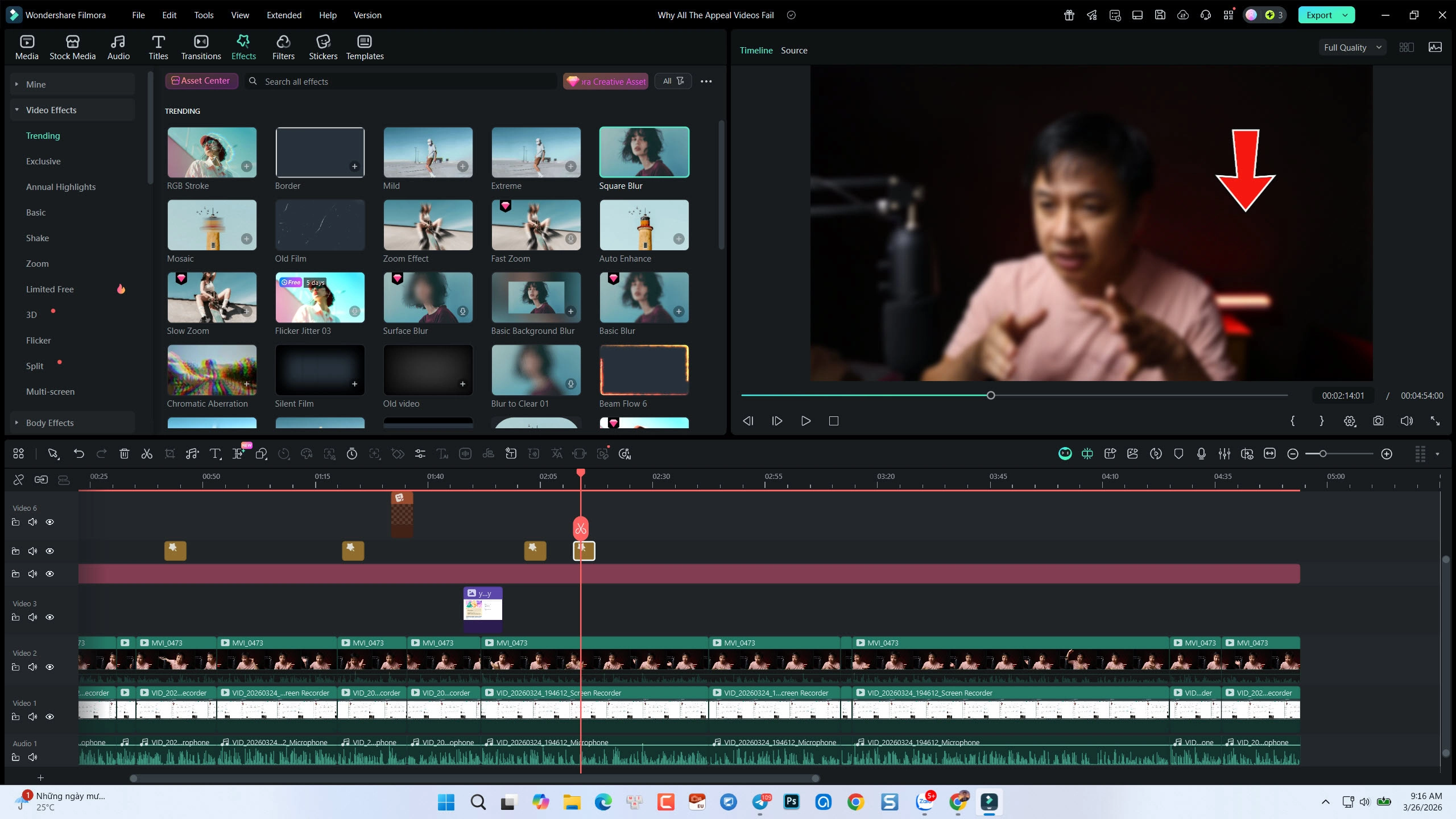
Filmora 15 ships with a multi-track timeline that supports video, audio, overlays, and effects layers simultaneously. For most content creators producing YouTube videos, product demos, or social media content, this is more than enough.
Key editing capabilities include:
- Keyframing for precise motion control on any parameter (position, scale, opacity, rotation)
- Color grading with LUT support and manual HSL adjustments
- Speed ramping — a feature popularized by cinematic YouTube creators — that allows smooth slow-motion and fast-motion transitions within a single clip
- Split-screen templates for comparison videos or multi-angle presentations
- Wide array of effects, filters and pre-built templates
In practice, the timeline feels snappy and responsive, even on mid-range hardware. This is a genuine strength compared to heavier editors like DaVinci Resolve, which can be sluggish without a powerful GPU.
🤖 AI-Powered Tools: The Real Differentiator in 2026
This is where Filmora 15 genuinely earns its price tag. The AI toolkit has matured significantly:
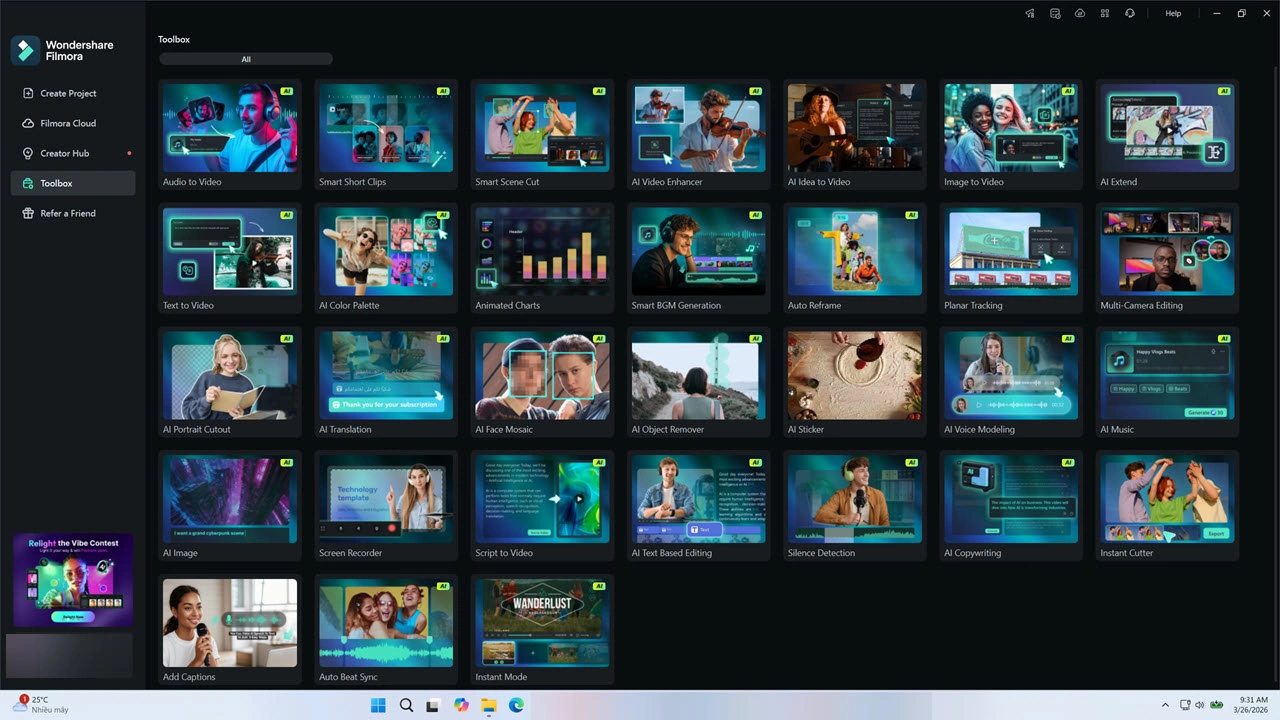
| AI Feature | What It Does | Quality Rating |
| Auto-Caption Generation | Transcribes speech to on-screen text automatically | ⭐⭐⭐ |
| AI Background Removal | Removes/replaces backgrounds without a green screen | ⭐⭐⭐ |
| Smart Scene Detection | Automatically splits long recordings into logical clips | ⭐⭐⭐⭐ |
| AI Noise Removal | Cleans up background audio noise | ⭐⭐⭐⭐ |
| AI Portrait | Isolates and enhances human subjects | ⭐⭐⭐ |
🧑💻 Expert Insight: In my experience testing auto-caption tools across platforms, Filmora 15’s accuracy sits comfortably above 90% for clear English speech — competitive with dedicated tools like Descript. The real time-saver here isn’t perfection; it’s the 80% accuracy that eliminates manual transcription grunt work.
🎨 Motion Graphics & Asset Library
Filmora 15 includes a library of 1,000+ assets: motion graphics templates, transitions, titles, music tracks, sound effects, and video overlays. For solo creators without a design team, this is genuinely valuable.
Standout elements include:
- Animated lower-thirds for professional-looking interview or tutorial content
- Cinematic transitions that don’t look like stock After Effects presets
- Royalty-free music tracks (though the selection can feel repetitive for long-term users)
📤 Export & Publishing Options
Filmora 15 supports a solid range of export formats:
- Video formats: MP4, AVI, MOV, MKV, GIF
- Direct upload: YouTube, Vimeo, TikTok, Vimeo
- Device presets: iPhone, Android, Apple TV, and more
For content creators publishing to social platforms, the one-click export presets are a genuine time-saver. However, if your workflow requires SCORM, xAPI, or HTML5 eLearning packages, Filmora 15 has nothing to offer here — a critical gap we’ll address in the Cons section.
Filmora 15 Pros & Cons: The Honest Breakdown
✅ Pros
1. Polished, Intuitive Interface
Filmora 15 is genuinely one of the easiest professional-grade video editors to learn. The UI is clean, logically organized, and doesn’t overwhelm new users with panels they’ll never use. Most people can produce their first edited video within an hour of installation.
2. Strong AI Toolkit That Actually Works
Unlike many software tools that slap “AI” on features that barely function, Filmora’s AI background removal, noise reduction, and auto-captions are legitimately useful in production workflows. They save real hours.
3. Large Asset Library
1,000+ built-in templates, transitions, and music tracks reduce the need for third-party resources. For solo creators or small teams, this is a significant cost and time benefit.
4. Excellent for Social Media & YouTube Content
If your output destination is YouTube, LinkedIn, TikTok, or Instagram, Filmora 15 is optimized for exactly that. The export presets, aspect ratio tools, and social-first templates make this a strong choice.
5. Regular Feature Updates
Wondershare has consistently shipped meaningful updates to Filmora. Version 15 is a genuine improvement over 14, and the roadmap suggests continued AI investment.
❌ Cons
1. Free Version Adds Watermarks
The free tier is essentially a trial — every exported video carries a Filmora watermark. This is a dealbreaker for professional use and can feel misleading for users who download expecting a functional free tool.
2. Subscription Model Raises Long-Term Cost Concerns
Like Camtasia, Filmora has moved toward a subscription pricing model. While the annual cost is lower than Adobe Creative Cloud, it’s worth calculating the 3–5 year total cost of ownership before committing.
3. No SCORM/xAPI Export — A Hard Limit for eLearning
This is the most critical limitation for educators and L&D professionals: Filmora 15 cannot export SCORM or xAPI packages. It has no quiz builder, no interactive simulation tools, and no LMS integration. If your goal is to build training courses, compliance modules, or interactive eLearning content, Filmora is the wrong tool.
4. Screen Recording Features Are Basic
Filmora does include a screen recorder, but it’s a secondary feature, not a core competency. It lacks cursor highlighting, click effects, annotation layers, zoom-to-region recording, and the kind of granular screen capture controls you’d find in dedicated tools like ActivePresenter or Camtasia.
5. Not Ideal for eLearning Authoring
Beyond SCORM, Filmora lacks branching scenarios, knowledge checks, software simulations, and accessibility features (WCAG compliance) that serious eLearning authoring requires.
Filmora 15 Evaluation Criteria: How Does It Score?
| Criteria | Score (out of 10) | Notes |
| Ease of Use | 9/10 | Best-in-class for beginners to intermediate users |
| AI Features | 8/10 | Genuinely useful, not just marketing |
| Video Editing Depth | 7/10 | Strong for most use cases; limited for pro broadcast |
| Screen Recording | 5/10 | Functional but lacks professional-grade controls |
| eLearning Capabilities | 2/10 | Not designed for this use case |
| Asset Library | 8/10 | Large and growing; some repetition for long-term users |
| Export Flexibility | 7/10 | Great for social; no eLearning formats |
| Value for Money | 7/10 | Fair for content creators; poor for eLearning teams |
| Customer Support | 6/10 | Adequate; community forums are more helpful than official support |
Overall Score: 7.0/10 — Excellent video editor for content creators; not the right tool for eLearning or advanced screen recording.
3 Real-World Use Cases: Who Actually Benefits from Filmora 15?
🎯 Use Case 1: SaaS Marketing Team — Product Demo Videos
A 4-person SaaS marketing team uses Filmora 15 to produce weekly product demo videos. Their workflow: screen record the product UI, import into Filmora, add animated lower-thirds with team member names, layer background music, apply AI captions for accessibility, and export directly to LinkedIn and the company website.
Result: Professional-looking videos produced in 2–3 hours per video, no professional video editor on staff required. The AI noise removal alone eliminated the need for a dedicated recording studio.
🎯 Use Case 2: YouTube Tech Educator — Tutorial Content
A solo tech educator with 80,000 subscribers uses Filmora 15 to produce bi-weekly tutorial videos. The speed ramping feature allows them to fast-forward through long installation processes while maintaining visual interest. Smart scene detection cuts post-production time by roughly 40%.
Result: Consistent upload schedule maintained without burnout. The asset library provides enough variety to keep thumbnails and intros visually fresh.
🎯 Use Case 3: HR Team — Employee Onboarding Videos (With a Caveat)
A mid-sized company’s HR team uses Filmora 15 to create onboarding video content — welcome messages, culture videos, and process walkthroughs. The videos are hosted on an internal intranet page.
Important caveat: This works only because the videos are passive content hosted on a webpage. The moment this team needed trackable completion rates, quiz-based assessments, or SCORM upload to their LMS, Filmora 15 hit a hard wall. They ultimately needed a dedicated eLearning authoring tool for those requirements.
Pro Tips: What Only Long-Term Filmora Users Know
💡 Pro Tip #1 — Use Proxy Editing for Large Files
When working with 4K footage, enable proxy editing (Preferences → Performance → Enable Proxy) to dramatically reduce timeline lag. Filmora renders a lower-resolution proxy for editing, then uses the full-resolution file on export.
💡 Pro Tip #2 — AI Captions as a First Draft, Not a Final Product
Never publish AI captions without reviewing them. Filmora’s auto-captions are accurate ~90% of the time for clear speech, but technical terminology, brand names, and accented speakers will generate errors. Use the caption editor to review before export.
💡 Pro Tip #3 — Customize the Toolbar for Your Workflow
Right-click the toolbar to add/remove tools. Most users never customize this, but removing tools you never use (like the audio mixer if you do simple edits) reduces visual clutter and speeds up your workflow.
Filmora 15 vs. Alternatives: A Quick Comparison
| Feature | Filmora 15 | Camtasia 2025 | ActivePresenter |
| Video Editing | ✅ Excellent | ✅ Good | ✅ Good |
| Screen Recording | ⚠️ Basic | ✅ Strong | ✅ Professional-grade |
| AI Features | ✅ Strong | ⚠️ Limited | ✅ Growing |
| eLearning/SCORM | ❌ None | ✅ Yes | ✅ Full support |
| Quiz/Interactions | ❌ None | ⚠️ Basic | ✅ Advanced |
| Pricing | Mid-range | Premium | Free tier available |
| Best For | Content creators | Training videos | eLearning & screen recording |
📌 Note: If your primary need is eLearning authoring, interactive simulations, or SCORM-compliant course creation, ActivePresenter by Atomi Systems is purpose-built for exactly that — with a generous free tier that Filmora simply can’t match for educational use cases.
Final Verdict: Is Wondershare Filmora 15 Worth It?
Yes — if you’re a content creator, marketer, or YouTuber producing video content for social media, websites, or digital marketing campaigns. Filmora 15 delivers a polished editing experience, genuinely useful AI tools, and a large asset library at a reasonable price point. It’s one of the best tools in its category for its intended audience.
No — if you’re an educator, instructional designer, or L&D professional who needs screen recording with annotation tools, interactive eLearning features, SCORM export, or LMS integration. Filmora was not built for this workflow, and forcing it into an eLearning pipeline will create frustration and workarounds.
The tool is excellent. It just needs to be the right tool for your specific job.
🚀 Looking for a Filmora Alternative for eLearning?
If Filmora 15’s limitations in screen recording and eLearning authoring are a dealbreaker for your workflow, ActivePresenter was built to solve exactly those problems.
ActivePresenter combines:
- ✅ Professional-grade screen recording with cursor effects, annotations, and zoom controls
- ✅ Full eLearning authoring with SCORM/xAPI export
- ✅ Interactive quizzes, branching scenarios, and software simulations
- ✅ A free version that doesn’t watermark your exports
👉 Download ActivePresenter Free — No credit card required. No watermarks. Just a serious tool for serious eLearning creators.

Have questions about which tool fits your workflow? Drop them in the comments below — I read every one.