
ActivePresenter eLearning software provides you with a flexible system of events-actions, advanced actions and variables, which enable you to create highly interactive eLearning courses without a single line of code. But if you want to go beyond the long list of built-in actions then execute custom JavaScript.
Executing custom JavaScript can be triggered by objects’ or slides’ events or even when the project loads.
Execute JavaScript Action in an Event
When adding events and actions to objects or slides, if you look down the action list, you’ll find the Execute JavaScript action. This action performs the custom JavaScript code you wrote in response to the event.
For example, you can run JavaScript to change the color of an object like this:

So, to add custom scripts with the Execute JavaScript action, do as follows:
1. Select one of the colored buttons.
2. Navigate to its Properties pane > Interactivity tab > Events – Actions section > Add the On Click event.
3. Assign the Execute JavaScript action to the On Click event. Then, click Click to edit. A dialog appears allowing you to write a script.
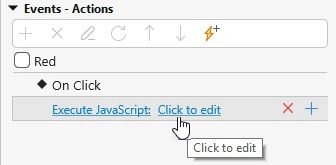
Write the script like the below image.
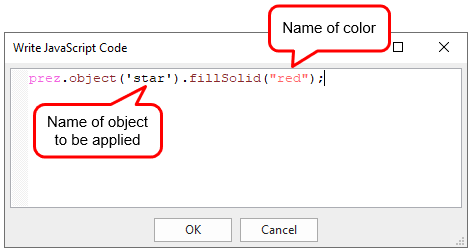
For your reference, here is the code:
prez.object('star').fillSolid("red");Note: You must write the exact object name in the script as the name in its Properties pane > Interactivity tab > General section > Name. For the color name, you can replace it with the RGB color code.
4. Click OK to finish.
5. In the Home tab or Export tab, click HTML5 Preview to preview your project in a browser.
ActivePresenter allows retrieving elements of presentation in the HTML5 output by exposing the JavaScript API. The list of JavaScript APIs is available from page 320 in the ActivePresenter User Manual.
Run Custom JavaScript When the Project Loads
Besides running custom JavaScript actions in the object or slide’s events, you can execute JavaScript when the project loads. Perform the following:
Step 1: Click the FILE button > Project > Properties.
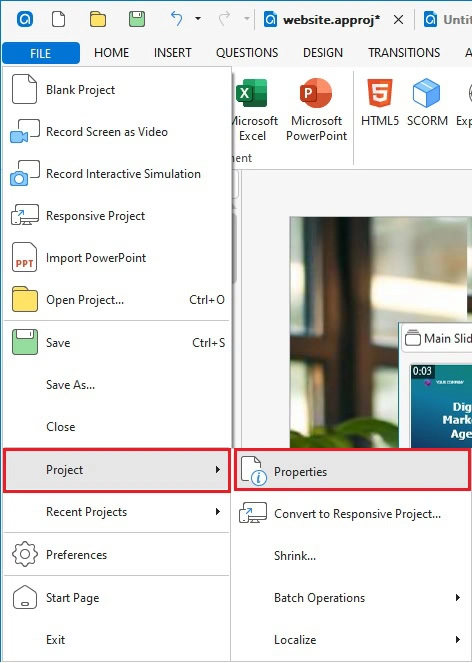
Step 2: Navigate to the Properties pane > Interactivity tab > Events – Actions section > add the Execute JavaScript action to the On Load event of the project.
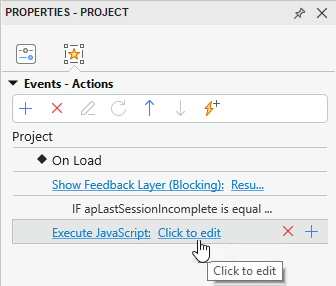
For instance, when you need to show the progress out of the total time of the project then execute the following custom JavaScript:
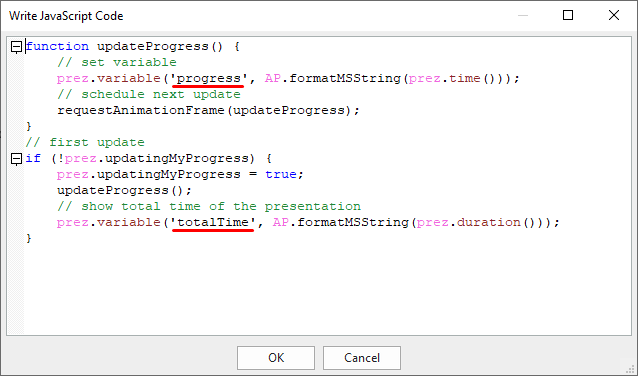
function updateProgress() {
    // set variable
    prez.variable('progress', AP.formatMSString(prez.time()));
    // schedule next update
    requestAnimationFrame(updateProgress);
}
// first update
if (!prez.updatingMyProgress) {
    prez.updatingMyProgress = true;
    updateProgress();
    // show total time of the presentation
    prez.variable('totalTime', AP.formatMSString(prez.duration()));
}
In which, “progress” and “totalTime” are text variables you need to create to reference them on Canvas.

Customize the Script Editor
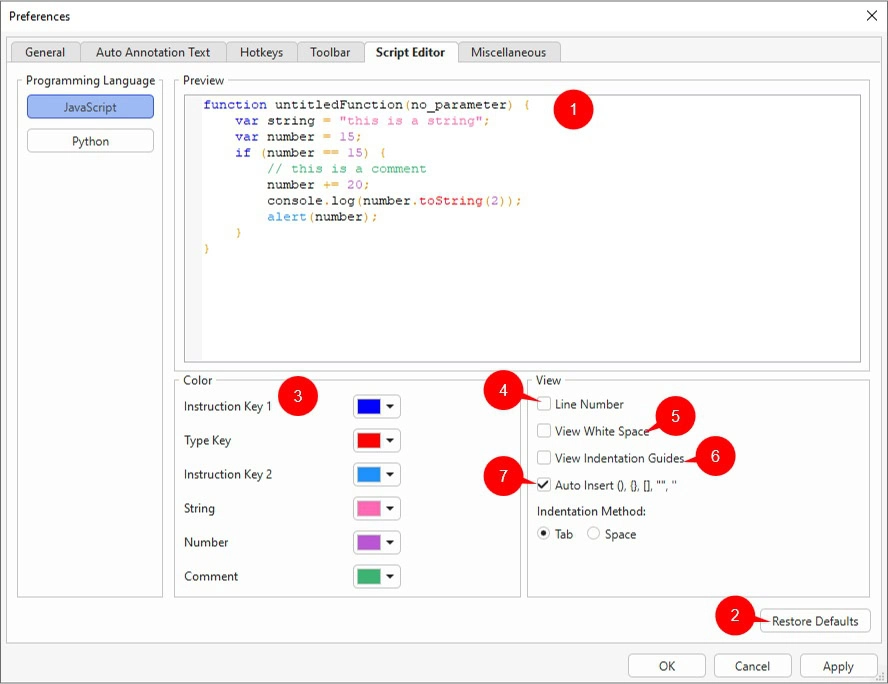
To customize the appearance and behavior of the Script Editor in ActivePresenter 10, open the Preferences dialog and switch to the Script Editor tab. Any changes you make are immediately reflected in the preview editor (1).
You can also choose a programming language for scripting, including JavaScript and Python, in the Programming Language section.
If needed, click the Restore Defaults button (2) to return to the original settings.
Change Editor Colors
In the Color section (3), you can customize the colors of different code elements such as instruction keys, strings, numbers, and comments. Click the color box next to each item and select a color from the color picker.
Change Code View Options
In the View section, select the checkboxes to adjust how code is displayed:
- Show line numbers (4)
- Show white space characters (5)
- Show indentation guides (6)
- Automatically insert matching brackets and quotes (7)
You can also choose the indentation method by selecting either Tab or Space, depending on your coding preference.
