
Wanted to create a video demo? Chances are you need to record your actions on screen and edit videos when finished. All these desires will be addressed with the Record Screen as Video feature in ActivePresenter screen recording tool for eLearning. Let’s learn now!
The Record Screen as Video feature in ActivePresenter 10 is actually the Record Video feature in ActivePresenter 9 and older versions. The new name is to give users a clearer overview of its functionality. As you might expect, this new version offers improved performance. Examining its capabilities in-depth, you can record all actions on your screen truthfully as a full-motion video. Also, the feature gives you a chance to have other things in the video like your face and voice. In this tutorial, we will show you 6 steps to do that:
- Select the Record Screen as Video Mode
- Specify the Recording Area
- Set up Webcam and Audio
- Adjust Recording Settings
- Start Recording
- Finish Recording
Now, let’s explore them in turn.
Select the Record Screen as Video Mode
In ActivePresenter 10, you can create a new video demo as a completely new video project. Do one of the following:
- On the Start Page, click Record Screen as Video.
- On the workspace of the current project, click the File button > Record Screen as Video.
You can also record your screen as a video slide right within the current project. This option is ideal when you’ve already had a project, for example, a training course, and you want to add a video demo to explain the steps.
- In the Home tab > Record Screen > Record Screen as Video.
- In the Home tab or the Insert tab > New Slide > Record Screen as Video.
After that, you will see:
- The Record Screen as a Video Project dialog.

There are many things which can be done from here. For example, specify the recording area, choose to record webcam and audio, or open the Recording Settings menu. The details will be discussed in the next part.
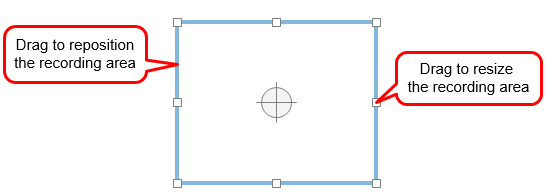
- A blue rectangle and a cross-hair (in the middle of it) indicate the recording area. ActivePresenter 10 will record all actions that happen only inside this area. The rest of the screen doesn’t appear in your recorded video. You can specify the recording area by either choosing values in the dialog above or adjusting this blue rectangle.
Now you’ve got the basic information about the Record Screen as Video function, let’s move to step 2.
Specify the Recording Area
As being said, ActivePresenter 10 gives you two ways to specify the recording area. One is using the blue rectangle to do that manually. But if you want to have more options, just work with the Recording Area section in the Record Screen as a Video Project dialog.
This section offers two capture modes: Full Screen and Custom. Choose one of them to specify the capture area.
- The Full Screen mode is good to go with if you want to capture the entire screen. By doing so, the entire screen will be treated as the capture area.
- The Custom mode gives you the ability to record a partial screen.
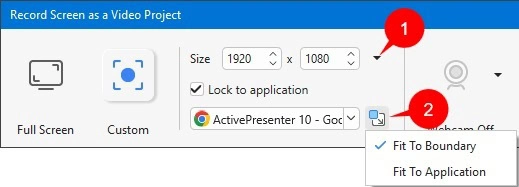
- Enter the width and height value in the Size spin boxes. Or, click the Preset Sizes drop-down list (1) to select a preset from the list.
- Select Lock To Application checkbox and choose one target application from the dropdown list. By doing so, the selected application will be resized to fit into the blue rectangle. Then, no matter how you move or resize the recording area, the target application will follow.
Otherwise, if you want to record an application with predefined sizes, you can let the blue rectangle automatically resize to fit into that app. Before choosing the target app from the list, just click the Change Lock Mode button (2) to show two options. The Fit To Boundary option is set up by default as explained earlier. Now, you select the Fit To Application option which helps resize the blue rectangle to fit into the application window. Thanks to that, you don’t need to manually resize it.
Set up Webcam and Audio
Using webcam and audio is perfect for personalizing your video demo.
To set up the webcam and audio, take a look at the Audio & Webcam section in the Record Screen as a Video Project dialog. You can choose to record webcam or audio or both.
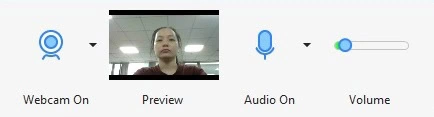
- Webcam: Click the Webcam button to enable/disable the webcam recording. When the webcam is on, the camera icon turns blue. Then, a live preview of the camera appears next to the button. You can click the drop-down arrow next to the button to choose a detected webcam device from the list.
- Audio: Click the Audio On/Audio Off button to enable or disable audio recording. When the button turns blue and displays Audio On, the audio recording function is enabled. When it shows Audio Off, the feature is disabled. There are two audio options: Microphone Audio and System Audio. If you choose Microphone Audio, select one of the detected microphones to record from. In addition, there is a volume slider next to the Audio option. Drag the slider to adjust the recording volume as needed.
Adjust Recording Settings
The Record Screen as a Video Project dialog contains a Settings menu as well. To access this menu, click the Settings button in the top-right corner of this dialog.
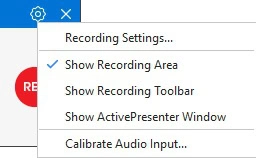
The Settings menu has four following options:
- Recording Settings…: Open the Recording Settings dialog for additional options such as audio and video settings, cursor effects, hotkeys, and more.
- Show Recording Area: Show or hide the blue recording rectangle that indicates the capture area.
- Show Recording Toolbar: Show or hide the Recording Toolbar, which allows you to pause or stop recording and monitor the recording status.
- Show ActivePresenter Window: Show or hide the ActivePresenter window during recording.
- Calibrate Audio Input…: Open the Calibrate Audio Input dialog. This feature helps detect the appropriate recording sensitivity level and improve audio quality. From this dialog, you can adjust the audio input volume automatically or manually.
Start Recording Screen as Video
If you are satisfied with all settings, let’s start recording by hitting the Rec button. After that, the Record Screen as a Video Project dialog will hide itself and countdown from 3 to 1. The app will start recording after the countdown.
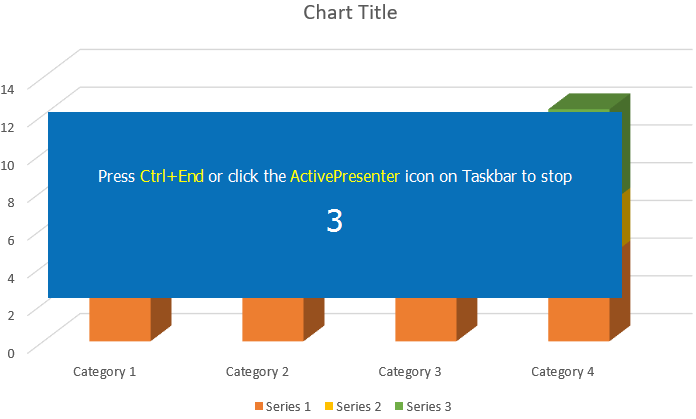
At the same time, an ActivePresenter icon is also shown in the system tray (for Windows) or the Menu bar (for macOS). In case you record a partial screen, you can click this icon to show the Recording Toolbar dialog. It helps you easily pause or stop recording as well as get a live preview of yourself. However, make sure you place this toolbar outside the blue rectangle. Otherwise, it will appear in the recorded video.

- Hide Recording Toolbar: Hide the toolbar from the screen. You can reopen it by clicking the ActivePresenter icon in the system tray or menu bar.
- Settings: Click this button to show or hide the information displayed on the Recording Toolbar, including Duration, Audio, and Webcam
- Recording Mode: Display the current recording mode. For example, a video camera icon appears when recording in Video mode, while a camera icon appears when recording a Simulation.
- Duration and Frame Rate: Show the current recording duration and frame rate.
- Audio Indicators: Display the input levels of the audio sources.
- Webcam Preview: Show a live preview from the webcam.
- Pause / Resume: Temporarily pause or continue the recording.
- Stop: Stop the recording and finish the capture.
- Discard: Cancel the current recording. A dialog box appears, allowing you to discard the recording, re-capture the screen, or continue recording.
Finish Recording
To stop recording the screen as video, press CTRL+END (for Windows) or ⌥⌘2 (for macOS). Alternatively, you can click the Stop button in the Recording Toolbar dialog.
Once finishing the capturing phase, ActivePresenter 10 automatically transfers your recording to the edit screen. You are free to fine-tune and enrich your recorded video right within ActivePresenter with a lot of powerful features.
Finally, if you wish to export the video demo, go to the Export tab and click Video.
All things considered. So, let’s download ActivePresenter 10 right now and start recording your first video. Also, feel free to contact us if you need any support.

See also:
Start and Stop Recording
Record Interactive Simulation
Edit Video Recordings
Record System Audio and Narration
Record Screen with Custom Cursor Effects