
Without a single line of code, you can create variables and use them to collect and store information such as learners’ names and scores, then retrieve them throughout the course. They are also helpful to add interactivity to your course with conditional actions.
Grab an overview of variables in ActivePresenter eLearning creation software and the basic steps to create and use them with this tutorial.
2. How to Create and Use Variables?
Before getting started, let’s download the free version of ActivePresenter 10 if you haven’t.

What is Variable in ActivePresenter 10?
Variables are a great way to store and retrieve dynamic information. They are also useful in creating conditional actions to make your course more interactive and personalized.
ActivePresenter 10 provides you with the System and User variables.
- System variables come predefined. For a full list, take a look at page 285 of the AcivePresetner User Manual.
- User variables are project-specific ones created by users. You are free to create, modify, and delete them.
When it comes to types of variables, there are 3 types that ActivePresenter 10 offers, namely text, true/false, and number variables. You can click on the Variables icon in the Home tab to see all of them.
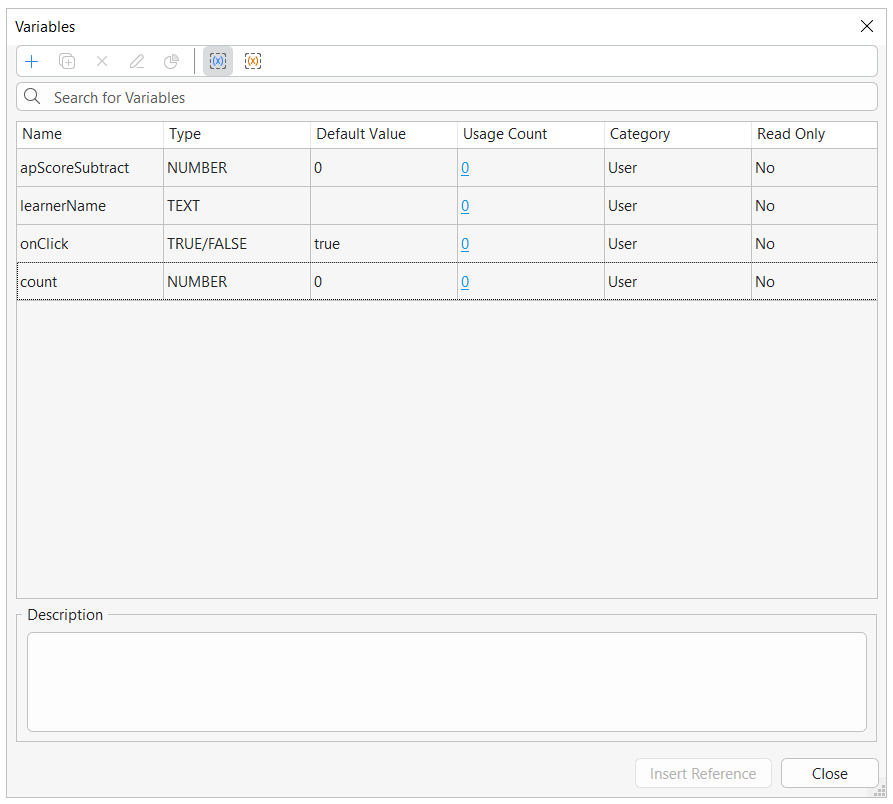
| Text variables | Text variables (also called “string variables”) hold text-based values (strings). These variables help store information such as names, passwords, and years. For example, use text variables to remember the learner’s name and then display it throughout the course to personalize your training. |
| True/False variables | True/false variables (also called “boolean variables”) have only two possible values: true or false. This true or false nature makes these variables a great way to keep track of things that are right or wrong, on/off, clicked/not clicked, visited/not visited, and the like. For example, use true/false variables for slide completion, that is, to track if learners visit a slide and interact with its content. |
| Number variables | Number variables (also called “integer variables”) hold numeric values. They store numeric information such as scores, number of attempts/clicks, question counting, current slide number/index, and any other numeric values. For example, use number variables for some simple calculation functions such as addition and subtraction. Or, use these variables to create a visible counter that counts either up or down to track the number of clicks. |
How to Create and Use User Variables?
It’s easy and quick to create user variables in ActivePresenter 10. Do the following steps:
Step 1: In the Home tab, click Variables.
Step 2: In the User tab of the dialog that appears, click Add (green plus button) in the bottom toolbar. Then, specify the variable name, type, initial value, and description (if any) in the pop-up dialog.
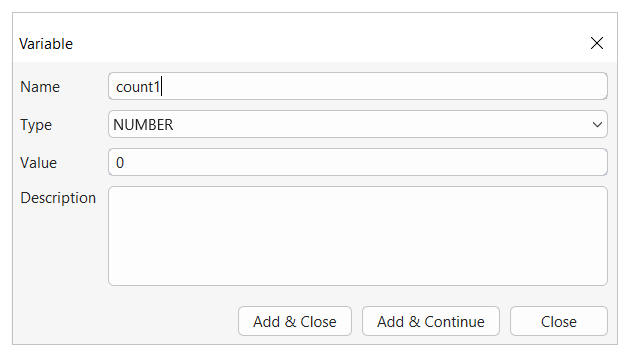
Step 3: Click Add & Close to save the new variable and close the pop-up dialog. Otherwise, click Add & Continue to save the new variable and continue creating other ones.
After creating variables, you can do either of the following tasks to make use of them:
- Use actions to adjust variable values
- Use variables as conditions for actions
- Referencing variable values to display dynamic information throughout the course
Use Actions to Adjust Variable Values
Variable values can change depending on user input. You can use the Adjust Variable action to adjust variable values. Before discussing this action, you’re recommended to take a look at the tutorial about events and actions to gain a basic and overall understanding of events and actions.
After you add this action to an event, click on the Click to edit line to open a pop-up dialog letting you change the variable value.
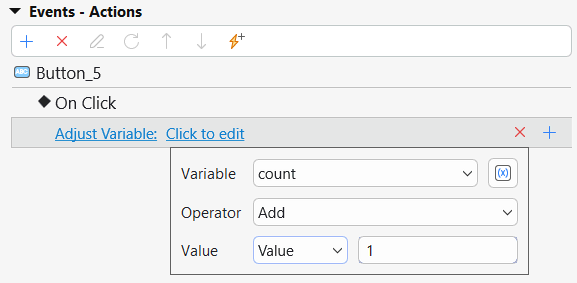
Perform the following:
Step 1: Click the Variable combo box to choose a variable. Alternatively, click the Add Variable button to create a new variable.
Step 2: Click the Operator combo box to choose an operator.
- True/false: assignment, toggle.
- Text: assignment.
- Number: assignment, add, subtract, multiply, divide.
Step 3: Specify the value by which the operation is to be done. It can be a specific value (you yourself specify it) or a value stored by another variable.
Then, the Adjust Variable action that counts the number of times users click on the button will look something like this:
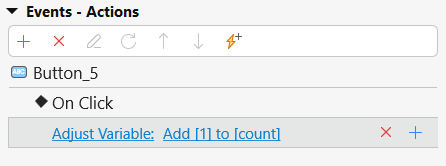
Use Variables as Conditions for Actions
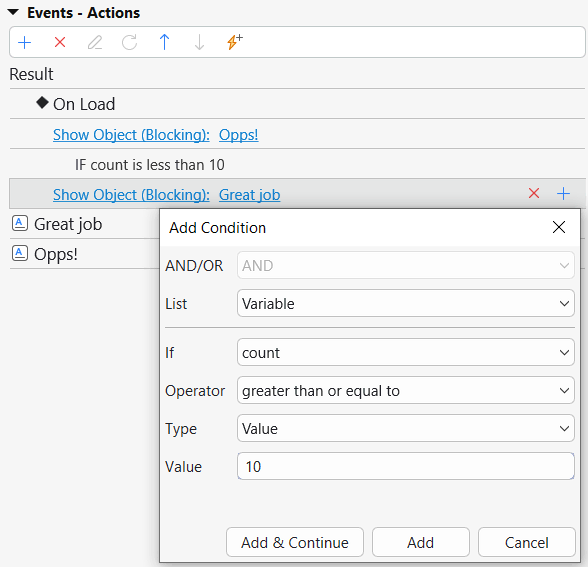
Variables are a good way to make conditional actions. For example, a number variable can help you set up conditional result messages depending on the player’s points in your eLearning game. On the On Load event of the result slide, the corresponding messages will be shown.
Reference Variables
References are used to retieve and display the data stored in variables. they are especially helpful for verifying whether a variable is functioning correctly.
For example, you use a variable to het the learner’s name, then use the name throughout the course to personalize your training. On the welcome slide, just ask learners to type their names in a field (text box) and store the input in a variable. Then, add references to that variable to display the name in multiple slides in your course.
You can insert references into any text-based object, such as text captions or shapes. To add a reference, follow these steps:
Step 1: Open the inline text editor: Click the text area of the object where you want to insert the reference
Step 2: Open the Variables dialog: Go to the Home tab and click Variables
Step 3: Select a variable: Choose either a system or user variable from the list
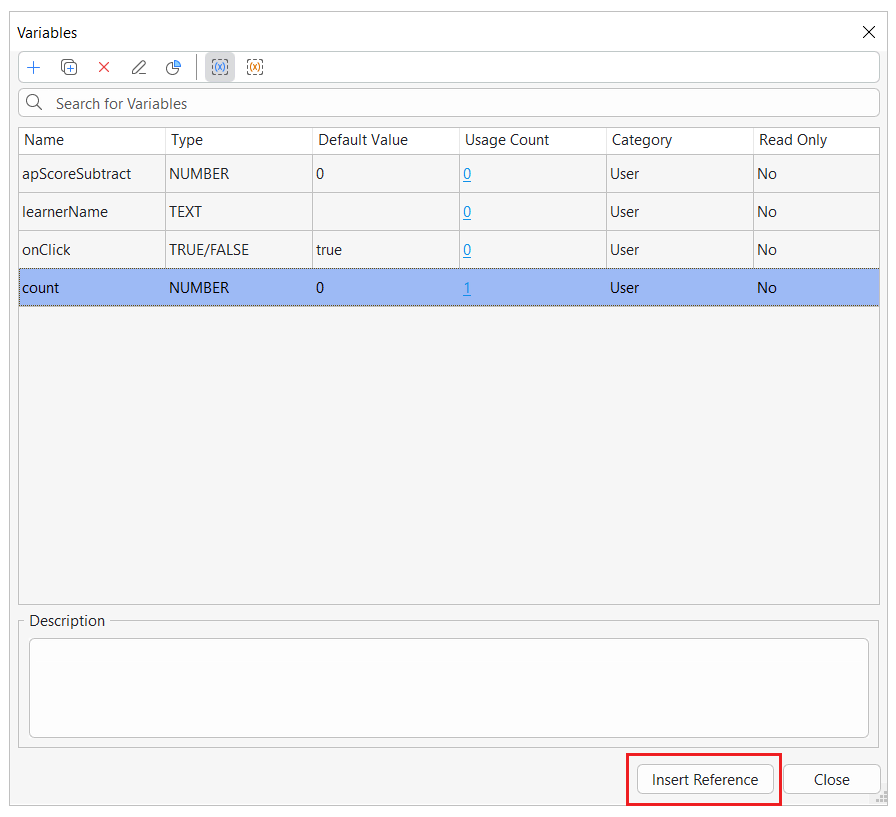
Step 4: Insert the reference: Click Insert Reference. A placeholer with the variable name enclosed in percent signs (eg., %leanerName%) will appear in the text.
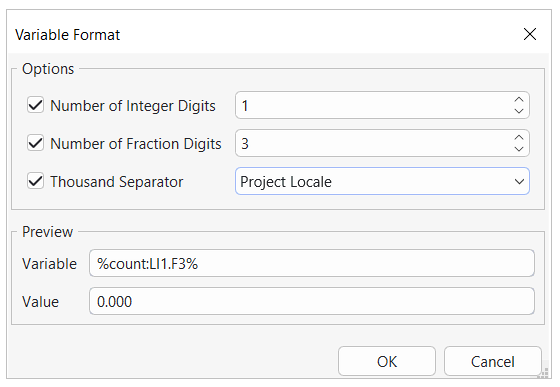
When you preview or publish the project to HTML5, ActivePresenter will automatically replace the variable reference with the actual value stored in that variables. You can also adjust the formatting of the reference like any other text.
Note: If you already know the variable name, you can manually type it between two percent signs (eg., %Score%) to insert the reference directly