by Van Anh Nguyen | Feb 7, 2018 | ActivePresenter 7
Besides themes, ActivePresenter now supports slide templates (also templates). This is a very useful feature as it lets you make use of ready-made slide layouts and contents. In addition, you can even share slides with others in a matter of clicks. Basically, a slide...
by Van Anh Nguyen | Feb 7, 2018 | ActivePresenter 7
In the past, to show different views of the same object, you needed to insert multiple objects and used the “hide and show” technique. But from ActivePresenter 7, you no longer have to do that. Now the app offers you a very useful and practical feature: Object States....
by My Hanh Dam | Feb 6, 2018 | ActivePresenter 7
Quizzes are critical elements of a test. They allow you to test performances of learners, collect information and opinions of viewers, and so much more. Besides, quizzes come in handy when you need to create surveys. With ActivePresenter 7, you are free to create...
by Van Anh Nguyen | Feb 6, 2018 | ActivePresenter 7
Using background music is a good way to create engaging video demos and software simulations. Besides recorded videos, ActivePresenter also allows you to add audio to any imported video or presentation. In case your project has many slides, you can make background...
by Trang | Feb 5, 2018 | ActivePresenter 7
In the previous tutorial, you’ve learned how to add YouTube videos to your project. Today’s tutorial will show you how to add web objects to leverage web-based resources. Inserting Web Objects Web objects allow you to embed a website directly within an ActivePresenter...
by My Hanh Dam | Feb 5, 2018 | ActivePresenter 7
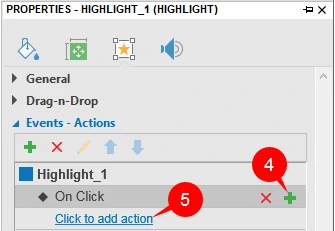
Introducing Events – Actions In ActivePresenter 7, events and actions come with objects and slides. For any kind of objects in ActivePresenter, you can add an event (for example, “when the mouse rolls over this shape”), then add an action in response to that event...
