
A Fill in Blanks quiz is widely used to test learners’ knowledge while reducing their guessing rate. So, in today’s article, let’s learn how to create a Fill in Blank quiz using the Fill in Blank questions in ActivePresenter 10 – a tool to create interactive quizzes.
ActivePresenter 10.6 provides three modes for Fill in Blanks questions:
- Text Entry Blank: Learners type an answer into each blank.
- Dropdown Blank: Learners select an answer from a list.
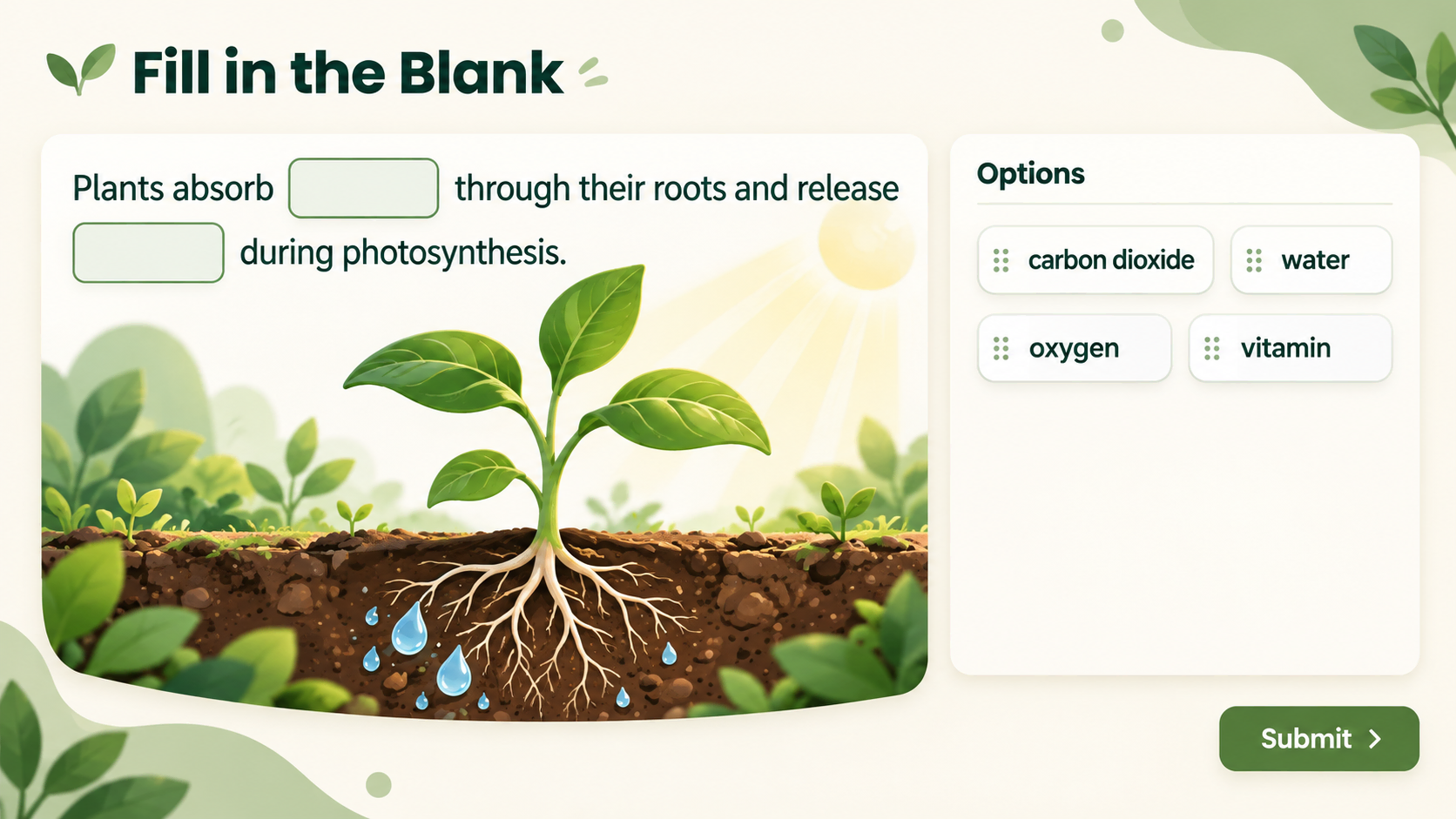
- Drag-Drop Blank: Learners drag a supplied word or item into a blank.
These options make Fill in Blanks a useful part of interactive quiz creation for classroom lessons, employee training, and knowledge checks.
In this tutorial, let’s learn how to:
- Insert a Fill in Blanks question.
- Customize its appearance and work with blanks.
- Preview and check the question.

1. Insert a Fill in Blanks Question
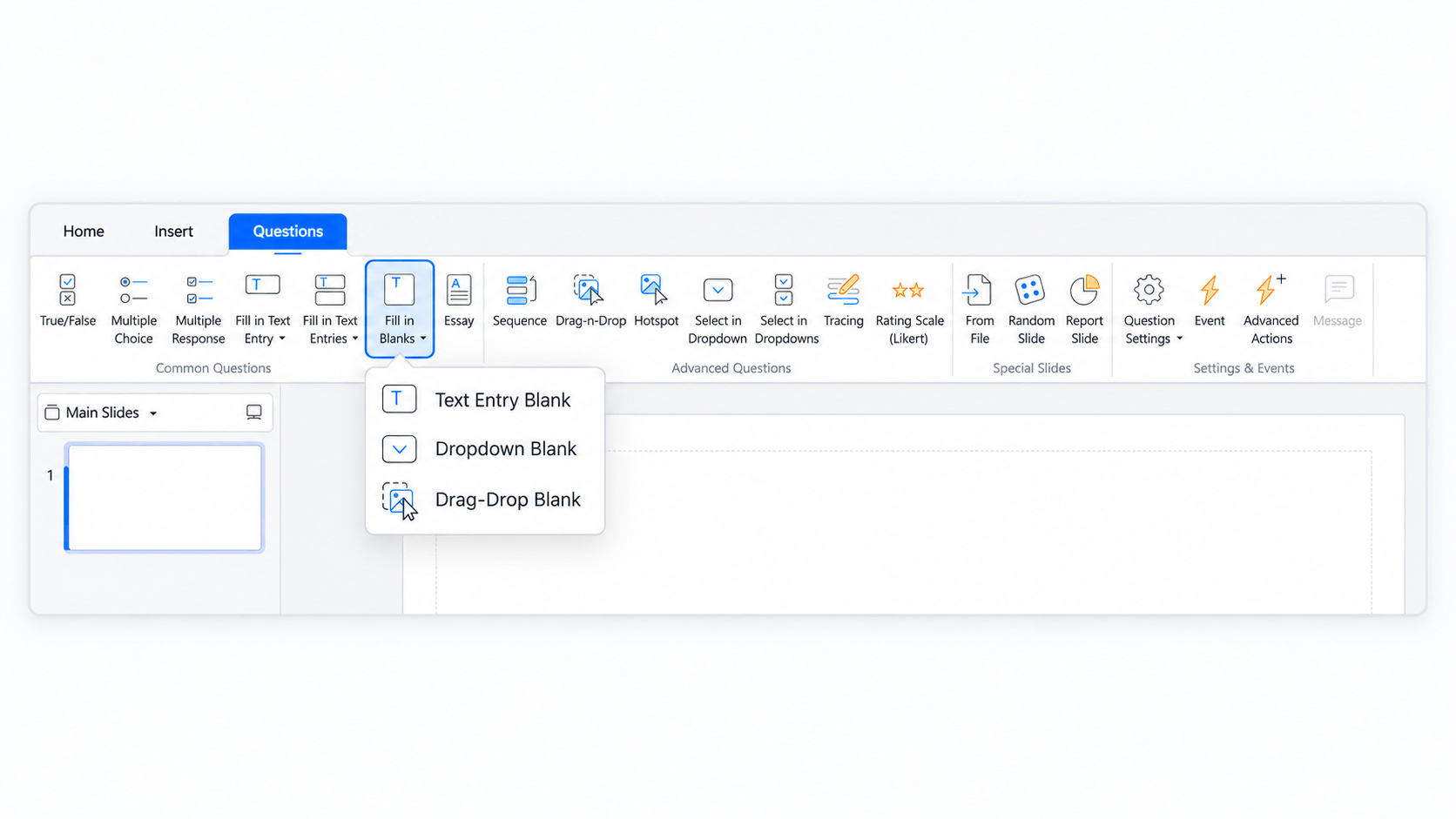
To insert a Fill in Blanks question, do either of the following:
- Open the Questions tab > Fill in Blanks.
- Open the Home tab > Interactions > Fill in Blanks.
Then, choose Text Entry Blank, Dropdown Blank, or Drag-Drop Blank.
The question appears on the Canvas. Enter your instructions in the question title and add the sentence or paragraph learners need to complete in the answer area.
Note: The selected mode applies to all blanks in the question. For example, choosing Dropdown Blank creates a question where every blank uses a dropdown list. However, a graded Text Entry Blank question can contain both text and numeric blanks.
2. Customize a Fill in Blanks Question
After inserting the question, you can change its appearance, add blanks, and configure the answers.
Change the Appearance
Start by editing the question title and formatting the text to match your lesson. You can also adjust the question layout and slide background.
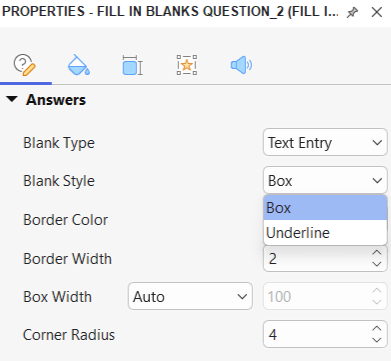
To customize the blanks themselves, select a blank and open Properties > Question > Answers.
Below Blank Type, find Blank Style and choose:
- Box: Displays the blank as a box. This is the default style.
- Underline: Displays the blank with an underline.
Then, adjust Border Color, Border Width, Box Width, and Corner Radius as applicable.
For Drag-Drop blanks, Layout, Options Size, and Drag Preview Opacity appear between Blank Type and Blank Style.
Tip: To reuse your customized question in the current project, right-click the answer area and select Set as Default Fill in Blanks Question. Alternatively, customize View > Object Settings > Questions > Fill in Blanks Question before inserting more questions.
Work with the Blanks
Enter your sentence or paragraph in the answer area, then use the following options to create and edit blanks.
Insert a new blank
- Click where you want to insert the blank.
- Open Blank Tools on the Quick Edit toolbar.
- Select New Blank.
If Quick Edit is hidden, click the blue plus button and select New Blank.
For a Text Entry Blank, you can type the first correct text directly into the new blank. Afterward, select the blank and review its answers in Properties > Question > Answers.
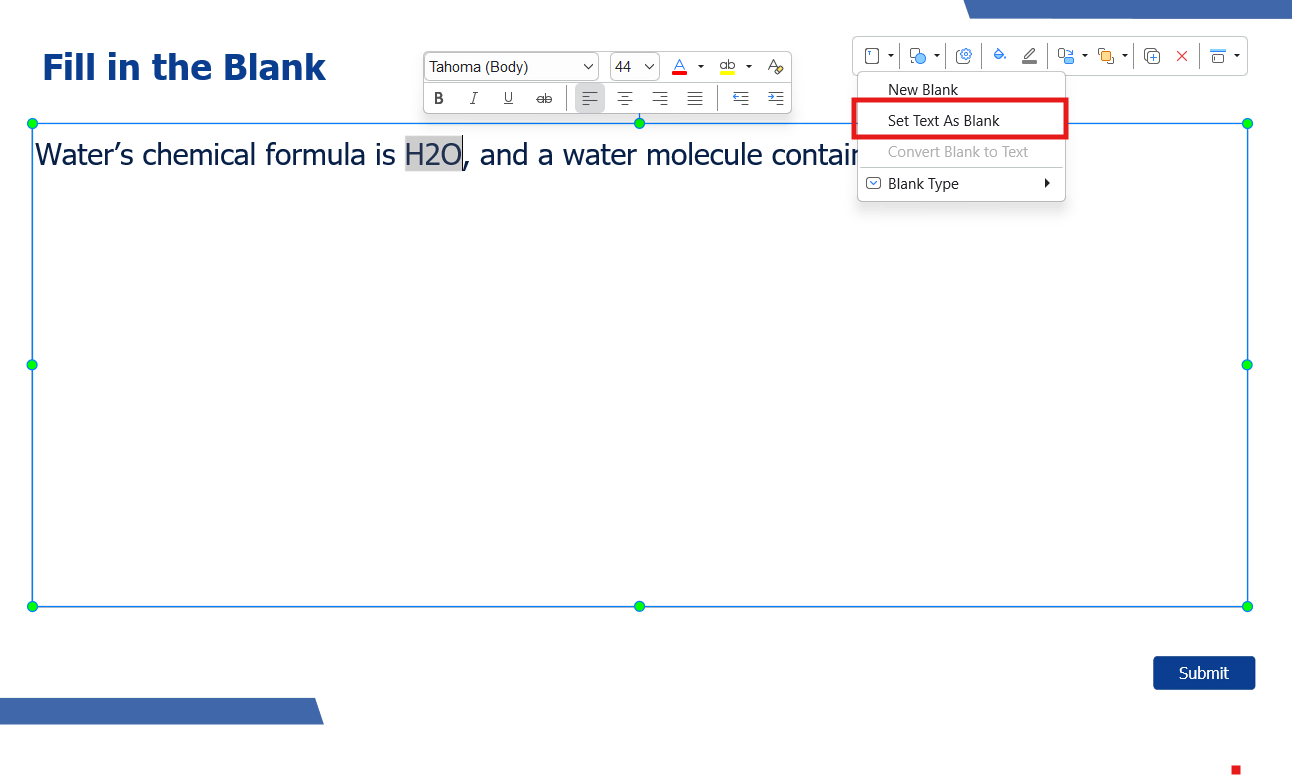
Set text as a blank
You can also turn existing text into a blank:
- Select a word, phrase, or sentence in the answer area.
- Open Blank Tools > Set Text As Blank.
Alternatively, right-click the selected text and choose Set Text As Blank. If Quick Edit is hidden, use the blue plus button.
The selected text automatically becomes the correct answer for that blank.
Change the blank type
To change the interaction mode of an existing question:
- Select a blank.
- Open Blank Tools > Blank Type.
- Choose Text Entry, Dropdown, or Drag-Drop.
If Quick Edit is hidden, click the blue plus button and choose Change Blank Type.
ActivePresenter converts the question’s blanks and retains compatible text and answer data. Review every blank after conversion, especially dropdown choices and drag-item assignments.
Convert a blank back to text
Select the blank and choose Convert Blank to Text to restore it as ordinary paragraph text.
Delete a blank
Select the blank and press DELETE. Alternatively, right-click it and select Delete.
Set Correct Answers
To configure answers, click directly inside the intended blank and open Properties > Question > Answers.
The Properties pane shows the settings for that blank. Editing one blank does not automatically change the others unless you select an explicit Apply to all blanks option.
Text Entry Blank
In a graded Text Entry Blank question, each blank can accept text answers or use one numeric rule.
Set text answers
- Select the blank.
- Set Answer Type to Text.
- Use the correct-value list to add one or more accepted answers.
- Choose whether matching is case-sensitive.
Multiple accepted values are alternatives for the same blank. For example, you might accept both “USA” and “United States” if either response is suitable for your question.
When case-sensitive matching is enabled, uppercase and lowercase characters are treated differently.
Set numeric answers
- Select the blank.
- Set Answer Type to Numeric.
- Choose a Numeric Answer Type.
- Enter the required value or range.
The available numeric rules include:
| Numeric Answer Type | Accepted response |
| Exact Value | A specific number |
| Value Range | A number within a defined range |
| Greater Than | A number greater than the specified value |
| Less Than | A number less than the specified value |
Each blank stores its answer type independently. For example:
Water’s chemical formula is ______, and a water molecule contains ______ atoms.
The first blank can accept the text “H2O,” while the second uses Numeric > Exact Value with a value of 3.
Note: Answer Type and numeric rule controls are available only for graded Text Entry Blank questions. They do not appear for Survey questions or Dropdown and Drag-Drop modes.
Dropdown Blank
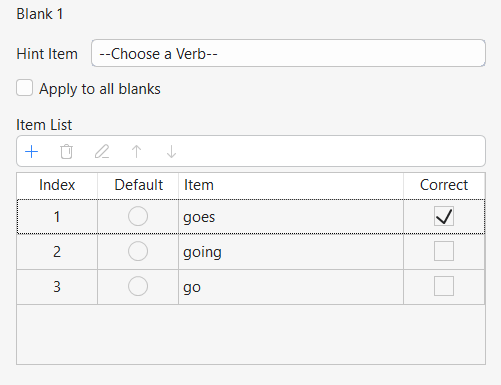
For a Dropdown Blank, edit the item list and mark one or more items as correct.
For example:
She ______ to work every morning.
Add “go,” “goes,” and “going,” then mark “goes” as correct.
You can also configure:
- Default Item: Select exactly one item when you want an answer preselected. The default setting is independent of whether the item is correct.
- Hint Item: Enter a non-answer prompt, such as “Choose a verb,” to display before the learner chooses.
Select Apply to all blanks only when you want every dropdown to use the same hint.
Drag-Drop Blank
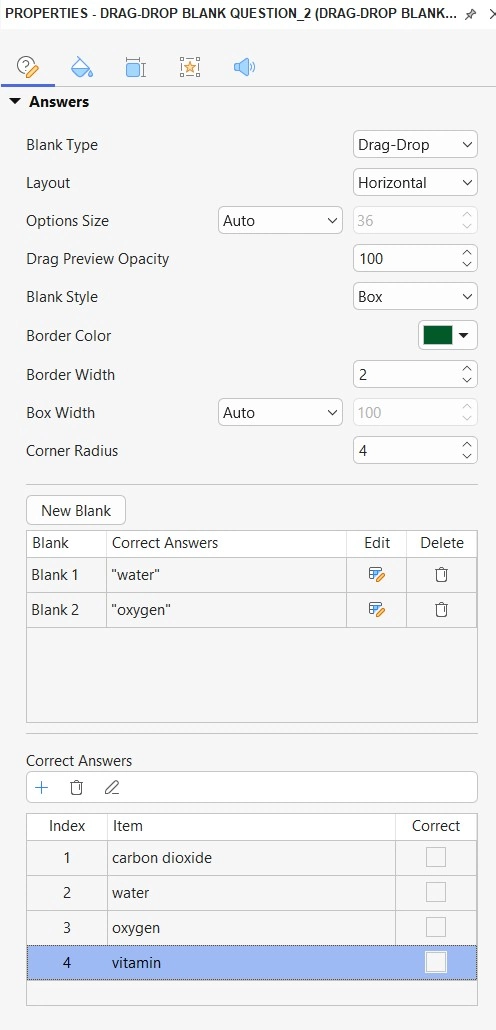
For a Drag-Drop Blank, define the correct item or items and add optional incorrect items as distractors.
For example:
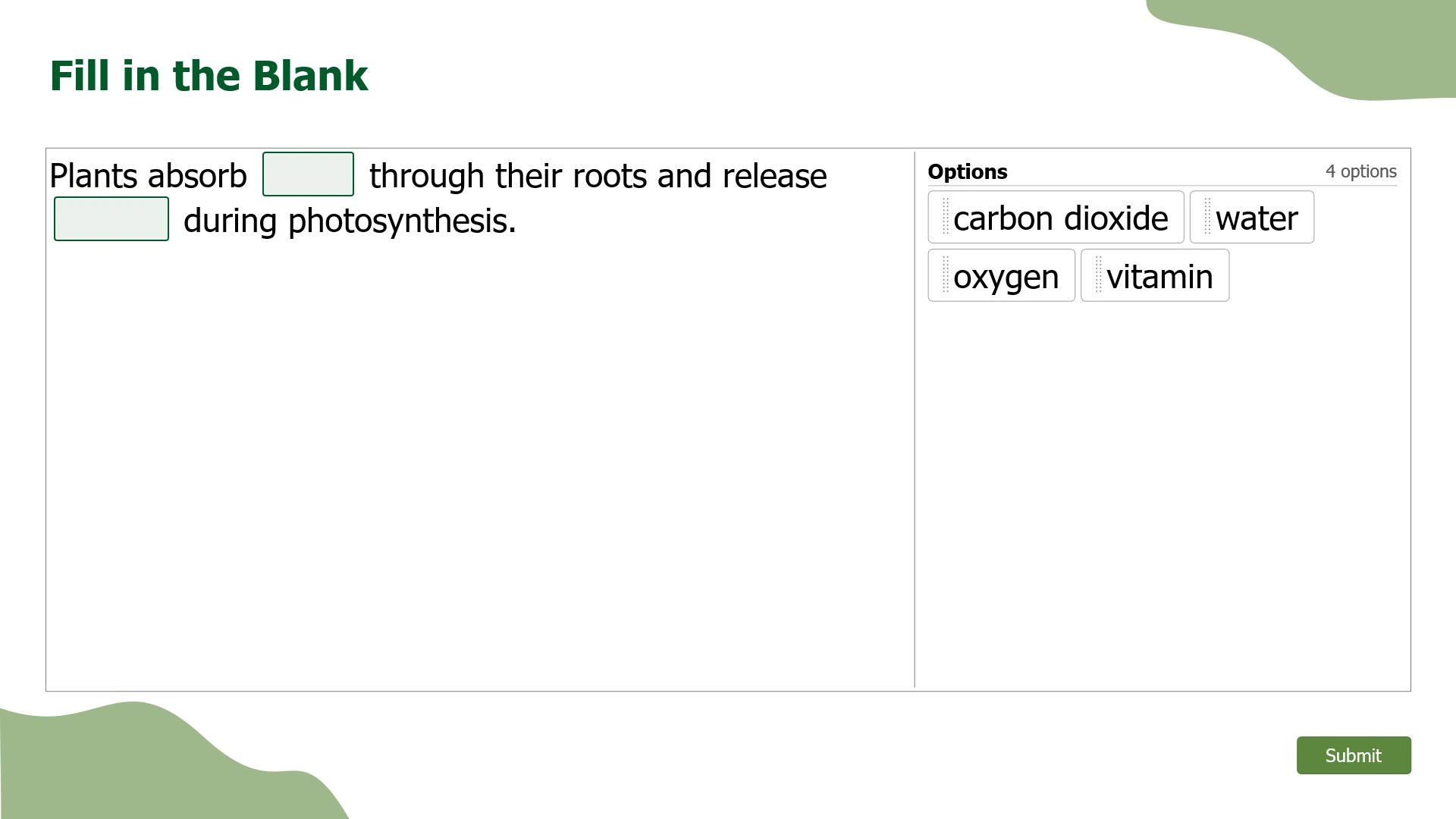
Plants absorb ______ through their roots and release ______ during photosynthesis.
Use “water” and “oxygen” as the intended answers, then add suitable distractors.
In Properties > Question > Answers, you can adjust:
- Layout: Arrange the offered items vertically or horizontally.
- Options Size: Choose Auto or Custom. Custom size ranges from 15–75% of the answer area.
- Drag Preview Opacity: Set the preview opacity from 0–100% while an item is dragged.
In Score & Reporting, select Shuffle to randomize the offered drag items.
Set Score and Reporting
To configure the question mode and question-level settings, open Properties > Interactivity > Score & Reporting.
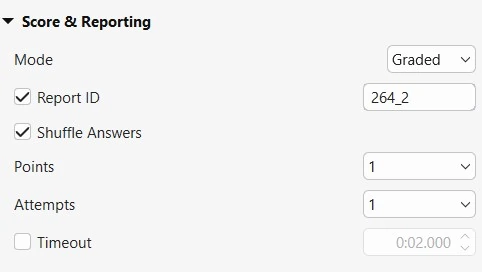
Choose Graded to assess responses or Survey to collect information without grading.
For individual blank reporting and partial scoring:
- Select a blank.
- Open Properties > Question > Score & Reporting.
- Find the Selected Blank section.
- Configure its Report ID and, when partial scoring is enabled, its points where available.
Each blank must have a unique Report ID containing no more than 250 characters. Only letters, numbers, and underscores are allowed.
Note: Dropdown item rows can store their own partial-score points. ActivePresenter does not show a second blank-level point editor for the same scoring data.
Add Events and Actions
To customize question behavior, select the answer area and open Properties > Interactivity > Events – Actions.
Review the question’s events and their associated actions, then adjust them to suit your activity.
Customize Feedback Layers
Feedback layers provide messages after learners submit their responses. Review the feedback used by your question and edit it to explain the result or guide the next attempt.
Open View > Feedback Master to customize feedback layouts. Keep messages clear and helpful—for example, explain the relevant grammar rule instead of showing only an incorrect-answer message.
3. Preview the Fill in Blanks Quiz
Before publishing, preview the question and test:
- Every accepted text answer and case-sensitive setting.
- Numeric values and comparison boundaries.
- Dropdown correct items, defaults, and hints.
- Drag items, distractors, and their intended targets.
- Scoring, reset behavior, and review states.
If you need per-blank reporting or partial scores, also inspect the SCORM or xAPI results in your intended delivery environment.
Troubleshooting tips:
- The wrong blank’s settings appear: Click directly inside the intended blank.
- Answer Type is missing: Confirm that a blank is selected in a graded Text Entry Blank question.
- A numeric answer is rejected: Check the comparison rule, range order, decimal separator, and extra text in the response.
- Choices change unexpectedly after conversion: Undo the conversion, record the original answers, convert again, and rebuild the mode-specific settings.
Conclusion
You can now create a Fill in Blanks quiz with text entry, dropdown, or drag-drop answers in ActivePresenter 10. Customize each blank’s answers and appearance, then preview the question to check its behavior.