
ActivePresenter eLearning authoring software allows you to customize the language of the HTML5 player to reach viewers in other languages. Let’s explore the details in this tutorial.
With this feature, the app automatically translates the objects of the player (e.g. elements, tooltips of the command button on the Toolbar) or the messages to other languages. If the language that you select has not been supported yet, no worries because you can modify the text, making any output language possible.
This tutorial covers:
Change the Language of the Current Project
The project language is the language of the project that you are opening. To change it, click the FILE button > Project > Properties.
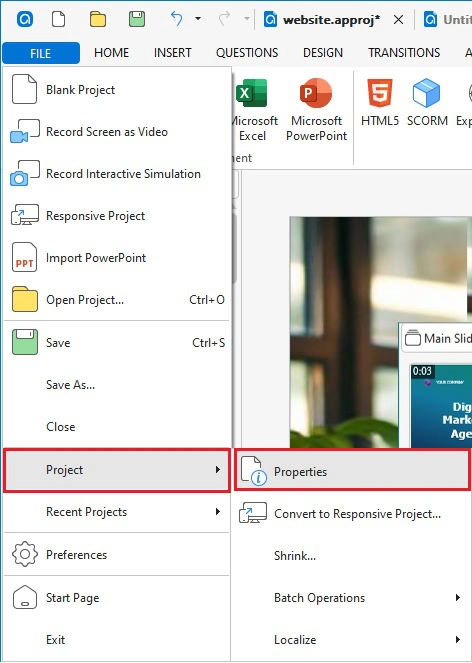
Then, navigate to the Properties pane > Project Properties > General > click the Language dropdown arrow > select the desired language.
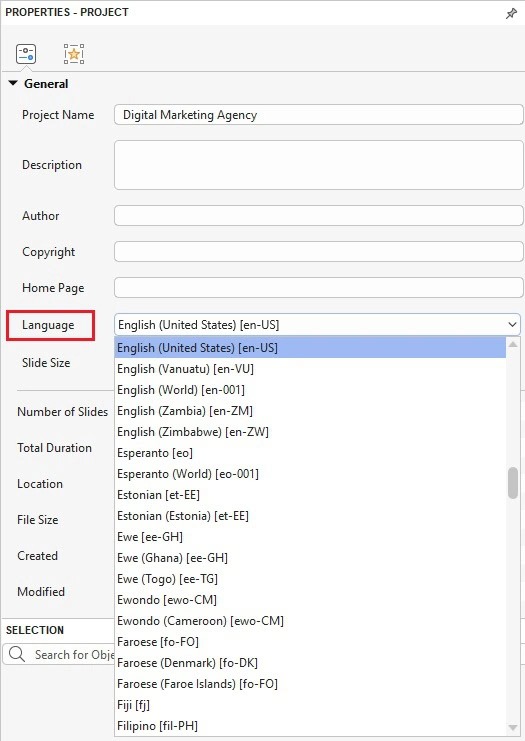
Then, click a slide in the Slide pane to go back to the editing mode. By doing so, the player language is changed to the new language.
On the other hand, if your selected language has not been supported yet, you can translate the text manually. See the next part to know how.
Note:
The default project language is English (US). In case you want to change the default language to another, click the File button > Preferences > General > Project > Project Language > select a new language from the drop-down list > Apply > OK.
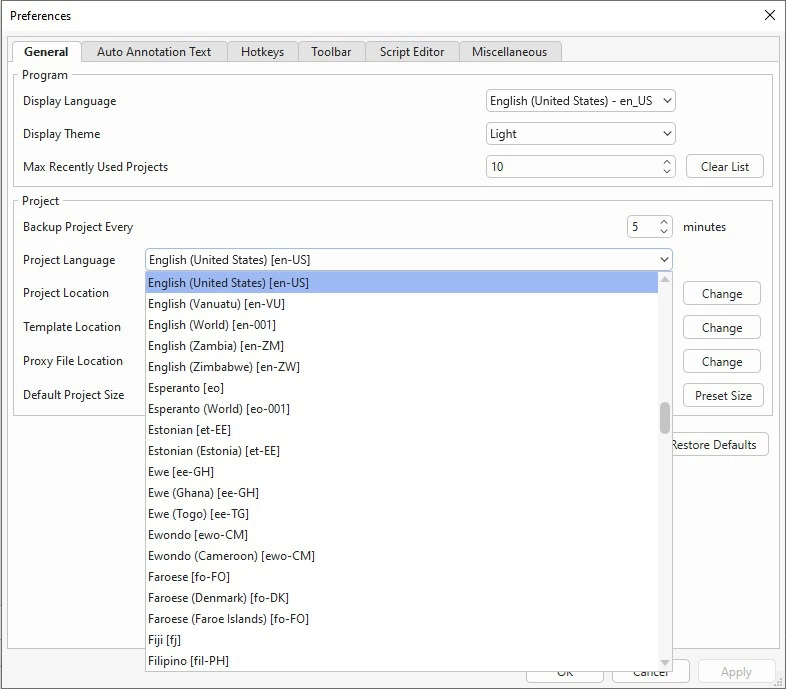
By doing that, the new language will be applied to newly opened projects.
Customize the Language of the HTML5 Player
For languages not supported, for example, Dutch, you can edit text directly in the Player Settings. To do that, access the Export tab > Player Settings.

In the Player Settings window that pops up, click Player Language. The editor shows four main properties:
- Project language: Display the language of the current project.
- Name: Display the text of the user interface in the default language. You cannot modify the text in this column.
- Value: Display the text in the project language that you’ve just selected above. In case ActivePresenter 10 has not supported this language yet, you can modify it here by double-clicking each row and typing in it.
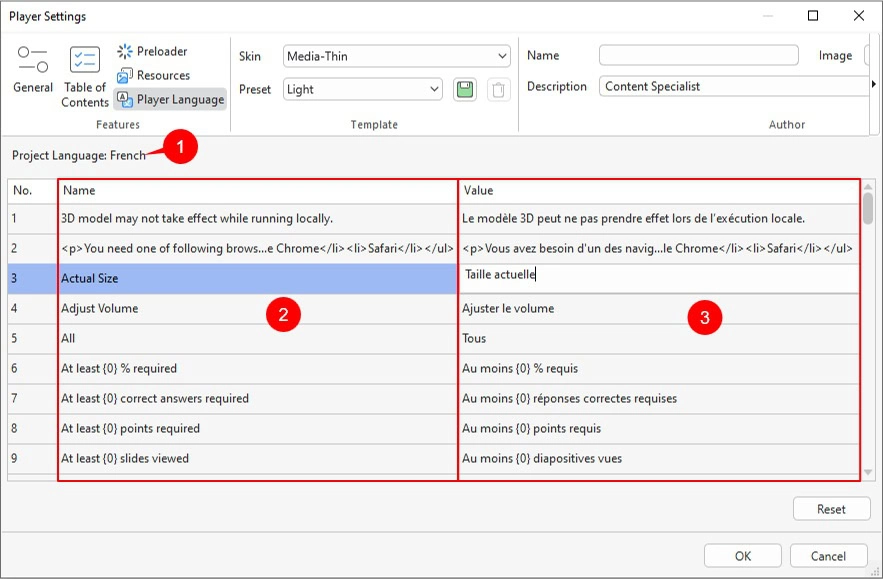
- Reset: Restore the original text.
After completing, click OK to save the modification. As a result, the language of the HTML5 player has changed to French.
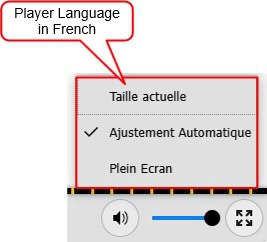
Now you can easily customize the language of the HTML5 player in ActivePresenter 10. Much handy information is available on our YouTube channel and Tutorial page. So, don’t miss them!

See also:
Output Formats Overview
Preview HTML5 Output
Customize HTML5 Player Settings
Optimize eLearning Projects
Export To HTML5
Do Project Localization