
By a content professional with 10+ years in eLearning production — no fluff, no affiliate bias, just tools that actually work.
I’ll be direct with you: the tutorial video maker software you choose in 2026 matters more than your microphone, your lighting setup, or even your on-screen charisma.
Over the past decade, I’ve produced hundreds of tutorial videos — software walkthroughs for different teams, IT onboarding modules, compliance training for dozens of organizations, product demos for SaaS companies. And the single biggest factor that determined whether a project took two days or two weeks? The tool.
The wrong software forces you to re-record entire sessions because you misclicked. The right one lets you edit that click like a typo in a Word document.
This guide is the shortlist I wish someone had handed me when I started. Seven tools, evaluated honestly, with a clear recommendation at the end.
Before diving into the details of the post, if you want to save your time and effort, download and try our winning star, ActivePresenter – the best software for making tutorial videos and online courses. It’s free to try without any limitations.

Table of contents
- Why Your Tutorial Video Maker Software Defines Your Output Quality
- Evaluation Criteria: How I Ranked These 7 Tools
- The 7 Best Tutorial Video Maker Software in 2026
- 1. ActivePresenter — Best All-in-One Tutorial Video Maker for Professionals
- 2. Camtasia — Best for Polished Standalone Video Tutorials
- 3. OBS Studio + Kdenlive (Open-Source Combo) — Best Free Option for Budget-Conscious Creators
- 4. Loom — Best for Quick, Informal Tutorial Sharing
- 5. ScreenPal (formerly Screencast-O-Matic) — Best for Educators on a Budget
- 6. Synthesia — Best for AI-Generated Talking-Head Tutorials
- 7. iSpring Suite — Best for PowerPoint-Centric Tutorial Workflows
- Head-to-Head Comparison Table
- Which Tutorial Video Maker Software Should You Choose?
- Final Verdict: The One Tool Worth Starting With
- Frequently Asked Questions
- What is the best free tutorial video maker software in 2026?
- Can I create interactive tutorials with quizzes and simulations?
- Do I need separate software for recording and editing?
- What’s the difference between a tutorial video maker and an eLearning authoring tool?
- Is ActivePresenter really free, or is there a catch?
Why Your Tutorial Video Maker Software Defines Your Output Quality
Before we dive into the list, let’s address a misconception I see constantly in eLearning forums: “Just use any screen recorder and edit in Premiere.”
That workflow might work for a YouTuber making one video a month. It falls apart completely when you need to:
- Fix a misclick in a 40-minute software walkthrough without re-recording
- Add interactive quizzes inside the video for LMS deployment
- Export to SCORM or xAPI for your organization’s learning management system
- Generate multiple output formats (MP4 for YouTube, HTML5 for your help center, SCORM for your LMS) from a single project
- Update content quarterly when the software UI changes
A dedicated tutorial video maker software handles all of this natively. A generic video editor does not.
Evaluation Criteria: How I Ranked These 7 Tools
To keep this comparison fair and practical, I evaluated every tool against six criteria that matter most in real-world tutorial production:
| Criteria | What I Measured |
| Recording Quality & Flexibility | Resolution support (up to 4K), webcam overlay, system + mic audio capture, region selection |
| Editing Power | Non-destructive editing, multi-track timeline, annotation tools, cursor path editing, zoom/pan effects |
| Interactivity & eLearning Features | Quizzes, branching scenarios, software simulations, variables/conditional logic, SCORM/xAPI export |
| AI & Automation | Text-to-speech, auto-captioning, smart content suggestions, batch processing |
| Learning Curve | Time from installation to first publishable tutorial for a competent but new user |
| Value for Price | Feature depth vs. cost, free tier generosity, subscription vs. perpetual licensing |
Each tool gets a rating across these dimensions. No tool is perfect — the goal is to find the best fit for your workflow.
The 7 Best Tutorial Video Maker Software in 2026
1. ActivePresenter — Best All-in-One Tutorial Video Maker for Professionals
If I could only install one tool for the rest of my career, this would be it.
ActivePresenter is a desktop-based platform by Atomi Systems that combines high-fidelity screen recording, professional video editing, and advanced eLearning authoring in a single application. It’s not a screen recorder with a few editing features bolted on — it’s a genuine authoring environment that happens to include one of the best screen recorders on the market.

What Makes ActivePresenter Different
Smart Screen Recording That Captures Data, Not Just Pixels
Here’s the feature that changed my workflow permanently: when you record a software walkthrough in ActivePresenter, it doesn’t just capture a video stream. It records every mouse click, keystroke, and UI interaction as individual, editable objects on a slide-based timeline.
The practical impact is enormous. Misclicked during a 30-minute recording? You don’t re-record. You select the click object, move it to the correct position, update the annotation text, and continue. I estimate this single capability has saved me 200+ hours over the past three years.
- Records up to 4K with lossless quality settings
- Webcam overlay with shape masking (circular crop, custom shapes)
- Simultaneous system audio and microphone capture
- Auto-generates step-by-step slide sequences from a single recording session
Non-Destructive Video Editing Timeline
The editing environment operates like a professional video editor — multi-track timeline, object-level animation controls, zoom/pan effects, cursor path editing, and audio waveform manipulation. Unlike tools that flatten your recording into a single video file, ActivePresenter keeps every element separate and adjustable at any point.
Advanced Interactivity Without Writing Code
This is where ActivePresenter separates itself from every other tutorial video maker on this list. Using its Events-Actions system, you can build:
- Click-based software simulations where learners practice inside a replicated UI
- Branching scenarios with conditional logic
- Scored assessments with randomized question pools
- Drag-and-drop interactions
- Variable-driven content that adapts based on learner behavior
All exportable to SCORM 1.2, SCORM 2004, and xAPI — no plugins, no add-ons, no extra cost.
3 Real-World Scenarios Where ActivePresenter Excels
Scenario 1: Banking Software Simulation Training
A regional bank’s L&D team records their internal CRM workflow once in “Demonstration” mode, then converts it into “Practice” and “Test” modes automatically. New hires practice inside a simulated UI — clicking actual buttons, entering data — before touching the live system. One recording session produces three distinct training experiences.
Scenario 2: IT Onboarding Video Series
An IT department creates a 12-part series walking new employees through security protocols, VPN setup, and internal tool configuration. Each tutorial includes interactive checkpoints where learners must perform the correct action before proceeding. Exported as SCORM packages and deployed to the company LMS with full completion tracking.
Scenario 3: Product Demo Videos for Marketing
A SaaS product team records feature walkthroughs with cursor highlights and callout annotations. The same project exports as an MP4 for YouTube (with intro/outro branding), an HTML5 package for the help center, and a GIF for social media — all from one source file.
Pro Tips (From Years of Heavy Use)
💡 Pro Tip #1: Use the “Reduce File Size” export option under HTML5 settings to compress embedded media. For a standard 20-minute course, this can cut output size by 40–60% without visible quality loss.
💡 Pro Tip #2: When recording software simulations, always record in “Demonstration” mode first, then convert to “Practice” and “Test” modes. You get three interaction types from one recording session — a massive time saver.
💡 Pro Tip #3: Map your keyboard shortcut for “Snap to Grid” (under View settings) before any complex layout work. When you’re aligning callout boxes across 50+ slides, this alone saves significant frustration.
Pros & Cons
| ✅ Pros | ⚠️ Cons |
| Extremely generous free tier (no watermark on video exports) | Desktop-only; no browser-based editing |
| Smart recording captures editable interaction data | Steeper learning curve for advanced Events-Actions features |
| Full SCORM/xAPI support without add-ons | UI can feel dense for absolute beginners |
| Non-destructive editing on all recorded elements | Collaboration features are limited vs. cloud-based tools |
| No subscription required for core features |
Best For: Instructional designers, L&D teams, IT trainers, and anyone producing simulation-based training or SCORM-ready tutorial courses at a professional level.
🔗 Download ActivePresenter Free — No watermark. No time limit. No credit card.
2. Camtasia — Best for Polished Standalone Video Tutorials
Camtasia by TechSmith has been the default recommendation in the “tutorial video maker” space for over a decade, and for good reason — it’s good at producing clean, polished standalone video tutorials. Like ActivePresenter, Camtasia offers high-end screen recording tools that you can use to capture video, audio, and webcam separately. In the editing workspace, you can easily edit your media at ease.

Key Strengths
- Drag-and-drop video editing with a gentle learning curve
- Extensive library of built-in assets (intros, lower thirds, motion backgrounds)
- Strong annotation and callout system
- Cursor effects and smoothing
- Built-in templates that speed up production for recurring content
Where It Falls Short
Camtasia is fundamentally a video editor with screen recording, not an eLearning authoring tool. It doesn’t support SCORM/xAPI export natively, has no software simulation mode, and lacks the conditional logic/branching capabilities needed for interactive training. If your tutorials are MP4-only content for YouTube or internal video libraries, Camtasia is excellent. If you need LMS deployment or interactive assessments, you’ll hit a wall.
Pricing: Subscription based model, starting at $179 per year.
Best For: Content creators, YouTubers, and marketing teams producing video-only tutorials that don’t require LMS integration.
3. OBS Studio + Kdenlive (Open-Source Combo) — Best Free Option for Budget-Conscious Creators
For creators operating on a zero-dollar budget who don’t need eLearning features, the combination of OBS Studio (recording) and Kdenlive (editing) provides a surprisingly capable workflow. This isn’t the ideal workflow, but it doesn’t cost anything.
Key Strengths
- Completely free and open-source
- OBS offers professional-grade recording with scene switching, audio mixing, and streaming capabilities
- Kdenlive provides multi-track editing, keyframe animation, and a wide range of effects
- Active community with extensive documentation
Where It Falls Short
This is a two-tool workflow, which means context-switching and file management overhead. Neither tool offers annotations designed for tutorials (cursor highlights, step numbering, click indicators). No interactivity, no SCORM export, no quiz functionality. You’re building raw video content only.
Pricing: Free.
Best For: Budget-conscious creators who are comfortable with a steeper technical learning curve and only need MP4 output.
4. Loom — Best for Quick, Informal Tutorial Sharing
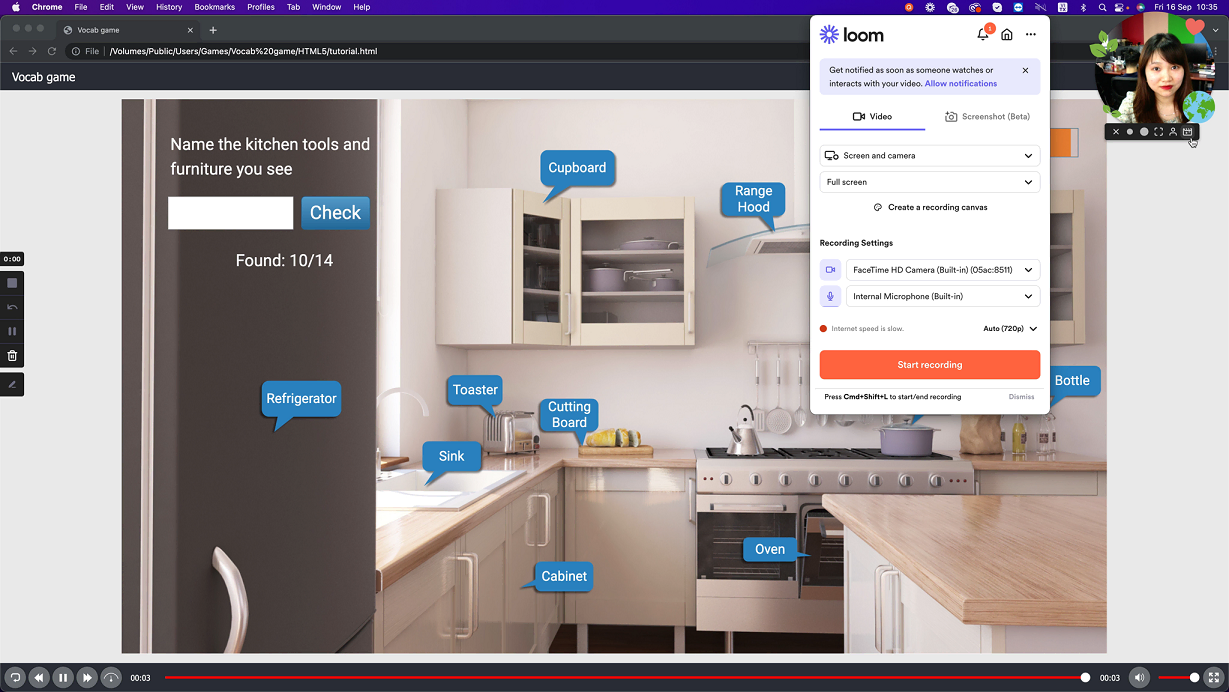
Loom has carved out a niche as the fastest path from “I need to explain this” to “Here’s a link.” It’s not a traditional tutorial video maker — it’s an asynchronous communication tool that happens to record your screen.
Key Strengths
- Record and share in under 60 seconds
- Browser-based — no installation required
- Built-in viewer analytics (who watched, how far)
- AI-generated summaries and chapters
- Excellent for internal team communication
Where It Falls Short
Loom’s editing capabilities are minimal — trimming, stitching, and basic annotations only. There’s no multi-track timeline, no cursor path editing, no zoom/pan effects, and no export to standard video files on the free plan. It’s designed for speed, not production quality.
Pricing: Free tier available (limited to 25 videos, 5 min each). Business plans start at $12.50/user/month.
Best For: Teams that need to share quick how-to explanations internally, not produce polished external-facing tutorials.
5. ScreenPal (formerly Screencast-O-Matic) — Best for Educators on a Budget
ScreenPal occupies the middle ground between Loom’s simplicity and Camtasia’s production power. It’s particularly popular in K-12 and higher education settings.

Key Strengths
- Intuitive interface with a very short learning curve
- Integrated screen recording and editing in one workflow
- Stock media library and automated captions
- Direct publishing to YouTube, Google Drive, and LMS platforms
- Affordable pricing
Where It Falls Short
Editing capabilities are functional but limited compared to ActivePresenter or Camtasia. No software simulation mode, limited interactivity options, and SCORM support requires the higher-tier plan. The free version adds a watermark.
Pricing: Free tier (with watermark). Paid plans from $3/month (Deluxe) to $6/month (Premier).
Best For: Educators and solo trainers who need a simple, affordable tool for producing decent tutorial videos without a steep learning curve.
6. Synthesia — Best for AI-Generated Talking-Head Tutorials
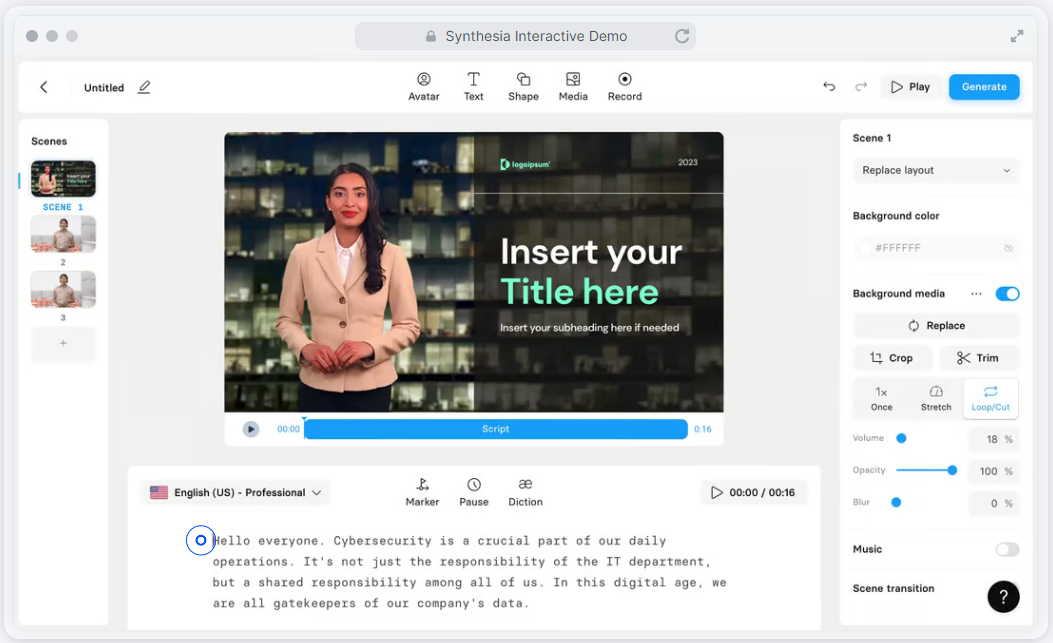
Synthesia represents a fundamentally different approach: instead of recording yourself, you type a script and an AI avatar delivers it on camera. For organizations that need to produce high volumes of standardized tutorial content across multiple languages, it’s genuinely transformative.
Key Strengths
- 150+ AI avatars with natural lip-sync and gestures
- 120+ language support with automatic translation
- No camera, microphone, or recording environment needed
- Template-based workflow for rapid production
- Brand kit customization
Where It Falls Short
Synthesia produces presenter-style videos, not screen recordings. If your tutorial requires showing actual software interaction, cursor movements, or live demonstrations, Synthesia can’t help. It also lacks any interactivity or eLearning authoring features. And the AI avatars, while impressive, still trigger the “uncanny valley” response for some viewers.
Pricing: Starts at $22/month (Starter). Enterprise plans available.
Best For: Corporate L&D teams producing standardized informational or process overview videos at scale, particularly for multilingual audiences.
7. iSpring Suite — Best for PowerPoint-Centric Tutorial Workflows
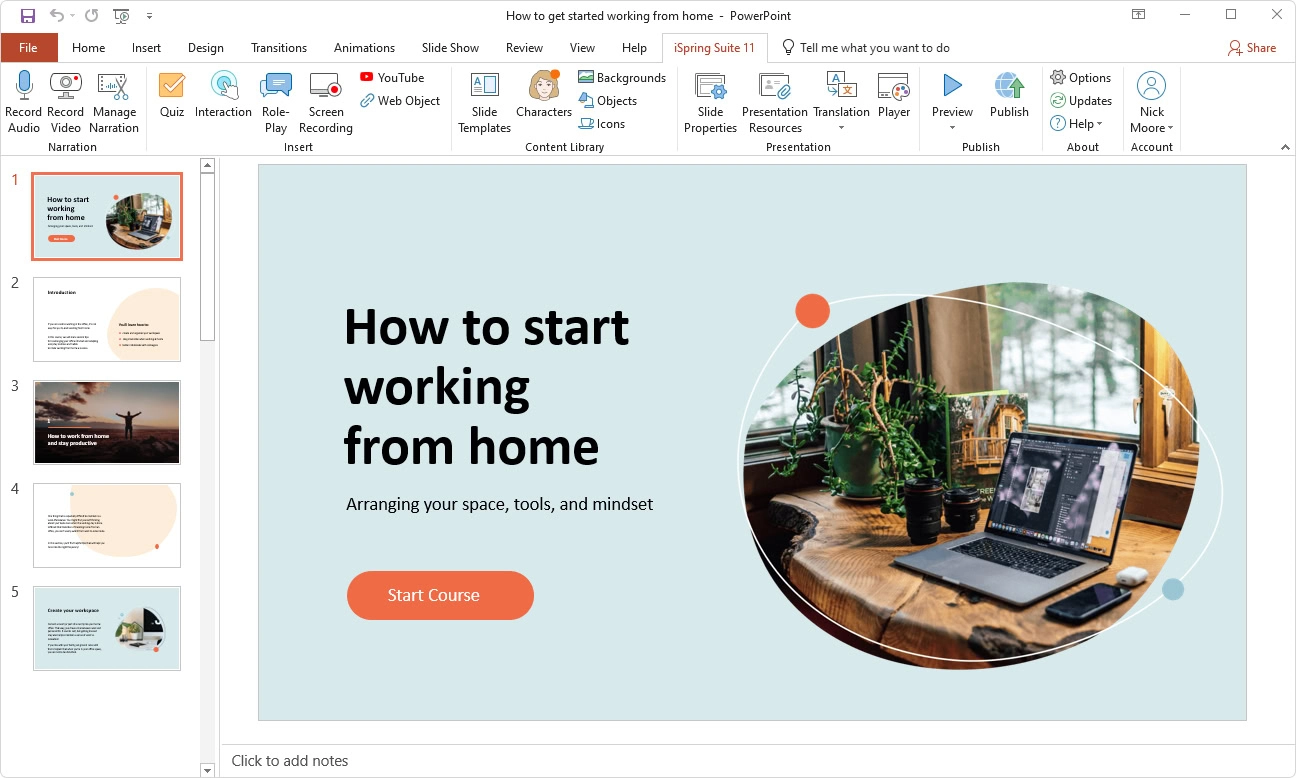
If your organization lives inside Microsoft PowerPoint and your tutorials are primarily slide-based with occasional screen recordings, iSpring Suite integrates directly into the PowerPoint ribbon.
Key Strengths
- Seamless PowerPoint integration — build courses without leaving a familiar interface
- Strong quiz and assessment builder
- SCORM/xAPI compliant
- Built-in screen recorder (though basic compared to dedicated tools)
- Dialogue simulation feature for soft-skills training
Where It Falls Short
iSpring’s screen recording and video editing capabilities are significantly less powerful than ActivePresenter or Camtasia. The tool is fundamentally a PowerPoint enhancer, which means you inherit all of PowerPoint’s limitations for layout, animation, and responsive design. It’s also subscription-based and Windows-only.
Pricing: Starts at $770/year (iSpring Suite). $970/year for Suite Max with collaboration features.
Best For: L&D teams already invested in PowerPoint workflows who need to add interactivity and SCORM export without changing their authoring environment.
Head-to-Head Comparison Table
| Feature | ActivePresenter | Camtasia | OBS + Kdenlive | Loom | ScreenPal | Synthesia | iSpring Suite |
| Screen Recording | ★★★★★ | ★★★★☆ | ★★★★☆ | ★★★☆☆ | ★★★☆☆ | ✗ | ★★★☆☆ |
| Video Editing | ★★★★★ | ★★★★★ | ★★★★☆ | ★★☆☆☆ | ★★★☆☆ | ★★★☆☆ | ★★☆☆☆ |
| Interactivity/eLearning | ★★★★★ | ★★☆☆☆ | ✗ | ✗ | ★★☆☆☆ | ✗ | ★★★★☆ |
| SCORM/xAPI Export | ✅ Native | ✗ | ✗ | ✗ | Partial | ✗ | ✅ Native |
| AI Features | TTS, Captions | Captions | ✗ | Summaries | Captions | Full AI Video | TTS |
| Free Tier Quality | ★★★★★ | ✗ | ★★★★★ | ★★★☆☆ | ★★☆☆☆ | ✗ | ✗ |
| Learning Curve | Moderate | Easy | Steep | Very Easy | Easy | Easy | Easy (if you know PPT) |
| Price | Free / $249, one-time payment | ~$179/ yr | Free | $12.50+/mo | $3+/mo | $22+/mo | $770+/yr |
Which Tutorial Video Maker Software Should You Choose?
After testing all seven tools extensively, here’s my decision framework:
Choose ActivePresenter if:
- You need both video tutorials AND interactive eLearning content
- You want professional screen recording with editable interaction data
- You deploy to an LMS via SCORM or xAPI
- You want the most capable free tier in the market (no watermark, no time limit)
- You prefer a one-time purchase over recurring subscriptions
Choose Camtasia if:
- Your tutorials are video-only (MP4 for YouTube/internal hosting)
- You want the most polished drag-and-drop editing experience
- You don’t need LMS integration or interactivity
Choose OBS + Kdenlive if:
- Your budget is literally zero
- You’re technically comfortable and only need raw video output
Choose Loom if:
- You need to share quick internal explanations, not produce formal tutorials
Choose ScreenPal if:
- You’re an educator who needs “good enough” quality at the lowest possible cost
Choose Synthesia if:
- You need AI-generated presenter videos at scale, not screen-based tutorials
Choose iSpring Suite if:
- Your entire workflow is built around PowerPoint and you can’t change that
Final Verdict: The One Tool Worth Starting With
In my 10 years of producing eLearning content, I’ve watched tools come and go. The ones that survive are the ones that respect your time and don’t lock your content behind escalating subscription tiers.
ActivePresenter is the only tool on this list that delivers professional screen recording, non-destructive video editing, and full interactive eLearning authoring — with a free version that doesn’t cripple the experience with watermarks or time limits. That’s not a marketing claim; it’s a verifiable fact you can confirm by downloading it right now.
Whether you’re building your first tutorial or your five-hundredth, having a tool that can grow from “quick screen recording” to “full SCORM course with branching simulations” without switching platforms is an enormous strategic advantage.
Start with the free version. Build something real. You’ll understand why it’s my first recommendation.
🔗 Download ActivePresenter Free — No Watermark, No Time Limit, No Credit Card Required
Frequently Asked Questions
What is the best free tutorial video maker software in 2026?
ActivePresenter offers the most feature-rich free tier among tutorial video makers — including screen recording up to 4K, full video editing capabilities, and export to MP4 without watermarks or time restrictions. OBS Studio is also free but requires a separate editor and lacks eLearning features.
Can I create interactive tutorials with quizzes and simulations?
Yes, but only certain tools support this. ActivePresenter allows you to build click-based software simulations, scored quizzes, drag-and-drop interactions, and branching scenarios — all exportable to SCORM/xAPI for LMS deployment. Camtasia, Loom, and Synthesia do not offer these capabilities.
Do I need separate software for recording and editing?
Not necessarily. All-in-one tools like ActivePresenter and Camtasia combine recording and editing in a single interface. If you use OBS Studio for recording, you’ll need a separate editor like Kdenlive or DaVinci Resolve.
What’s the difference between a tutorial video maker and an eLearning authoring tool?
A tutorial video maker focuses on recording and editing video content. An eLearning authoring tool like ActivePresenter goes further — adding interactivity, assessments, learner tracking, and LMS-compatible export formats. If your tutorials need to be more than passive videos, you need an authoring tool.
Is ActivePresenter really free, or is there a catch?
The free version of ActivePresenter includes full recording and video editing features with no watermark on video exports. Advanced eLearning features (HTML5 interactive export, SCORM/xAPI packaging) require a paid license, which is a one-time purchase — not a subscription.
Have questions about choosing the right tutorial video maker for your specific workflow? Join the Atomi Systems community — our team and experienced users are always happy to help.